How to create a mockup from a photo
Quick answer
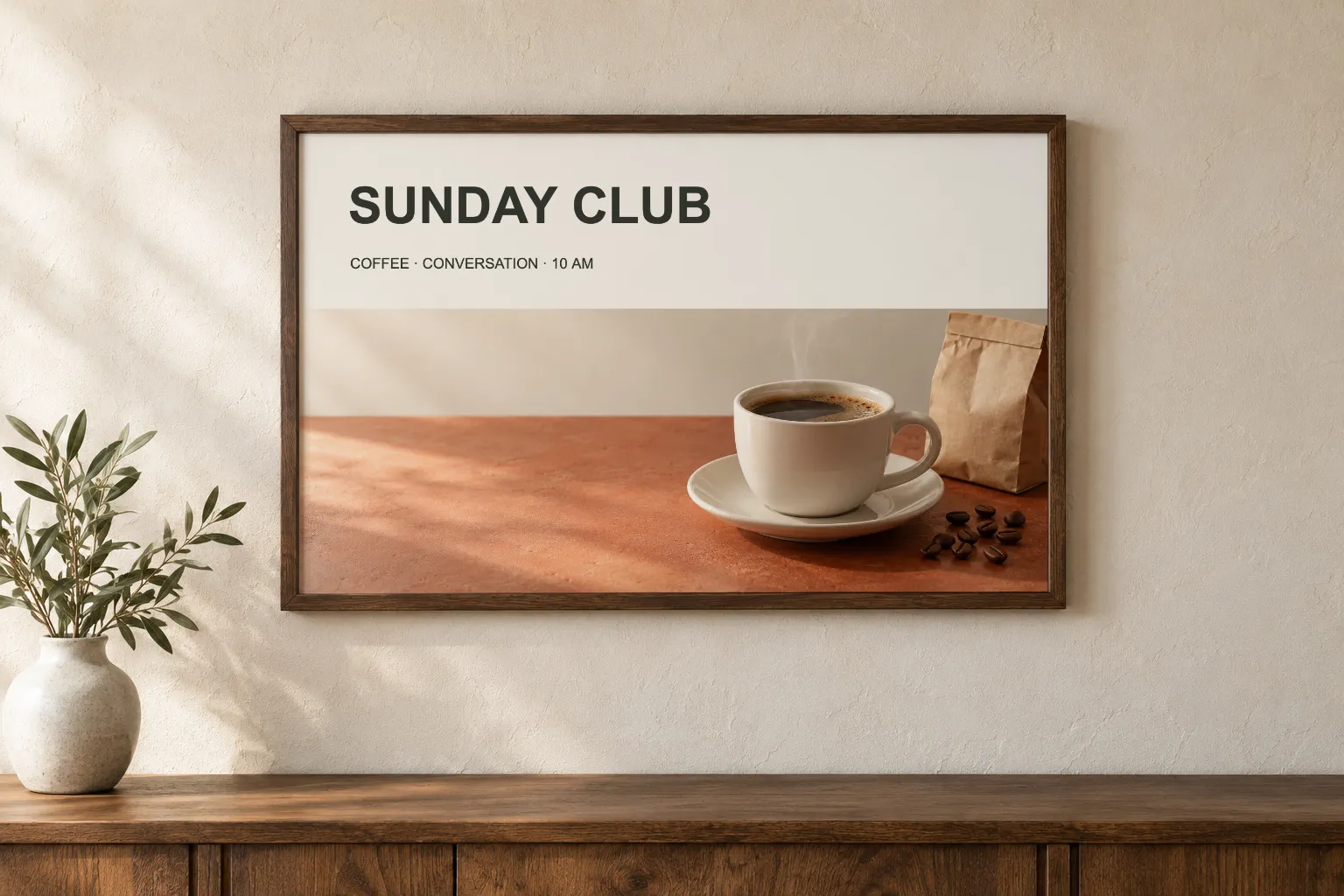
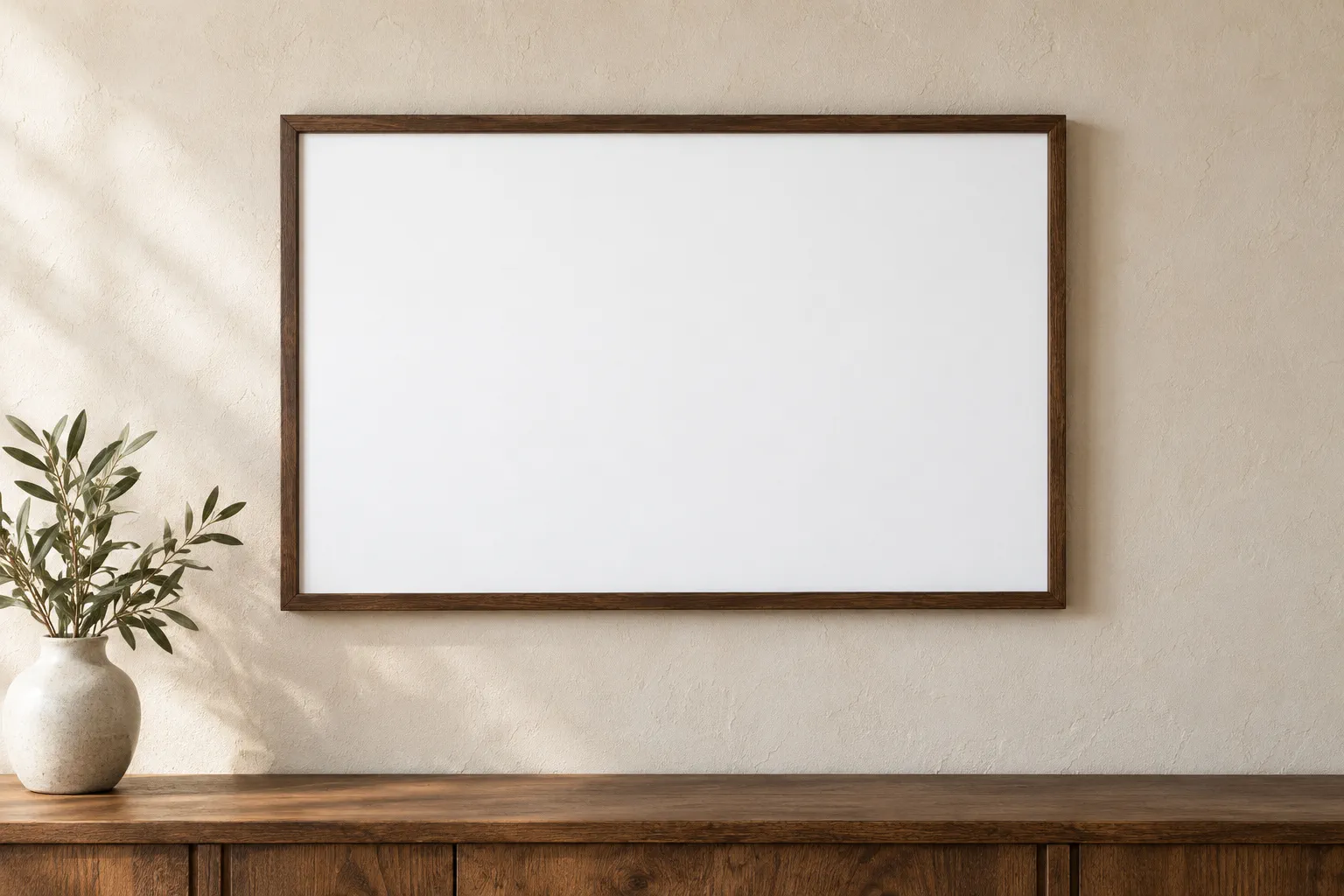
Open a front-facing frame photo in Lil Cactus, add the design with and choose . Use to fit it: for the sample, set linked W to 55.7%, choose the Center reference point, set X to 770 and Y to 415, then click Commit transform. In Layers, change Blend mode from Normal to Multiply. Export with and keep the reusable layout with
- Time
- 6 minutes
- Level
- Intermediate
- You need
- A front-facing frame photo and artwork. Both sample prints are 1536 × 944 px.
- Works with
- JPG or PNG photos and designs
A mockup places artwork in a photographed setting so you can preview how it looks. This example uses a front-facing frame. A Smart Object keeps the unscaled artwork inside a layer, so fitting it into the scene does not change that source image.
Make a framed-print mockup in six steps
Open the frame and place the print
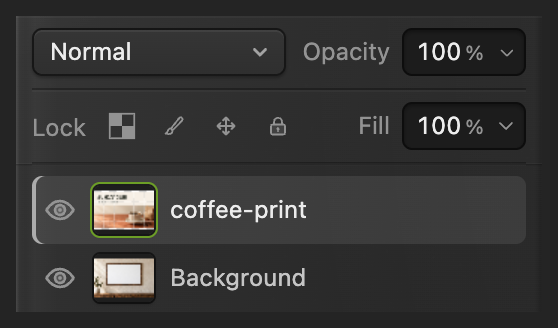
Open the sample from this page, or choose for your photo. Download the sample coffee print, then choose and select it. In Layers, select coffee-print above Background.
Keep the artwork layer selected. Convert the artwork to a Smart Object
Choose . The Properties panel now says Smart object. If that panel is hidden, show it with .
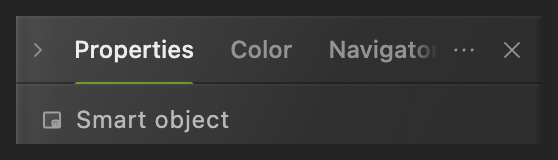
Check the layer kind before resizing. The Width and Height rows below this heading describe the whole document, not the print. Resize the print
Choose . On the options bar under the menus, make sure the chain link beside W and H is on (highlighted green) and set W to 55.7%. Press Tab: the linked H follows.

The chain links the two scale values. Position it inside the frame
Click the middle point (Center) in the small 3 × 3 grid. Set X to 770 and Y to 415. These are the artwork center’s coordinates on the photo. The print now meets the inside edges of the wood.
For your own front-facing frame, adjust W, X and Y until the artwork fits its opening.

Select the center reference before entering the position. Commit and blend with the paper
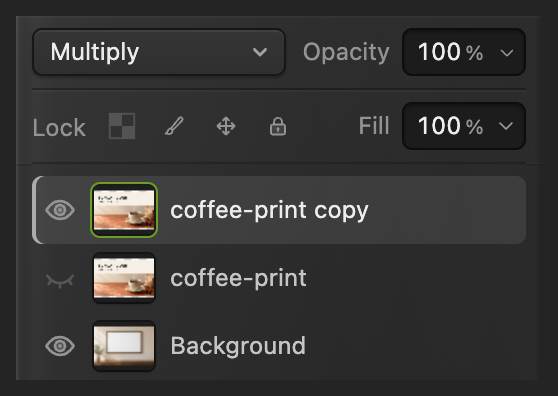
Click the checkmark (Commit transform) on the options bar. In Layers, change the dropdown showing Normal to Multiply. A blend mode controls how the layer’s colors combine with the photo underneath. Multiply lets darker areas of the paper darken the print.

Apply the size and position. 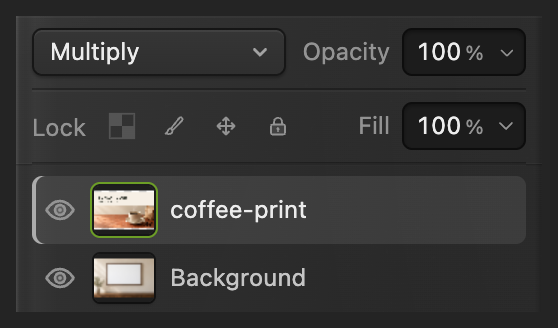
Apply Multiply to the artwork layer. Export a copy and keep the mockup
Choose , enter framed-print.png in File name and click Export.
Use to keep the photo and Smart Object editable. After that, updates the project. While working from the original JPEG, writes the flat mockup back into the JPEG you opened; the first JPEG save opens Save Image. Export makes a separate image copy.
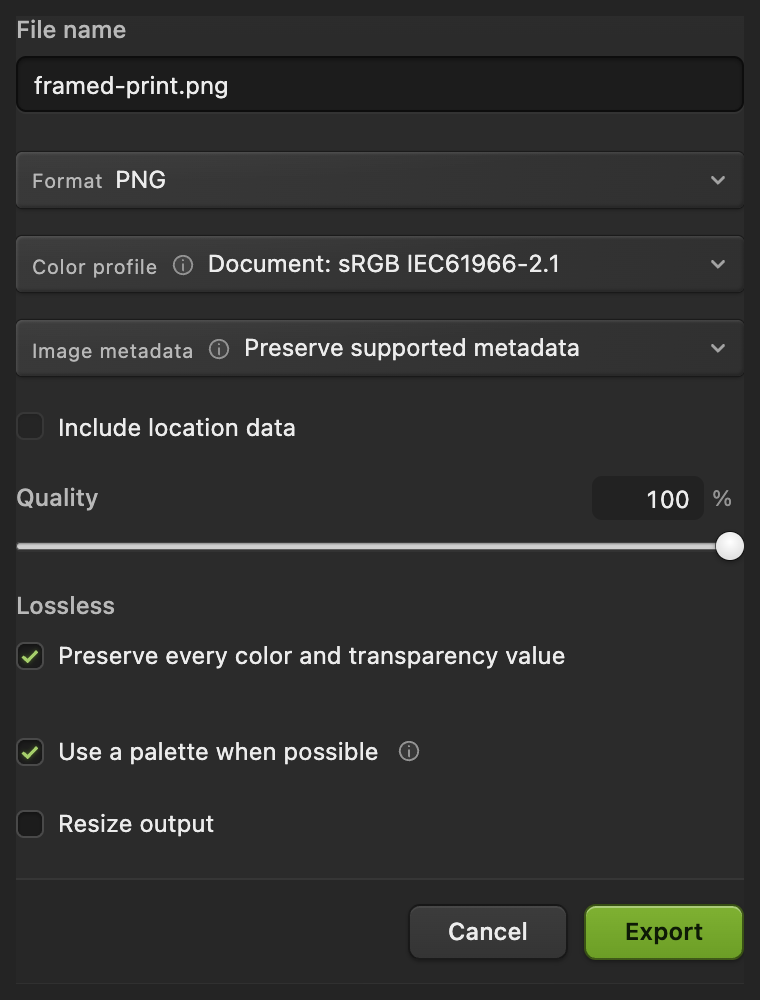
Export the photo preview.

Swap the design without fitting it again
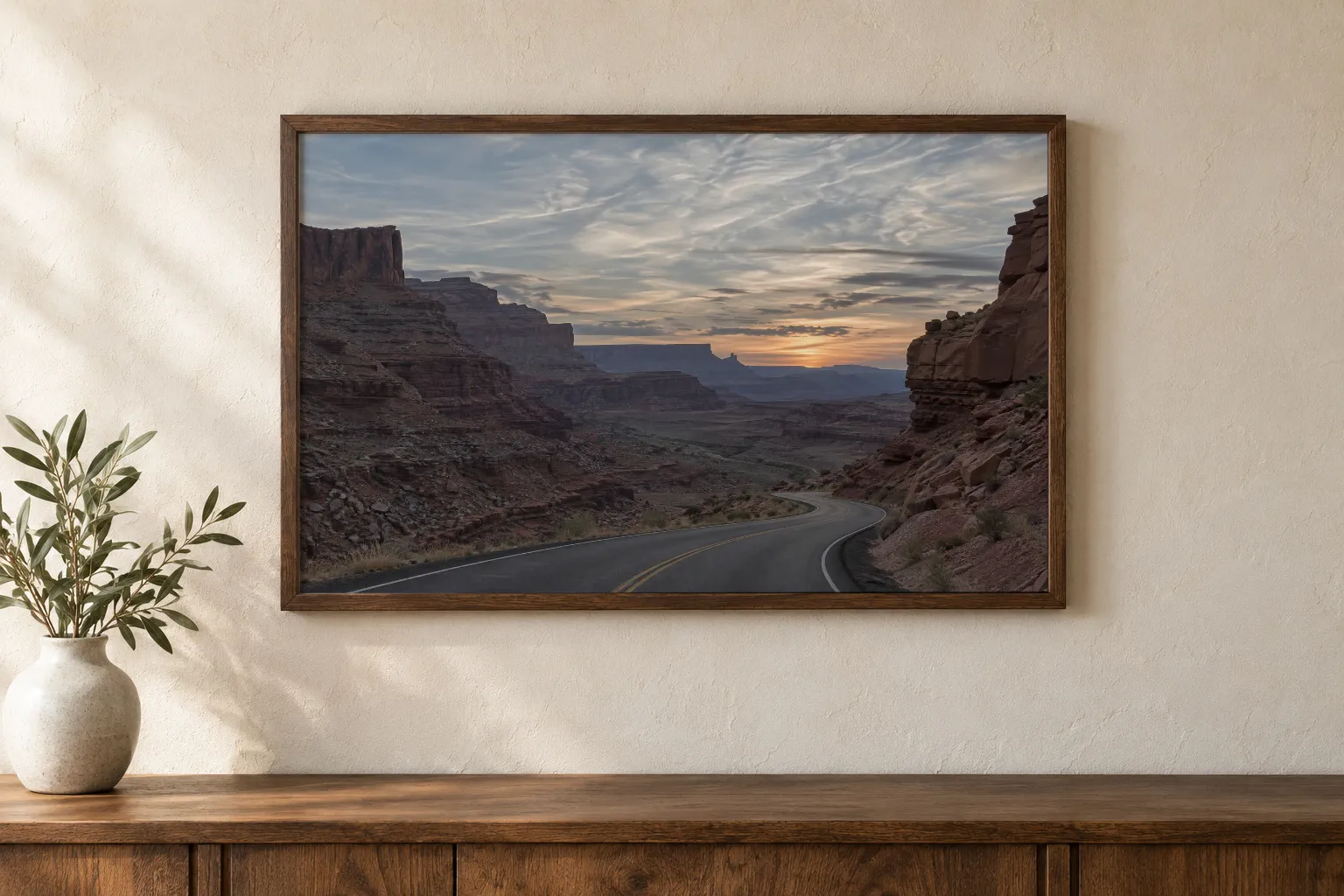
Open your saved project and select its coffee-print layer. Choose and pick the alternative sample print, or your own design.
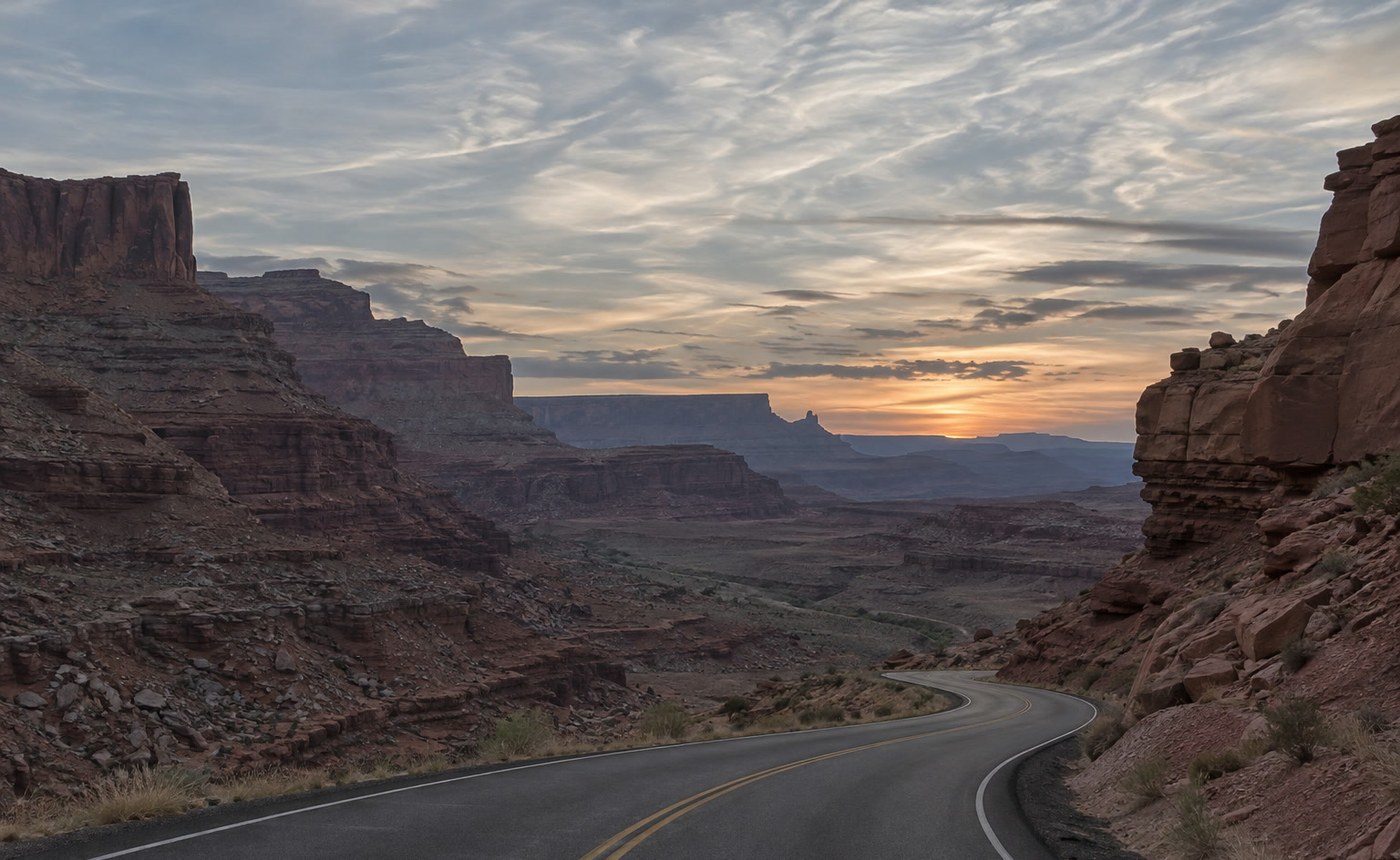
The size, position and Multiply setting stay with the layer. Export each version as in step 6.
Fit artwork to an angled flat surface
For an angled frame or screen, keep a Smart Object backup before converting the working layer to pixels. Choose , then click the eye beside the original coffee-print layer to hide it. Leave the copy selected.
Choose . In Rasterize Layer Appearance, review what will be removed and click Convert to Pixels. Then choose or to fit the corners to the photographed surface. Click Commit transform to apply it. The converted design is no longer replaceable with Replace Contents; the hidden original keeps that option.

What to do next
Photo mockups: questions and answers
Can I use an angled frame photo for a mockup?
Yes, after converting the design to pixels. In Lil Cactus, Distort, Perspective and Warp are unavailable for a Smart Object, so duplicate the layer and hide the original. Then choose Layer › Rasterize › Rasterize Layer on the copy and fit it with Edit › Transform › Perspective or Distort.
How do I edit the artwork inside a Smart Object?
In Lil Cactus, select the artwork layer and choose Layer › Smart Objects › Edit Contents. Make changes in the new tab, then choose File › Save Contents to Parent to update the mockup.
Can I use my own photo for a mockup in Lil Cactus?
Yes. A photo with a flat, front-facing surface works with this Smart Object method in Lil Cactus. Place your design, convert it to a Smart Object and fit it with Edit › Free Transform.
Does a Smart Object make a small design sharper?
No. In Lil Cactus, a Smart Object preserves the detail already present in the source. Enlarging a small file cannot restore detail it did not contain.
Does Replace Contents keep the size and position in Lil Cactus?
Yes, when the new design has the same pixel dimensions as the first. A larger or smaller file is scaled by the same transform, so fit it again with Edit › Free Transform.
Keep going
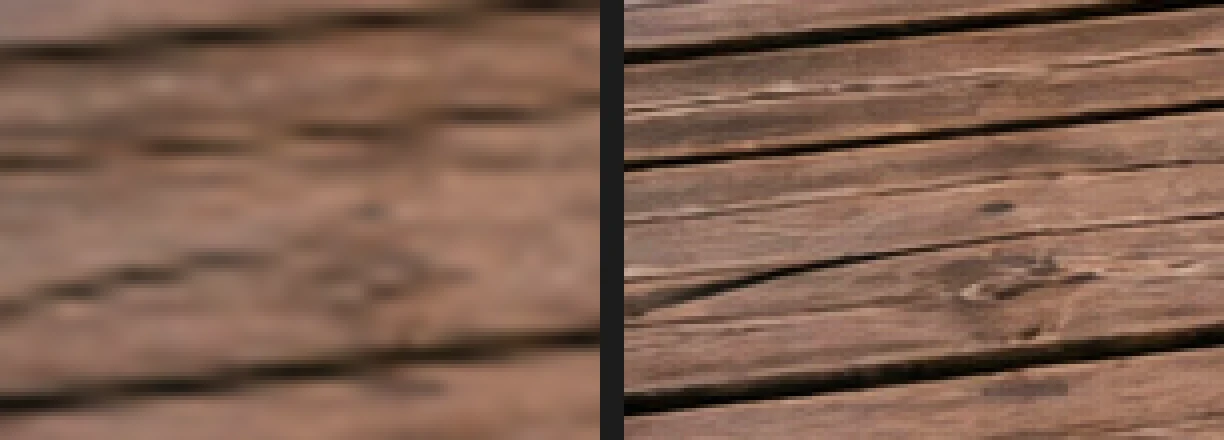 How to use Smart ObjectsResize, filter and swap a picture without ever losing its original pixels.Intermediate · 6 min
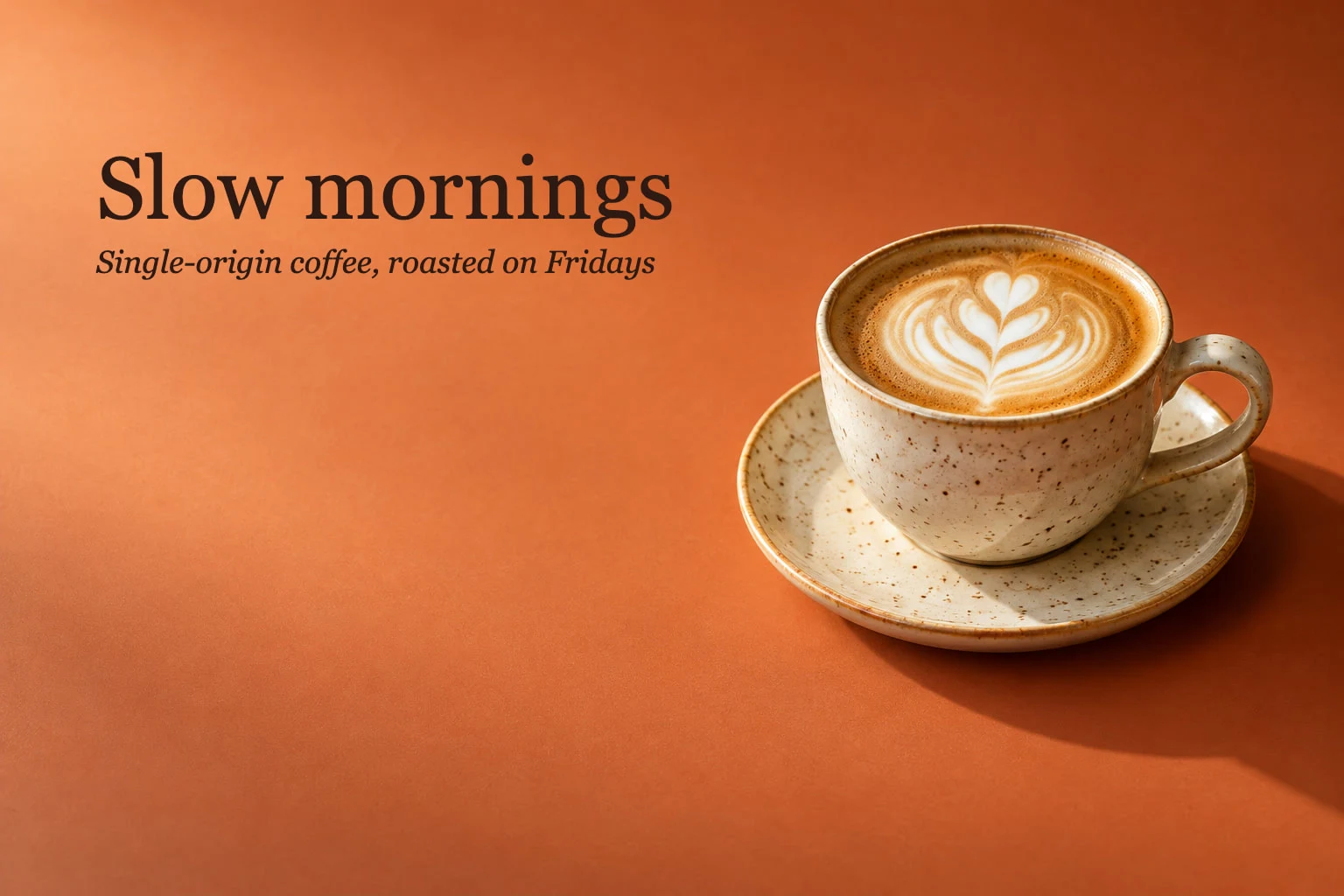 How to add text to a photoA headline and a second line on a photo, still editable later.Beginner · 5 min
 How to add a drop shadow and outline with layer stylesShadows, outlines, glows and overlays that stay editable.Beginner · 6 min