How to use a depth map to blur a background
Quick answer
In Lil Cactus, open the photo and choose to keep a sharp original. Choose , wait for the preview and click Create channel. Choose : on Depth map, choose Depth Map as the Source and set Focal distance to 120 for the sample tram; on Aperture, set Radius to 40 px and click Apply. Save with to keep the layers and depth channel.


- Time
- 7 minutes
- Level
- Advanced
- You need
- A photo with a subject and a background that recedes into the distance
- Works with
- RGB photo layers, including JPEG, PNG and developed RAW photos
A depth map is a grayscale estimate of distance: white means near, black means far. Lens Blur uses those values to vary the blur across a photo, instead of blurring every part equally.
You choose one map value to keep in focus. Areas with brighter or darker map values soften. The estimate can miss fine edges, so start with a moderate blur and inspect the subject’s outline.
Use a depth map in six steps
Open the photo and keep a sharp original
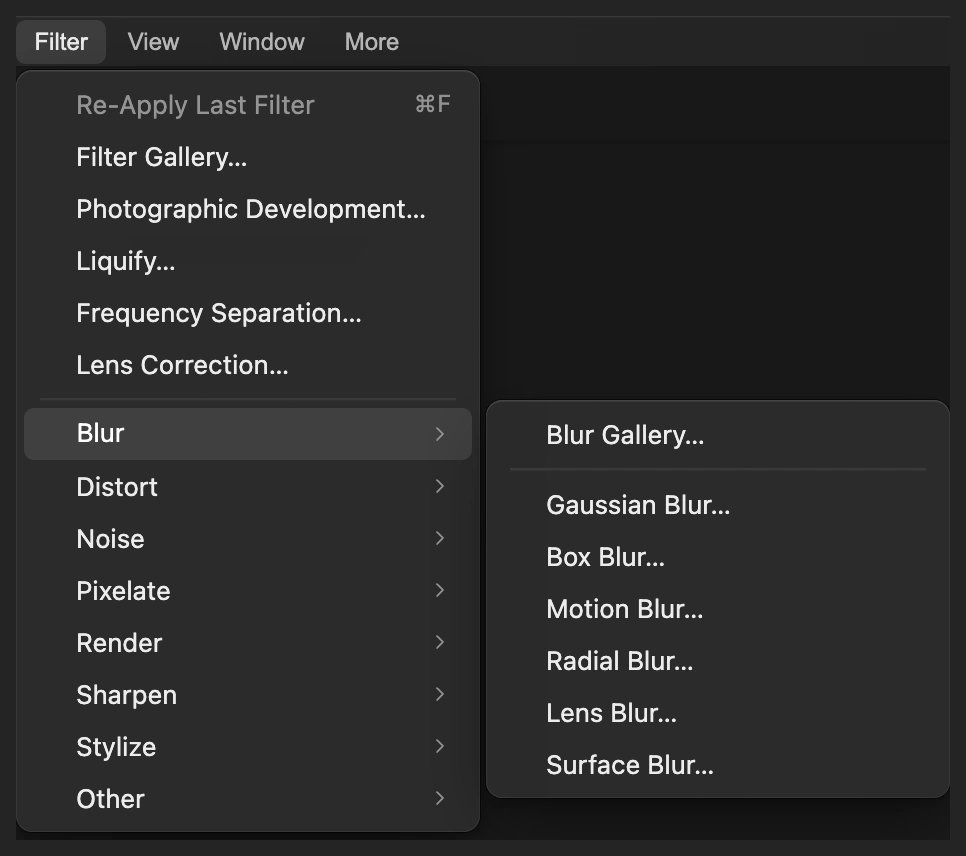
Choose and open your photo, or open the sample from this page. Choose .
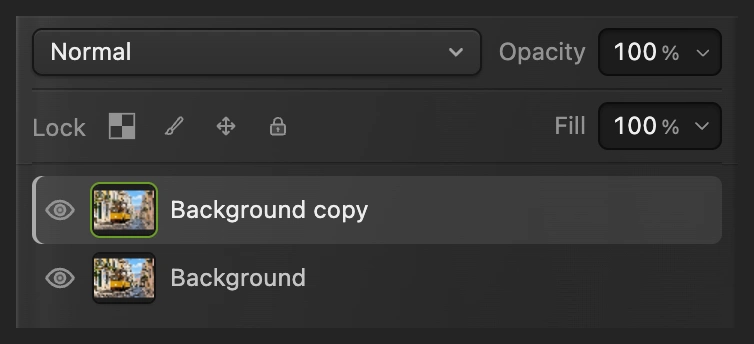
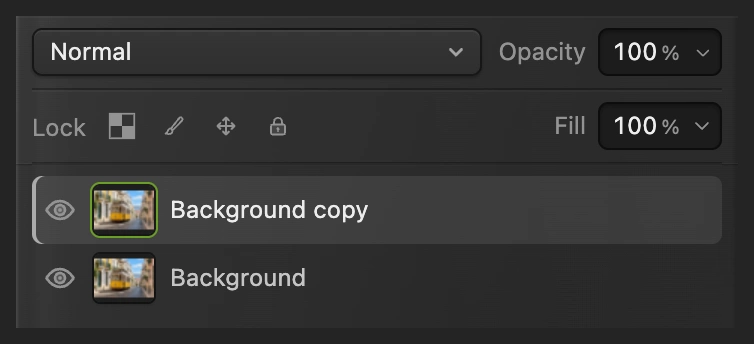
The Layers panel now has Background copy above Background. Apply Lens Blur to the selected copy.
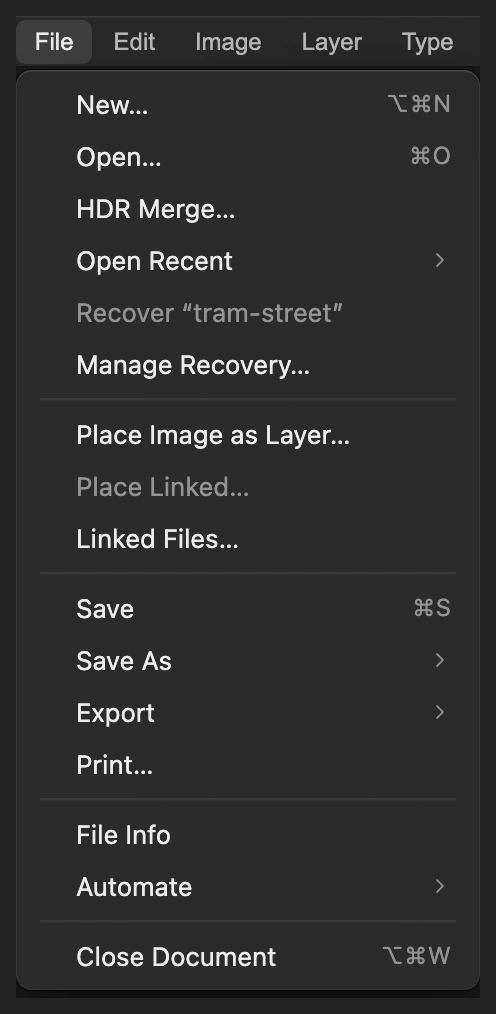
Open the photograph as a document. 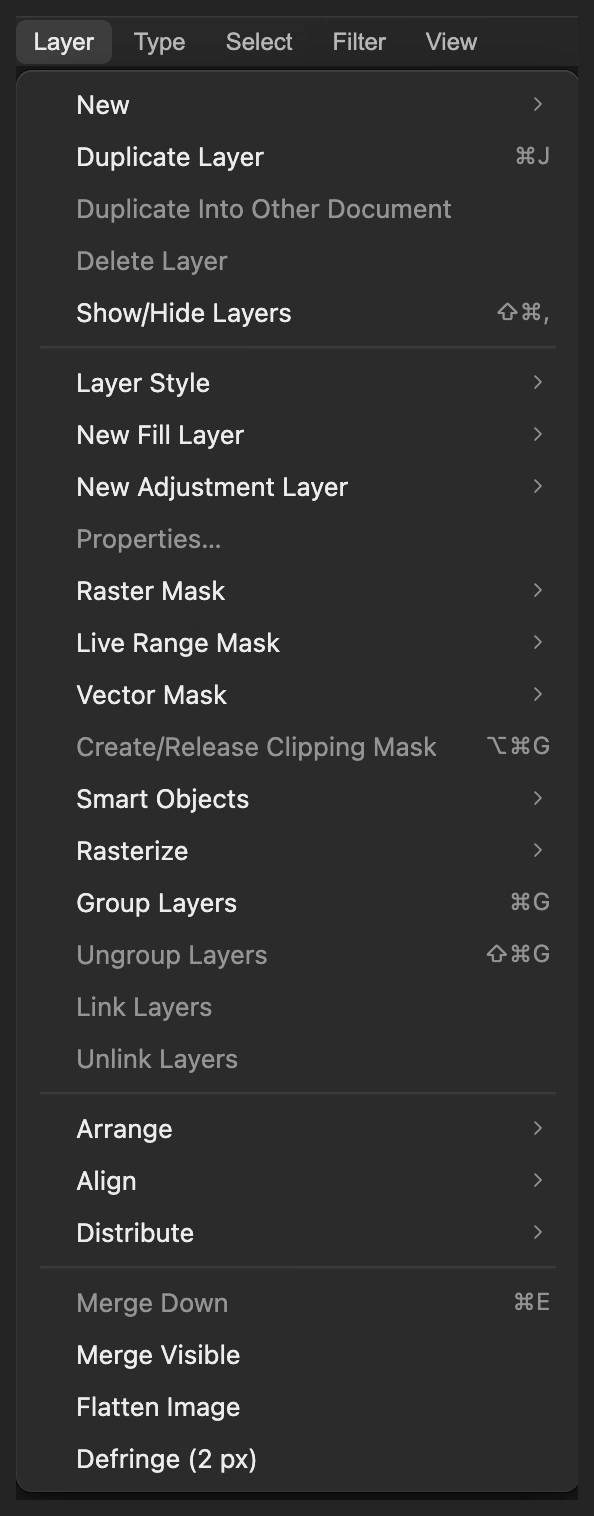
Keep the sharp original below the copy. 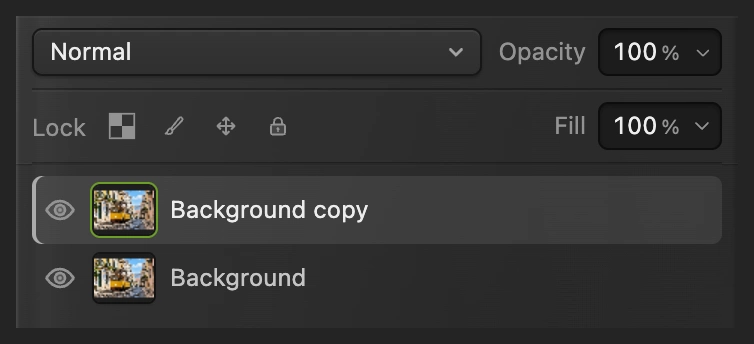
The selected photo copy will receive the blur. Generate the depth map
Choose The first use downloads a depth model of roughly 100 MB; wait for the grayscale preview. The estimate runs on your device.
On the sample, the nearest cobbles and bollards are pale, the tram is mid-gray and the distant street is almost black. These are estimated distances, not the brightness of the original colors.
Click Create channel. The dialog closes and adds a channel named Depth Map, without changing the photo.
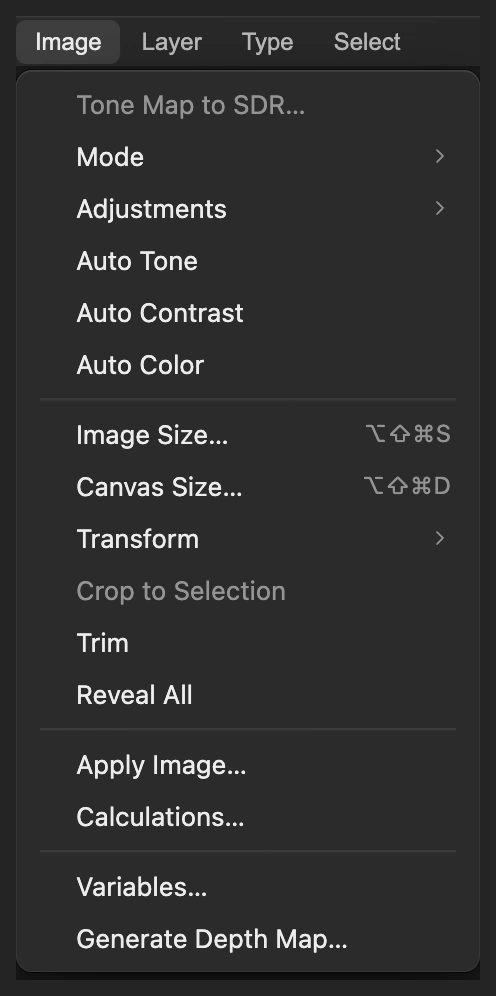
Generate depth from the visible photograph. 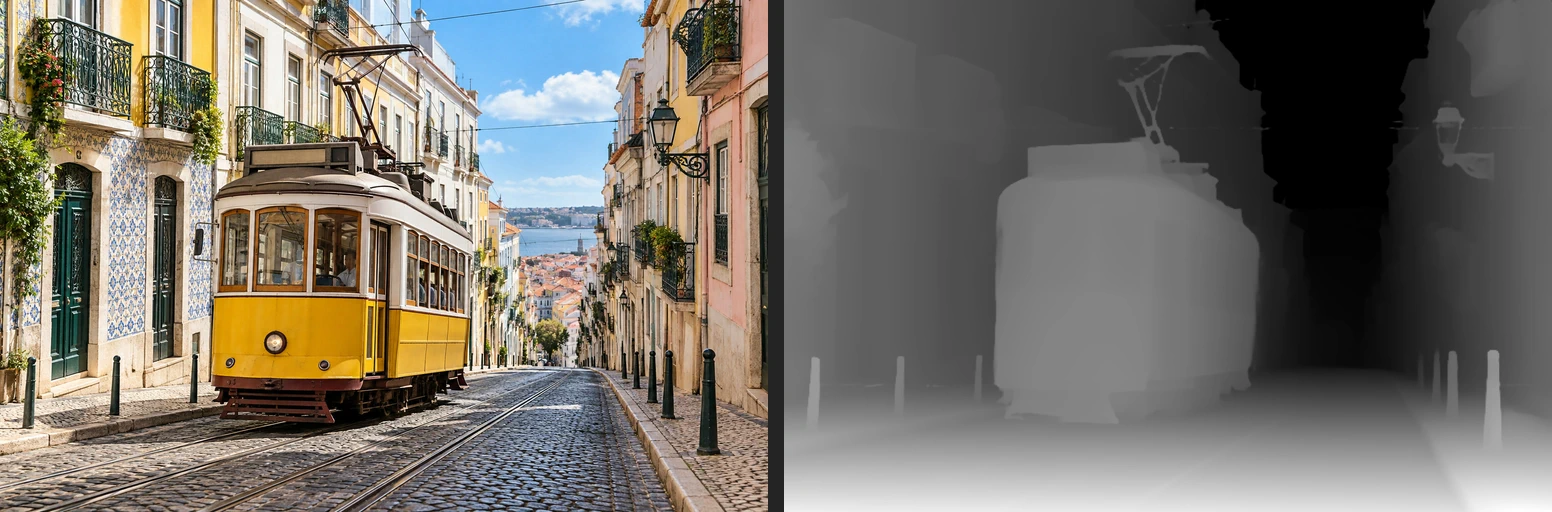
Photo on the left, estimated depth on the right. White is near; black is far. 
Create a depth channel for Lens Blur. Choose the map and focus on the tram
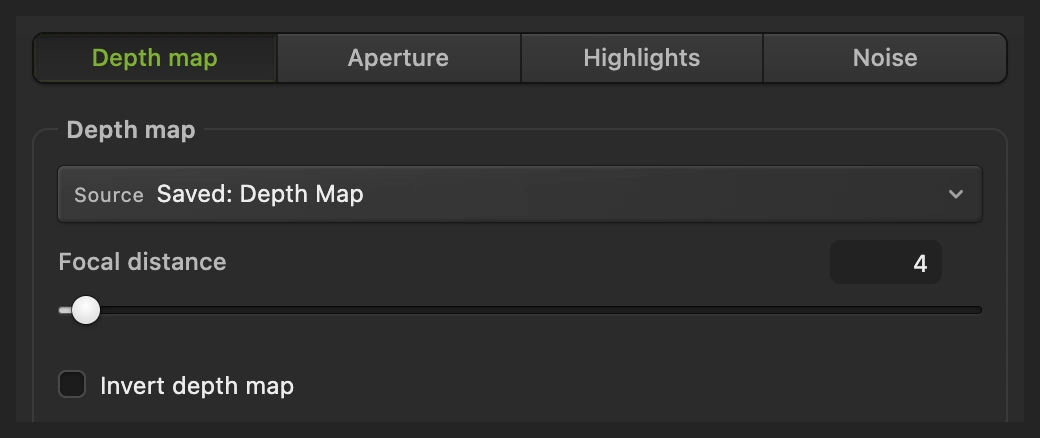
Choose On the Depth map tab, change Source from None, uniform blur to Depth Map. The field then reads Saved: Depth Map.
Set Focal distance to 120. This is a map value from 0 to 255, not a distance in feet or meters. The sample tram’s front is around 127 and its windows around 112, so 120 is a useful starting point. Leave Invert depth map unchecked for the generated white-near map.
Lens Blur can vary its strength using the channel. 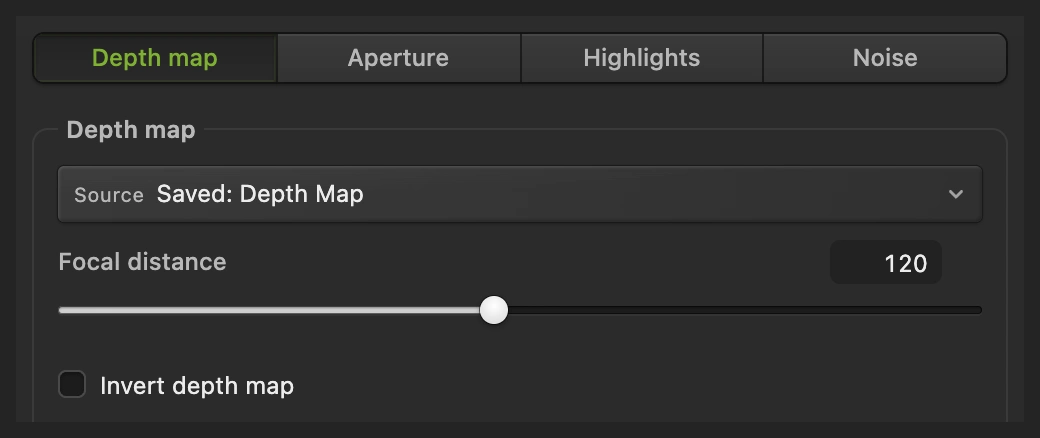
Source: Saved: Depth Map. Focal distance: 120. Set the blur strength and apply it
Click the Aperture tab and set Radius to 40 px. Higher values strengthen the blur away from the chosen focus value. Leave Shape at its default Hexagon (6) and Angle at 0°.
Click Apply and wait for the blur to finish. The tram’s front remains clear, its receding side softens and the far street becomes much softer.
Tip To revise the blur now, before using the eye in step 5, press Ctrl+Z or ⌘Z and repeat steps 3–4 with new values.
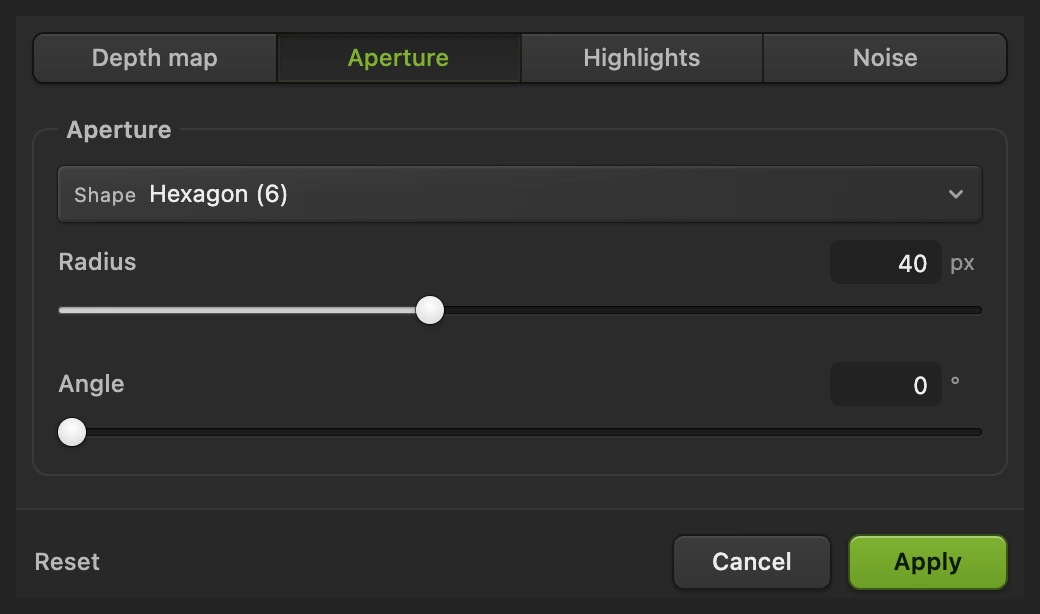
Radius controls the amount of defocus; Apply commits the blur to the photo copy. Compare the original and inspect the edges
Click the eye beside Background copy to see the sharp original underneath. Click it again to restore the blur. Compare the whole photo and the enlarged details below.
The tram should stay clearer than the distant houses. Check the roof, window edges, lamp and bollards for a halo or a harsh cutout. The map handles thin or small parts, such as the wires and the tram’s mirror, less reliably than broad shapes.
The eye switches between the blurred copy and sharp original. 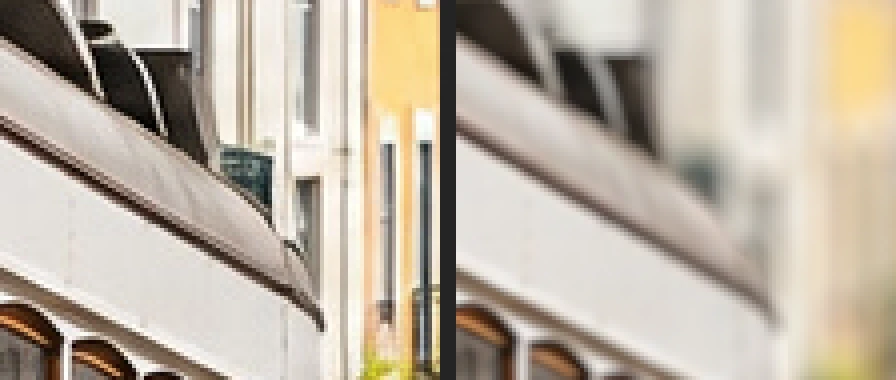
Before left, after right: the tram’s side softens less than the buildings behind it. 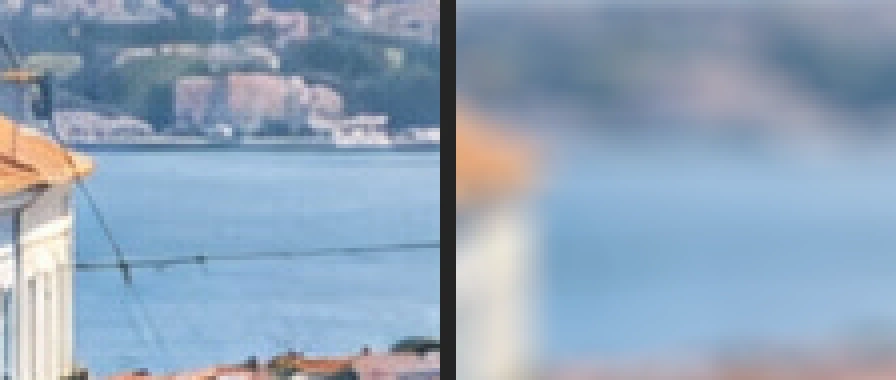
Before left, after right: fine detail in the far street gives way to blur. Save the layers and export the picture
Choose to keep both photo layers and the Depth Map channel. After that, saves the project. Choose and click Export for a new finished picture.
If you stay with the opened JPEG, writes a flat picture in that format; its first Save opens Save Image.
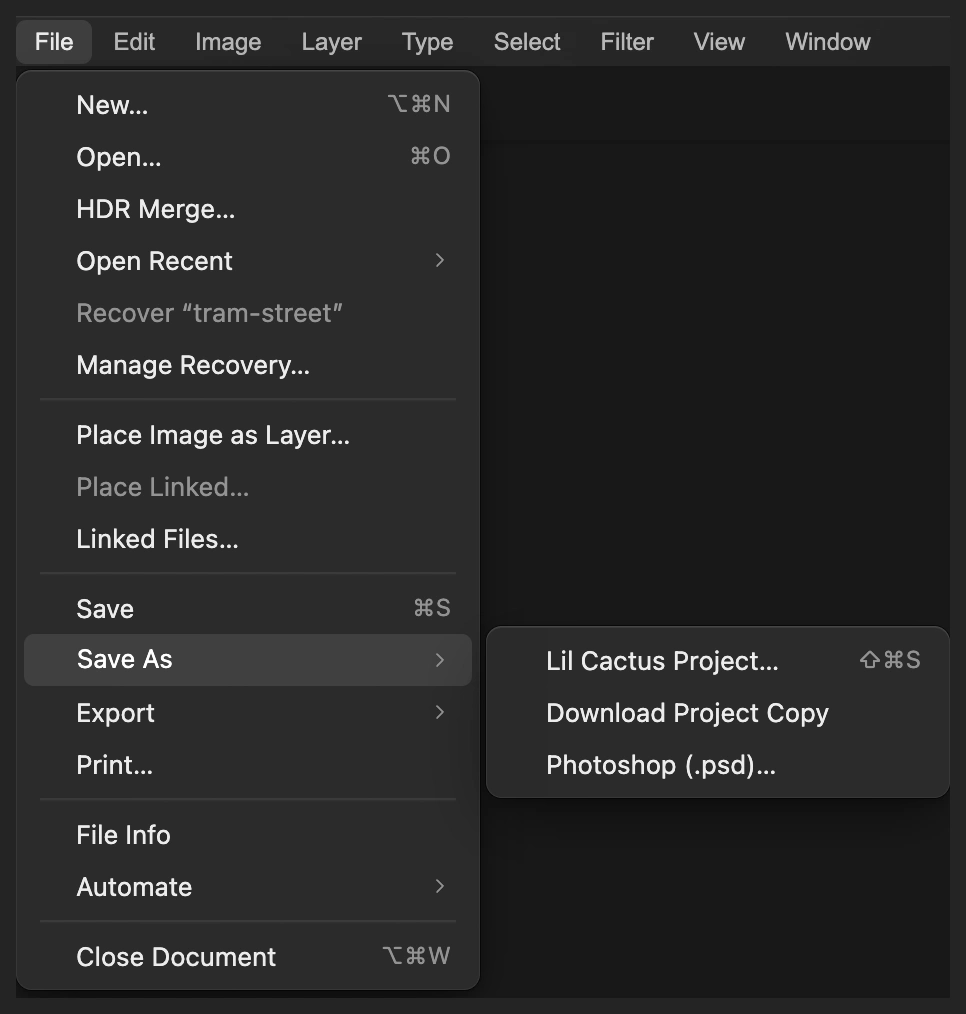
Keep the sharp original and depth channel in a project. 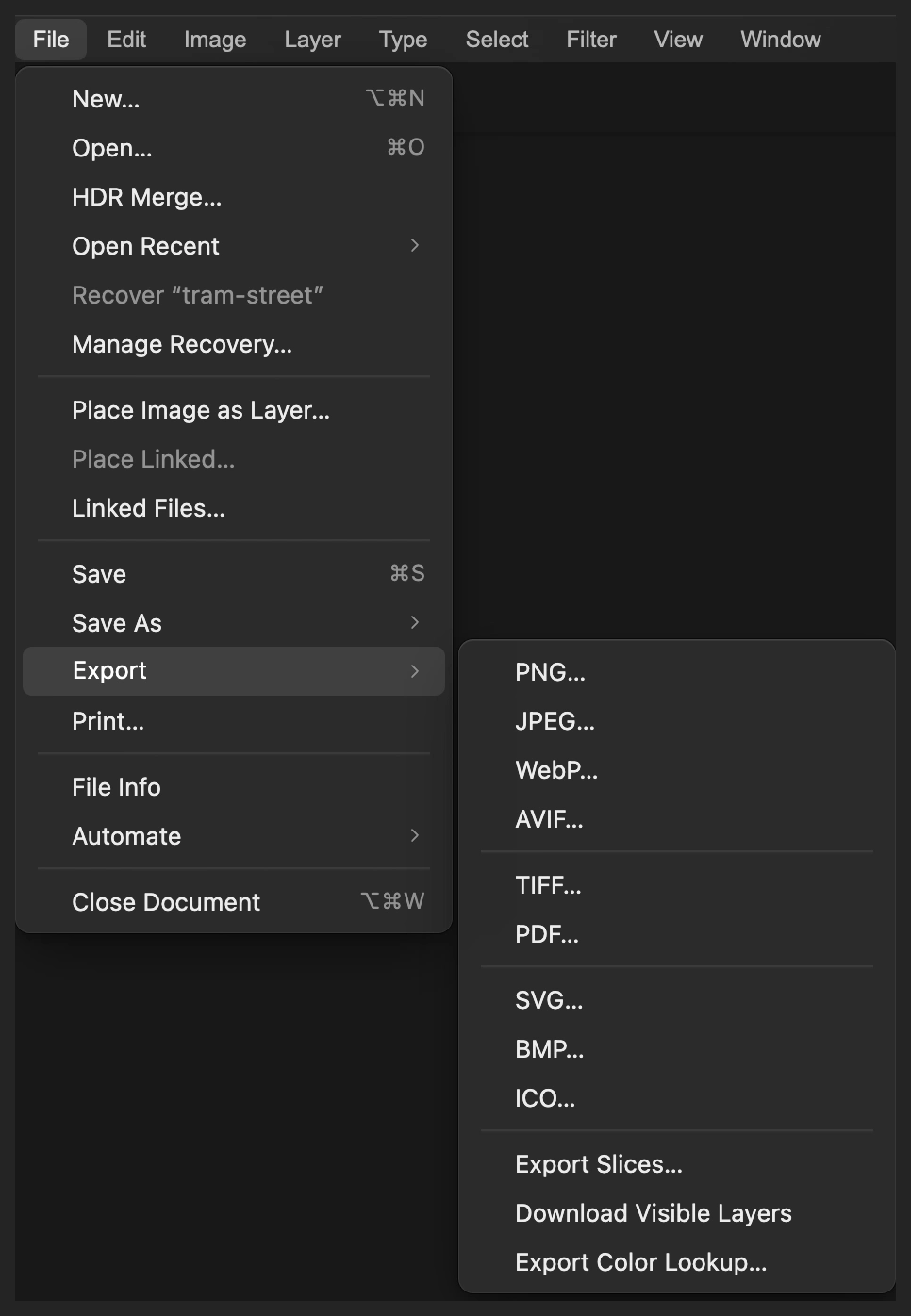
Export a separate finished JPEG. 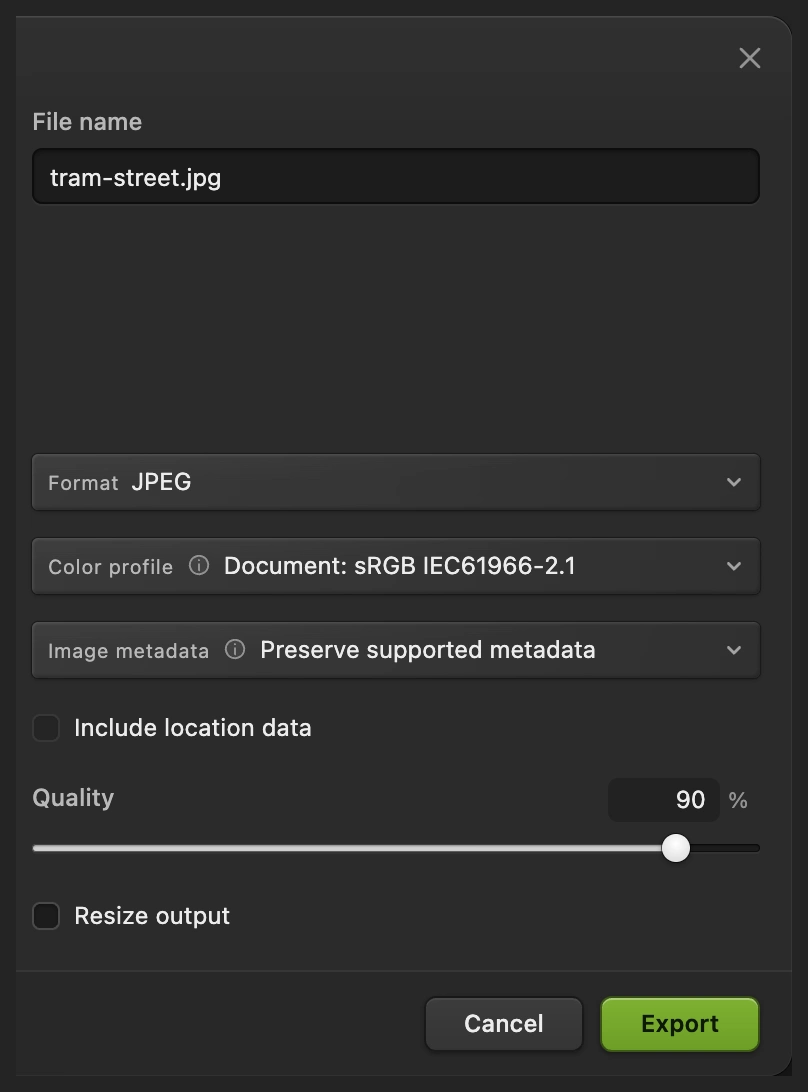
Export the combined picture for sharing.
Change the focus or blur strength
After comparing or saving, start a revision from the sharp original. Hide Background copy with its eye, select the Background row and choose . The new copy is selected. Repeat steps 3–4 on it with different settings.
Radius controls strength; Focal distance controls what stays clear. In the sample, a focal value of 4 keeps the distant street clearer and blurs the tram instead. The comparison below uses the same Radius 40 in both versions.
For your own photo, try a focal value near the subject’s shade in the depth preview. Adjust it until the subject is clearer than its surroundings, then set the blur strength. A map estimates relative depth, so 120 will not identify the same distance in every photo.

Fix common problems
If a blur is already applied, use the fresh-copy method above before trying these fixes.
The whole photo blurs by the same amount
In , choose the Depth Map channel as Source on the Depth map tab. None, uniform blur does not use estimated distance.
The tram blurs but the background stays clear
The Focal distance is closer to the background’s map value. Repeat steps 3–4 with a value near the subject’s gray in the map; use 120 for this sample.
A halo or harsh fringe appears around the subject
The depth estimate does not follow that edge closely enough. Use a lower Radius. For precise local control, follow the layer-mask method linked below.
The depth preview cannot finish
Read the dialog’s message. The first run needs the model download; check the connection and reopen if loading fails.
What to do next
Depth maps and lens blur: questions and answers
What do white and black mean in a generated depth map?
In Lil Cactus’s generated depth map, white means nearer and black means farther away. Gray values describe intermediate estimated depths; they do not measure feet or meters.
What Lens Blur settings work for the tram sample?
In Lil Cactus, choose the generated Depth Map channel, Focal distance 120 and Radius 40 px. Leave Invert depth map unchecked, Shape at Hexagon (6) and Angle at 0°. Other photos need their own focus value.
Does Lens Blur keep the whole subject perfectly sharp?
No. In Lil Cactus, the blur follows the estimated depth across the subject. A receding tram side can soften more than its front, and fine edges in the map can be inaccurate.
Can I revise Lens Blur after saving the project?
Yes. In Lil Cactus, the project keeps the sharp original and depth channel so you can make another blurred copy. The pixel edit on Background copy has no saved filter-settings dialog to reopen.
Is my photo uploaded when I generate a depth map?
No. Lil Cactus estimates depth and applies Lens Blur on your device. It downloads the model needed for estimation; optional statistics do not include the image. See the privacy policy.
Keep going
 How to blur the background of a photoA camera-like background blur with no glow around the subject.Intermediate · 6 min
 How to use layer masksHide part of a layer without deleting it, and bring it back any time.Beginner · 5 min
 How to focus stack photos online for front-to-back sharpnessSeveral focus distances in, one photo sharp from front to back.Advanced · 6 min