How to focus stack photos online for front-to-back sharpness
Quick answer
Take the same shot several times, focusing nearer in one and farther in another. Open the photos in Lil Cactus and copy them into one document as layers with . Select all the layers, choose , then , pick Stack Images with Blend method Adaptive Detail, untick Seamless tones and colors for frames shot at one exposure, and click Blend: each area comes from the frame where it is sharpest.
- Time
- 6 minutes
- Level
- Advanced
- You need
- Two or more photos of a still scene from the same spot, each focused at a different distance
- Works with
- JPEG, PNG, HEIC, WebP, TIFF and PSD photos, and RAW files once developed
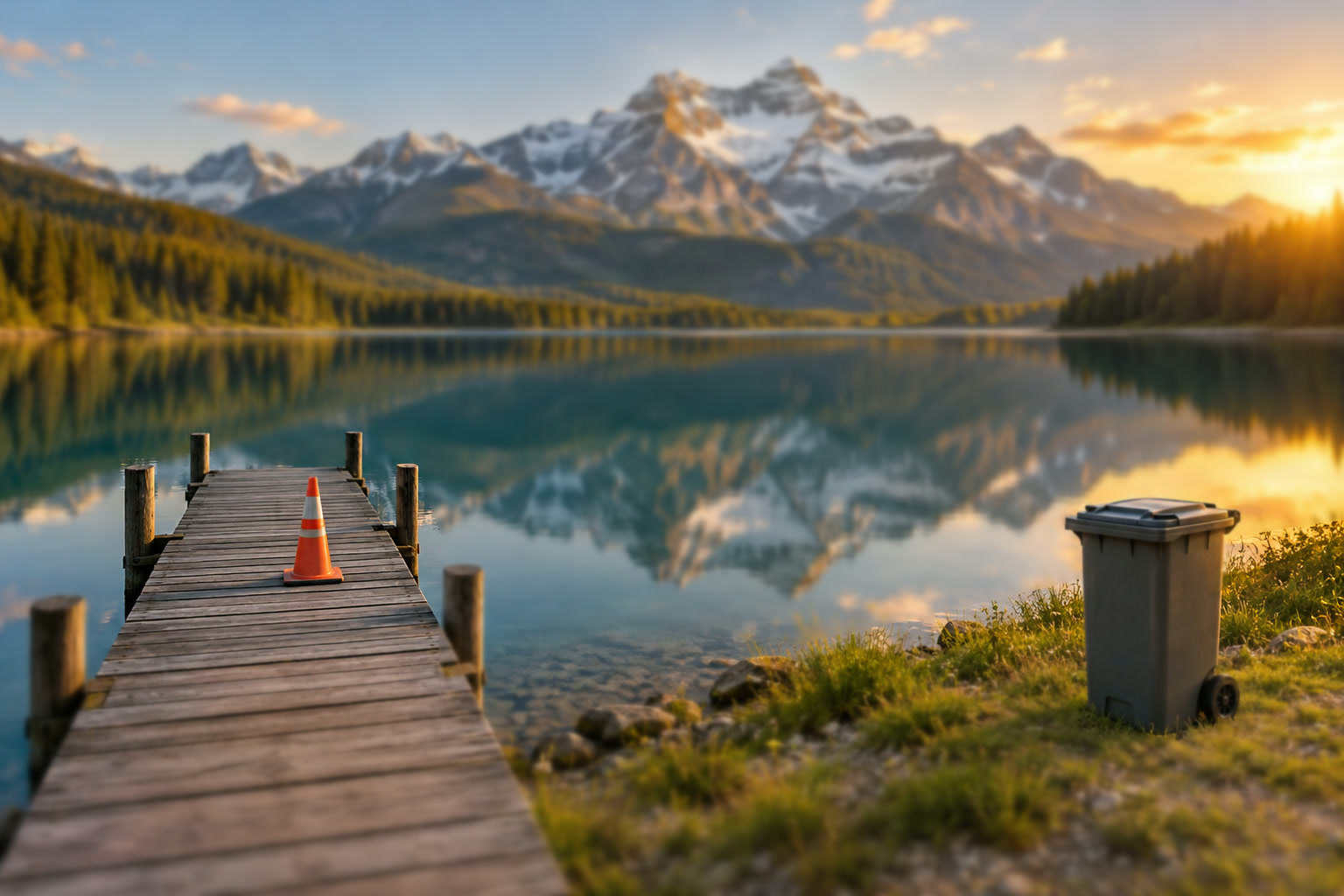
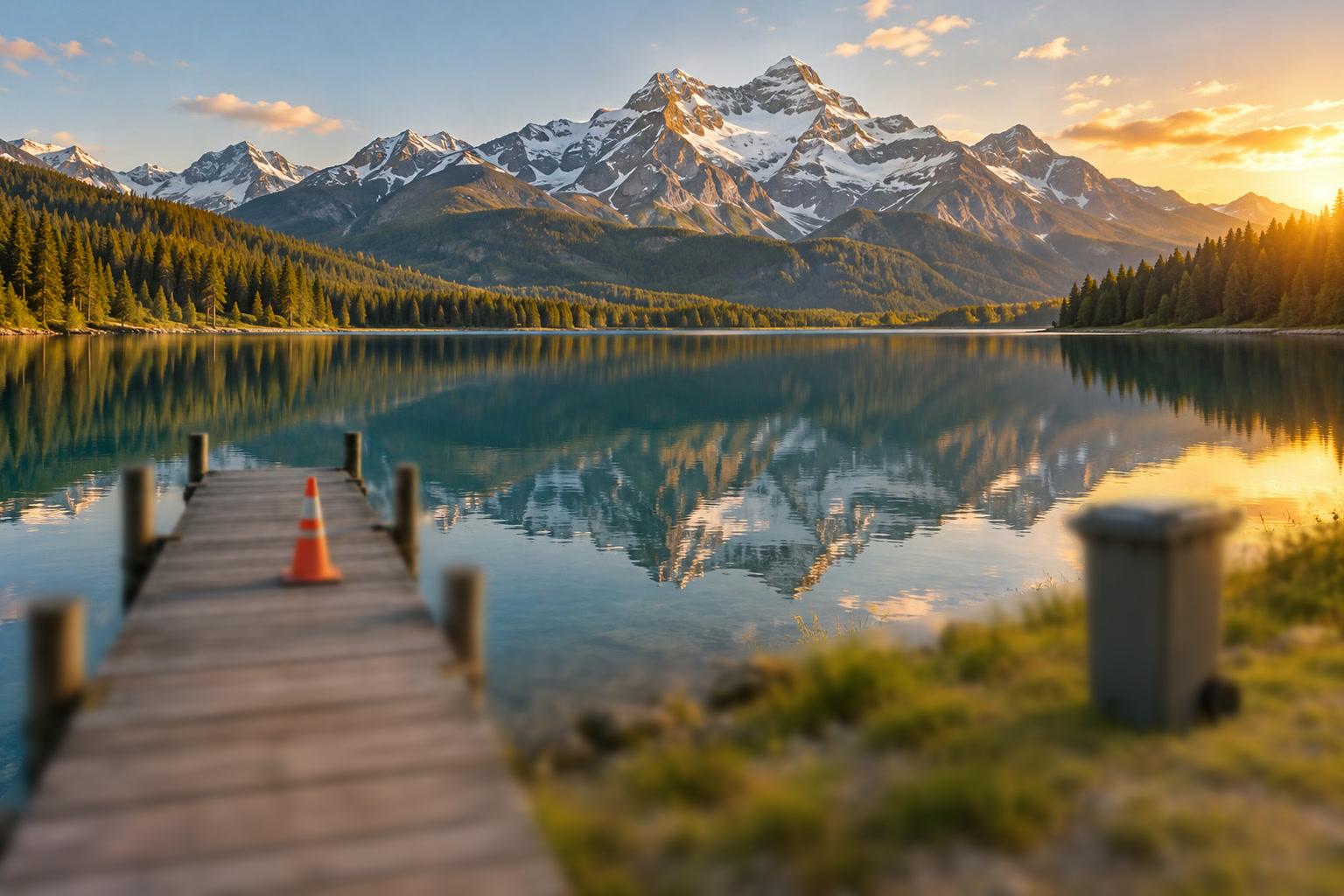
Sample files:Frame 1 (nearest)Frame 2Frame 3Frame 4 (mountains)
Free, no sign-up. Your photos stay on your computer.
A lens is only perfectly sharp at one distance. Around it there is a zone that still looks sharp, the depth of field, and everything nearer or farther softens. Closing the aperture widens that zone, but only so far, and very small apertures soften the whole picture through diffraction. With a close foreground and a distant horizon, or with any close-up, one shot often can’t hold both.
Focus stacking takes several shots with the focus moved between them, then keeps the sharpest part of each. Lil Cactus does it with the same two commands as a panorama: Auto-Align lines the frames up, and Auto-Blend’s Stack Images mode builds a mask for each layer from where it is sharpest.
Focus stack in five steps
Shoot the frames
Use a tripod and keep everything fixed except the focus: same aperture, shutter speed, ISO and zoom. Take the first shot focused on the nearest detail, then move the focus a little farther for each shot until the most distant part is sharp. For a landscape with a close foreground, three to five frames are usual; a close-up of an insect or a ring can need ten or more. The subject must keep still.
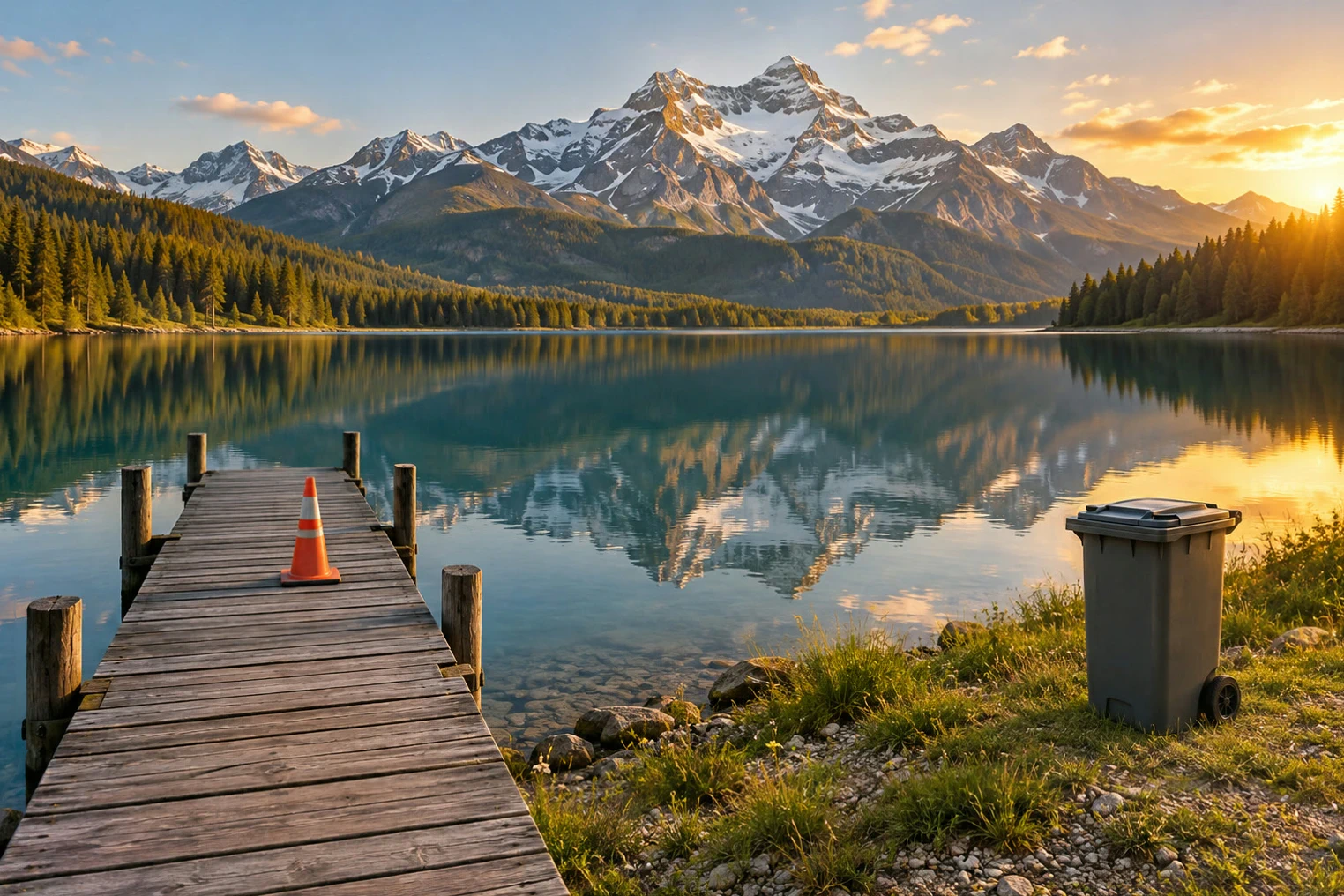
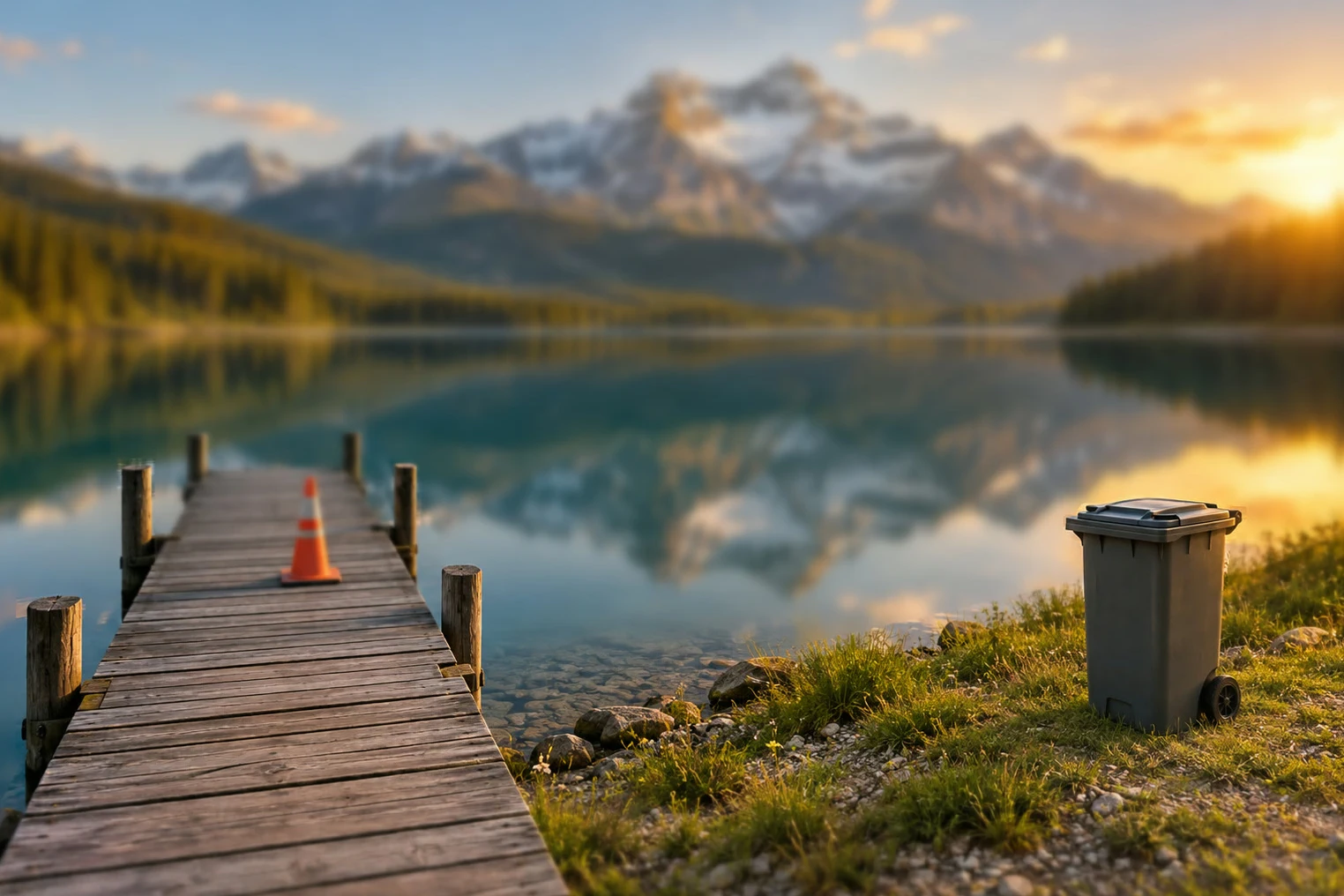
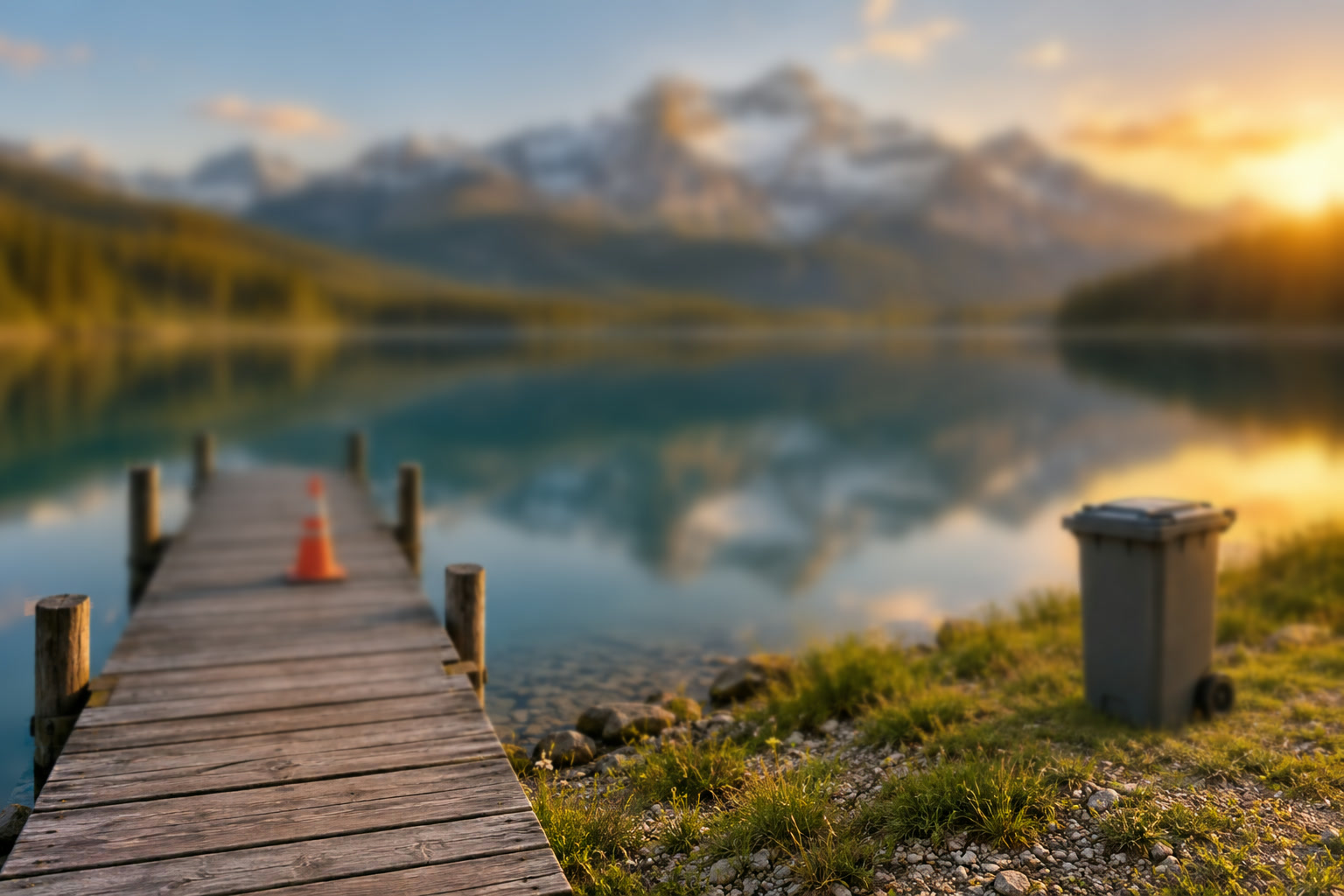
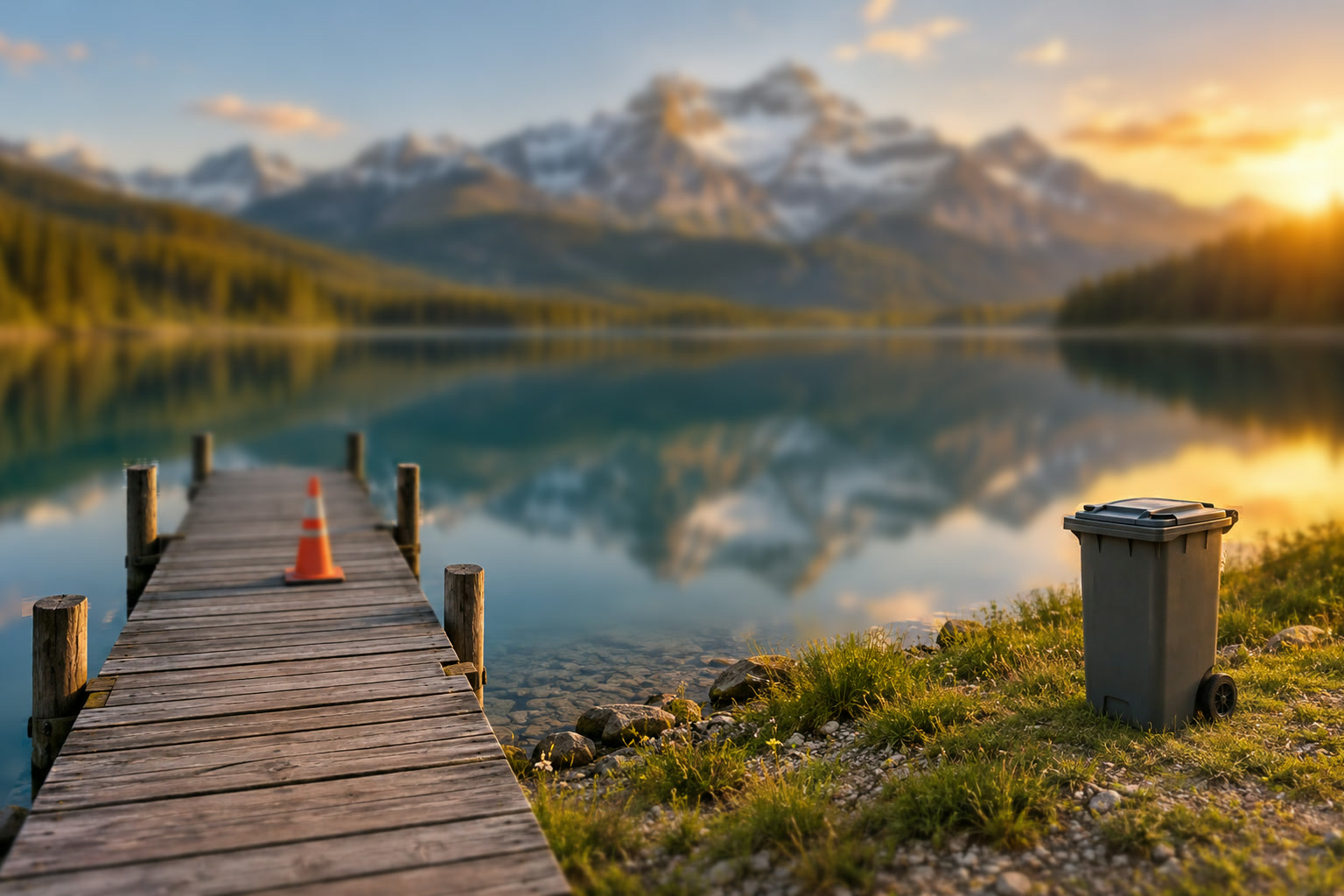
To follow along, download the four sample frames from the top of this page. They were made to match frames focused at four distances: one sharp photo was split into depth layers (the ground row by row, the bin as a separate object, the sky, mountains and reflections at infinity), and each layer was blurred by how far it is from the focus and composited back to front, so an out-of-focus object spreads softly over what is behind it. Each frame is also very slightly larger than the last, as real lenses do when you refocus.
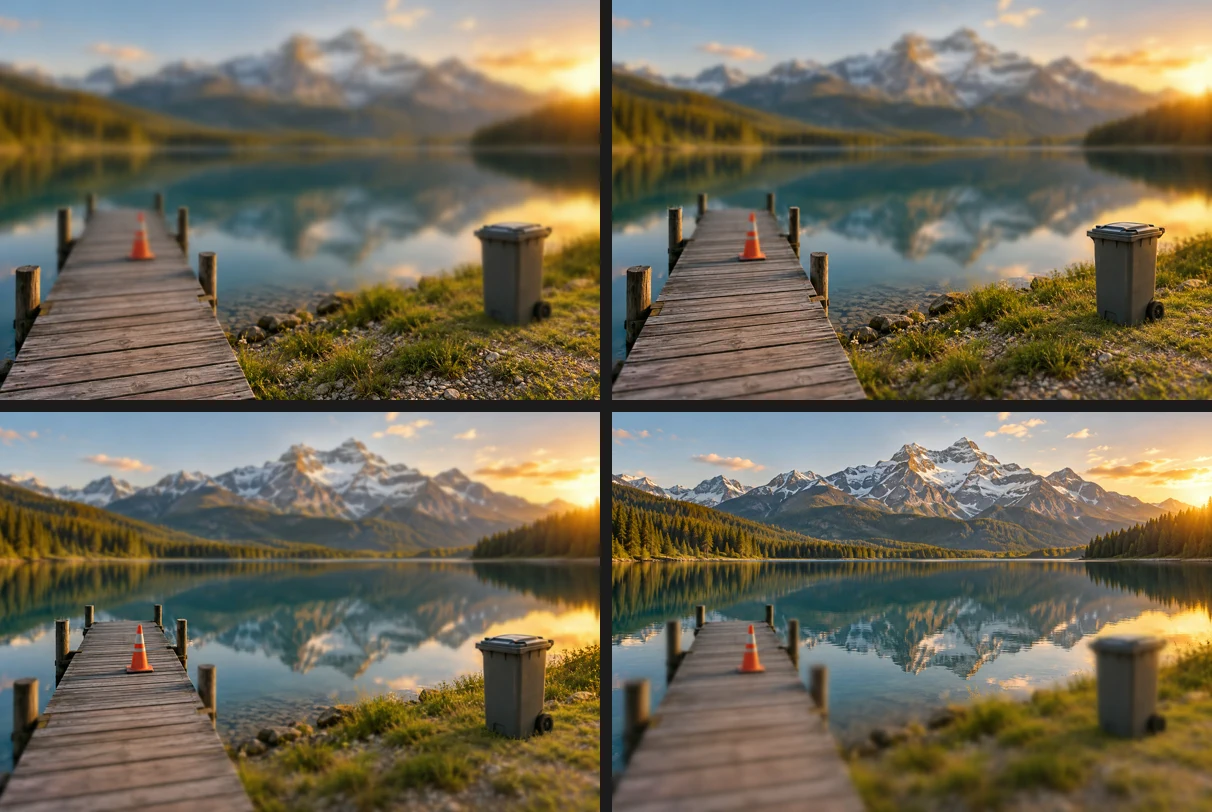
The sample frames, focused from the nearest planks (top left) to the mountains (bottom right). Put the frames in one document and select them
Open all the frames with (Ctrl+O or ⌘O); you can select them together. Click the second tab and choose , then do the same from the third and fourth tabs. Each copy goes into the tab furthest left, so all four frames end up as layers in the first document.
Click the first tab. In its Layers panel, click the top layer, then hold Shift or ⇧ and click the bottom one, so all four are selected.
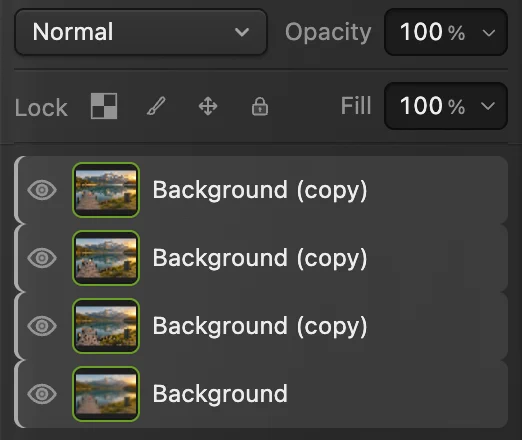
All four frames in one document, selected. Line them up with Edit › Auto-Align
Choose . Even on a tripod, refocusing changes the image size slightly, so a detail at the edge drifts by a few pixels from frame to frame. Auto-Align scales and shifts the layers until they line up closely. On the sample the canvas grows a few pixels to hold the slightly larger frames.
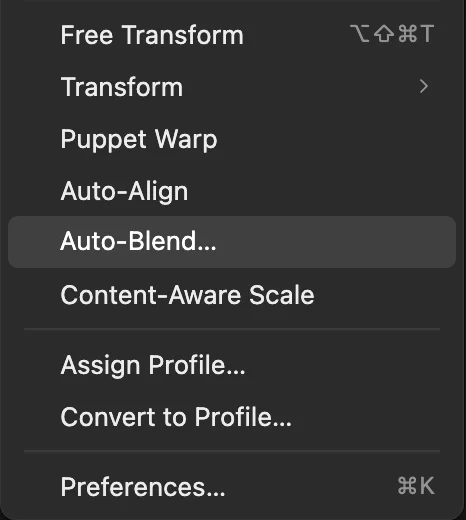
and , ringed, near the bottom of the Edit menu. Blend with Stack Images
With the layers still selected, choose and click Stack Images. The Blend method setting appears; Seamless tones and colors sits below it in both modes:
- Blend method: Adaptive Detail (the default) keeps the most sharpness, with transitions that follow edges; it is the right choice for a well-aligned stack. Smooth feathers the transitions more widely, which hides small alignment errors or movement, such as leaves in a breeze, but can soften fine detail.
- Seamless tones and colors (on by default) adjusts each frame’s brightness to match. A focus stack shot at one exposure has no brightness differences to even out, so untick it.
Click Blend. On the sample it takes a second or two. Each layer now has a mask that is white where that frame is the sharpest.
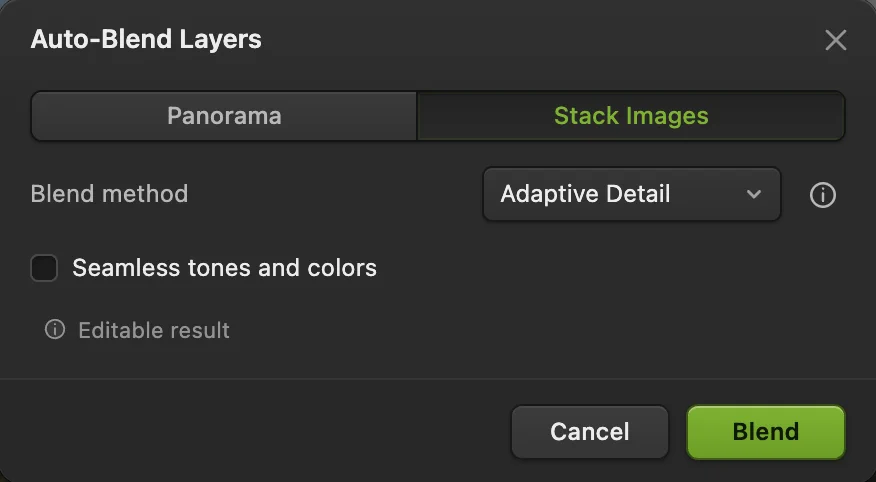
Auto-Blend set for a focus stack, with Stack Images (ringed) selected. - Blend method: Adaptive Detail or Smooth
- Seamless tones and colors: unticked for one exposure
- Blend
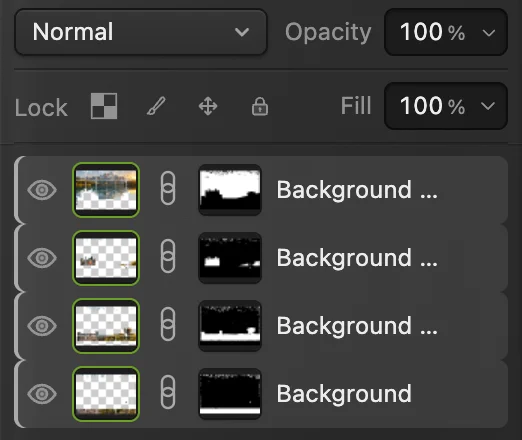
One mask per frame, each white where that frame is sharpest. Check the details, crop and save
Zoom to 100% with (Ctrl+1 or ⌘1) and look at the nearest and the farthest details, and at the edges where a near object stands in front of a far one. On the sample, measured in 40-pixel bands from the planks to the peaks, the stack keeps 77–96% of the fine-detail contrast of the sharp photo the frames were made from: it is sharp from front to back. The edge of the bin, which is blurred and spread over the grass in the nearest and the farthest frames, stays clean in the stack.
The frames are slightly different sizes, so the edges of the canvas come from fewer frames. Crop inside the smallest one: draw a rectangle with Marquee Select (M) just inside the canvas edges and choose . The sample ends up about 1524 × 1016 px.
Export with , or keep the layers and masks with (Ctrl+Shift+S or ⇧⌘S). on this document saves the stack, flattened, back into the first frame’s JPEG; the first time, the Save Image dialog asks for its quality.
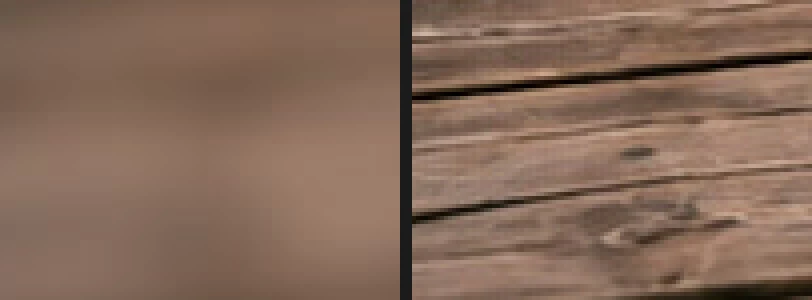
The planks, enlarged: the far-focused frame (left) and the stack (right). 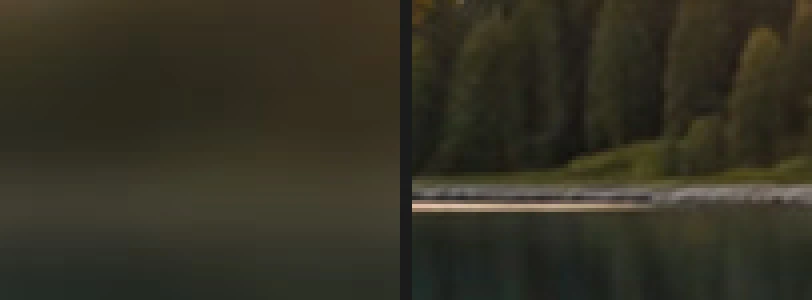
The far shore, enlarged: the near-focused frame (left) and the stack (right). 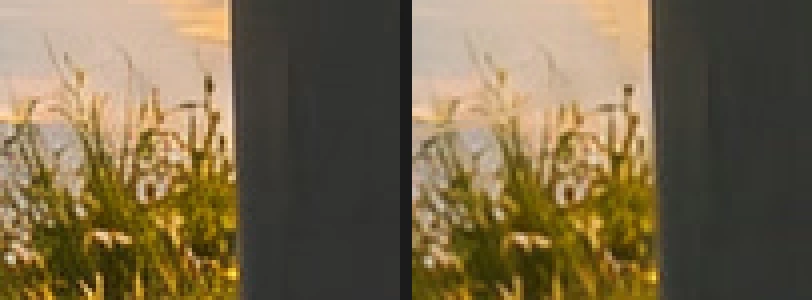
An occluding edge, enlarged: the sharp original (left) and the stack (right). 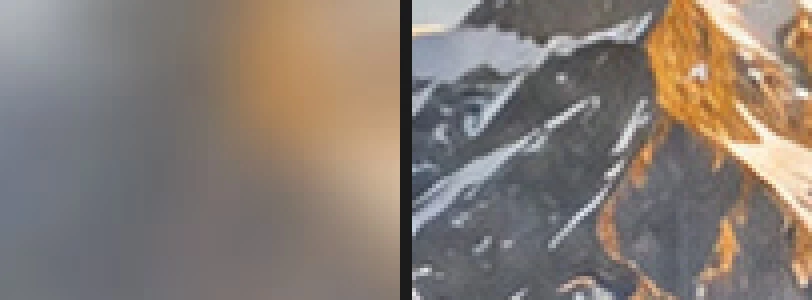
A peak, enlarged: the near-focused frame (left) and the stack (right).
Why not just close the aperture?
Stopping down from f/4 to f/16 does deepen the zone of sharpness, but light passing a very small opening spreads out (diffraction), so every detail in the photo gets a little softer, even at the focus distance. Close-ups make it worse: at short distances the depth of field can be a few millimeters even at f/16. A stack lets you shoot at the lens’s sharpest aperture, often around f/5.6 to f/8, and still get front-to-back sharpness.
Fix common problems
Doubled edges
The frames don’t line up exactly, or something moved between them. Check that Auto-Align ran on all the layers; for small movement such as leaves, undo the blend and try Smooth as the Blend method.
A soft rim where near meets far
In real stacks, an out-of-focus near object spreads over the background in the frames focused behind it, and a little of that can remain along the edge. Paint on the masks to choose which frame shows there.
A band stays soft in the middle distance
The focus steps were too far apart, so no frame was sharp there. Shoot another frame focused on that distance and add it to the stack.
Auto-Align or Auto-Blend is grayed out
Select at least two visible layers; text, shape and Smart Object layers must be rasterized first. Auto-Blend also refuses a layer locked with the padlock button (Lock layer) in the Layers panel.
What to do next
- Join frames side by side instead: how to stitch a panorama.
- Add a final touch of crispness: how to sharpen a photo.
- Fix a transition by hand: layer masks.
- Resize the result for the web.
Coming from another editor
- Photoshop
- Edit › Auto-Align Layers… and Edit › Auto-Blend Layers… with Stack Images. In Lil Cactus the same job is Edit › Auto-Align and Edit › Auto-Blend…
Focus stacking: questions and answers
How many photos do I need for a focus stack?
Enough that every distance is sharp in at least one frame. Three to five often cover a landscape with a close foreground; close-ups at high magnification can need ten or more. Lil Cactus blends all the layers you select.
Can I focus stack handheld photos in Lil Cactus?
Sometimes. Lil Cactus’s Auto-Align corrects small shifts and size changes between frames, but moving the camera between frames shifts near objects against far ones (parallax), which no alignment can fully undo and which can leave doubled edges. A tripod gives the cleanest result.
What is the difference between focus stacking and HDR?
Focus stacking combines frames with different focus to get more depth of field. HDR combines frames with different exposure to get more brightness range. In Lil Cactus, focus stacks use Edit › Auto-Blend… › Stack Images; HDR uses File › HDR Merge…
Can the stack be edited afterward in Lil Cactus?
Yes. Auto-Blend keeps each frame as its own layer with a mask, so you can paint on a mask to change which frame shows in an area. Save with File › Save As › Lil Cactus Project… to keep the layers.
Are my photos uploaded when I focus stack in Lil Cactus?
No. Aligning and blending run in your browser on your own device, and the photos are never sent to a server. Optional statistics never include images; see the privacy policy.
Keep going
 How to stitch photos into a panorama onlineOverlapping photos in, one wide picture out, with no visible joins.Advanced · 7 min
 How to merge bracketed exposures into an HDR photoThree exposures in, one photo with open shadows and recovered highlights out.Advanced · 8 min
 How to sharpen a photo without halosSmart Sharpen at 100%, without halos or crunchy grain.Intermediate · 6 min