How to dodge and burn a photo without damaging it
Quick answer
Add an empty layer with and set its blend mode to Soft Light in the Layers panel. Click the Brush in the toolbar and set Hardness 0% and Opacity about 20%. Paint white over the subject with a brush about half its width to brighten it (dodge), and black over what sits right behind it and over the edges of the frame to darken them (burn), building up with repeated strokes. The photo itself is never changed: lower the layer’s opacity, or erase, to undo any of it.
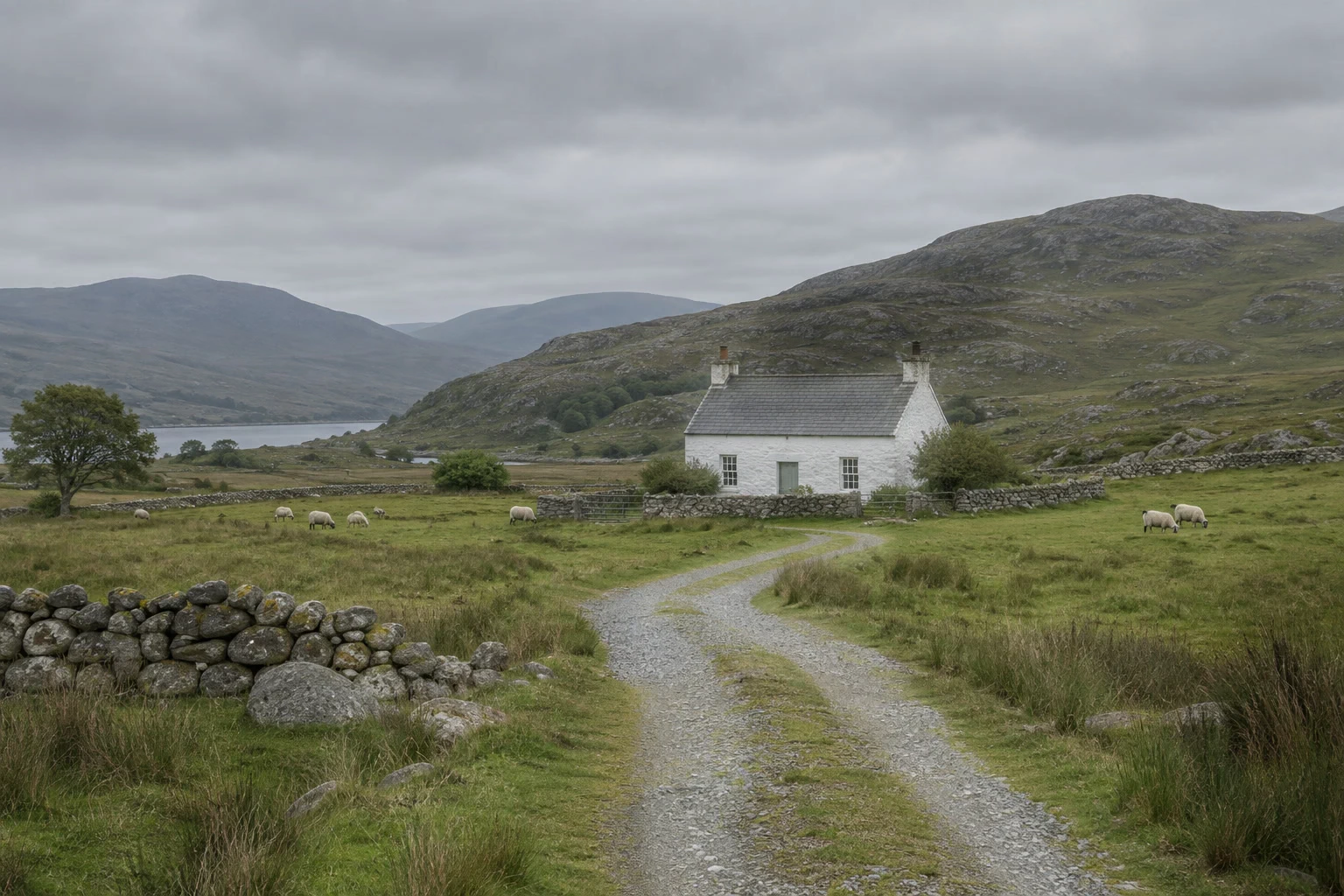
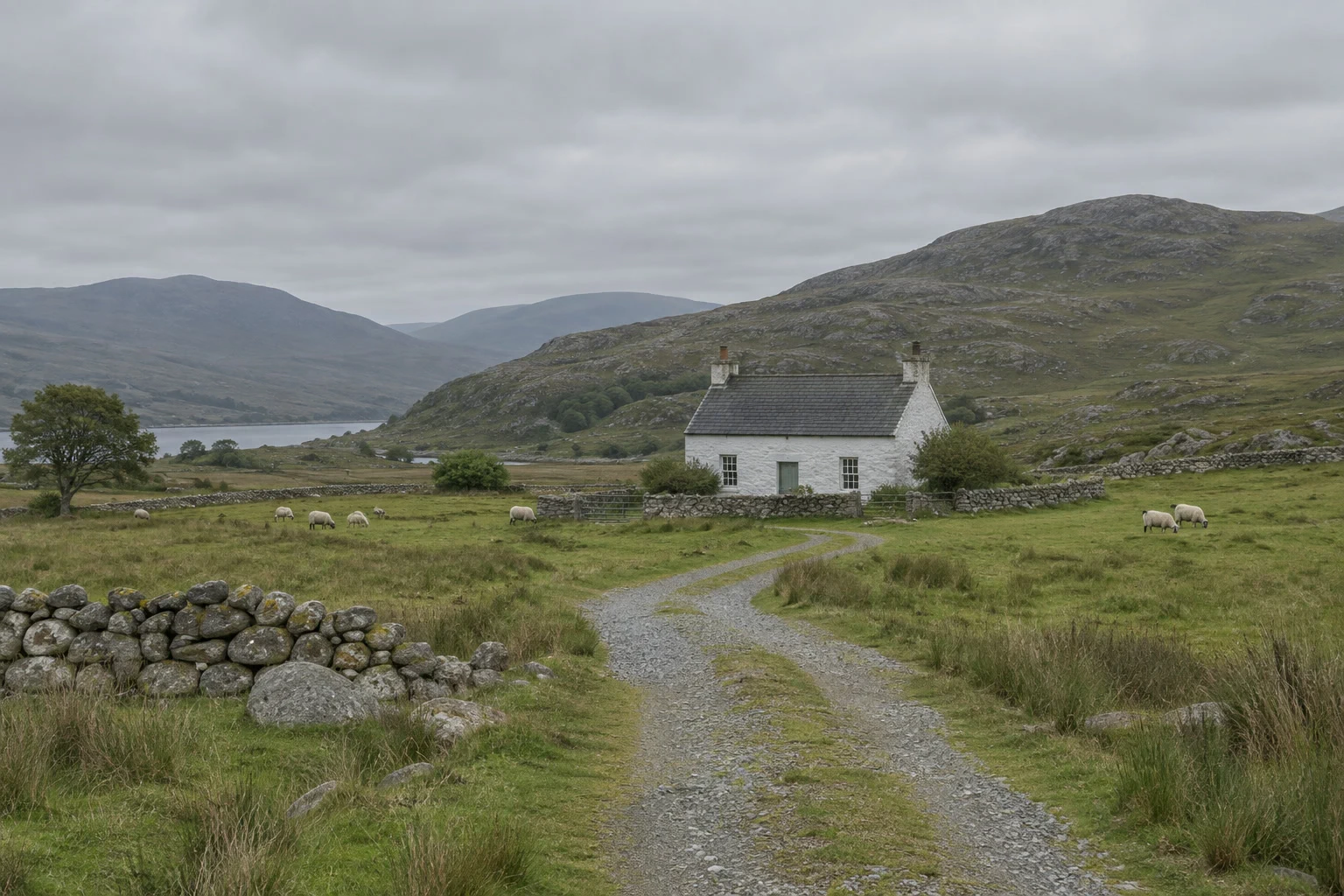
- Time
- 6 minutes
- Level
- Intermediate
- You need
- A photo whose subject doesn’t stand out enough from its surroundings
- Works with
- Any photo: JPEG, PNG, HEIC, WebP, TIFF, PSD and RAW files
Dodging means brightening part of a photo, burning darkening it. The words come from the darkroom, where printers held back light from some areas of the paper and gave others extra exposure. The eye goes first to the brightest, most contrasty part of a picture, so a few soft strokes can lead it to your subject and away from distracting edges.
Lil Cactus has Dodge and Burn tools, but they change the photo’s pixels. The flexible way is to paint on a separate layer in the Soft Light blend mode: white lightens what is below, black darkens it, and empty areas do nothing. You can change or delete it at any time.
Dodge and burn in five steps
Open the photo and add a Soft Light layer
Open the photo with (Ctrl+O or ⌘O); to follow along, open the sample from this page. Choose (Ctrl+Alt+Shift+N or ⌥⇧⌘N): an empty layer appears above the photo, selected. In the Layers panel, change its blend mode from Normal to Soft Light.
Soft Light brightens where you paint light colors and darkens where you paint dark ones, gently and without hard clipping.
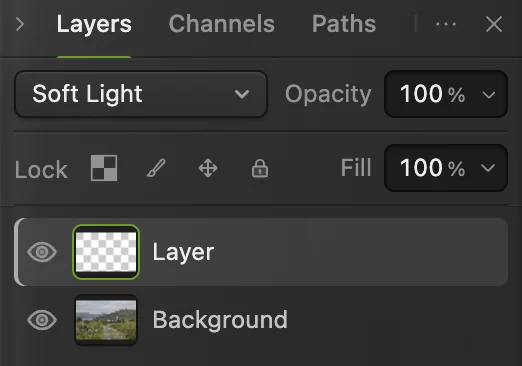
The new empty layer and its blend mode, Soft Light, both ringed. Set up a large, soft, faint brush
Click the Brush in the toolbar first: right after you choose the blend mode, the keyboard is still on that menu, and pressing D there switches the blend mode to Difference. Then, straight away, press D for the default colors, black and white, and X to swap them, so white is the foreground color you paint with. Do this before typing any values: after you type in an options-bar field, the keys go to the field until you click elsewhere.
On the options bar, set Size to 120 px to start, for the sample’s cottage (about 300 px wide), Hardness to 0% for an invisible edge, and Opacity to about 20%.

Size 120 px and Hardness 0%. 
Opacity 20%, further right on the same bar. Dodge: paint white where you want light
Paint over your subject in overlapping strokes, letting go of the mouse between them so they build up: each stroke adds 20% of what is left. Use a brush about half as wide as what you paint, and start and stop each stroke a little inside it, so the soft edge doesn’t brighten what is around it. Stop as soon as the subject starts to stand out. On the sample, two passes of:
- Cottage (120 px): one stroke through the lower roof and one through the walls, each starting and stopping about 30 px inside the walls.
- Thin path (60 px): from the cottage gate to the bend where the path turns toward you.
- Left wheel track (120 px): down its middle, from where the two tracks separate to the bottom edge.
- Right wheel track (100 px): from just right of the bend, along the inner edge of the path into the track, then down its middle to the bottom edge. Keep both tracks’ strokes off the grass strip between them.
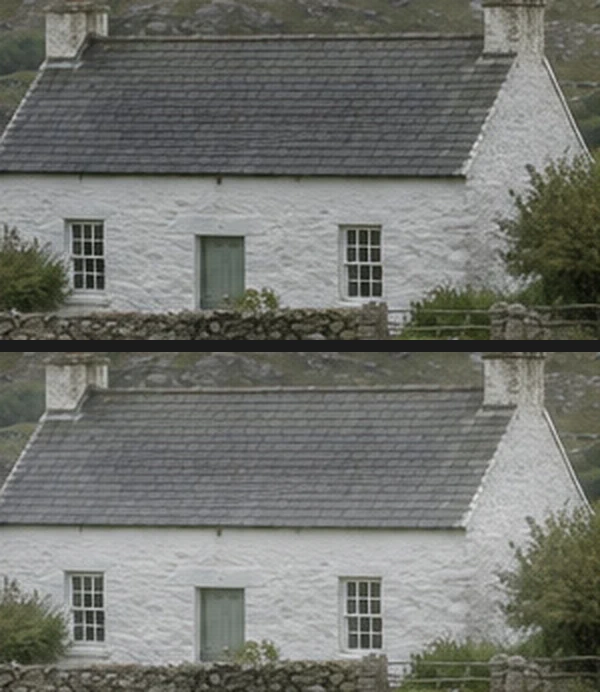
The walls and roof before (top) and after (bottom) dodging. Burn: paint black where you want shadow
Press X again to paint black, and stroke over what should recede: whatever sits right behind the subject, the edges and corners of the frame, and bright distractions. Darkening the background next to the subject makes the subject stand out more than brightening it further. A soft brush darkens almost to its edge, so keep its whole circle off anything that should stay bright. On the sample, two passes of:
- Hillside (120 px): along the near hillside behind the cottage, from above the left half of the roof to a little past its right end, with the whole circle below the skyline and clear of the far blue hill at the left. Its lower edge crosses the top of the roof and the right chimney, which is fine.
- Corners (260 px): two vertical strokes in each foreground corner, from the bottom of the photo about a third of the way up. On the left, one along the edge and one about a brush width in; on the right, one along the edge and one about 70 px in, off the right wheel track.
- Sky (260 px): one stroke across the top.
On the sample, the cottage walls brighten from 137 to 156 (of 255) while the hillside behind them darkens from 92 to 72, and the sky just above the ridge doesn’t change.
Hide the photo for a moment (its eye in the Layers panel) to see what you painted: soft light and dark strokes on an empty layer.
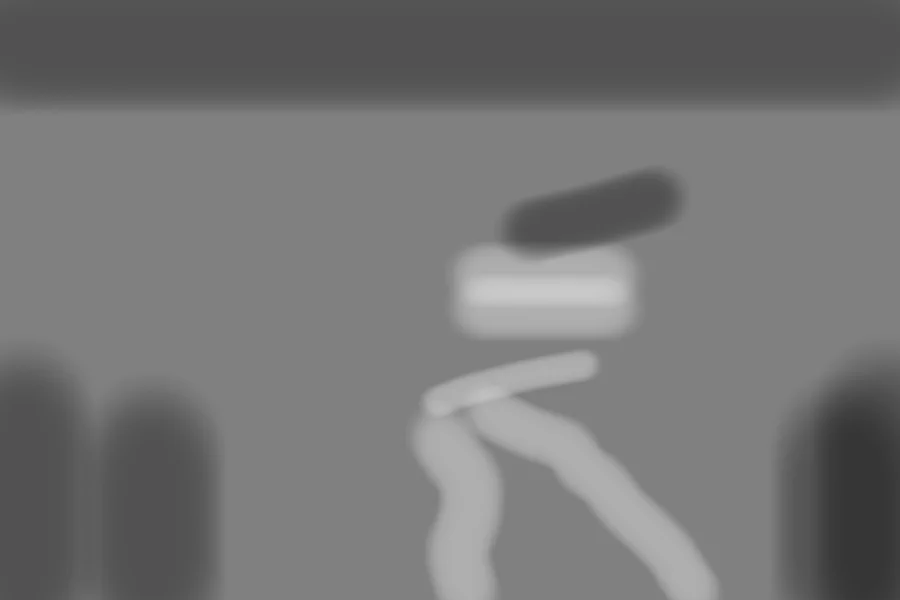
The painted layer on its own, shown here over gray for clarity (in the editor it sits over transparency): light dodges, dark burns. Fine-tune the layer and save
Turn the layer’s eye off and on in the Layers panel to compare. Too strong everywhere? Lower the layer’s Opacity. Too strong in one place? Erase there with the Eraser (E) set large, with Hardness 0% and a low Opacity (its defaults cut hard-edged holes), or paint over it with the other color.
To keep the layer editable, save with (Ctrl+Shift+S or ⇧⌘S); after that, saves the project. on the JPEG you opened writes the result back into it, flattened; the first time, the Save Image dialog asks for its quality. writes a separate copy.
The Dodge and Burn tools
The Dodge and Burn tools (O) brighten or darken the pixels you brush over directly, with two extra settings on the options bar:
- Range (default Midtones): which tones the tool affects most. Highlights brightens or darkens mainly the light tones, Shadows the dark ones.
- Exposure (default 30%): the strength of each stroke.
Because they change pixels, use them on a copy of the photo: duplicate it first with (Ctrl+J or ⌘J), so you can lower the copy’s opacity or delete it.


Where to dodge and burn
- Lead the eye: brighten the subject a little and darken the edges of the frame, as on the sample.
- Shape a face: brighten the cheekbones, the bridge of the nose and the eyes; darken under the cheekbones and along the jaw.
- Add depth to a landscape: brighten the side of hills and trees that faces the light, darken the side away from it.
- Calm distractions: burn a bright sign, a white sky corner or a hot spot of sun that pulls the eye away.
Fix common problems
Painted areas look gray and flat
The layer is still in Normal mode, so the paint covers the photo. Set it to Soft Light.
The strokes show as blotches
The brush is too hard or too strong. Undo the strokes with Ctrl+Z or ⌘Z, set Hardness to 0% and lower Opacity, and paint again.
Colors turn washed out or muddy where you painted
In Soft Light, dodged areas also turn paler and more washed out, and burned areas richer and muddier: on the sample, the gravel’s saturation along the wheel tracks falls from 0.10 to 0.08 (on a 0–1 scale). Lower the layer’s Opacity, or erase the strongest strokes and paint them again more lightly.
The strokes invert the photo
The layer’s blend mode changed to Difference: pressing D while the blend-mode menu still has the keyboard picks it. Set the menu back to Soft Light, click the Brush, then press D and then X.
What to do next
- Change brightness across tones instead of areas: how to use Curves.
- Limit any adjustment to part of the photo: layer masks.
- Retouch skin without losing texture: frequency separation.
Coming from another editor
- Photoshop
- The Dodge and Burn tools (O), or a new layer in Soft Light or Overlay, as in Lil Cactus.
- GIMP
- The Dodge / Burn tool (Shift+D).
Dodging and burning: questions and answers
What is the difference between dodging and burning?
Dodging brightens part of a photo; burning darkens it. In Lil Cactus you can do both on one Soft Light layer, painting white to dodge and black to burn.
Is the Dodge tool destructive in Lil Cactus?
Yes. In Lil Cactus the Dodge and Burn tools change the pixels of the layer you paint on, so use them on a duplicate layer.
Should I use Soft Light or Overlay for dodging and burning?
Soft Light is gentler and easier to control, so start there. Overlay gives a stronger effect from the same strokes; in Lil Cactus you can switch the layer’s blend mode at any time and compare.
What brush opacity should I use for dodging and burning in Lil Cactus?
In Lil Cactus, set the Brush to a low Opacity, about 10–20%, so each stroke adds only a little and mistakes stay small.
Is my photo uploaded when I dodge and burn in Lil Cactus?
No. Painting runs in your browser on your own device, and the photo is never sent to a server. Optional statistics never include the image; see the privacy policy.
Keep going
 How to use Curves to fix contrast and colorRead the graph, build an S-curve and shift color by channel.Intermediate · 8 min
 How to use layer masksHide part of a layer without deleting it, and bring it back any time.Beginner · 5 min
 How to retouch skin with frequency separationEven out skin tone and remove blemishes while keeping texture.Advanced · 12 min