How to flip, rotate or straighten an image
Quick answer
To mirror a photo in Lil Cactus, choose . To turn a sideways photo, choose or Rotate 90° Counter-Clockwise. For a tilted horizon, choose the Crop tool, click Straighten and drag along the horizon, then click Apply crop. Save a finished copy with


- Time
- 4 minutes
- Level
- Beginner
- You need
- A photo, and a computer with a mouse or trackpad
- Works with
- JPEG and PNG photos; layered documents can use the whole-image commands too
A flip makes a mirror image. A rotation turns the picture without mirroring it. Straightening rotates by a small angle to level a horizon, then crops the empty corners.
Use the Image menu when every layer should move together. Use when only the selected layer should change.
Flip a photo in four steps
Open the photo
Choose and select your photo, or open the tram sample from this page.
Choose Image › Transform › Flip Canvas Horizontal
Open and choose Flip Canvas Horizontal. It applies immediately, with no dialog. The left and right sides exchange places; the photo keeps its width and height.
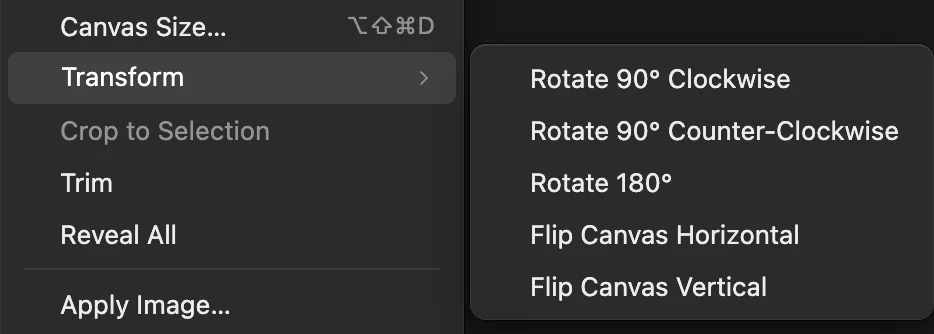
Image › Transform changes the whole document. Check the mirrored picture
In the sample, the tram now faces the opposite way. Writing and signs are mirrored too, so a flip is unsuitable when they need to remain readable. To go back to the original, choose .

The tram and buildings have all changed sides. Export the finished photo
If you undid the flip, choose to restore it. Choose , type tram-flipped.jpg in File name and click Export. Export writes a new file.
writes the result back in the opened file’s format. The first Save of a JPEG opens Save Image. For a layered document, keeps the layers editable. After Save As, updates that project.

Give the exported copy a name that identifies its orientation.
Rotate a sideways or upside-down image
Choose one of these from :
| Command | Result |
|---|---|
| Rotate 90° Clockwise | A quarter turn to the right |
| Rotate 90° Counter-Clockwise | A quarter turn to the left |
| Rotate 180° | A half turn, for an upside-down photo |
| Flip Canvas Vertical | A top-to-bottom mirror image |
A 90° turn exchanges width and height: the 1536 × 1024 px sample becomes 1024 × 1536 px. Unlike a vertical flip, a 180° turn does not mirror the picture.
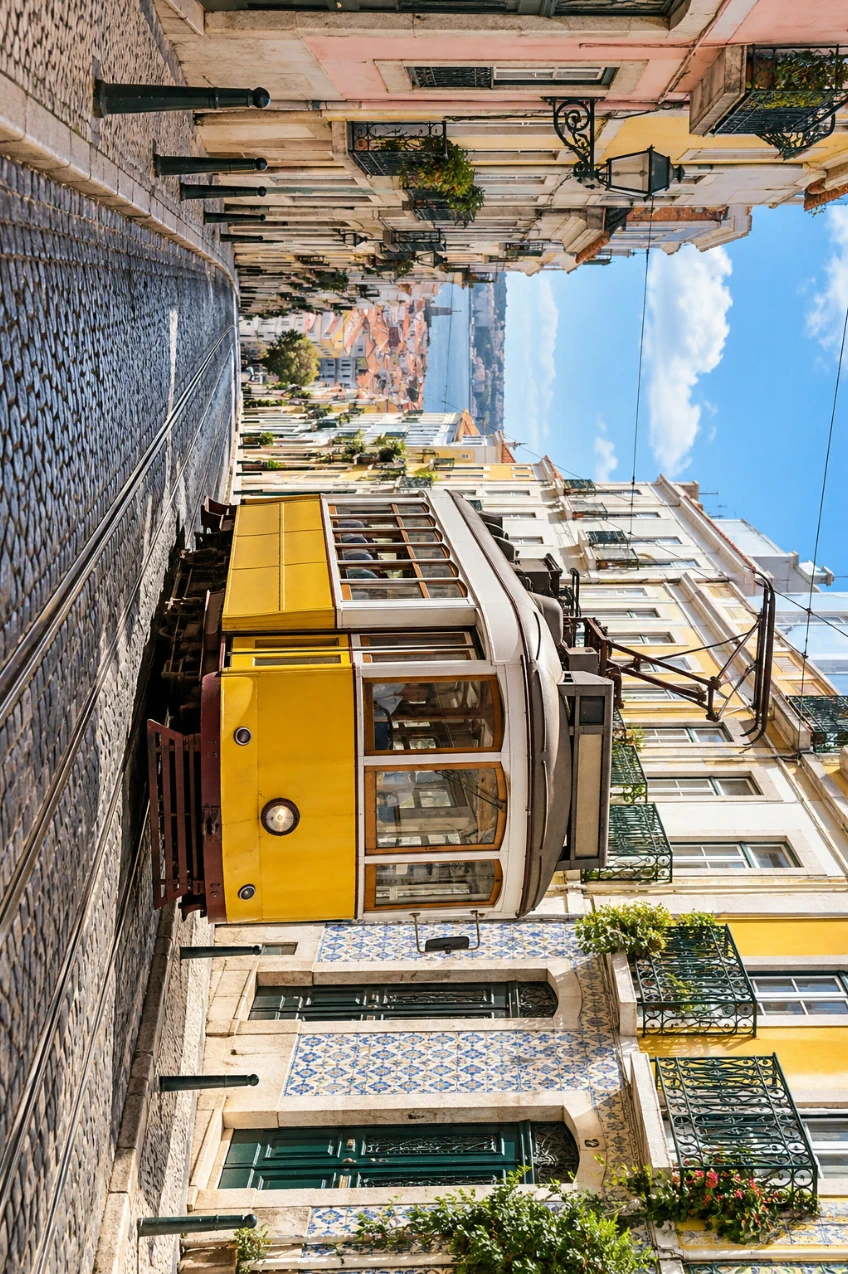
Straighten a tilted horizon
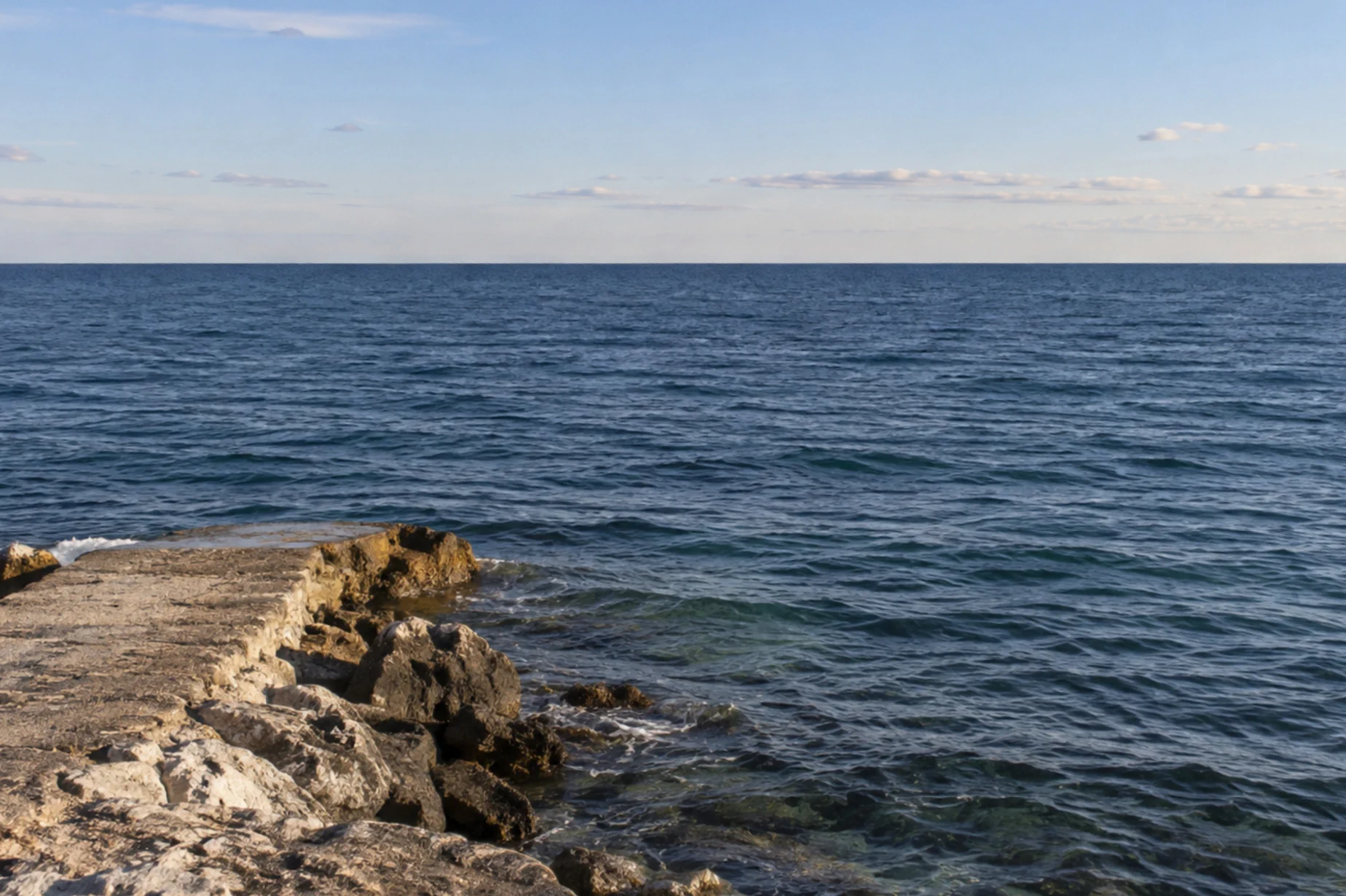
Use a distant horizon or a building edge that should be level. A sloping road or roof may really slope, so it is a poor guide. To practice, download the tilted-coast sample and open it with
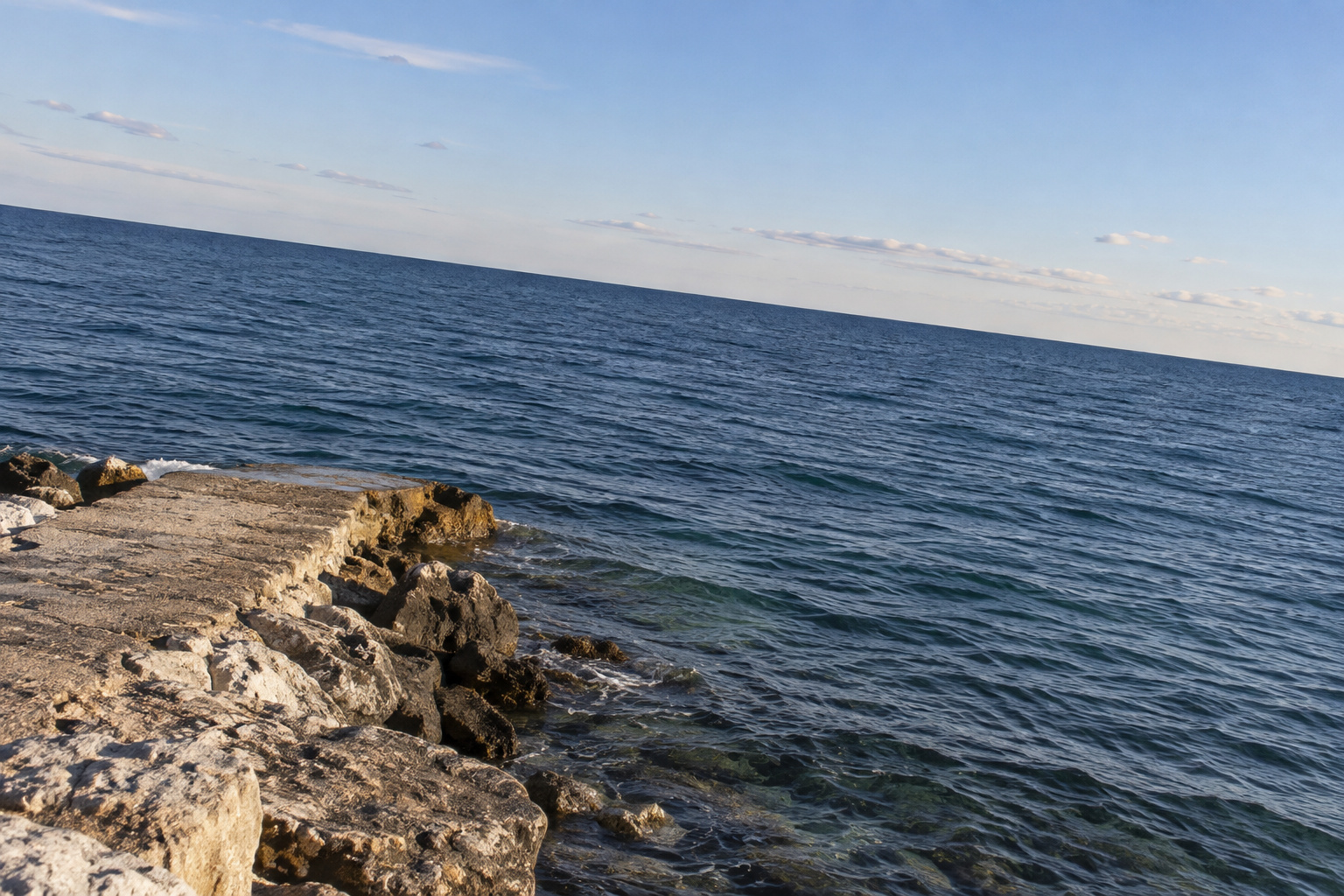
- Right-click the crop tools’ button in the left toolbar and choose Crop.
- Set Ratio to Free, then click Straighten on the options bar, the strip below the menus.
- Drag along the line where the sea meets the sky, from near the left edge to near the right edge. In the sample it slopes down to the right. Follow that distant horizon, not the diagonal shoreline in the foreground.
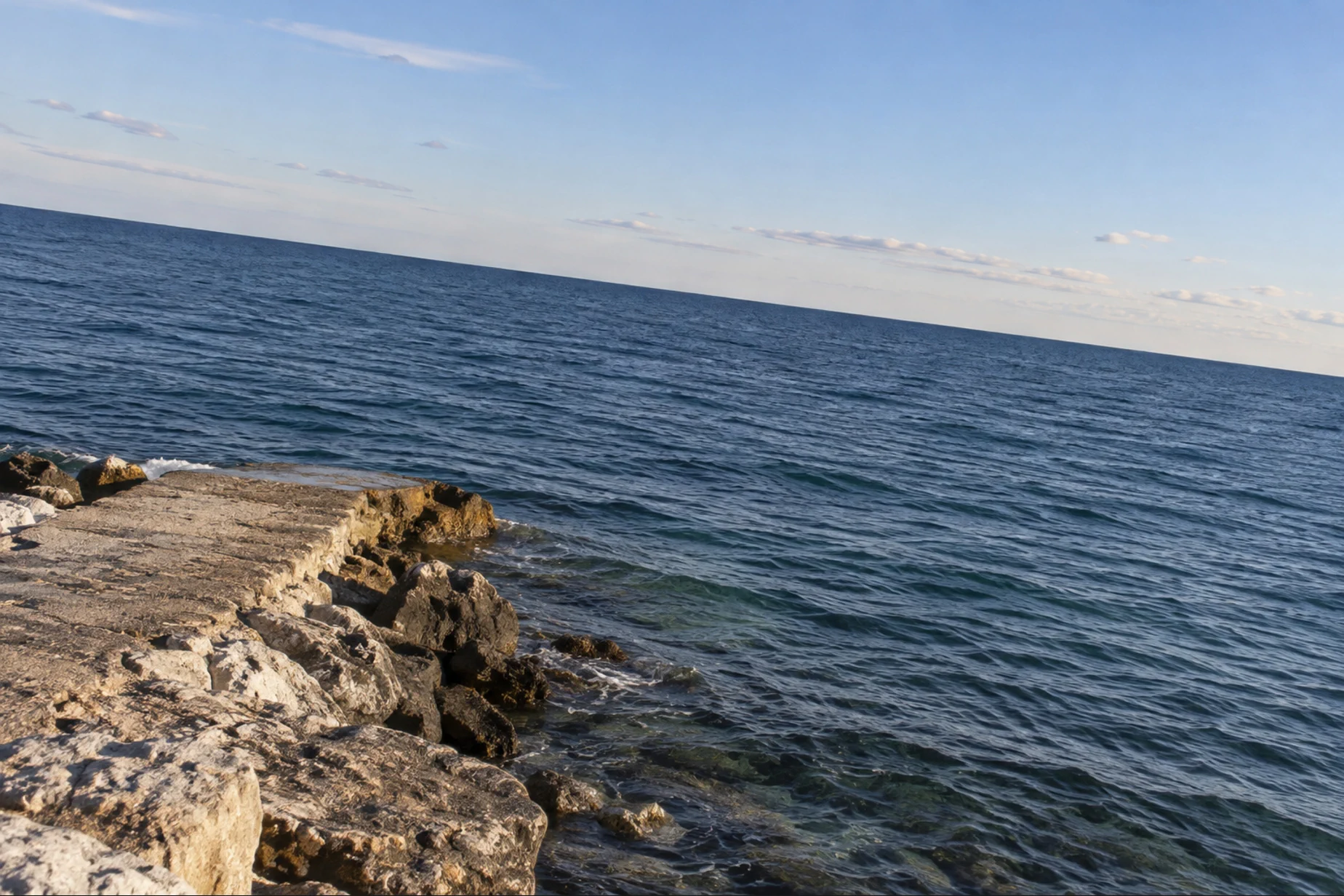
- Release the pointer. The picture rotates and a crop frame appears inside the empty corners. Click Apply crop to finish.
Straightening removes some of the edges to fill a rectangular frame. Leave room around the subject when taking a photo that may need this correction.


Flip or rotate one layer
Select the layer in the Layers panel. For a photo layer made of pixels, or Flip Vertical mirrors that layer within the existing canvas. Other layers stay in place.
For an angle you choose, use , type the angle into Angle on the options bar and click the check mark to apply. The canvas does not expand, so a rotated layer may extend beyond its edges.
Fix common problems
Only one part of the picture moved
You used a command under . Undo, then use for the whole document.
The image looks upside down instead of mirrored left to right
Undo and choose Flip Canvas Horizontal. Flip Canvas Vertical mirrors top to bottom, while Rotate 180° turns the photo through a half circle.
The horizon is still tilted
Choose twice (once for the crop, once for the rotation), then draw the reference along the distant horizon again. Starting and ending on different waves or on the shoreline gives the wrong angle.
I only want to turn my view while drawing
The Rotate View tool changes the working view. Use the Image menu commands when the exported image needs to turn.
What to do next
- Crop to a ratio or an exact composition after straightening.
- Resize the photo when its orientation is right.
- Correct leaning buildings when rotation alone does not fix the geometry.
Coming from another editor
- Photoshop
- Image › Image Rotation contains the whole-image rotation and Flip Canvas commands. In Lil Cactus these are under Image › Transform.
Flipping and rotating images: questions and answers
How do I mirror an image horizontally?
In Lil Cactus, choose Image › Transform › Flip Canvas Horizontal. It mirrors the whole document from left to right.
Does flipping an image reduce its quality?
No. Lil Cactus rearranges the pixels for whole-image flips and 90° or 180° rotations without blending them. Exporting as JPEG still adds JPEG compression; use PNG if you need to avoid that extra compression.
What is the difference between a vertical flip and a 180-degree rotation?
A vertical flip mirrors top to bottom. A 180-degree rotation turns both axes and keeps the picture unmirrored. In Lil Cactus, both commands are under Image › Transform.
Can I straighten a photo without cropping it?
Yes. In Lil Cactus, Crop › Straighten rotates the photo when you release the line. You can cancel the proposed crop, but the rotated picture has empty corners. Applying the crop removes them.
Can I undo a flip or rotation?
Yes. In Lil Cactus, choose Edit › Undo while the document is open. After exporting and reopening a flat image, the earlier editing history is no longer available.
Is my photo uploaded when I rotate it?
No. Lil Cactus flips, rotates and exports the image in your browser on your own device.
Keep going
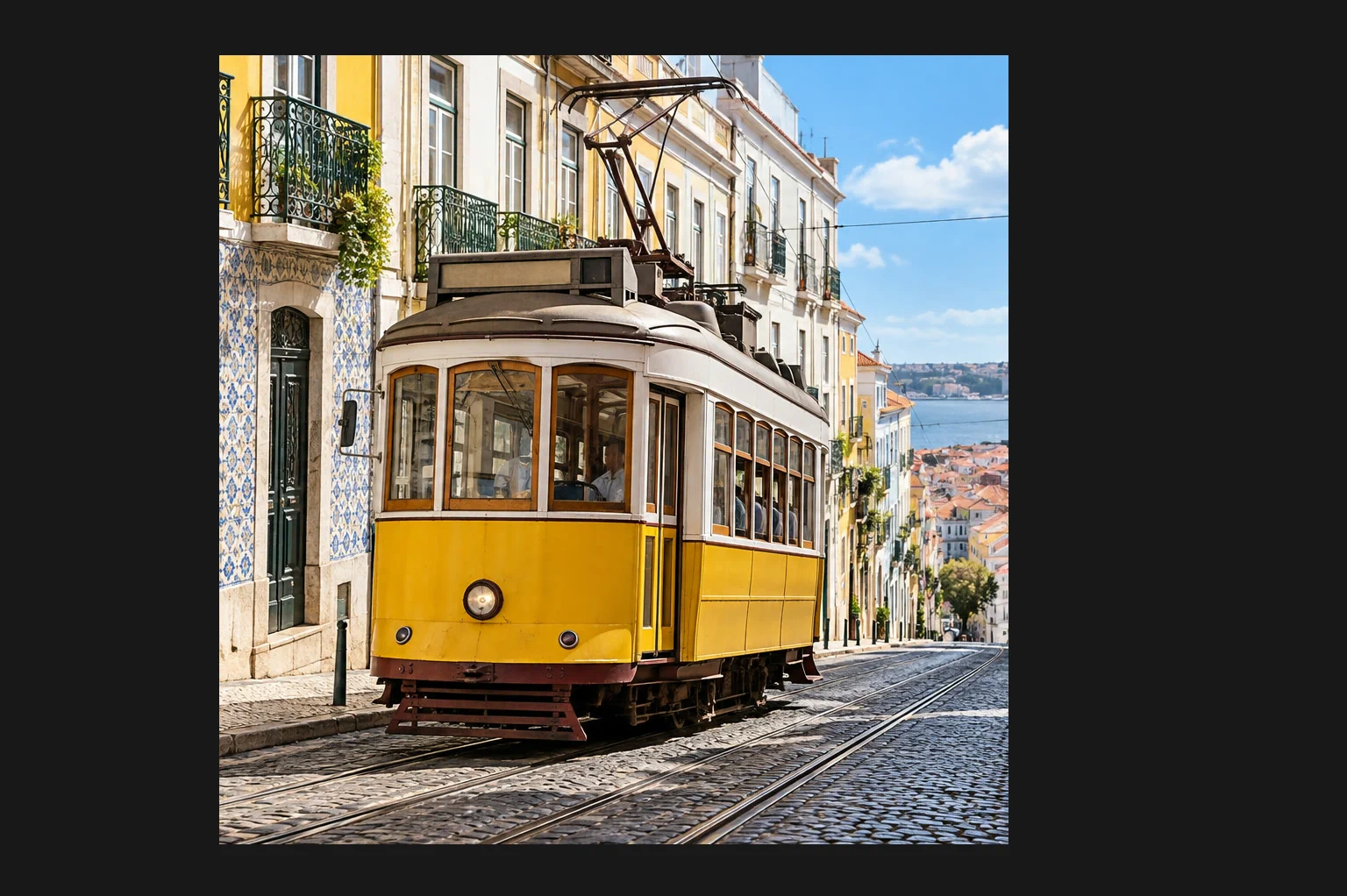 How to crop an imageChoose what stays in the frame, then set the shape and size.Beginner · 6 min
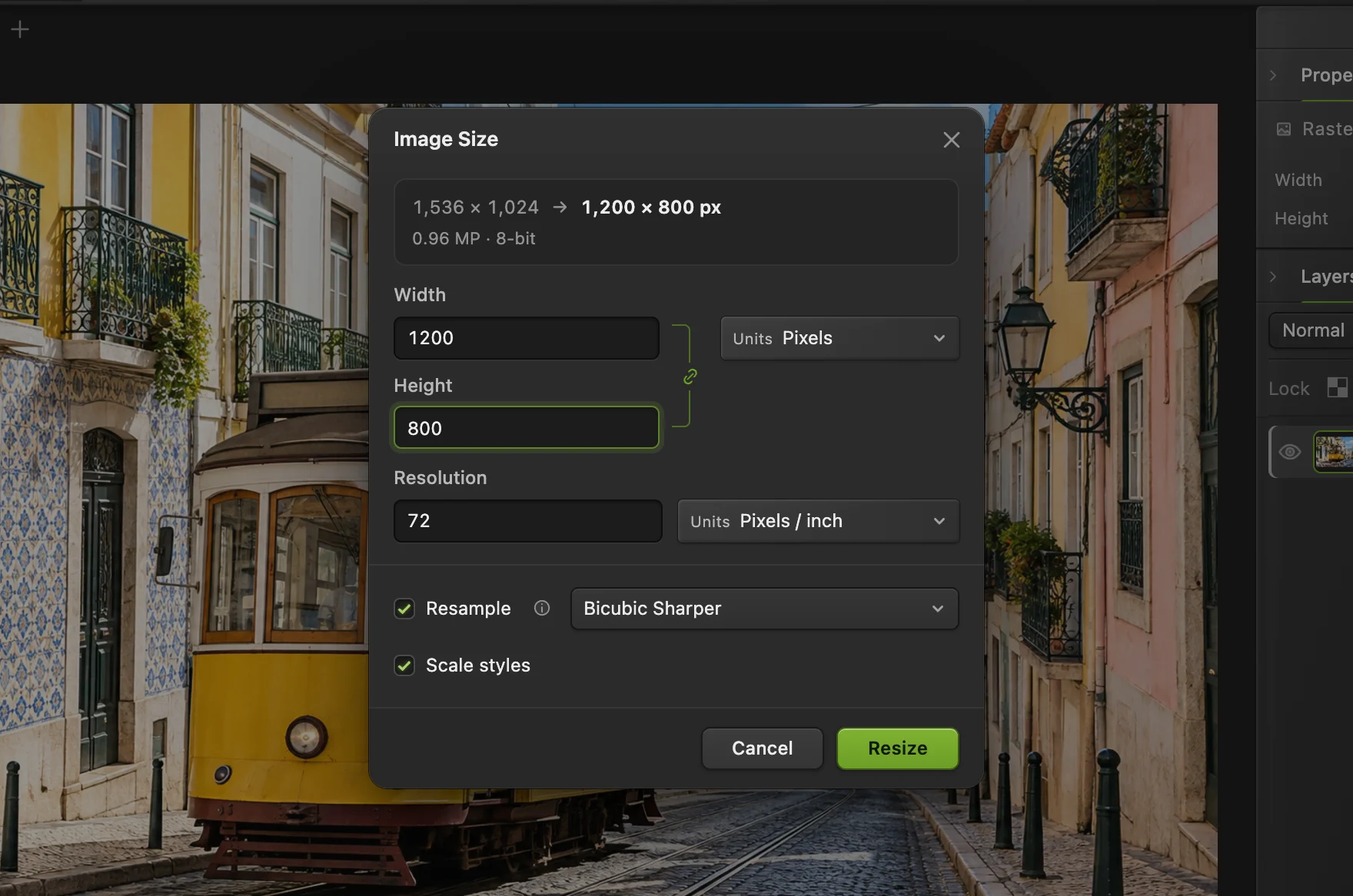 How to resize an image online to exact pixels or print sizeExact pixels, percent or print size, without stretching.Beginner · 2 min
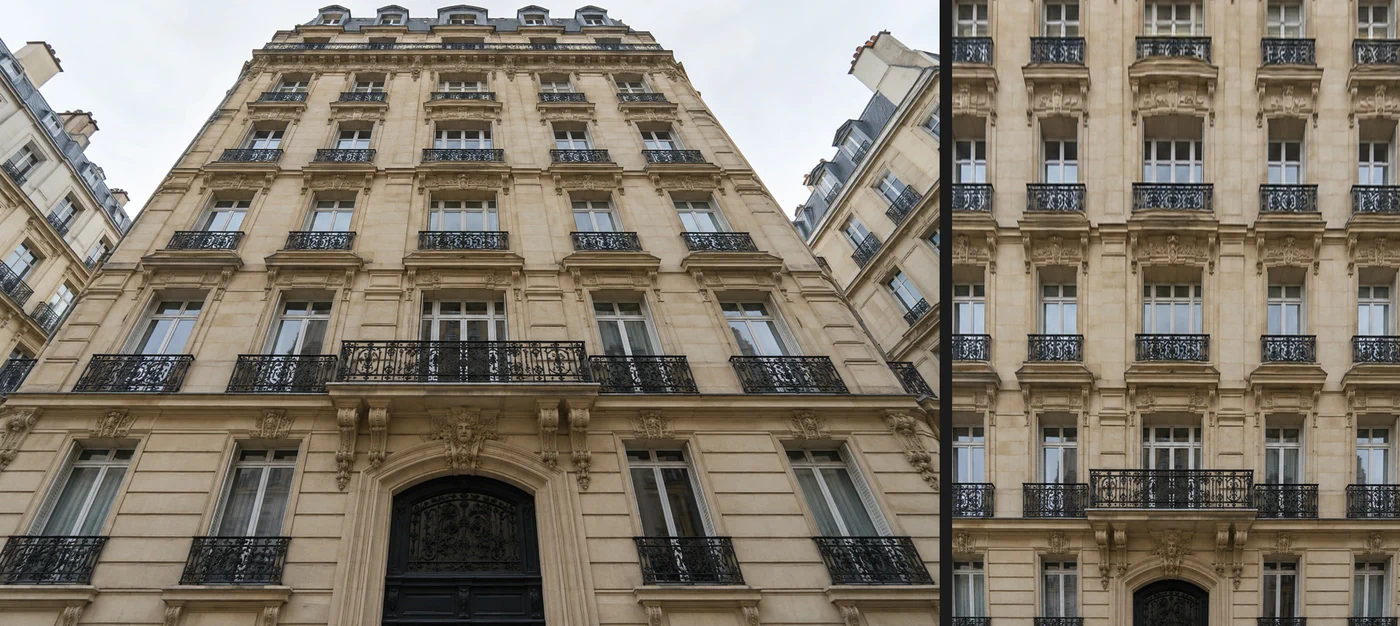 How to fix perspective and straighten buildings in a photoStraighten leaning buildings and get a square-on facade.Intermediate · 5 min