How to whiten teeth in a photo
Quick answer
In Lil Cactus, choose and select Yellows. For the sample, set Saturation to −55, Lightness to +25 and Inner start under Range limits to 25°, then click Apply. Select the adjustment’s mask thumbnail and choose to hide the adjustment. With a small, soft white Brush, paint across each tooth’s enamel up to the gum line and out to the rims, then export a JPEG.
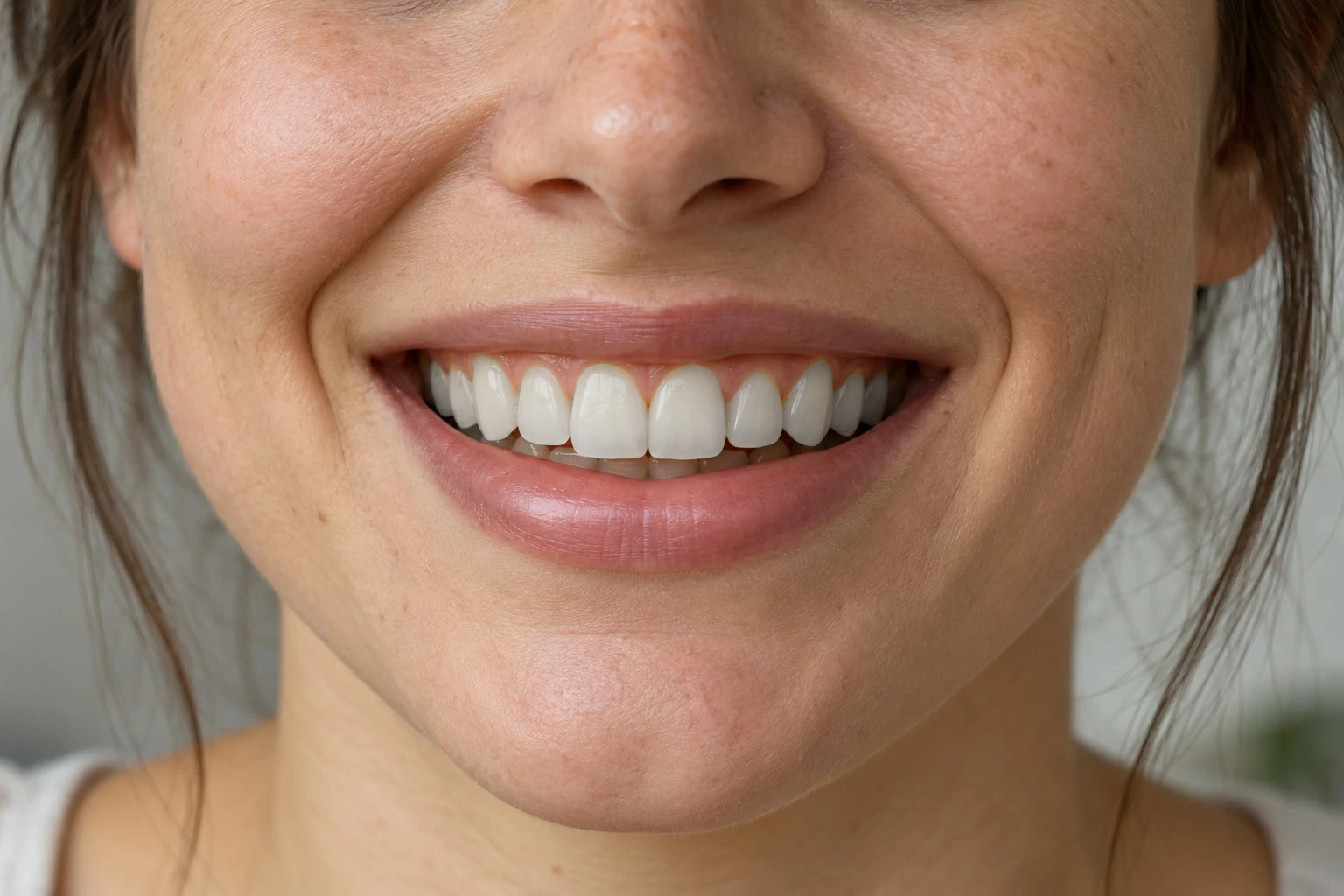
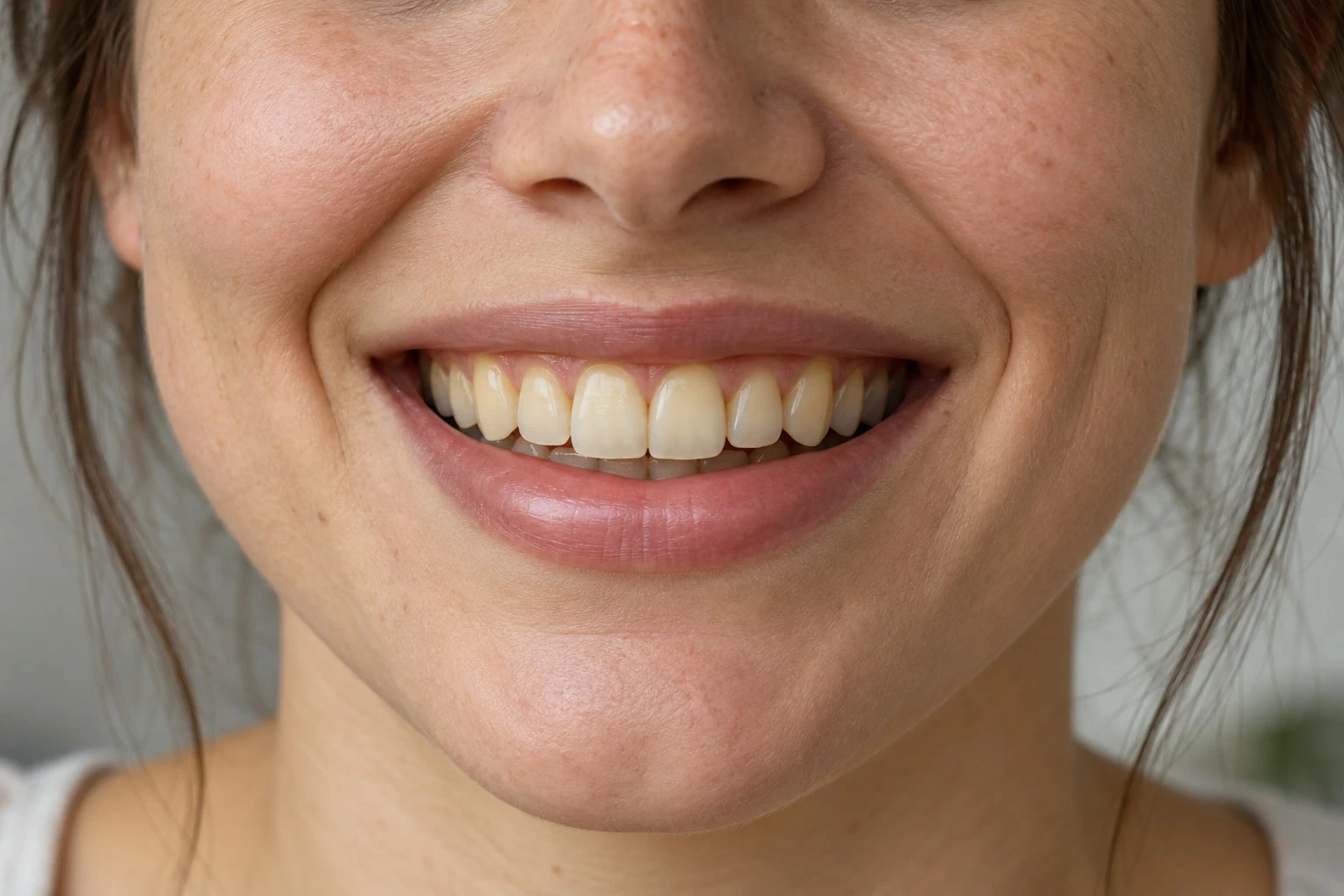
- Time
- 8 minutes
- Level
- Beginner
- You need
- A photo with visible teeth and natural detail
- Works with
- RGB photos, with a separate adjustment layer
Teeth need some warmth, translucent edges and shadow to look real, so reduce their yellow gently.
Whiten teeth in six steps
Open the photo and add Hue/Saturation
Open your photo with , or use the sample from this page. Choose
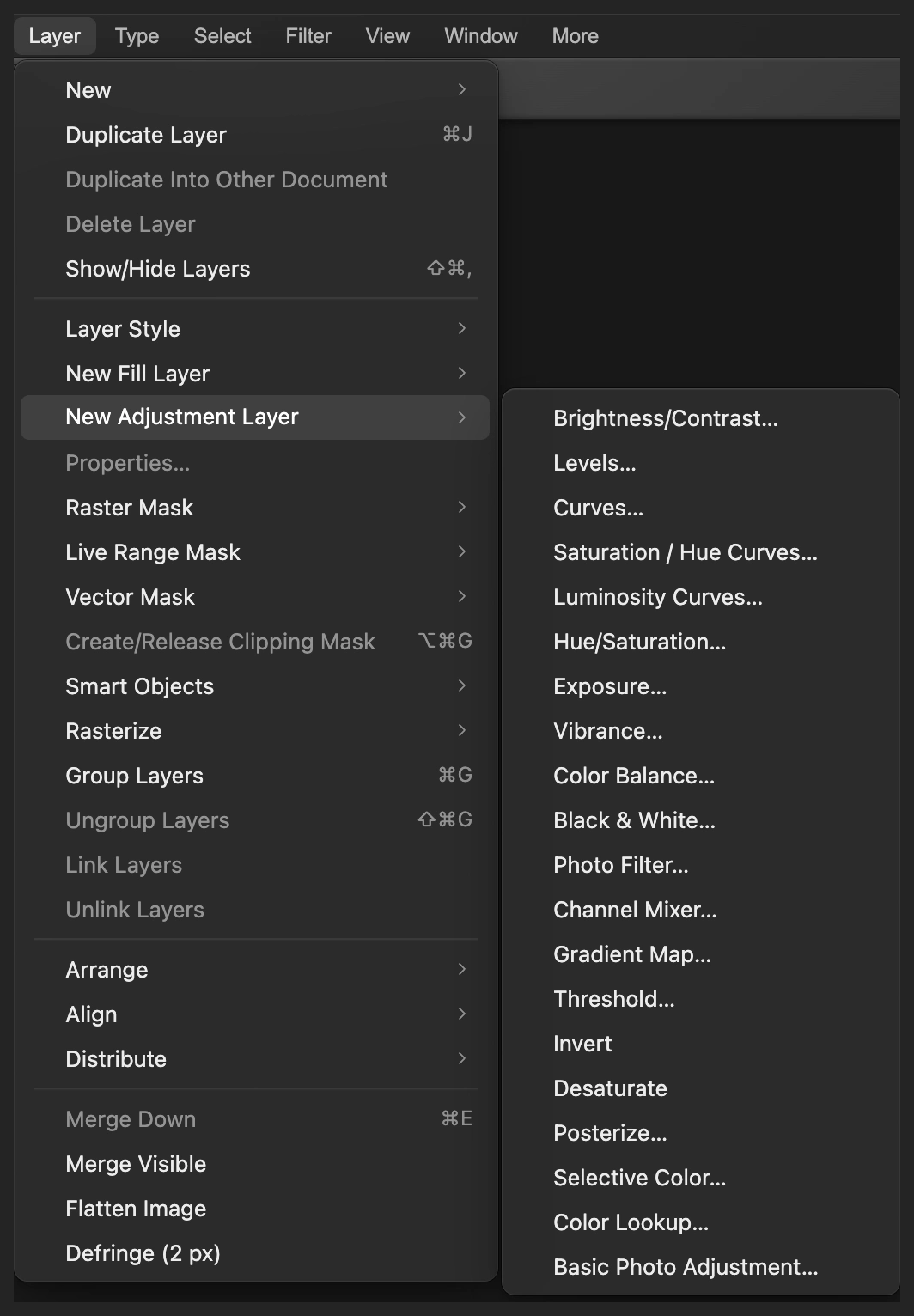
Add Hue/Saturation as a separate adjustment layer. Reduce the yellow gently
Keep the Master settings at 0. Select Yellows, the third swatch under Color range. Leave Hue at 0, then set Saturation to −55 and Lightness to +25 for the sample.
Expand Range limits and set Inner start to 25°. This brings the warmer yellow-orange stain in the canines into the adjustment. Leave the other limits unchanged and Colorize off, then click Apply. The whole photo changes for now; the mask will confine the change to the teeth.
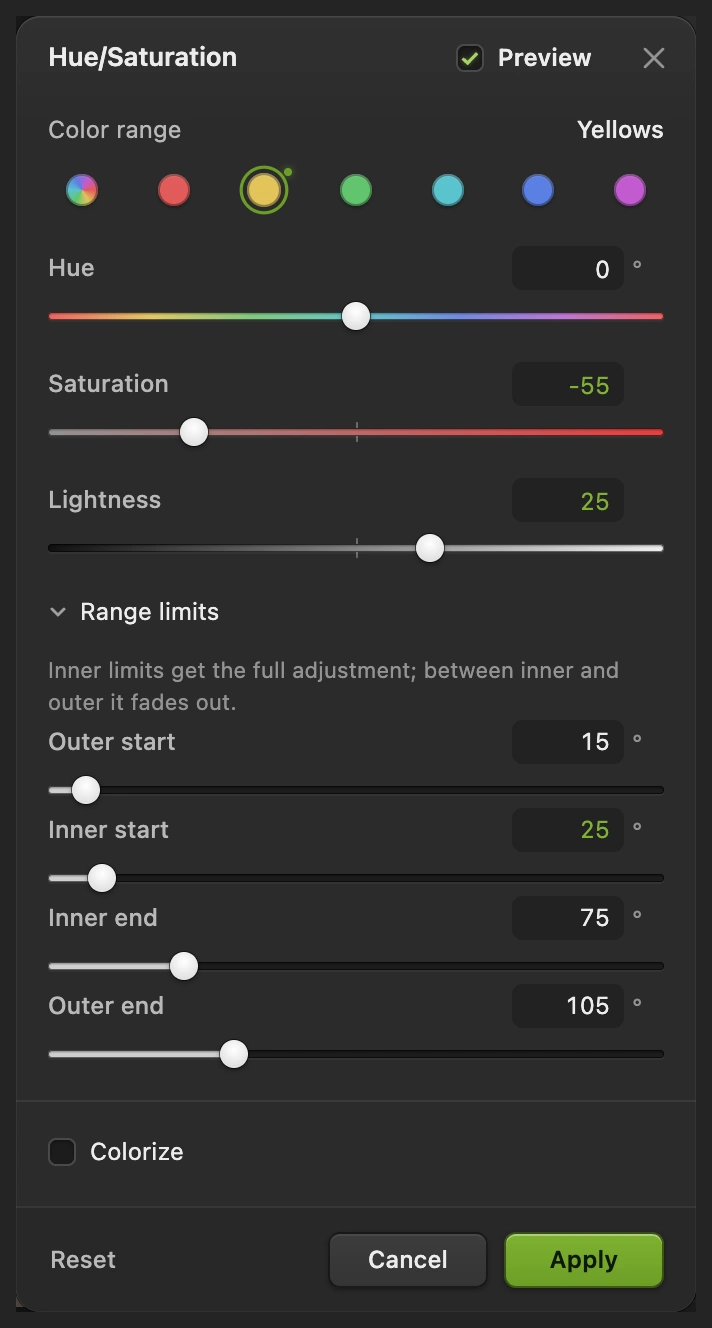
Adjust Yellows, leaving Master at 0. The wider range reaches the warmer stain near the canines. Hide the adjustment with a black mask
An adjustment layer holds a color change separately from the photo. Its mask controls where the change appears: white shows it, black hides it and gray blends it.
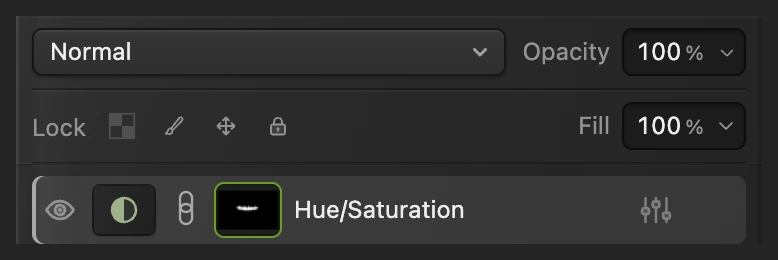
In the Layers panel, click the white mask thumbnail beside Hue/Saturation. Choose . There is no dialog: the mask turns black and the original colors return.
Keep that mask selected. Painting on the mask reveals the adjustment without painting over the photo itself.
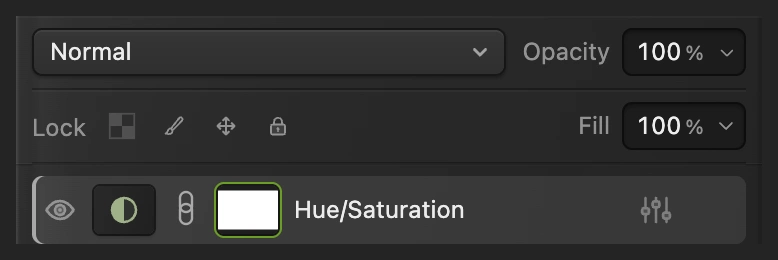
Select the mask, the second thumbnail in the Hue/Saturation row. 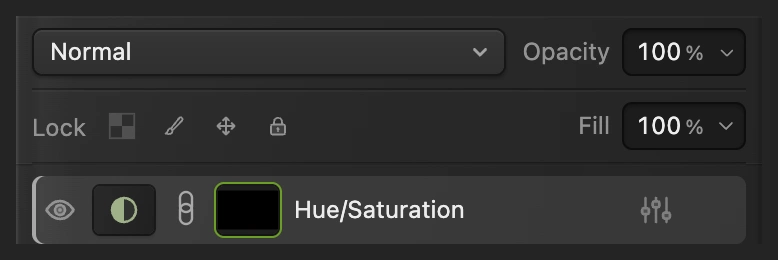
Black hides the adjustment everywhere until you paint. Choose a soft white Brush
Right-click the brush icon in the left toolbar and choose Brush. Press D to reset the foreground and background colors, then X to put white in front. Do this before entering brush values.
Set Size to 10 px, Hardness to 0%, Opacity to 100% and Flow to 100%. Hardness controls the edge: 0% gives a soft transition. Choose until individual teeth are easy to see, about 150–200% for the sample.
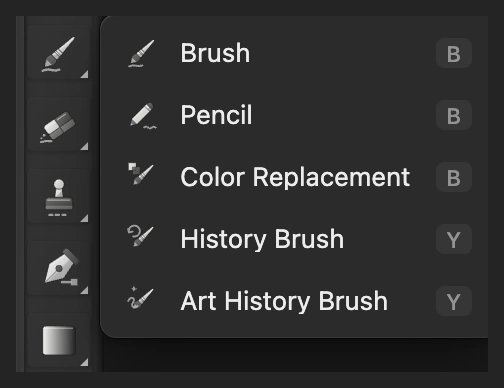
Choose Brush from the brush icon’s flyout. 
A small soft brush lets you follow the curved enamel edges. 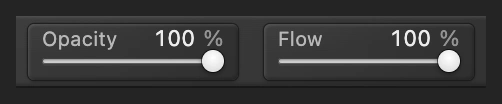
The adjustment settings keep the change gentle; paint a white mask at full strength. Cover the enamel and compare
Hold the space bar and drag to bring the mouth into view. Make short, overlapping strokes across each upper tooth’s enamel, including the narrow warm strip immediately below the pink gum. Zoom in farther if that strip is hard to see. Cover from the curved gum line to the lower tip, and out to both sides. Include the lateral teeth beside the front pair and the pointed canines toward the corners. Painting only the centers leaves yellow outlines.
Reduce Size to about 4–6 px near the gum line and rims, smaller if needed to keep the brush inside the boundary. Follow the boundary between enamel and pink gum, keeping the brush’s soft outer edge on the tooth side. Reach the enamel without letting that edge cross onto the gum. Keep the lips and true dark gaps clear, but cover the light enamel on either side of a contact. In the sample, leave the partly hidden lower teeth in their natural shadow.
The whole-row comparison shows the coverage to aim for. The black mask thumbnail gains pale marks where you paint. Choose to judge the whole smile. Click the eye beside Hue/Saturation to compare with the original, then click it again to restore the whitening.
Tip To hide a spill onto a gum or lip, press X and paint black on the mask with the small brush. Press X again to return to white.
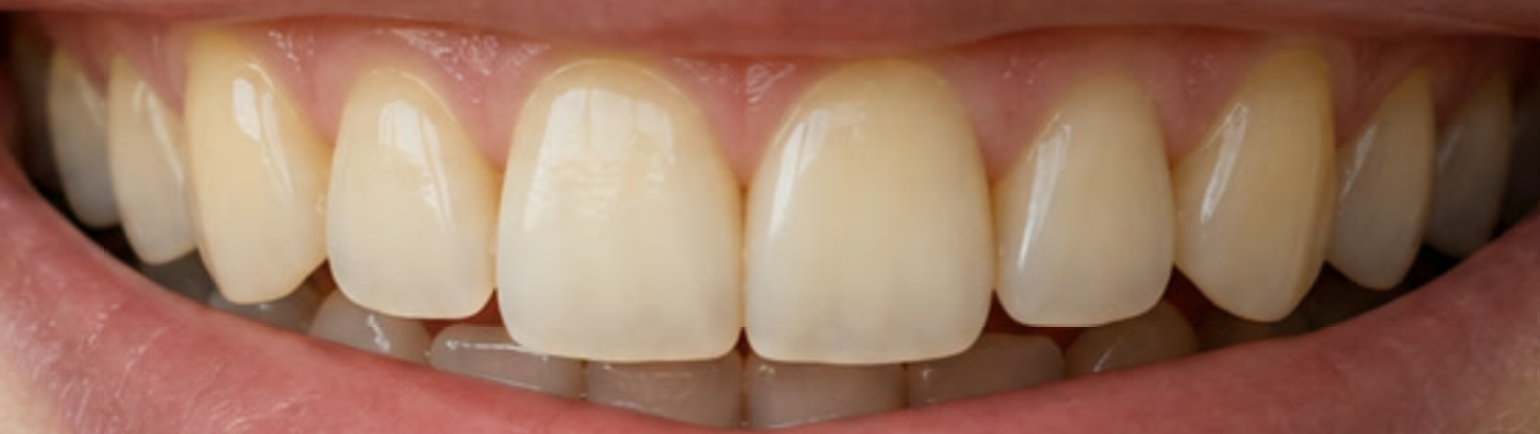
Before: yellow is visible across the upper row, including the canines and enamel near the gum. 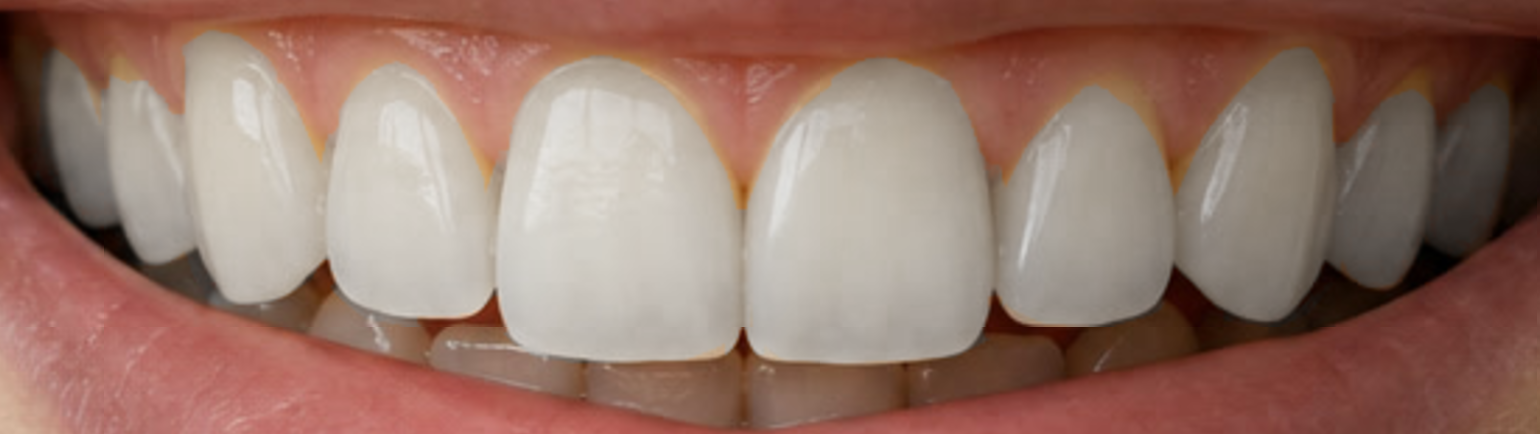
Short, overlapping strokes cover each tooth’s enamel up to the gum line and out to the rims. 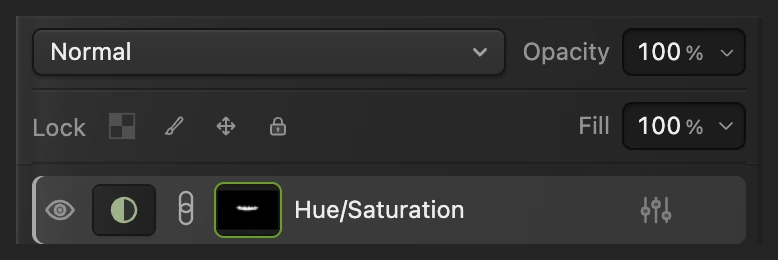
The pale mask marks show where the adjustment appears; the eye switches it off and on. Save the editable mask and export a photo
Choose to keep the adjustment, mask and original photo. After that, updates the project.
For a finished copy, choose and click Export. If you skip the project, writes a flat picture back into the JPEG you opened; the first Save opens the Save Image dialog.
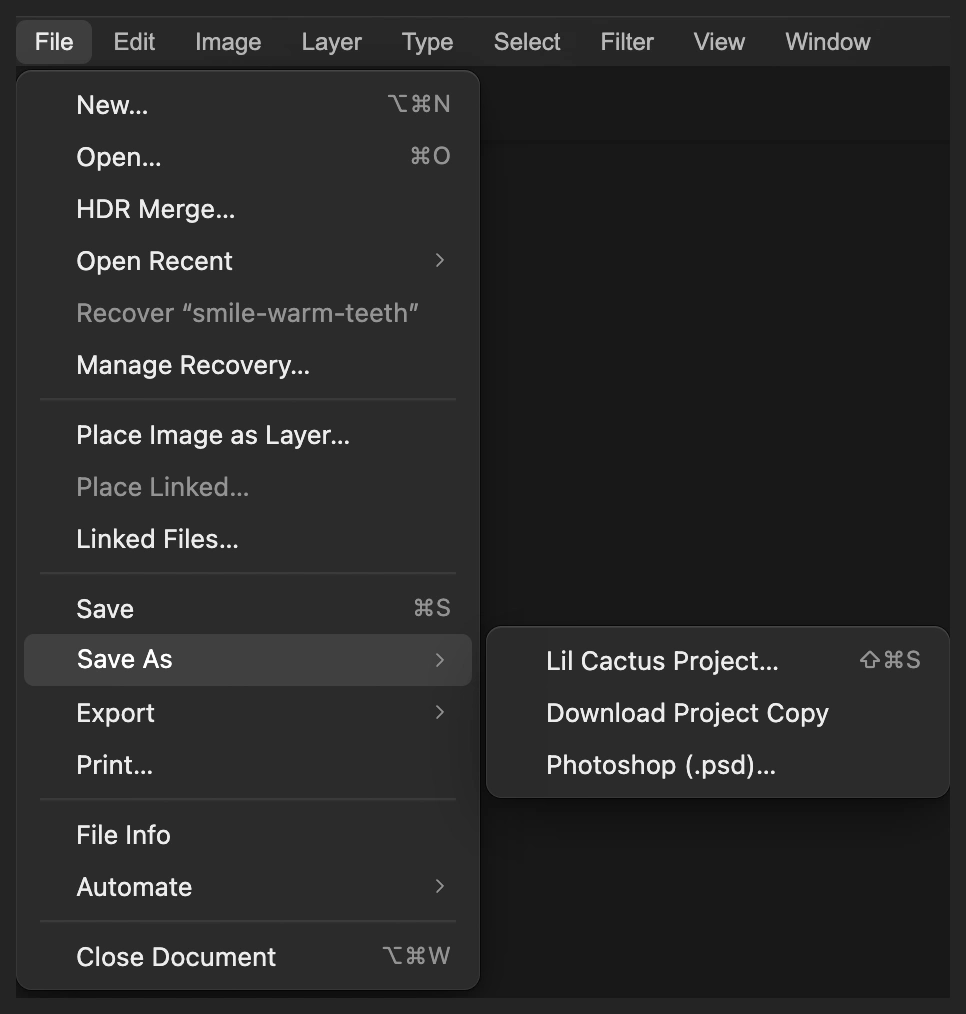
A project keeps the adjustment and painted mask editable. 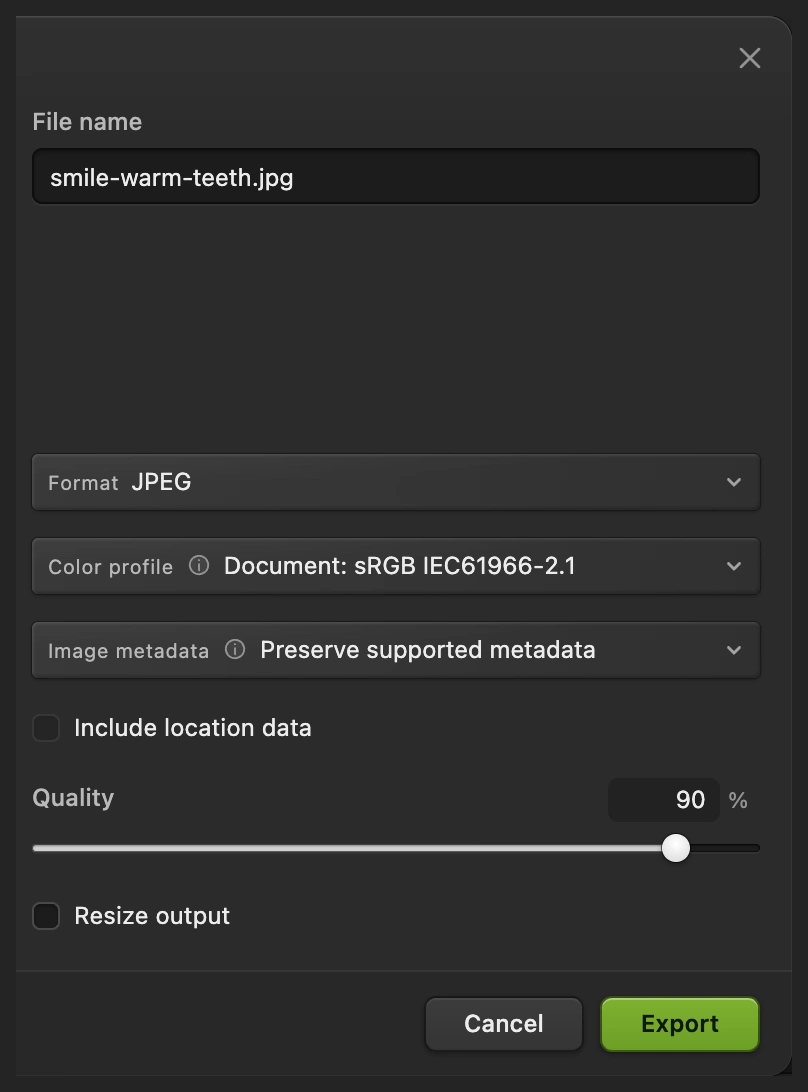
Export writes a new finished photo.
Keep the whitening believable
Different teeth need different amounts. Start with the sample settings, then judge the whole smile: teeth should not become the brightest, grayest objects in the face. For a weaker change, lower the adjustment layer’s Opacity in the Layers panel. This reduces the whole masked adjustment, including its lightening.
A shaded tooth near the corner can stay darker than a front tooth. Preserve that shading instead of making the whole row equally bright.
Fix common problems
The whole face loses color
The mask is still white. Select the adjustment’s mask thumbnail, choose , and make sure the thumbnail is black before painting white inside the teeth.
The brush paints a white mark
You are painting on a photo layer. Undo, then select the black mask thumbnail beside Hue/Saturation and paint there.
Nothing happens when I paint
Check that the Hue/Saturation eye is on and its mask thumbnail is selected. White must be the foreground color: press D, then X after leaving any value field.
The tooth edges look yellow and the centers look gray
The change is too strong or the painted area is too narrow. Use the strength advice in Keep the whitening believable. Keep the brush smaller than the tooth and add a short stroke where an unpainted patch needs it, staying inside the enamel.
What to do next
Teeth whitening: questions and answers
How do I whiten teeth without changing the lips?
In Lil Cactus, put Hue/Saturation on an adjustment layer, invert its mask to black, then paint white only inside the teeth. The mask keeps the adjustment confined to the areas you paint.
What Hue/Saturation settings should I use for teeth whitening?
In Lil Cactus, the sample uses Yellows with Saturation −55 and Lightness +25, plus Inner start 25° under Range limits. Master stays at 0. Use these as starting values, then judge the whole smile in your own photo.
Can I whiten teeth without painting white over them?
Yes. In Lil Cactus, paint white on an adjustment layer’s mask, not on the photo. The mask reveals a color adjustment while the original tooth texture and shading remain visible.
Can I change teeth whitening after saving?
Yes, if you save a Lil Cactus project with File › Save As › Lil Cactus Project… In Lil Cactus, that project keeps the adjustment layer and its mask; a JPEG contains the finished picture only.
Will teeth whitening fix missing or blurred tooth detail?
No. Reducing yellow in Lil Cactus changes color and brightness; it does not reconstruct a missing tooth edge or recover detail from a blurred photo.
Is my portrait uploaded for teeth whitening?
No. The adjustment and mask in Lil Cactus run in your browser on your own device.
Keep going
 How to remove red eye from a photoTarget red pupils without painting over the whole eye.Beginner · 3 min
 How to use layer masksHide part of a layer without deleting it, and bring it back any time.Beginner · 5 min
 How to use adjustment layersColor and tone changes you can retune, hide or limit to one area.Beginner · 5 min