How to use Lil Cactus: your first photo edit
Quick answer
In Lil Cactus, choose to open a photo, then edit it with the toolbar or the menus, for example reverses the last edit. writes back into the opened file in its own format, makes a new copy to share, and keeps everything editable.
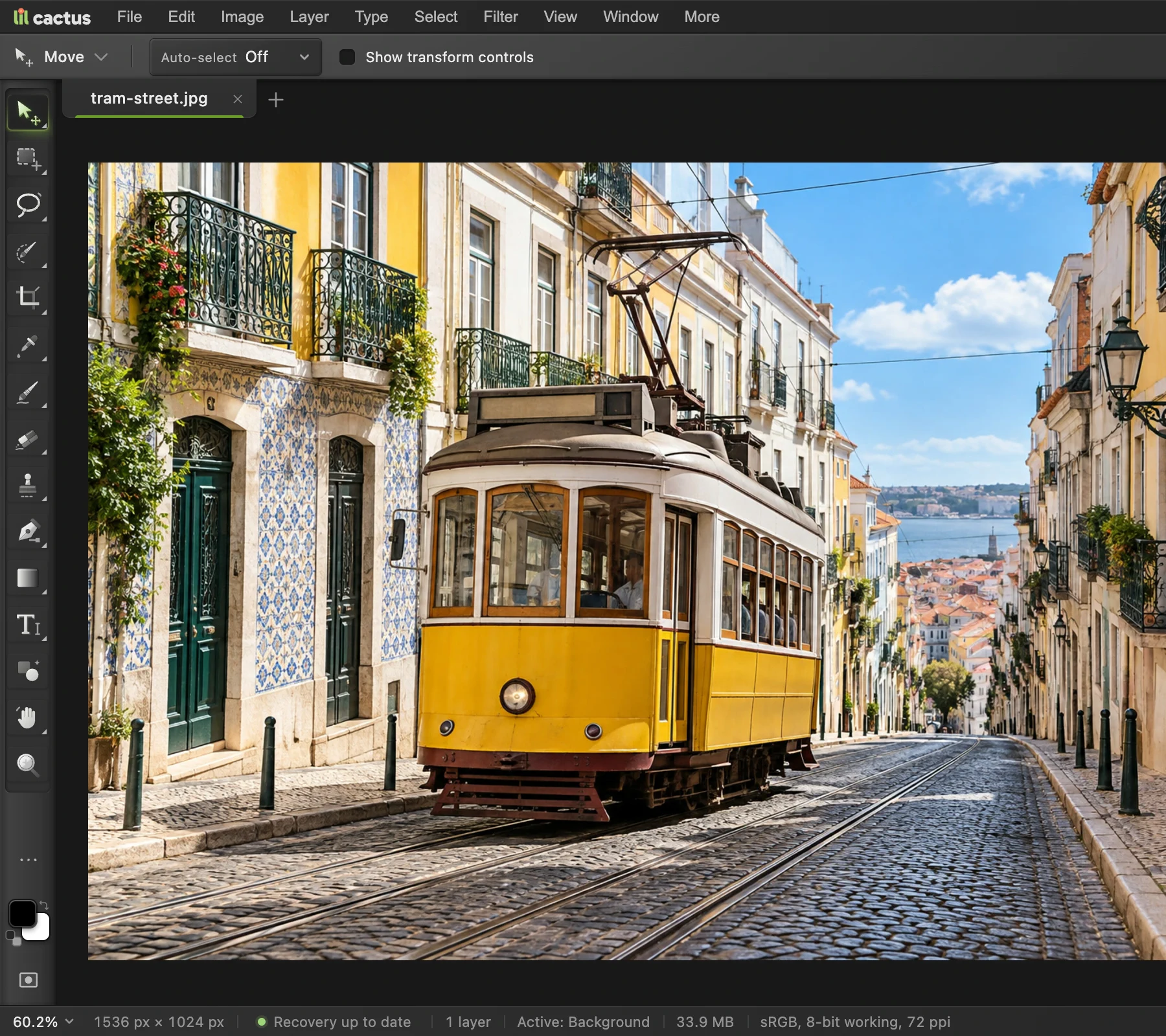
- Menus: open a file or choose an edit
- Tool options: settings for the selected tool
- Toolbar: choose a tool
- Document tab: switch between open images
- Status bar: viewing scale, image dimensions and recovery
- Time
- 5 minutes
- Level
- Beginner
- You need
- A computer with a mouse or trackpad, and a photo or the sample below
- Works with
- JPEG, PNG, WebP, HEIC, TIFF, PSD, RAW and .cactus projects
An open image is a document: the picture, its layers and any editing settings. A layer is one piece of that document, such as a photo or a line of text. A JPEG starts with one photo layer called Background. Later, you can add text or another photo without putting everything on that same layer.
In this lesson, resize the sample to 1200 × 800 pixels, reverse that change, then bring it back. You will finish with an editable project and a JPEG copy, and know which command to use for each.
Make your first edit in seven steps
Open the sample or your own photo
Click Open the sample on this page to start with the tram. For your own image, open the editor, choose and select the file. You can also drag an image onto the editor.
The file name appears on a tab above the picture. If you open more images, each gets its own tab; click a tab to switch documents.
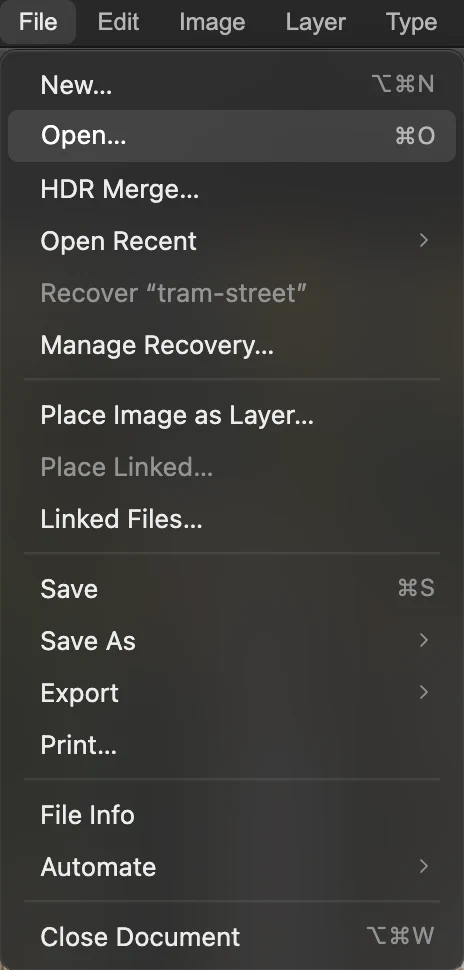
File › Open… opens an image from your device. 
The selected tab identifies the document you are working on. Find the canvas, Layers panel and status bar
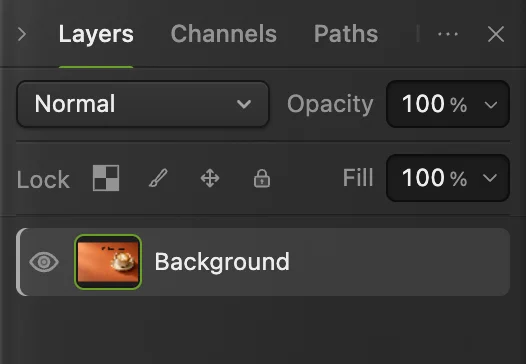
The canvas is the picture in the center. The Layers panel on the right shows the document’s pieces. Click Background to select the photo layer. The eye beside it switches its visibility on or off.
At the bottom, the status bar shows the zoom percentage and image dimensions. Zoom changes how large the image looks on screen; it does not change its pixels. Choose to see the whole photo, or to inspect detail.
Recovery up to date means a recovery copy is stored in this browser; it does not replace saving a file. After an interrupted session, look in File for Recover “file name” or Recover Unsaved Work.
Tip If the Layers panel is missing, choose . If your layout is hard to follow, restores the panel layout.
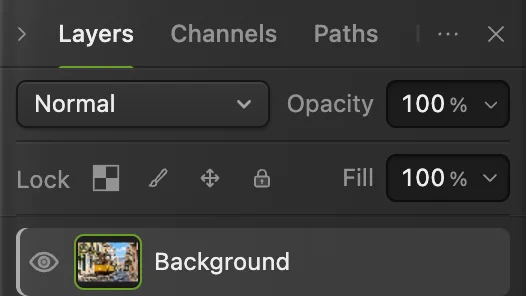
Background is selected. The eye controls whether that layer is visible. 
The percentage is the viewing scale. 1536 × 1024 is the actual pixel size. Choose a tool and find its settings
The left toolbar holds tools. Hover over a button to see its name. A small corner triangle means the button holds a group: right-click it, or press and hold it, to choose a particular tool.
Try this on Brush and choose Brush from the group. Its settings appear on the options bar below the menus. Leave the canvas untouched so Undo in step 5 reverses the resize rather than a brush stroke.
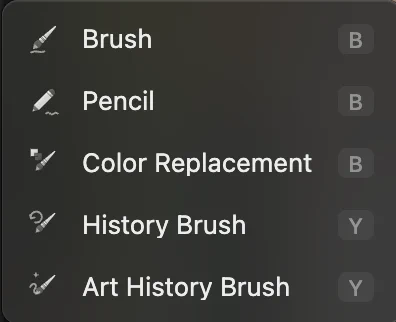
Right-click the Brush button to choose a tool by name. 
The options bar changes when you choose a different tool. Resize the sample to 1200 pixels wide
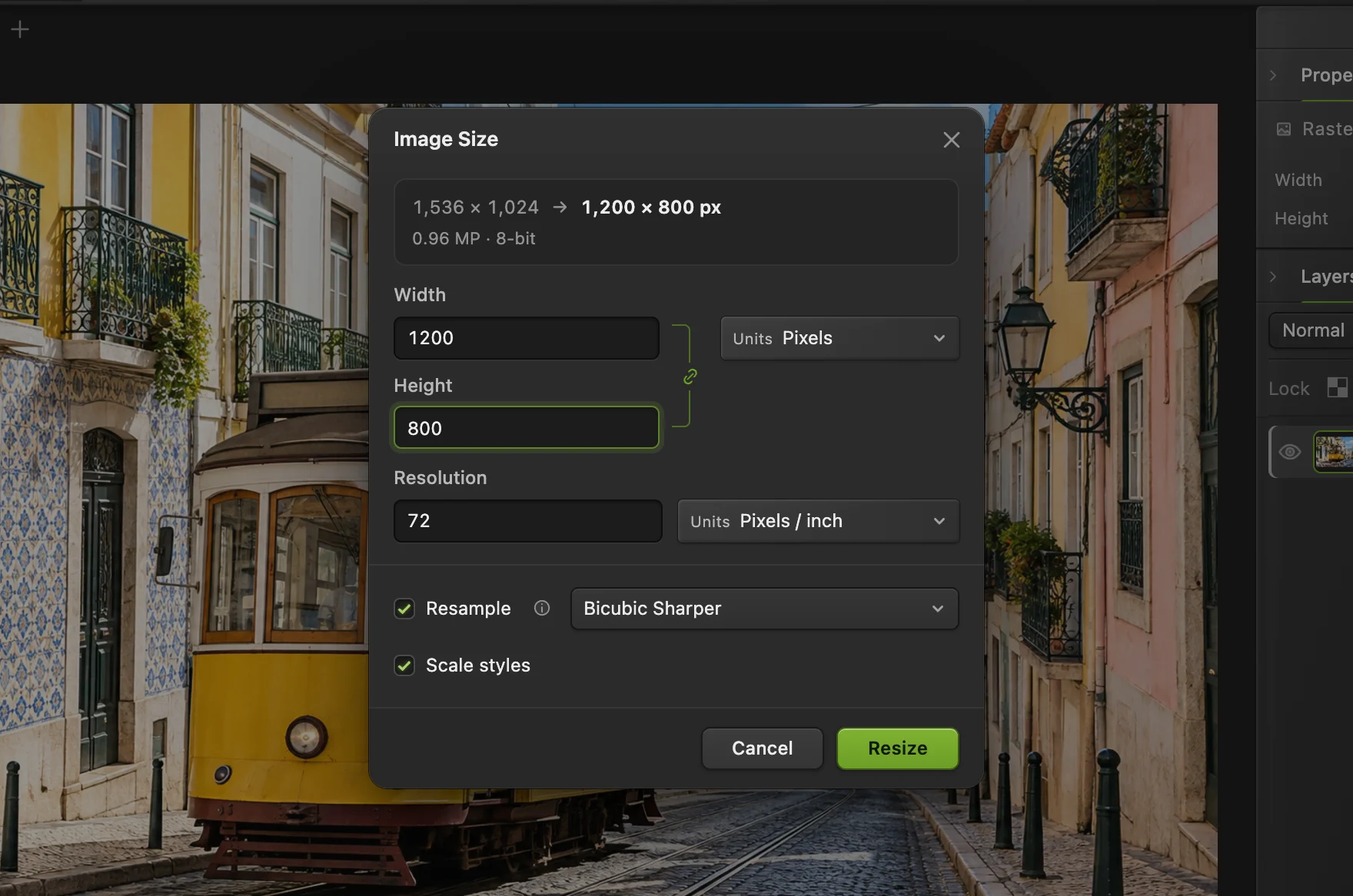
Choose Set Units to Pixels and leave the chain link on: it keeps width and height in proportion. Type 1200 into Width; the sample’s height becomes 800.
Keep Resample checked, choose Bicubic Sharper beside it, and click Resize. Resampling calculates the pixels for the new size. The status bar now reads 1200 × 800 pixels.
Tip Your own photo may produce a different height because it has a different shape. Do not turn off the link to force 800: that would stretch it.
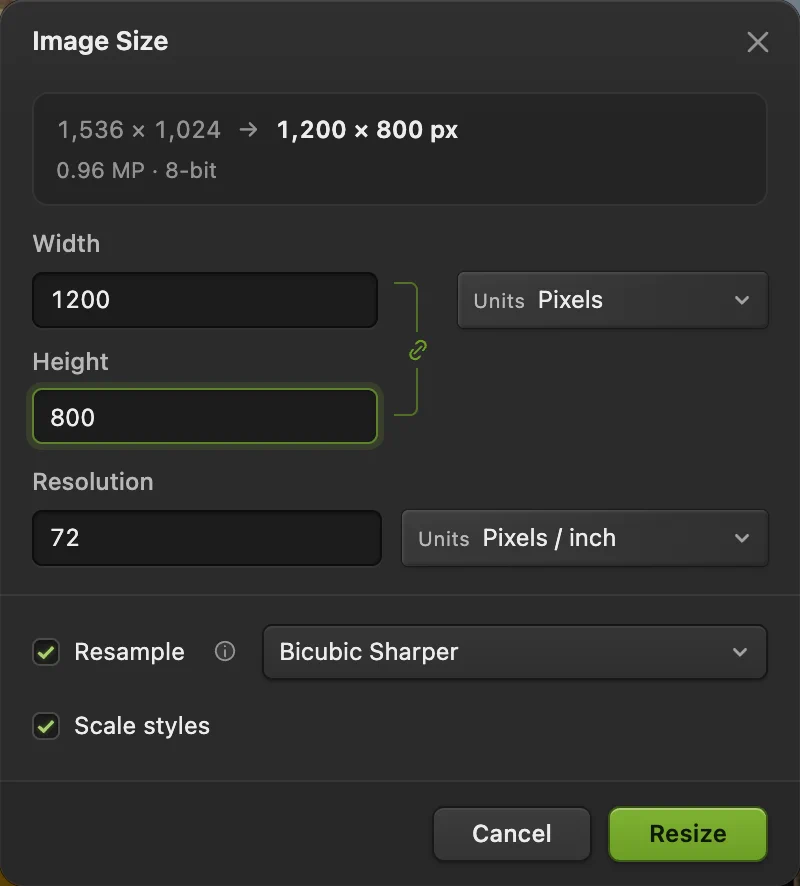
For the sample, 1200 pixels wide gives 800 pixels high. The ringed link preserves the shape. Undo the edit, then redo it
Choose (Ctrl+Z or ⌘Z). The status bar returns to 1536 × 1024 pixels. Then choose (Ctrl+Shift+Z or ⇧⌘Z) to bring back 1200 × 800.
Open to see the list of edits.

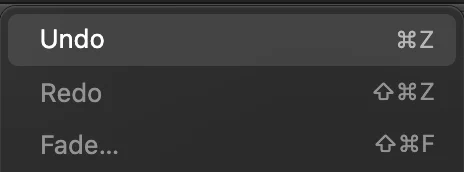
Undo reverses the last edit; Redo brings it back. 
After Redo, the sample is 1200 × 800 pixels again. Save an editable project
Choose Save the .cactus file to your device. Open it with when you want to continue editing. After Save As, saves this project rather than the original JPEG.
Your browser may show a file-location dialog or download the project. If it downloads, check that the .cactus file arrived before closing the tab.
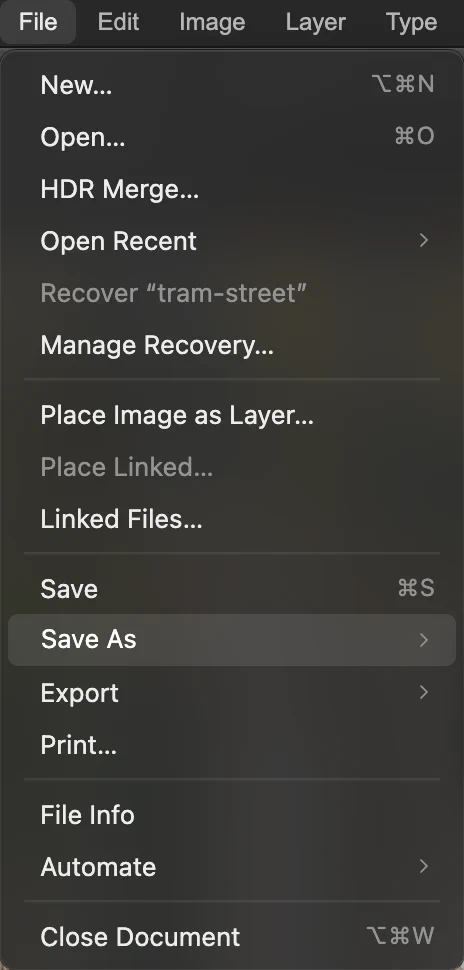
In the File menu, open Save As. 
Choose Lil Cactus Project… for the copy you will keep editing. Export the JPEG you will share
Choose Set File name to tram-small.jpg and leave Quality at 90. Click Export and find the file in your browser’s downloads.
For a logo or a cut-out with a transparent background, choose instead: JPEG fills transparent areas with white.
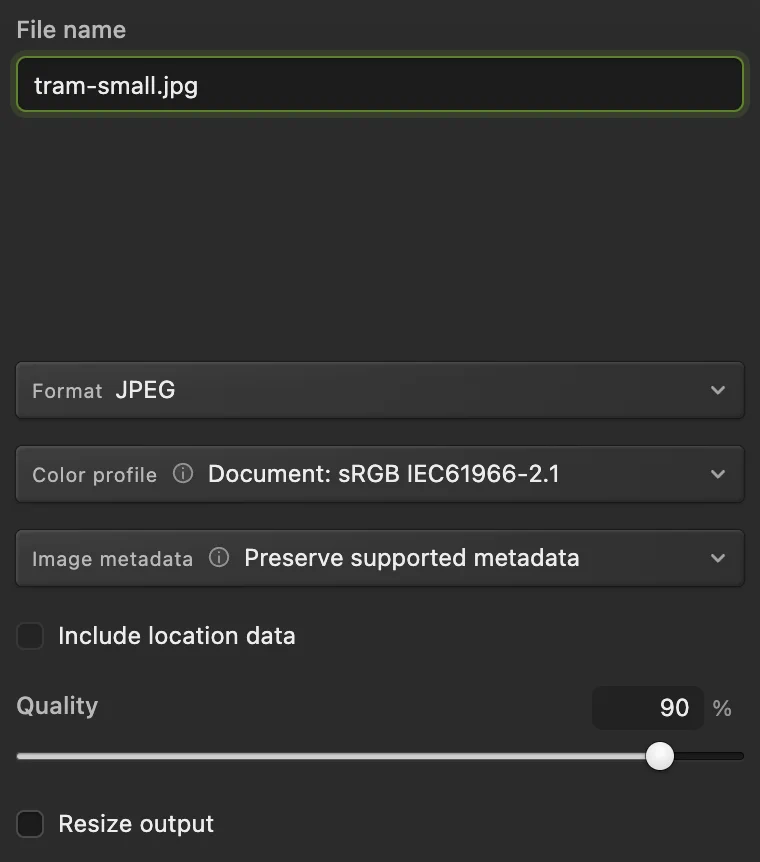
Name the sharing copy tram-small.jpg and leave Quality at 90. 
The confirmation shows the file name, format and size.
Start a design instead of opening a photo
Choose to make a blank document. Set its width and height for your design and create it. To bring a photo into a document that is already open, choose creates a separate document instead.
Save, project or export: which do you need?
keeps JPEG, PNG, WebP, TIFF, AVIF, PSD and .cactus files in their current format; HEIC, GIF and camera RAW inputs save as .cactus projects. The first Save of a JPEG opens Save Image, while writes a new sharing copy.
Fix common problems
A tool is missing from the toolbar
Right-click a grouped button to see its other tools, or click the three-dot All tools button near the bottom of the toolbar and search for the name.
My photo has disappeared
Choose if it is outside the view. If you see a checkerboard, look in Layers: click the eye control beside Background to show it again.
Undo is gray
You have not made an edit in this document, or you have already undone its available edits. Selecting a tool or changing the zoom is not an edit.
There is an unsaved dot after exporting
Export does not save the open document’s editable state. Save the project as well. A downloaded project can also keep the dot because the browser cannot confirm that the download finished.
My keyboard shortcut does nothing
A text field or dialog may have focus. Finish or cancel it, then try again, or use the menu command. In a browser, some shortcuts belong to the browser itself.
Getting started with Lil Cactus: questions and answers
How do I open a photo in Lil Cactus?
In Lil Cactus, choose File › Open… and select an image from your device, or drag it onto the editor. Each opened image gets its own document tab.
Where are the tool settings in Lil Cactus?
In Lil Cactus, select a tool from the left toolbar. Its settings appear on the options bar below the menus. Right-click a grouped tool button to choose its other tools.
Does zooming resize a photo in Lil Cactus?
No. Zoom in Lil Cactus only changes the viewing scale. Image › Image Size… changes the image dimensions; the status bar shows the actual pixel size.
How do I undo a change in Lil Cactus?
In Lil Cactus, choose Edit › Undo, or press Ctrl+Z on Windows or Command+Z on a Mac. Edit › Redo brings the undone edit back.
Which Lil Cactus file should I save for later editing?
In Lil Cactus, choose File › Save As › Lil Cactus Project… and keep the .cactus file. It keeps layers editable. Export a separate JPEG or PNG when you want to share the result.
Are photos uploaded when I edit them in Lil Cactus?
No. Lil Cactus opens and edits your image on your device. Optional usage statistics are described in the privacy policy.
Keep going
 How to save and export an image in Lil CactusKeep an editable master and make a separate image to share.Beginner · 5 min
 How to use layers in a photo editorStack, reorder, fade, hide and group the parts of a picture.Beginner · 6 min
 How to resize an image online to exact pixels or print sizeExact pixels, percent or print size, without stretching.Beginner · 2 min