How to use guides, grid and snapping in Lil Cactus
Quick answer
In Lil Cactus, choose to show measurements and to place a guide at an exact pixel position. Turn on and choose targets under . For a row of objects, select their layers and use , then .
- Time
- 7 minutes
- Level
- Beginner
- You need
- A design with objects on separate layers
- Works with
- Images and layered projects, including text and shape layers
Guides are lines you place for an edge or a margin. The grid is a repeated pattern across the workspace. Snapping helps a moving object settle against a chosen target when you drag near it.
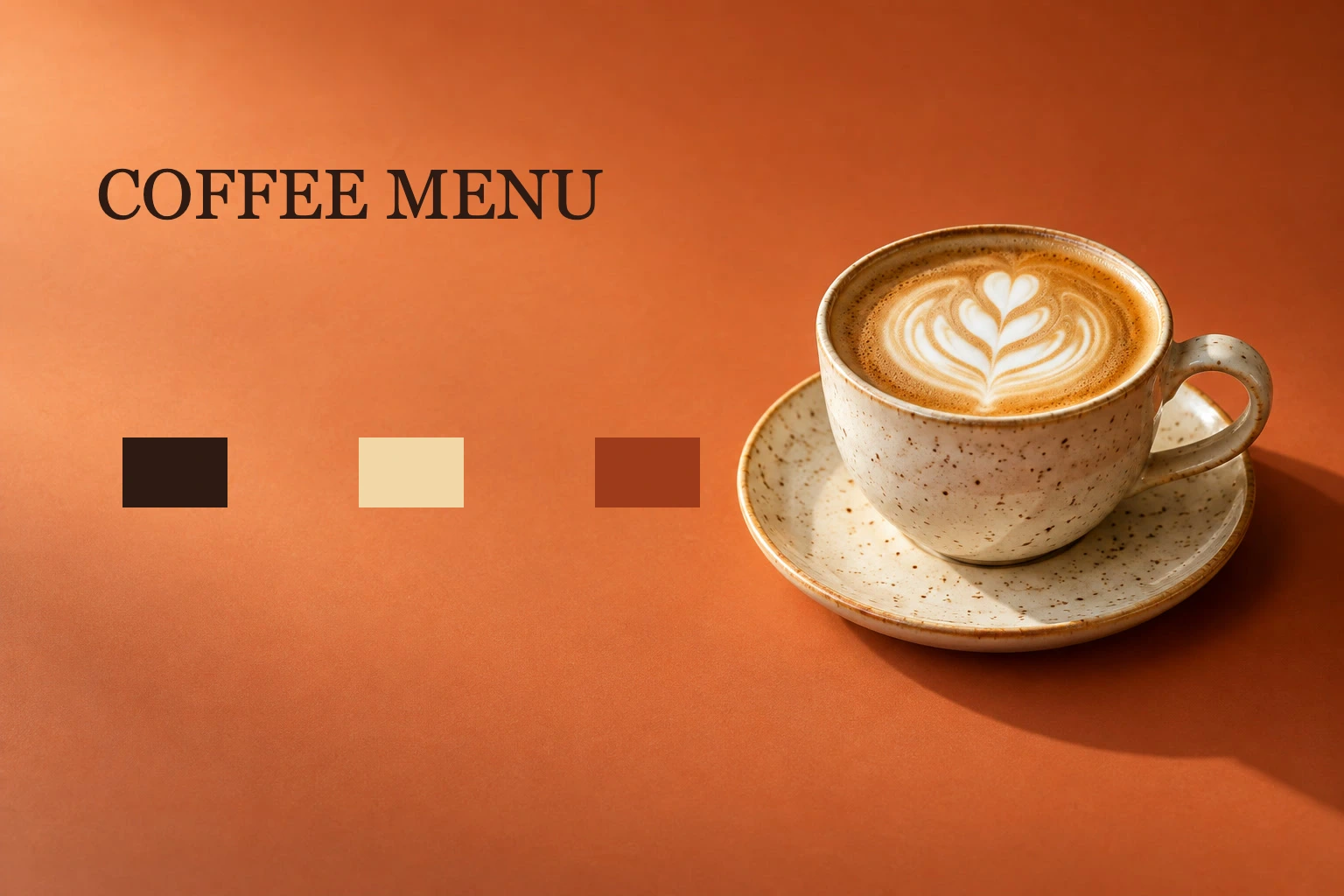
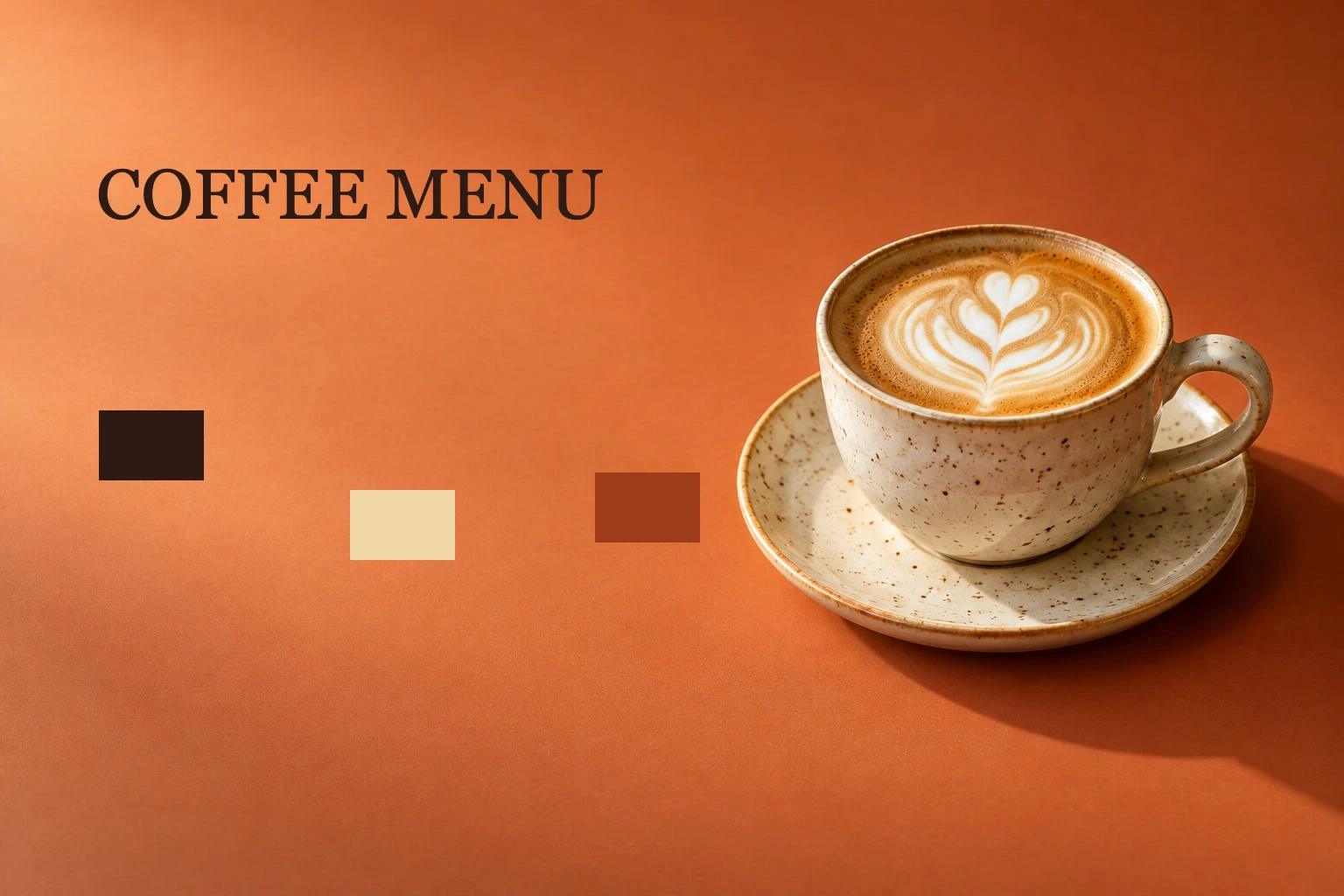
Use the sample’s three shape layers to build a tidy color row beneath the heading.
Align a color row in seven steps
Show the rulers
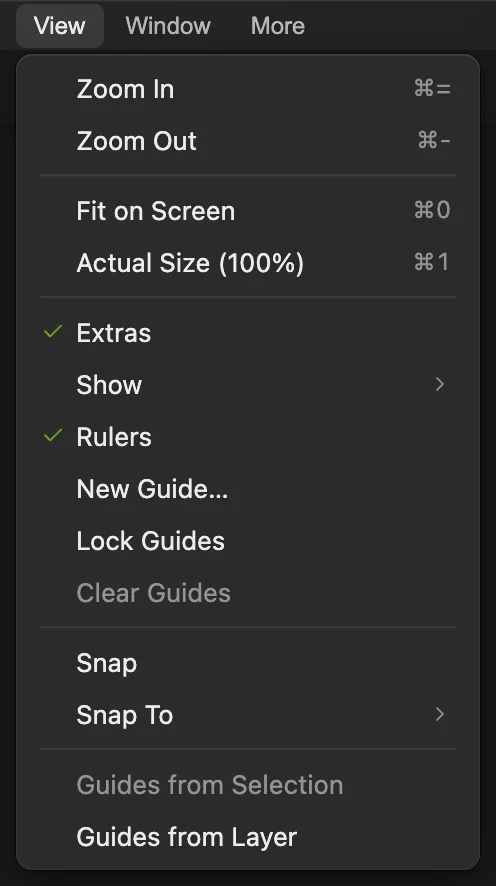
Open the practice project from this page. Choose . Measurements appear along the top and left of the workspace.
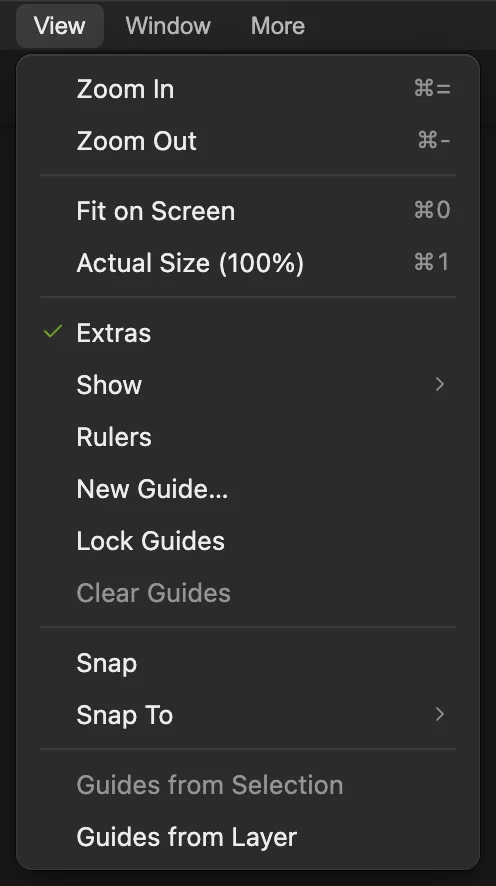
A check beside Rulers means they are visible. 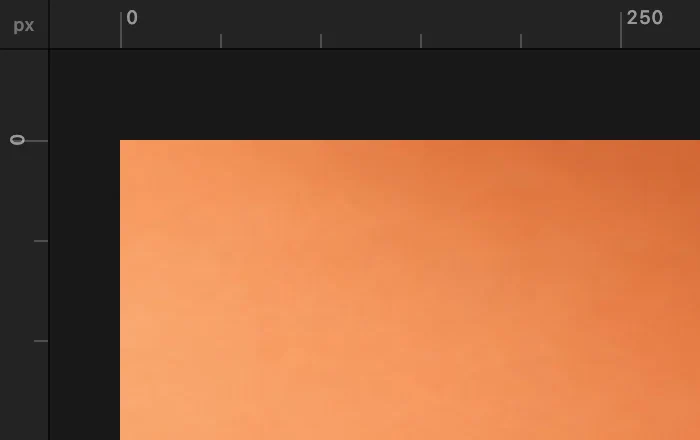
The rulers mark document coordinates in pixels. Place a vertical guide at 140 px
Choose Set Orientation to Vertical, enter Position 140 px and click Create. This will be the left edge of the brown swatch.
You can also drag from a ruler into the image to place a guide by eye; New Guide… is for an exact position.
New Guide places a line by its numeric position. 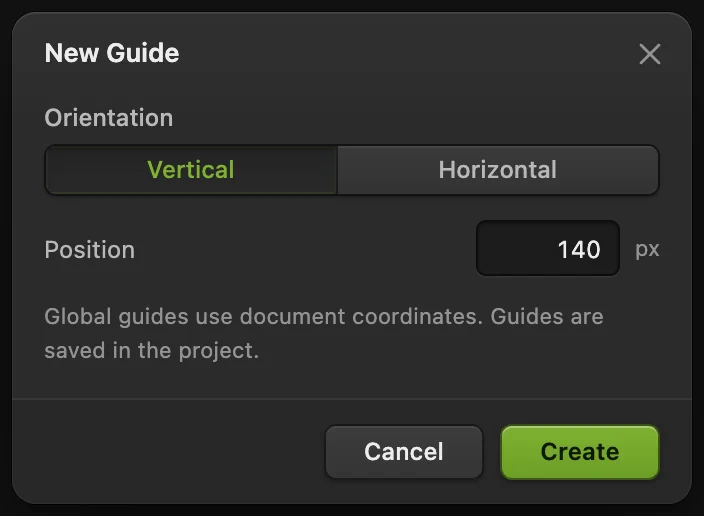
A vertical guide measures its position from the left edge of the image. Place a horizontal guide at 500 px
Choose again. Select Horizontal, enter Position 500 px and click Create. This line sets the top edge of the row.
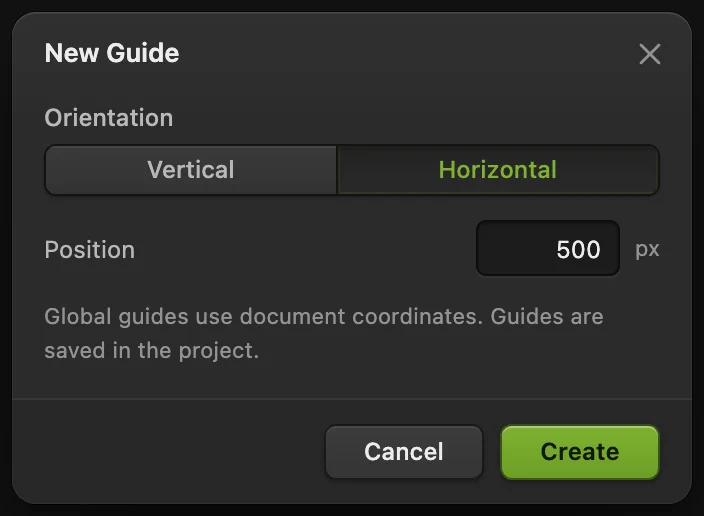
A horizontal guide measures its position from the top edge. Show the grid and choose what snaps
Turn on to see the repeated grid. Turn on , then check : Guides should be checked and Grid unchecked for this exercise.
Showing the grid and snapping to it are separate choices. Here the guides control the placement.
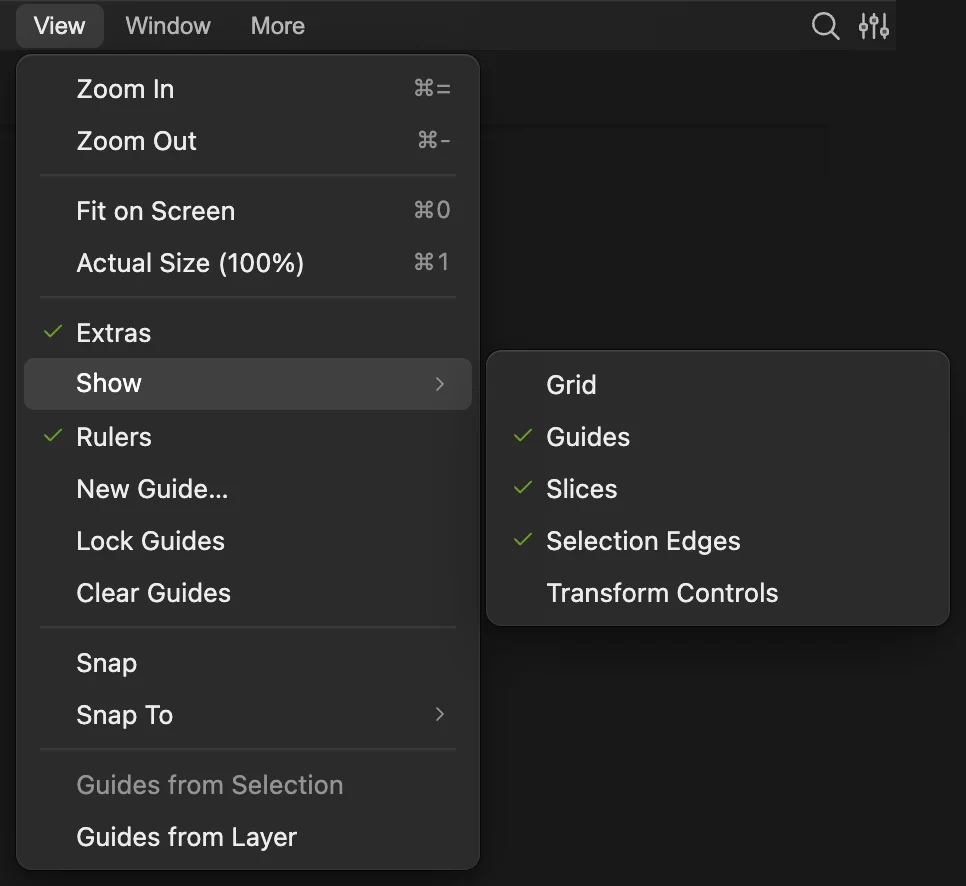
Show › Grid controls the visible pattern. 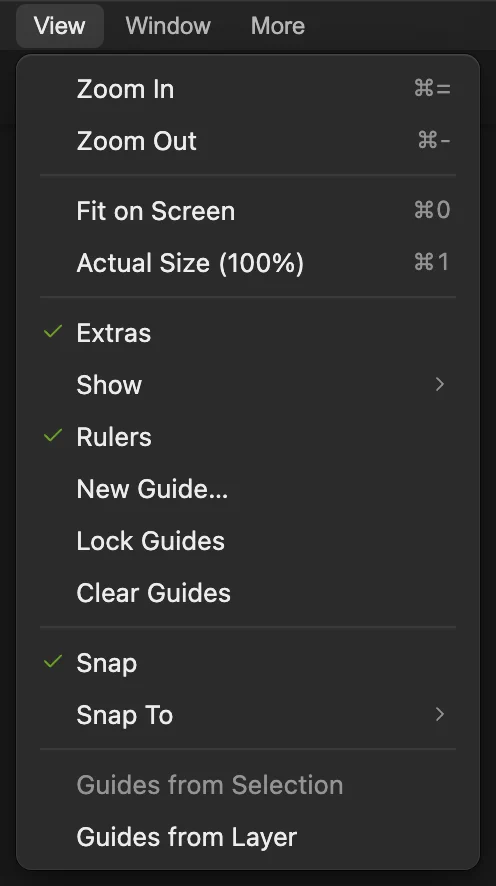
Snap is the main switch for snapping. 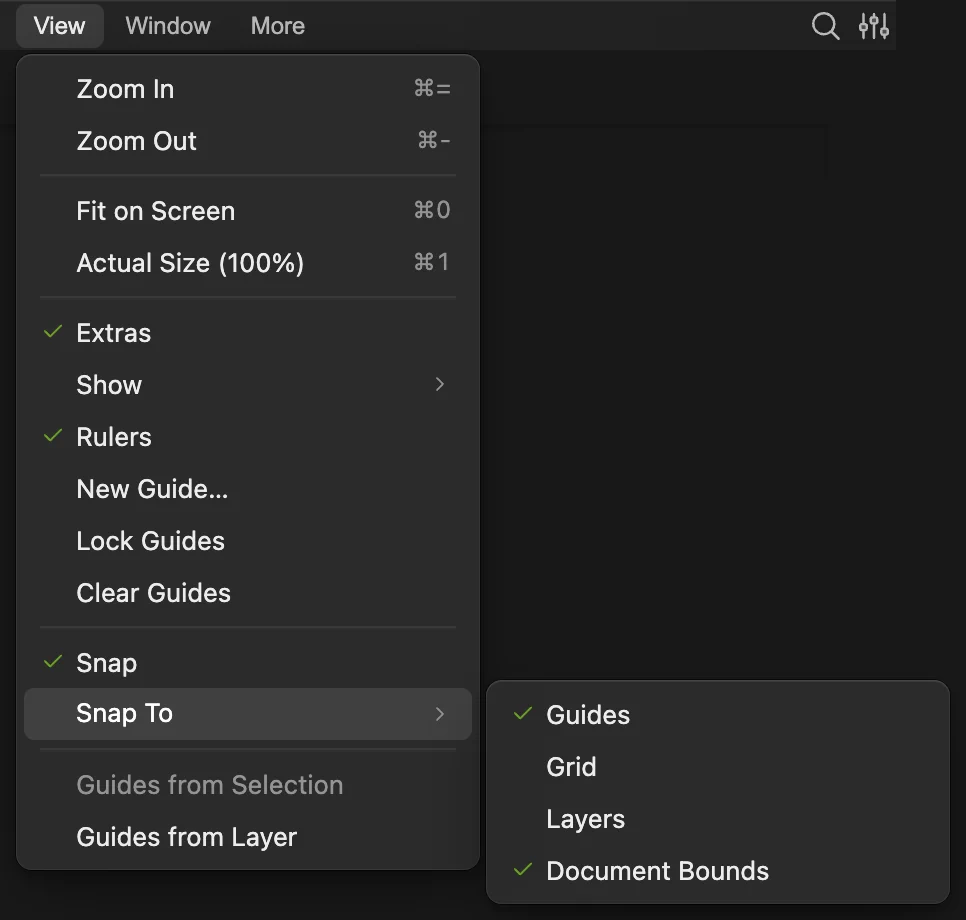
Use guides as targets while keeping grid snapping off. Snap the brown swatch to the guides
Right-click (or press and hold) the top button in the toolbar and choose Move. Click Brown swatch in the Layers panel. Grab near the bottom edge of the brown rectangle, away from the guide. Drag a little right and down until its top-left corner meets the guides’ intersection. Release when its left and top edges settle on the lines.
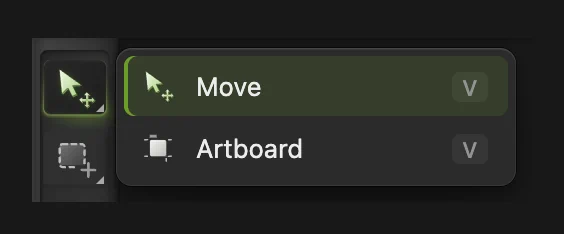
Choose Move from the top toolbar button’s flyout. 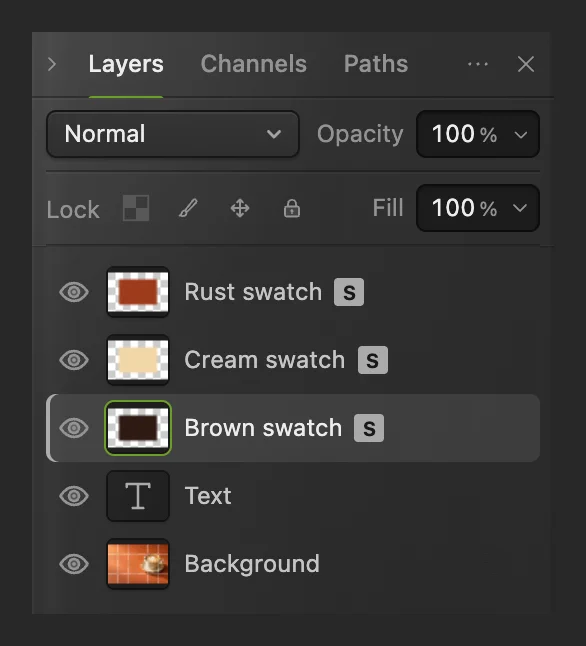
Select the layer before moving its rectangle. 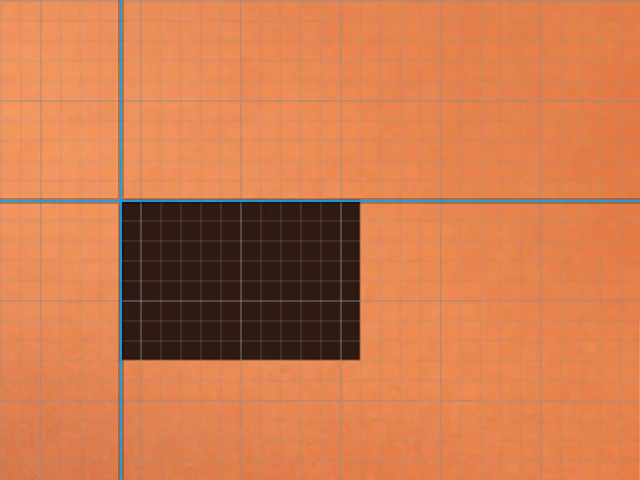
Detail at 100%: the top-left corner is at (140, 500) px. Align the three top edges
In Layers, click Brown swatch, then hold Shift and click Rust swatch. All three swatch rows should be selected. Choose . The cream and rust shapes move up to the brown shape’s top edge.
Tip Leave Text and Background out of the selection.
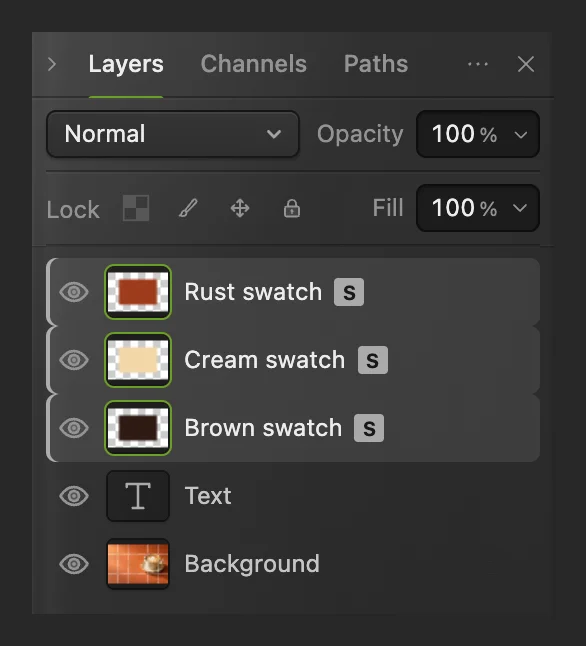
Shift-click selects the contiguous range of three swatch layers. 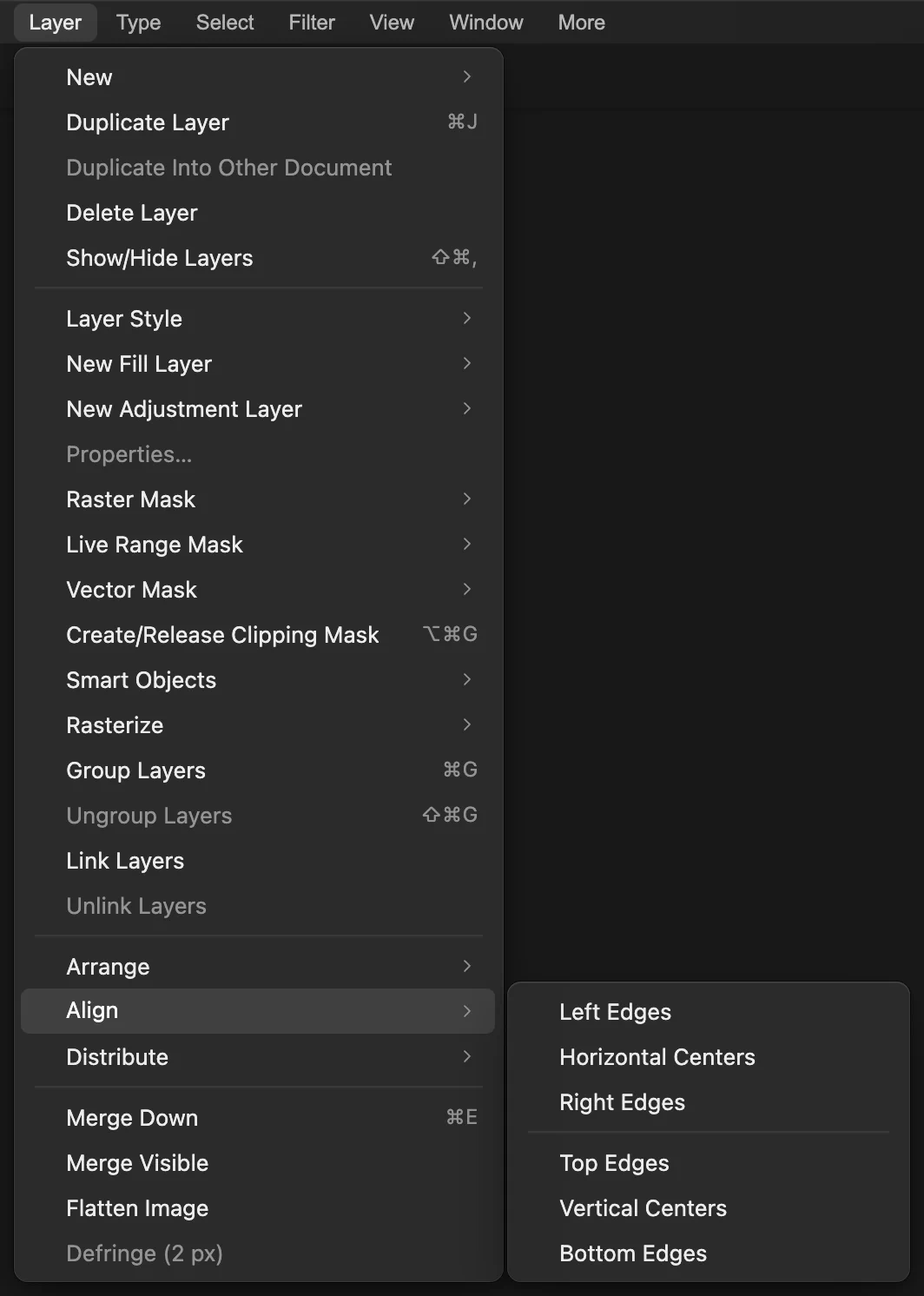
With multiple layers selected, Top Edges uses their topmost edge. Make the gaps equal
Keep the three layers selected. Choose . The outer shapes stay in place and the middle shape moves to give equal gaps.
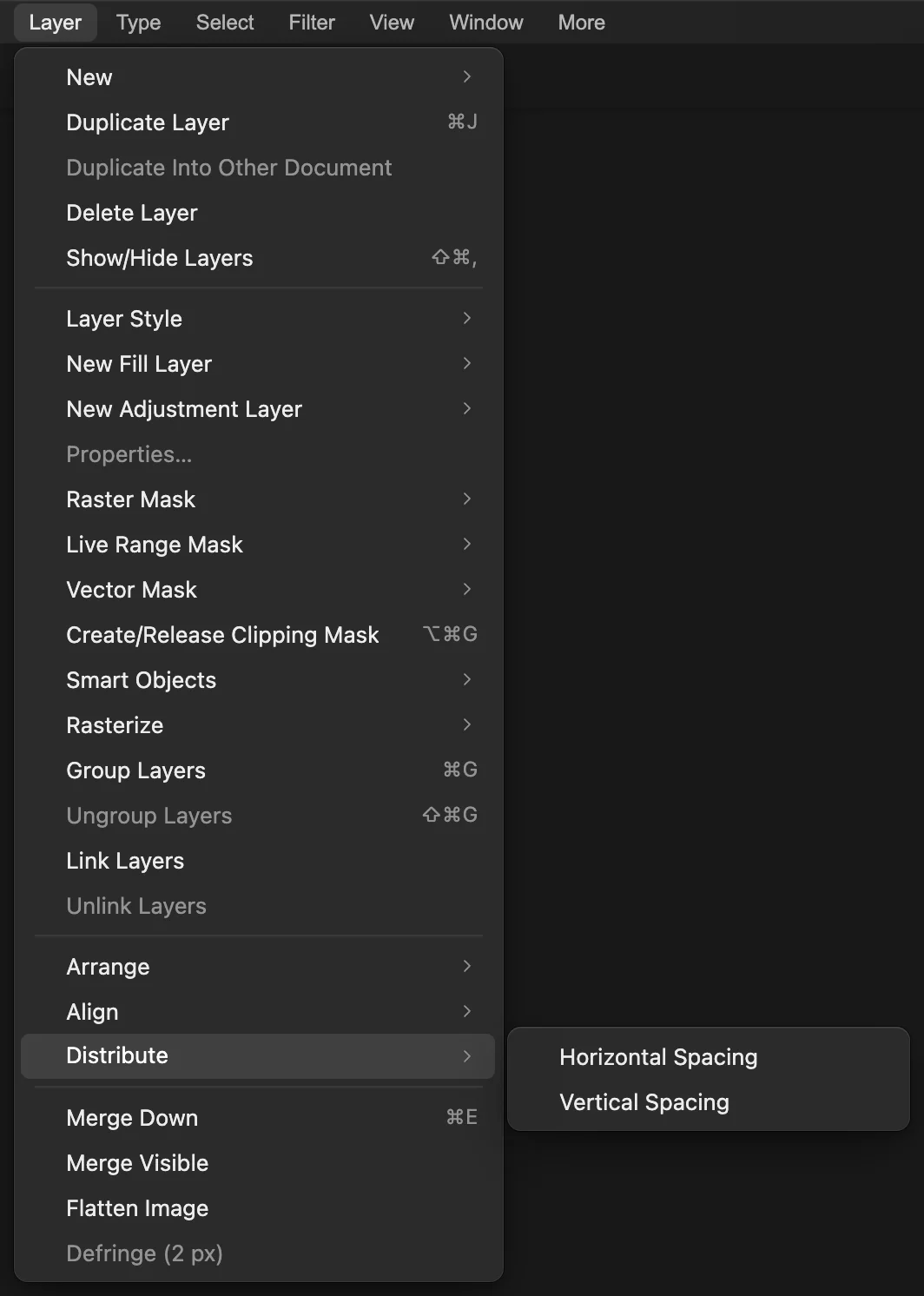
Distribution needs at least three selected layers.
Hide, lock or remove guides
hides guides without deleting them. To remove them, choose (turn off first if it is checked); brings them back.
What to do next
- Make your own objects: draw and edit shapes.
- Understand the layer selection: work with layers.
- Inspect small edges: zoom and navigate a design.
Guides, grid and snapping: questions and answers
Will guides or the grid appear in my exported image?
No. In Lil Cactus, rulers, guides and the grid are workspace overlays. They do not appear in an exported PNG or JPEG.
Why does grid snapping miss some visible grid lines?
In Lil Cactus, grid snapping uses its own spacing, which changes with zoom and can be wider than the grid you see; zoom in to make it finer. Turn on View › Snap and View › Snap To › Grid to use it, and use guides when you need an exact edge.
Why is New Guide unavailable?
In Lil Cactus, View › Lock Guides prevents creating or changing guides. Turn it off to use View › New Guide…
Why is Horizontal Spacing unavailable?
In Lil Cactus, select at least three layers for Layer › Distribute › Horizontal Spacing. Each object must be on a separate, movable layer.
What happens if I align only one layer?
In Lil Cactus, a single selected layer aligns to the document bounds. With two or more selected layers, alignment uses the bounds of those selected layers.
Are guides saved with my design?
Yes. In Lil Cactus, File › Save As › Lil Cactus Project… preserves guides and editable layers. A flat PNG or JPEG contains the image, without editable guides.
Keep going
 How to draw shapes and export vector graphics (SVG)Editable shapes for icons, badges and buttons, exported as SVG.Beginner · 6 min
 How to use layers in a photo editorStack, reorder, fade, hide and group the parts of a picture.Beginner · 6 min
 How to zoom, pan and rotate the view in Lil CactusInspect details, move around a large photo and reset the view.Beginner · 5 min