How to zoom, pan and rotate the view in Lil Cactus
Quick answer
In Lil Cactus, choose to see the whole image, or to inspect pixel detail. Hold Space and drag to pan, or choose and click the area you want in its thumbnail. Rotate View tilts the workspace; Reset view returns it upright. These controls change your view without resizing or rotating the image itself.
- Time
- 5 minutes
- Level
- Beginner
- You need
- An image or project open in the editor
- Works with
- Any document you can open in Lil Cactus
Use a fitted view to judge the composition and 100% to inspect details such as the edge of the cup. Pan to reach parts outside the workspace. A tilted view can put an edge at a more comfortable angle for painting.
Inspect and navigate a photo in six steps
Fit the whole photo on screen
Open the sample from this page. Choose . The editor centers the photo and chooses a zoom level that fits it in the available workspace.
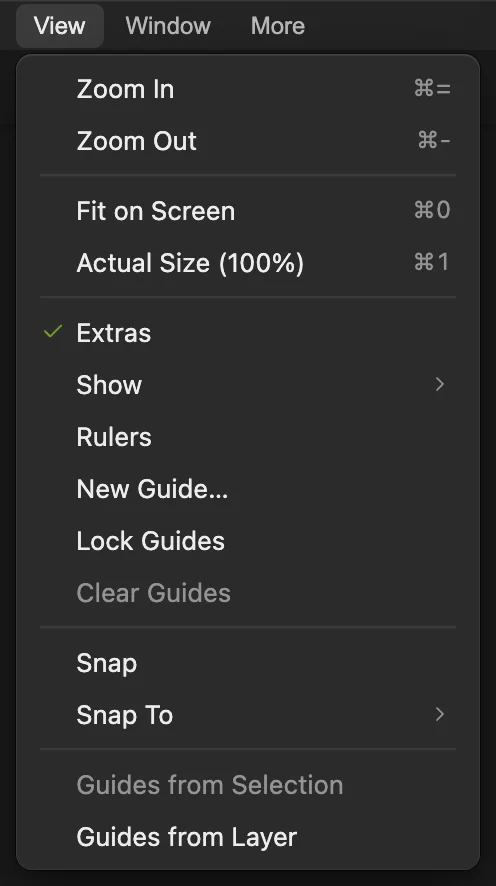
Fit on Screen brings the full image into view. 
You can see the full 1536 × 1024 px photo. Inspect detail at 100%
Choose . The photo now extends beyond the workspace, so only part of it is visible. Inspect the foam and the rim of the cup at this scale.
Actual Size sets the editor’s view to 100%. 
At 100%, this workspace shows only part of the photo. Pan to the cup handle
Hold Space and drag the photo to the left until the cup’s handle comes into view. Release Space to return to your previous tool. The zoom level stays at 100%.

Dragging left brings more of the right side into view. Find an area with the Navigator
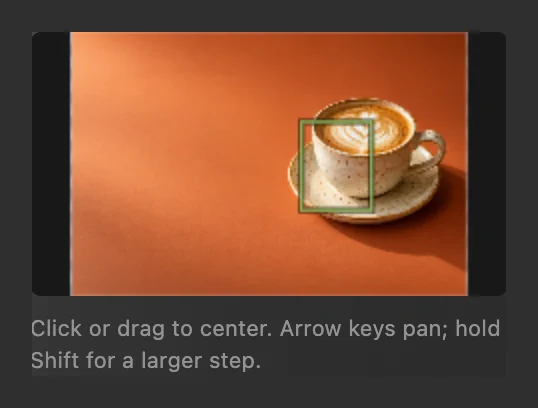
Choose . Click the cup in the thumbnail to center that area in the workspace. You can also drag within the thumbnail to move the view. The rectangle in the thumbnail marks the visible area.
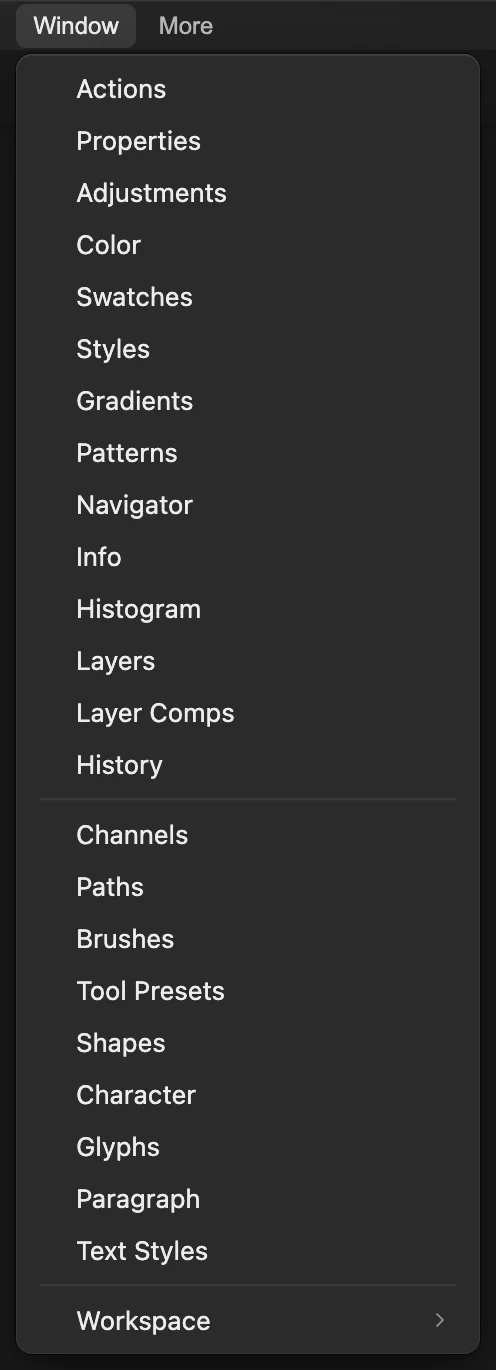
Open Navigator from the Window menu. Rotate the view to a useful angle
Press R to select Rotate View. You can also right-click (or press and hold) the Hand button in the left toolbar and choose Rotate View. To match the example exactly, type 30 in View angle and press Enter.
To tilt freely, drag around the center of the workspace; hold Shift during the drag for 15° steps. Choose again to include the rotated corners.
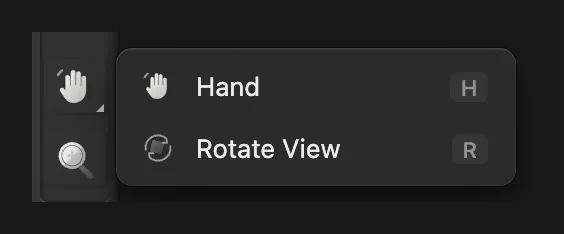
Rotate View shares a toolbar group with Hand. 
Type 30 for the same clockwise angle as this example. 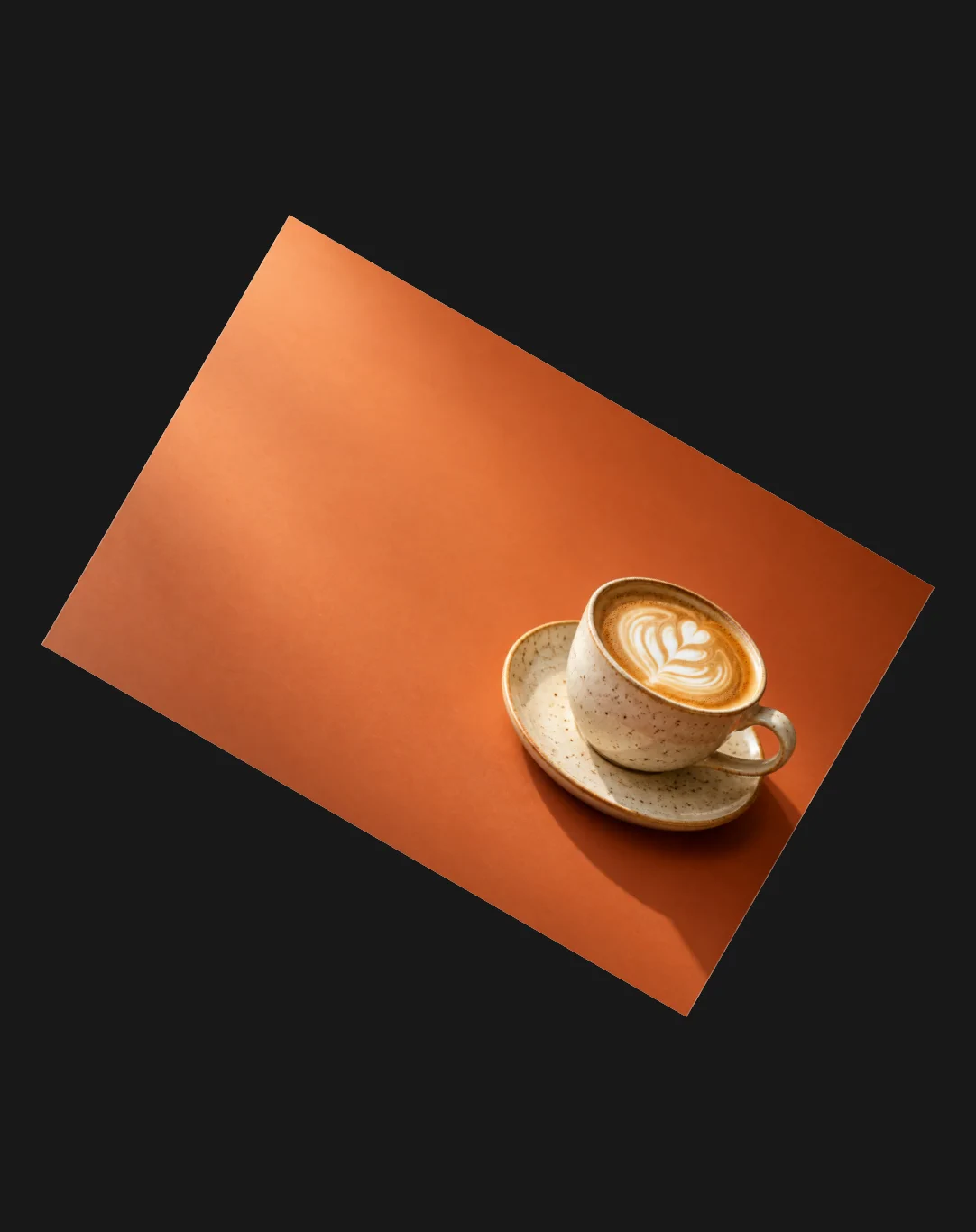
The photo is tilted 30° in the workspace. The dark corners are the editor background. Reset and return to the whole image
Click Reset view in the options bar, then choose . The view is upright and centered again.

Reset view returns the viewing angle to 0°.
Other ways to zoom and pan
| Control | What it does |
|---|---|
| Ctrl+= or ⌘= / Ctrl+- or ⌘- | Zoom in or out. |
| Ctrl+0 or ⌘0 / Ctrl+1 or ⌘1 | Fit on Screen or Actual Size (100%). |
| Z | Select the Zoom tool. Click to zoom in, or Alt-click (Option-click on Mac) to zoom out. Drag right to zoom in and left to zoom out. |
| Zoom field (bottom-left of the window) | Shows the current zoom. Choose Fit on screen or a preset level from 5% to 800%. |
| Mouse wheel or trackpad | Scroll or move two fingers to pan. Hold Shift for horizontal movement. Hold Ctrl (Command on Mac) and scroll, or pinch, to zoom. |
| Navigator arrow keys | Click the thumbnail, then use arrow keys to pan. Shift makes the step larger. |
Use the View menu if a browser handles a key combination before the editor receives it.
What to do next
- Find more tool and command keys: keyboard shortcuts for Windows and Mac.
- Change the image’s pixel dimensions: resize an image.
- Choose a smaller frame: crop an image.
Zoom and navigation: questions and answers
Does zooming change my photo’s size?
No. In Lil Cactus, zoom changes the view of the photo. Its pixel dimensions stay the same. Use Image › Image Size… when you want to resize the image itself.
Why does Fit on Screen use a different percentage?
In Lil Cactus, Fit on Screen chooses a zoom level from the image size, viewing angle and available workspace. The percentage can change when the workspace changes. Actual Size (100%) always sets the view to 100%.
How do I reset a rotated view?
In Lil Cactus, press Esc while Rotate View is active to return the view to 0°, or click Reset view in the options bar. Esc does not reset the view while you are typing in a field.
Does the Navigator move a layer?
No. In Lil Cactus, clicking or dragging the Navigator thumbnail centers the view on that area. It leaves the layers and their contents in place.
Does zooming above 100% add detail?
No. In Lil Cactus, a zoom above 100% magnifies existing image pixels. It can help you see individual pixels, but it does not add detail to the image.
Keep going
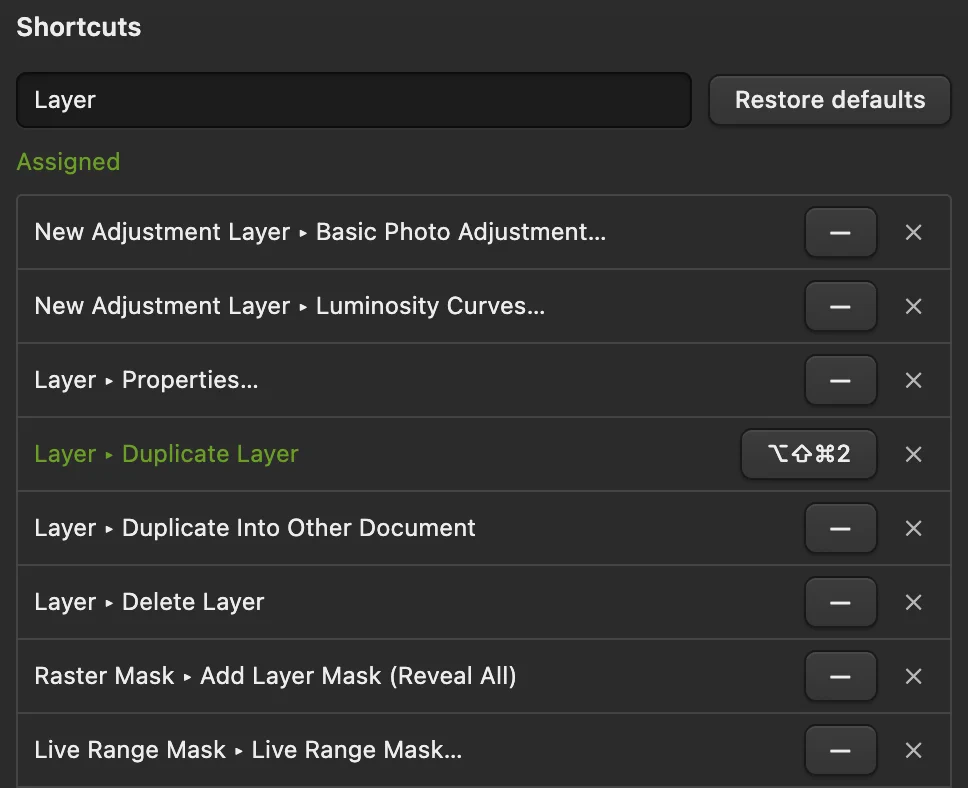 Lil Cactus keyboard shortcuts for Windows and MacLook up commands, learn tool letters and change your shortcuts.Beginner · 6 min
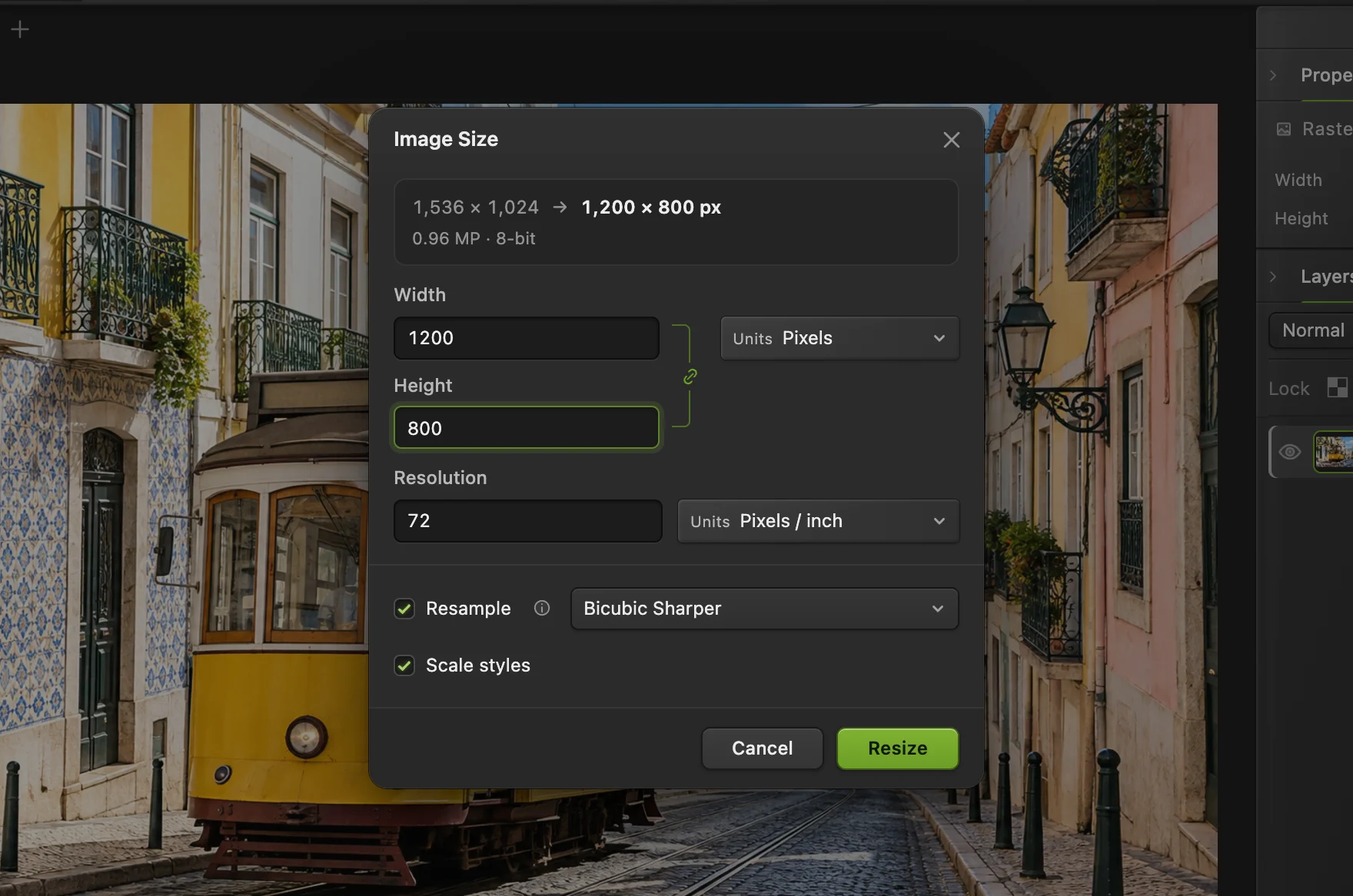 How to resize an image online to exact pixels or print sizeExact pixels, percent or print size, without stretching.Beginner · 2 min
 How to crop an imageChoose what stays in the frame, then set the shape and size.Beginner · 6 min