How to undo edits and use History Brush in Lil Cactus
Quick answer
In Lil Cactus, choose to step back and to reapply an edit. Choose to jump to a recorded state. To paint from an earlier state, click the small brush icon beside a state that contains your current layer, then use History Brush over the area you want to restore.
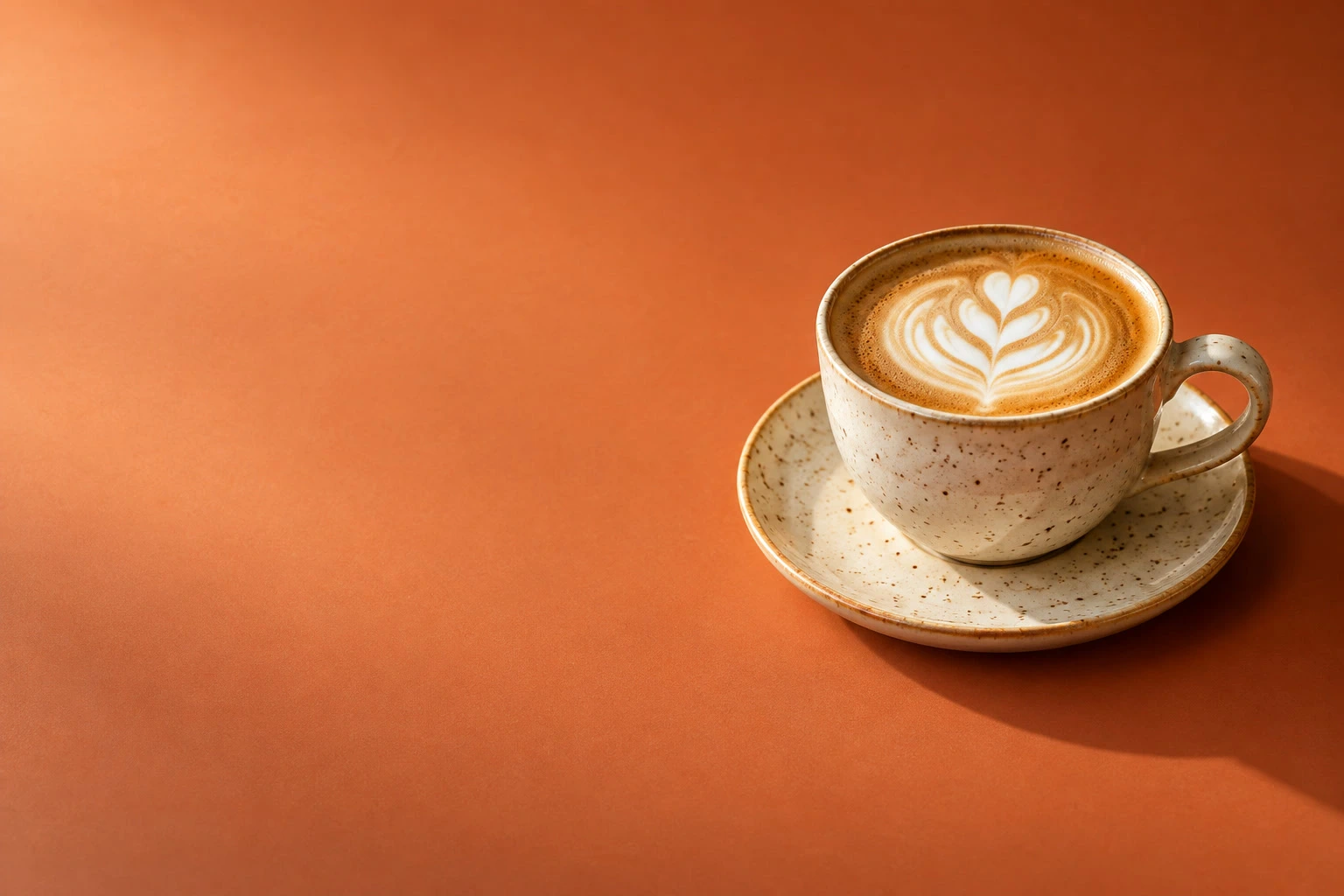
- Time
- 6 minutes
- Level
- Beginner
- You need
- The practice photo and a mouse or trackpad
- Works with
- Editable pixel layers and compatible states in the open document’s history
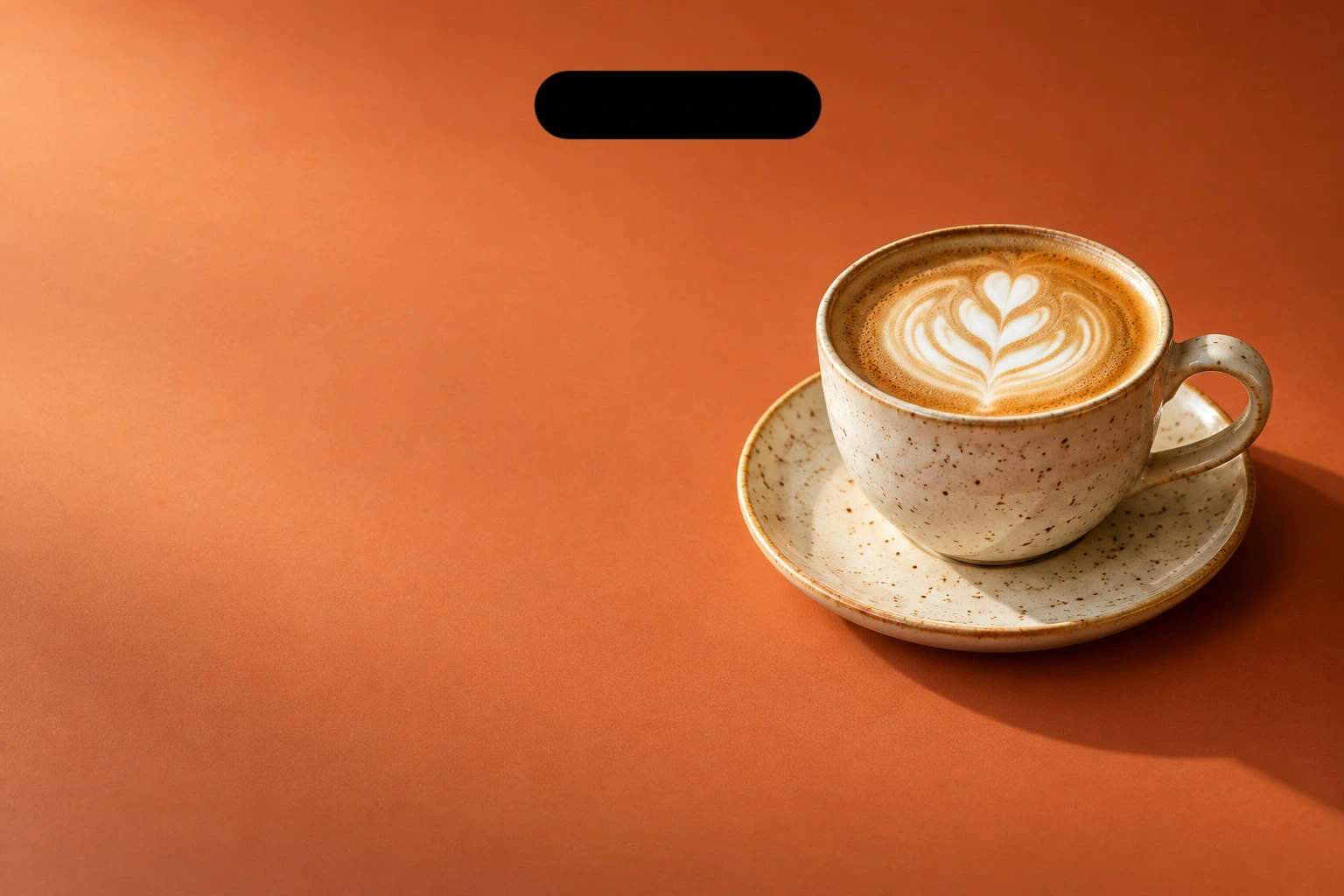
History records your recent edits. Undo and Redo move through that sequence; History Brush paints from one recorded state onto the current layer. This practice puts a black mark on a copy of the photo, then removes it.
Undo and repair a practice mark in seven steps
Make a working copy
Open the sample from this page. Choose . The new Background copy is selected above the original. You will paint on this editable copy.
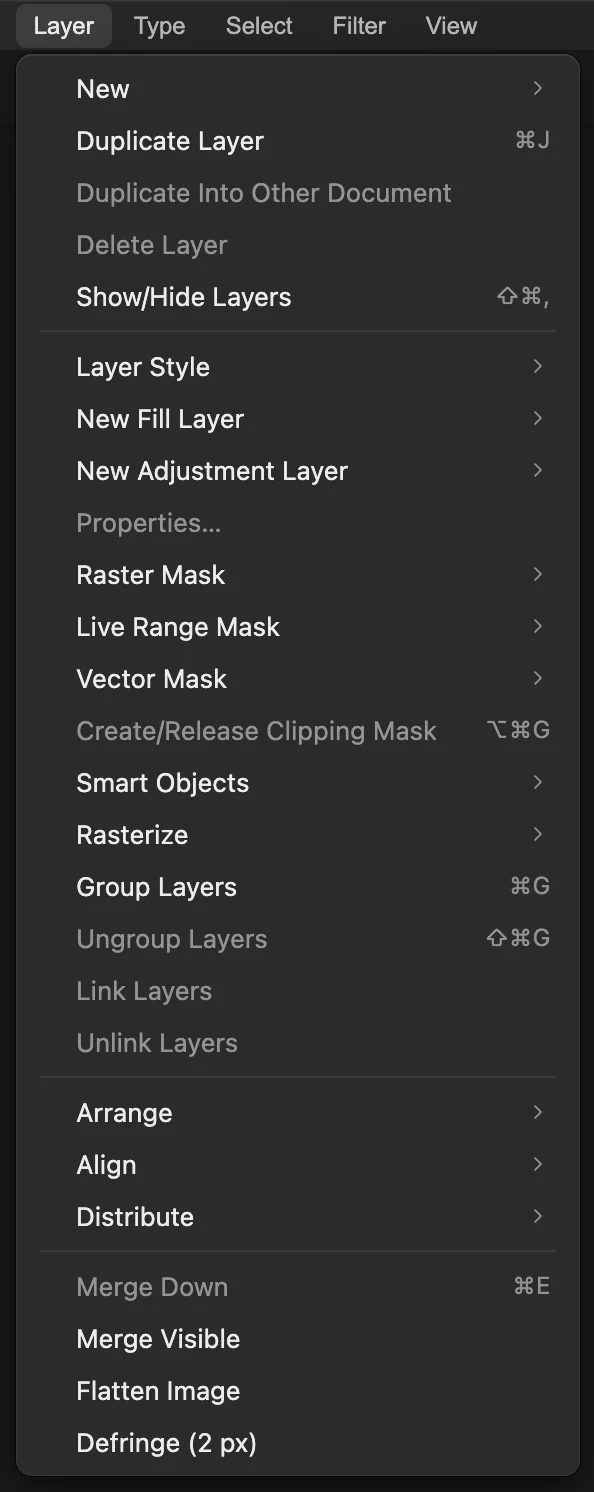
Duplicate Layer creates the copy used in this practice. Add a practice mark with Brush
Press D to reset the colors to black and white. Then right-click (or press and hold) the brush button in the toolbar, ringed below, and choose Brush. In the options bar, set Size to 80 px and Hardness to 100%.
Drag a short stroke across the empty orange background above the cup. This is the mark you will undo and repair.
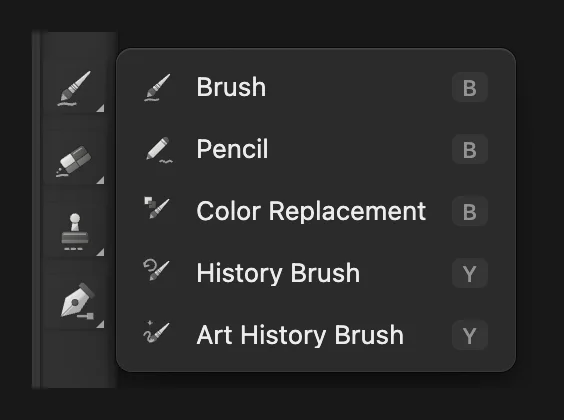
Choose Brush to make the practice mark. 
An 80 px hard brush makes a clear mark. Undo and redo the stroke
Choose or press Ctrl+Z or ⌘Z. The mark disappears. Choose or press Ctrl+Shift+Z or ⇧⌘Z to bring it back.
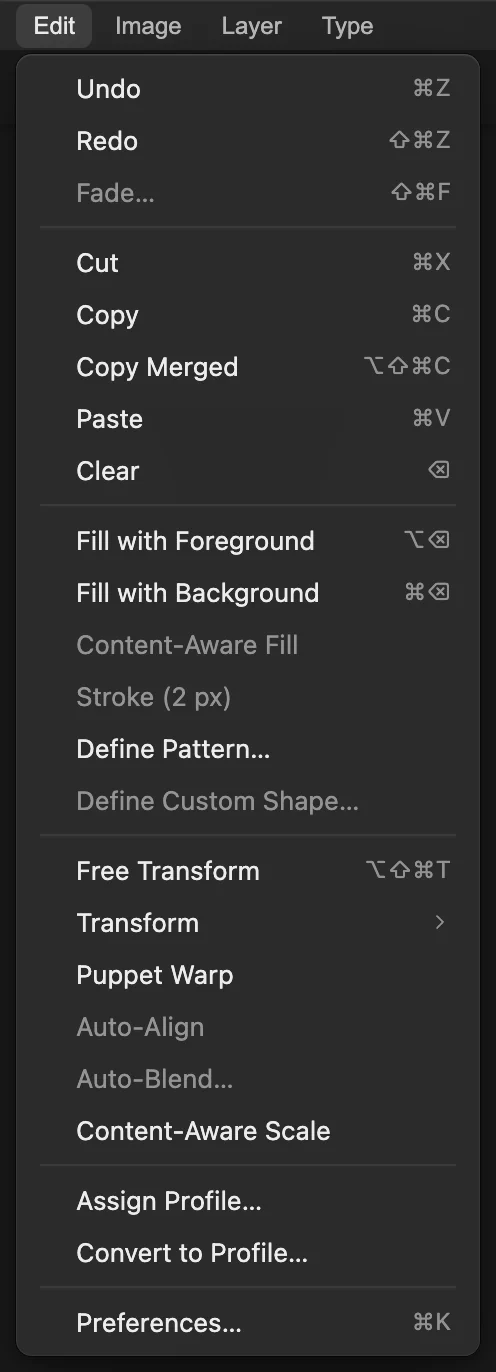
After Undo, Redo can reapply the stroke. Jump between states in History
Choose . Click the name Duplicate Layer to return to the clean copy, then click Brush Stroke to return to the marked version. The highlighted row shows the state you are viewing.
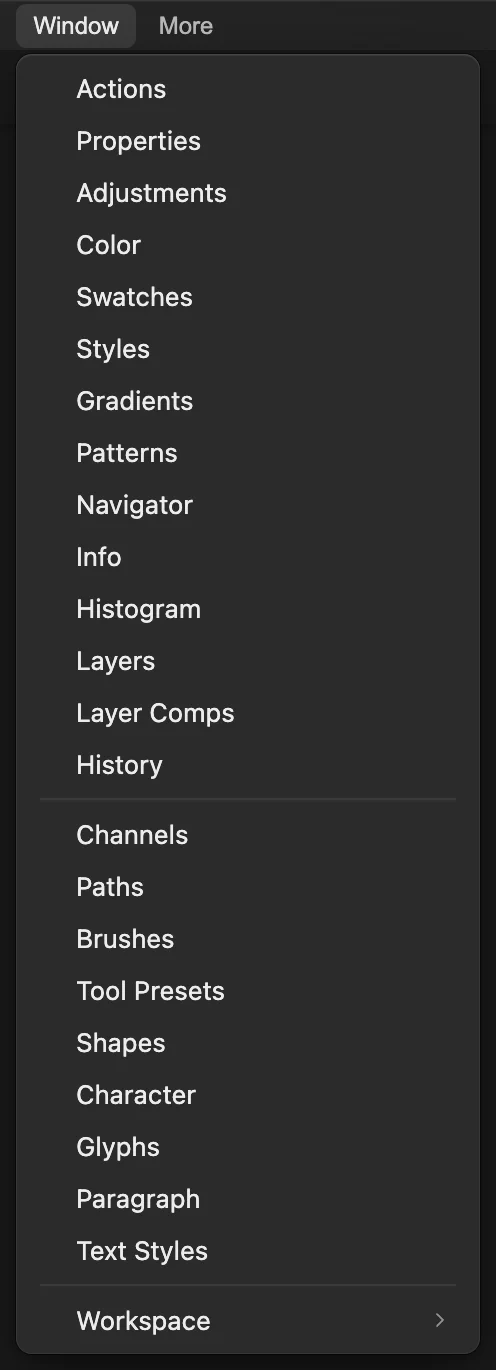
History lists the steps recorded in this open document. 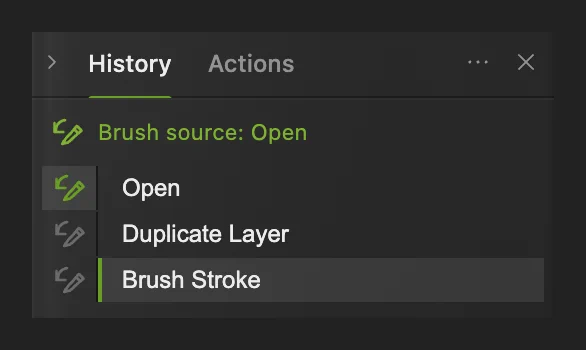
The state names move the document back or forward. Choose the clean state as the brush source
Click the small brush icon to the left of Duplicate Layer. The line above the list changes to Brush source: Duplicate Layer. The photo stays at Brush Stroke with the mark still visible.
Duplicate Layer is the first state that contains Background copy. Its pixels show the photo before you made the mark.
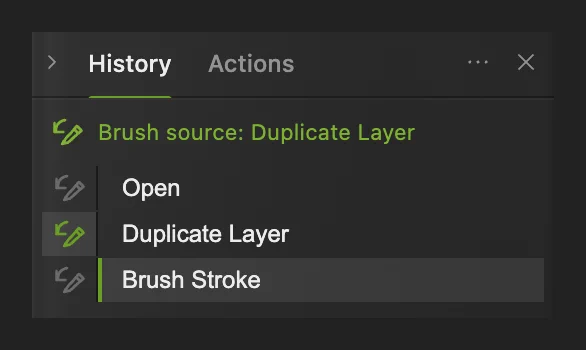
The small icon chooses a paint source without changing the current view of the photo. Set up History Brush
Right-click (or press and hold) the brush button in the toolbar and choose History Brush. Set Size to 200 px in the options bar.
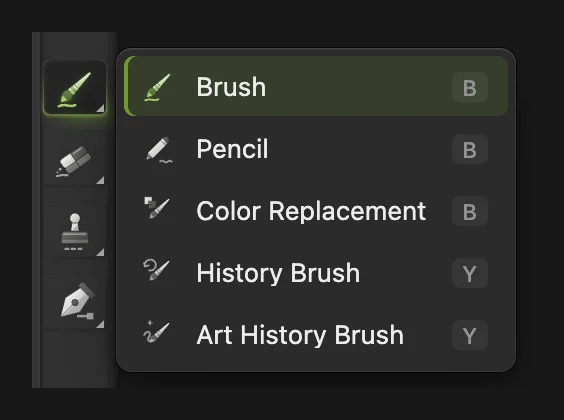
History Brush uses the source chosen in the History panel. 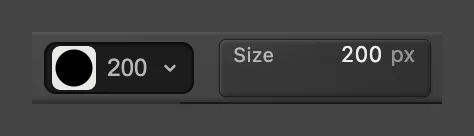
The 200 px brush covers the mark’s thickness. Paint over the mark
Drag History Brush across the whole black mark. Cover its ends and edges too. The orange background returns as you paint from the clean copy. History Brush appears as a new row in History.
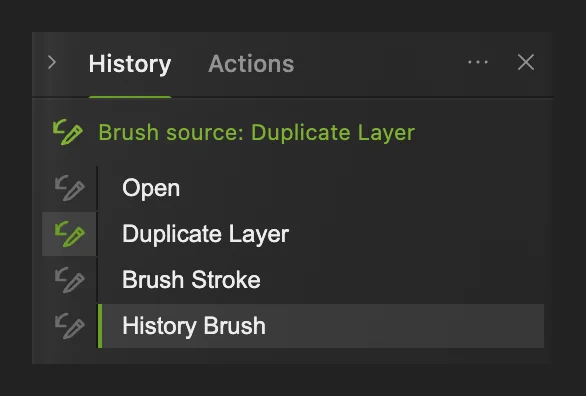
The repair is an edit you can Undo and Redo too.
What to do next
- Keep the current layers in an editable file: saving and exporting.
- Hide an area with a revisable mask: layer masks.
- Look up more editing keys: keyboard shortcuts for Windows and Mac.
History and Undo: questions and answers
Where is the History panel in Lil Cactus?
In Lil Cactus, choose Window › History. Click a state’s name to view the document at that point. The small brush icon beside it chooses a History Brush source instead.
Why is Redo unavailable after I make another edit?
In Lil Cactus, a new edit made after Undo starts a different history branch. The undone steps ahead of that point are discarded, so Redo cannot restore them.
Does a Lil Cactus project save my Undo history?
No. A Lil Cactus project keeps the current layers and document contents. Reopening it starts a new History list at Open, without the earlier Undo steps. History Brush starts from Open when you paint again.
Why does History Brush not paint on my new layer?
In Lil Cactus, the History Brush source must be a state that already contained the layer you are painting on. Click the brush icon beside a later state, such as the one that created the layer.
Does History Brush paint with the foreground color?
No. In Lil Cactus, History Brush samples the chosen history state. The regular Brush uses the foreground color; History Brush uses the earlier image.
Keep going
 How to save and export an image in Lil CactusKeep an editable master and make a separate image to share.Beginner · 5 min
 How to use layer masksHide part of a layer without deleting it, and bring it back any time.Beginner · 5 min
 Lil Cactus keyboard shortcuts for Windows and MacLook up commands, learn tool letters and change your shortcuts.Beginner · 6 min