Lil Cactus keyboard shortcuts for Windows and Mac
Quick answer
In Lil Cactus, choose to search the current command shortcuts. Windows uses Ctrl where Mac uses ⌘ (Command). Tool letters such as B are shared across platforms; repeated presses cycle the tools under that letter.
- Time
- 6 minutes
- Level
- Beginner
- You need
- A keyboard and an image to practice on
- Works with
- Windows and Mac keyboards; the tables show default bindings
A shortcut runs a command without opening its menu. On a Mac, ⌘ means Command, ⇧ means Shift and ⌥ means Option, also called Alt. Windows spells out Ctrl, Shift and Alt.
The command list reflects your own settings. The reference tables below show the defaults, while tool letters select or cycle tools. This practice duplicates a layer, then removes and restores it with Undo and Redo.
Find and test a shortcut in four steps
Open the command shortcut list
Open the sample from this page, then choose Preferences opens directly to Shortcuts.
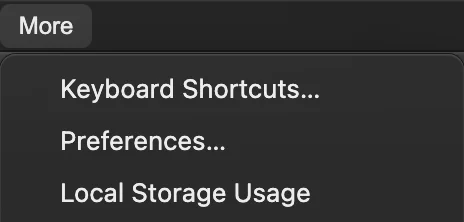
Keyboard Shortcuts… opens the command list in Preferences. Find Duplicate Layer
Type Duplicate Layer into Search commands. The row reads Layer ▸ Duplicate Layer. Its default is Ctrl+J or ⌘J. If you have changed the binding, your list shows the replacement instead.
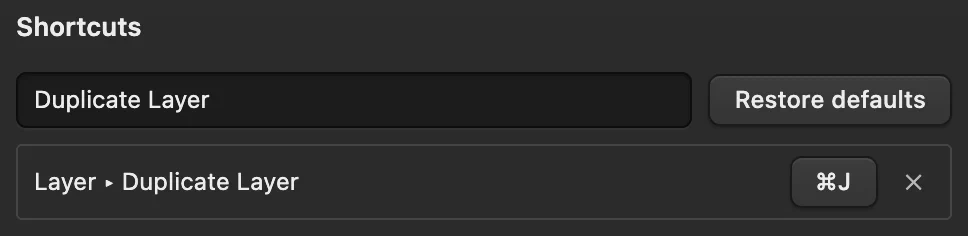
The command name identifies what the key combination will do. Close Preferences and duplicate the layer
Click Close. Choose , or press the key combination from the list: Ctrl+J or ⌘J with the defaults.
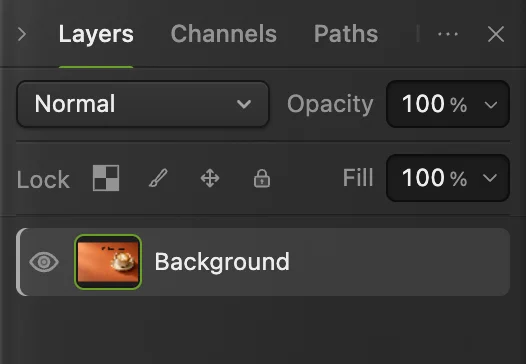
With the sample, Background copy appears above Background in the Layers panel. The photo looks the same because the identical copy covers the original.
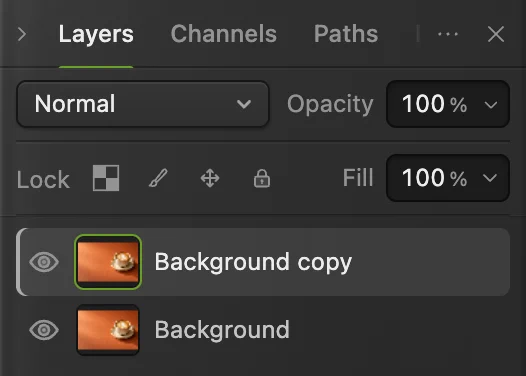
The second layer confirms that Duplicate Layer ran. Try Undo and Redo
Choose or press Ctrl+Z or ⌘Z. The new layer disappears. Choose or press Ctrl+Shift+Z or ⇧⌘Z to bring it back.
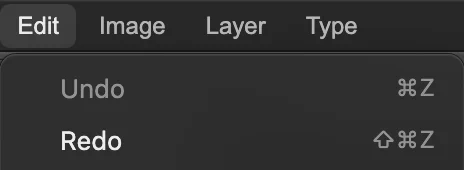
After Undo, Redo is available to restore the duplicated layer.
Change a command shortcut
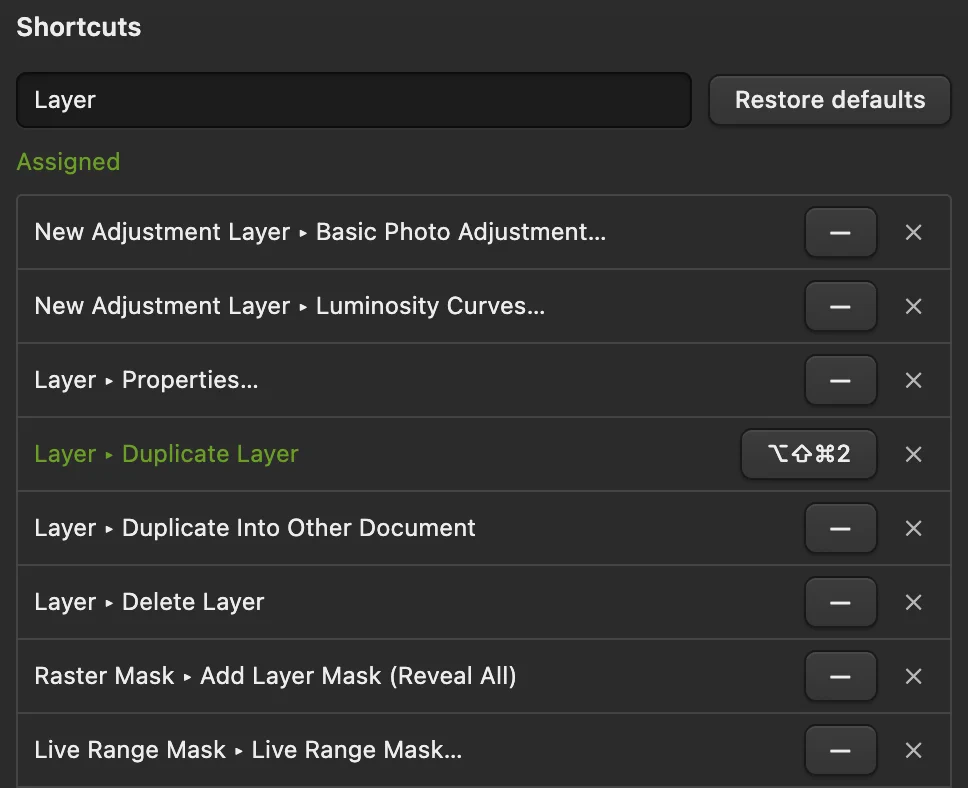
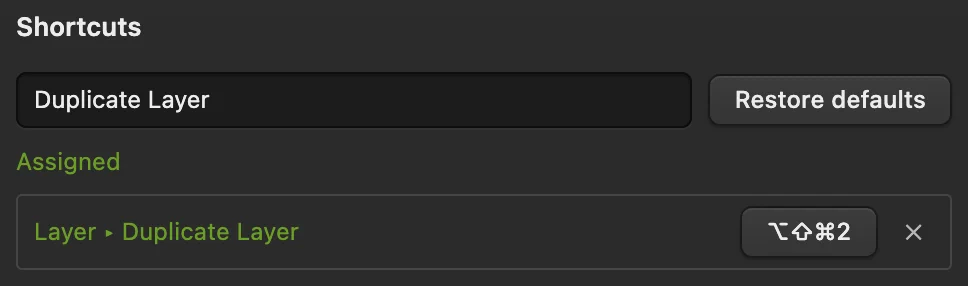
In , find the command and click its key button. Press your chosen combination. This example assigns Ctrl+Alt+Shift+2 or ⌥⇧⌘2 to Duplicate Layer. Changes take effect immediately and remain after reopening the editor in the same browser.
If the combination belonged to another command, the Reassigned from: message names it: that command has lost the binding. The row’s × button removes a shortcut. Restore defaults resets all command bindings, including changes outside the current search.
File and transform defaults
| Command | Windows | Mac |
|---|---|---|
| Ctrl+Alt+N | ⌥⌘N | |
| Ctrl+O | ⌘O | |
| Ctrl+S | ⌘S | |
| Ctrl+Shift+S | ⇧⌘S | |
| Export As… | Ctrl+Shift+E | ⇧⌘E |
| Ctrl+Alt+W | ⌥⌘W | |
| Ctrl+ | ⌥⇧⌘T |
Browsers keep Ctrl+N, Ctrl+T and Ctrl+W (⌘N, ⌘T, ⌘W on a Mac) for windows and tabs, so Lil Cactus adds Alt (Option) to New and Close, and Alt+Shift to Free Transform.
The Export As… shortcut opens the export dialog directly. For a menu route, choose and a format such as PNG…
Save uses the current file’s format; the first JPEG save opens Save Image. After , Save saves the project. Export writes a new file.
Editing and selection defaults
| Command | Windows | Mac |
|---|---|---|
| Ctrl+Z | ⌘Z | |
| Ctrl+Shift+Z | ⇧⌘Z | |
| Ctrl+J | ⌘J | |
| Ctrl+X | ⌘X | |
| Ctrl+C | ⌘C | |
| Ctrl+V | ⌘V | |
| Delete / Backspace | ⌫ / ⌦ | |
| Alt+ | ⌥⌫ | |
| Ctrl+ | ⌘⌫ | |
| Ctrl+A | ⌘A | |
| Ctrl+D | ⌘D |
With the workspace focused, Delete or Backspace runs Clear (either Delete key on a Mac). Text fields keep their own editing keys.
View defaults
| Command | Windows | Mac |
|---|---|---|
| Ctrl+= | ⌘= | |
| Ctrl+- | ⌘- | |
| Ctrl+0 | ⌘0 | |
| Ctrl+1 | ⌘1 |
These combinations can also control browser zoom or tabs. Click an empty area of the workspace after entering a field value, and use the View menu if the browser handles the shortcut.
Canvas and painting keys
Finish text entry and focus the workspace before using these keys.
| Keys | Effect |
|---|---|
| Space + drag | Temporary Hand panning. |
| 1–9, 0 | A single digit sets 10–90%, or 100% with 0. Brush uses tool Opacity; Move uses the selected layer’s Opacity. |
| 3 then 7 quickly | Set the same amount to 37%. Two quick digits form one value. |
| Shift + digits | Brush uses Flow; Move uses the selected layer’s Fill opacity. |
| Q | Toggle . |
| Enter / Esc | Apply or cancel an active transform or crop. |
Tools with a Strength or Exposure control use that amount for number keys.
Tool letters and shared keys
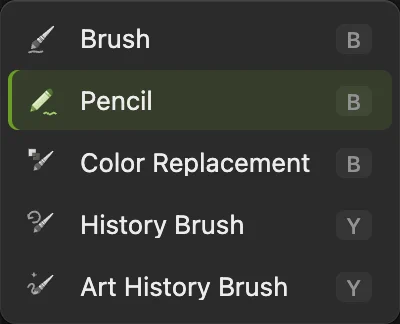
When switching from tools with another letter, the key returns to the last tool you used under that letter, or its default tool if you have not used one yet. If a tool under that letter is already active, pressing the key selects the next available one. Repeated presses follow the cyclic order in this table, which can differ from the flyout. Shift is optional for these tool letters: Shift with the letter follows the same cycle. To choose a specific tool, right-click its toolbar button and select its name.
| Key | Tools sharing that letter |
|---|---|
| V | Move, Artboard |
| M | Marquee Select, Single Row Marquee, Single Column Marquee |
| L | Lasso Select, Polygonal Lasso, Magnetic Lasso |
| W | Quick Selection, Object Selection, Magic Wand |
| C | Crop, Perspective Crop, Slice, Slice Select |
| I | Eyedropper, Color Sampler, Ruler |
| B | Brush, Color Replacement, Pencil |
| Y | History Brush, Art History Brush |
| E | Eraser, Background Eraser |
| S | Clone Stamp, Smudge |
| J | Healing Brush, Spot Healing Brush, Content-Aware Move, Patch, Red Eye |
| O | Dodge, Burn, Sponge |
| R | Rotate View, Blur, Sharpen |
| G | Paint Bucket, Gradient |
| T | Text, Vertical Type |
| U | Shape |
| A | Path Selection, Direct Selection |
| P | Pen, Add Anchor Point, Delete Anchor Point, Convert Point, Freeform Pen, Curvature Pen |
| H | Hand |
| Z | Zoom |
For brush-like tools, [ decreases size and ] increases it. D resets foreground/background to black/white; X swaps them.
What to do next
- Understand the copy you created: how layers work.
- Keep an editable file: saving and exporting.
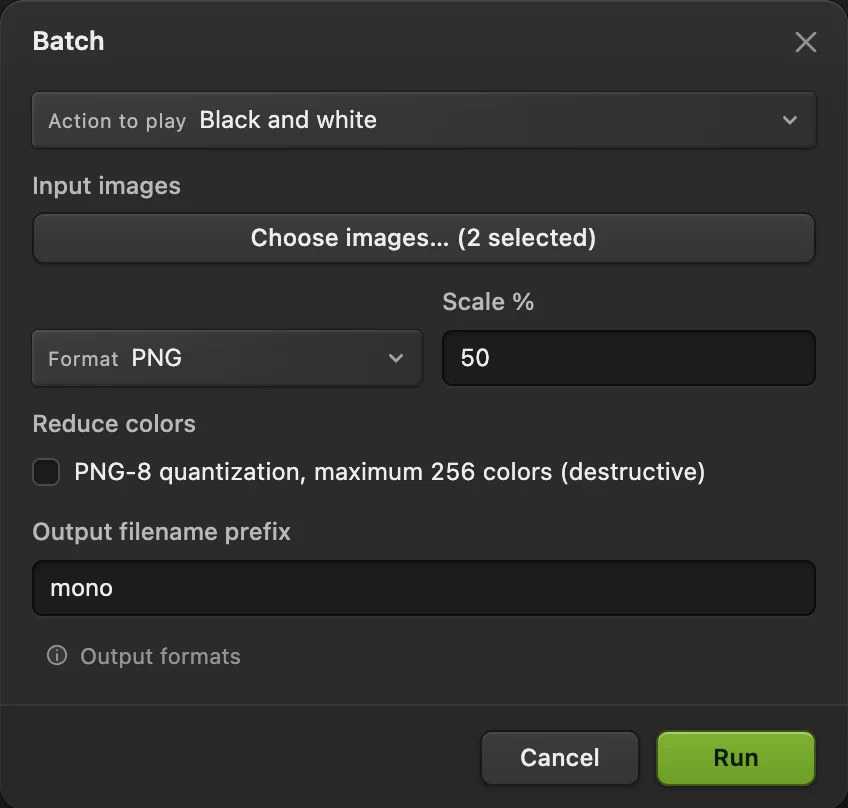
- Repeat a whole sequence of edits: record actions and run Batch.
Keyboard shortcuts: questions and answers
Where can I see my current keyboard shortcuts?
In Lil Cactus, choose More › Keyboard Shortcuts… and search the command name. The list reflects your current command bindings; tool letters appear beside tools in their toolbar flyouts.
Do Windows and Mac use the same shortcuts?
Most Lil Cactus command shortcuts use Ctrl on Windows and Command on Mac, with the same final key. Tool letters such as B and Z are shared. The reference tables on this page give both spellings.
Can I change a keyboard shortcut?
Yes. In Lil Cactus, open More › Keyboard Shortcuts…, click a command’s key button and press the replacement combination. The change applies immediately; Restore defaults resets all command bindings.
Why do tool letters not work while I am typing?
Lil Cactus leaves letters with text fields and active text editing so you can type normally. Finish the entry and focus the workspace to use tool letters again.
What if the browser takes a Lil Cactus shortcut?
Some browser shortcuts, such as Ctrl+D or ⌘D for bookmarks, can reach the browser first. In Lil Cactus, use the menu command instead, or assign another combination in More › Keyboard Shortcuts…
Keep going
 How to use layers in a photo editorStack, reorder, fade, hide and group the parts of a picture.Beginner · 6 min
 How to save and export an image in Lil CactusKeep an editable master and make a separate image to share.Beginner · 5 min
 How to record actions and batch edit photosRecord a reusable edit, then apply it to a set of photos.Intermediate · 6 min