How to invert colors in an image
Quick answer
Open your image in Lil Cactus and choose to keep an original copy. Hide the original layer with its eye button in Layers, leaving only the copy visible. Choose ; the active image layer changes to a negative immediately, with no settings dialog. Save a new image through
- Time
- 3 minutes
- Level
- Beginner
- You need
- A photo or graphic whose colors you want to reverse
- Works with
- RGB photos and PNG graphics, including transparency
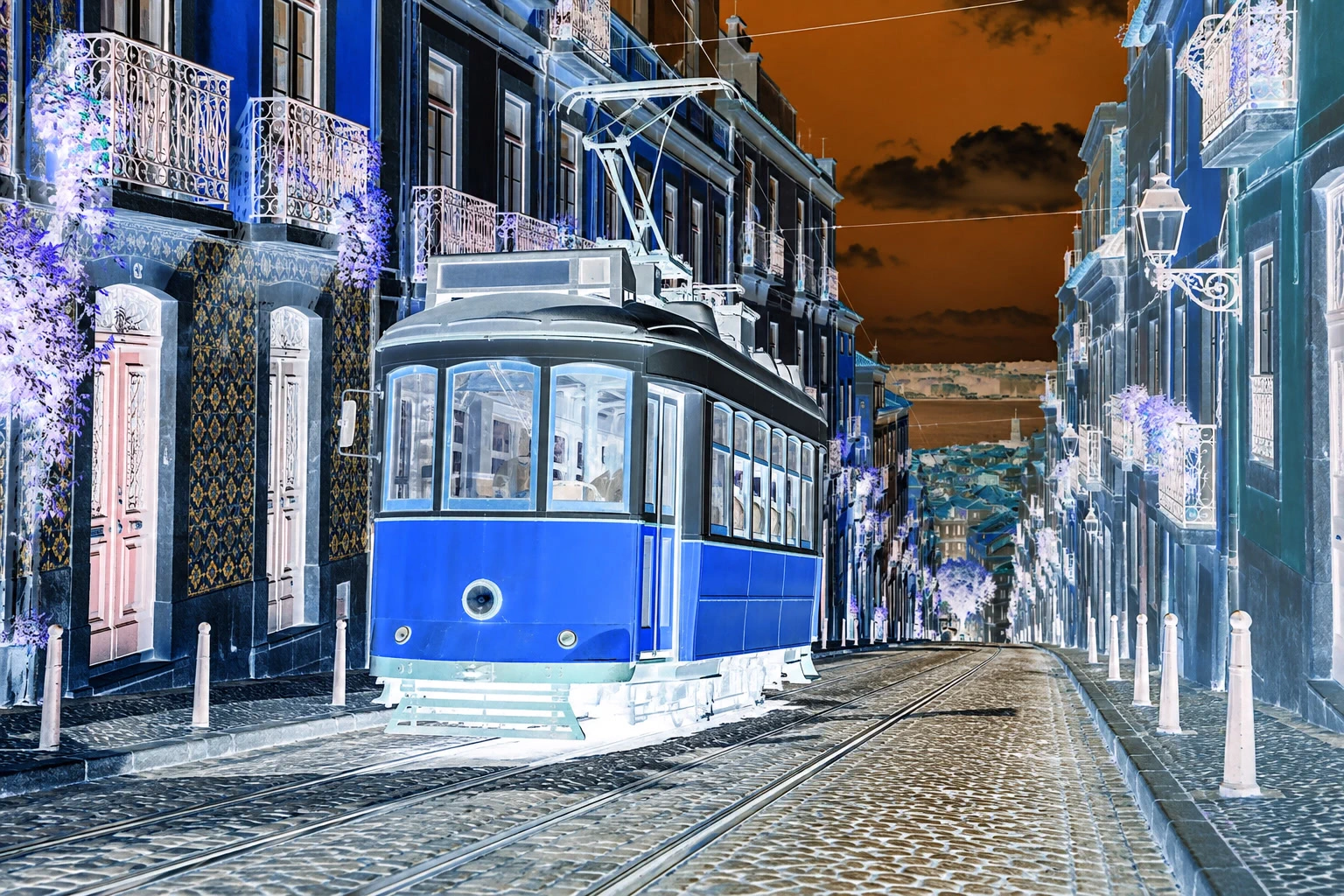
Invert turns light areas dark and dark areas light, while exchanging colors for their opposites. The result is a digital negative effect. The Image command changes the active image layer; these steps keep a separate original layer for comparison.
Make a negative in four steps
Open the photo and duplicate its layer
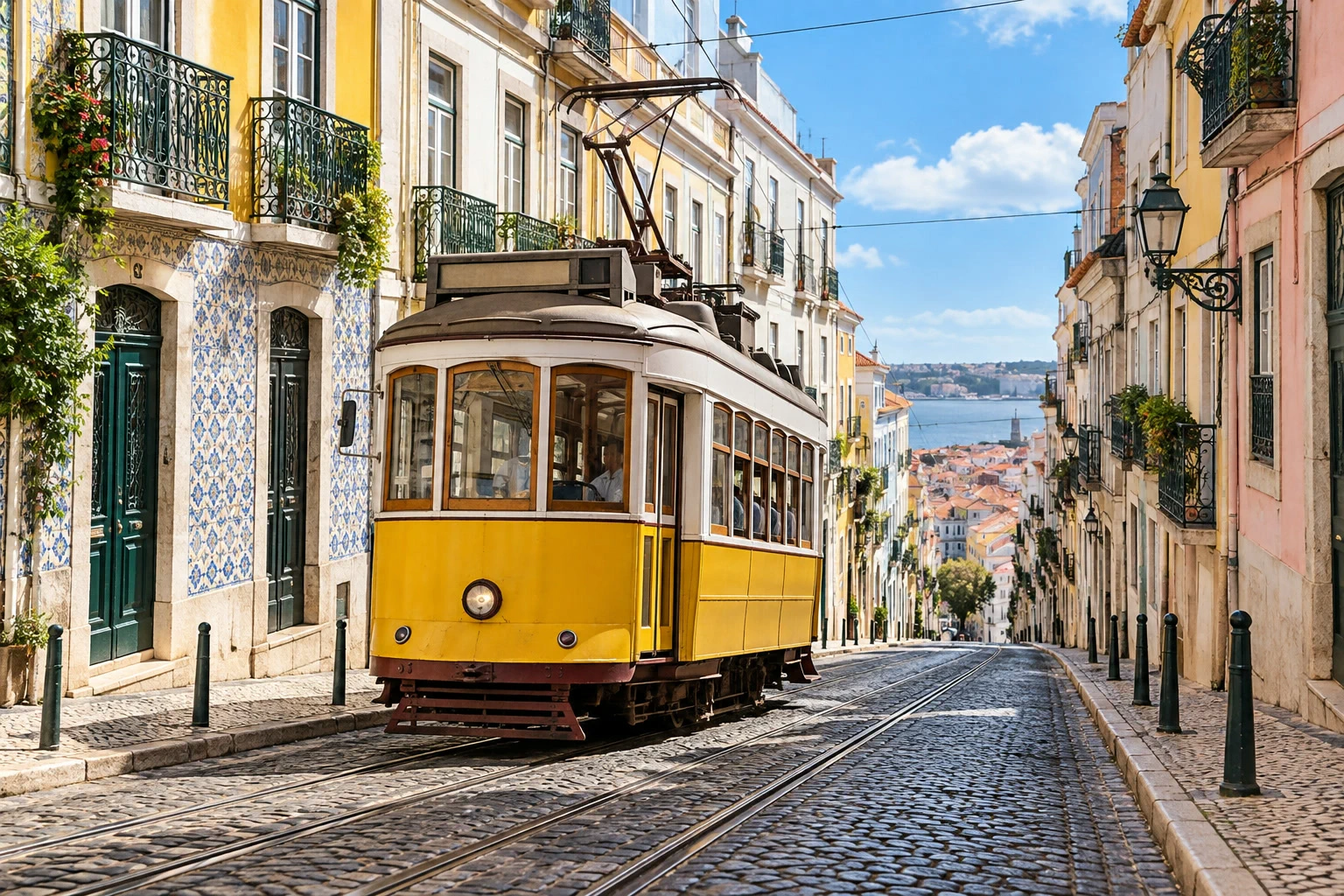
Open the sample from this page, or choose for your own image. Choose . In Layers, double-click the copy’s name, type Negative and press Enter.
Click the ringed eye beside Background to hide it. Leave Negative selected and visible. Hiding the original matters for images with see-through edges: two visible copies stacked make partly transparent pixels more solid.
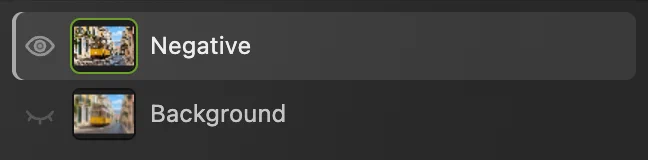
Background is hidden; Negative is visible. Choose Image › Adjustments › Invert
Choose . The colors reverse immediately. This command has no settings dialog or Apply button.
Tip If you already have a selection, clear it first with to invert the whole layer.
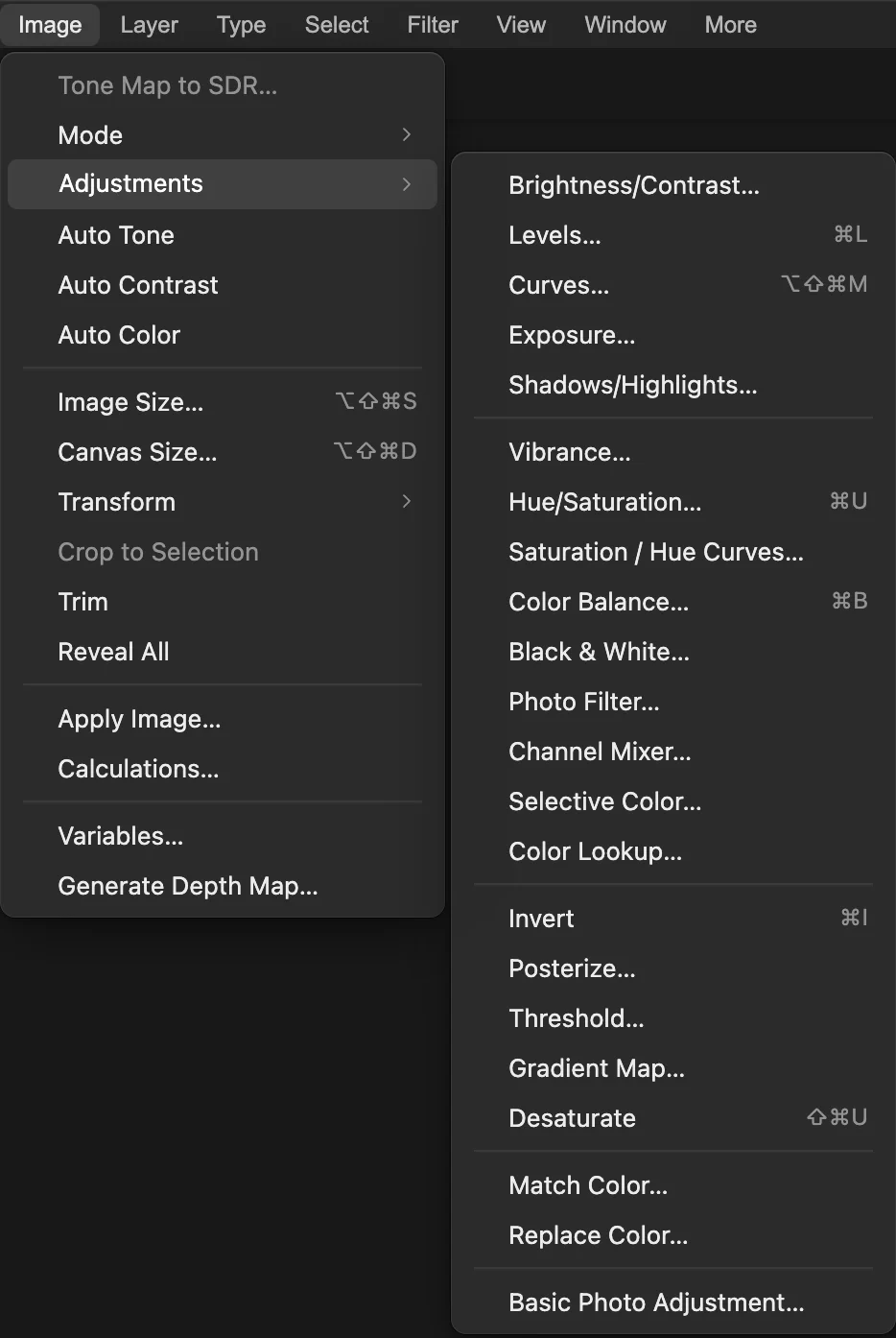
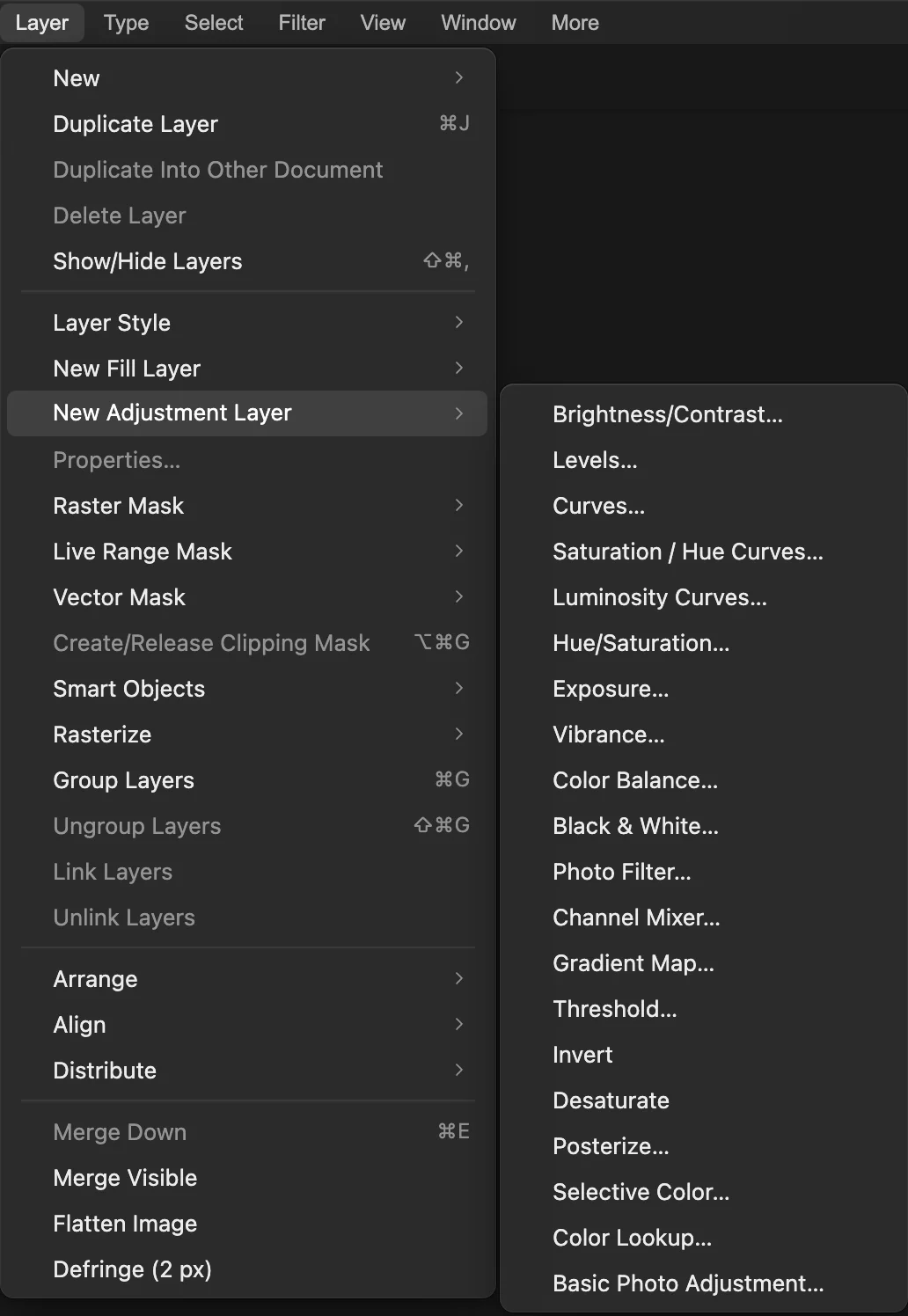
Choose Invert without an ellipsis: the command applies at once. 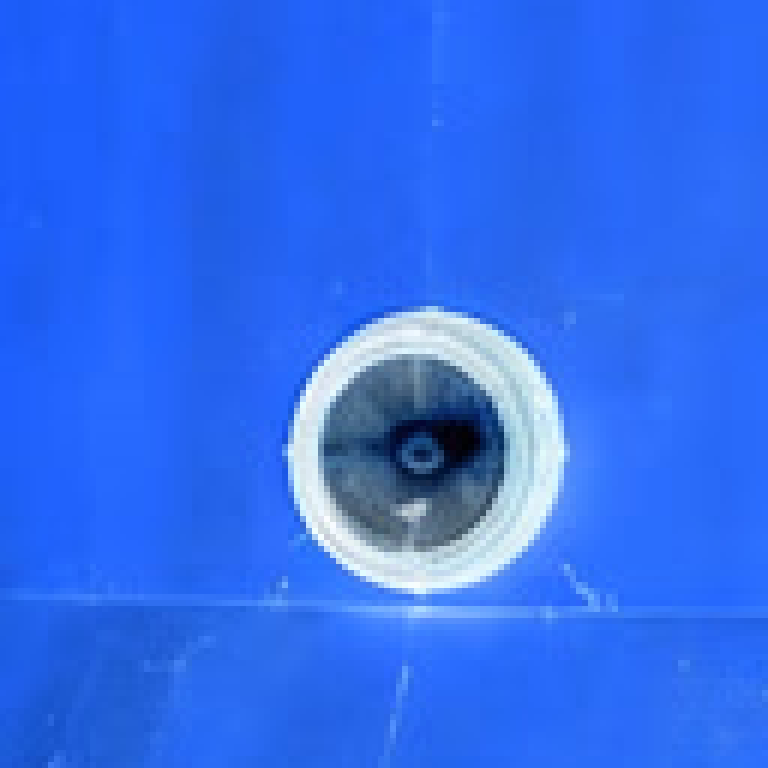
The yellow front panel turns blue; detail enlarged 3×. Compare with the original
Hide Negative with its ringed eye, then show Background with the other ringed visibility button. To return to the negative, hide Background and show Negative again.
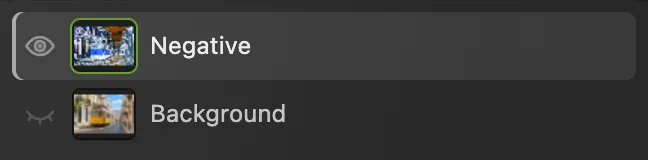
Only Negative is visible in this view. Export the negative
Choose , then click Export. PNG combines the visible layers in the saved image.
To keep both layers, choose then updates the project. If you choose Save before saving a project, it uses the opened image’s format; the first save of this JPEG opens Save Image.
Keep the negative as an adjustment layer
An adjustment layer keeps the effect separate from the photo’s pixels. For this version, open the original sample from the page again, or reopen your own original with
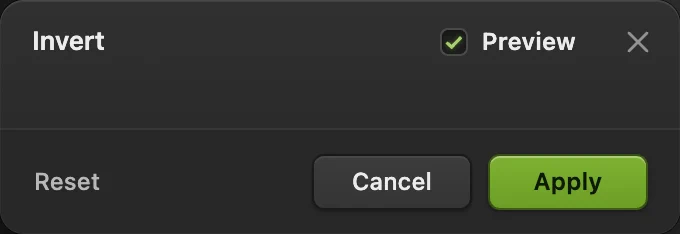
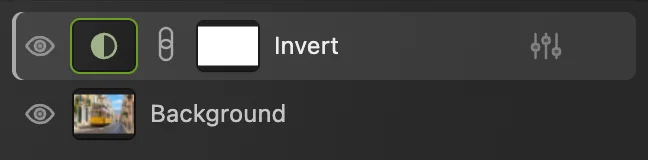
Choose . This route opens an Invert preview dialog; click Apply. An Invert layer appears above Background. Click its ringed eye to hide or show the effect. Use the project format in step 4 to keep that layer.
What to do next
- Make a monochrome photo: convert to black and white.
- Keep other color edits separate: use adjustment layers.
- Change the tonal range: adjust curves.
Coming from another editor
- Photoshop
- The same command, Image › Adjustments › Invert.
- GIMP
- Colors › Invert.
Color inversion: questions and answers
Why does yellow turn blue when I invert colors?
In an 8-bit RGB image, Lil Cactus replaces each red, green and blue value with 255 minus its old value. Pure yellow, RGB 255, 255, 0, therefore becomes blue, RGB 0, 0, 255.
How do I restore the original colors after inverting?
In Lil Cactus, use Edit › Undo until you reach the state before Invert. Applying Image › Adjustments › Invert twice in a row to the same image layer also restores its starting colors.
Does Invert change a PNG’s transparency?
No. Lil Cactus reverses the color values while preserving transparency, including partly transparent pixels. Export as PNG to keep it.
Does inverting colors make a black-and-white photo?
No. In Lil Cactus, Invert reverses colors rather than removing them. A color photo remains colored, with a different palette.
Can Invert turn a scanned color negative into a normal photo?
No, not accurately with Invert alone. Lil Cactus reverses the values without correcting the orange base of color film. Use your scanner’s color-negative mode when scanning film.
Keep going
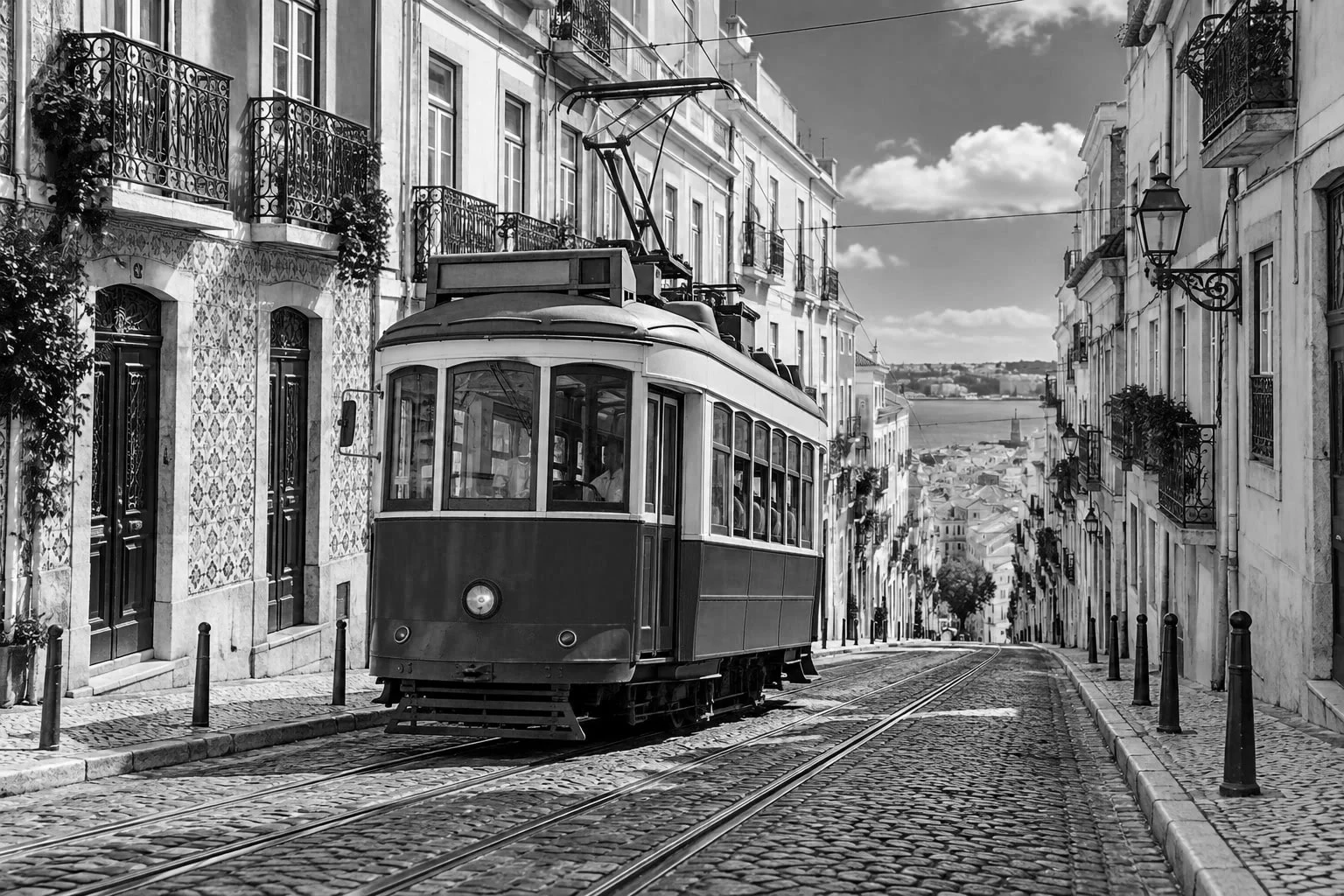 How to make a photo black and whiteChoose how light each color turns, so the photo doesn’t go flat.Beginner · 5 min
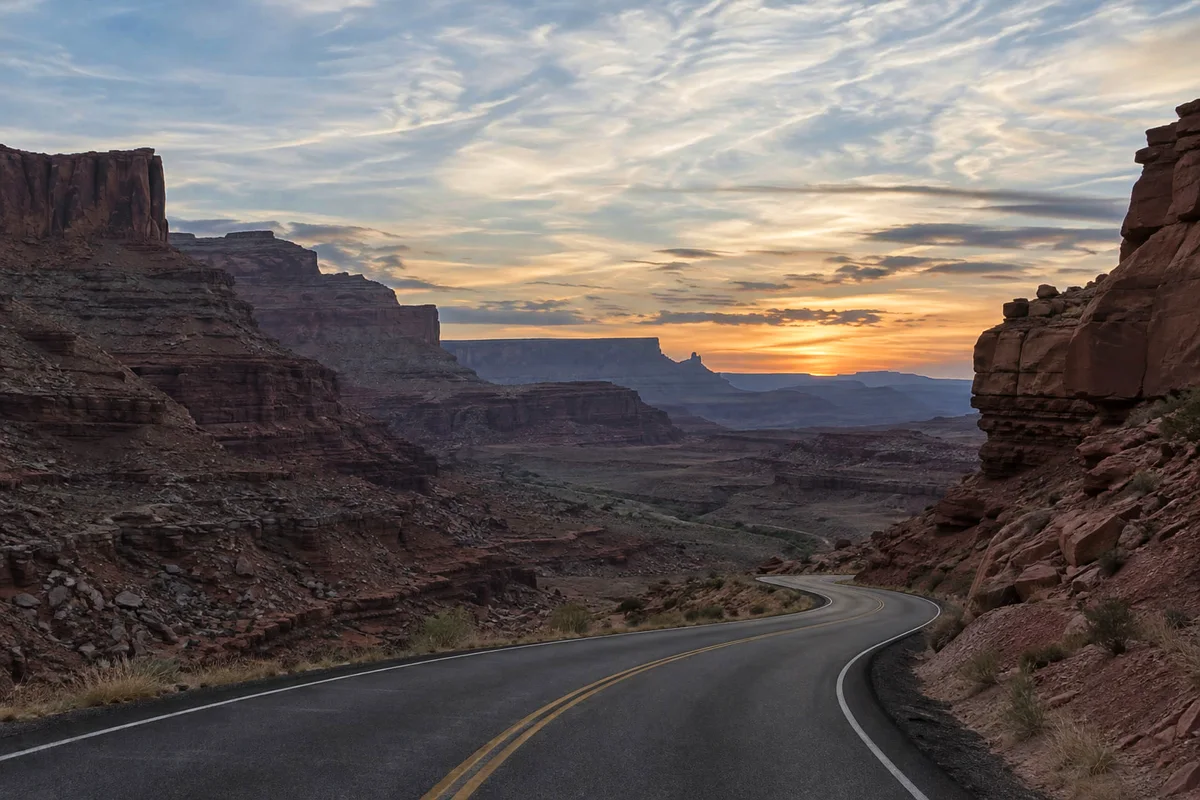 How to use adjustment layersColor and tone changes you can retune, hide or limit to one area.Beginner · 5 min
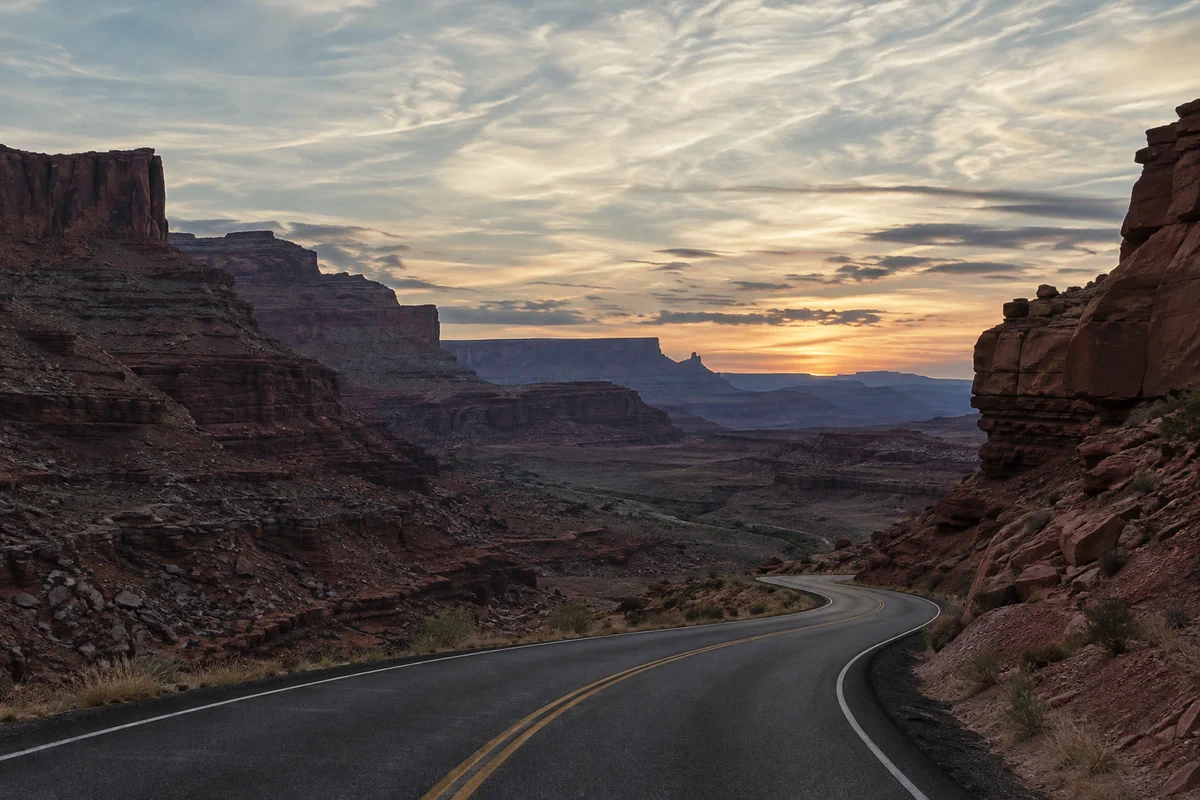 How to use Curves to fix contrast and colorRead the graph, build an S-curve and shift color by channel.Intermediate · 8 min