How to record actions and batch edit photos
Quick answer
In Lil Cactus, choose , click Record a new action, name it and carry out the edits you want to repeat. Click Stop recording, then choose Select the saved action, choose your input images, set the output format and scale, and click Run: the results download together in a ZIP file.
- Time
- 6 minutes
- Level
- Intermediate
- You need
- Two or more photos, and an edit you want to repeat
- Works with
- This lesson uses JPEG inputs and PNG outputs; Batch also outputs JPEG and WebP
An action is a saved list of edits. Recording performs those edits on the open image; playing the action repeats them on the current image. Batch opens each chosen file, runs the action and exports a copy.
This lesson records a black-and-white conversion. It changes the whole photo, so it works on differently framed pictures without needing a selection for each one.
Record an action and run a batch in six steps
Open a photo and the Actions panel
Open the sample from this page, or choose for your own photo. Then choose . The Actions panel opens on the right. Its round record button is at the bottom.
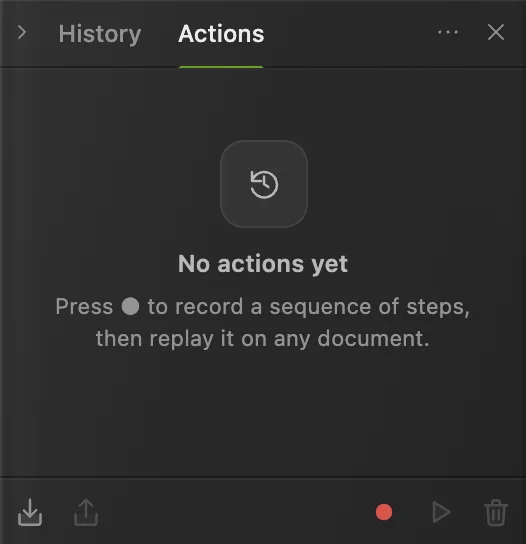
Point at a footer button to read its name. The ring marks Record a new action. Name the recording
Click Record a new action, type Black and white into Name, then click Record. The panel says Recording… do the steps once, then stop. Open the photo before recording: the action should contain the edits, while Batch chooses the files.
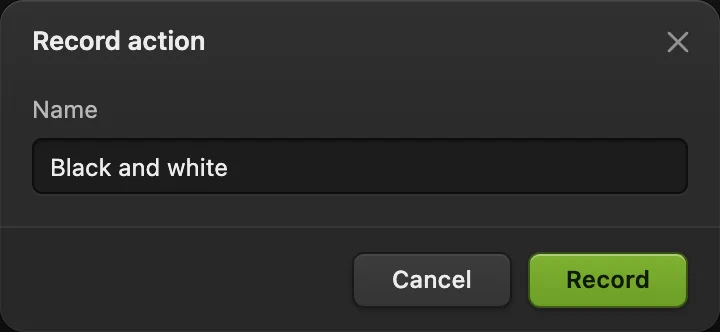
Give the action a name that describes its result. Make the edit once
Choose . The photo turns black and white immediately, with no dialog. A step called Desaturate appears in the Actions panel.
Tip Recording changes the open photo as you work. Check that the step appears before continuing.
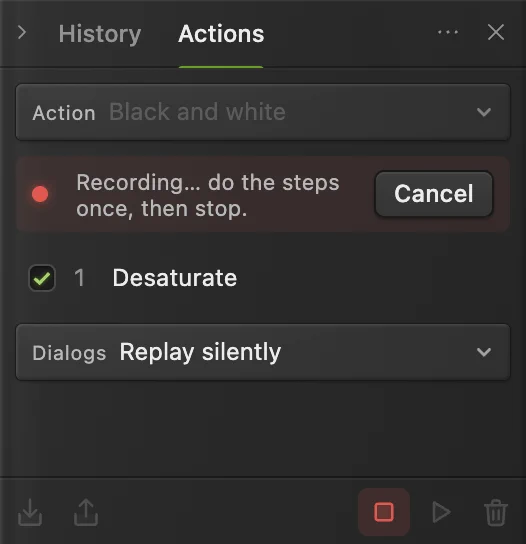
Desaturate is recorded as one step. The record button has become Stop recording. Stop and test the action
Click Stop recording, the square button at the bottom of the panel. The action is saved. Choose to return the sample to color, then click the triangle, Play on the active document. The photo turns black and white again.
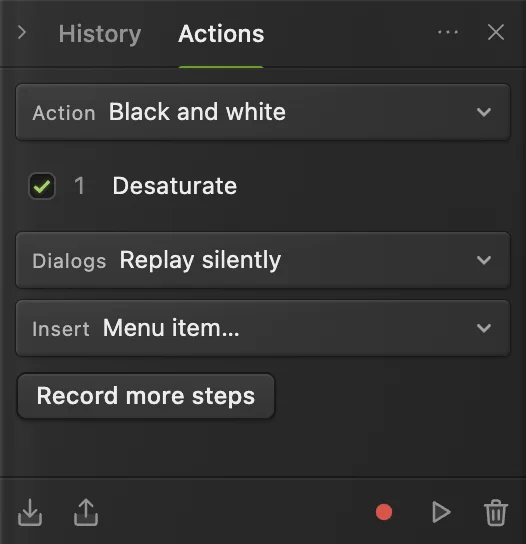
The triangle plays the saved action on the active document. Choose the batch inputs and output settings
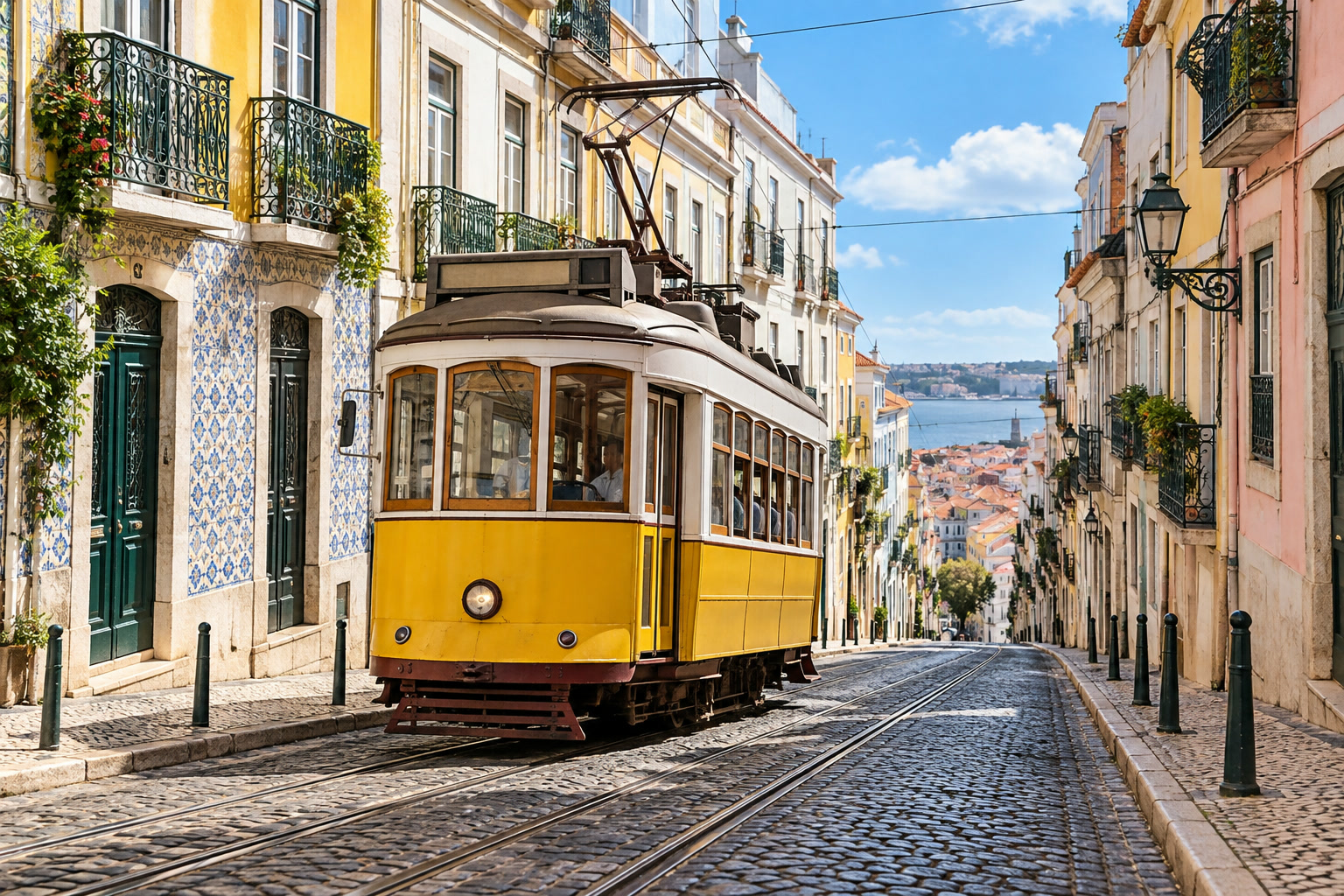
Download the tram photo and the coffee photo to try two inputs. Choose
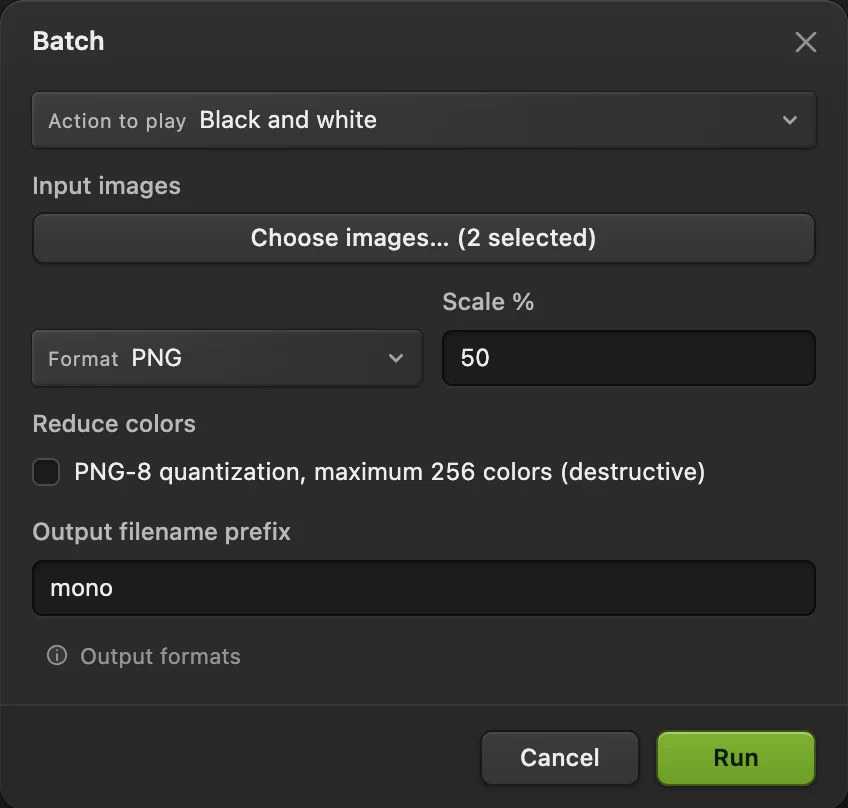
- Set Action to play to Black and white.
- Under Input images, click Choose images… and select both downloaded photos.
- Keep Format on PNG and Reduce colors off.
- Set Scale % to 50 and Output filename prefix to mono.
Both sample photos are 1536 × 1024 pixels, so 50% produces 768 × 512 pixels. With your own pictures, each keeps its original proportions.
The batch is ready: two selected images, PNG, half-size output and the prefix mono. Run the batch and open the results
Click Run. When processing finishes, the dialog closes and mono-output.zip downloads. Extract the ZIP using your computer’s file manager. It contains mono-001.png and mono-002.png, numbered in the order the files were picked. Both are black and white at 768 × 512 pixels.
Open the files to inspect them before sending them on. Batch exports new files; the input photos stay as they were.
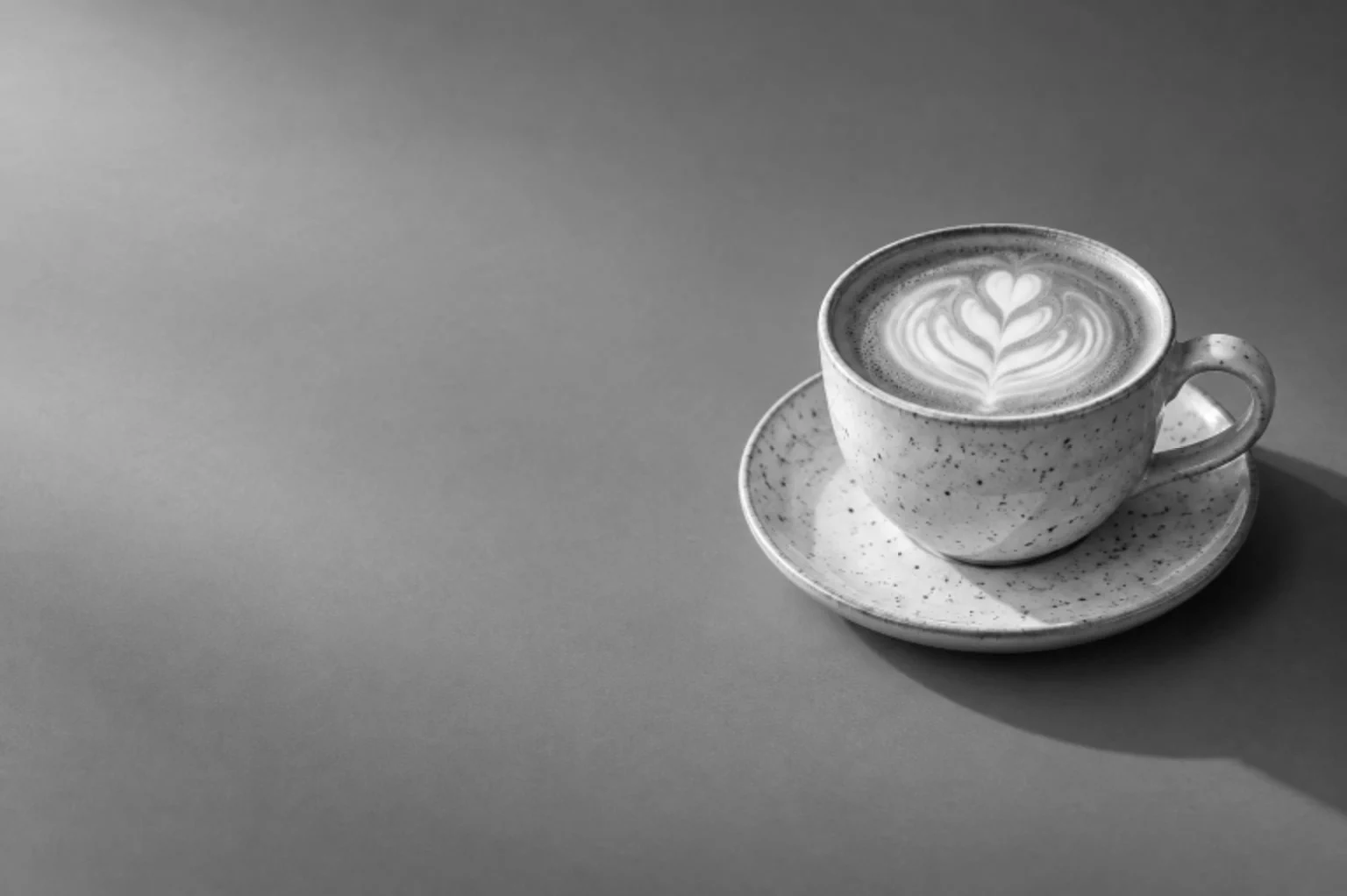
The coffee photo from the ZIP, black and white at 768 × 512 pixels.

Keep and share your actions
Saved actions are kept in this browser on this device, separate from the photo or project. Click Export actions (JSON) at the bottom of the Actions panel to download a backup of your saved actions. Use Import actions (JSON) to load that file in another browser.
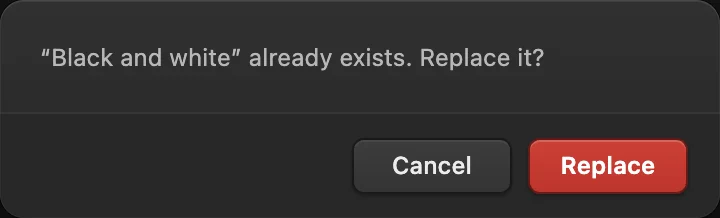
With an action selected, Record more steps appends to it. When you stop the extended recording, confirm Replace to save it under the same name. A step’s checkbox lets you skip that step without deleting it. Keep the original JSON backup before changing an action you rely on.
Convert or resize a set without an action
In Batch, leave Action to play on (none – export only) and choose the format and scale. Use 100% to keep the dimensions. PNG keeps transparency; JPEG fills transparent areas with white. JPEG and WebP expose a Quality slider.
For mixed portrait and landscape photos, use Batch’s Scale %. A recorded Image Size step stores a fixed width and height, so it can stretch photos with different proportions.
Fix common problems
Playback stops at an unsupported step
Some edits run while recording but cannot replay, including , adding a layer mask and The recorder marks them as unsupported steps. Playback stops when it reaches one. Point at that step to reveal its buttons, then click the trash button at the right of its row. Test the remaining action again. These commands cannot form an automatic background-removal batch.
The batch reports a failed file
The other files continue. Read the failure message in the Batch dialog, then try the action on that file by itself. A step may require a layer, selection or document structure that the file does not have.
The action is missing in another browser
Import your exported JSON file in that browser. Saving the photo as a project does not transfer your actions.
What to do next
- Choose an output format: convert image formats.
- Understand dimensions: resize an image.
- Choose individual black-and-white tones: make a black-and-white photo.
- Change text or images from a data file: data-driven graphics.
Actions and batch editing: questions and answers
Can I batch edit photos without recording an action?
Yes. In Lil Cactus, File › Automate › Batch… can export and scale a set of images with Action to play set to (none – export only).
Which file formats can Batch create?
Lil Cactus Batch outputs PNG, JPEG or WebP files, collected in a ZIP. Use File › Export on an individual document for other output formats.
Does Batch overwrite my original photos?
No. Lil Cactus Batch downloads new output files in a ZIP and leaves the input files unchanged.
Can an action adapt its selection to every photo?
No. A Lil Cactus action replays a recorded selection exactly as it was made, and Select › Subject cannot be recorded, so an action cannot find a different subject in each photo.
Are batch images uploaded to a server?
No. Lil Cactus opens, edits and exports the images on your device. Your photos are not uploaded for batch processing.
Keep going
 How to convert HEIC, WebP and PNG to JPG onlineConvert HEIC, WebP or PNG to JPG, or choose another image format.Beginner · 2 min
 How to resize an image online to exact pixels or print sizeExact pixels, percent or print size, without stretching.Beginner · 2 min
 How to make a photo black and whiteChoose how light each color turns, so the photo doesn’t go flat.Beginner · 5 min