How to use Liquify to tidy hair and reshape small details
Quick answer
Choose , then Paint over what must not move with the Freeze brush, then pick Push, set a Size larger than the detail you are moving, keep the brush circle inside the photo, and drag about a fifth of the circle’s width in the direction the detail should go. Many short, overlapping drags look natural; one long drag pulls a dent or bulge into the outline. Brush with Reconstruct to undo an area, compare with Before, and click Apply Liquify.
- Time
- 6 minutes
- Level
- Intermediate
- You need
- A photo with a small shape to tidy: stray hair, a fold in fabric, a bent line
- Works with
- JPEG, PNG, HEIC, WebP, TIFF and PSD photos, and RAW files once developed
Liquify treats a photo as if it were printed on soft rubber: you push pixels around with a brush and everything nearby stretches to follow. It is the tool for small, freehand shape corrections, such as tucking in a strand of hair, smoothing a crease in a shirt or straightening a bent edge.
The skill is restraint. A gentle nudge goes unnoticed; a big push bends straight lines and warps the background, and viewers notice that at once. On faces and bodies, stick to what the person would fix in a mirror, such as a stray hair or a crooked collar, and ask before changing anything more: edited body shapes give people a false idea of what bodies look like, and some countries require edited commercial images of bodies to be labeled. This page tidies the loose strands of hair at the left side of the sample portrait, from the forehead down to the jaw, and leaves the face untouched; the right side works the same way.
Reshape with Liquify in six steps
Open the photo and duplicate the layer
Open the photo with (Ctrl+O or ⌘O); to follow along, open the sample from this page. Choose . Liquify changes the pixels of the layer it works on, so working on a copy keeps the original underneath: hide or delete the copy to go back, or lower its opacity to soften the change.
Liquify needs one unlocked pixel layer and no active selection. A Smart Object has to be rasterized first, which is another reason to work on a copy.
Choose Filter › Liquify…
Liquify opens in its own workspace: the photo on the left, the brushes and their settings on the right. Above the photo, Before shows the original, and the Fit menu switches to 100% detail, which shows an 800 × 600 px area at full size; the Detail center X and Detail center Y sliders move it around the photo.
Work at 100% detail. At Fit a whole portrait is shrunk to the preview, so a 160 px brush is only about 50 px on screen and a 30 px push is about 10 px of mouse movement. Set Detail center X to 0 for the left side of the photo or 1 for the right, and move Detail center Y down as you work.
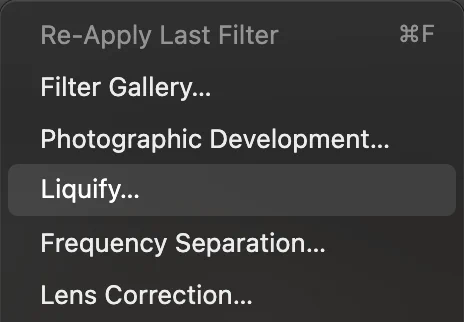
, near the top of the Filter menu. 
Above the photo: Before and the Fit menu, ringed. Freeze what must not move
Click Freeze, set Size to 90, and paint over the areas next to your edit that must keep their shape. Frozen areas are shown in red while Show freeze mask is ticked, and no brush moves them. On the sample, one stroke runs down the left edge of the face from the forehead to the jaw, with the circle’s center about 20 px inside the skin, so the red band covers the skin edge and the strands lying against it. The pushes in the next step stop short of the face, so Freeze is a safeguard: it keeps the jaw line still where the lower circles touch it near the chin.
Thaw removes freeze where you brush; Clear freeze mask removes it all.
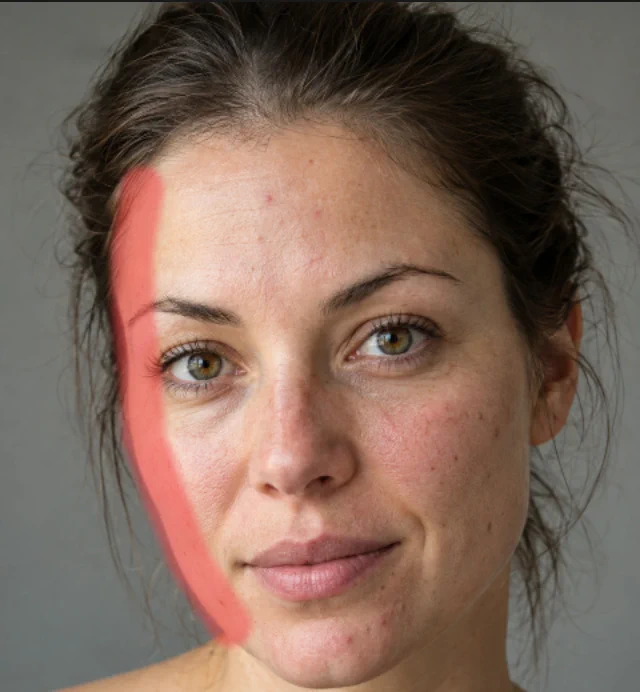
The freeze mask in red, along the left edge of the face. Push the detail into place
Click Push. Set Size larger than the detail you are moving, so the brush moves it and its surroundings together: 160 px beside the forehead and temple on the sample, 120 px lower down, where the strands hang close to the cheek and jaw. Leave Density (how fast the effect fades toward the brush edge) and Rate (how strongly it pushes) at 50.
Place the circle over the loose strands, with its outer edge just inside the photo, and drag toward the head by about a fifth of the circle’s width. Lift, move down by about a sixth of the circle’s width, and push again, so each push overlaps the last. Work down the left side from level with the top of the forehead to the cheekbone. Then switch to 120 px and carry on down beside the cheek and jaw with shorter drags, about a tenth of the circle’s width, starting each push with the circle about 15 px short of the skin. When you’re done, the outline of the hair is 30–50 px narrower beside the forehead, and the strands beside the cheek and jaw lie 10–25 px closer, while the jaw line stays exactly where it was.
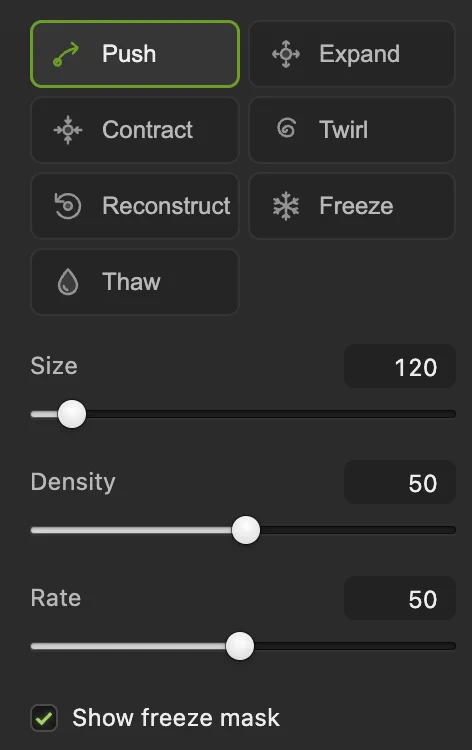
The brushes and settings. Push, Reconstruct and Freeze are ringed. - Size: the brush diameter in pixels
Check, repair and compare
Tick Before to see the original, and untick it to carry on. If one area went too far, brush over it with Reconstruct: each stroke moves it back toward its original shape. Undo stroke takes back the last stroke; Reset all starts over.
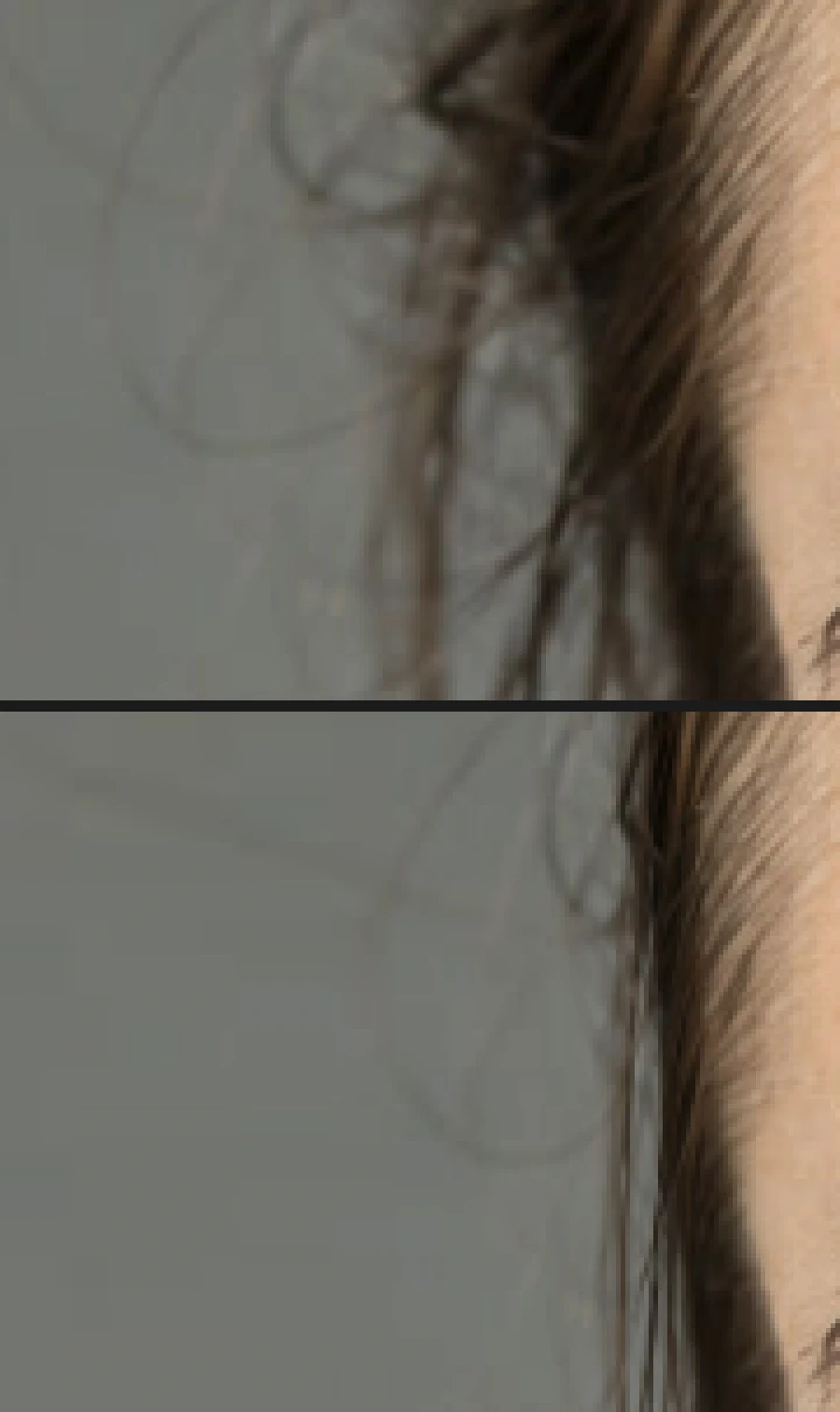
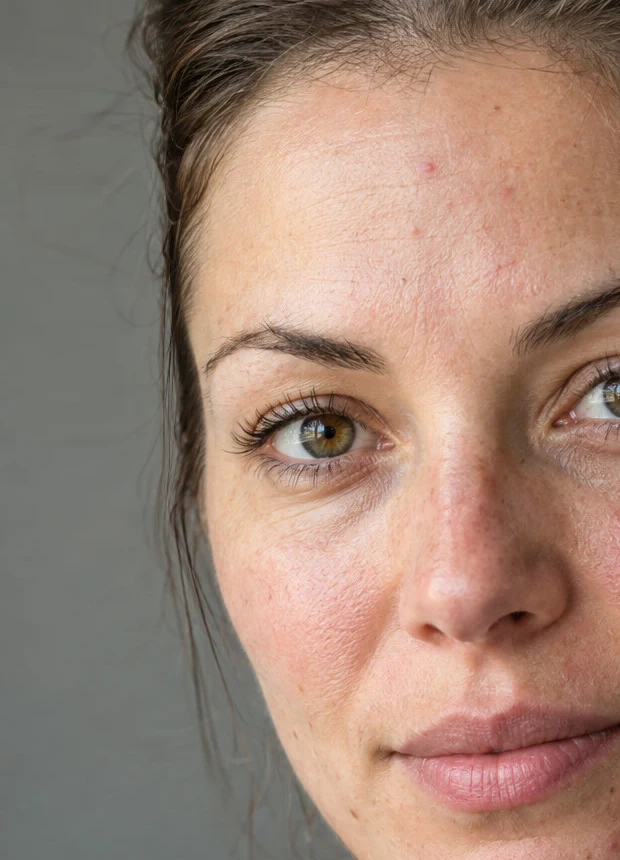
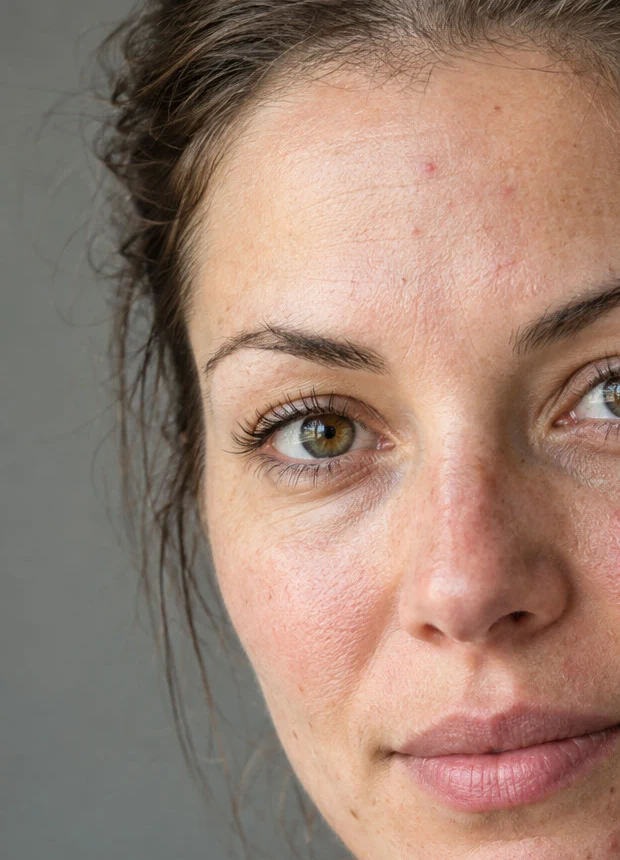
Strands beside the temple, enlarged: before (top) and after (bottom). 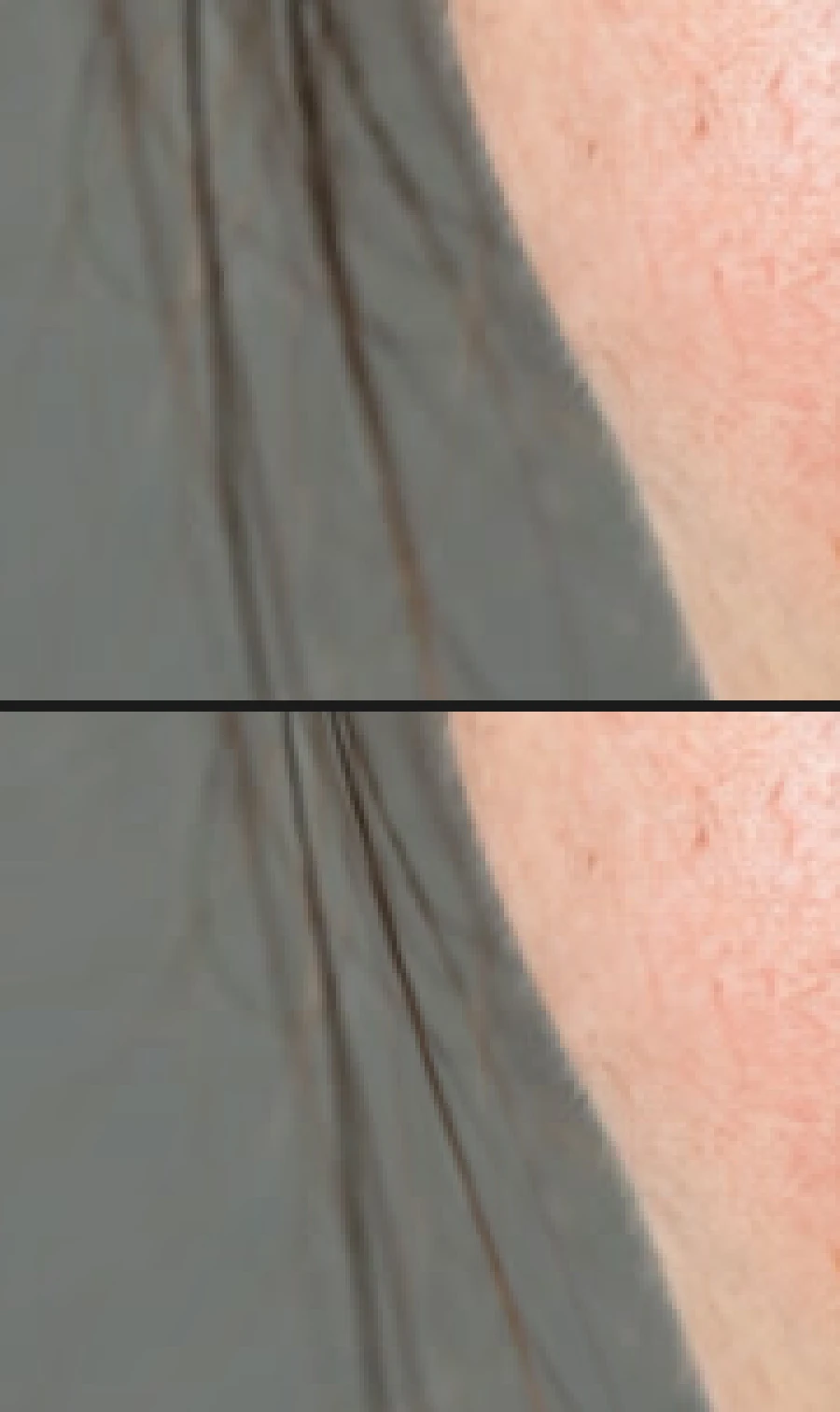
Strands beside the cheek and jaw, enlarged: before (top) and after (bottom). Apply and save
Click Apply Liquify. The whole session becomes one step that can take back. Turn the copy layer’s eye off and on in the Layers panel to compare with the original underneath.
To keep both layers, save with (Ctrl+Shift+S or ⇧⌘S); after that, saves the project. on the JPEG you opened writes the result back into it, flattened; the first time, the Save Image dialog asks for its quality. writes a separate copy.
Apply Liquify, at the bottom right of the Liquify workspace.
The other Liquify brushes
- Expand and Contract: hold the mouse down, or brush, to make an area grow or shrink from the brush center. Use them in small doses, for example on a logo or a product shape.
- Twirl: rotates an area clockwise while you hold or brush.
A bigger Size with a lower Rate gives smoother, more natural changes than a small brush at full strength.
Fix common problems
Liquify is grayed out
Select a single unlocked pixel layer and remove any selection with (Ctrl+D or ⌘D; some browsers take that shortcut for bookmarks). Rasterize a Smart Object first, or work on a duplicate.
The background next to the edit bends
Straight lines and textures near the brush move with it. Freeze them first, or brush the bent area with Reconstruct.
A dent or bulge in the outline
One push went too far. Undo it with Undo stroke and push again in shorter drags, about a fifth of the circle’s width each.
Strands bunch up or smear against the face
They were pushed into a frozen edge and piled up along it. Undo those pushes, use shorter drags, and stop the circle short of the frozen area.
The face or jaw line moved
The push circle reached the skin past the frozen strip. Undo, freeze a little further out, or keep the circle further from the skin.
Streaks along the edge of the photo
A brush circle that hangs over the edge of the photo pulls in copies of the edge pixels, which show as straight streaks. Use a smaller Size near the edge, or freeze a strip along it first.
What to do next
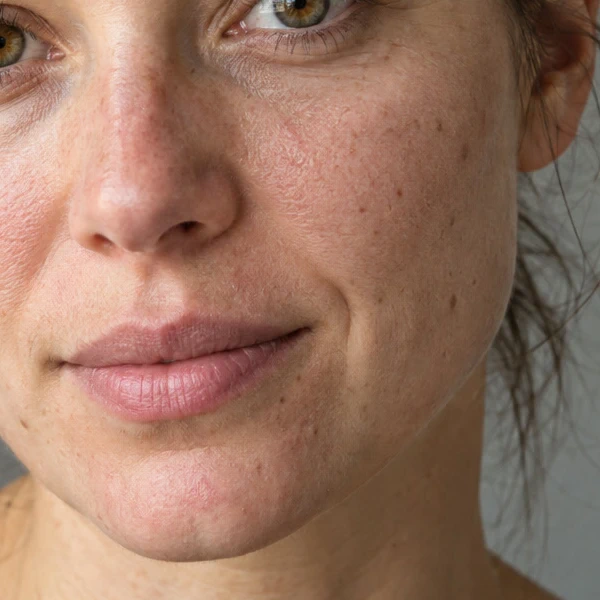
- Retouch skin without losing texture: frequency separation.
- Shape the light instead of the outline: dodge and burn.
- Limit the change to part of the copy: layer masks.
Coming from another editor
- Photoshop
- Filter › Liquify…, with Forward Warp, Reconstruct, Freeze Mask and Thaw Mask tools. In Lil Cactus the push brush is called Push.
- GIMP
- The Warp Transform tool (Tools › Transform Tools › Warp Transform). In Lil Cactus the equivalent is Filter › Liquify…
Liquify: questions and answers
Can I undo Liquify after applying it?
Yes. In Lil Cactus the whole Liquify session is one step, so Edit › Undo (Ctrl+Z, or Command+Z on a Mac) takes it back. Working on a duplicate layer also keeps the original underneath.
Can I use Liquify on a Smart Object in Lil Cactus?
No. Liquify works on pixel layers, so rasterize the Smart Object first, or duplicate the layer and liquify the copy.
Can I record Liquify in an action in Lil Cactus?
No. In Lil Cactus the recorded action shows the step as “Unsupported: Liquify brush strokes are not replayable”, and playing the action stops there with that message. Liquify each photo by hand, and record the steps before and after it as separate actions.
How do I stop Liquify from moving part of the photo?
In Lil Cactus, paint over that part with the Freeze brush before pushing. Frozen areas show in red while Show freeze mask is ticked, and no brush moves them until you Thaw them.
Is my photo uploaded when I use Liquify in Lil Cactus?
No. Liquify runs in your browser on your own device, and the photo is never sent to a server. Optional statistics never include the image; see the privacy policy.
Keep going
 How to retouch skin with frequency separationEven out skin tone and remove blemishes while keeping texture.Advanced · 12 min
 How to dodge and burn a photo without damaging itPaint light and shadow onto a separate Soft Light layer.Intermediate · 6 min
 How to use layer masksHide part of a layer without deleting it, and bring it back any time.Beginner · 5 min