How to turn a photo into a painting
Quick answer
Open an 8-bit photo in Lil Cactus, choose and click the stacked-layers icon at the panel’s bottom left to use the visible photo as the source. Add a layer through , then choose Art History Brush from the Brush toolbar button’s right-click menu. On the sample, paint overlapping passes with Size 8 px, Area 20 px and Style Loose Medium, then define the cottage, wall, track and sheep with Size 4 px, Area 6 px and Tight Short; finish the garden entrance with Size 2 px and Area 3 px. Choose and click Export to save the result.
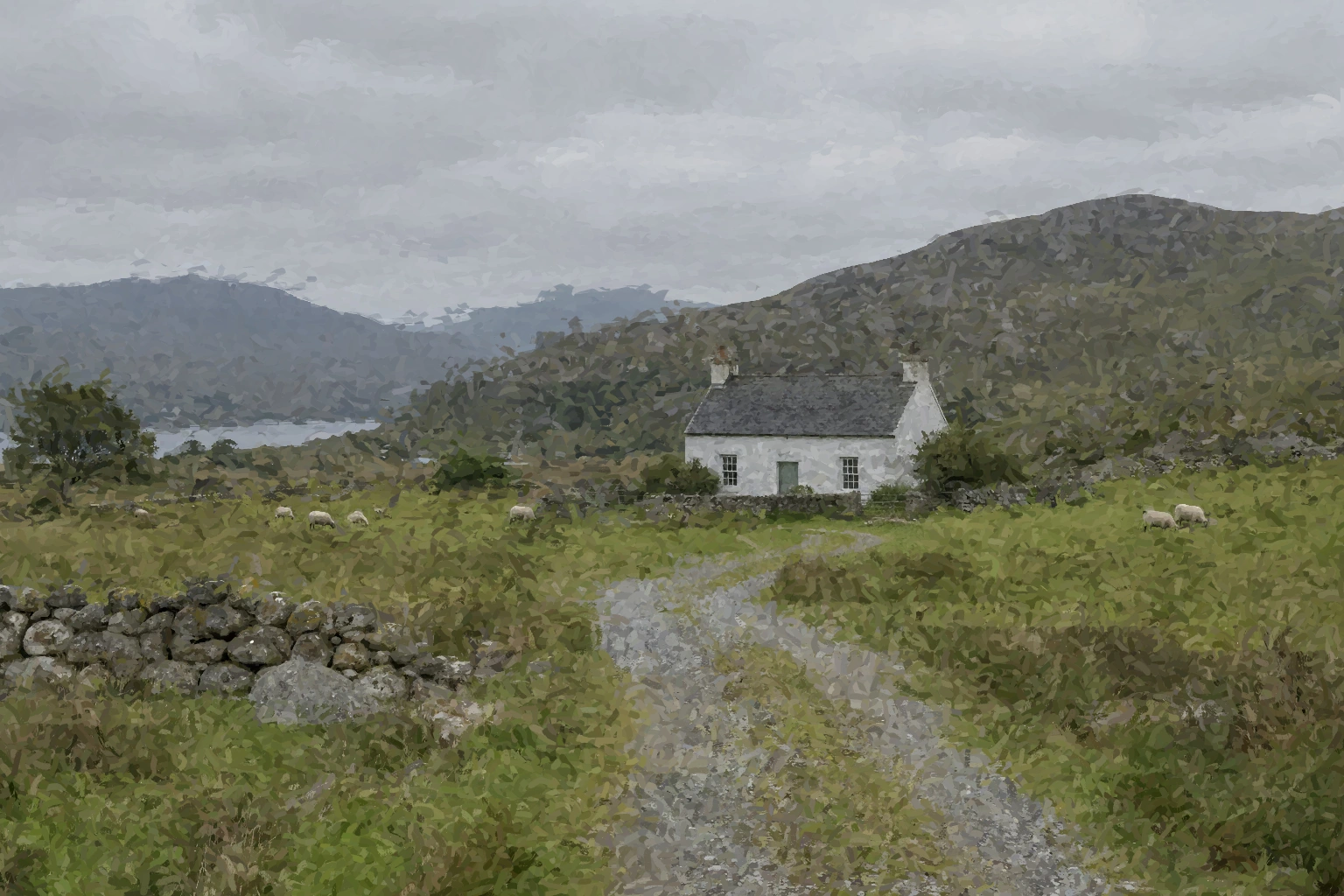
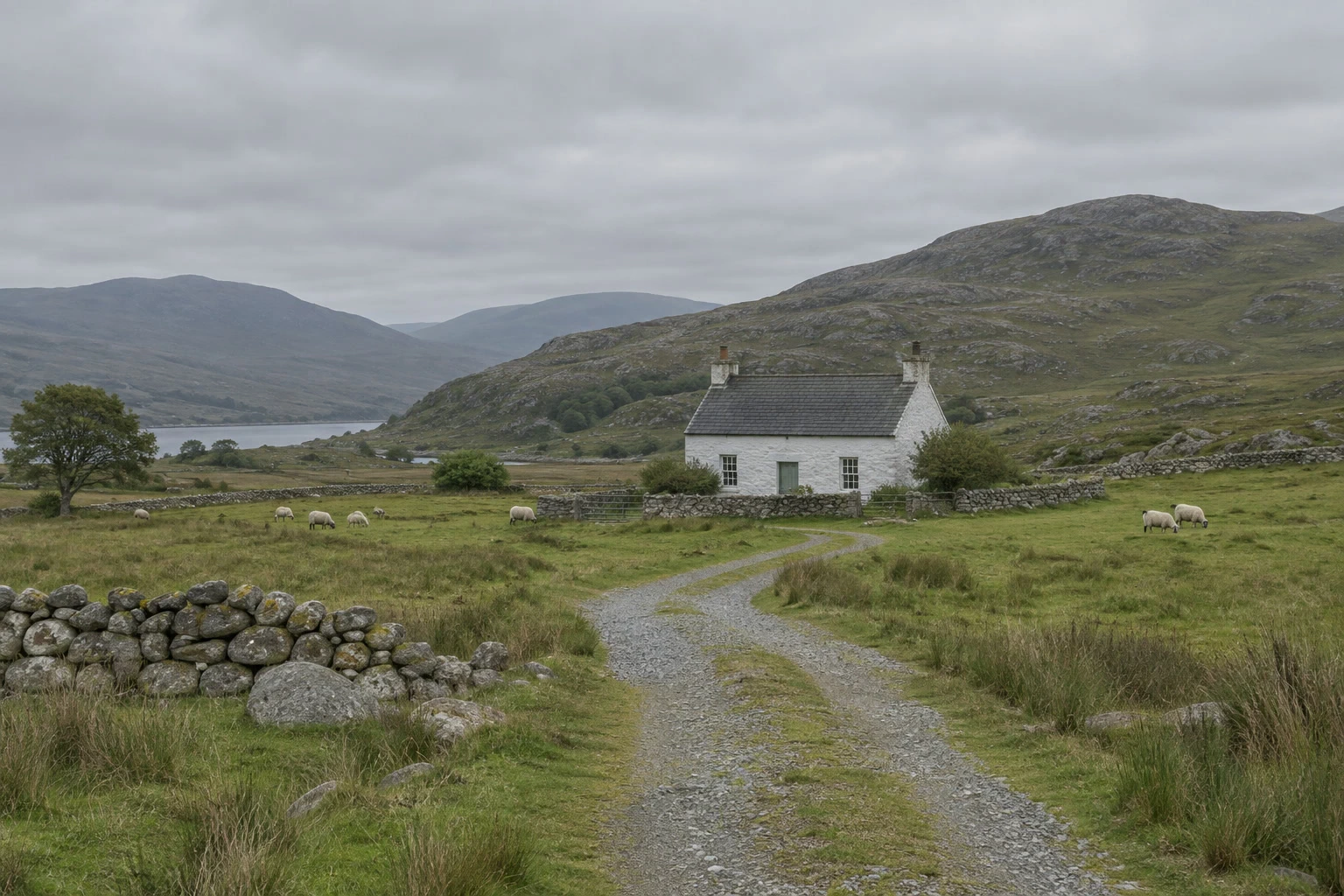
- Time
- 15 minutes
- Level
- Intermediate
- You need
- A photo with a subject that reads in broad shapes
- Works with
- 8-bit RGB photos, including the JPEG sample
Art History Brush uses a captured version of your image as its color source. As you drag, it lays down stylized marks that follow the photo’s light and dark shapes. A landscape with a clear horizon, a building and broad areas of color gives those marks something to describe.
These steps paint on a new transparent layer above the photo. The original fills the gaps between marks, and you can hide the painting layer to compare.
Paint the photo in seven steps
Open the photo and capture its source
Open the sample from this page, or choose for your own 8-bit photo. Choose .
Click the ringed stacked-layers icon at the bottom left of History. Its tooltip is Use the merged image as the History Brush source. This captures the visible image, including its visible layers. Check that the panel says Brush source: merged image.
Tip Use the footer icon, rather than the small source icon beside Open. The merged source lets you paint into a layer that did not exist in the original photo.
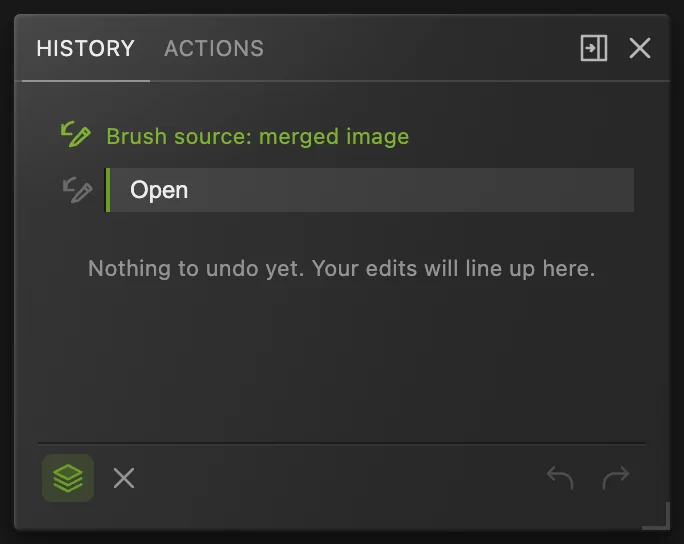
Capture the source before adding the painting layer. Add a painting layer
Choose , then . Double-click the new layer’s name, type Painting and press Enter. Leave Painting selected above Background.
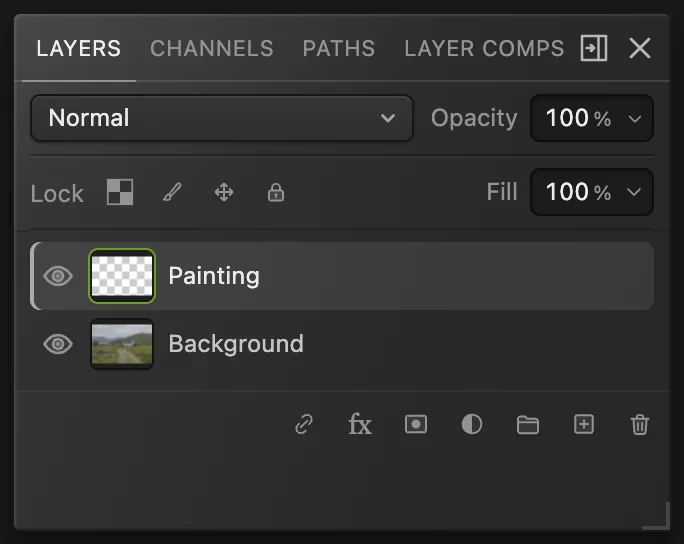
The blank Painting layer will hold the marks. Choose Art History Brush
Right-click the ringed Brush button in the left toolbar and choose Art History Brush from its group. The button changes to show the chosen tool.
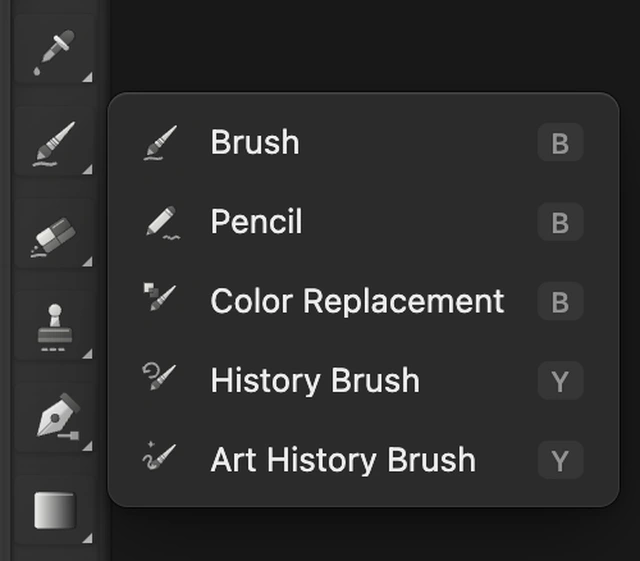
Art History Brush is in the same group as Brush, Pencil and History Brush. Paint a broad first pass
If a setting is hidden, click More at the right of the options bar under the menus.
Set Size to 8 px for this 1536 × 1024 sample. Size sets the scale of each mark. Choose Style: Loose Medium, then set Area to 20 px. Area controls how far marks spread around the pointer.
Leave Mode at Normal, Opacity at 100% and Tolerance at 0%. Higher tolerance skips marks where the source and the painting layer already have similar colors; zero keeps laying down marks.
Choose . Start near the top left of the photo and drag across to the right edge, then release. Move down by about half the height of the brush circle and drag back to the left. Repeat down through the sky, hills and foreground. This pass establishes the broad shapes; leave the small features for the next step.

The broad pass uses an 8 px mark. 
Loose Medium lays longer, less regular marks. Tolerance stays at its default of zero. 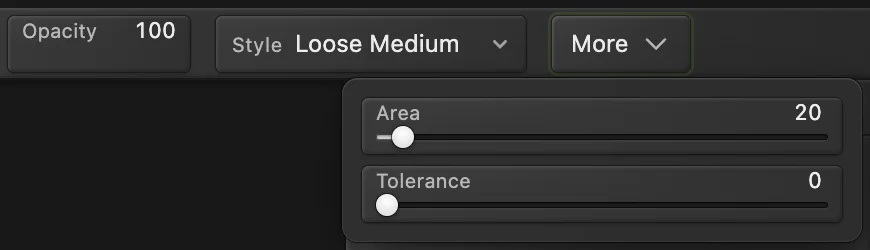
On a narrower window, More reveals settings that do not fit in the options bar. 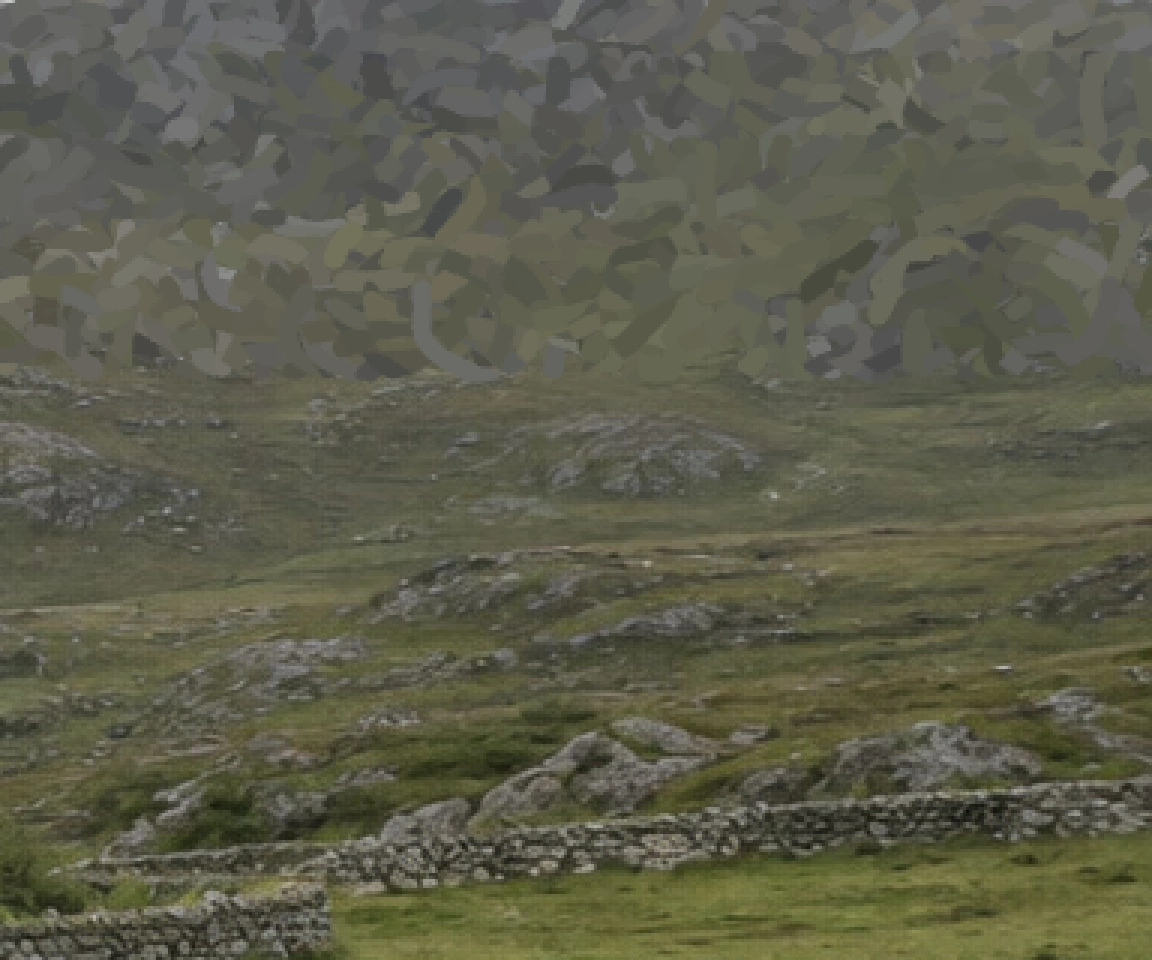
Above the line the hills are painted; below, the photo is still untouched. Define the cottage, wall, track and sheep
Change Size to 4 px, Style to Tight Short and Area to 6 px. Choose . Hold Space and drag the image to bring each area into view.
- Trace the cottage’s roof ridge, sloping sides and lower edge. Add a few strokes across the roof plane, then work up each chimney. The right chimney sits against the pale gable end, so it stays soft.
- Paint short vertical strokes through the two dark windows and the door. Follow the bottom of the white wall and the garden wall beside it.
- Follow the top and bottom of the foreground stone wall, then a few of its largest stones. Trace both edges of the track from the garden entrance through its curve to the foreground, adding a few strokes along the gravel inside and across the short approach outside the entrance.
- Use short strokes across each sheep’s back and body, then down its dark legs.
For the small garden entrance, choose if needed. Reduce Size to 2 px and Area to 3 px, keeping Tight Short. Paint short overlapping strokes across the entrance and its pale threshold stones. At this scale the posts soften into gray shapes and the thin rails disappear.
Tip Keep the small brush on the features you want to define. Covering a large patch of background with it creates a separate fine texture.

Reduce the mark size for the structures and small subjects. 
A smaller Area keeps the detail strokes close to the pointer. 
Use a 2 px mark for the small garden entrance. 
Reduce Area to 3 px to work closely around the posts and threshold. 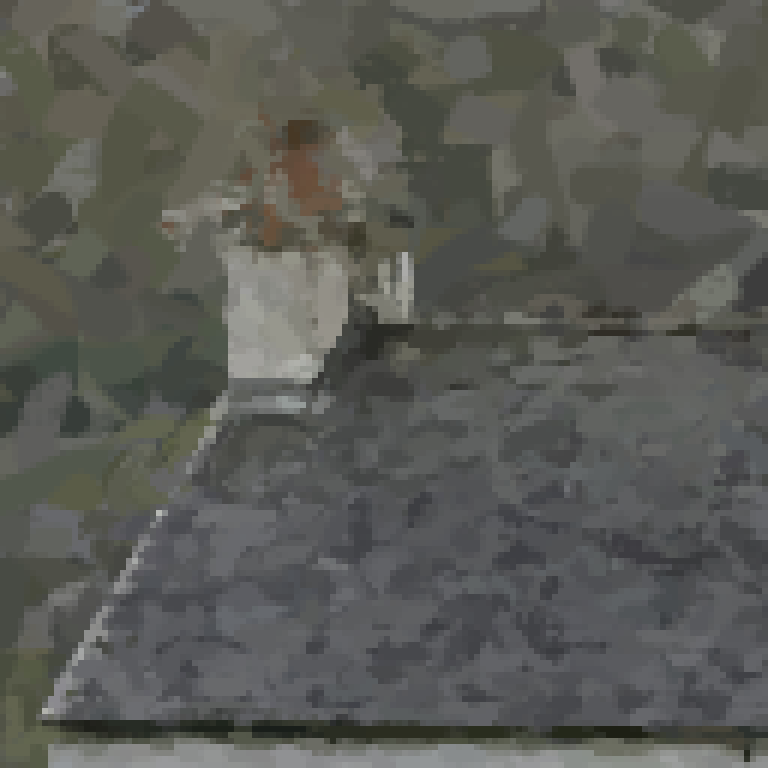
The left chimney and roof edge after the detail pass; enlarged 3×. 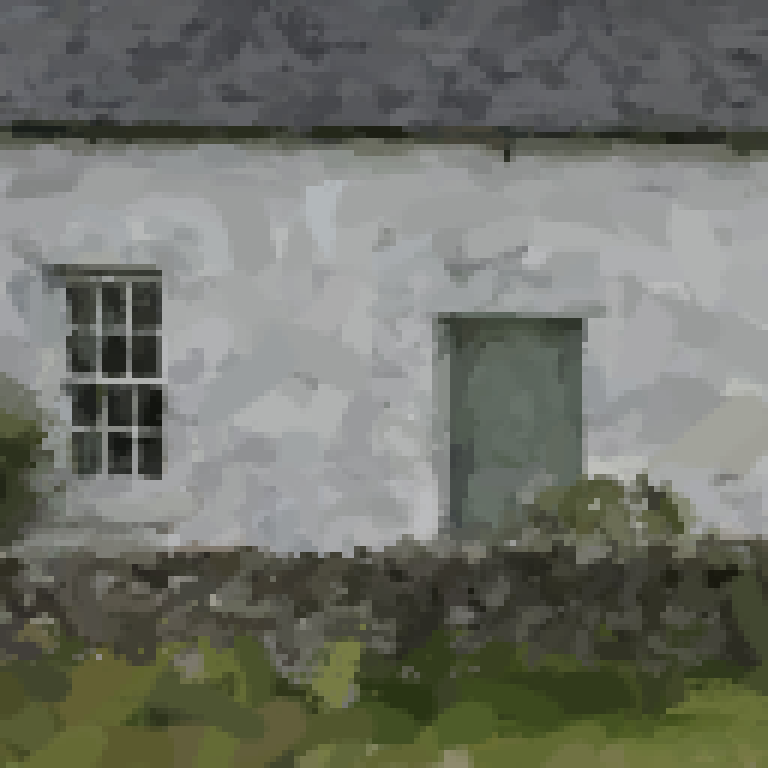
Small strokes define the dark window and door against the pale wall; enlarged 3×. 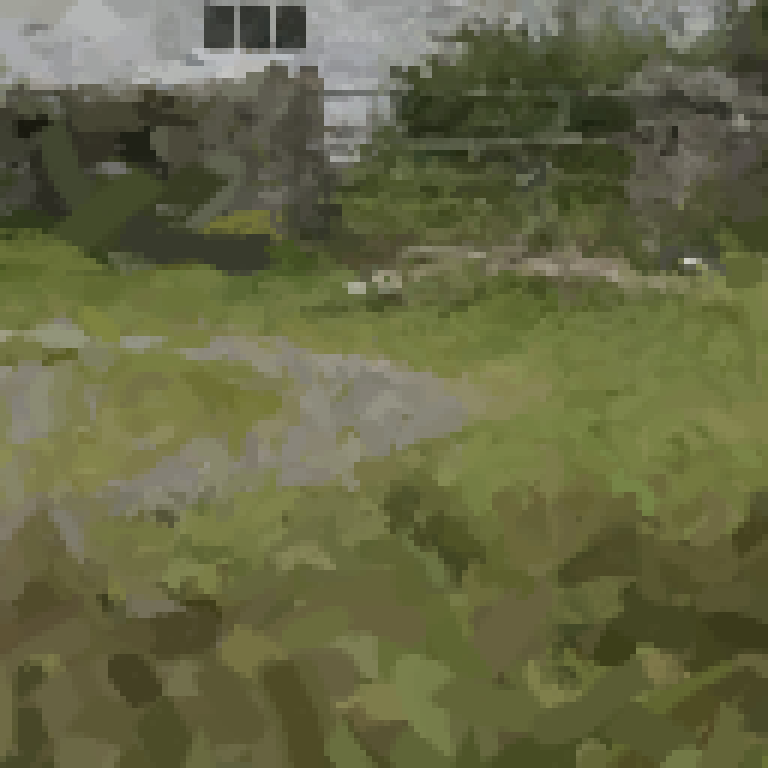
The pale threshold stones mark where the gravel track reaches the garden; enlarged 3×. Compare with the photo
Choose , then . Click the ringed eye beside Painting to hide its marks and see Background. Click the same spot again to show Painting.
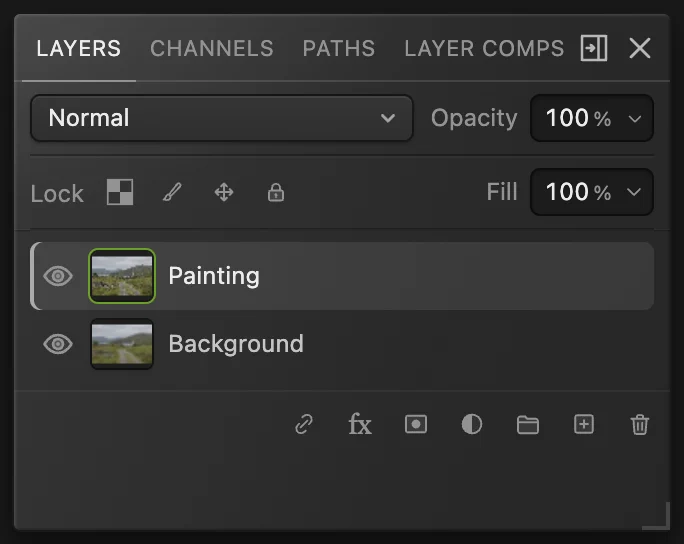
Background stays visible below Painting throughout this example. Keep the layers and export an image
Choose to keep Painting and Background editable. then updates that project. To share a flat image, choose and click Export.
If you choose before saving a project, it uses the opened image’s format. The first save of this JPEG opens Save Image.
Continue painting after reopening a project
The project keeps the layers, but the History Brush source is not saved. After reopening, hide Painting with its eye button, as shown in step 6, so only the original Background is visible.
Choose and click the stacked-layers footer icon shown in step 1. Then return through , show Painting and click its name to select it. Choose Art History Brush and check the settings for the pass you want to continue: step 4 for broad marks or step 5 for details.
What to do next
- Draw your own marks: use Brush.
- Make a block-based effect: pixelate an image.
- Control what shows through an effect layer: use a layer mask.
Photo-to-painting effects: questions and answers
Does Lil Cactus have an Oil Paint or Watercolor filter?
No. Lil Cactus has no Oil Paint or Watercolor filter. Use Art History Brush for the painted-mark effect shown here.
Does Art History Brush use the foreground color?
No. In Lil Cactus, Art History Brush takes colors from its History Brush source, so changing the foreground color does not recolor its marks.
What is the difference between History Brush and Art History Brush?
In Lil Cactus, History Brush restores pixels from a chosen history source. Art History Brush uses that source to create stylized marks instead of restoring the original detail.
Can Art History Brush paint a 16-bit photo?
No. In Lil Cactus, Art History Brush requires an 8-bit document. Choose Image › Mode › 8 Bits/Channel before setting the source if you are starting with a 16-bit photo.
Does this photo-to-painting effect add canvas texture?
No. This Lil Cactus workflow creates flat brush marks from the photo’s colors. The result has no added canvas weave or raised paint texture.
Keep going
 How to paint with the Brush toolPaint on a layer, control the tip and save a brush preset.Beginner · 6 min
 How to pixelate an imageSquare mosaic blocks across a photo or inside a selection.Beginner · 4 min
 How to use layer masksHide part of a layer without deleting it, and bring it back any time.Beginner · 5 min