How to pixelate an image
Quick answer
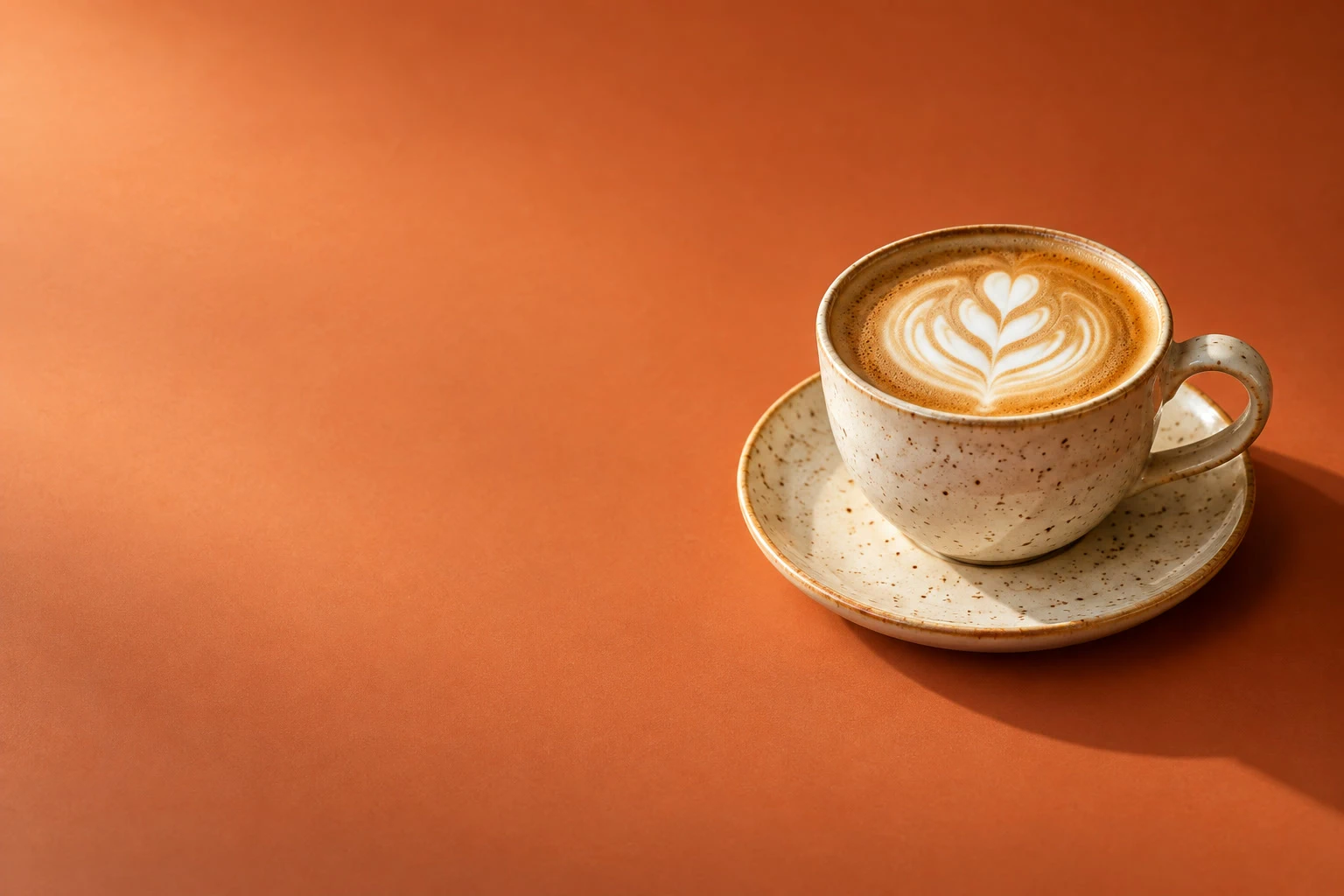
In Lil Cactus, choose Cell Size sets each block’s width and height in image pixels; 48 px gives 32 blocks across a 1536 px-wide photo. Click Apply. To pixelate only part of an image, select that area with Marquee Select before opening the filter. Export the result through
- Time
- 4 minutes
- Level
- Beginner
- You need
- A photo and the block size you want
- Works with
- JPEG, PNG, WebP and other images Lil Cactus opens; the active layer must be an image layer
Pixelating replaces groups of pixels with flat blocks of their average color. A larger block removes more fine detail. You can use the effect across a photo for a mosaic look, or contain it inside a selection.
Pixelate the whole photo in five steps
Open the photo and duplicate its layer
Open the sample, or choose for your own image. Choose . In Layers, double-click the copy’s name, type Mosaic and press Enter.
Leave Mosaic selected above the original Background layer.
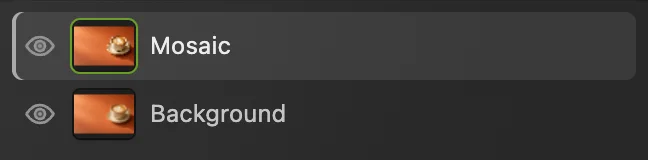
Apply the effect to Mosaic; keep Background for comparison. Open Filter › Pixelate › Pixelate…
If a dashed selection border shows, choose first. Then choose With no selection, the filter covers the whole active image layer.
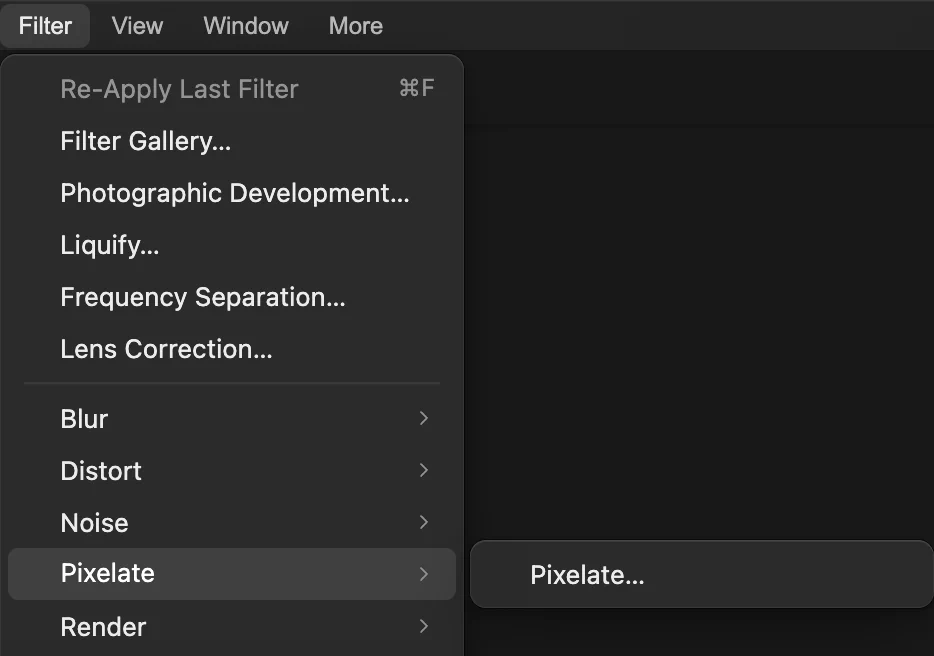
The Pixelate filter is inside the Pixelate submenu. Choose the cell size and apply it
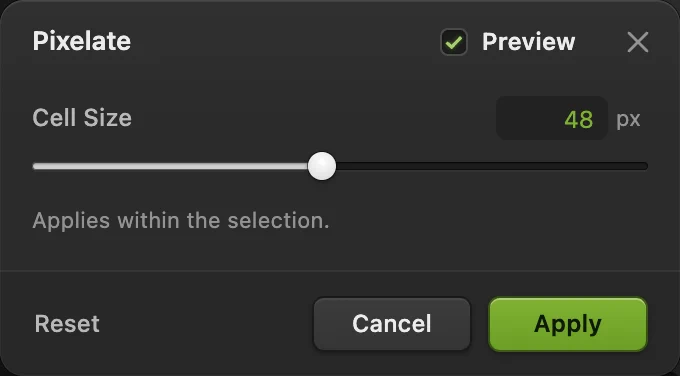
Cell Size is the width and height of a square block in image pixels. Set it to 48 for this sample. Keep Preview on to see the result; turn it off and on to compare before committing the change. Click Apply.
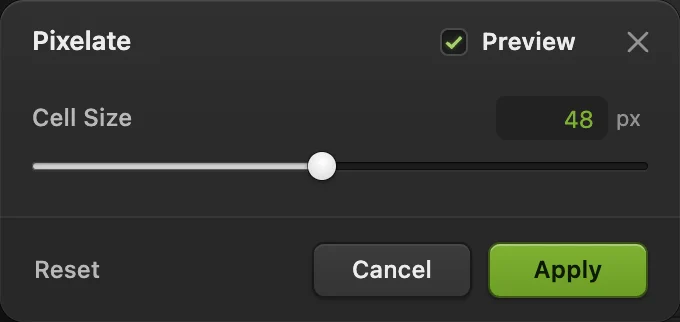
Larger Cell Size values make fewer, larger blocks. Compare with the original
Click the ringed eye beside Mosaic to hide it and see Background. Click the same spot again to show the mosaic.
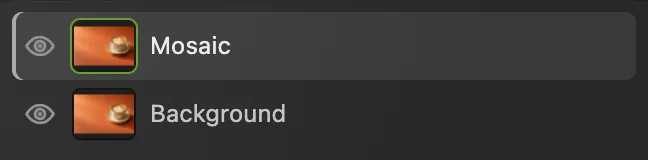
Use Mosaic’s eye for a before-and-after comparison. Export the mosaic
Choose , then click Export. PNG stores every block exactly.
To keep both layers, choose then updates that project. Before you save a project, writes back into the opened JPEG as one flat image; the first time, it opens the Save Image dialog.
Pixelate only part of the photo
For a selected-area version, open the sample from this page again, or use to reopen your own original photo. Choose and rename the copy Cup mosaic.
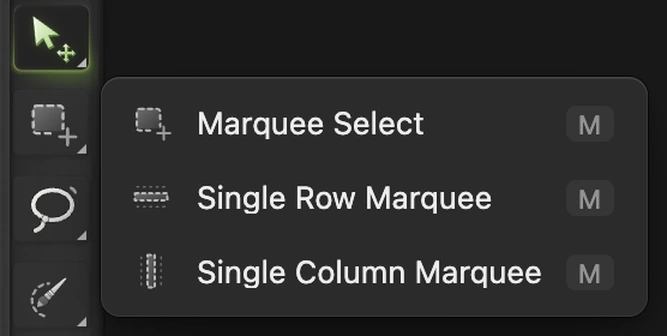
- Right-click the selection button just below Move in the toolbar, or press and hold it, and choose Marquee Select.
- Keep Shape on Rectangle. Feather softens a selection’s edge; leave it at 0 px for a sharp boundary. Keep Style on Free so the rectangle follows your drag.
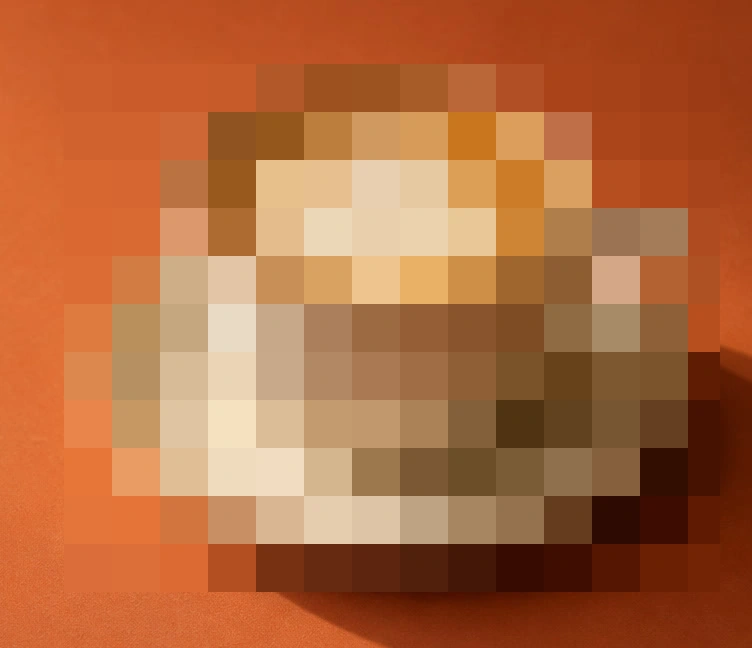
- Start in the orange above the cup’s rim, lined up just left of the saucer’s widest edge. Drag to below the saucer, just past the handle’s right edge. Leave a narrow margin of orange around the cup and saucer, as shown by points 1 and 2.
- Choose , set Cell Size to 48 and click Apply. Choose to remove the selection border.
Only the rectangle changes. The surrounding tabletop keeps its original detail.
To hide faces, plates or text before sharing, follow blur or pixelate faces: it covers block size for faces and when to cover an area instead.


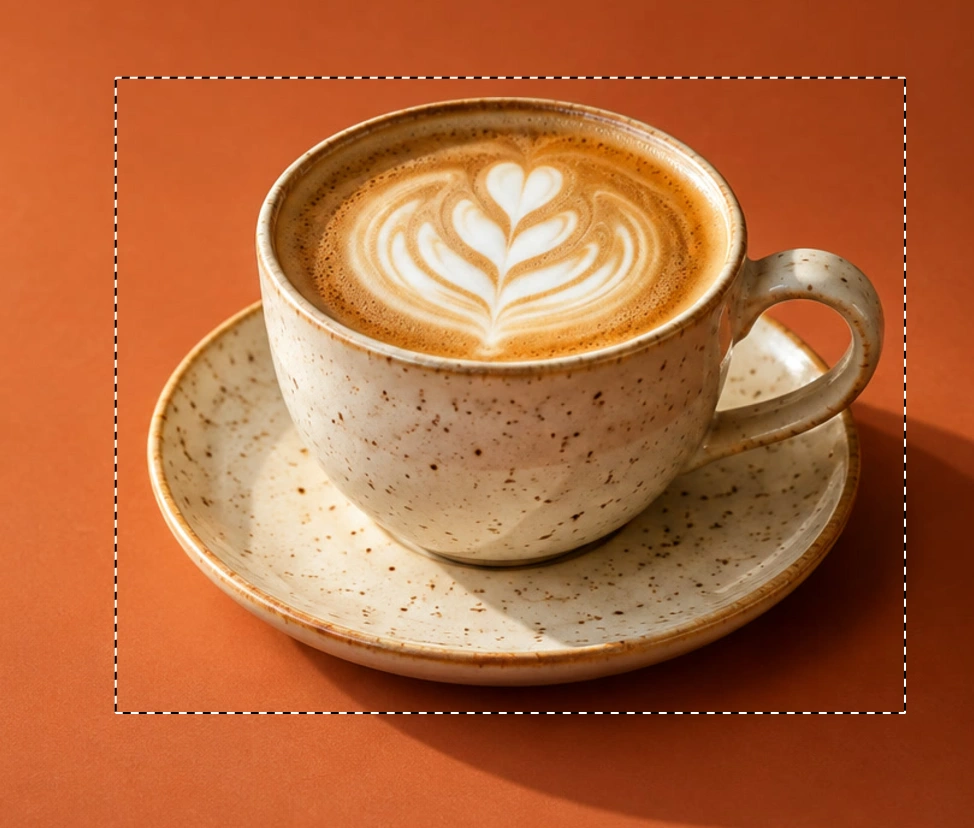
- Start above the cup, left of the saucer
- Finish below the saucer, right of the handle
What to do next
- Draw a sprite by hand: make pixel art with Pencil.
- Choose a less rectangular area: work with selections.
- Hide identifying details before sharing: blur or pixelate faces and plates.
Coming from another editor
- Photoshop
- Filter › Pixelate › Mosaic…
- GIMP
- Filters › Blur › Pixelize…
Pixelating images: questions and answers
Does pixelating an image change its dimensions?
No. In Lil Cactus, Pixelate changes the colors inside the image, not its width or height. A 1536 × 1024 px photo stays 1536 × 1024 px.
How large can the Pixelate blocks be?
Lil Cactus accepts a Cell Size from 2 to 100 image pixels. The same value looks finer on a larger photo because more blocks fit across it; screen zoom does not change that value. Blocks at an image or selection edge can be cut short.
Can I undo pixelation?
Yes. In Lil Cactus, Edit › Undo steps back through edits while the document is open. If you made other changes after applying Pixelate, undo those first to reach the filter step.
Is pixelating a photo the same as drawing pixel art?
No. Lil Cactus’s Pixelate filter groups colors from an existing image into blocks. Pixel art is drawn by placing individual cells to create a new design.
What is the difference between pixelation and blur?
In Lil Cactus, Filter › Pixelate › Pixelate… produces distinct square blocks; Filter › Blur › Gaussian Blur… blends detail into a soft result with no grid.
Keep going
 How to make pixel artDraw on a tiny canvas, then enlarge it with crisp pixel blocks.Beginner · 10 min
 How to make a selection in a photo editorPick the right tool, add and subtract, feather and save a selection.Beginner · 6 min
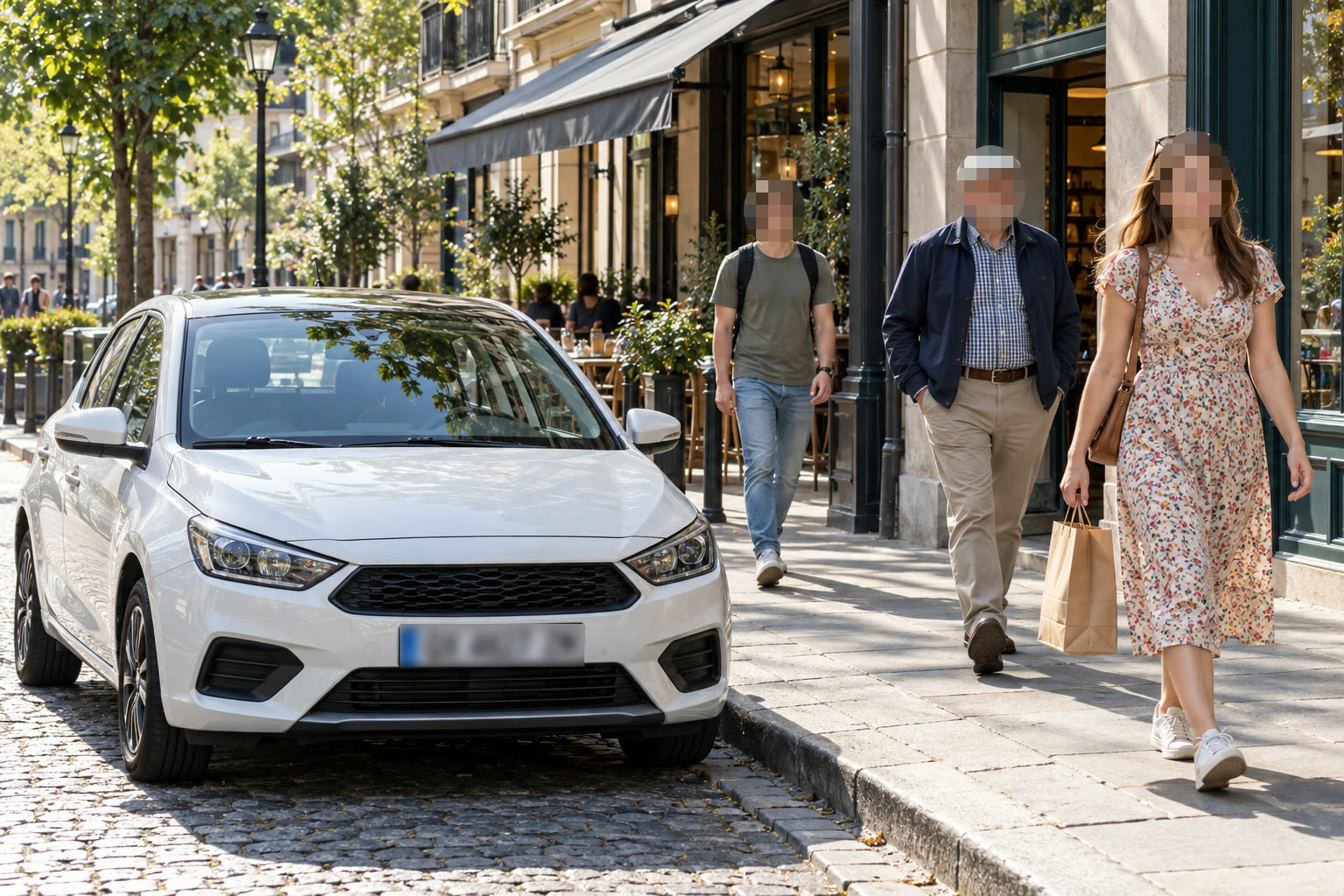 How to blur or pixelate faces in a photoFaces and plates hidden before a photo goes online.Beginner · 5 min