How to recover unsaved work in Lil Cactus
Quick answer
Return to Lil Cactus at the same address, on the same computer and browser profile, and start with no documents open. Choose , or and select a copy if several are listed. Recovery restores the last copy stored in that browser, which may not include your final edits. Save the restored work with and reopen the .cactus file to check it.
- Time
- 4 minutes
- Level
- Beginner
- You need
- The browser and computer where you edited, with its recovery copy still available
- Works with
- Browser recovery copies of Lil Cactus documents
A recovery copy is a snapshot of your editing documents stored by Lil Cactus in your browser. It can help after a closed tab or crash, but it is temporary.
If you have lost real work, open the editor in a new browser tab and follow the steps below before opening the sample. The sample is for the separate practice exercise later on this page.
Recover your work and save it to a file
Return to the same editor address in an empty tab
Use the same computer, browser and browser profile you used for the edit. A browser profile is a browser’s separate set of settings and stored data. Return to the same Lil Cactus address: a recovery copy from one address is not available at another.
Start with no editing documents open. You will see New document and Open image. Leave both alone for now. If another editor tab still contains work, keep it open and use a new browser tab for recovery.

Start here with no image open. Use the File menu to recover, rather than opening a new image. Choose the recovery copy in the File menu
Open File. With one available recovery copy, choose Recover “file name”. In the one-copy example below, the label is Recover “tram-street”.
With several copies, open and choose the entry whose name and time match your edit. An entry can contain several documents from the same editing tab; selecting it restores those documents together.
Wait for the restored document tabs to appear. A dot beside a tab’s name means the restored work needs saving to a file. The status bar shows Recovery pending for a few seconds, then settles to Recovery up to date.
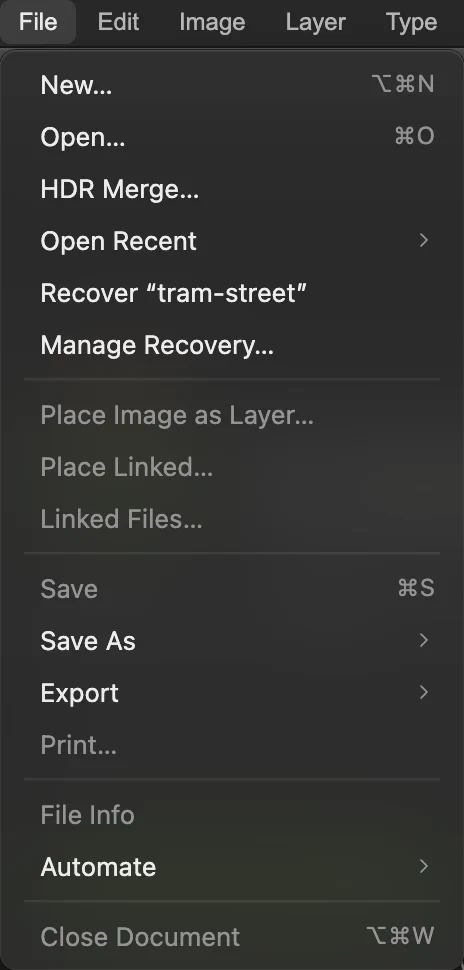
This browser has one available recovery copy, so File shows its name directly. 
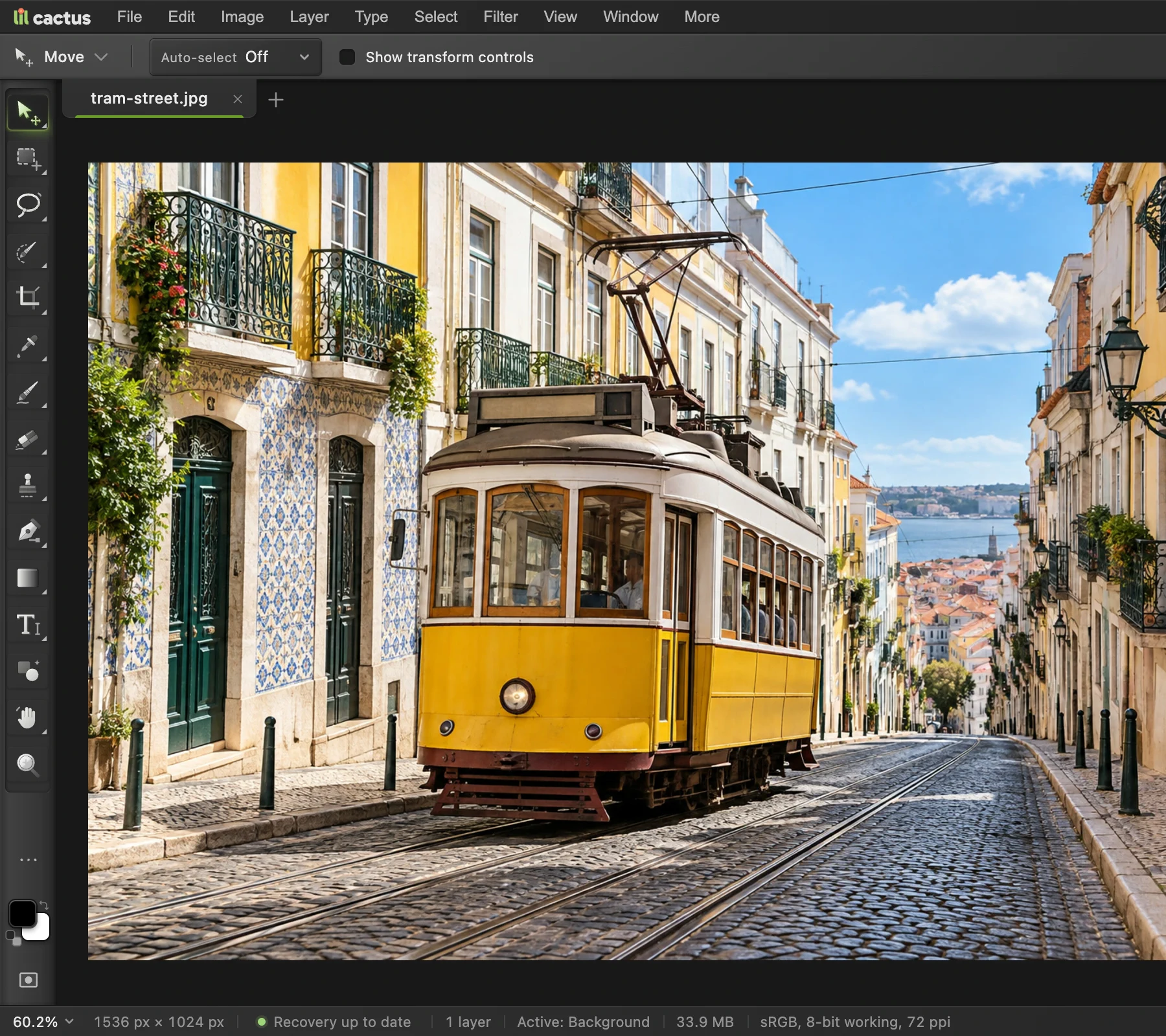
The restored photo is open. The dot marks work that needs saving. Check which edits were recovered
Look for the last change you remember. Check the image dimensions in the bottom status bar and the pieces of your design in Layers. A layer is a separate piece you can select and edit.
In the practice exercise, the recovered photo is 1200 × 800 pixels and Layers contains Background and Background copy.

The recovered practice photo retains its resized dimensions. 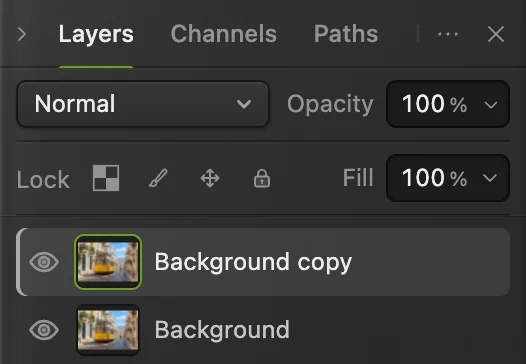
Both practice layers are present after recovery. Save the recovered work as a project
Choose Save the .cactus file in a folder you can find again. This format keeps the layers separate and editable. The practice photo’s suggested name is tram-street.cactus.
Your browser may ask where to save or download the project. For a download, check the downloads list and locate the file on your device before closing the editor. After Save As, saves this project. If recovery restored several documents, select each tab and save each document you need.
To keep an editable master and a separate copy for sharing, see saving and exporting.
Tip A downloaded project can still show an unsaved dot: the browser cannot confirm that the download reached its final location. Check the file itself in the next step.
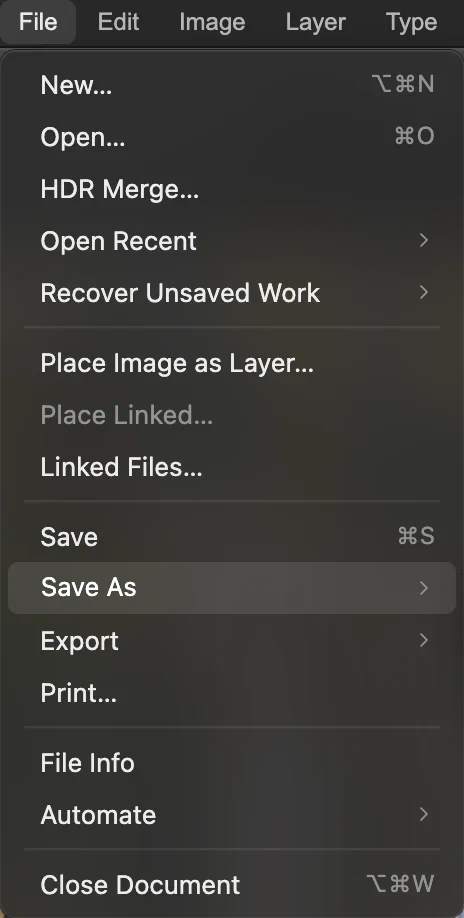
Open Save As in the File menu. 
Choose Lil Cactus Project… to keep the recovered pieces editable. 
The tab now names the project. In this download workflow, the dot remains. Reopen the saved project
Choose and select the .cactus file you just saved. It opens in a new document tab. Check that this file contains the recovered work you need before relying on it.
For the practice photo, confirm 1200 × 800 pixels and the two separate layers again. You now have an editable file you can reopen from your device.
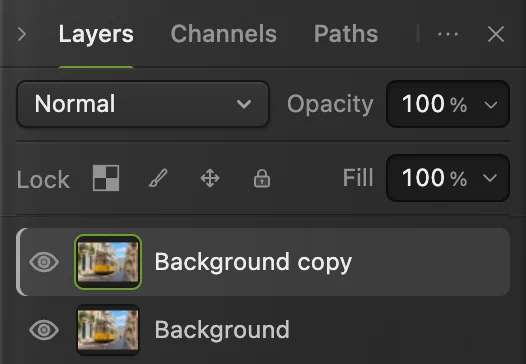
The saved project reopens with both layers. 
The reopened file also keeps the recovered dimensions.
Practice recovery with the sample photo
After recovering any real work, click Open the sample. Choose to make a second photo layer. Then choose , keep Units at Pixels and the chain link on, and set Width to 1200. Height becomes 800. Click Resize.
Wait until the bottom status bar says Recovery up to date. Close that browser tab, then return to the empty editor and follow the five recovery steps above. If your browser asks whether to leave, confirm only for this practice document. Do not use and Don’t Save for this exercise: that explicitly discards the document’s recovery work.

Fix common recovery problems
The recovery command is gray
With documents open, Recover “file name” is gray, as are the entries inside : Lil Cactus cannot restore a recovery copy into an editor that already has documents open. Open the same editor address in a new browser tab and use its File menu.
There is no recovery entry in File
The browser is not listing an available copy. Check that you returned to the same address and browser profile on the same computer. Clearing site data removes browser recovery, and a different browser or private window does not share the original profile’s copy. If no copy remains, reopen your last saved file with
The last edits are missing
Recovery can only restore changes that reached its stored copy. It cannot recreate later edits that were never stored. Continue from the recovered version or your last saved project.
The editor says it could not recover the work
The message Could not recover this work. No documents were opened. means the selected copy could not be restored. Use to reopen your last saved project if you have one.
Recovery says pending, overdue or failed
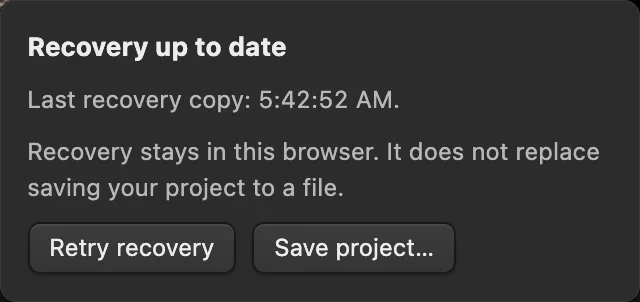
Recovery pending means the latest changes are waiting to reach browser storage. Recovery overdue means they have waited at least 30 seconds; Recovery failed means the write failed. Click the status to read its details. Use Retry recovery to try another write, and Save project… to save an editable file before closing.
Unsaved work recovery: questions and answers
Can I recover unsaved Lil Cactus work after closing a browser tab?
Yes, if a browser recovery copy is still available. In Lil Cactus, start with no documents open and choose File › Recover “file name”, or File › Recover Unsaved Work when several copies are listed.
Does “Recovery up to date” mean my Lil Cactus project file is saved?
No. In Lil Cactus, that status means the current edits reached browser recovery. Save a file with File › Save As › Lil Cactus Project… to keep an editable project on your device.
Will Lil Cactus recovery include every edit before a crash?
No. Lil Cactus restores its last successfully stored recovery copy. Changes made after that copy may be missing.
Can I recover Lil Cactus work on another computer or browser?
No. Lil Cactus recovery copies stay in the browser profile and site storage where you edited. To continue elsewhere, open a .cactus project file you saved and transferred.
Can I recover work after choosing Don’t Save in Lil Cactus?
Usually not. In Lil Cactus, Don’t Save removes the document from the current tab’s recovery copy. Only a copy saved by another tab or an earlier session can still be listed under File.
How long should I rely on Lil Cactus browser recovery?
Lil Cactus keeps up to 10 recovery copies and removes a copy 7 days after it was last updated; clearing site data removes them sooner. Save a .cactus project file for work you need to keep.
Keep going
 How to save and export an image in Lil CactusKeep an editable master and make a separate image to share.Beginner · 5 min
 How to use Lil Cactus: your first photo editYour first edit, from opening a photo to saving the result.Beginner · 5 min
 How to use layers in a photo editorStack, reorder, fade, hide and group the parts of a picture.Beginner · 6 min