How to remove red eye from a photo
Quick answer
In Lil Cactus, choose , then right-click the retouching tools in the left toolbar and choose Red Eye. Start with Pupil size 50% and Darken 50%, then zoom in and drag a tight box around just the red disk in each pupil. Choose for a finished copy.
- Time
- 3 minutes
- Level
- Beginner
- You need
- A flash photo with visibly red pupils
- Works with
- Any unlocked RGB (red, green and blue) photo layer
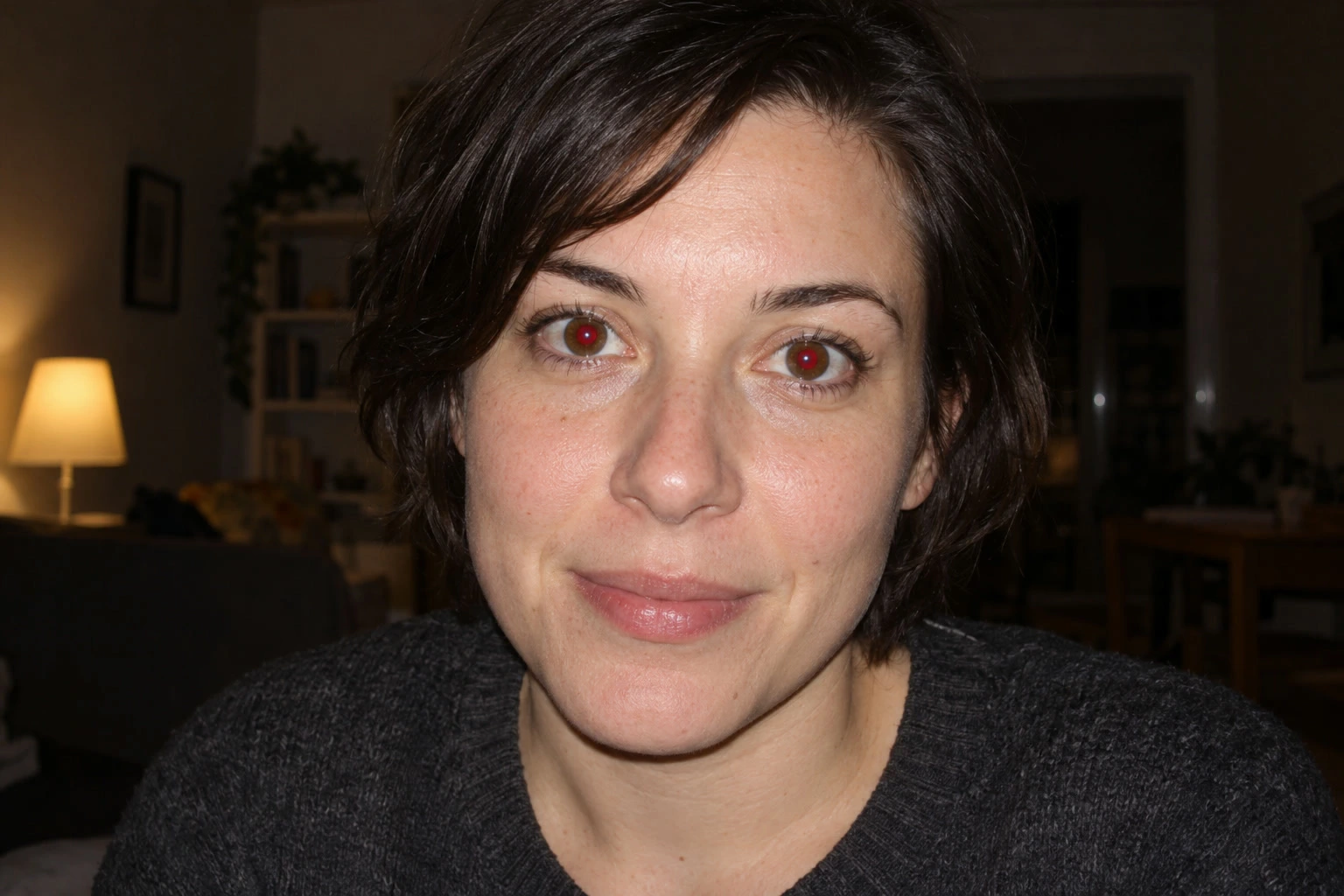
Red eye is the red reflection that flash can leave in a pupil, the dark center of the eye. Correct that reflection rather than painting a black dot over the whole eye: keep the colored iris, eyelids and small bright reflections, called catchlights, visible.
The Red Eye tool searches inside the area you draw for a connected red patch and darkens it. It changes the photo layer directly, so use a duplicate to keep the original available.
Remove red eye in five steps
Open the photo and duplicate its layer
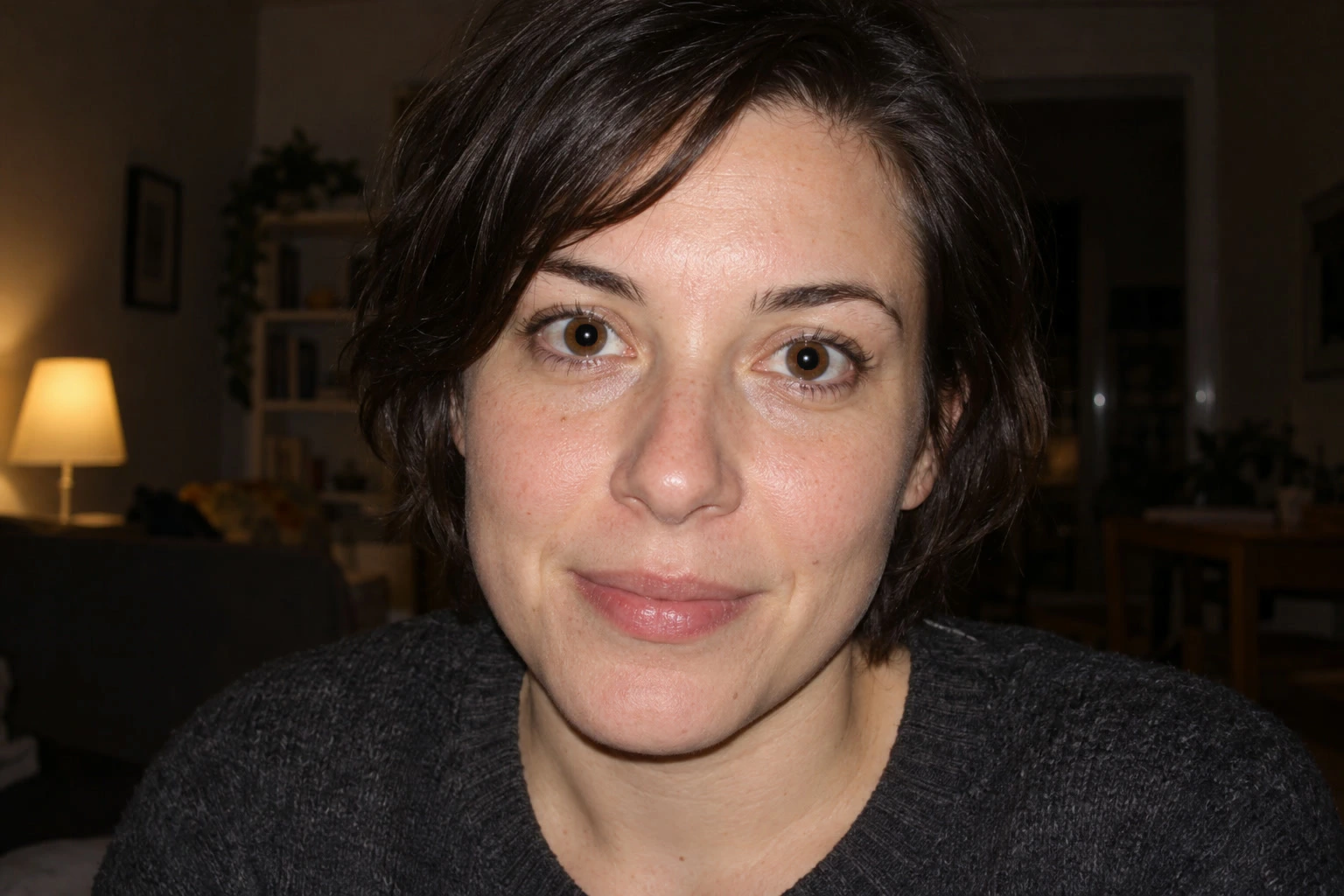
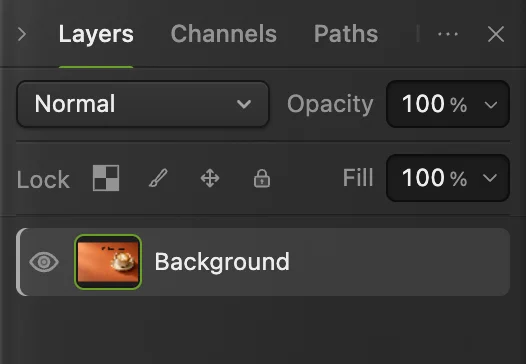
Choose and open your photo, or use the sample from this page. Then choose . In the sample, Background copy appears above Background in the Layers panel. Keep the copy selected.
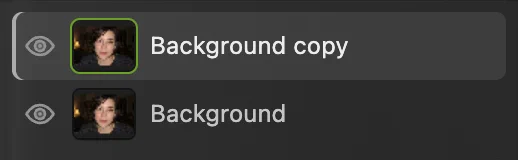
Repair the copy; the original stays on the layer below. Zoom in and choose Red Eye
Choose until the eyes fill the window (about 400%). Then right-click the retouching tools’ button in the left toolbar, initially the Clone Stamp, and choose Red Eye. The options bar below the menus shows Pupil size and Darken, both 50% by default. Leave those values for the sample.
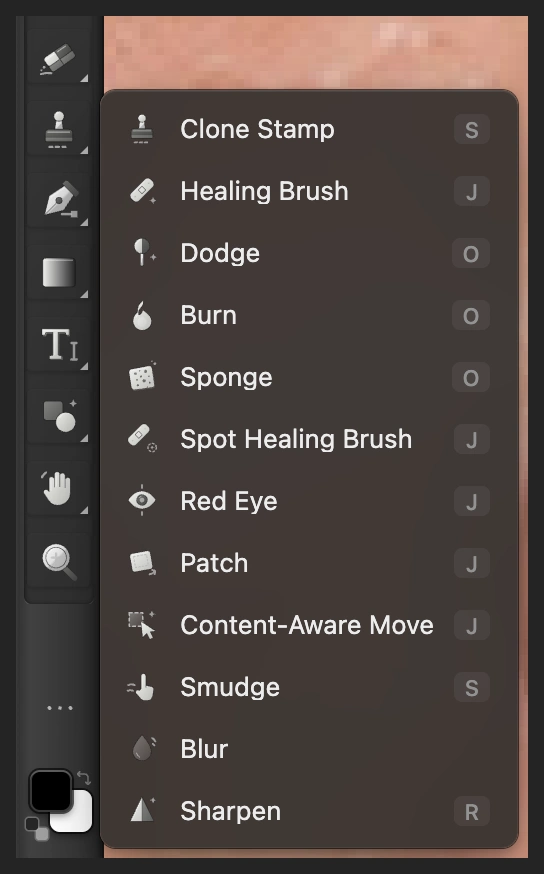
Red Eye shares the retouching tools’ toolbar button. 
Start with Pupil size 50% and Darken 50%. Draw a tight box around each red pupil
Hold the space bar and drag the picture until one pupil is in view.
Drag a small rectangle around the red disk itself. Start at its upper-left edge and release at its lower-right edge, leaving only a thin margin around the red. Keep the brown iris outside the box as far as you can. The tiny bright reflection stays inside it. Release to apply, then pan to the second eye and repeat.
Use the close-up as your guide: the box follows the red pupil, not the eyelids or the white of the eye.
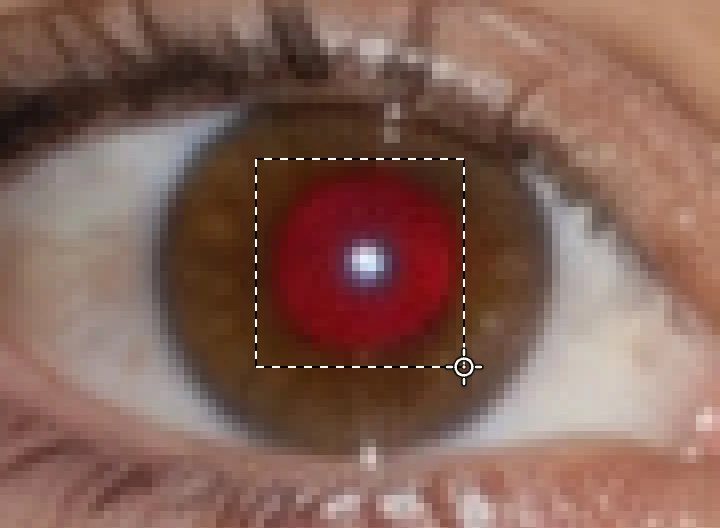
Draw around the red disk itself, with only a thin margin. Check the pupils and refine a repair if needed
The sample’s pupils are now dark; the brown irises and the small bright catchlights remain. Choose to judge the whole portrait as well as the close-up.
If a repair needs changing, choose , change a setting, then draw the pupil box again. Changing the options after a repair affects the next repair; it does not revise the repair already made. Undo removes the most recent eye repair first.
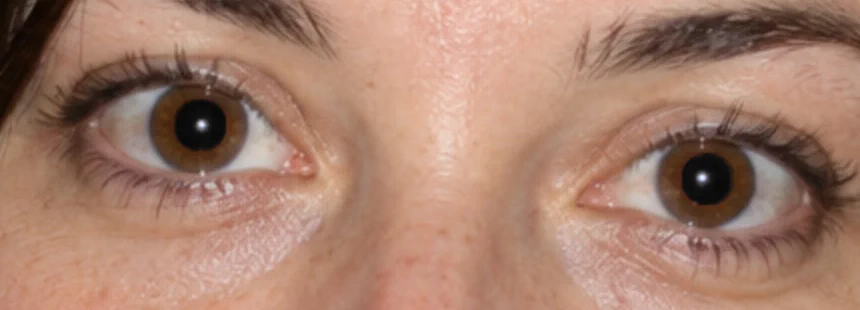
Both pupils after the tight-box repairs. 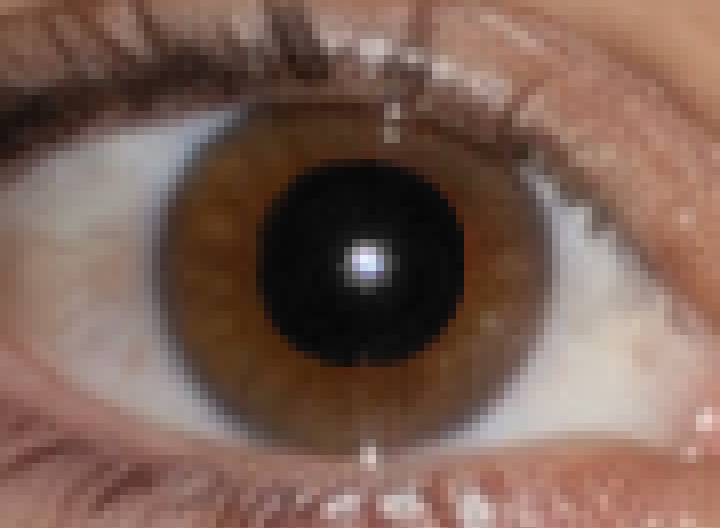
Check the pupil boundary and the brown iris at high zoom. Save a finished copy or keep both layers
Choose and click Export for a new finished photo. To keep the repaired layer and the original, choose ; after that, updates the project.
on the opened JPEG writes a flat picture in that format. Its first Save opens Save Image. Export and an editable project serve different purposes: one is a picture to share, the other keeps the two layers.
Clicking a pupil instead of drawing a box
You can also click a red pupil with Red Eye. A click searches a neighborhood around the pointer; a box defines the area you draw. On the sample, a click at the default settings includes some brown iris and leaves a ragged dark edge, so use the tight pupil boxes above.
If the options bar says No red pupil found. Target the red part of one eye more closely., check that your box includes the red disk and is centered on it. Do not enclose the whole face.
What Pupil size and Darken change
| Setting | When to change it |
|---|---|
| Pupil size | Raise it if red remains inside the box. Lower it if the dark area reaches too far into the iris. Red outside the box needs a slightly wider box. |
| Darken | Raise it if the corrected pupil looks too pale. Lower it if it looks unnaturally black. |
Undo the affected repair before trying a different value. Change one setting at a time so you can see which one helps.
Fix common problems
The cursor will not repair the eye
Select the photo’s thumbnail in the Layers panel, not a mask thumbnail or an adjustment layer. The tool needs an unlocked RGB (red, green and blue) photo layer. The JPEG sample already meets these conditions.
The inner corner or nearby skin changed
Undo, then drag a tighter box around only the red pupil. Do not include a red lip or a large patch of warm skin.
One eye is corrected and the other is still red
Draw a box around the second red pupil. The tool repairs one connected red patch per gesture, so a single click is not a whole-photo correction.
A bright white or green reflection remains
This tool targets red reflections. It does not provide a separate pet-eye mode.
What to do next
Coming from another editor
- Photoshop
- The Red Eye tool is grouped with the Spot Healing Brush in the toolbar; its options bar has Pupil Size and Darken Amount.
Red-eye correction: questions and answers
Can I remove red eye automatically from the whole photo?
No. In Lil Cactus, the Red Eye tool repairs one pupil at a time. Draw a tight box around each red pupil; a click is also available when it targets the pupil cleanly.
What settings should I use to remove red eye?
In Lil Cactus, start with Pupil size 50% and Darken 50%. If red remains inside the box, undo and raise Pupil size; if the result is too black, undo and lower Darken before trying again.
Does red-eye correction change the iris color?
It can. In Lil Cactus, a repair can darken warm brown iris pixels when they join the red target. Draw a tight box around the red pupil and undo a repair that spreads into the iris.
Can I change a Red Eye repair after applying it?
Yes, while its history is available: in Lil Cactus, undo the repair, adjust the tool and repeat it. Save a project with the duplicate and original layers if you want to keep both versions.
Can the Red Eye tool correct green pet eyes?
No. Lil Cactus’s Red Eye tool looks for red pixels and has no separate pet-eye mode.
Is my portrait uploaded for red-eye correction?
No. Lil Cactus repairs the pixels in your browser on your own device.
Keep going
 How to whiten teeth in a photoReduce yellow selectively while keeping natural tooth shading.Beginner · 8 min
 How to use layers in a photo editorStack, reorder, fade, hide and group the parts of a picture.Beginner · 6 min
 How to save and export an image in Lil CactusKeep an editable master and make a separate image to share.Beginner · 5 min