How to convert SVG to PNG
Quick answer
In Lil Cactus, open the SVG using Choose , set Width to 1024 pixels and click Resize; the square practice artwork becomes 1024 × 1024 px. Choose , replace File name with leaf-mark-1024.png and click Export.
- Time
- 4 minutes
- Level
- Beginner
- You need
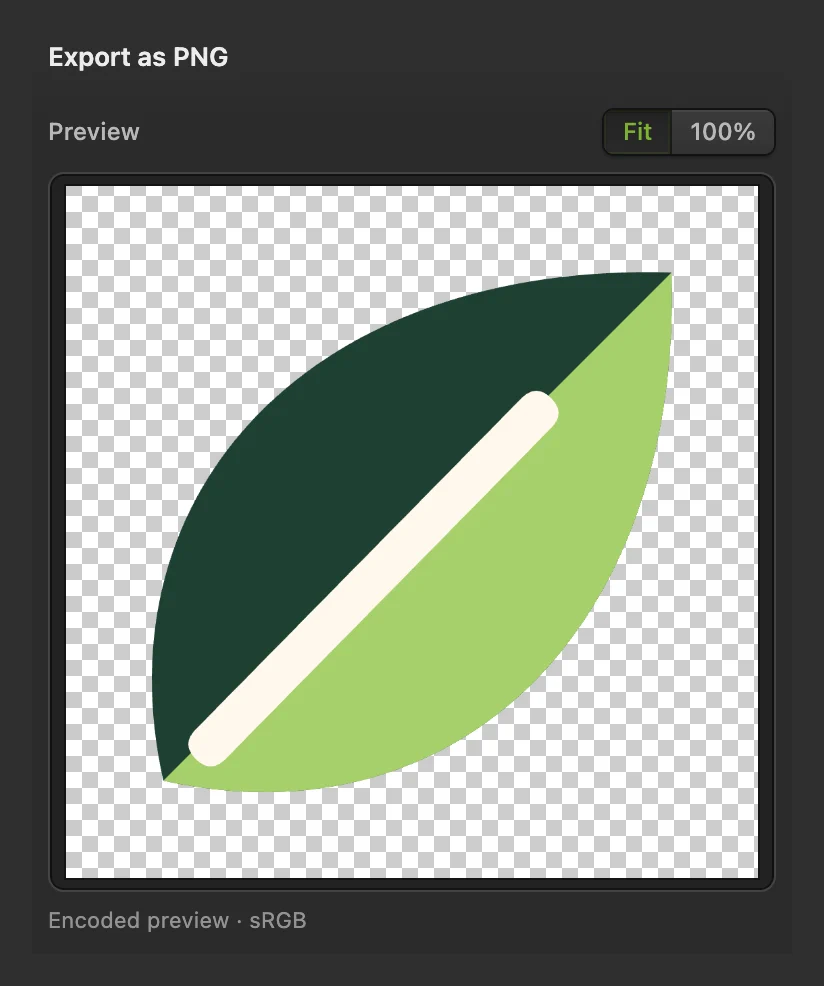
- An SVG file, such as the practice leaf below
- Works with
- SVG files. SVGs with effects Lil Cactus can’t keep as editable shapes open as a single image layer
You may have an SVG logo or illustration but need a PNG for a document or upload form. This practice turns a 512 × 512 px leaf into a 1024 × 1024 px PNG. Use the same route with your own target width.
An SVG describes shapes rather than pixels, so you choose the pixel size when you convert it. Set that size with Image Size before exporting: it redraws the SVG’s shapes at the new size, so edges stay sharp.
Convert SVG to PNG in four steps
Open the SVG
Open the practice artwork from this page. For your own SVG, choose and select the file.
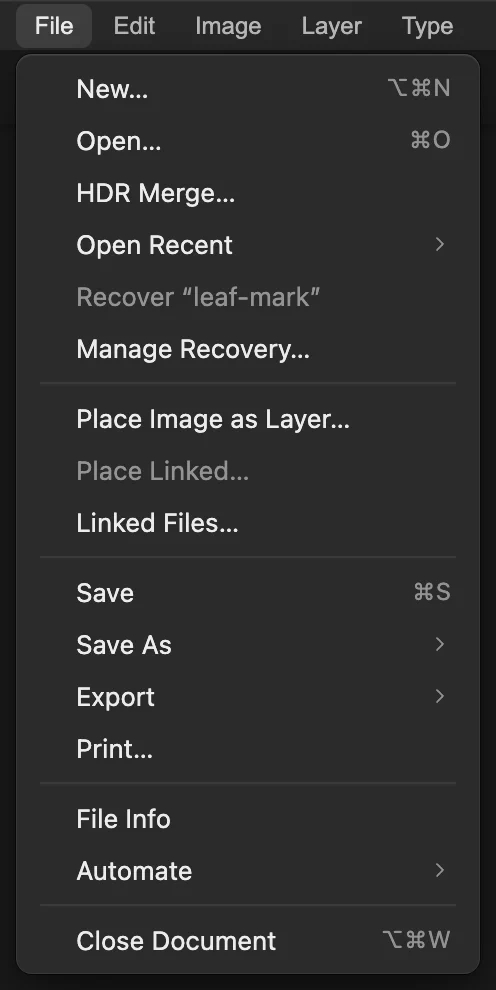
Open the SVG you want to convert. Set the pixel dimensions
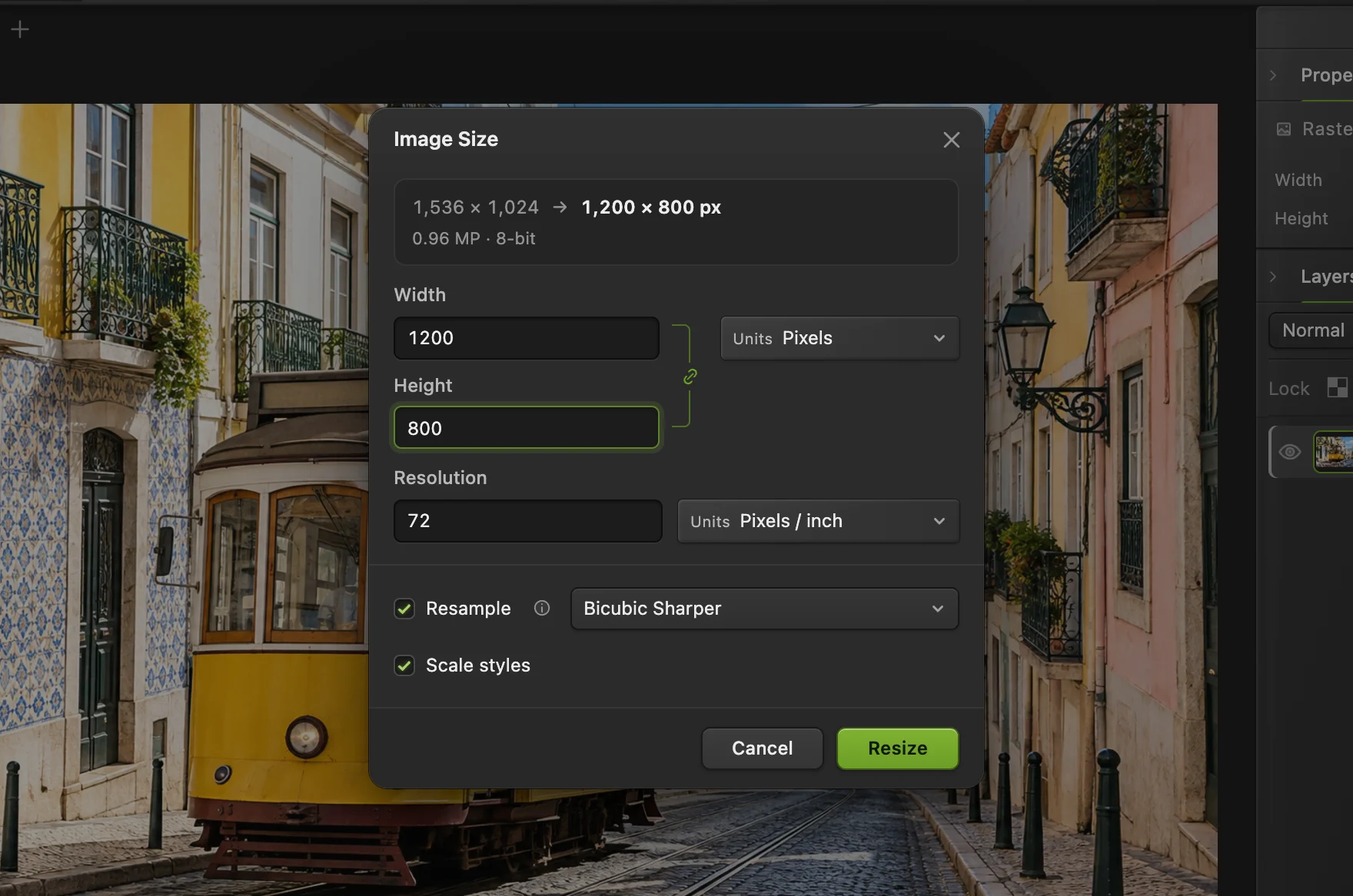
Choose Replace Width with 1024. The linked Height becomes 1024 for this square artwork. Click Resize.
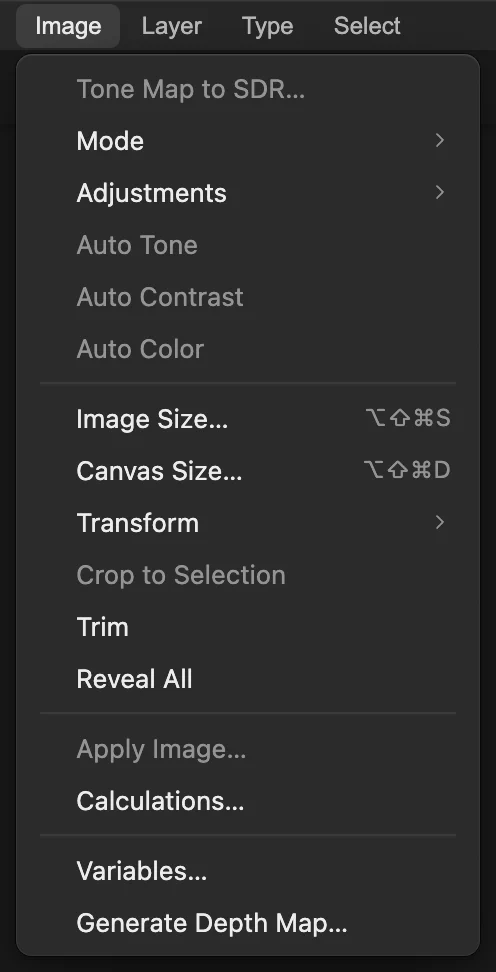
Set the document size before exporting. 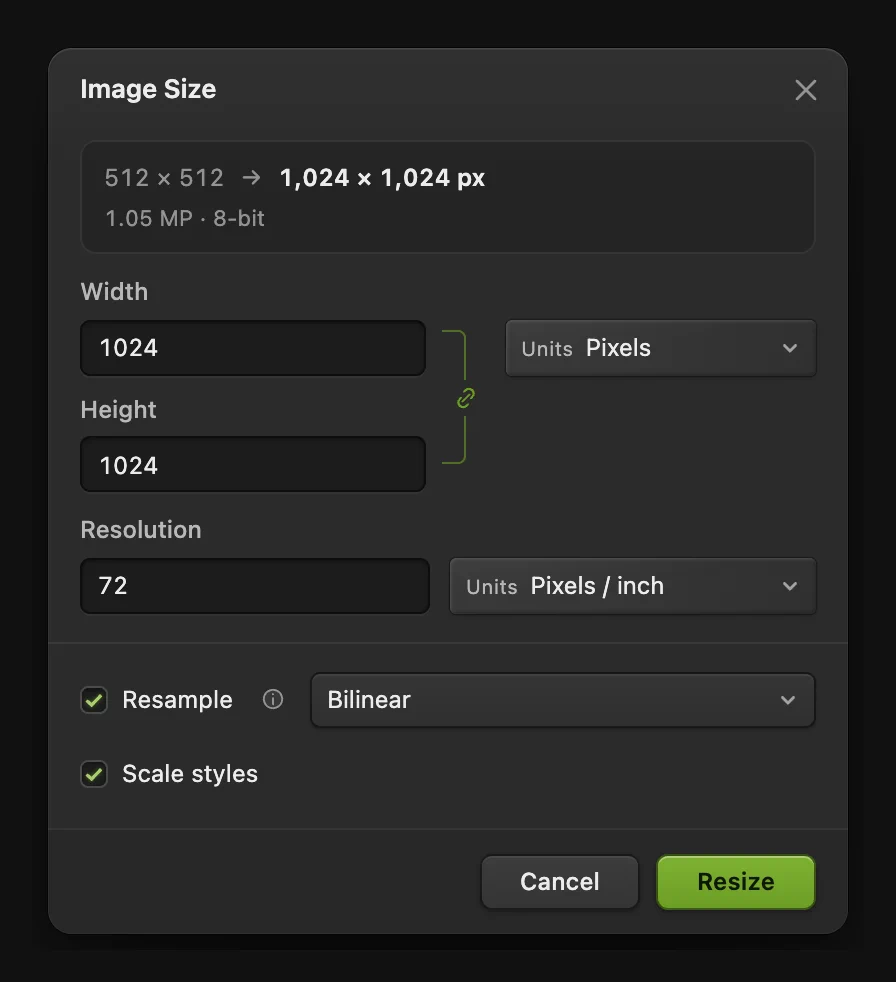
The practice leaf doubles from 512 × 512 px to 1024 × 1024 px. Choose File › Export › PNG…
Choose The Export as PNG dialog opens with a preview of the resized artwork.
Tip Leave Resize output off in the PNG dialog. It enlarges the finished pixels, which softens the edges; the size you set in step 2 is already sharp.
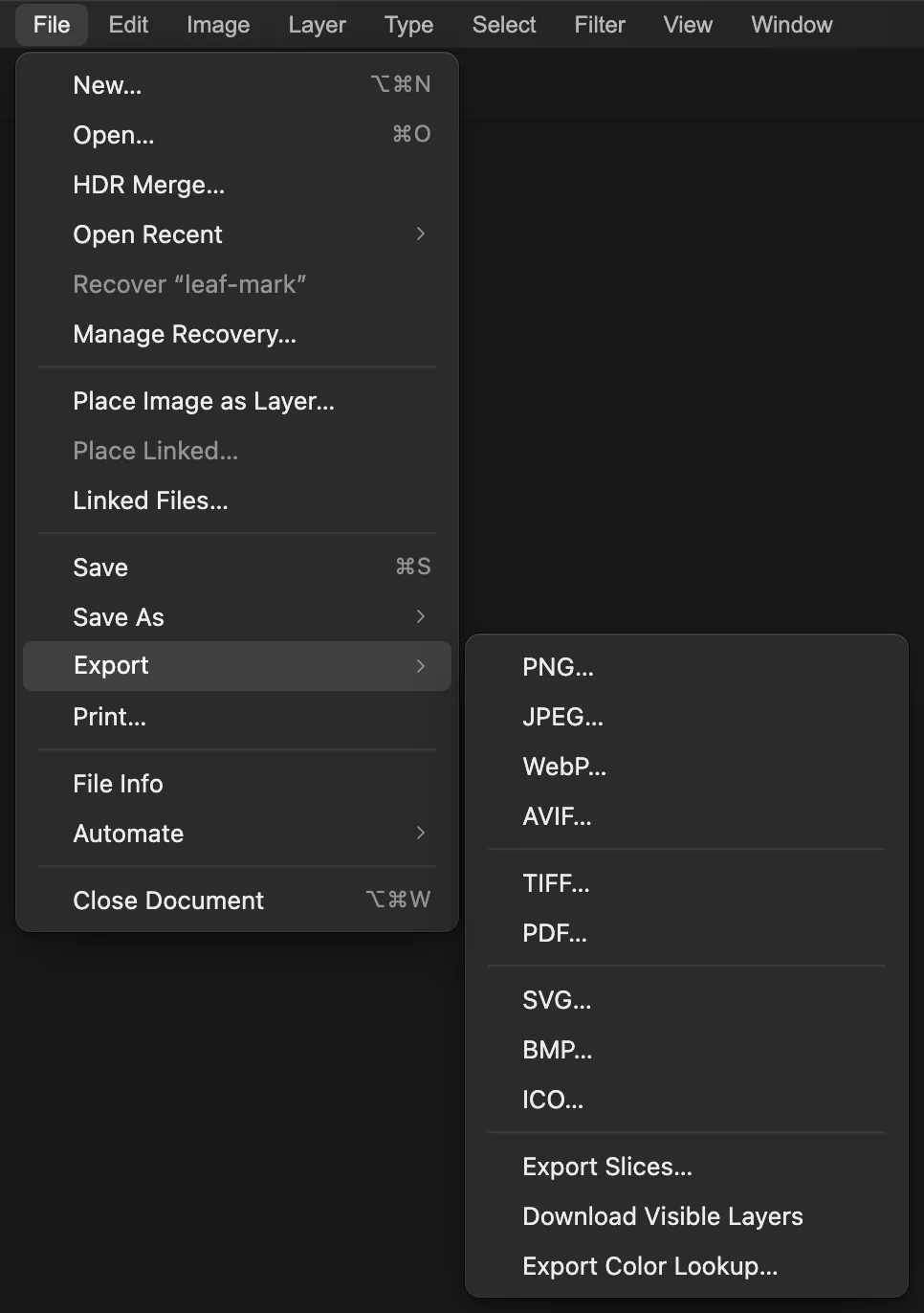
Choose PNG for the new pixel image. Name and export the PNG
Replace File name with leaf-mark-1024.png. Check the footer’s 1024 × 1024 px dimensions, then click Export. Your browser saves the PNG using its download or save-location controls.
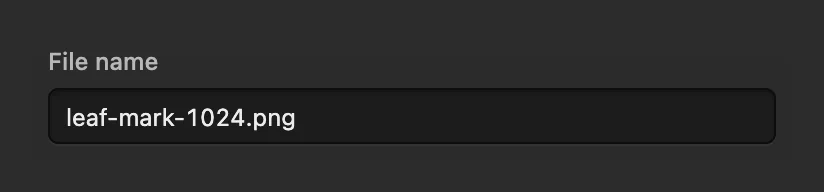
Give the exported PNG its own file name. 
The output dimensions match the size set in step 2.
What to do next
- Make a smaller or larger output: resize an image.
- Turn the mark into a website icon: create a favicon ICO.
- Build your own artwork: shapes and vector graphics.
SVG to PNG conversion: questions and answers
Will the PNG keep the SVG’s transparent background?
Yes. In Lil Cactus, PNG preserves transparent areas in the open artwork. A solid background in the SVG remains solid.
Why does Height change when I enter a new Width?
In Lil Cactus, Image Size links Width and Height by default to keep the artwork’s proportions. A rectangular SVG keeps its shape rather than becoming square.
Why did my SVG open as one image layer?
In Lil Cactus, some SVG features cannot become editable shapes. The editor may open the SVG as a single image layer to preserve its appearance and show a message explaining why. Enlarging that image layer does not create new vector detail.
Does a PNG keep the SVG’s editable paths?
No. In Lil Cactus, PNG export produces a pixel image. The downloaded PNG does not contain the SVG’s editable paths.
Does exporting a PNG overwrite my original SVG?
No. In Lil Cactus, Export downloads a separate PNG and leaves the SVG file as it is. File › Save would write the resized artwork back into the SVG, so use Export when you only need the PNG.
Keep going
 How to resize an image online to exact pixels or print sizeExact pixels, percent or print size, without stretching.Beginner · 2 min
 How to create a favicon ICO fileMake one ICO file containing six square icon sizes.Beginner · 4 min
 How to draw shapes and export vector graphics (SVG)Editable shapes for icons, badges and buttons, exported as SVG.Beginner · 6 min