How to create data-driven graphics from a CSV
Quick answer
Open a layered design in Lil Cactus and choose On Data Sets, import a CSV or TSV; on Variables, select a text layer, enable Text content and replace filename with title in Text content column. Preview the rows on Data Sets, then switch to Export as and click Export all designs… Each data row becomes a separate file in a ZIP.
- Time
- 7 minutes
- Level
- Intermediate
- You need
- A layered design with editable text, and a CSV or TSV table
- Works with
- Lil Cactus project templates, CSV or TSV tables; this lesson exports PNG files
A variable connects a layer property to a column in a table. A data set is one row: the values used for one version of the design. This is useful for a set of posters, product cards or name badges whose layout stays the same while their content changes.
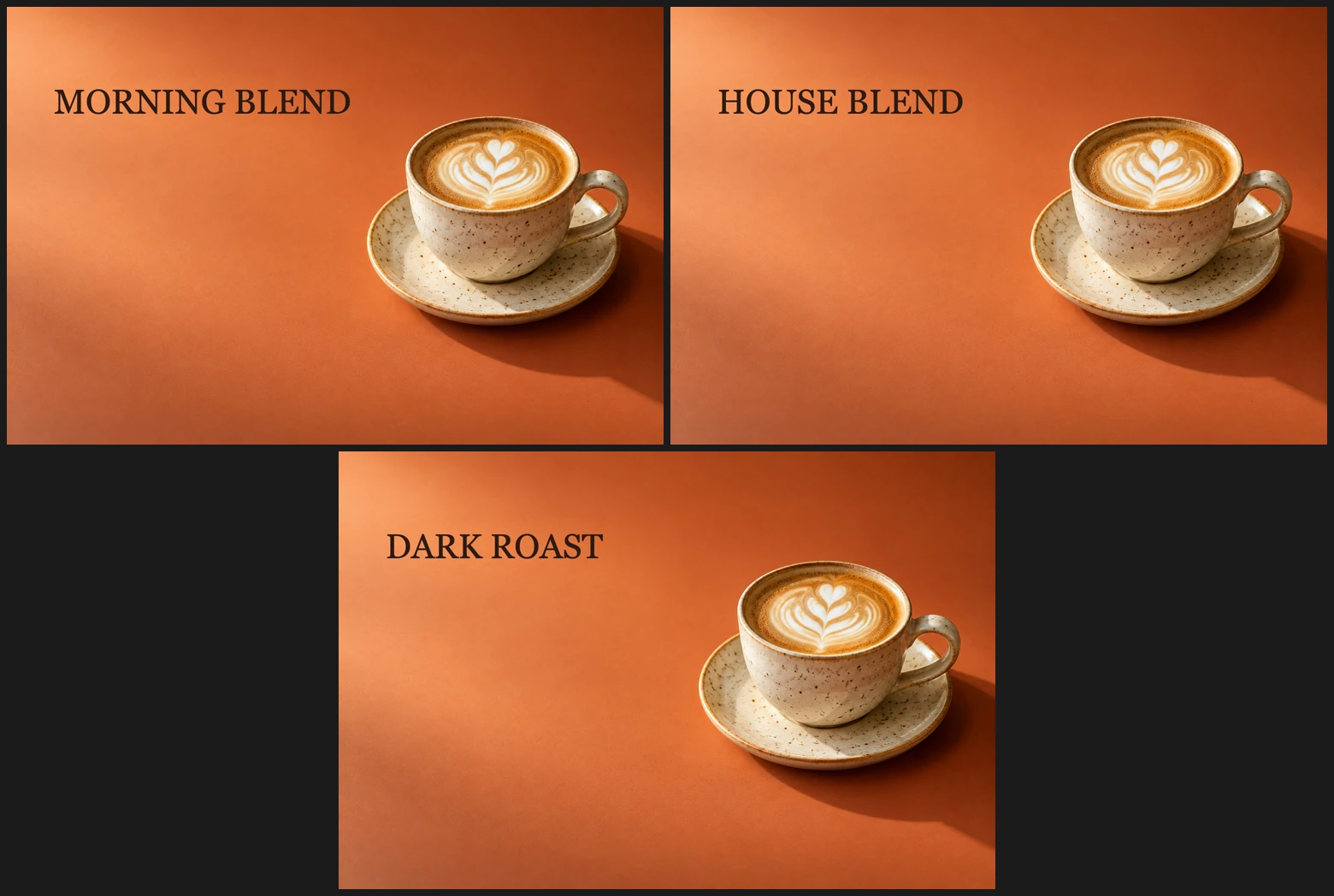
Start with separate layers for the parts you want to vary. Text must still be editable text, not lettering flattened into a photo. Here, three rows replace the title on a coffee poster.
Generate three designs in six steps
Open the template and download the table
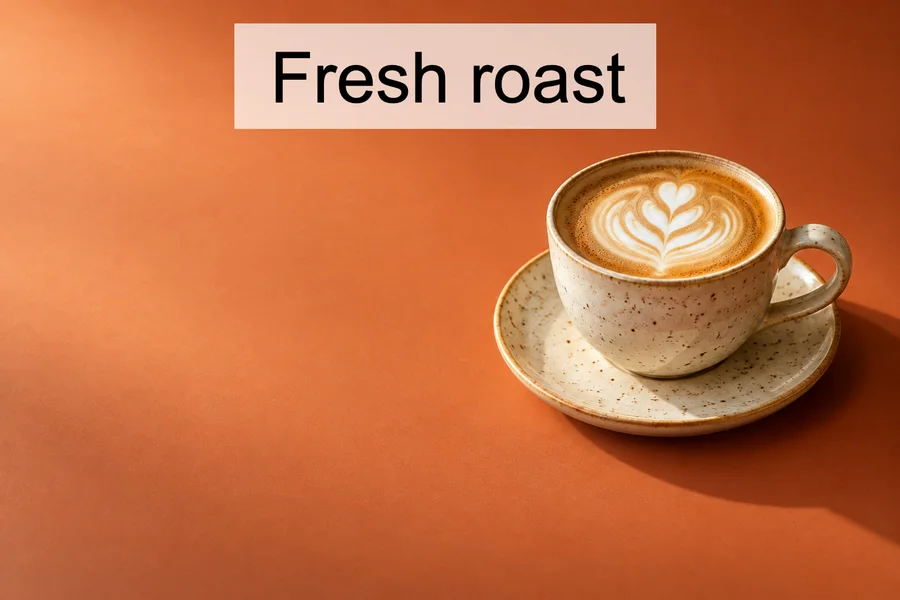
Open the sample template from this page, or choose for your own layered file. In the sample’s Layers panel, Text holds the title above the Background photo.
Download the sample CSV. Its first row contains column headings. Each following row supplies an output name and a title:
filename title morning MORNING BLEND house HOUSE BLEND dark DARK ROAST 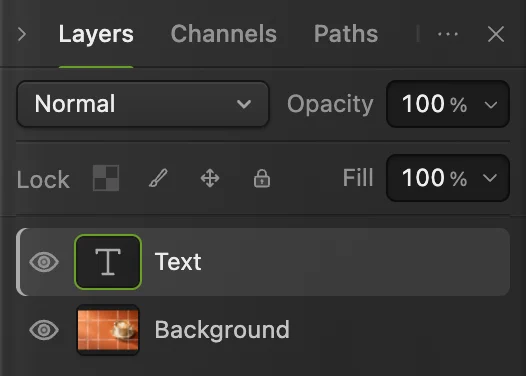
Bind the Text layer, leaving the background photo fixed. Import the CSV on Data Sets
Choose Click the Data Sets tab, then Import CSV / TSV… and choose poster-variants.csv. The dialog reports three rows and two columns, and shows their values in a table.
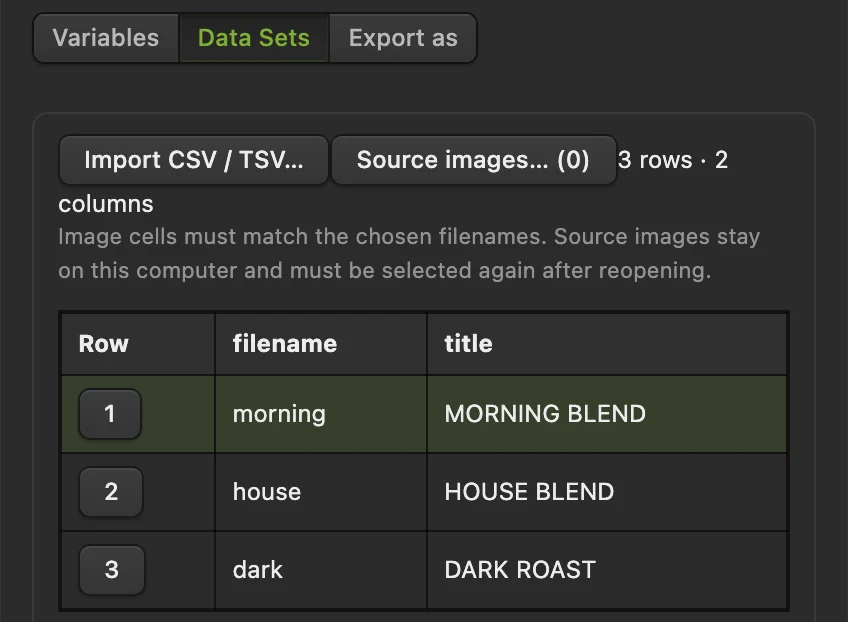
Import CSV / TSV… is on the Data Sets tab. The sample contains three designs. Connect the Text layer to the title column
Switch to Variables. Set Layer to Text (text), check Text content and replace filename with title in Text content column. Use the heading exactly as it appears in the CSV.
The summary below the controls reads Text · text → title. The other layers stay fixed because they have no binding.
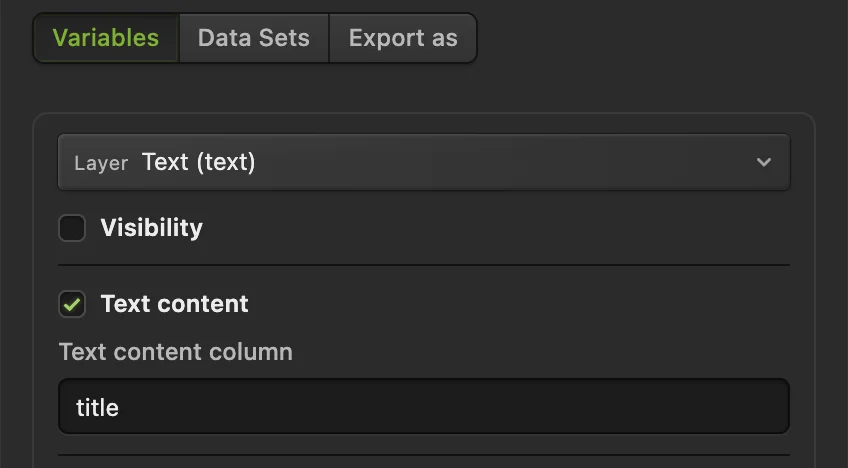
On Variables, Text content links the editable title layer to the CSV’s title column. Preview each row
Return to Data Sets and click Preview design. Row 1 shows MORNING BLEND. Click Next, then Preview design again for HOUSE BLEND; repeat for DARK ROAST. Selecting another row clears the old preview, so generate a new one after each change.
Check that each title fits the clear area to the left of the cup. Preview builds a separate copy: it does not replace the title in your open template.
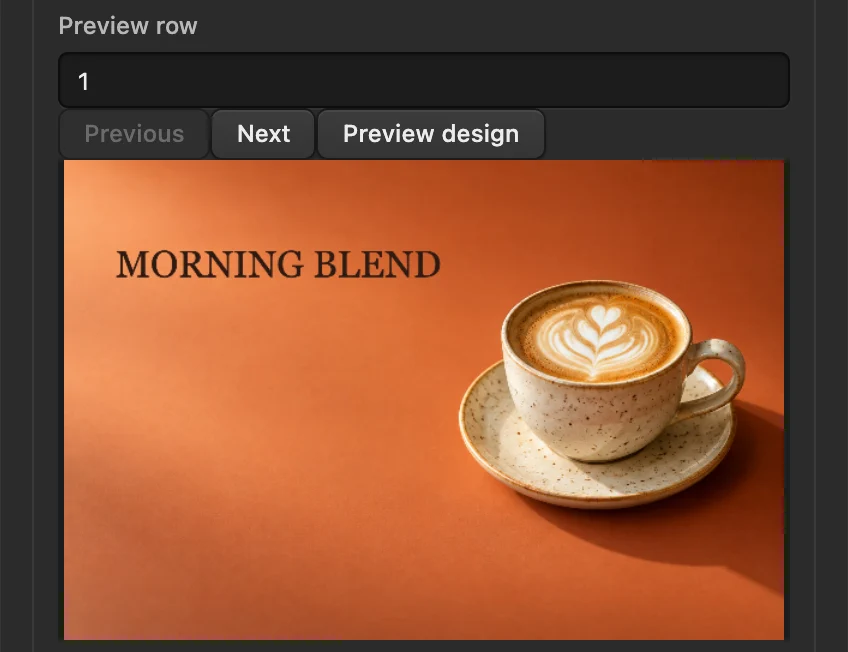
Row 1 previews MORNING BLEND. The original template still contains COFFEE MENU. Choose file names and export all designs
Switch to Export as. Set File names from to filename and keep Format on PNG. Click Export all designs…
Extract the downloaded ZIP. You get morning.png, house.png and dark.png, each 1536 × 1024 pixels. Open the files to inspect the full-size titles. The Variables dialog stays open after exporting.
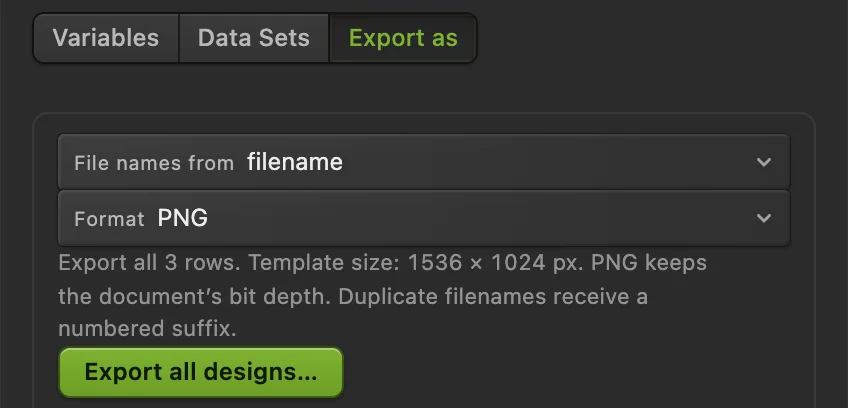
The filename column names the files; the title column supplies the visible words. Save the setup for another run
Click Save settings to keep the bindings and imported rows in the document and close Variables. Then choose to save the layered template with that setup.
When you reopen the project, brings the setup back. Import a revised table on Data Sets to use new values, keeping the same headings for the existing bindings.

Save settings keeps the table and bindings in the document. 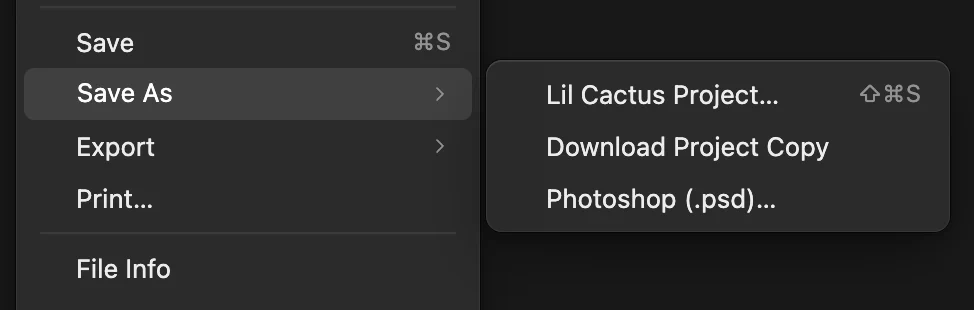
Lil Cactus Project… saves the layered document and its setup to a file.
Change images or layer visibility
The same Variables tab offers two other properties:
| Property | How to supply its values |
|---|---|
| Visibility | Use true/false, yes/no or 1/0 in a column. Bind it to any layer or group to show or hide that content per row. |
| Image content | Choose a pixel layer or Smart Object. Put exact filenames, including extensions, in the column. On Data Sets, click Source images… to select those files. |
For an image binding, Image placement offers Fit inside, centered to keep the whole image, or Fill and crop, centered to fill its area. Source image files must be chosen again after reopening the template.
Fix common problems
The table has no “title” column.
The binding and the heading differ. Check spelling and capitalization, then correct the column field on Variables or import the corrected table on Data Sets.
Text content is disabled
The selected layer is not editable text. Choose the Text layer, rather than its group or a flattened image.
A title does not fit
Replacement text uses the style at the start of the layer’s text. Shorten that row’s words or adjust the template’s text layout before generating the files again.
A source image cannot be found
Choose it with Source images… on Data Sets. The cell must match the chosen file’s name exactly, including capitalization and extension, rather than a folder path.
A comma splits one value into two columns
In CSV, enclose a value containing a comma in double quotes. Every row needs the same number of cells as the header. TSV uses tabs between cells instead.
What to do next
- Build a template: add and edit text.
- Organize the parts: how layers work.
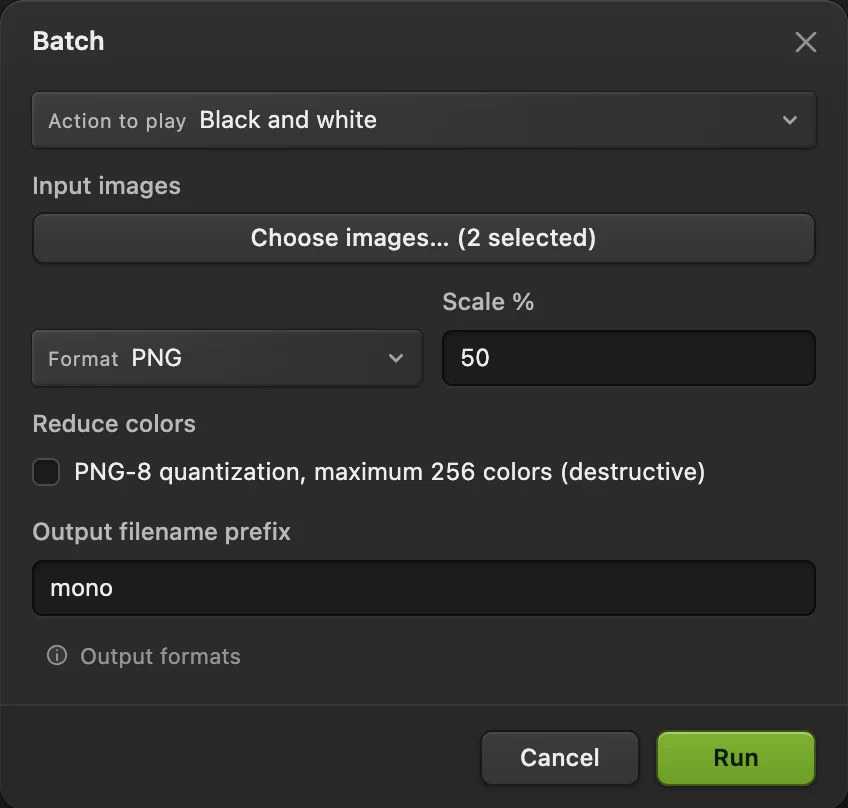
- Repeat the same edit on different photos: actions and Batch.
- Keep an editable original: saving and exporting.
Data-driven graphics: questions and answers
Can I generate designs from an Excel spreadsheet?
Yes. Save the table as CSV or tab-separated text first. In Lil Cactus, choose Image › Variables…, click the Data Sets tab, then Import CSV / TSV…; the dialog imports the text file rather than an Excel workbook.
Can data-driven graphics replace text in a flat JPEG?
No. Lil Cactus needs an editable text layer for Text content. Build the lettering as a separate text layer before connecting it to a column.
Does previewing a data set change my template?
No. Lil Cactus generates the preview and exported designs from separate copies. Save settings keeps the table and bindings without applying a row to the original layers.
Can one CSV column change more than one layer?
Yes. In Lil Cactus Variables, give each layer’s relevant property the same column heading. Each bound property then reads that column for the current row.
Can data-driven graphics use different images in every design?
Yes. In Lil Cactus, bind Image content on a pixel layer or Smart Object to a column of exact filenames, then choose those files through Source images… on Data Sets.
Keep going
 How to add text to a photoA headline and a second line on a photo, still editable later.Beginner · 5 min
 How to use layers in a photo editorStack, reorder, fade, hide and group the parts of a picture.Beginner · 6 min
 How to record actions and batch edit photosRecord a reusable edit, then apply it to a set of photos.Intermediate · 6 min