How to give a photo a vintage film look
Quick answer
In Lil Cactus, choose , then ; for the sample, set Amount to 45% and Size to 3 px, keep Roughness at 50%, and click Apply. Add : on RGB, set the end points to Input 0 / Output 38 and Input 255 / Output 228. On Blue, set them to 0 / 16 and 255 / 218, then click Apply. Choose to keep the original, grain copy and editable Curves.
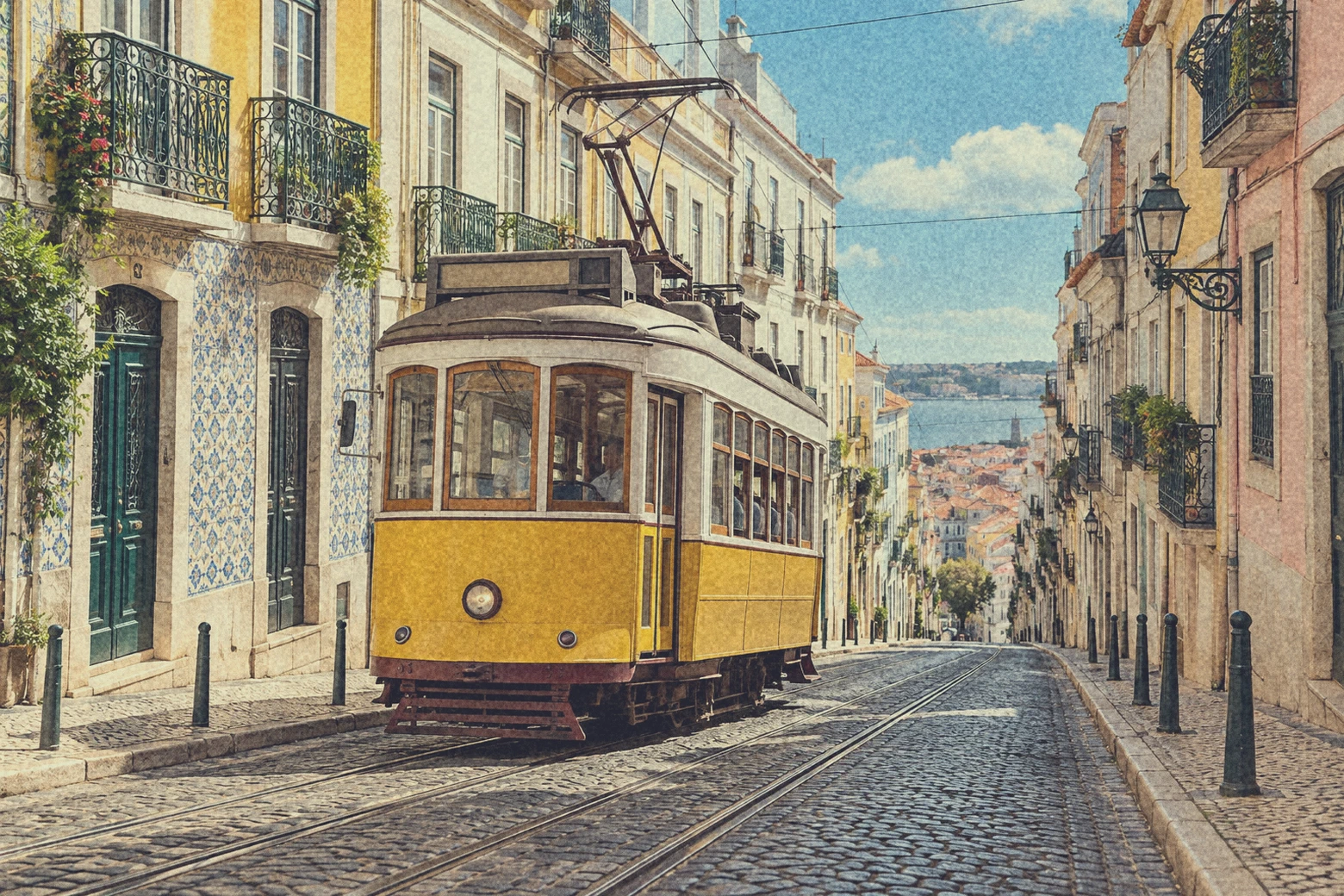
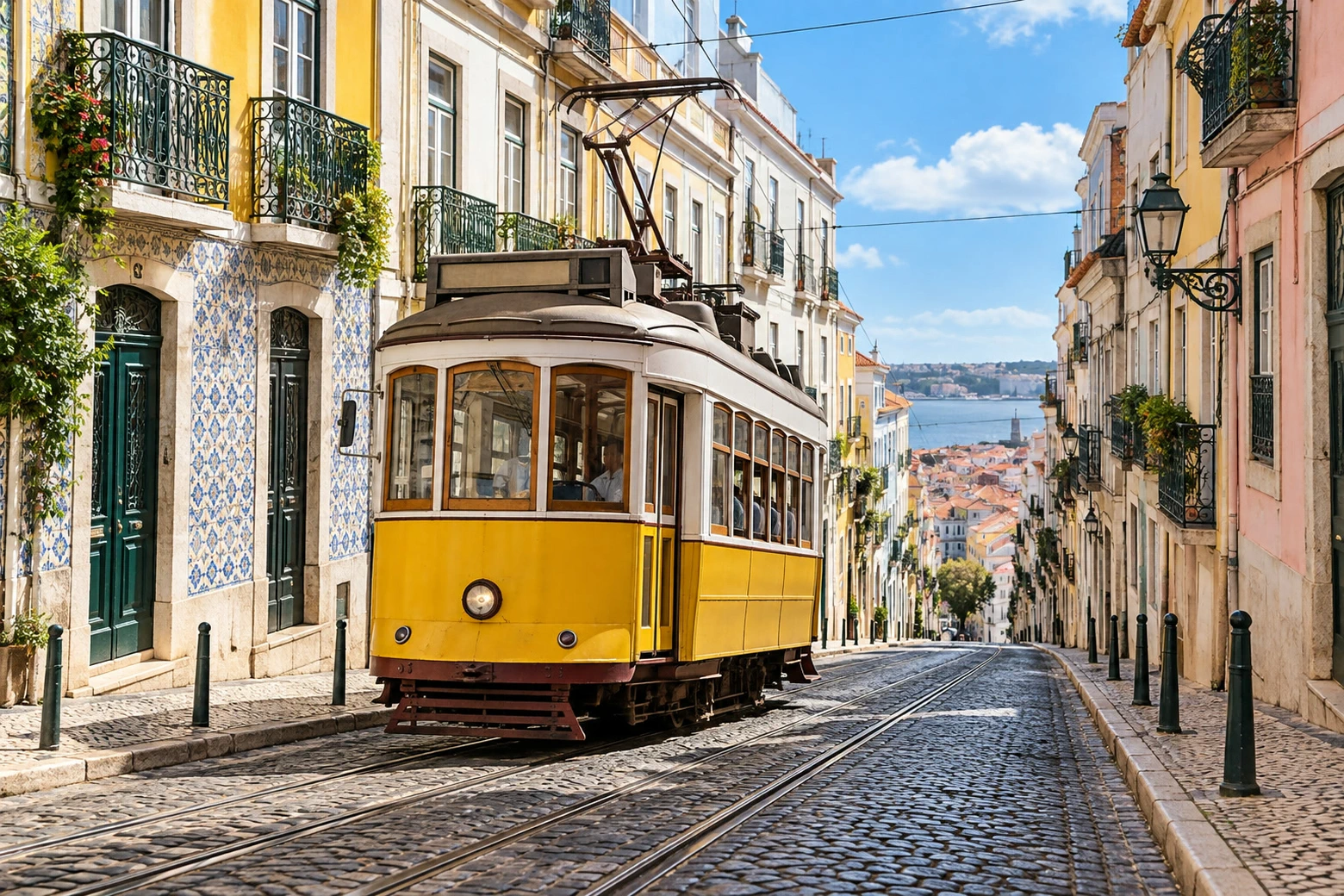
- Time
- 8 minutes
- Level
- Intermediate
- You need
- A photo with detail in its dark and bright areas
- Works with
- RGB photo layers, including JPEG and PNG
A vintage look combines several choices: softer contrast, shifted colors and visible grain. Here, the dark tones stop short of black, the bright walls become warmer and monochrome grain adds texture. It is a chosen look, not a simulation of a particular film stock.
Keep the original photo below a grain copy. A separate Curves adjustment layer changes their appearance without rewriting their pixels, so you can retune the fading and color later.
Build a vintage look in six steps
Open the photo and duplicate its layer
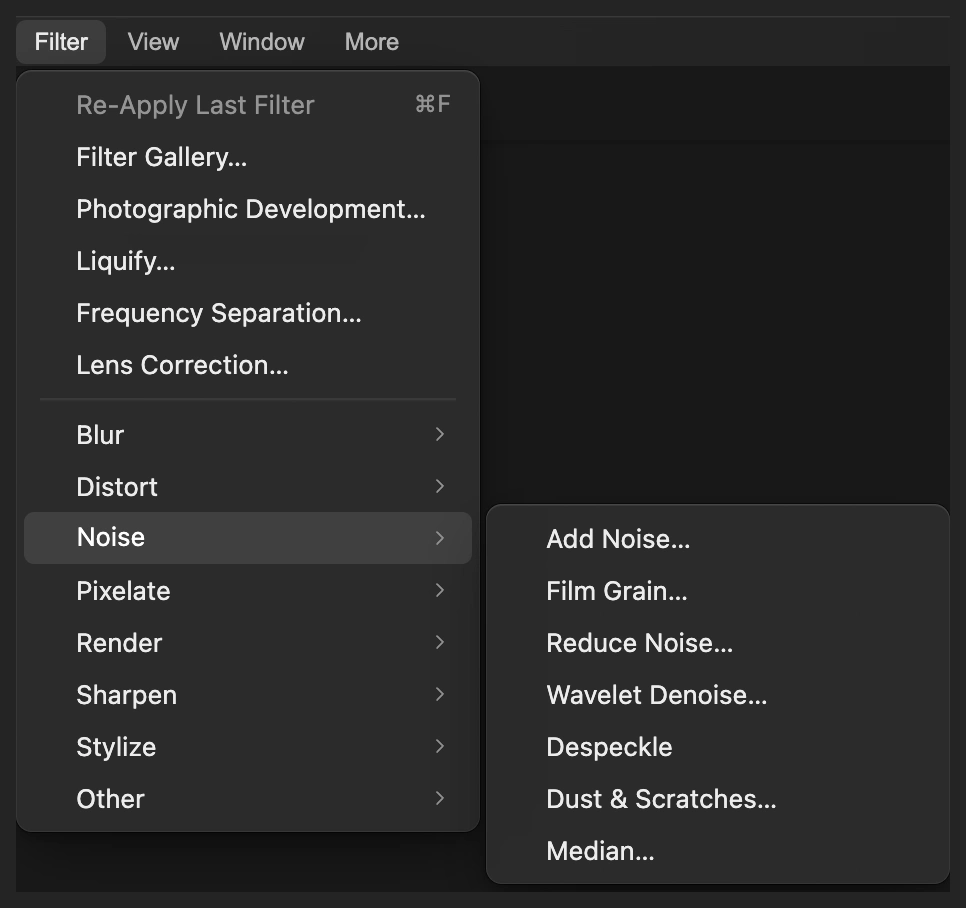
Choose and open your photo, or open the sample from this page. Choose .
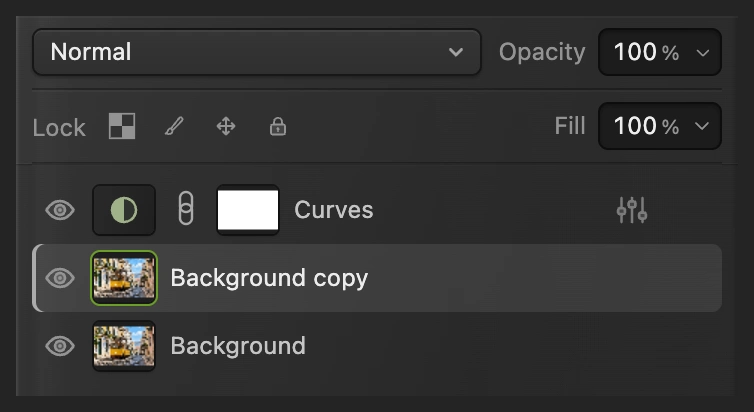
Work on the selected Background copy above Background. The lower layer keeps the original without added grain.
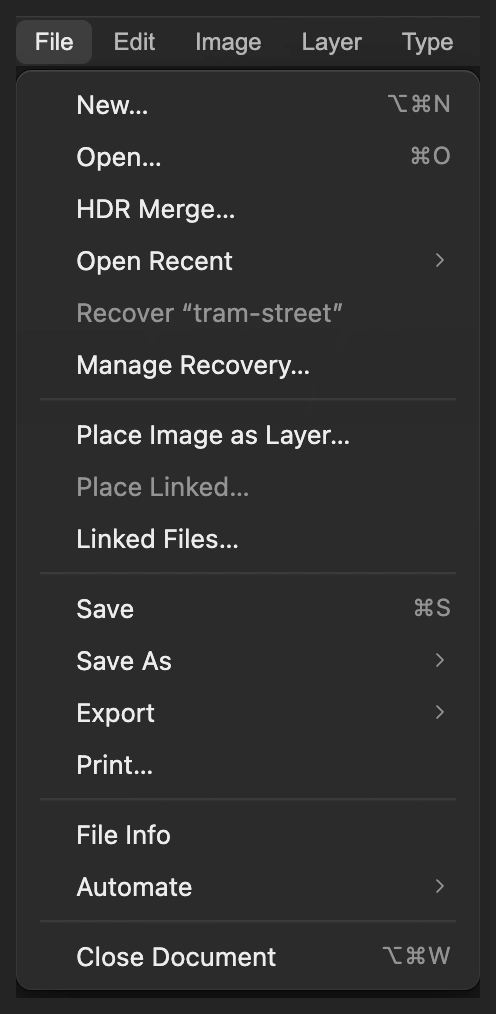
Open the photo as a document. 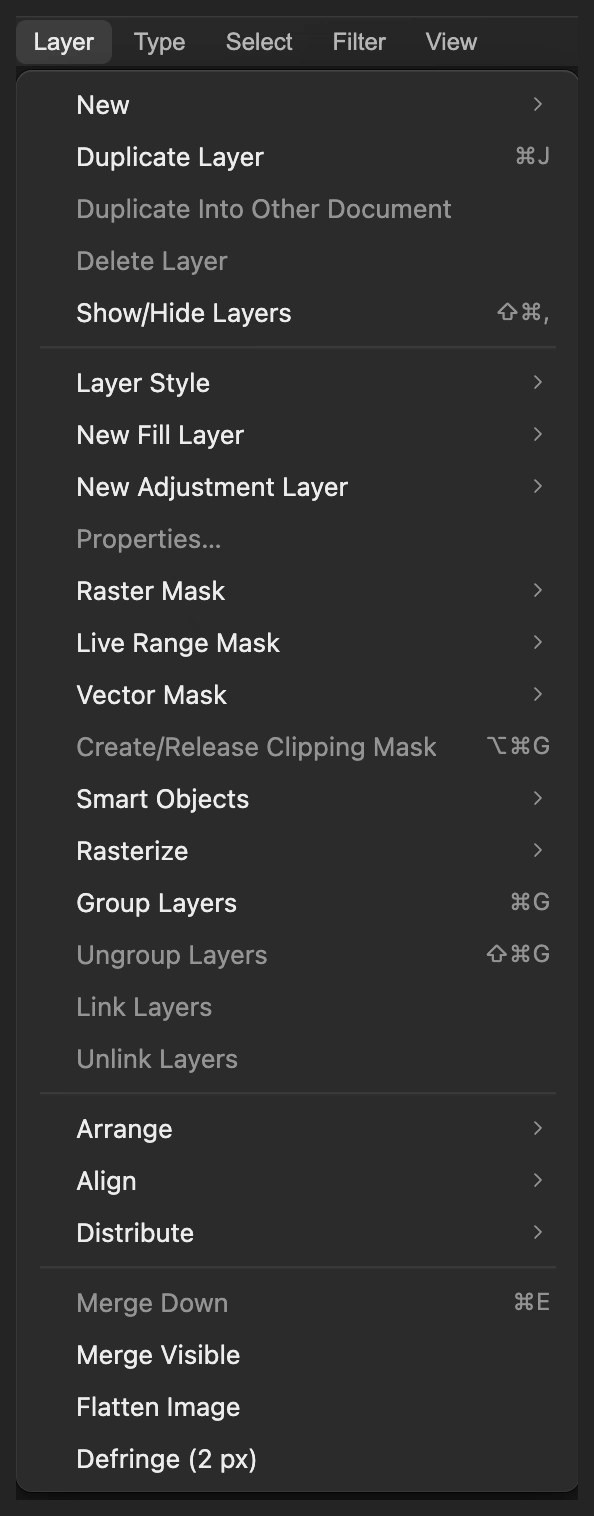
Keep an unfiltered original underneath the working copy. Add Film Grain
Choose For the sample, change Amount from its 20% default to 45% and Size from 1.5 px to 3 px. Leave Roughness at 50% and Grain Pattern at 1234, their defaults.
Amount changes the strength; Size changes the scale of the texture. Click Apply. The grain changes only brightness, by the same amount in red, green and blue, so it adds no colored specks.
Tip If the grain is too strong, press Ctrl+Z or ⌘Z now, before adding Curves, and repeat with a lower Amount.
Film Grain has separate controls for strength and texture scale. 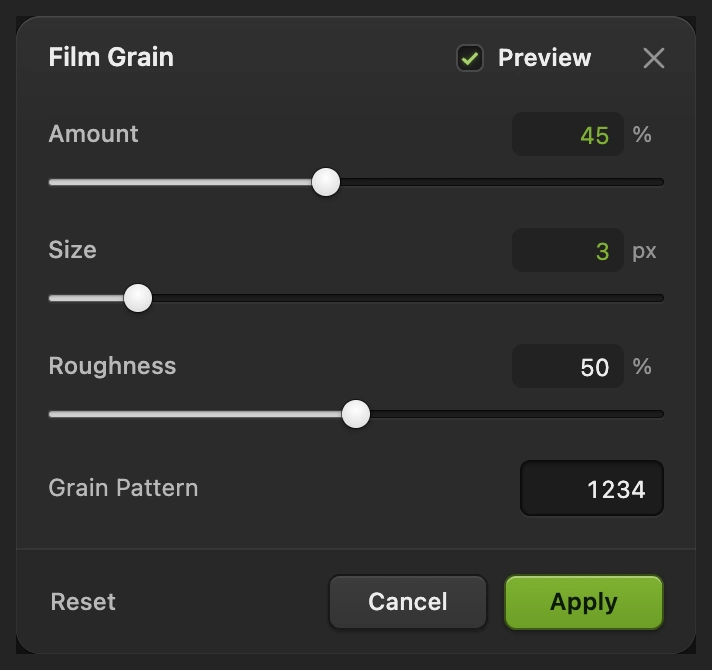
Raise both strength and texture size for this sample. 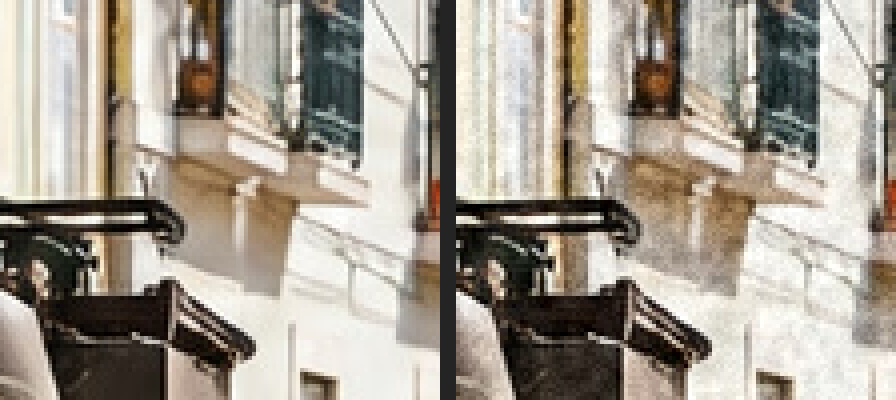
Before left, grain only right. The enlarged crop shows the texture before the tone and color changes. Fade the black and white end points
Choose Keep the channel menu at the top right on RGB.
Click the line’s lower-left end point, where Input reads 0, and set Output to 38. Click the upper-right end point, Input 255, and set Output to 228. Input is fixed at these end points; you change only Output.
Raising the low end lifts the darkest tones. Lowering the high end softens the brightest tones. Leave the dialog open for the color change.
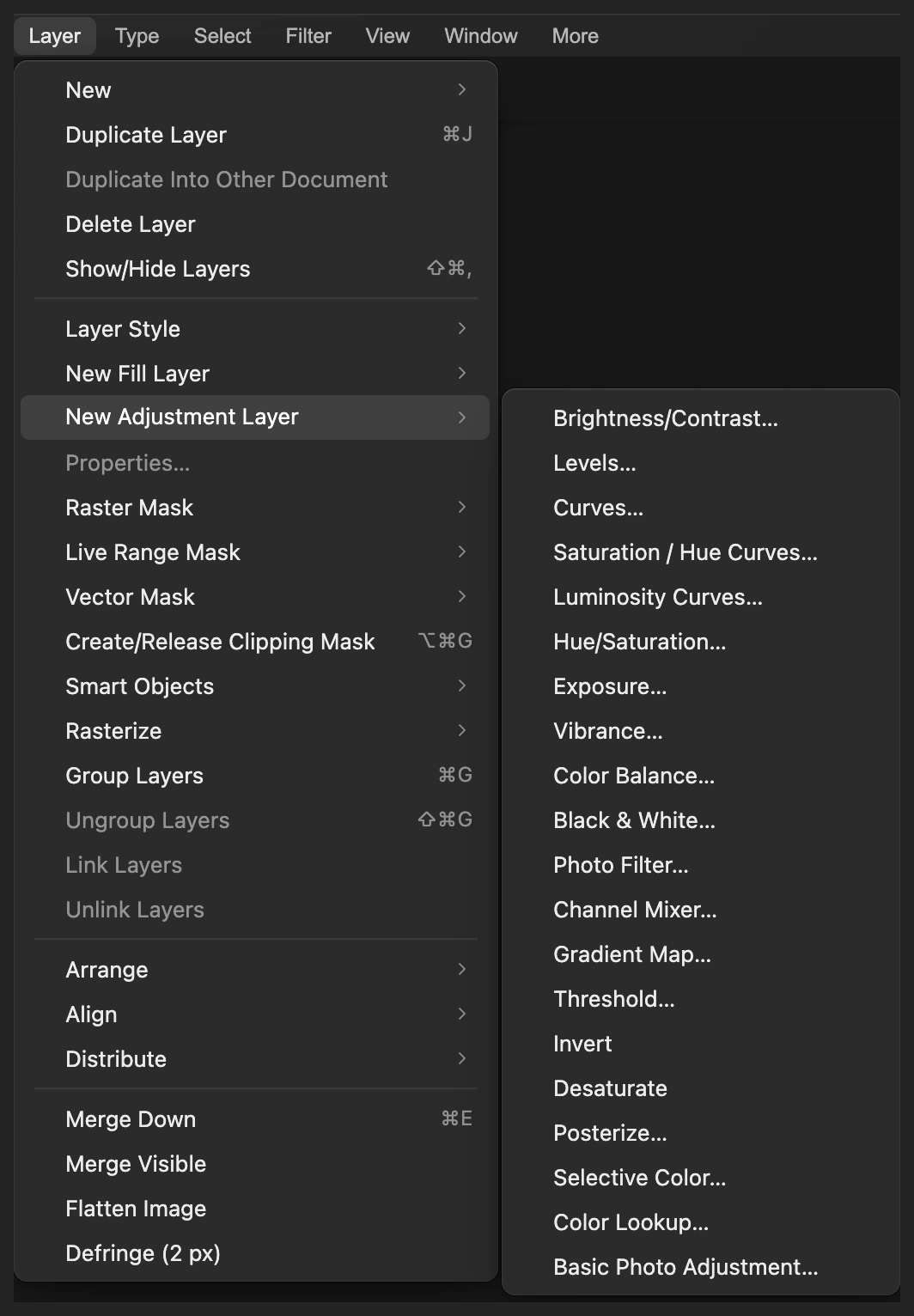
Put the tonal changes on their own adjustment layer. 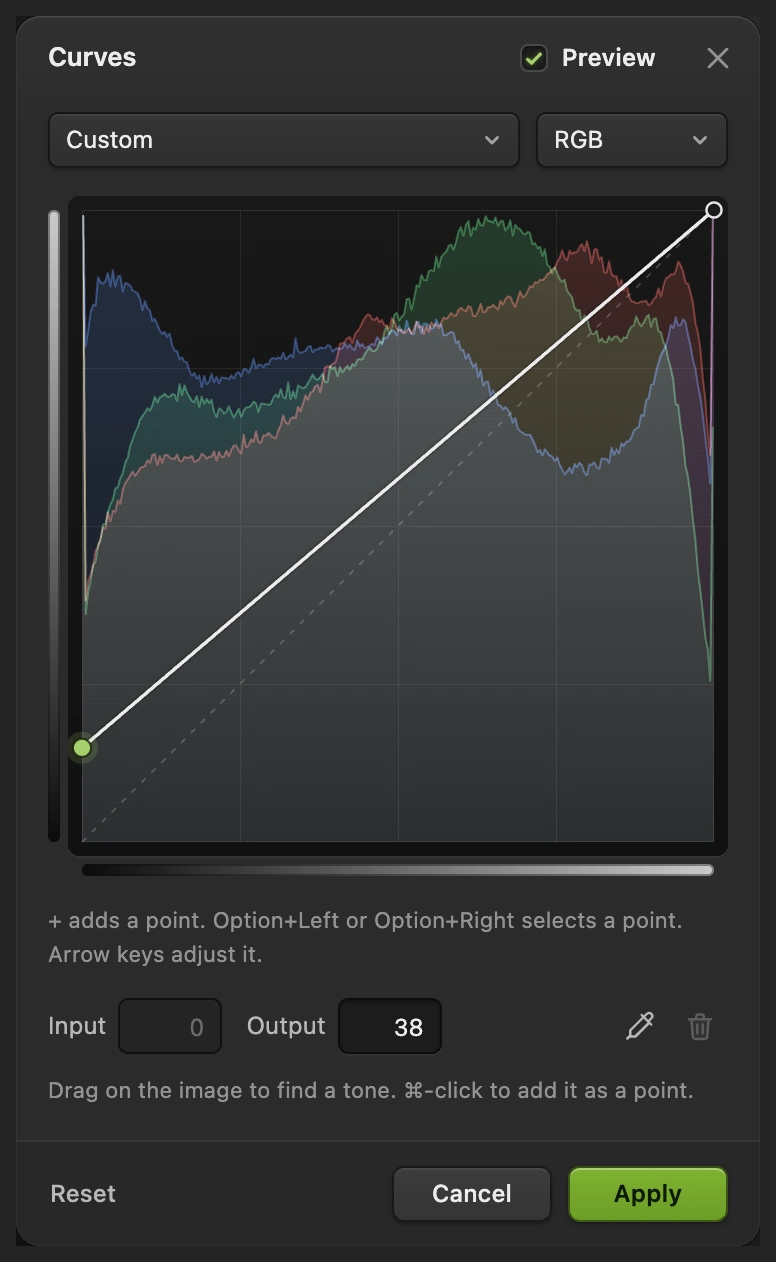
The darkest input becomes a dark gray instead of black. 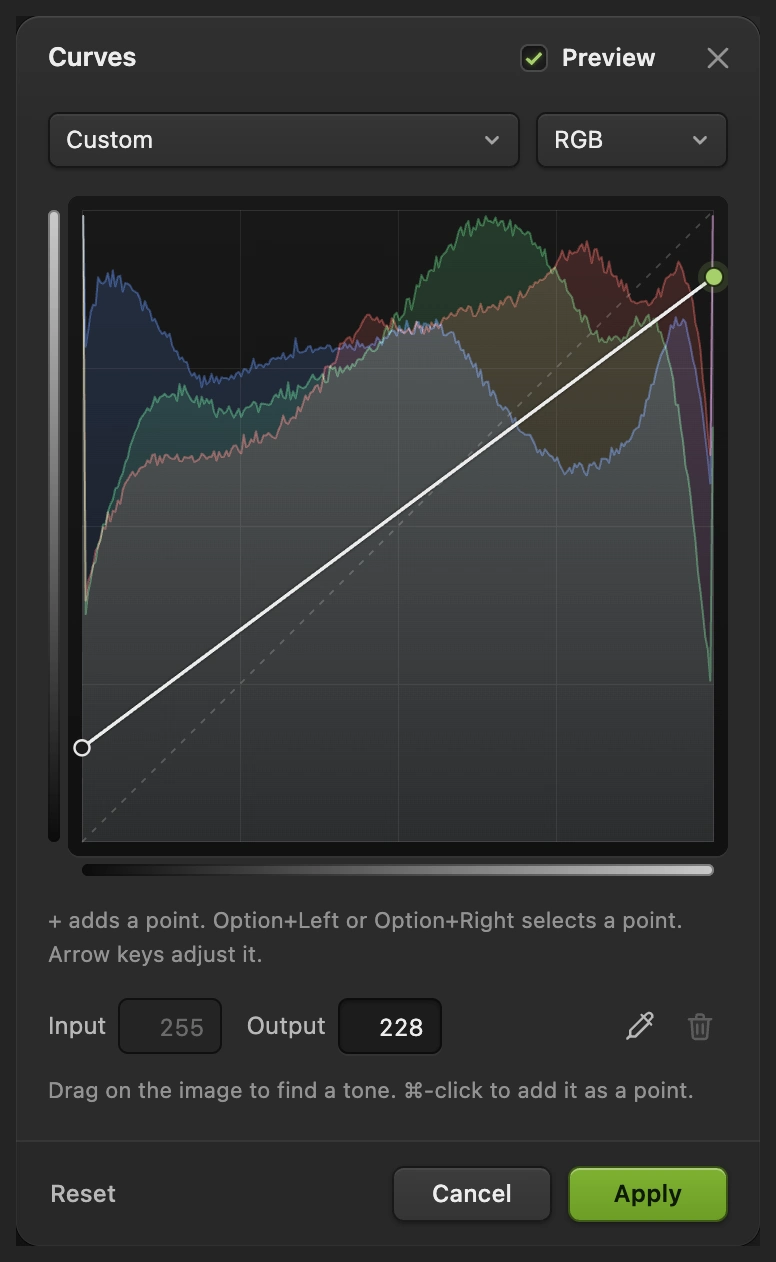
Lower the white end to soften the highlights, leaving the middle of the curve straight. Warm the highlights in the Blue channel
In the same dialog, choose Blue in the channel menu. Click its lower-left end point, Input 0, and set Output to 16. Click the upper-right end point, Input 255, and set Output to 218.
Adding a little blue at the low end cools the dark tones; reducing blue at the high end warms the pale walls and highlights. Click Apply.
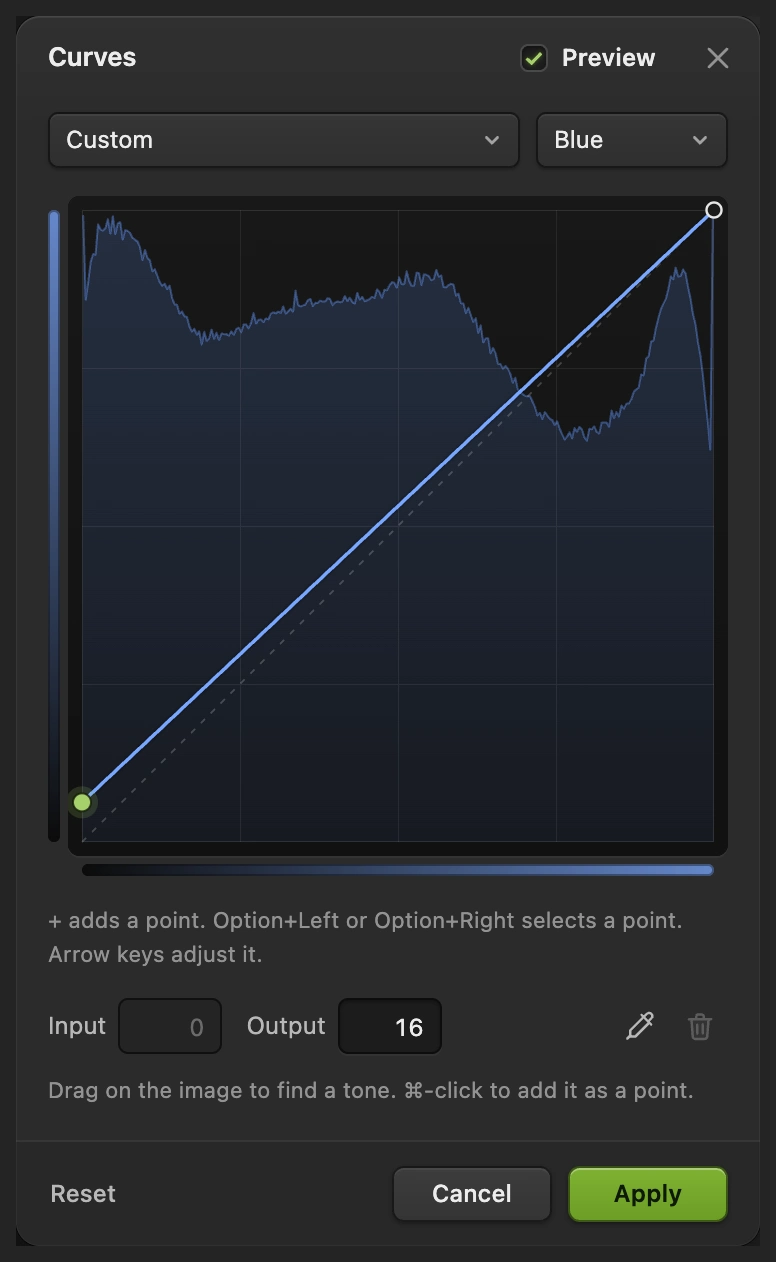
Lift Blue’s low end for cooler shadows. 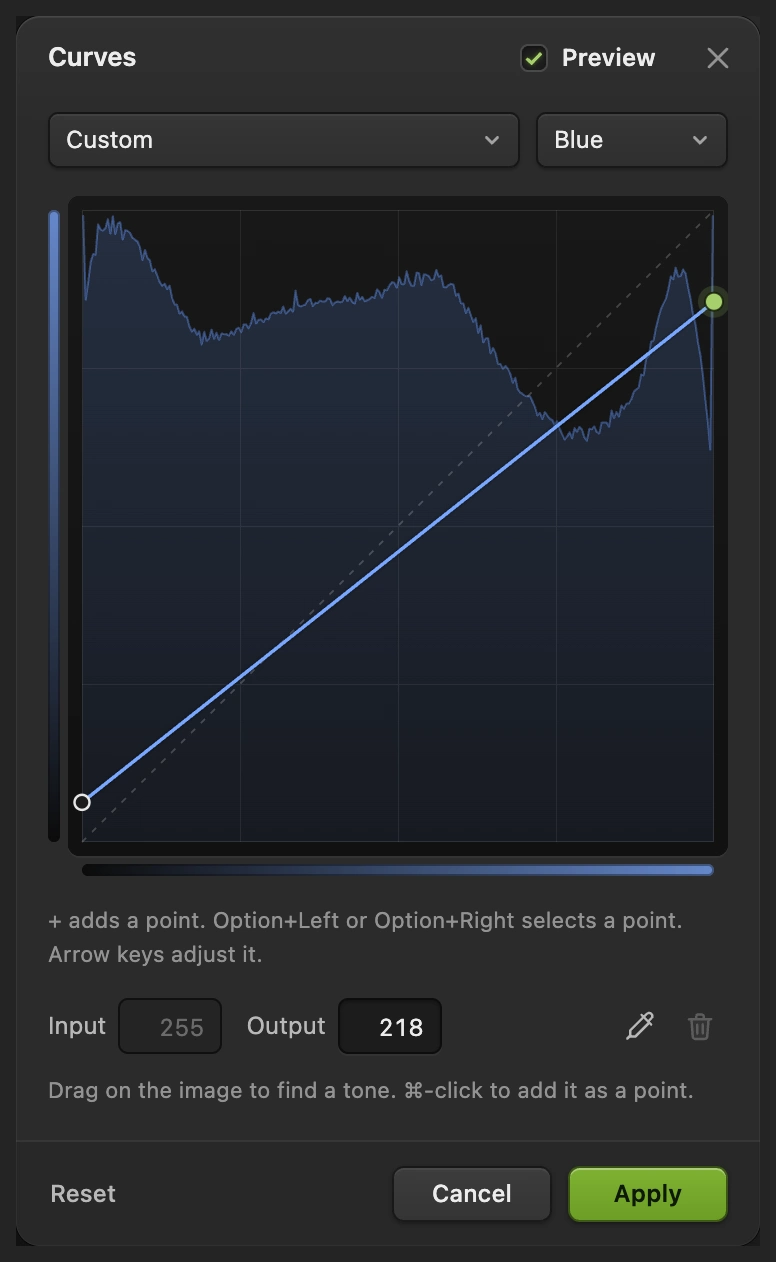
Less blue in the bright tones gives a warmer finish. Compare the original and revise the color
In Layers, click the eyes beside Curves and Background copy to see the original. Turn both back on for the vintage version. Check the tram windows, pale walls and sky: their detail should remain visible.
To change the fading or color, click the half-shaded circle thumbnail beside Curves and choose Its end points remain editable. Click Apply when you finish changing the points. The grain on Background copy is a pixel edit, so it has no settings dialog to reopen.
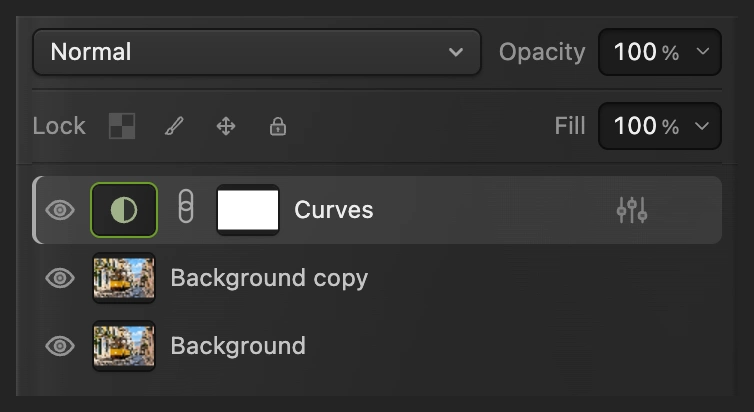
Hide both upper layers for the original. The Curves thumbnail selects the editable adjustment. 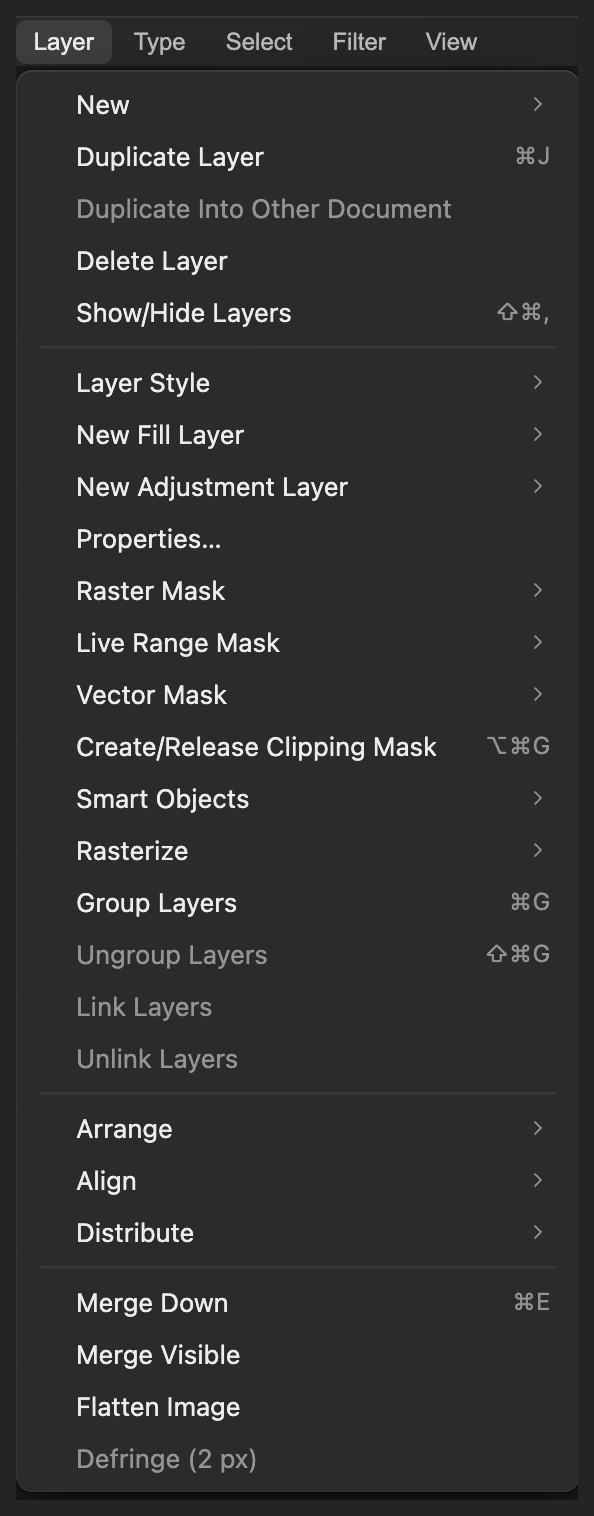
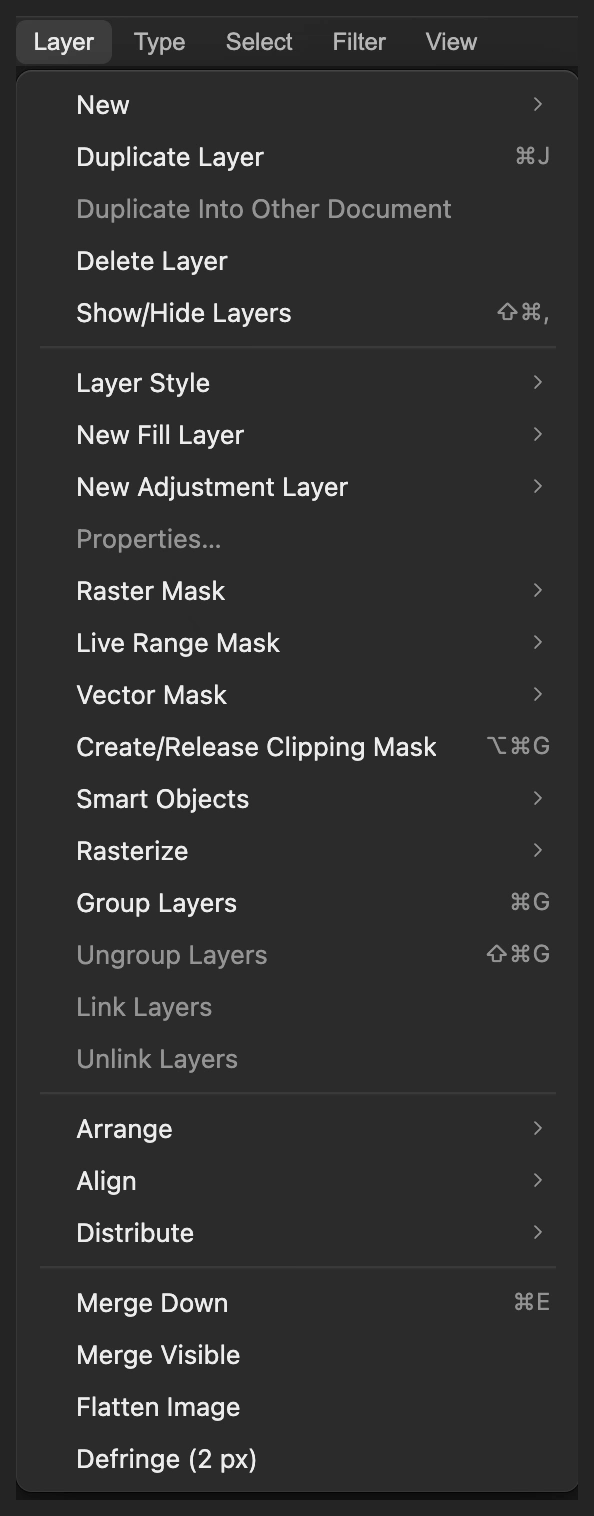
Properties reopens the selected Curves adjustment. Save the layers and export a finished photo
Choose to keep the original, grain copy and Curves layer. After that, saves the project. Choose and click Export for a new finished picture.
If you stay with the opened JPEG, writes a flat picture in that format; its first Save opens Save Image.
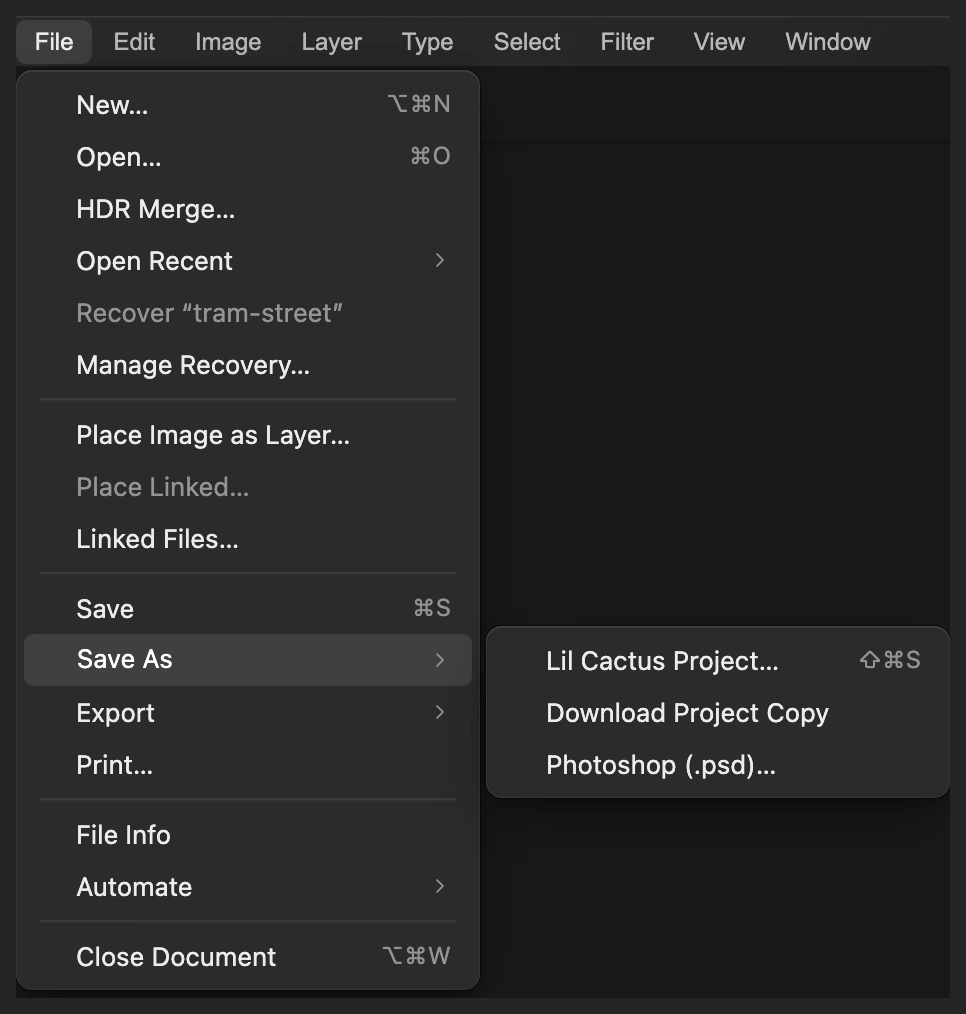
A project keeps the original and separate edits. 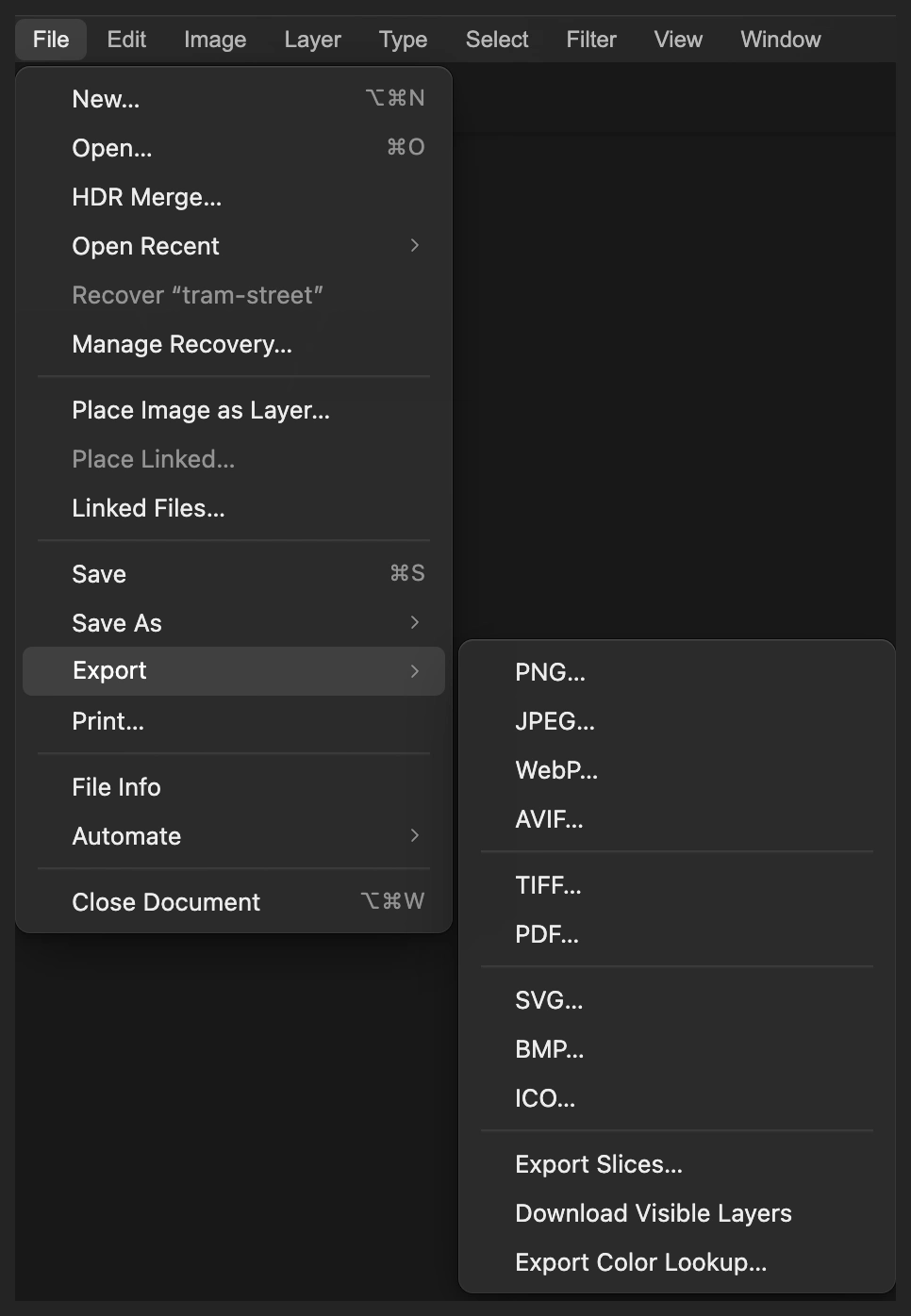
Export a combined photo to a new JPEG. 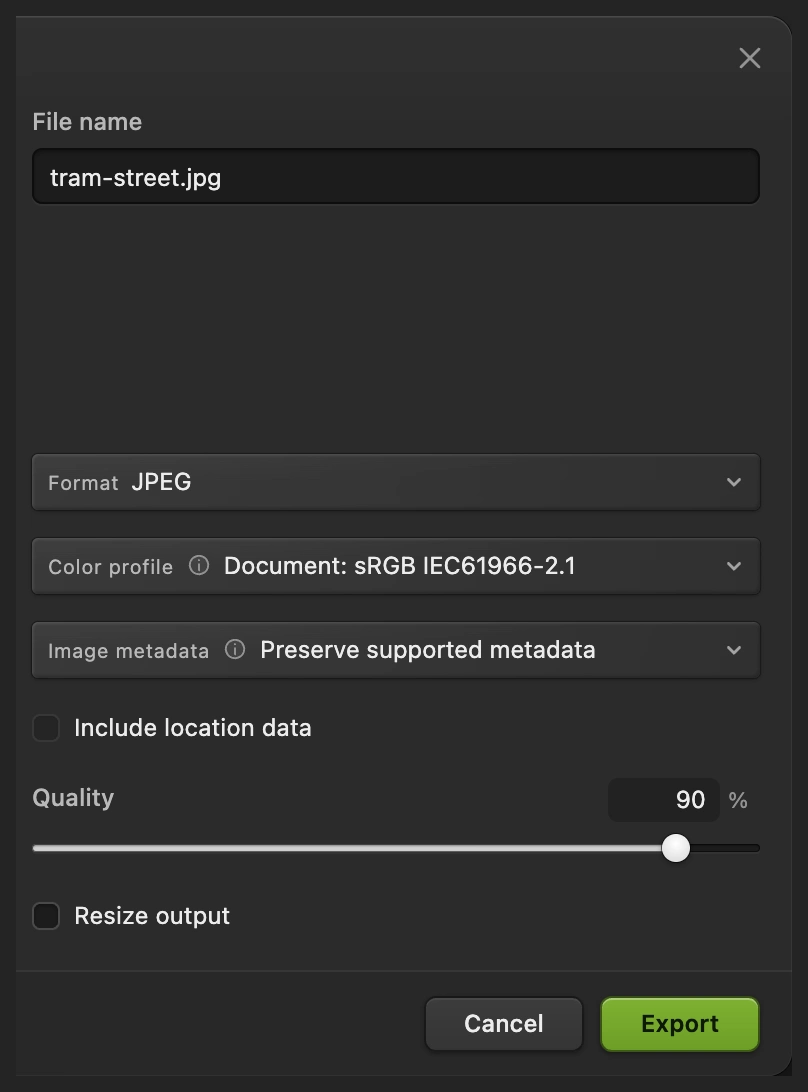
Export a finished copy for sharing.
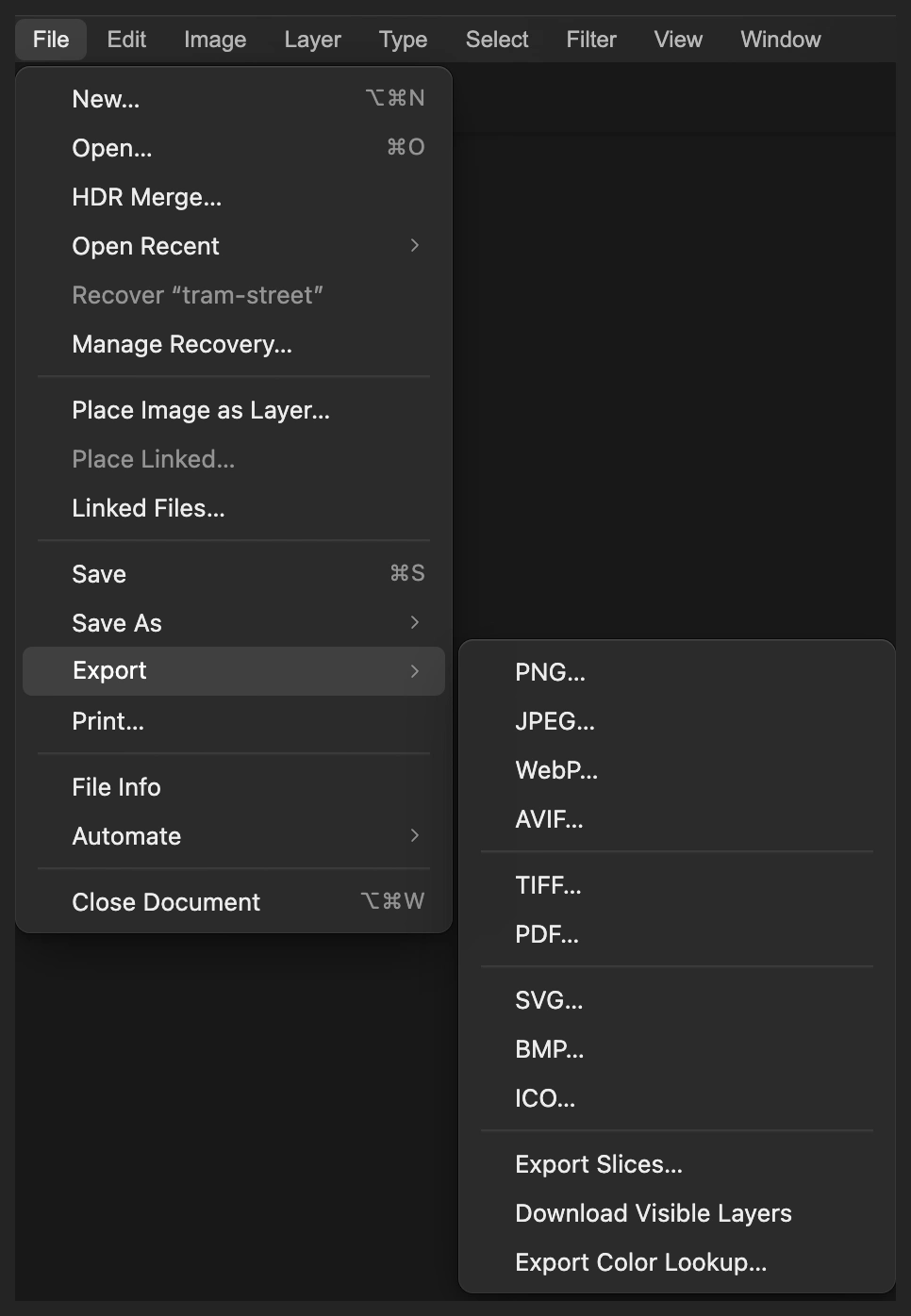
Reuse the faded colors with a Color Lookup
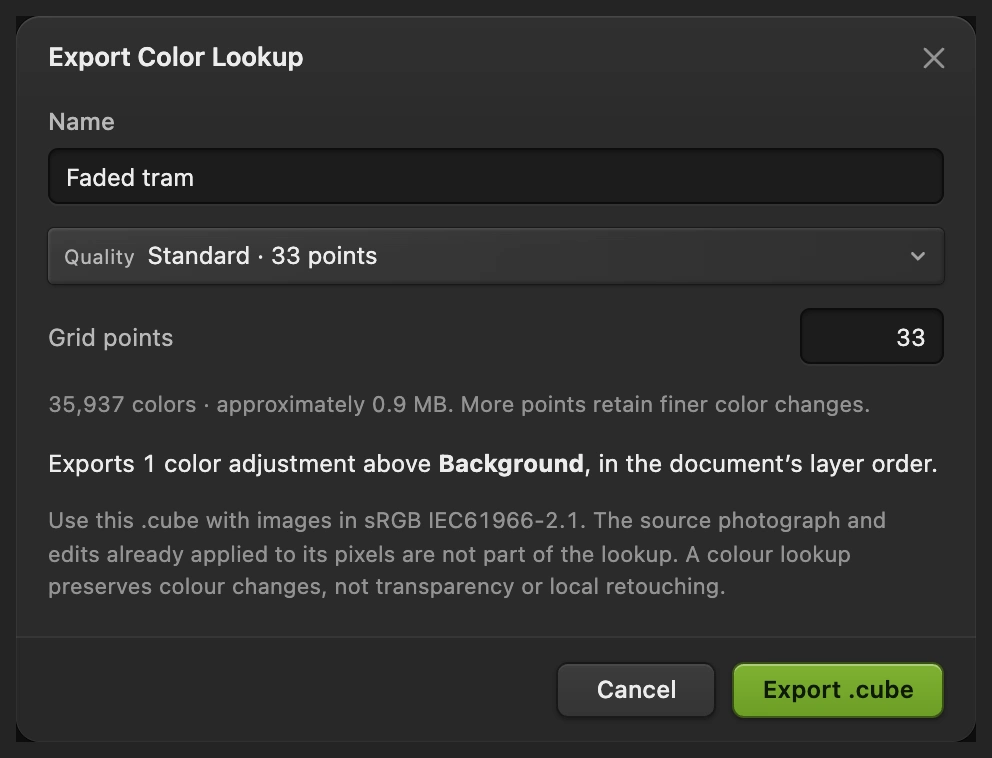
A color lookup, often called a LUT, maps input colors to new colors. You can export this Curves adjustment as a .cube file and apply it to another photo. It carries the fading and color shift, not the grain already applied to the copy’s pixels.
- Hide Background copy with its eye, leaving Background and Curves visible. The exporter needs one visible photo layer below the adjustments. Choose Set Name to Faded tram, keep Quality on Standard · 33 points, and click Export .cube.
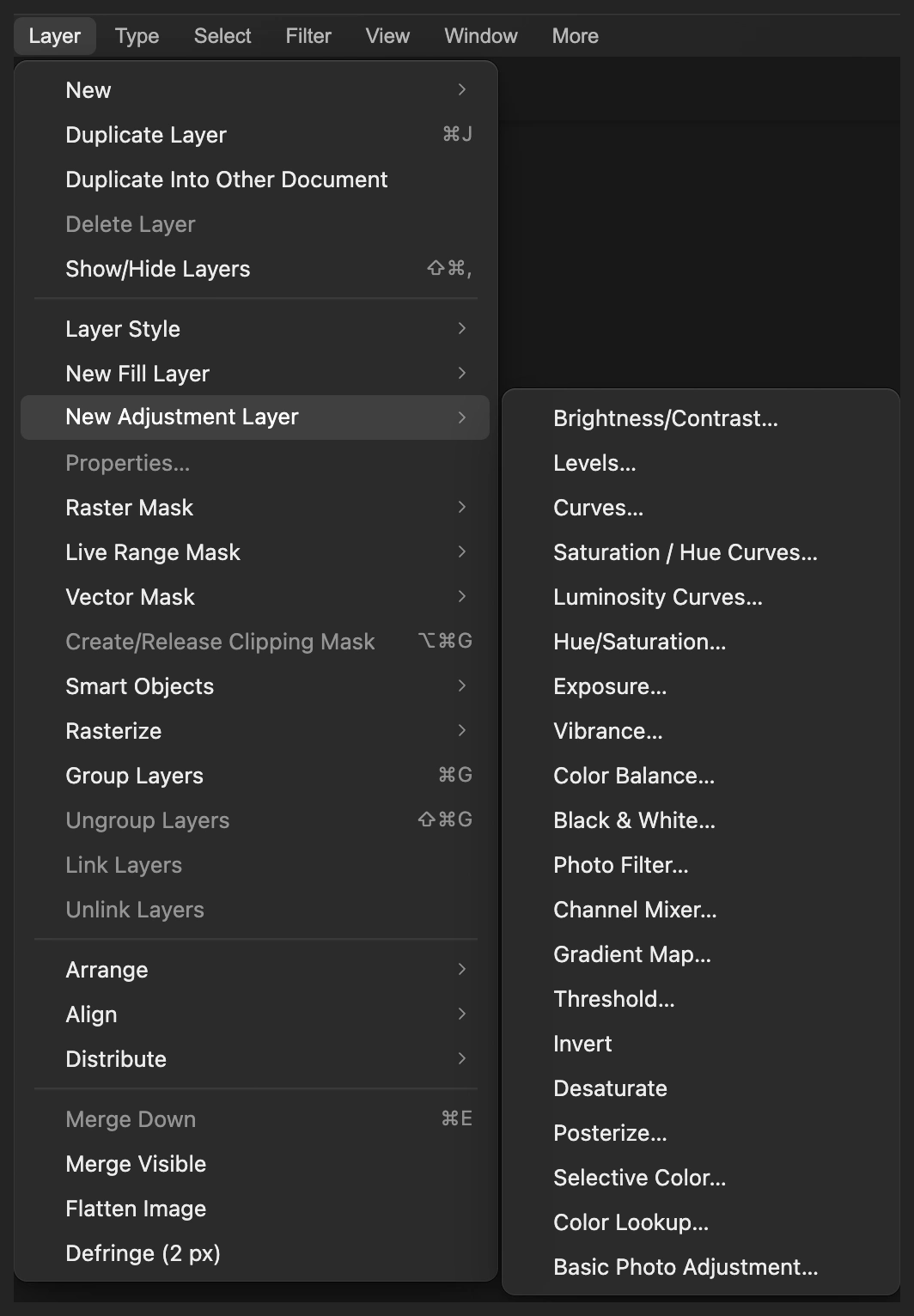
- Open an ungraded photo with ; to try the same sample, open tram-street.jpg again. Choose
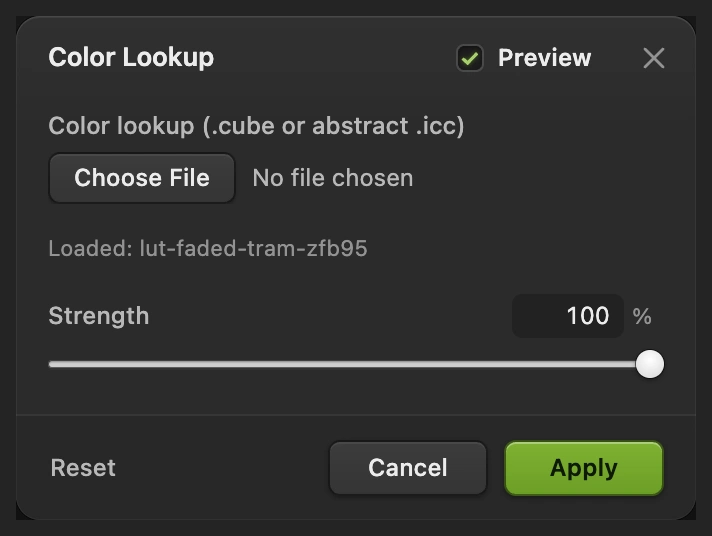
- Use the file button under Color lookup (.cube or abstract .icc) to choose Faded tram.cube. The button’s field clears afterward; the Loaded: line confirms the table. Keep Strength at 100% for the full tonal look, or lower it, then click Apply.
Use the same RGB color profile as the lookup export, sRGB for this sample. Starting exposure and colors still affect the result.
Fix common problems
The vintage effect looks washed out
Reopen Curves as in step 5. Move the RGB low-end Output closer to 0 and the high-end Output closer to 255. The faded look needs some separation between dark objects and their surroundings.
The bright areas look too yellow
In Curves, choose Blue and move the high-end Output closer to 255. This reduces the warm shift without changing the RGB fading.
The grain looks like coarse blotches
Size controls texture scale. Select Background copy, choose , then select Background and choose . Run Film Grain again with a smaller Size or lower Amount. Curves stays above and keeps its settings.
The lookup has the colors but no grain
Add the texture separately with Film Grain, as in step 2.
What to do next
Vintage photo effects: questions and answers
What makes a photo look vintage?
Faded dark tones, shifted colors and grain can suggest an older print. This Lil Cactus method combines those choices; it does not reproduce a particular film stock or camera.
How much film grain should I add for a vintage look?
In Lil Cactus, judge Film Grain at the size you will share. Raise Amount until you can see the texture, then inspect fine details at 100%. If the grain hides those details, lower Amount.
Can I change the vintage colors after saving?
Yes. A Lil Cactus Project keeps the Curves layer editable through Layer › Properties… The grain copy and original also remain separate; a JPEG contains only their combined appearance.
Does a vintage Color Lookup include grain?
No. Lil Cactus’s .cube export carries global color and tone adjustments, not texture already applied to a photo layer. Add Film Grain separately.
Is my photo uploaded for a vintage effect?
No. Lil Cactus applies Film Grain, Curves and Color Lookup on your device.
Keep going
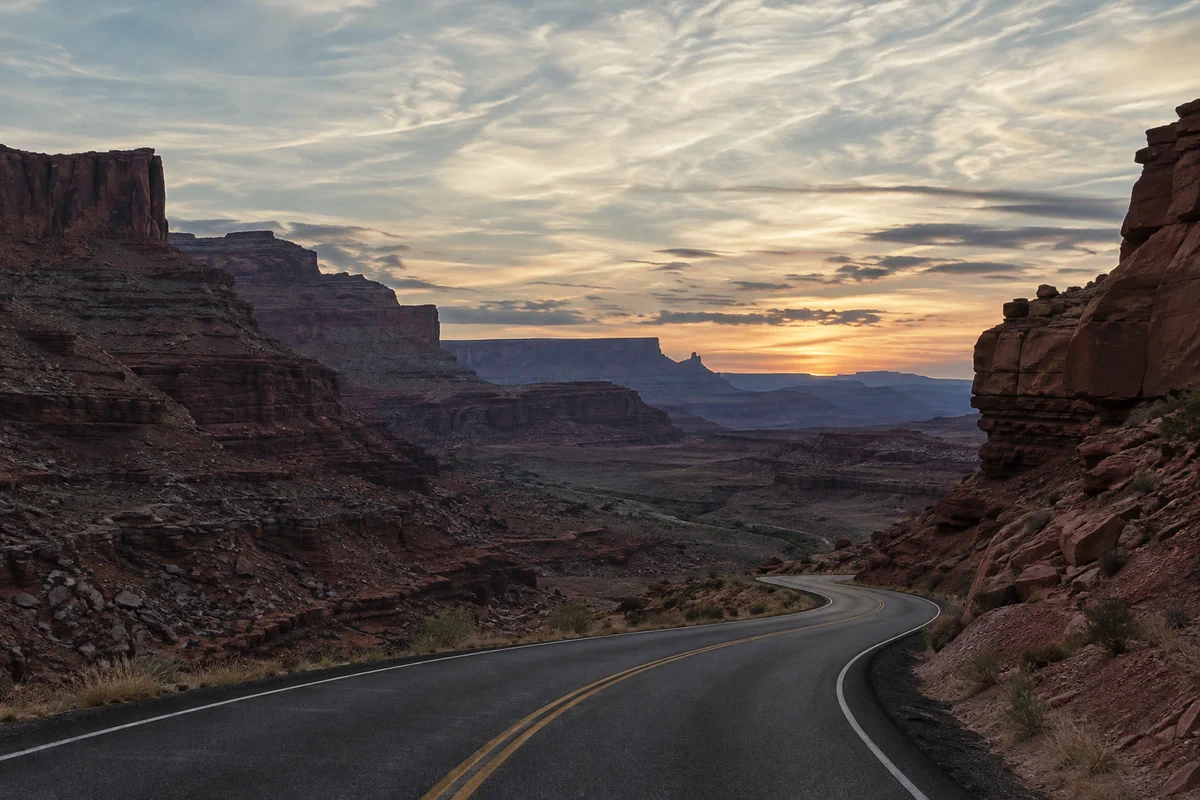 How to use Curves to fix contrast and colorRead the graph, build an S-curve and shift color by channel.Intermediate · 8 min
 How to color grade a photoShape contrast, then add cool shadows and warm light.Intermediate · 7 min
 How to use adjustment layersColor and tone changes you can retune, hide or limit to one area.Beginner · 5 min