How to add glow and light effects to a photo
Quick answer
In Lil Cactus, open your photo, choose , then For the evening-street sample, set Amount to 100%, Radius to 55 px and Highlight threshold to 35%, leave Soft threshold at its 25% default, and click Apply. Compare the glowing copy with the original using its eye in Layers. Choose to keep both layers, then for a finished copy.
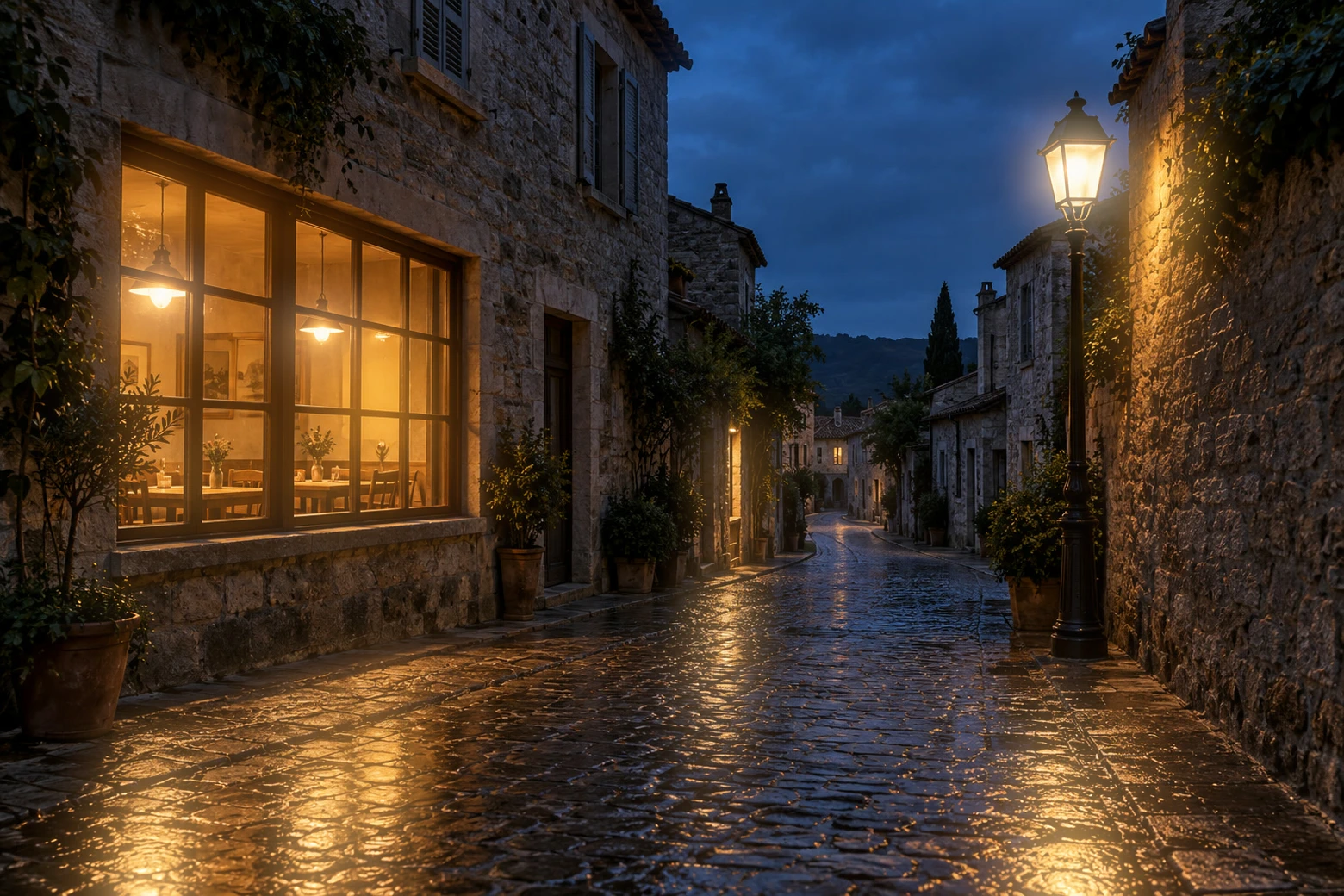
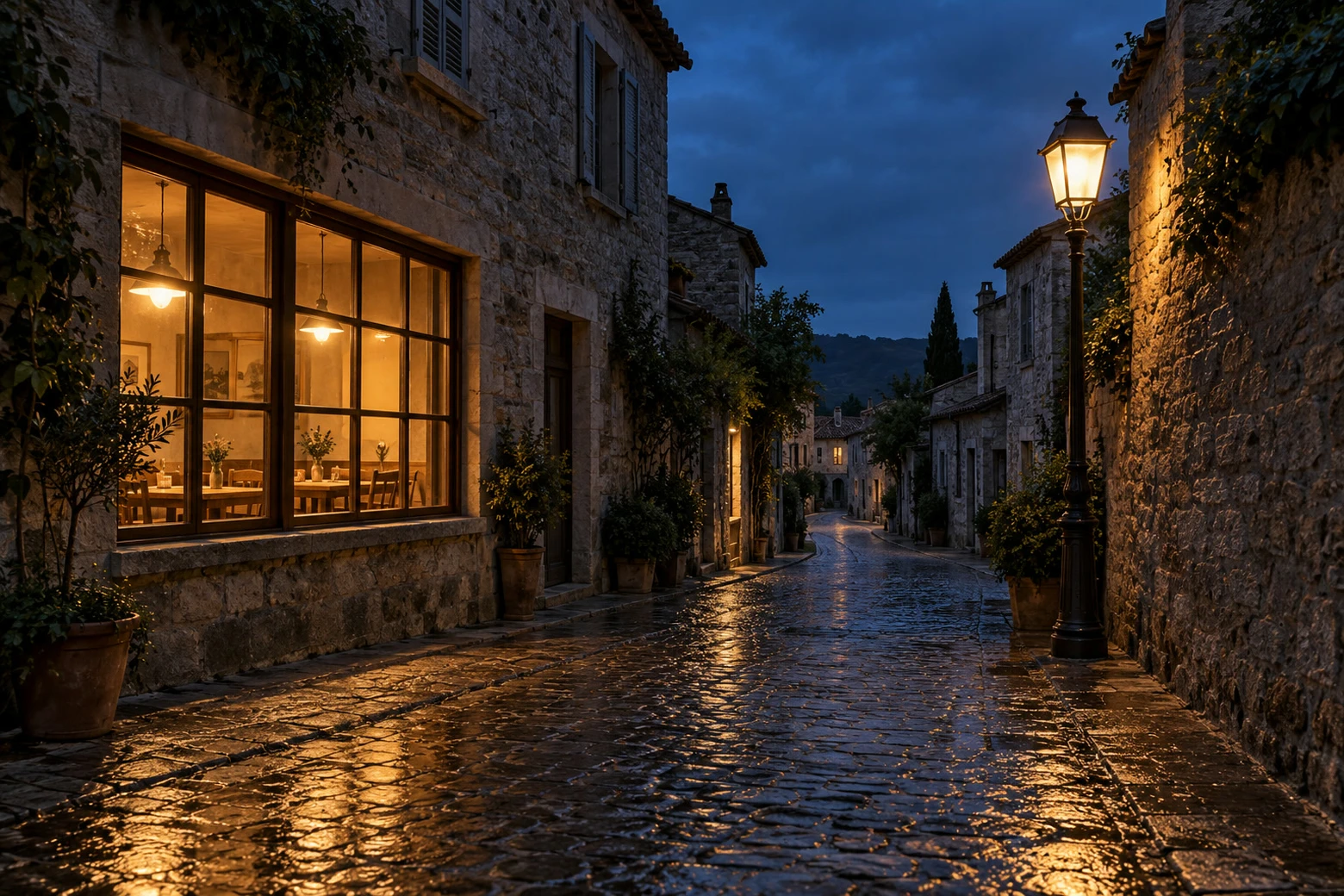
- Time
- 6 minutes
- Level
- Intermediate
- You need
- A photo with bright lamps, windows or other highlights
- Works with
- RGB photo layers, including JPEG and PNG
Bloom spreads light from bright parts of a photo into their surroundings. A small amount can make lamps or sunlit edges feel softer. The evening sample has bright light sources against dark stone, so the change is easy to see.
Apply the filter to a copy of the photo. These filters change the copy’s pixels, while the original underneath gives you a comparison and a fresh starting point for another version.
Add highlight glow in five steps
Open the photo and keep an original layer
Choose and open your photo, or open the sample from this page. Choose .
The selected Background copy sits above Background. Apply the glow to that copy.
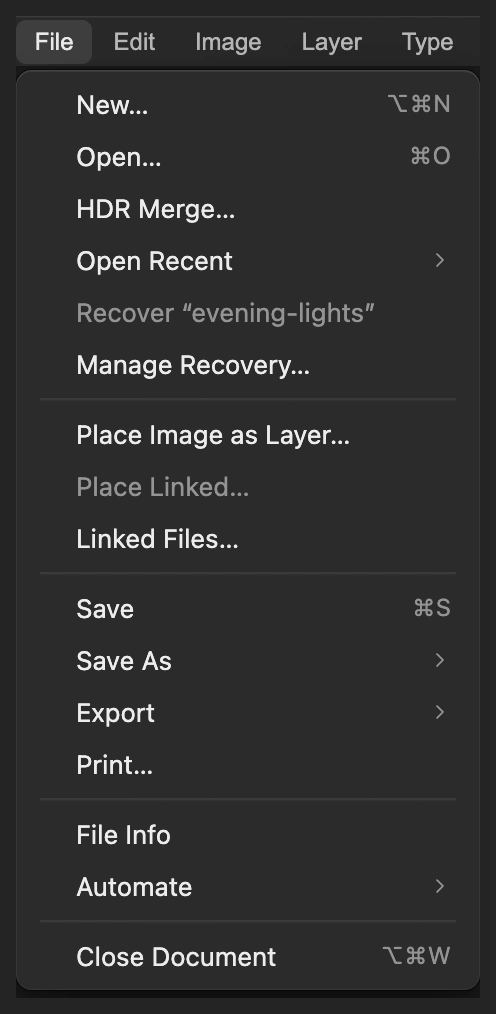
Open the photograph as a document. 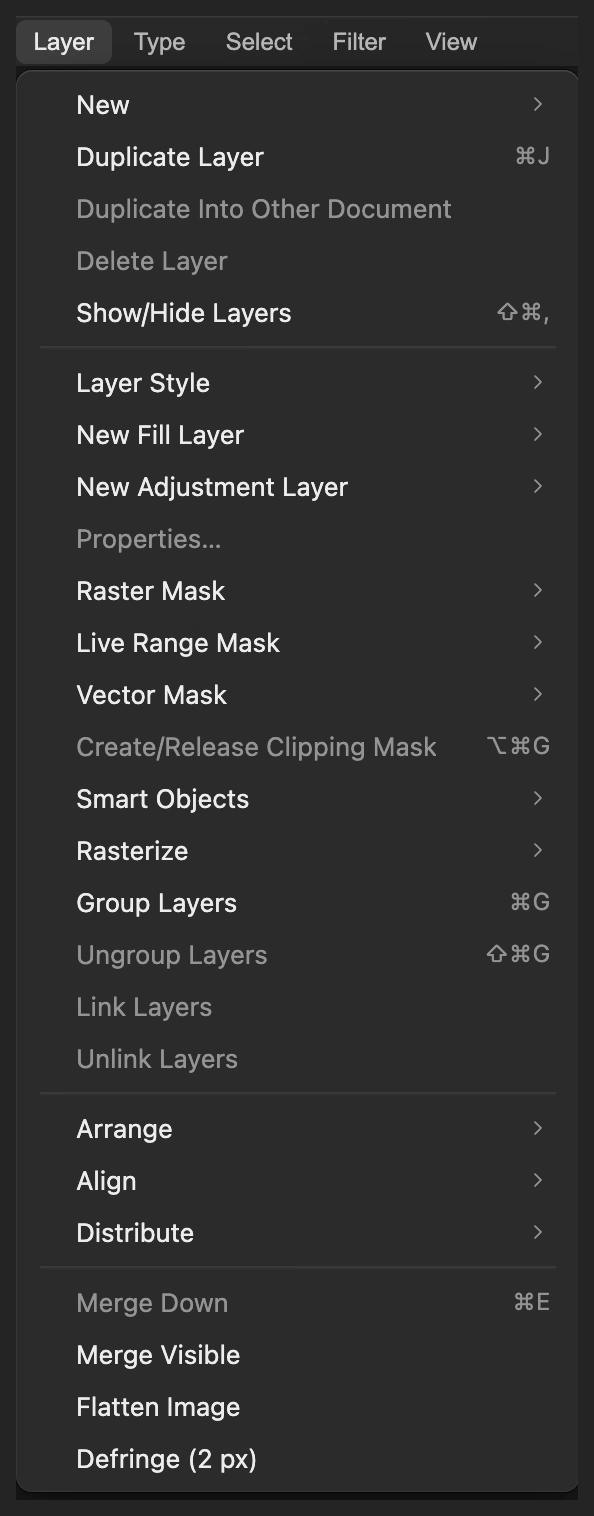
Keep the original below the filtered copy. Set the strength and width of Bloom
Choose For the sample, set Amount to 100% and Radius to 55 px.
Amount controls the glow’s strength. Radius controls how far the light spreads. Leave the dialog open for the highlight settings.
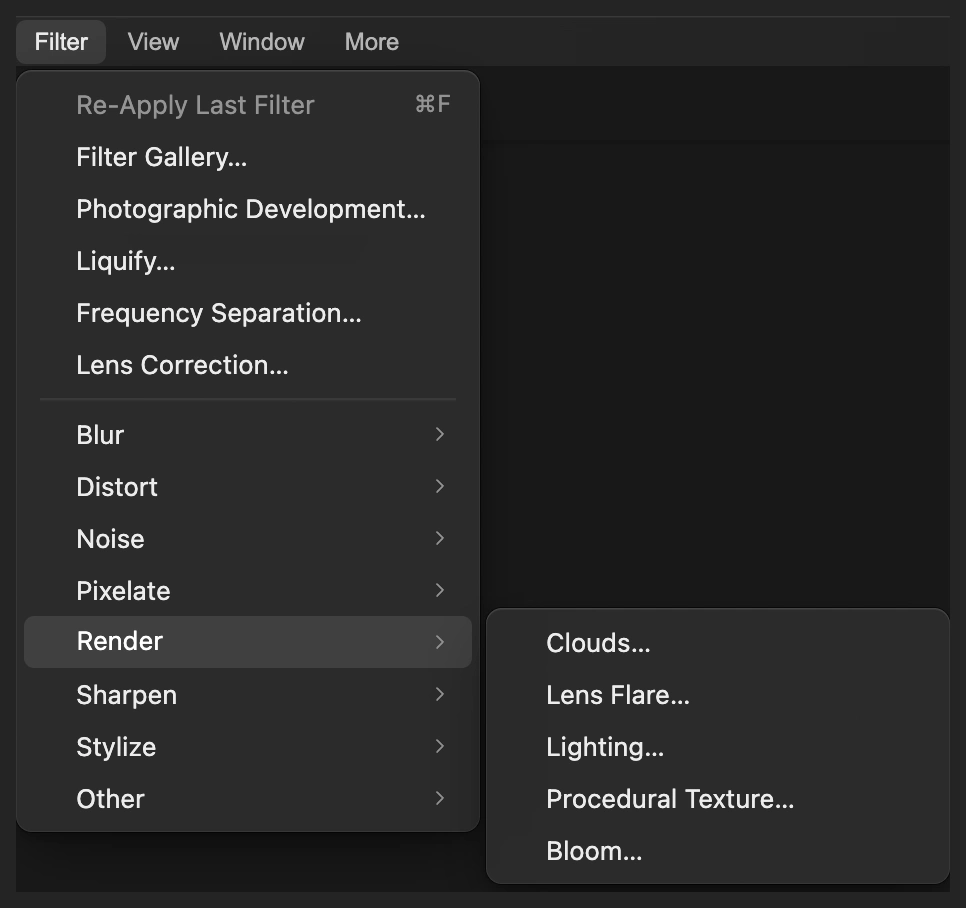
Bloom spreads existing bright areas into a glow. 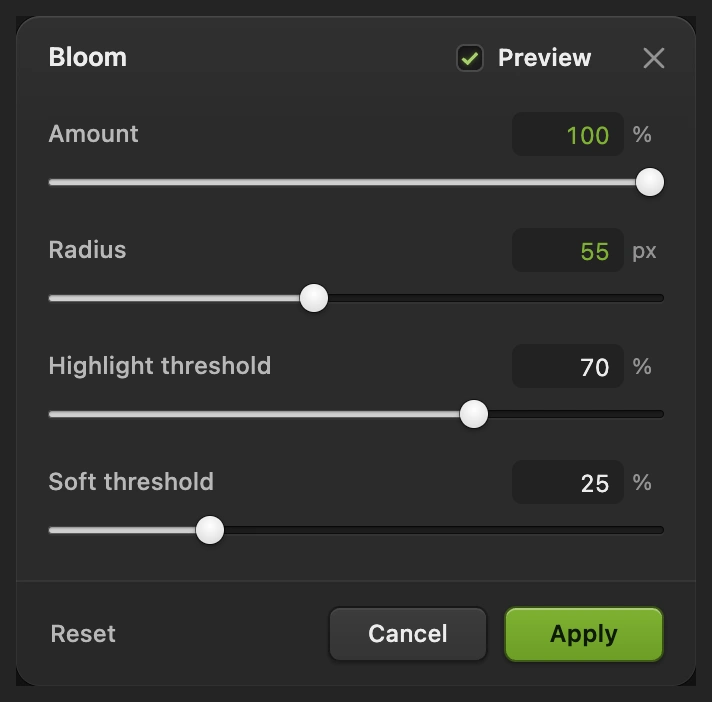
Set strength and width first; change the threshold in the next step. Choose which highlights glow and apply
Set Highlight threshold to 35%. Higher values restrict the effect to brighter highlights; lower values include more of the picture. Leave Soft threshold at 25%, its default, for a gradual transition near the cutoff.
Click Apply and wait for the filter to finish. The café lights and lamp now spread soft warm halos into the nearby stone and sky.
Tip To revise these settings now, before using the eye in step 4, press Ctrl+Z or ⌘Z and repeat steps 2–3.
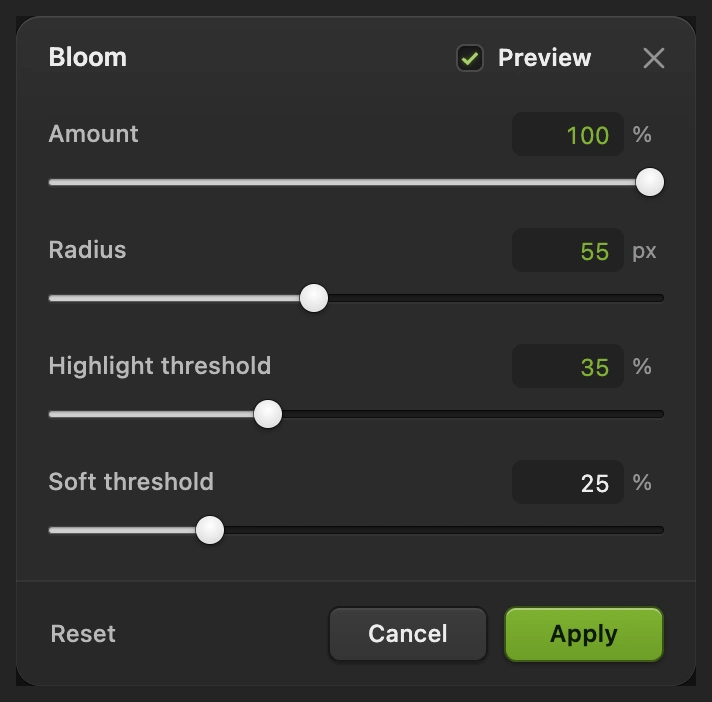
Use the lower threshold for this sample’s warm windows as well as its pale lamp. Compare the lights and inspect their edges
Click the eye beside Background copy in Layers to see the original. Click it again to restore Bloom.
Compare the whole photo, then the lamp detail below. Its dark metal frame should still read inside the halo. Check the café’s window divisions too, so the glow adds softness without washing away their shape.
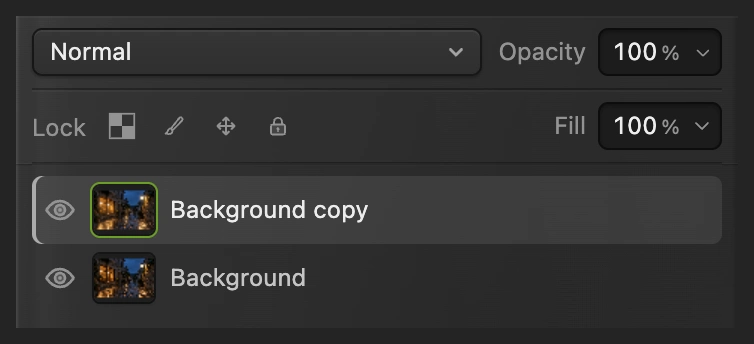
The eye switches between Bloom and the untouched original. 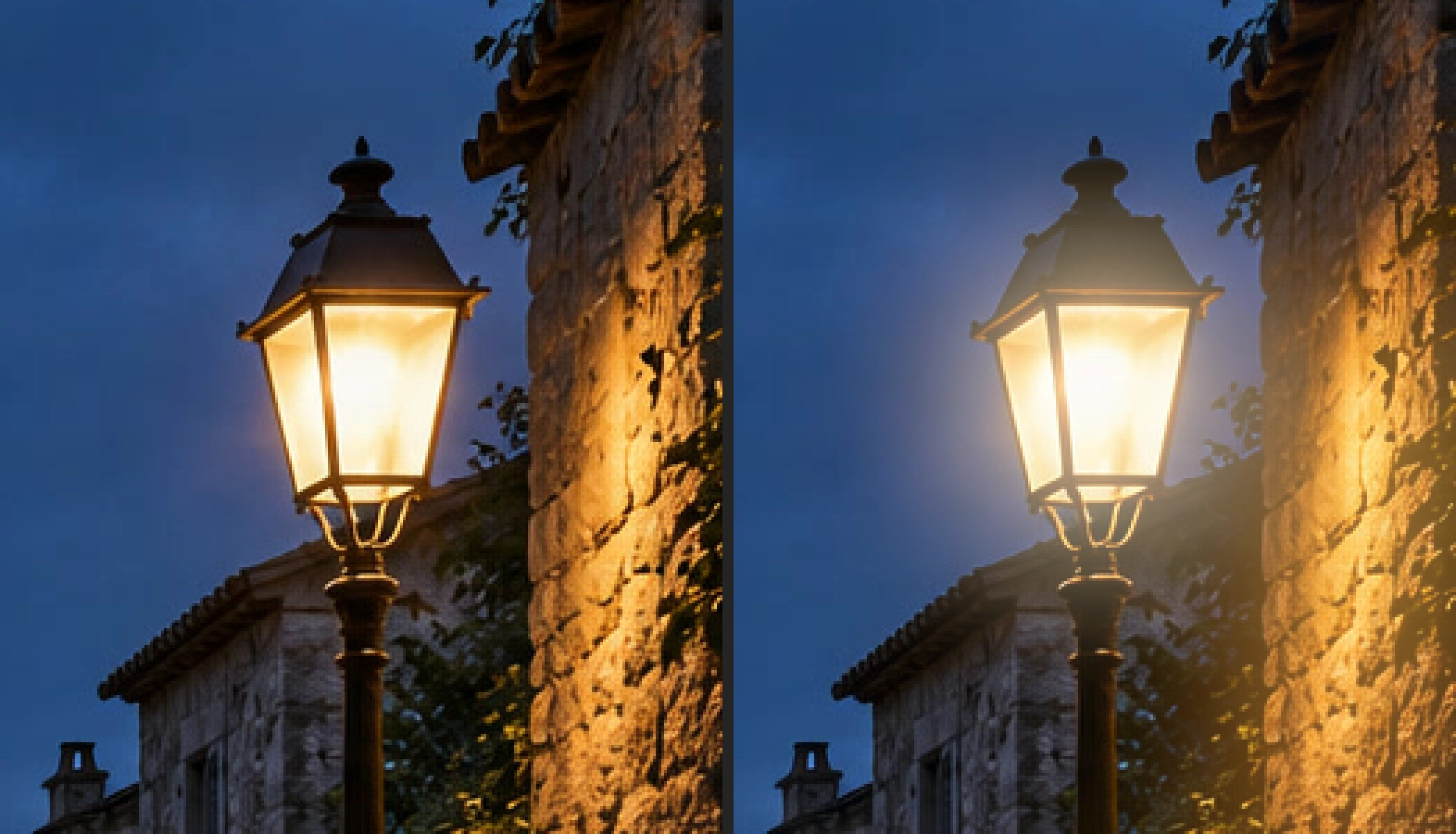
Original left, Bloom right. The halo spreads beyond the lamp’s housing. Save the layers and export the picture
Choose to keep the original and glowing copy. After that, saves the project. Choose and click Export for a new finished photo.
If you stay with the opened JPEG, writes a flat picture in that format; its first Save opens Save Image.
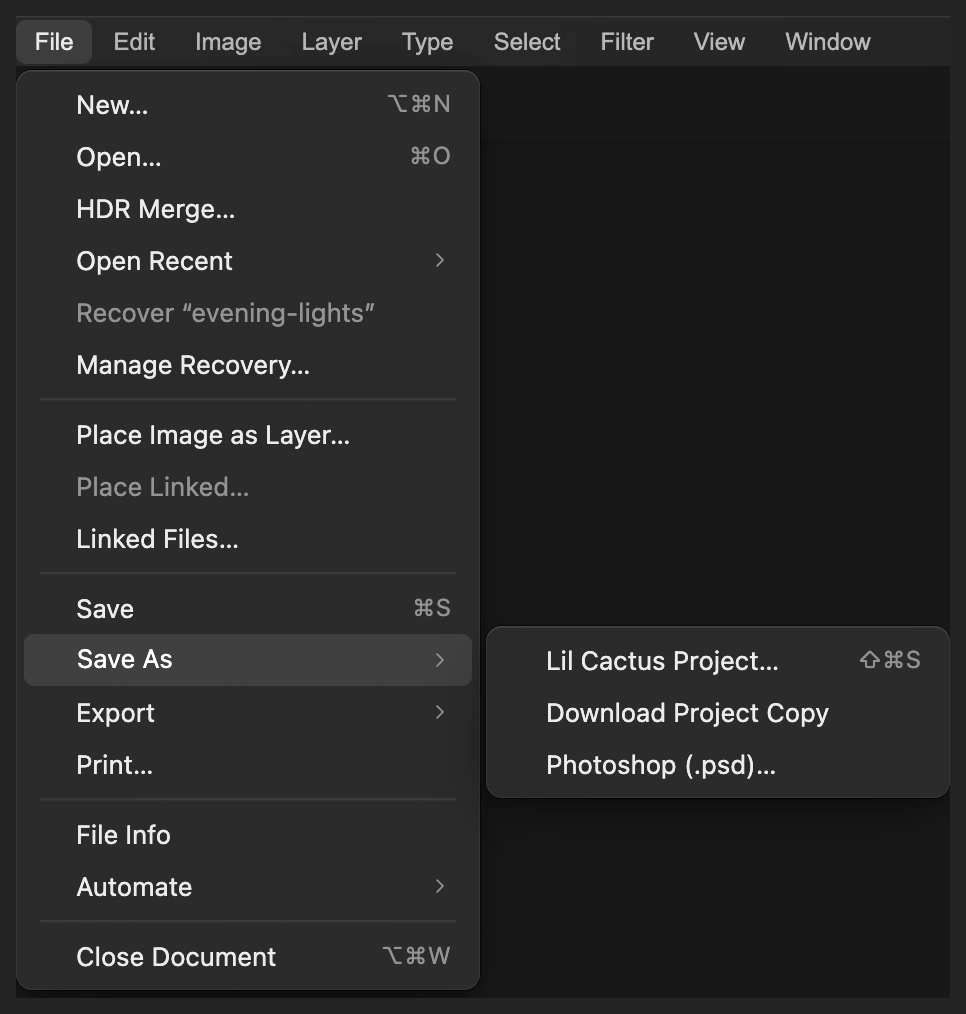
Keep both photo layers for another version later. 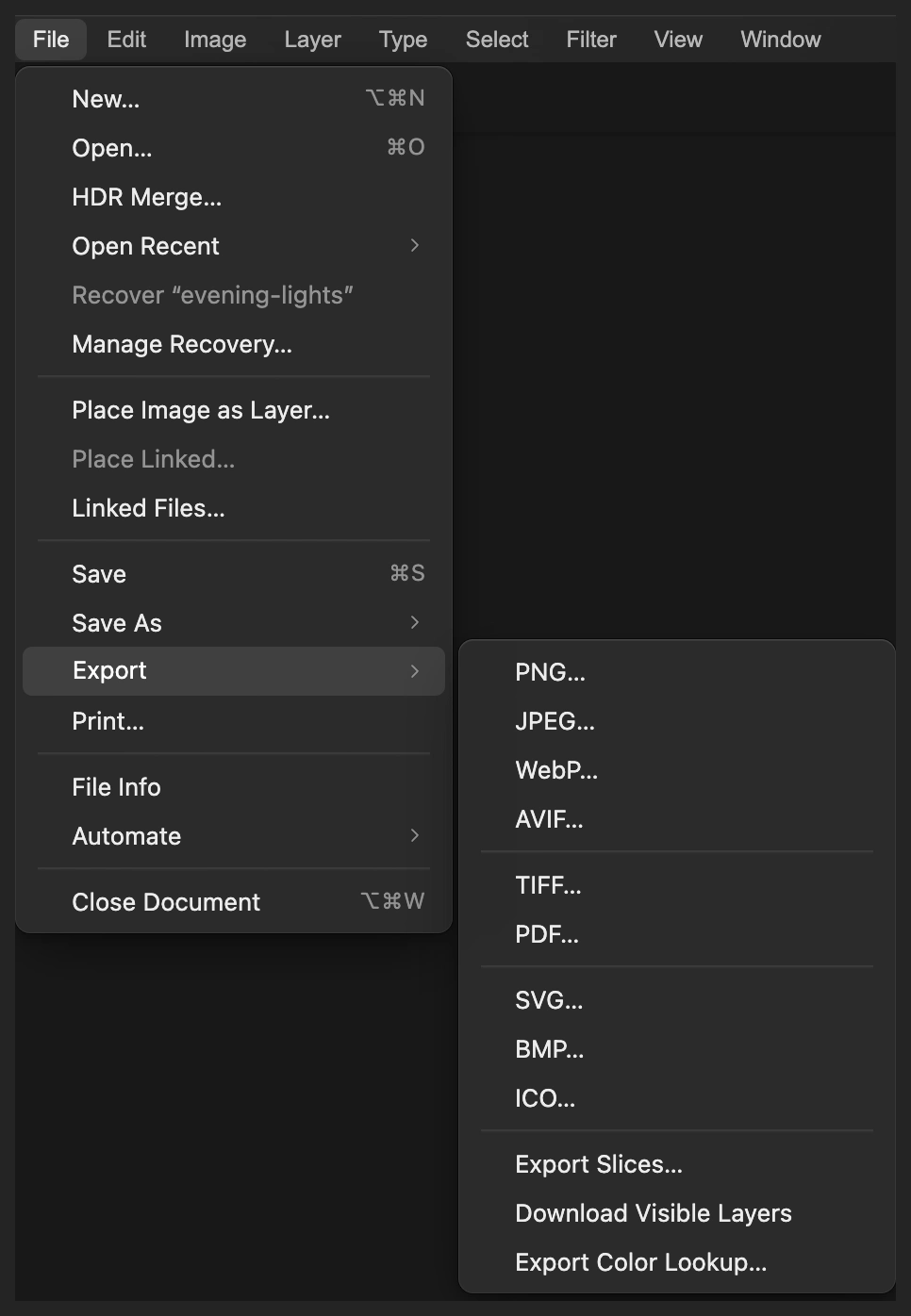
Export a combined JPEG to a new file. 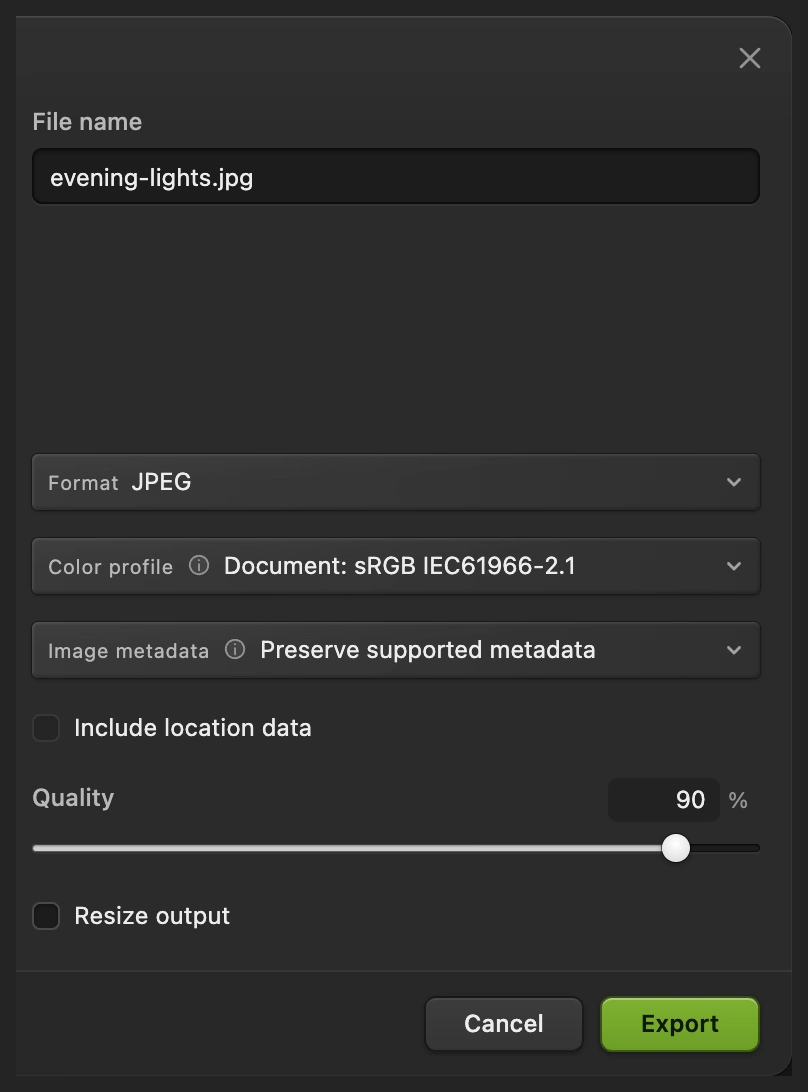
Export a finished copy for sharing.
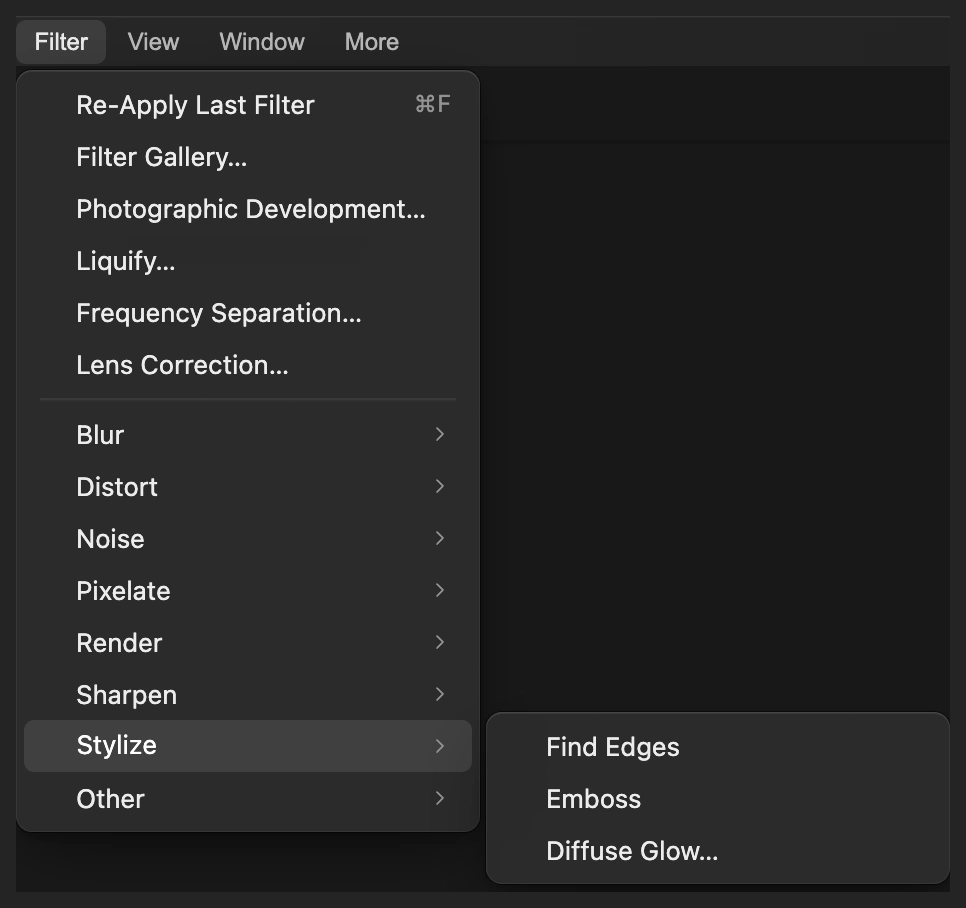
Use Diffuse Glow for a softer finish
For this example and the Lighting example below, start from a fresh original: choose , open evening-lights.jpg again and choose .
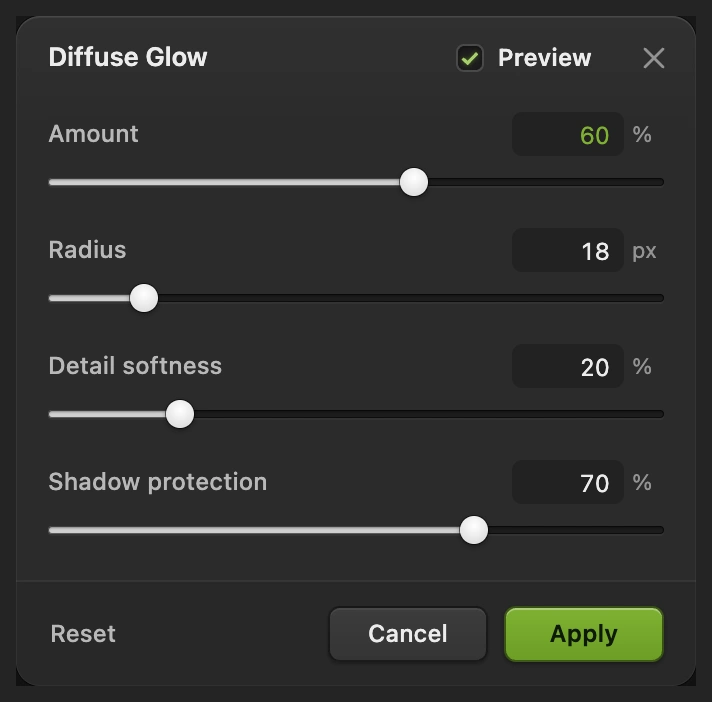
Choose On the sample, raise Amount from its 25% default to 60%. Keep Radius at 18 px, Detail softness at 20% and Shadow protection at 70%, their defaults. Click Apply.
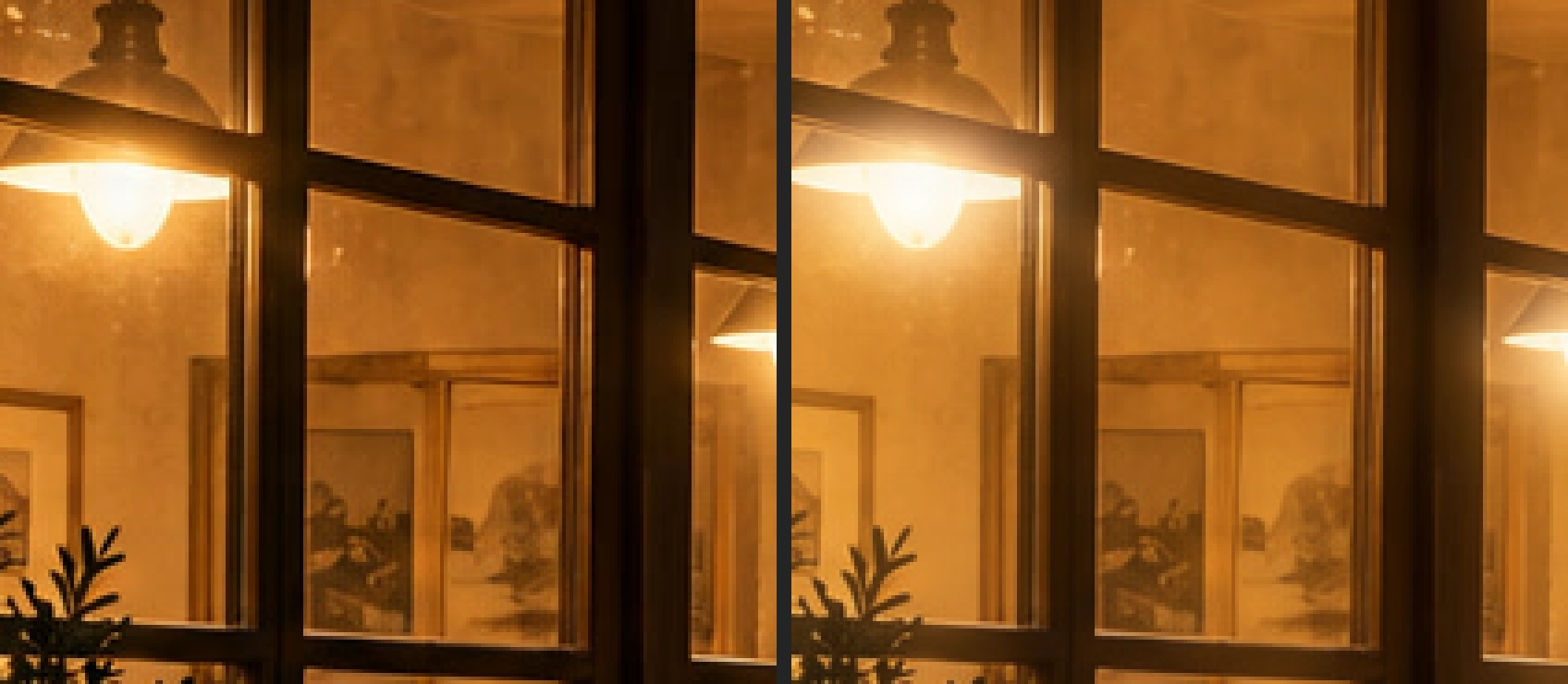
Diffuse Glow spreads a gentle haze through the middle tones as well as the highlights. Detail softness controls how much fine detail softens. Shadow protection reduces the change in dark areas; it does not make them immune to the effect.
Brighten a chosen area with Lighting
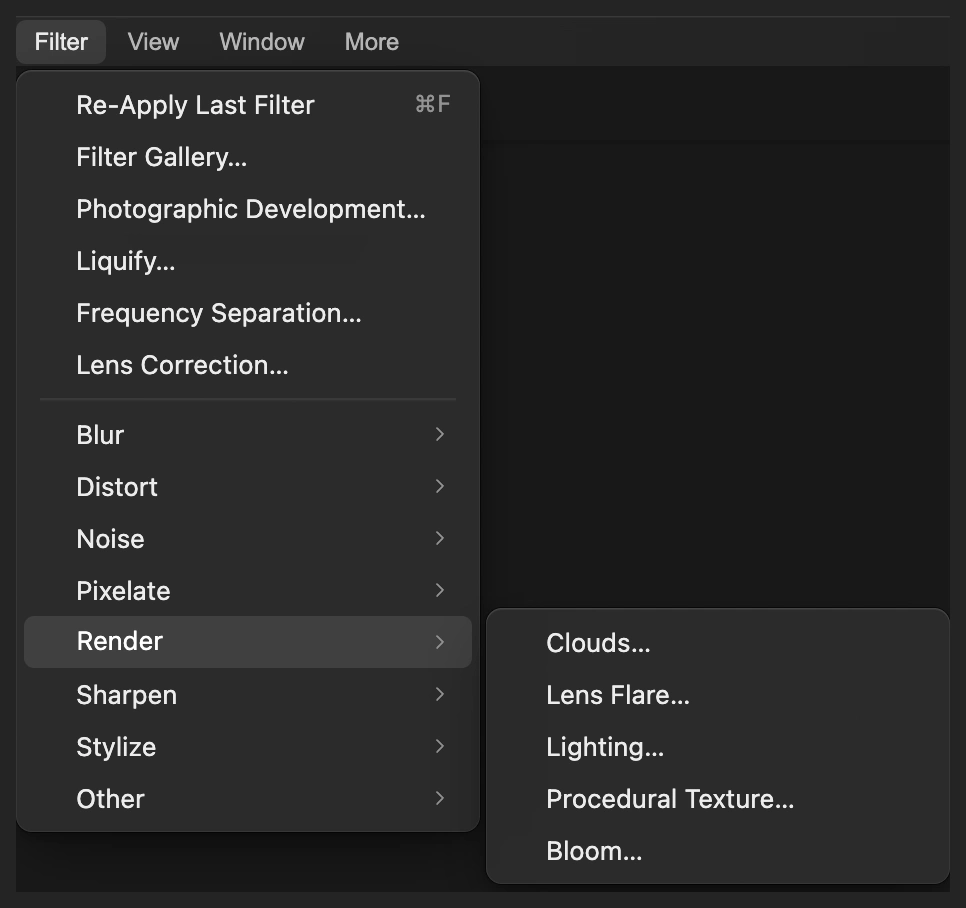
Start with another fresh original copy as above. Choose
EV measures a brightness change: positive values brighten the affected area, and negative values darken it.
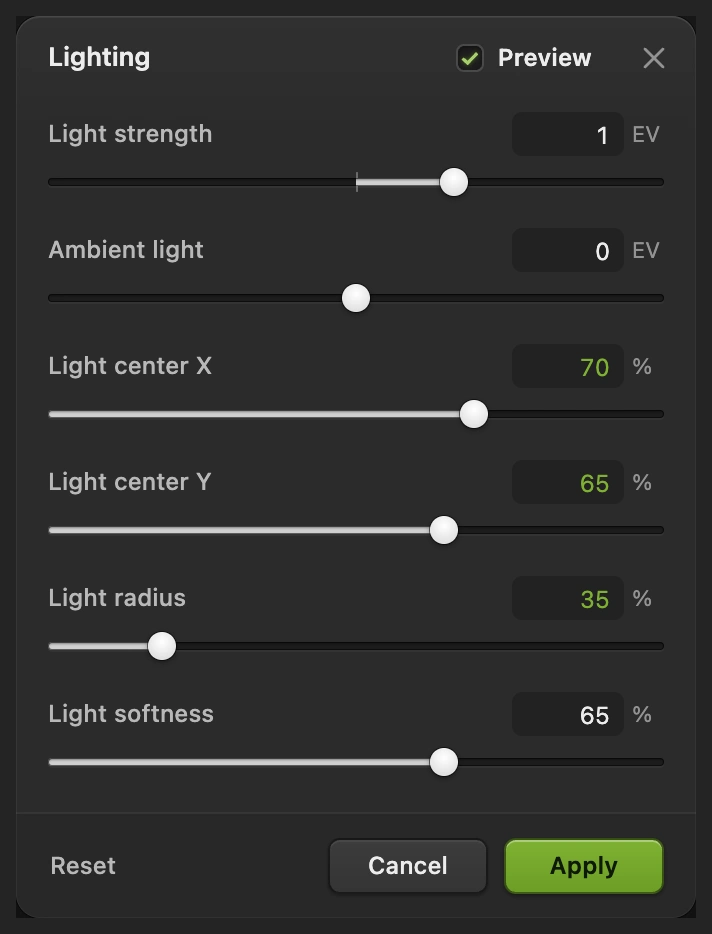
Set Light center X to 70%, Light center Y to 65% and Light radius to 35%. Leave Light strength at +1 EV, Ambient light at 0 EV and Light softness at 65%, their defaults. Click Apply.
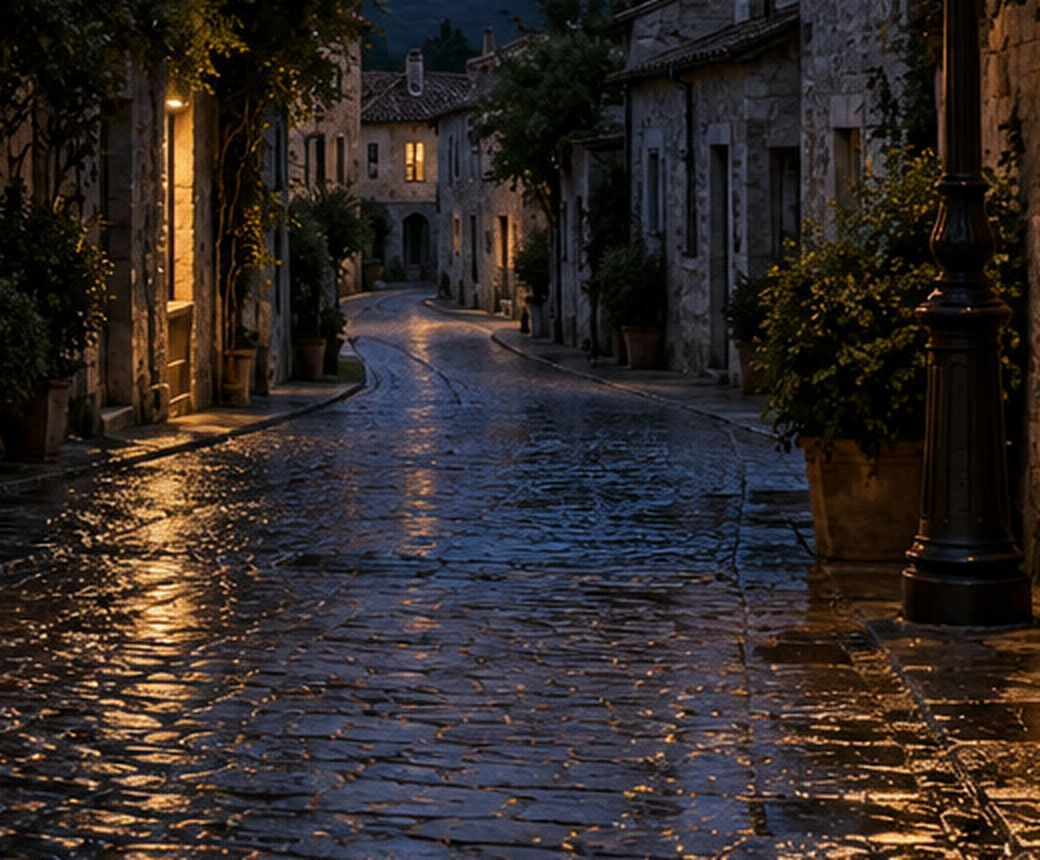
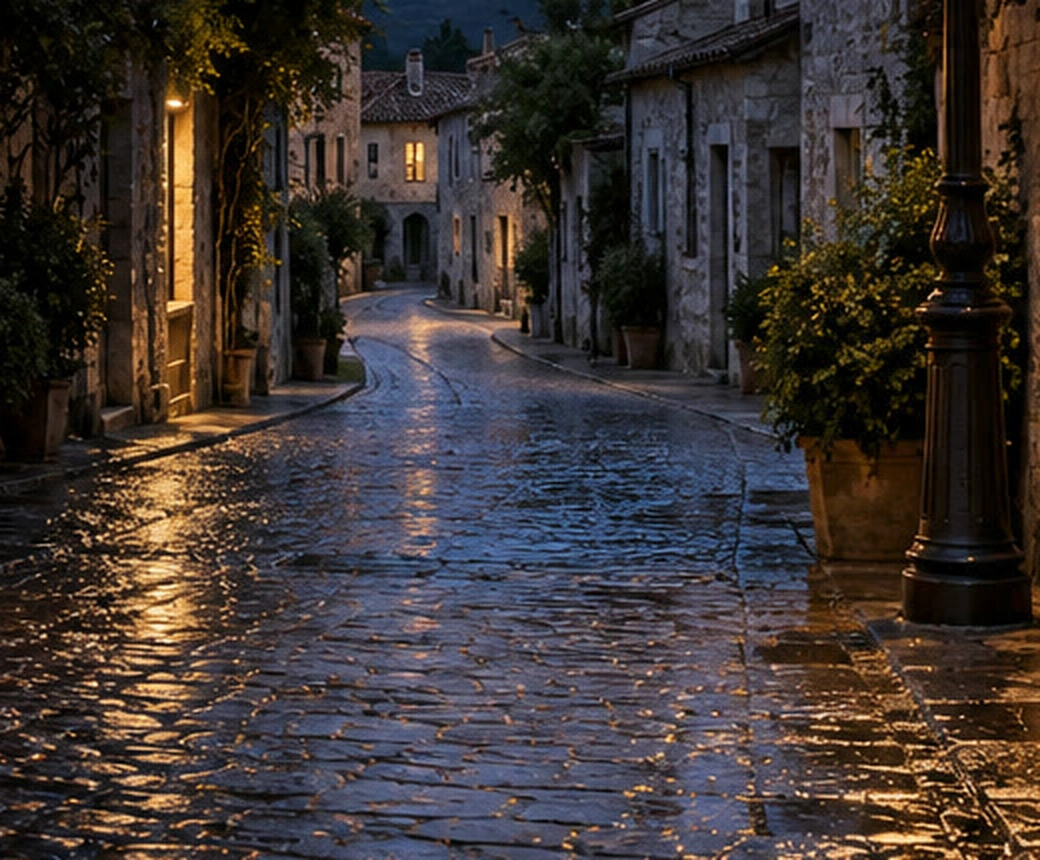
X is measured from the left and Y from the top. These values place a soft pool of brightness on the wet street below and to the left of the lamp. Light radius is a percentage of the shorter image side. Ambient light affects the whole image; keep it at 0 here to leave areas outside the pool unchanged.
Fix common problems
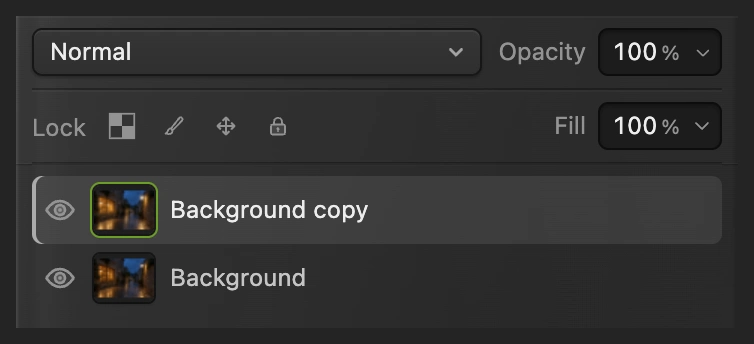
Once a filter is applied and you have compared or saved it, start a new version from the original: hide Background copy with its eye, select the Background row and choose . Apply new settings to the selected fresh copy.
The whole picture looks hazy
For Bloom, use a higher Highlight threshold so fewer tones produce glow. Diffuse Glow deliberately reaches more of the middle tones.
The halo reaches too far
Use a smaller Radius in Bloom or Diffuse Glow. Keep the glow close enough to the light source that nearby shapes remain readable.
The glow is too faint
If Amount is below 100%, raise it first. At 100% in Bloom, lower Highlight threshold to include more tones. A larger Radius spreads the glow over more space and may make the center less intense.
The Lighting change covers the whole photo
Check Ambient light is 0 EV, then reduce Light radius to limit the pool. Set its X and Y percentages to the part of the picture you want to brighten.
What to do next
Coming from another editor
- Photoshop
- Filter › Filter Gallery › Distort › Diffuse Glow.
Glow and light effects: questions and answers
What is the difference between Bloom and Diffuse Glow?
In Lil Cactus, Bloom extracts bright highlights and spreads their light. Diffuse Glow gives a broader soft finish through the middle tones, with separate Detail softness and Shadow protection controls.
How does Highlight threshold affect glow?
In Lil Cactus’s Bloom filter, a higher Highlight threshold limits the effect to brighter highlights. A lower threshold includes more tones, while Soft threshold smooths the transition around the cutoff.
Can I change glow settings after saving?
Yes, by making a fresh copy of the original layer in the Lil Cactus Project and applying new settings. The project keeps the original and filtered copy; the applied pixel filter has no saved settings dialog to reopen.
How is Lighting different from Bloom?
Lil Cactus’s Lighting brightens or dims an area around an X/Y position, with a separate whole-image Ambient light control. Bloom spreads light from highlights already in the photo.
Is my photo uploaded when I add glow?
No. Lil Cactus runs Bloom, Diffuse Glow and Lighting on your device.
Keep going
 How to give a photo a vintage film lookCombine grain, faded shadows and warm highlights.Intermediate · 8 min
 How to color grade a photoShape contrast, then add cool shadows and warm light.Intermediate · 7 min
 How to use layer masksHide part of a layer without deleting it, and bring it back any time.Beginner · 5 min