How to use Eraser and Background Eraser
Quick answer
In Lil Cactus, choose and hide the original with its eye button. For the sample, choose Background Eraser from the eraser tool group, set Sampling to Background swatch, make the rear color square white, set Tolerance to 32 and turn Contiguous off. Clear the white background first, then use Eraser to remove the small orange subtitle. Export with to keep transparent areas.


- Time
- 6 minutes
- Level
- Beginner
- You need
- An image with its background intact; a plain background suits Background Eraser
- Works with
- Photo and graphic layers from JPEG, PNG or WebP files
Eraser removes everything under its brush. Background Eraser also uses a brush, but checks colors before erasing: it can clear white around dark lettering without rubbing out the letters themselves.
Both delete pixels from the selected layer. Keep the original on a hidden layer so you can return to it. For an edge you want to repaint later, use a layer mask, which hides or reveals pixels instead of deleting them.
Use both erasers in seven steps
Open the sample and keep a copy
Open the sample from this page, or use Choose . In the Layers panel, click the eye beside the lower Background row to hide it. Keep Background copy selected.
Hiding the lower layer lets you see transparency. If it stayed visible, the original white background would show through every erased area.

Work on Background copy. The ringed visibility button shows that the original below it is hidden. Choose Background Eraser
Right-click the eraser group in the left toolbar, or press and hold it, and choose Background Eraser.
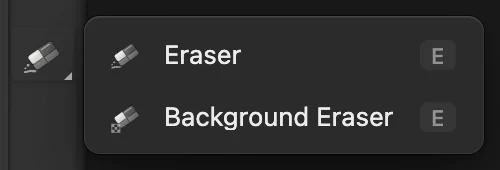
Right-click the ringed eraser button, then choose Background Eraser. Tell it which color to remove
Press D to reset the colors: the front square becomes black and the rear square becomes white.
On the options bar under the menus, set Size to 500 px. Hardness stays at 100%. Choose Sampling: Background swatch, which uses that rear square. Set Tolerance to 32, leave Anti-alias on and uncheck Contiguous. Tolerance controls how different a color can be from white and still be erased. Contiguous off lets the brush clear separate white areas, including the cup handle and the holes inside letters.

Bottom of the left toolbar, enlarged. The rear white square supplies the Background swatch color. 
A large tip covers the sample’s empty background with a few passes. 
Background swatch keeps the target color fixed at white. 
Contiguous is off, so white areas enclosed by the design are included. Brush over the white background
Drag across the top, middle and bottom of the image, with the large circles overlapping. Cover the corners too. In Background swatch mode the center can cross the green design: the target stays white.
The gray-and-white checkerboard shows where pixels are transparent. The logo and both lines of lettering remain.

Background Eraser has cleared the white around and inside the design. Switch to the ordinary Eraser
Choose Eraser from the same toolbar group. Set Size to 80 px. Hardness, Opacity and Flow stay at 100%.
Unlike Background Eraser, this tool removes every color it touches. Opacity limits the strength of a stroke; Flow controls how quickly overlapping brush dabs build the erasure while you drag.
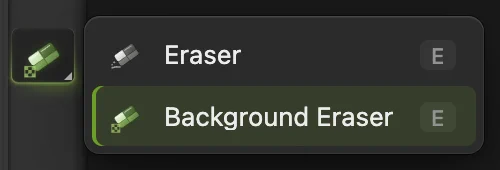
Right-click the ringed toolbar button and choose Eraser. 
The ordinary Eraser, sized to cover the small subtitle. 
Opacity and Flow at 100% give full-strength erasing. Erase the small subtitle
Drag through the center of the orange COFFEE ROASTERS line, from just before its first letter to just after its last. Keep the brush below the large green name. The small line disappears and the checkerboard shows through.
Choose if you go too far. A completed drag is one Undo step.
Export a PNG or keep the layers
Choose and click Export. PNG keeps transparency; JPEG fills it with white.
Choose to keep the edited copy and hidden original as separate layers. After that, updates the project. If you choose before saving a project, it keeps the opened image’s format. For the JPEG sample, that means a flat JPEG; the first Save opens Save Image.

The edited copy, ready to export as PNG.
How Background Eraser chooses its color
| Sampling | Use it when |
|---|---|
| Background swatch | You know the background color. The rear color square supplies it, so crossing the subject does not choose a new color. |
| Once | You want each stroke to keep the color under its first click. Start on visible background, not on an already transparent area. |
| Continuous | The background color varies. The crosshair samples again as you move; keep it on the background, because crossing the subject can choose its color instead. |
Raise Tolerance to include more colors, or lower it if similar subject colors disappear. Its scale is 0–255, not a percentage.
Fix common problems
Nothing is erased
Click the image thumbnail of the layer you want to edit. Background Eraser cannot sample a layer mask. Also check the layer’s locks and choose if an old selection is keeping the brush out.
A white fringe remains around a JPEG logo
JPEG edges already contain pixels mixed with white. Erasing the white cannot restore the original edge colors. Select the ink with Color Range and add a mask for that kind of logo.
What to do next
- Keep an editable edge: use a layer mask.
- Control soft and solid brush strokes: use the Brush tool.
- Cut out a person or pet: remove the background from a photo.
Eraser tools: questions and answers
What is the difference between Eraser and Background Eraser?
In Lil Cactus, Eraser removes every pixel under its brush, whatever the color. Background Eraser removes pixels close to a sampled color, within the brush circle.
Why does the Eraser leave a white background?
In Lil Cactus, an erased area reveals any visible layer below it. Hide a white lower layer to see transparency, and export as PNG rather than JPEG.
Can I recover pixels I erased?
Yes, with Edit › Undo while that history is available in Lil Cactus, or from an original copy you kept. A saved project can keep that copy on a separate layer, but it does not keep the editing session’s Undo history.
Does Background Eraser automatically find a person or object?
No. In Lil Cactus it compares colors inside the brush circle. Use Select › Subject and a layer mask for a person or object against a varied background.
How do I make a partly transparent eraser stroke?
In Lil Cactus, lower the ordinary Eraser’s Opacity. For a gradual edge, lower Hardness too. A second completed stroke can remove more of the same area.
Which file format keeps erased areas transparent?
PNG does. In Lil Cactus, choose File › Export › PNG… for a finished image, or File › Save As › Lil Cactus Project… to keep the separate layers.
Keep going
 How to paint with the Brush toolPaint on a layer, control the tip and save a brush preset.Beginner · 6 min
 How to use layer masksHide part of a layer without deleting it, and bring it back any time.Beginner · 5 min
 How to make a signature or logo background transparentLift a signature or logo off white or paper.Beginner · 3 min