How to change text in an image
Quick answer
To change text in a JPG or PNG in Lil Cactus, sample the background with Eyedropper, select the old words with Marquee Select and cover them using if the background is one flat color. Choose the Text tool, match the font, size and color, then type the new words on a separate layer. Export a new image with If your file already has an editable text layer, change its Text content in the Properties panel instead.


- Time
- 6 minutes
- Level
- Beginner
- You need
- An image with words to replace; a flat background suits the main steps
- Works with
- JPG, PNG, WebP and other images; editable text layers in projects and supported PSD files
In a JPG or PNG, letters are pixels, just like the photo beside them. Clicking them with the Text tool cannot recover their original wording or font settings. You need to cover the old letters, then add new ones. A layered project is different: its text may still be editable.
Here you replace the headline on a coffee flyer. Its cream title panel has one solid color, so a fill repairs it cleanly. Text over a photograph needs background repair first, as explained below.
Replace the title in six steps
Open the image and duplicate its layer
Open the sample from this page, or choose for your image. The sample has one Background layer: the title is part of its pixels. Choose to make Background copy. Work on this copy so the untouched image remains underneath.
Before covering your own text, note its letter shapes, weight, size and color. For the sample, the title is Arial, bold, 104 px, color #34382F.
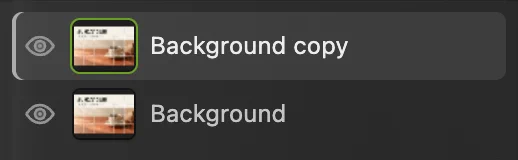
Background copy is the working layer. The original is underneath. Sample the panel and select the old title
Click Eyedropper in the left toolbar and click an empty part of the cream panel, toward the top right. This sets the foreground color, the front color swatch near the bottom of the toolbar, to the panel’s color.
Choose Marquee Select in the toolbar. It draws a sharp-edged rectangle by default (Shape: Rectangle, Feather: 0 on the options bar). Drag a rectangle around the whole title, with a little cream space on every side. Start above and left of the S, finish past the B and below the letters, and keep the smaller line outside the rectangle.
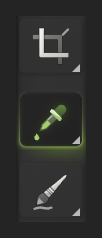
Click the pipette icon for Eyedropper. 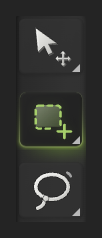
The dashed rectangle is Marquee Select. 
Include all of the title’s edge pixels, but leave the smaller line outside. Fill the old title with the sampled color
Choose . The selected rectangle becomes cream, covering the title. Then choose to remove the dotted outline.
The smaller line and the cup photo should still be there. If the whole image changed, undo with and make the rectangle again before filling.
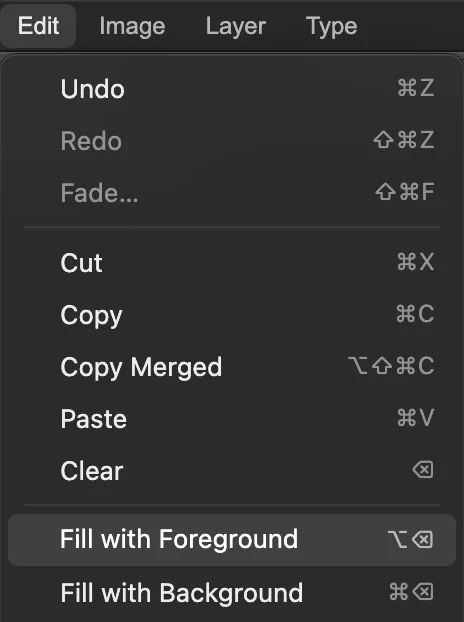
Fill with Foreground uses the color you sampled. 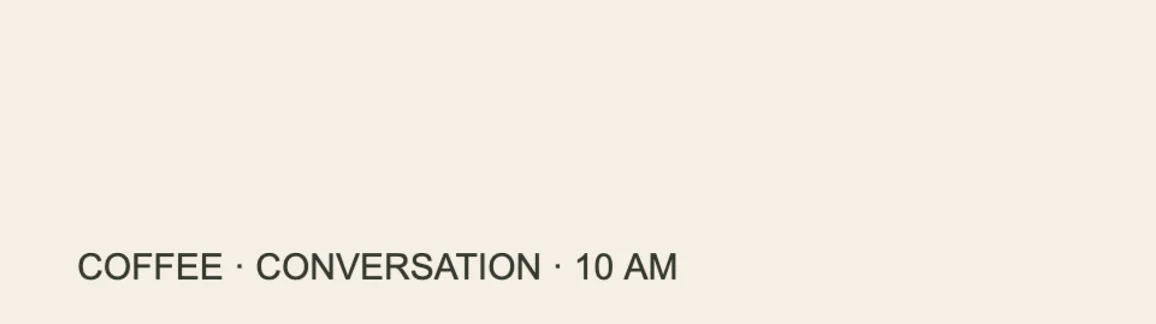
The flat panel is clear, ready for replacement text. Match the font, size and color
Choose Text in the toolbar. In the options bar, the strip under the menus, choose Arial, type 104 for Size and turn Bold on. Click the color swatch near the right end of the options bar, after the alignment buttons, to open Text Color, type 34382F in the # field and click OK.
For your own design, start with a font whose letter shapes match, then adjust its weight and size. To sample the old title’s color, hide Background copy with its eye icon in Layers before you open the picker, click inside a thick part of a letter, then show Background copy again. Avoid the letter’s soft edge, where it mixes with the background.
Choose the T icon for Text. 
The sample title uses Arial, 104 px, bold. 
This Color swatch opens Text Color. 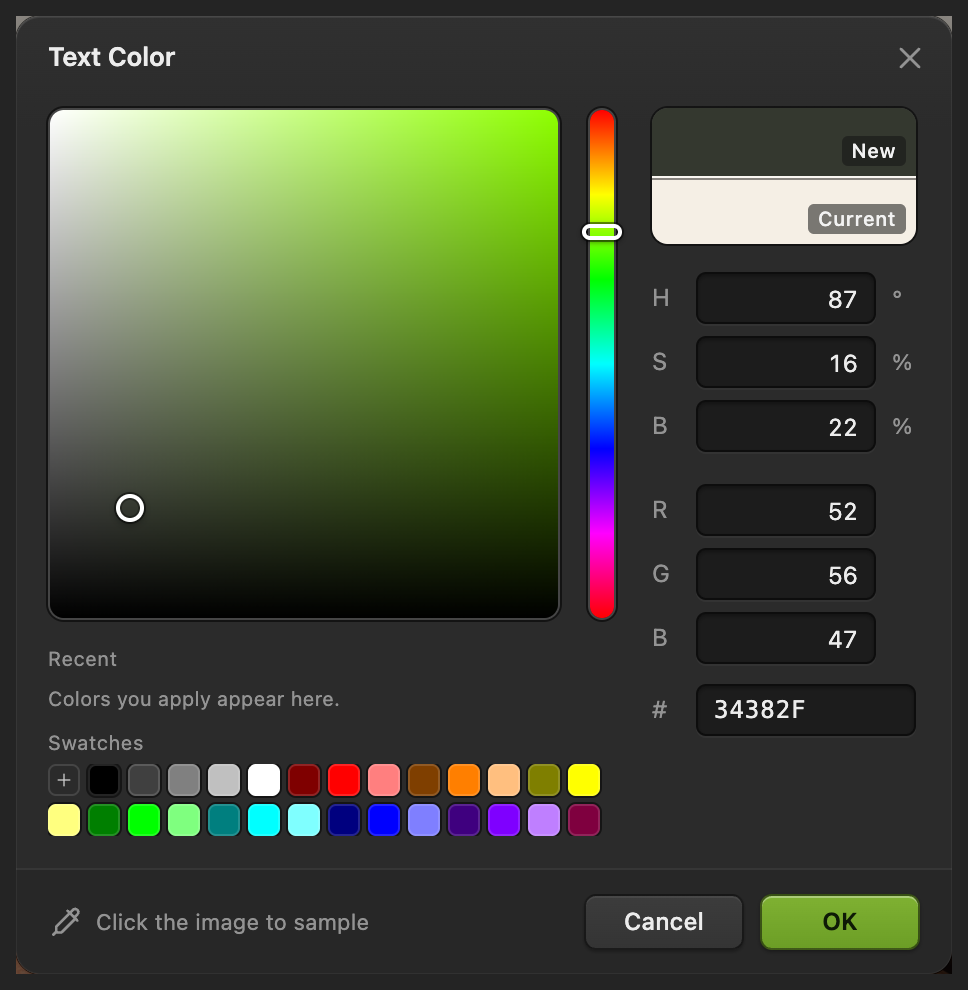
34382F matches the sample’s dark green lettering. Type the new title
Click in the cleared panel, aligned with the left edge of the smaller line and about one title line above it. The click sets the line the letters sit on, so click where the bottom of the new letters should be. Type COFFEE CLUB. Click the checkmark at the right end of the options bar (Commit text) to finish.
If the title needs moving, choose Move, keep the new text layer selected in Layers, then drag the lettering into place. Use to compare the letters with the smaller line’s left edge. Your new title has its own text layer, so you can revise it later.

The checkmark commits the text. 
The replacement title lines up with the smaller line. 
The replacement lettering is separate from the repaired image. 
Use the arrow icon for Move. Export the image and keep an editable project
Choose , set File name to coffee-club.png and click Export. PNG suits a design with crisp lettering. For a photograph, JPEG is another option under .
Choose to keep the new text and the untouched original layer editable. Before a project exists, writes the flattened result back into the opened PNG, or asks where to save it if the browser can’t write to the file. After , updates the project. Export always writes a new file.
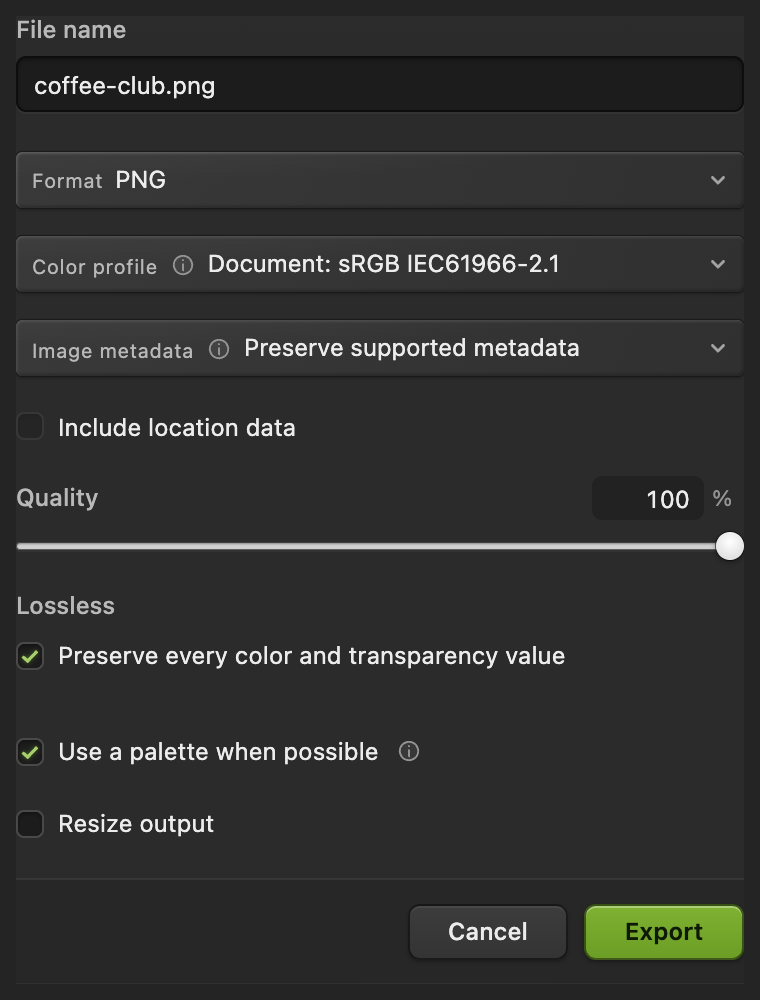
Export a PNG for sharing and keep a project for later wording changes.
If the file already has a text layer
In a layered project or PSD, select the words’ text layer in Layers. Open if the panel is hidden. Under Type layer, edit Text content, then click outside the field to apply the change. You can also choose Text, click the existing lettering and select the characters you want to replace.
A pixel layer, including text that was flattened before the file reached you, has no editable wording. Use the main steps for that layer.
Text over a photograph or pattern
A flat fill leaves a visible patch on wood, fabric, gradients and photographs. Repair that background first using the object-removal workflow, then add the new text. Keep the selection close enough to avoid covering neighboring details. Missing texture must be reconstructed, so a complex pattern or lettering across a face may need manual work and may not look convincing.
Fix common problems
A rectangle shows around the replacement
The sampled color does not match the whole area. Undo the fill and sample closer to the letters. If the background varies across the rectangle, use background repair rather than a solid fill.
Fragments of the old letters remain
The selection missed some edge pixels or a shadow. Undo the fill and draw a slightly larger rectangle, keeping other text outside it.
The new words do not fit
Longer wording needs more width. Reduce the font size or shorten the wording before stretching the letters: stretching changes their shapes and makes a font match harder.
Changing the font also changes another title
An existing text layer was selected. Finish the edit, select the repaired image layer, then choose Text and click the empty panel to create a new text layer.
What to do next
Changing text in images: questions and answers
Can I change text in a JPG or PNG?
Yes. In Lil Cactus, cover or repair the old lettering, then create a new Text layer. A JPG or PNG does not contain the original text settings, so the font must be matched by eye.
Can I change text in a PSD without removing it first?
Yes, if the PSD contains an editable text layer. In Lil Cactus, select that layer and edit Text content in Properties. Text that has already been flattened or converted to pixels needs the background-repair method.
How do I match the color of replacement text?
In Lil Cactus, open the Text Color picker from the Text options bar and click inside a thick part of a letter of the original text, after hiding any layer that covers it. A letter’s soft edge includes some background color.
Why does replacement text look different from the original?
The font family, weight, size or spacing may differ, and a compressed image can have softer edges than fresh lettering. In Lil Cactus, compare at View › Actual Size (100%) before deciding which setting to change.
Will exporting a PNG keep the new text editable?
No. Lil Cactus exports the finished pixels to PNG. Save a Lil Cactus project as well to keep the replacement text as an editable layer.
Is my image uploaded when I change its text?
No. Lil Cactus opens, edits and exports the image on your device. The image is not sent to a server.
Keep going
 How to add text to a photoA headline and a second line on a photo, still editable later.Beginner · 5 min
 How to remove an object from a photo onlineOutline the object and let the editor fill in what was behind it.Beginner · 6 min
 How to make curved, gradient text with a shadowHeadline text on a curve, with a gradient fill and a shadow that stay editable.Intermediate · 7 min