How to make a double exposure from two photos
Quick answer
In Lil Cactus, open a portrait and choose , then to add a landscape. With the selection still active, click Add layer mask at the bottom of Layers. Set the landscape’s Blend mode to Screen and keep its Opacity at the 100% default for the sample; paint black on its mask with a soft brush to bring back the face. Save with to keep both photos and the mask editable.
- Time
- 7 minutes
- Level
- Intermediate
- You need
- A portrait with a clear outline, plus a landscape photo
- Works with
- RGB photos, including JPEG, PNG and WebP
Sample files:Profile portraitMisty forest
Free, no sign-up. Your photos stay on your computer.
A double exposure combines two pictures in one shape. Here, Screen blends a landscape into the darker parts of a portrait. A layer mask, a black-and-white picture attached to the landscape, limits where it appears: white shows it, black hides it.
A dark silhouette against a pale background gives the second picture room to show. Broad landscape shapes read more clearly inside it than a scene full of tiny objects. The mask keeps the landscape out of the background, then soft brush strokes bring back the important facial features.
Make a double exposure in seven steps
Open the portrait and select the person
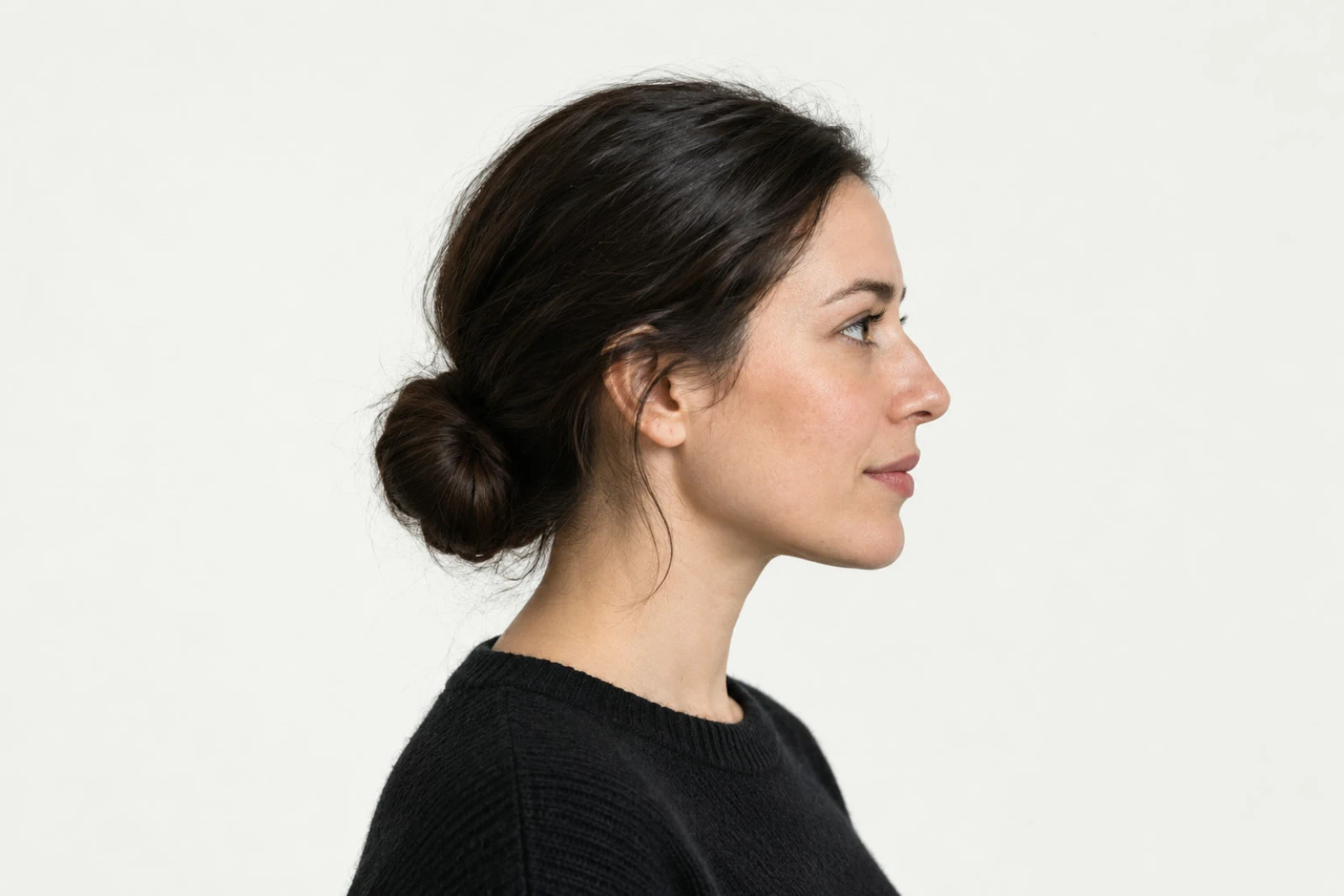
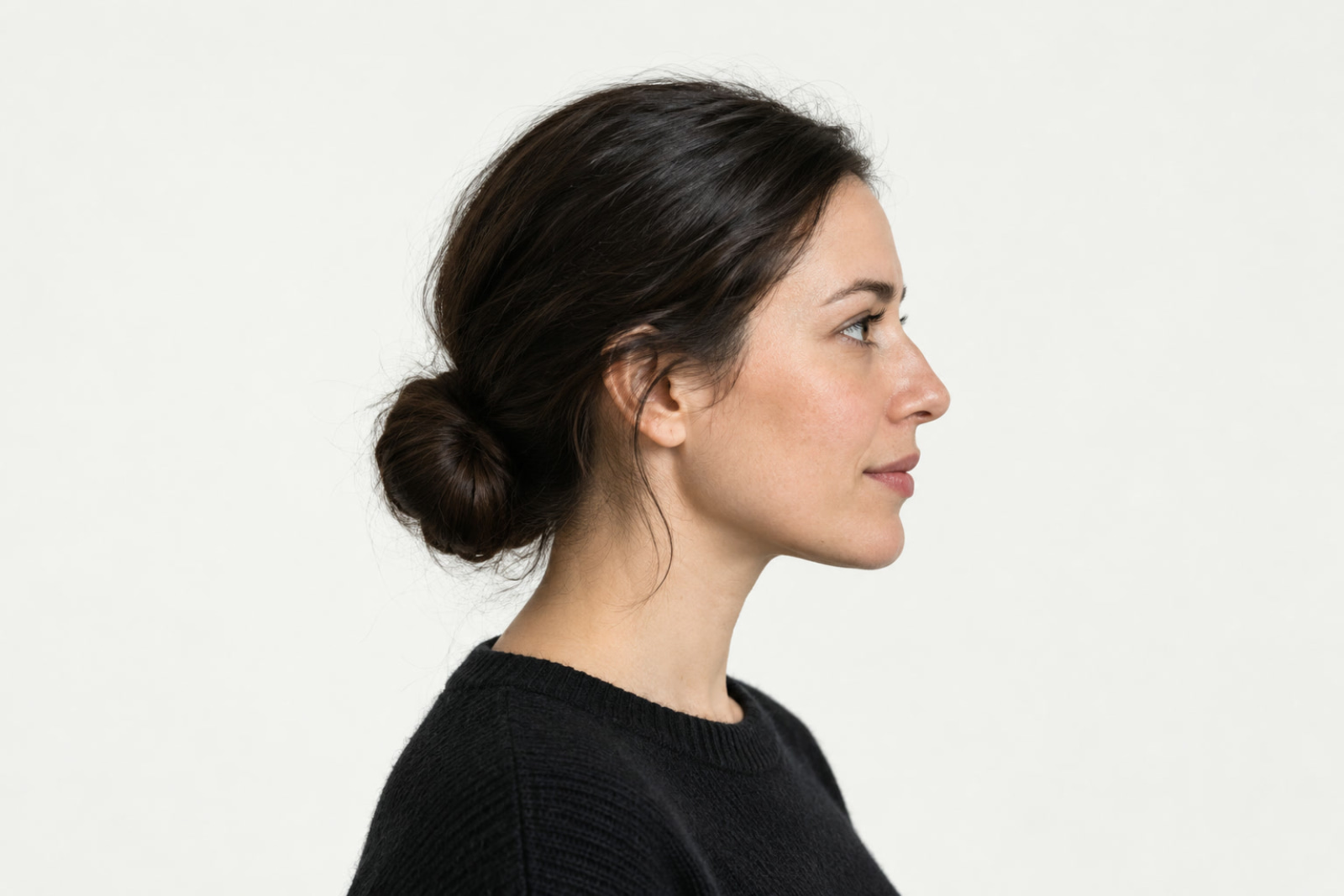
Download both sample files above. Choose and open profile-portrait.jpg. Choose and wait for the selection around the person.
The first use may download the selection model. The image processing runs on your device. Leave the selection active for the next two steps.
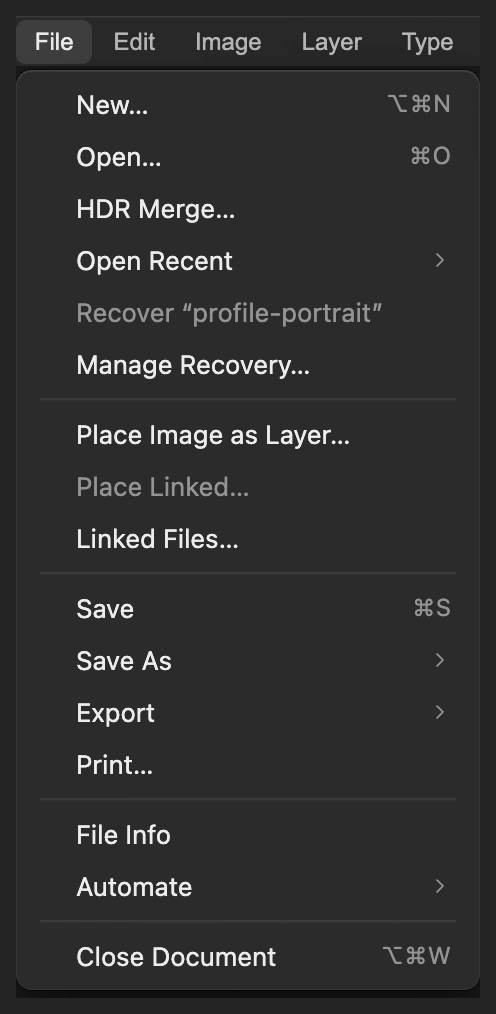
Open the portrait as the base document. 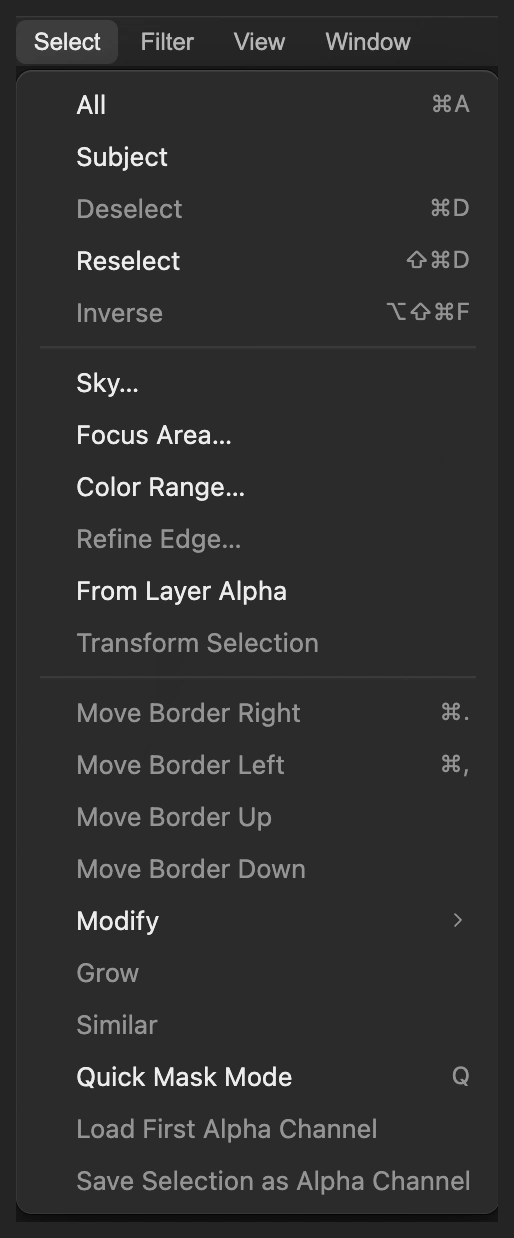
Select the person before placing the second photo. Place the landscape above the portrait
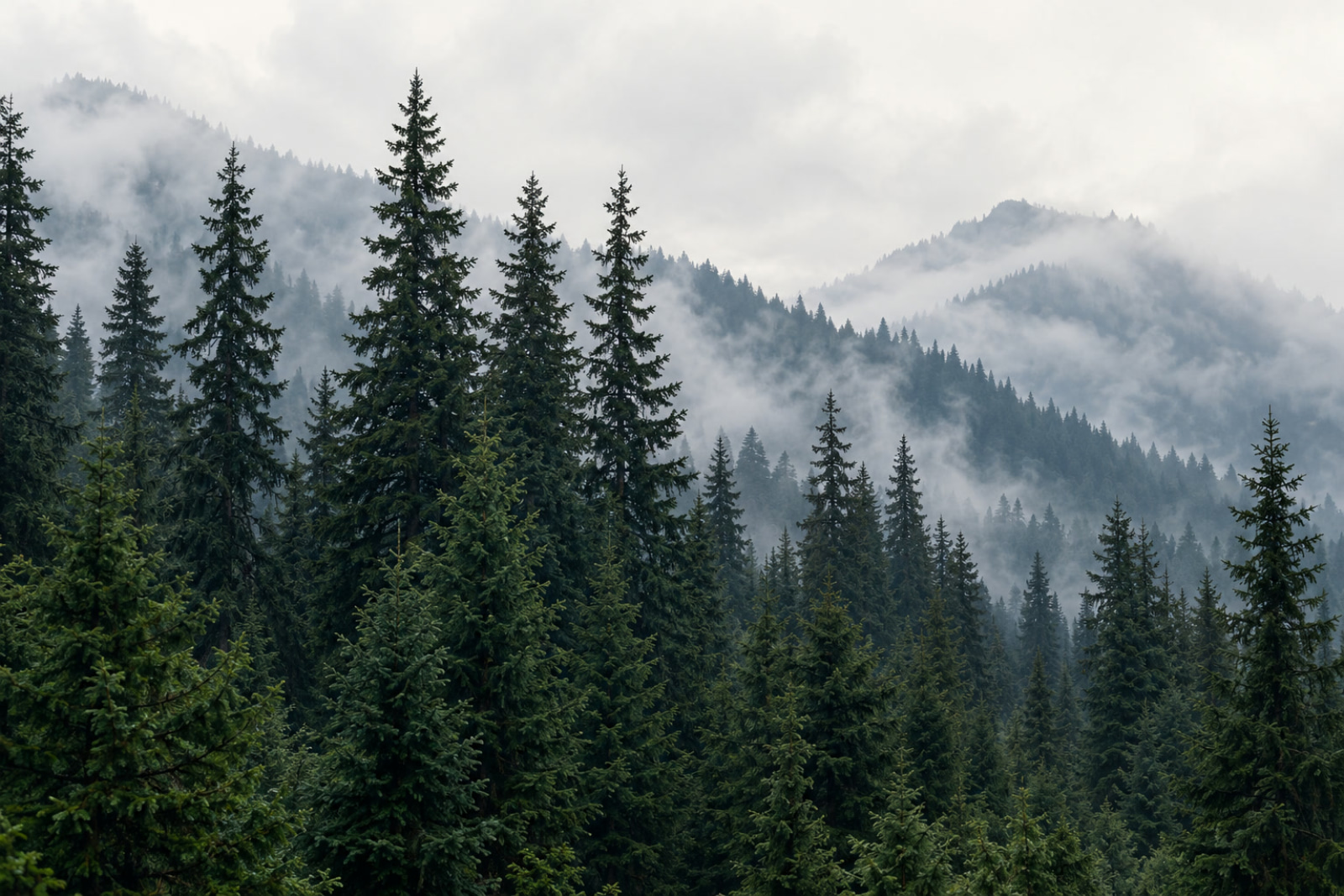
Choose and select misty-forest.jpg. It appears as a layer named misty-forest above Background, temporarily covering the portrait.
Both samples are the same size, so the forest already covers the canvas. Its tall central trees fall inside the head and bun, with smaller trees across the shoulders. The subject selection stays active even though the portrait is underneath.
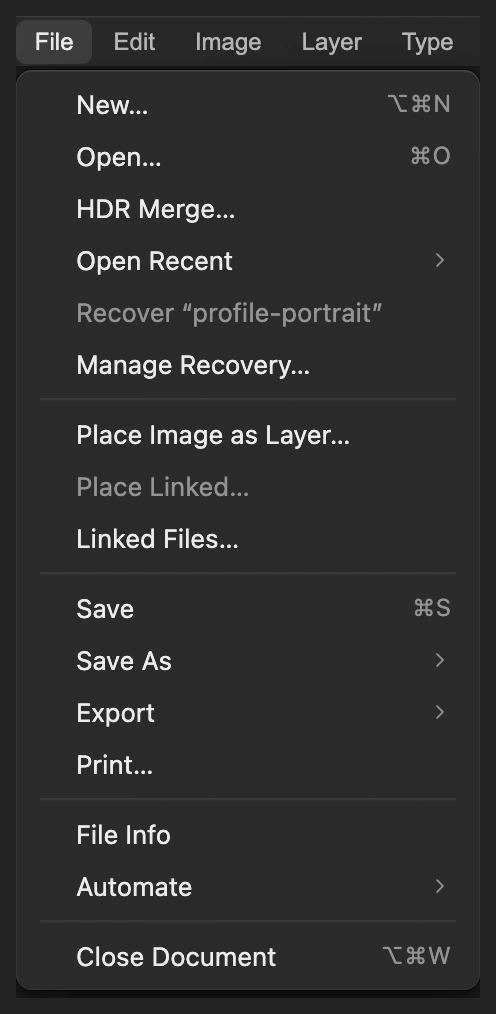
Place adds the landscape to this document instead of opening a separate tab. Limit the landscape to the person
With misty-forest selected, click the Add layer mask icon at the bottom of the Layers panel. The active selection becomes the mask, so the landscape appears only inside the person’s outline.
A black-and-white thumbnail appears beside the forest’s photo thumbnail. Adding the mask also clears the selection, so later brush strokes are unrestricted.
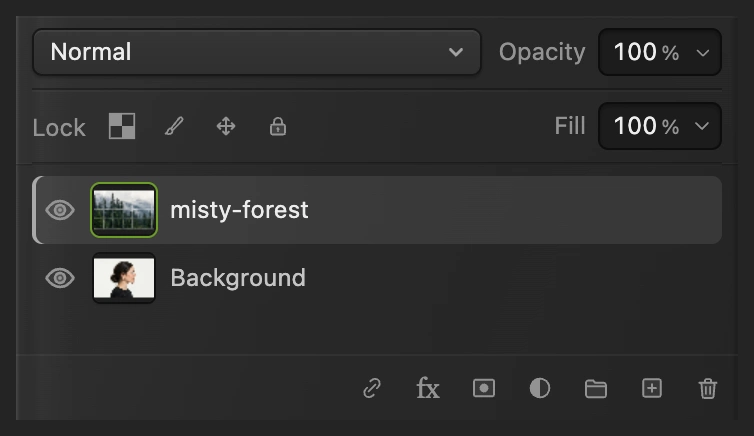
Use the bottom mask icon while the subject selection is still active. 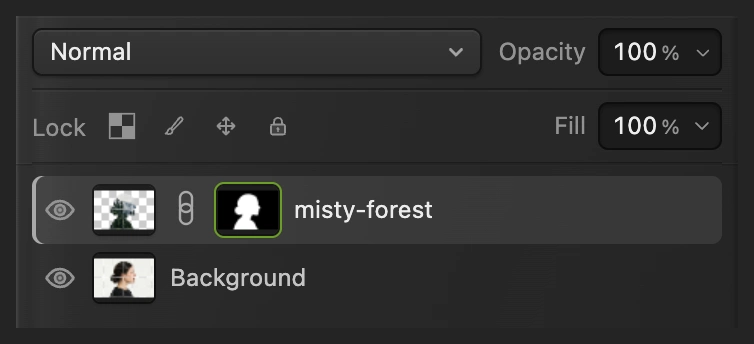
White inside the silhouette reveals the forest; black outside hides it. Blend the two photos with Screen
At the top of Layers, change Blend mode from Normal to Screen. Leave the layer’s Opacity at 100%, its default.
The portrait now shows through the landscape. Screen lightens the combination: the forest is strongest over dark hair and clothing, while the pale background stays quiet.
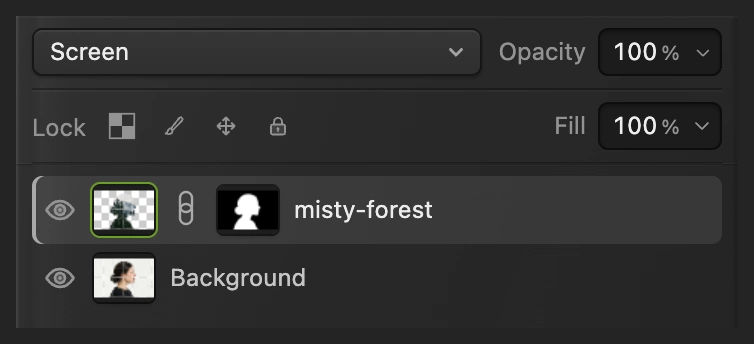
Screen at full layer opacity keeps the fir-tree shapes distinct in these samples. Paint the facial features back into view
Click the misty-forest mask thumbnail. Right-click the brush icon in the left toolbar and choose Brush. Press D to set black as the foreground color.
Set Size to 280 px and Hardness to 0%. Leave brush Opacity and Flow at their 100% defaults. The soft edge makes the transition gradual.
On the sample, paint from the forehead above the visible eye, down across the eye and cheek to the chin. Make two slow passes. Fill the cheek in front of the ear, then paint over the ear and down the neck to the sweater collar. Cover the back edge of the neck below the bun too. Keep the soft transition in the hair behind the ear, leaving the fir trees in the head, bun and sweater.
Tip If a stroke hides too much landscape, press Ctrl+Z or ⌘Z immediately to undo it. Use a smaller brush for a narrower transition.
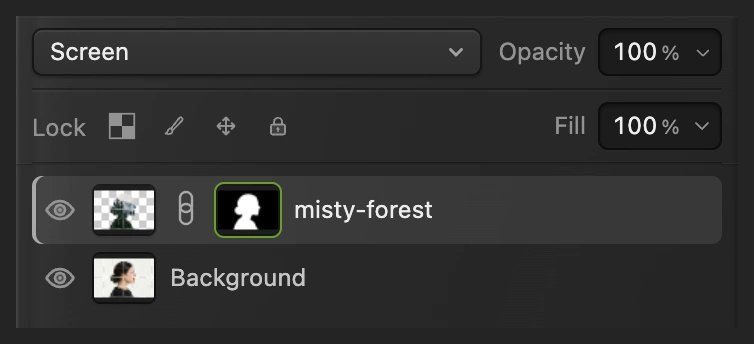
Paint on the mask, not the landscape’s photo thumbnail. 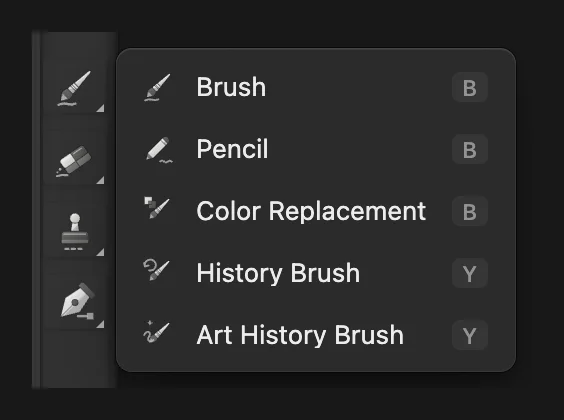
Choose Brush from the toolbar group. 
Use the soft edge to restore the skin and blend into the hair. 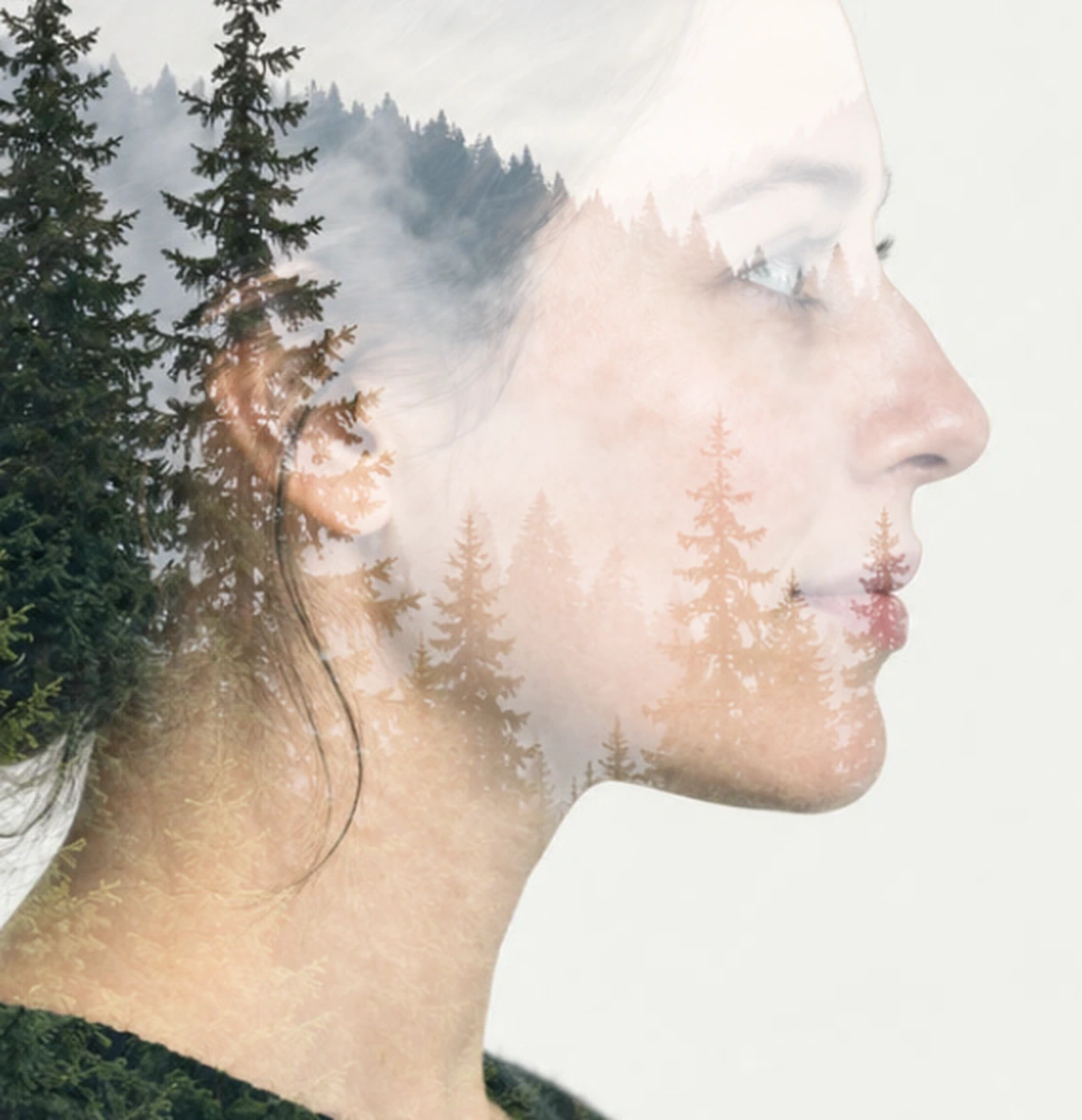
Before painting: the forest overlaps the skin, ear and neck. 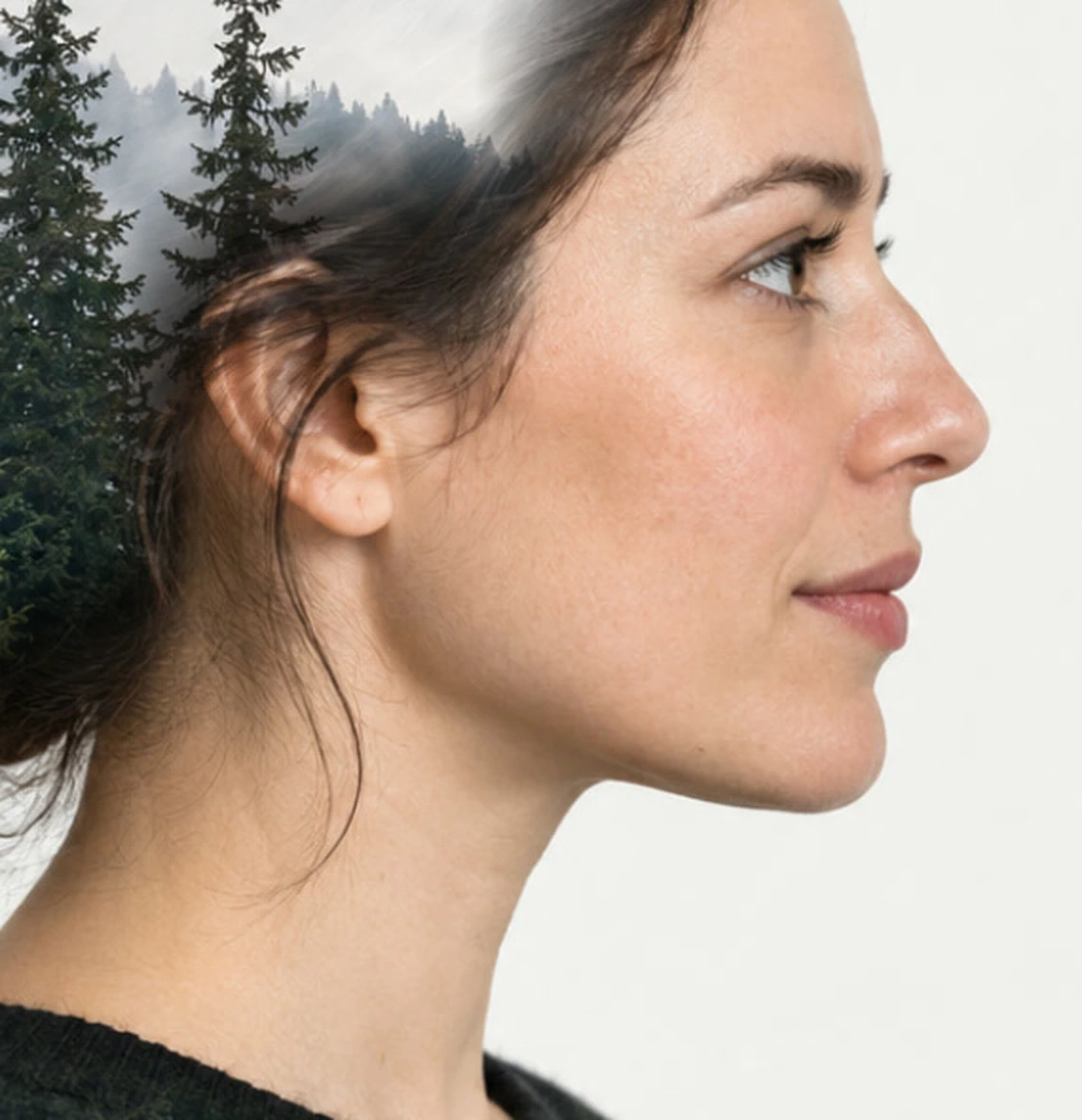
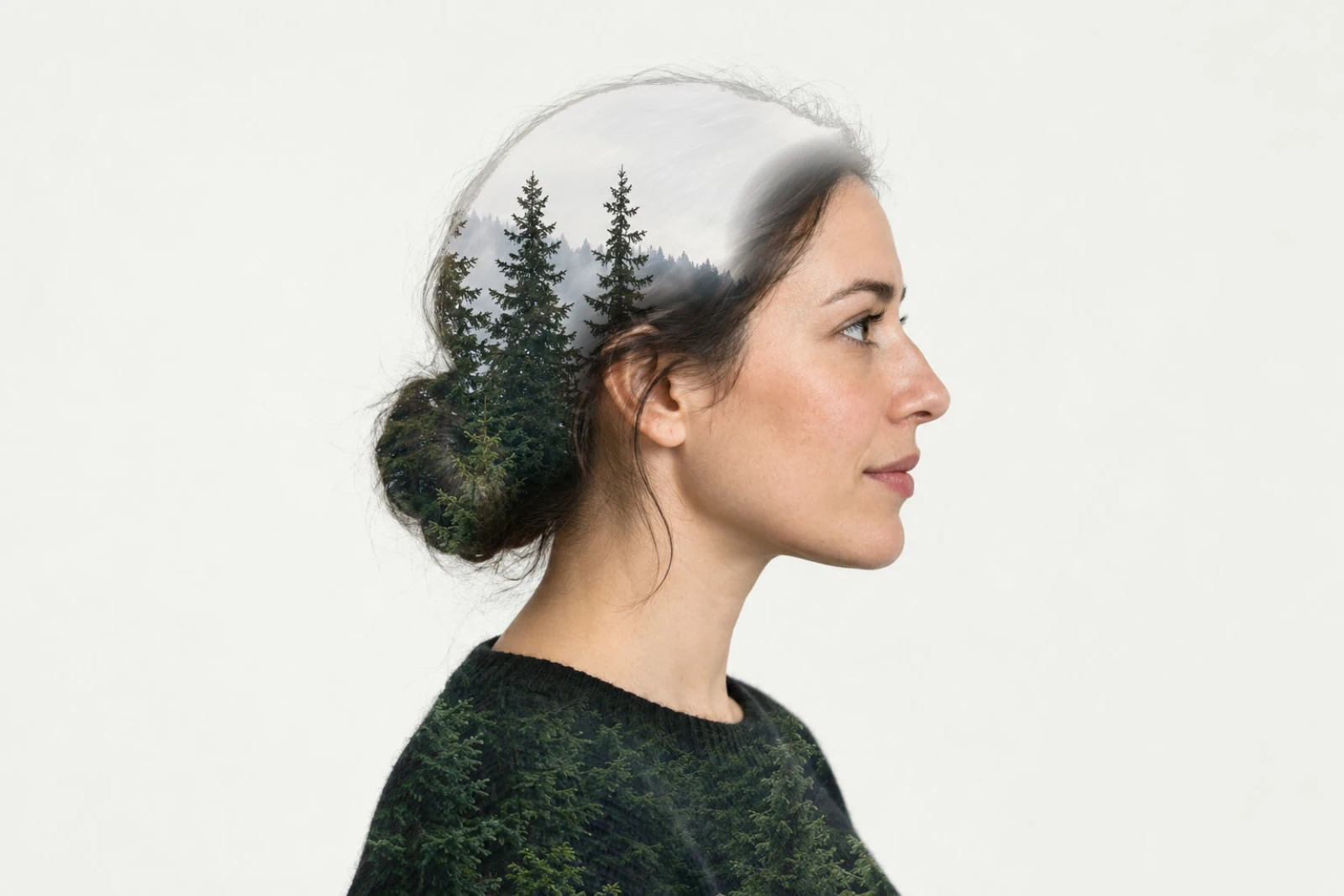
After painting: the face, ear and neck are clear; the trees stay in the hair and sweater. Compare the combination with the portrait
Click the eye beside misty-forest to hide the landscape and see the original portrait. Click it again to restore the effect.
Check the face and the full outline. The eye and profile should read clearly, the fir crowns should be recognizable in the head, and the cheek should have no pale patch or hard brush edge.
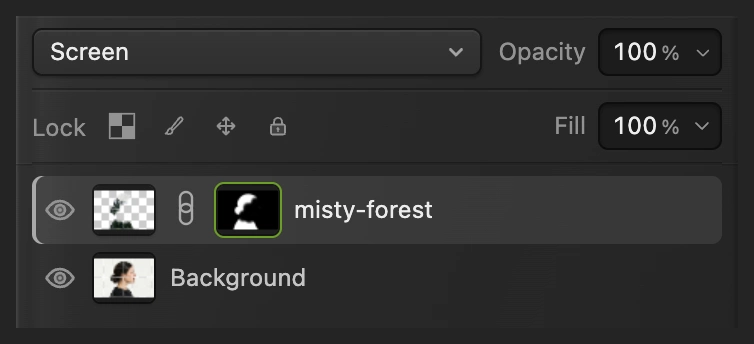
The eye compares the combined picture with the untouched portrait underneath. Save the layers and export a finished picture
Choose to keep both photos, the mask and blend settings. After that, saves the project. Choose and click Export for a new finished photo.
If you stay with the opened JPEG, writes a flat picture in that format; its first Save opens Save Image.
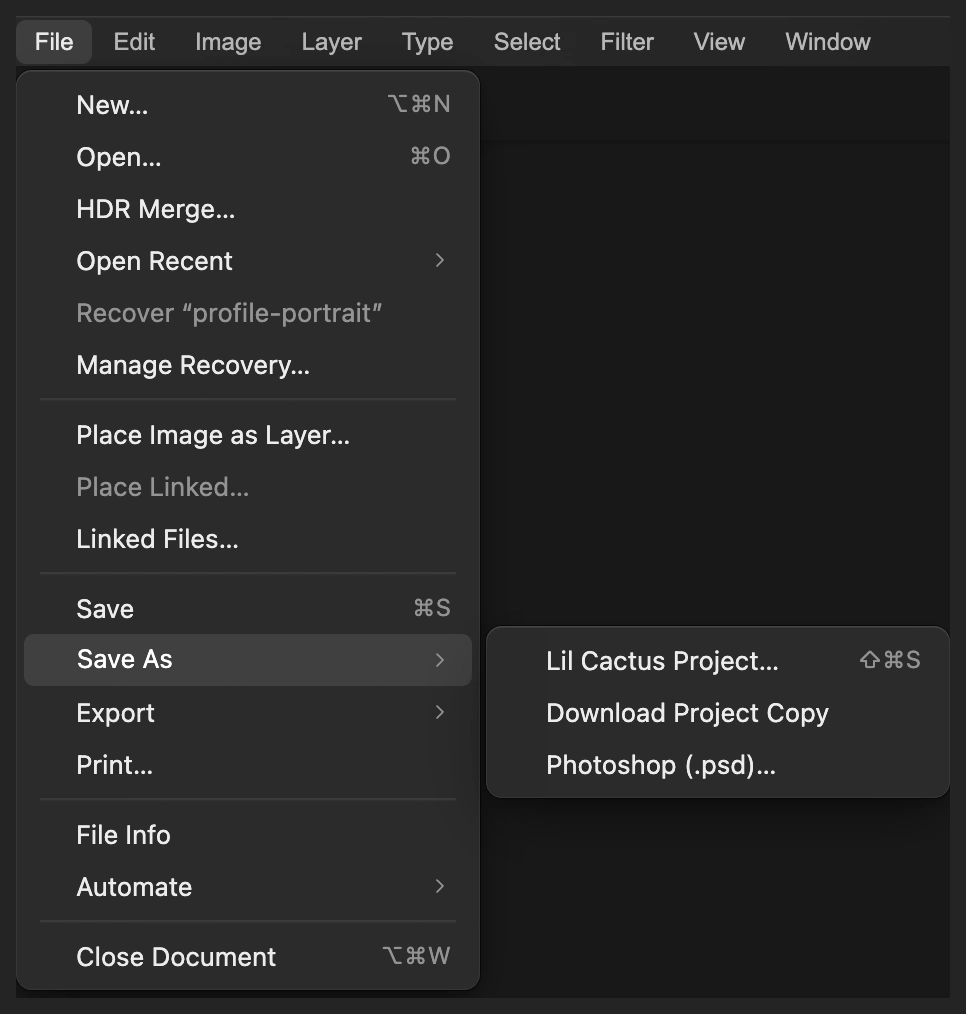
Keep a project for later mask or blend changes. 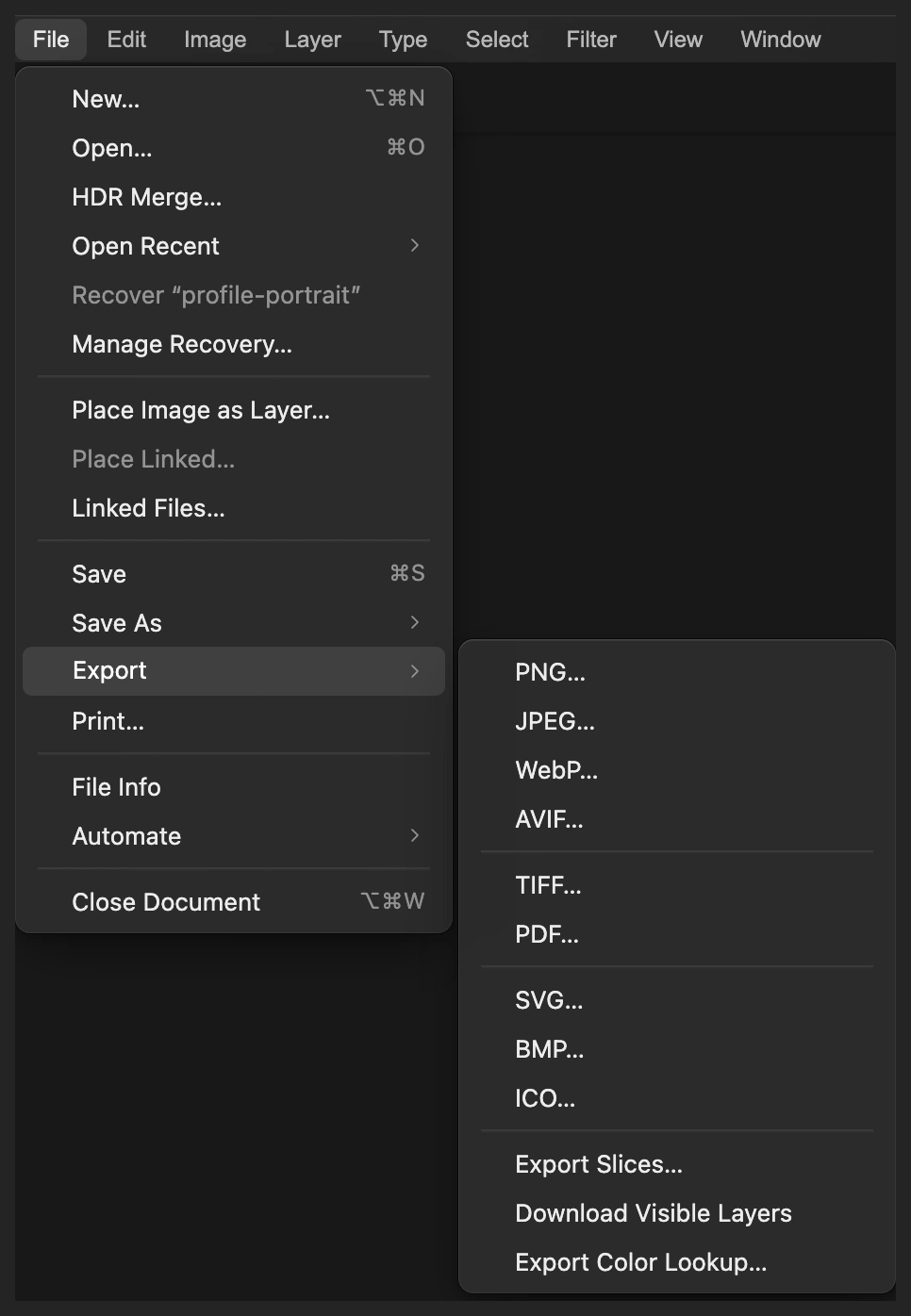
Export a combined JPEG for sharing. 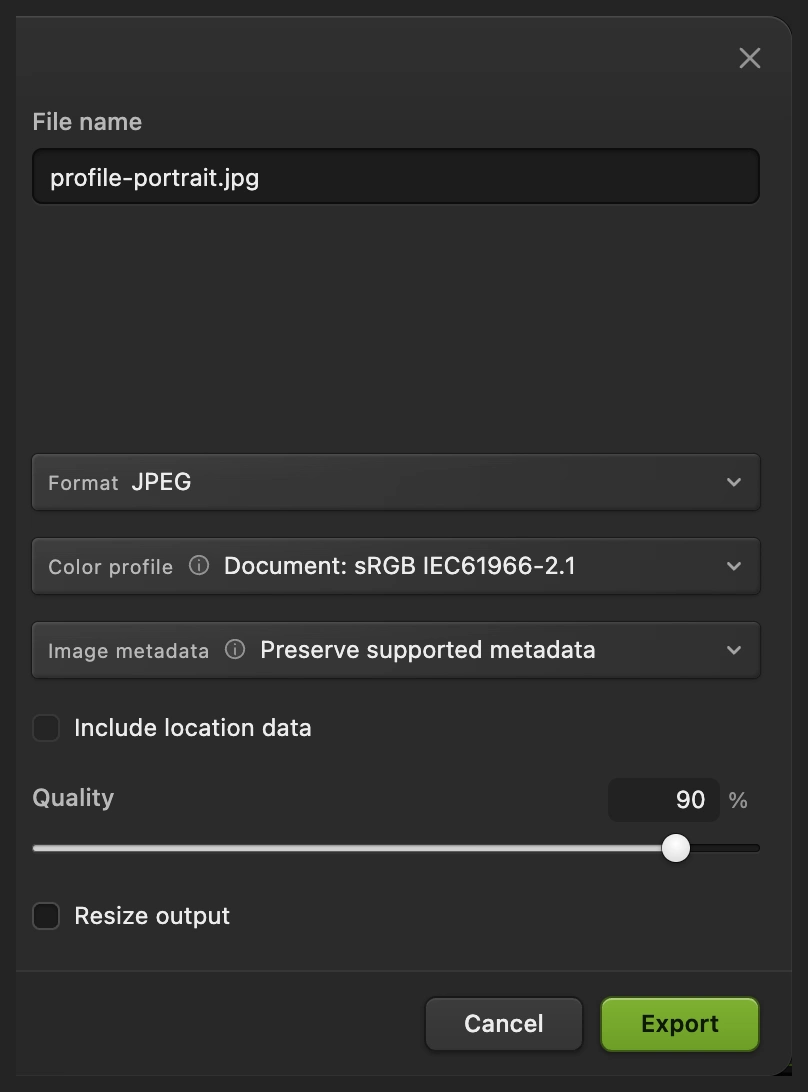
Export writes a new finished picture.
Fix common problems
The landscape fills the whole background
The layer has no subject mask, or the selection was cleared too soon. Open the portrait again and repeat steps 1–3, keeping the subject selection active until the mask is made.
The face disappears into the scenery
Select the forest’s mask and paint black over the important features as in step 5. If the whole blend is too strong, lower the landscape layer’s Opacity.
Black paint appears on the photo
The photo thumbnail was selected. Undo that stroke, then select the black-and-white mask thumbnail before painting.
A hard patch appears across the cheek
Check that Brush Hardness is 0%, then paint black over the remaining forest on the cheek. Continue until the skin is clear, with the soft transition behind the ear in the hair.
What to do next
Double exposure: questions and answers
Which blend mode works for double exposure?
Screen is a useful starting point in Lil Cactus for a dark portrait on a pale background. It lightens the combined image, making landscape detail show in the hair and clothing; the best opacity depends on the two photos.
Do I need a transparent portrait for double exposure?
No. In Lil Cactus, you can select the person in an ordinary portrait and use that selection as a mask on the landscape layer. The original background remains underneath.
Can I change a double exposure after saving?
Yes, if you save a Lil Cactus Project. In Lil Cactus, its separate photos, landscape mask, Screen mode and layer opacity stay editable. A JPEG contains only the combined picture.
Does a double exposure erase either original photo?
No. This Lil Cactus method changes the landscape’s visibility with a mask and keeps the portrait underneath. Black mask strokes hide landscape pixels without deleting them.
Is my portrait uploaded to make a double exposure?
No. Lil Cactus selects the subject and combines the two photos on your device. The first use of Select Subject may download its model.
Keep going
 How to use layer masksHide part of a layer without deleting it, and bring it back any time.Beginner · 5 min
 Blend modes explained, with practical usesHow a layer mixes with the layers below it, and when to use each mode.Beginner · 6 min
 How to combine two images into onePut photos side by side or overlap them on separate layers.Beginner · 5 min