How to combine two images into one
Quick answer
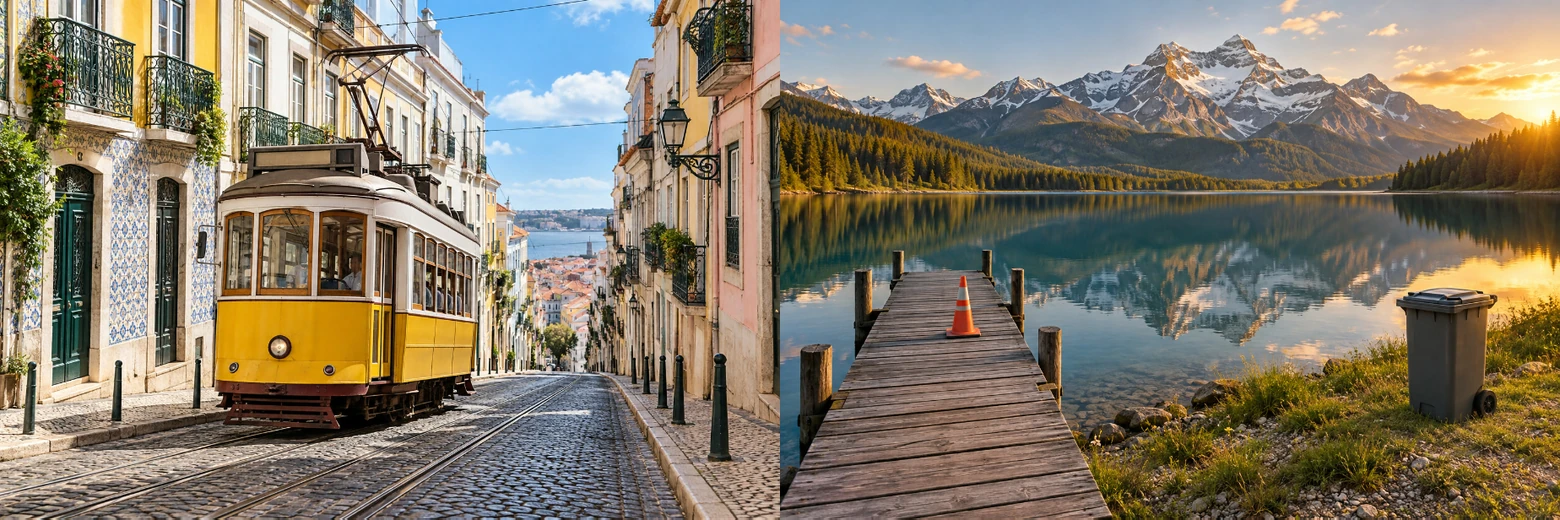
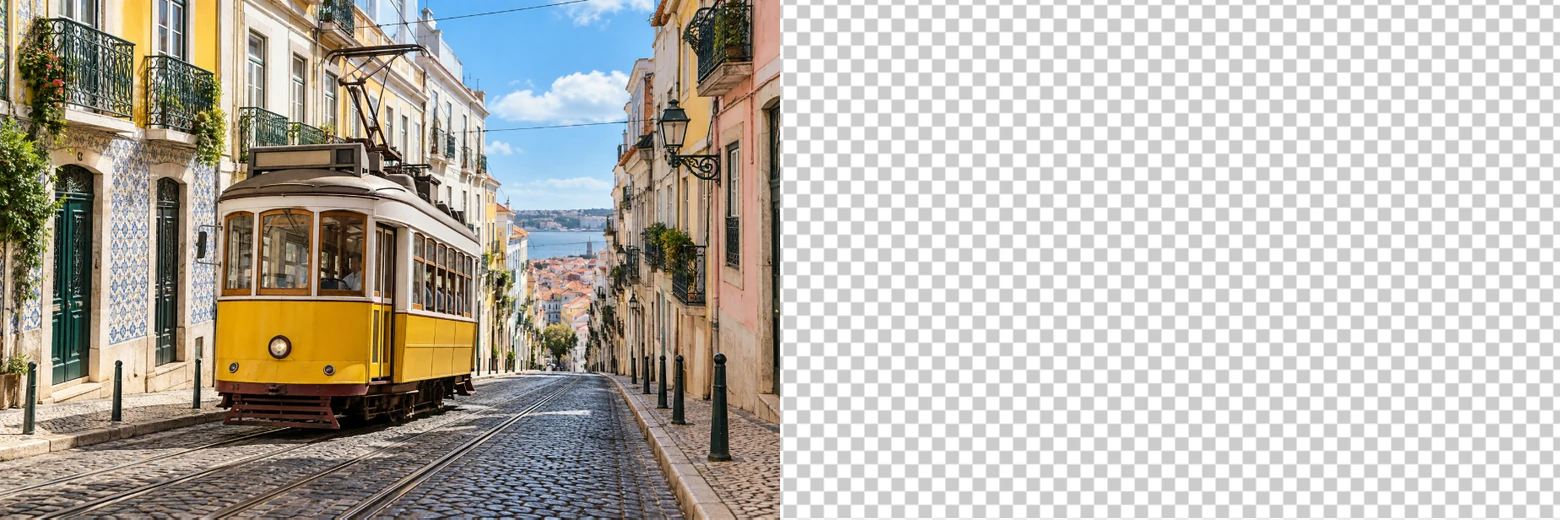
For two 1536 × 1024 photos side by side in Lil Cactus, choose , set 3072 × 1024 and choose the Top left anchor. Add the second photo with , then use with the center-left reference point, X 1536 and Y 512, and click Commit transform. saves both photos as one image. To blend photos instead, place one over the other and lower the top layer’s Opacity.
- Time
- 5 minutes
- Level
- Beginner
- You need
- Two images; the sample photos are both 1536 × 1024 px
- Works with
- JPG, PNG, WebP, HEIC and other images you can open
Combining photos means putting them on separate layers, pictures you can move independently inside one canvas. Canvas Size changes the space around the pictures.
This example makes a side-by-side travel strip. Both samples have the same height, so their edges line up without cropping. For a different-sized pair, use the sizing method below; for an overlay, go to blending the photos.
Combine two photos in six steps
Open the first photo and download the second
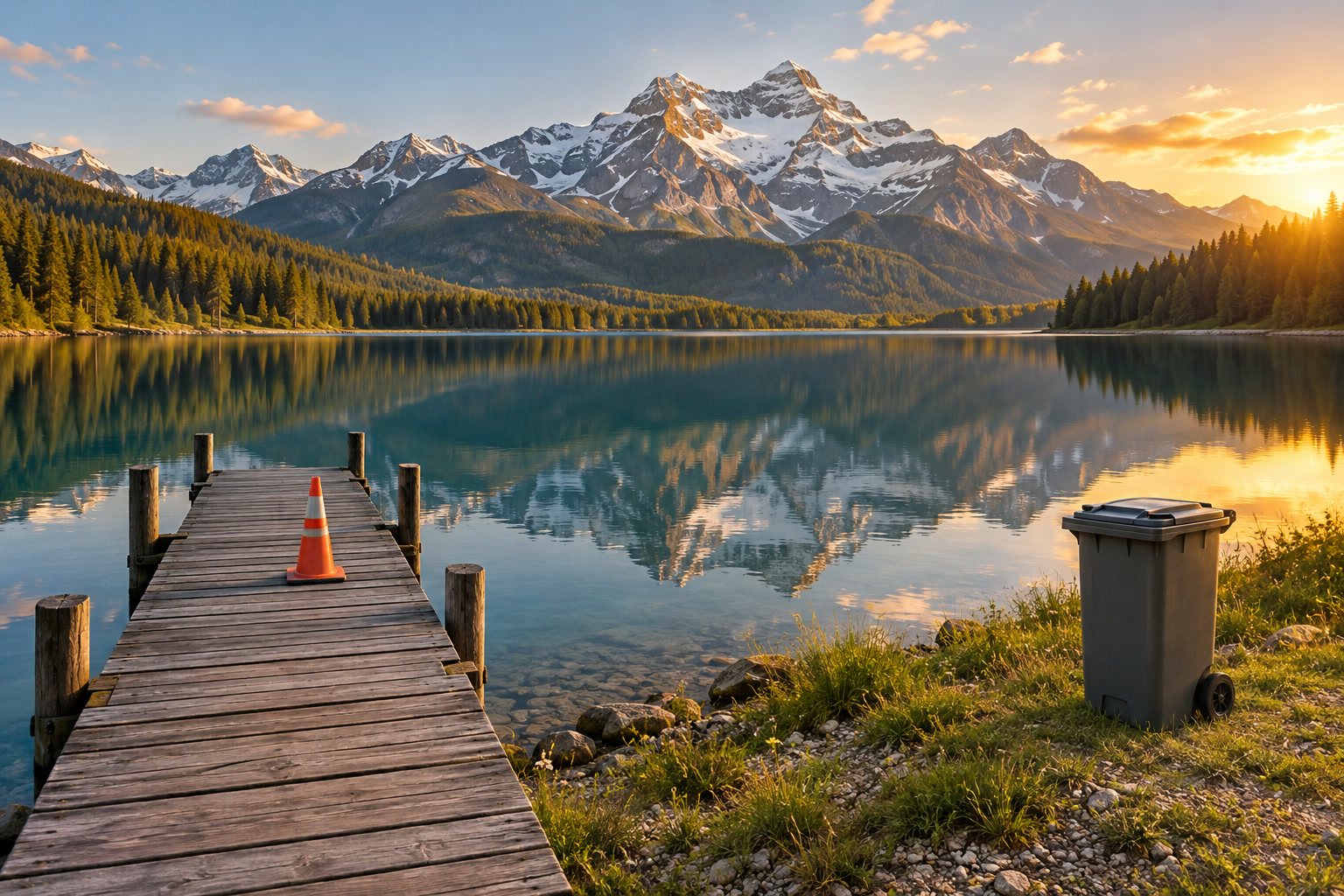
Open the sample from this page, or choose for your first image. Download the second sample, a mountain lake, to use in step 3.
Make room with Image › Canvas Size…
Choose Set Width (px) to 3072 and keep Height (px) at 1024. Under Anchor, click the top-left square. The anchor is the point that stays in place while the canvas grows.
Click Resize. The tram stays on the left, and a checkerboard appears on the right: empty, transparent canvas for the other photo.
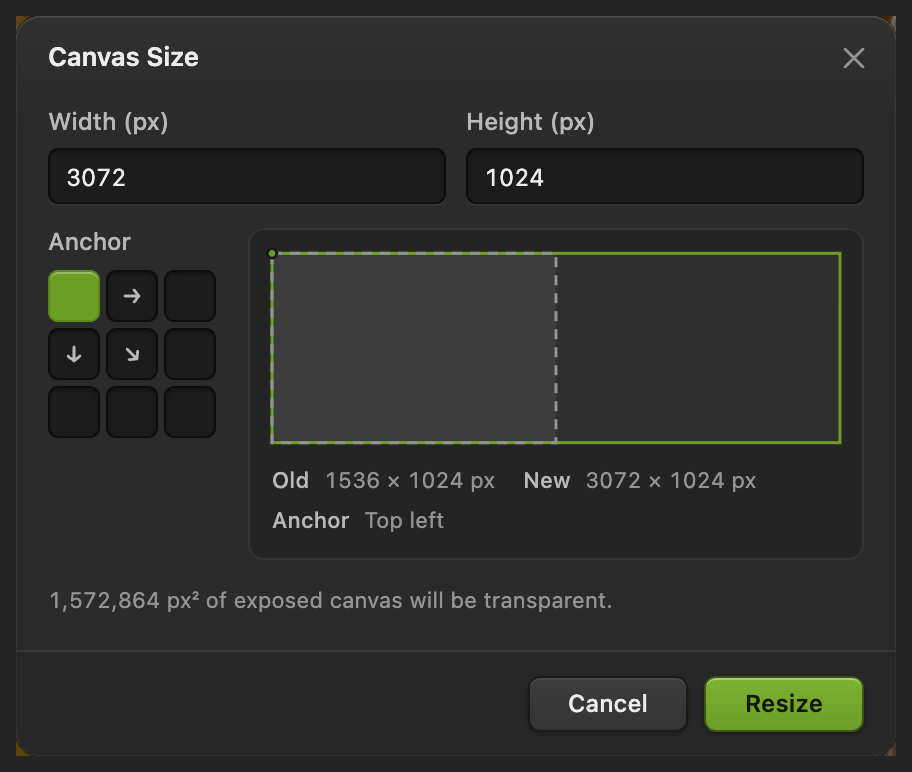
Double the sample’s width, keep its height and anchor the first photo at the top left. Place the second photo as a layer
Choose and select the downloaded lake-jetty.jpg. The lake appears at the top left, covering the tram for now. Its new lake-jetty layer is above Background in Layers.
Use Place for this step: would open a separate document instead.
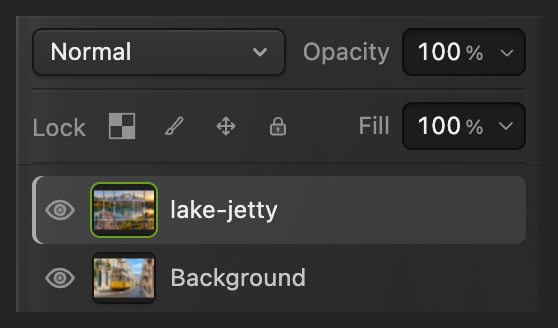
Each photo has its own layer. Position the second photo exactly
With lake-jetty selected, choose . On the options bar, click the middle point on the left of the small 3 × 3 grid (Center left). This makes X and Y refer to the middle of the layer’s left edge.
Type 1536 into X and 512 into Y, pressing Tab after each value. Leave W and H at 100%. Click the checkmark (Commit transform). The lake now starts exactly where the 1536-pixel-wide tram photo ends.
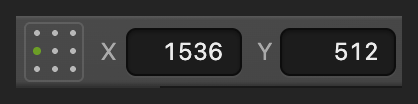
Choose the middle point on the left: Center left. 
With Center left selected: X 1536, Y 512, with W and H at 100%. 
Commit transform applies the new position. Export one combined image
Choose , set File name to two-photos.png and click Export. The file contains the whole 3072 × 1024 layout as one picture. PNG also keeps transparency if your design has empty areas.
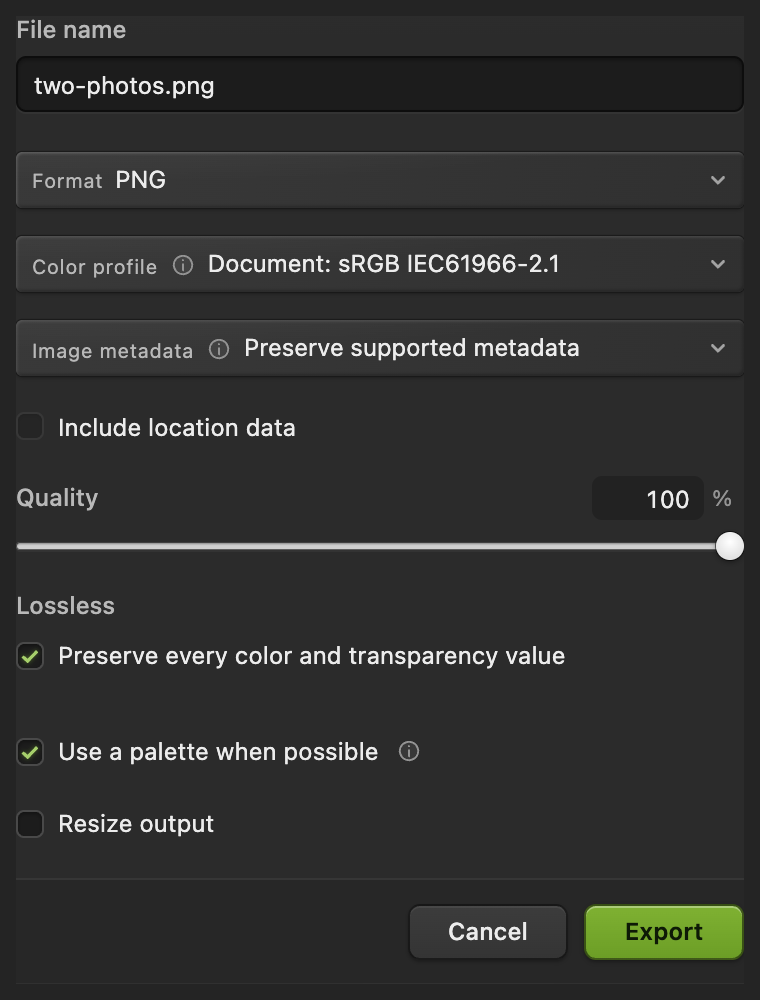
The exported file contains both photos. Keep the layers for later changes
Choose Reopening that project keeps both photos on separate layers, so you can move or replace either one. After reopening and editing the project, saves the changes.
If you choose before saving a project, Lil Cactus writes one flat JPEG back to the photo you opened; the first time, Save Image asks for its settings.
When the photos have different sizes
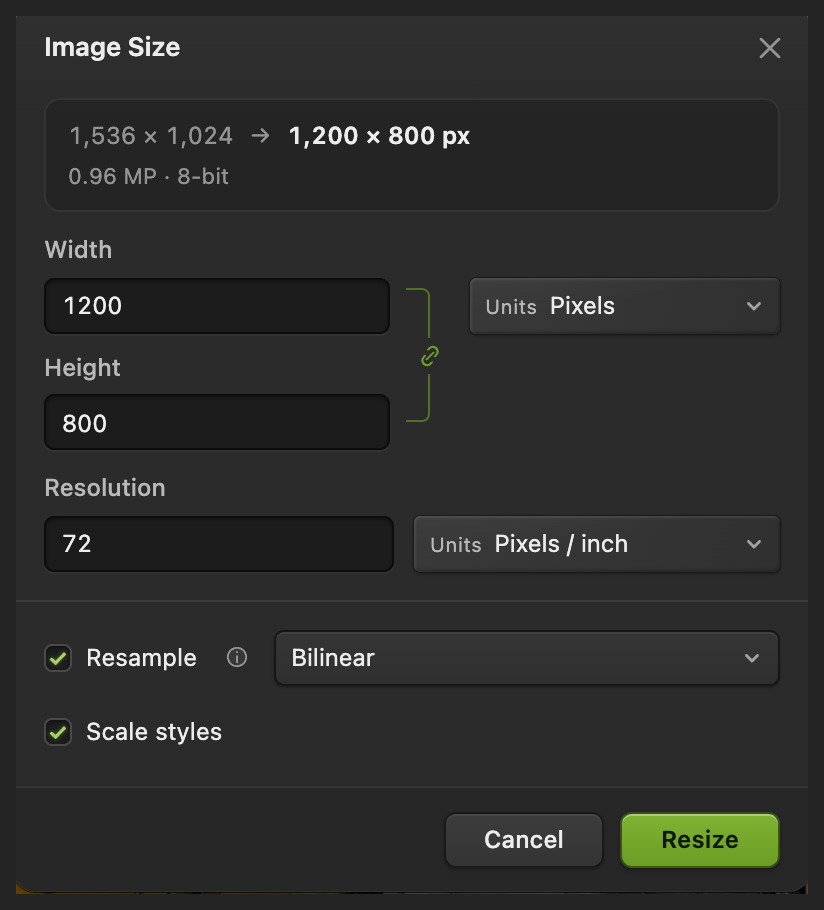
For a side-by-side layout without cropping, first make the photos the same height. Open each separately and use with Resample on and the chain link (Constrain proportions) on, so width follows height. Type the common Height and click Resize. Choose a common height no greater than the smaller original height, to avoid enlarging either photo. Follow resizing without stretching.
Export each resized photo with and give the copies distinct names. Open the resized first copy for the main steps and choose the resized second copy in Place Image as Layer. Resizing an open tab does not update a file you pick from disk.
Add the two resulting widths for the canvas width. Keep the common height. Position the second photo at X equal to the first photo’s width and Y equal to half the common height, with Center left selected. For example, widths 1200 and 900 at height 800 need a 2100 × 800 canvas and X 1200, Y 400 for the second photo.
Need a smaller finished file? Turn on Resize output in the Export dialog; the layered project stays full size. See exporting a smaller copy.
Blend overlapping photos with Opacity
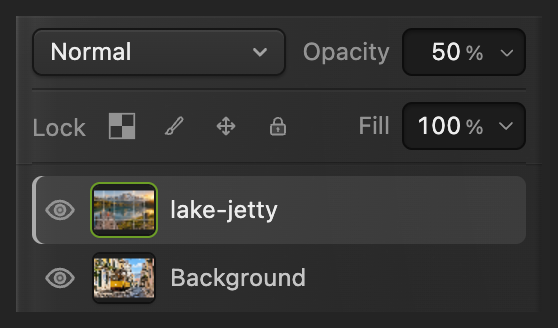
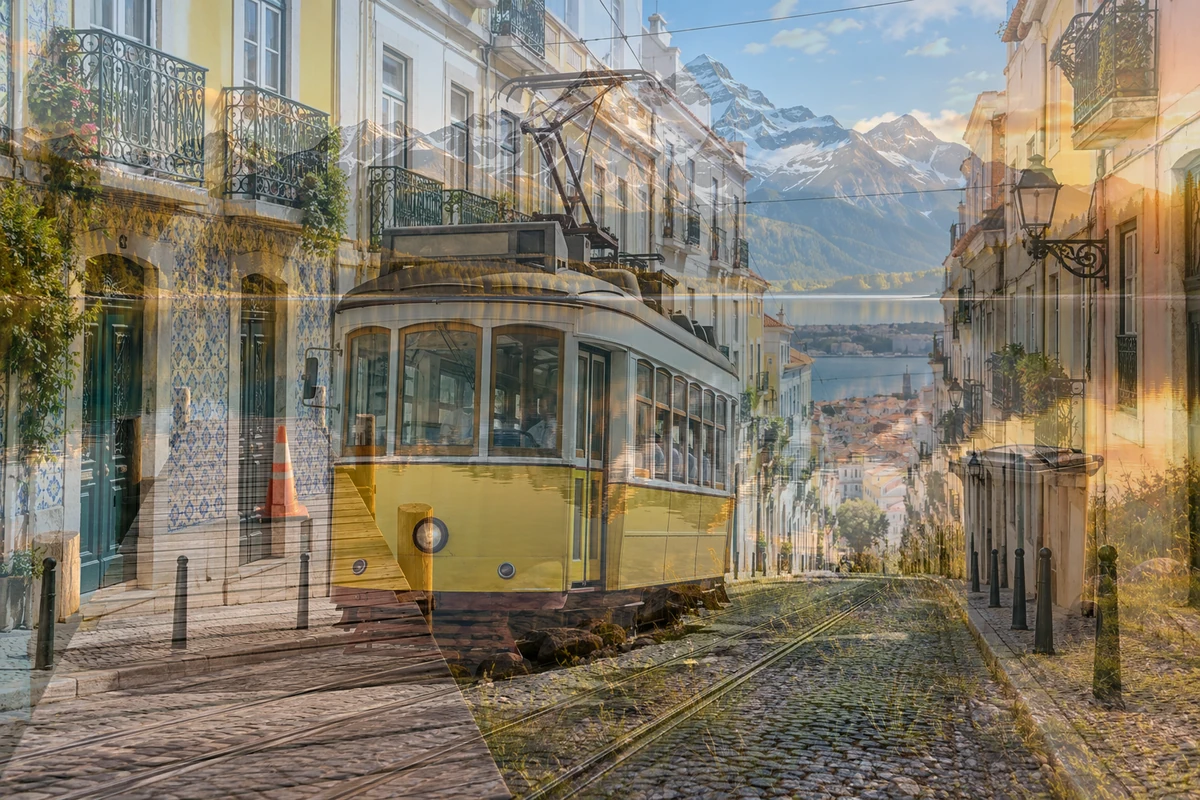
Open the original first photo again, so its canvas is 1536 × 1024. Choose for the second photo. With these equal-sized samples, it covers the first photo. Select the upper layer and lower Opacity in Layers to 50%. You now see an equal mix of both photos across the whole picture.
Opacity mixes the whole layer. To fade just one edge, use a layer mask: an attached black-and-white picture that hides the upper photo where it is black and keeps it visible where it is white. A soft transition in the mask makes a gradual join. See painting and refining a layer mask.
Fix common problems
The second photo opened in another tab
It was opened rather than placed. Switch to the first document, then choose
An empty checkerboard strip remains
Check the second layer’s position with the Center left transform reference selected. For the sample, X must be 1536 and Y 512. If your photos have different heights, match their heights first.
The first photo moved into the middle
Canvas Size used the center anchor. Select Background, choose , select Center left and set X 0, Y 512. Click the checkmark to put the first photo back at the top left.
One photo looks stretched
Its width and height were changed separately. Undo the scaling.
What to do next
Combining images: questions and answers
How do I combine two photos side by side?
In Lil Cactus, make the canvas wide enough for both photos using Image › Canvas Size… with the top-left anchor. Add the second with File › Place Image as Layer…, then choose the Center left transform reference and set X to the first photo’s width and Y to half their common height.
Does combining photos stretch them?
No. Canvas Size in Lil Cactus changes the space around the photos. To resize a photo without stretching, keep its width and height linked in Image Size or Free Transform.
How do I blend two photos instead of putting them side by side?
In Lil Cactus, place the second photo over the first and lower the upper layer’s Opacity in Layers. A layer mask lets you hide selected areas or soften a join instead of mixing the whole layer.
Why is only one photo visible after I place the second?
The upper photo covers the lower one. In Lil Cactus, move it with Edit › Free Transform for a side-by-side layout, or lower its layer Opacity for an overlap.
Can I move the photos separately after exporting the combined image?
No. PNG and JPEG exports contain the finished pixels. In Lil Cactus, save a Lil Cactus project as well to keep each photo on its own editable layer.
Are my photos uploaded when I combine them?
No. Lil Cactus opens, arranges and exports the photos on your device. The images are not uploaded to a server.
Keep going
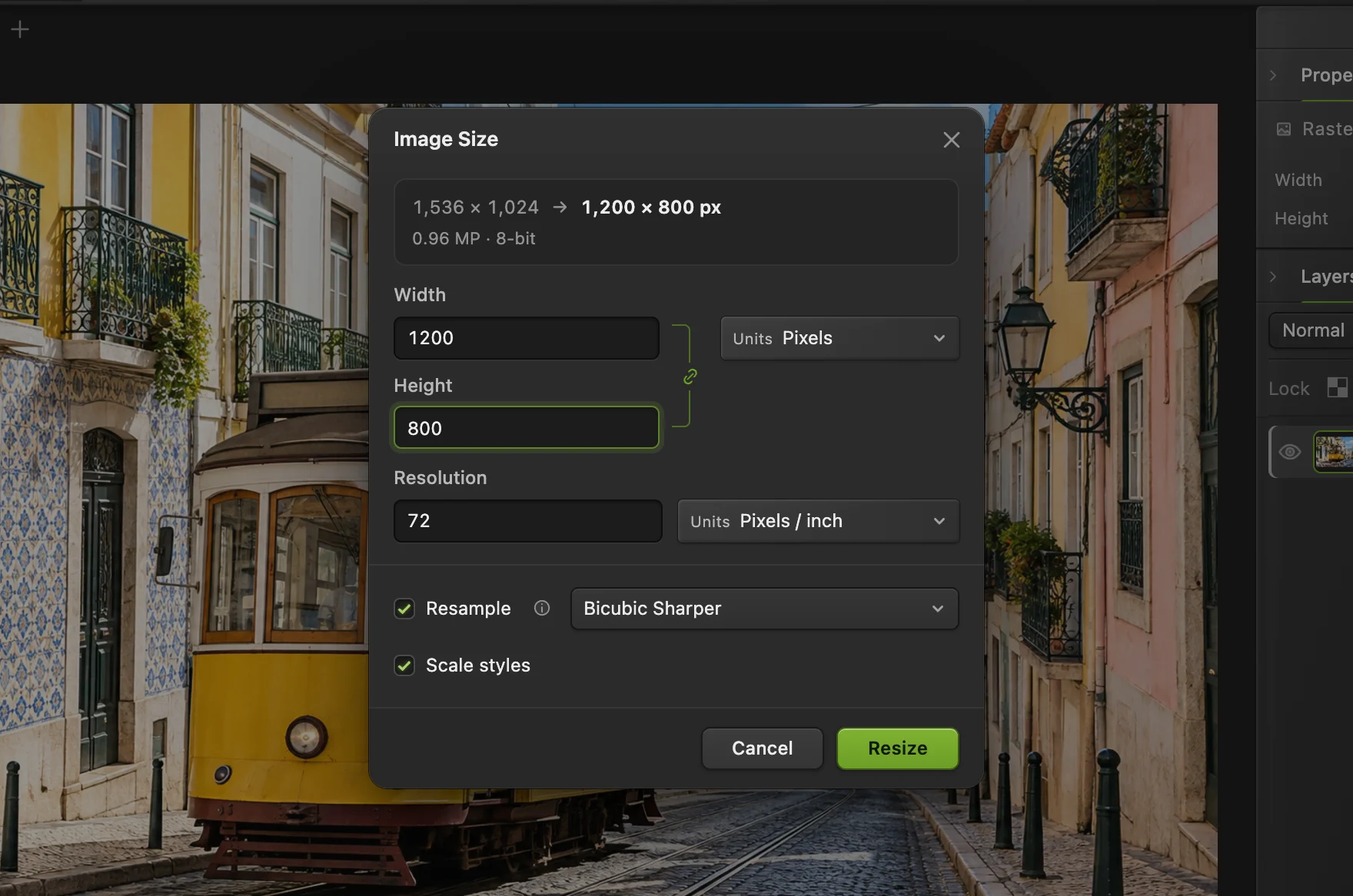 How to resize an image online to exact pixels or print sizeExact pixels, percent or print size, without stretching.Beginner · 2 min
 How to add text to a photoA headline and a second line on a photo, still editable later.Beginner · 5 min
 How to use layer masksHide part of a layer without deleting it, and bring it back any time.Beginner · 5 min