How to use Levels to set black and white points
Quick answer
Choose Under the histogram, drag the black triangle right to where the histogram starts and the white triangle left to where it ends: the photo gains true blacks and clean whites. Drag the gray middle triangle left to brighten the midtones, or right to darken them. To see which pixels will clip, hold Alt or ⌥ before you press on an end triangle (the preview lasts until you let go), then click Apply.
- Time
- 5 minutes
- Level
- Beginner
- You need
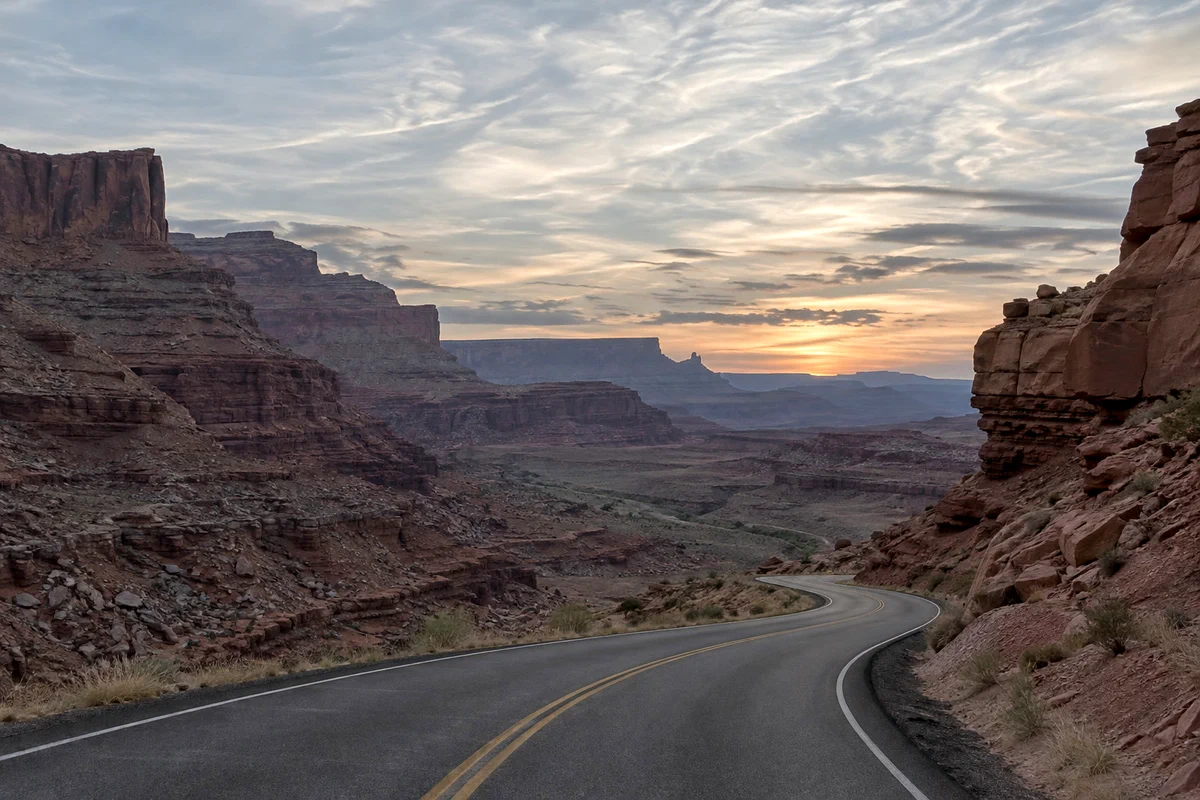
- A photo that looks flat, gray, hazy or a little dark
- Works with
- Any photo: JPEG, PNG, HEIC, WebP, TIFF, PSD and RAW files, 8-bit or 16-bit
A photo looks flat when its darkest tones aren’t really black and its brightest aren’t really white. You can see it in the histogram, the graph of how many pixels sit at each brightness: most of the pixels stop short of the ends, leaving little or nothing where black and white should be.
Levels fixes that with three sliders. The black point says which tone should become pure black, the white point which tone should become pure white, and the gamma (midtone) slider how bright everything in between should be. At a gamma of 1, every other tone is spread evenly between them.
Use Levels in six steps
Open the photo and add a Levels layer
Open the photo with (Ctrl+O or ⌘O); to follow along, open the sample from this page. Then choose
An adjustment layer changes how the photo looks without changing its pixels, so you can reopen it or delete it later. The Levels dialog opens beside the photo.
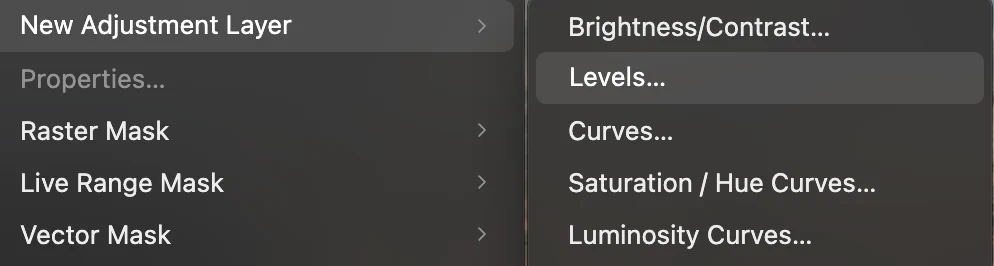
, second in the list. Read the histogram
The graph shows the photo’s red, green and blue tones, dark on the left and bright on the right. Under it are three triangles: black at 0, gray in the middle (gamma 1) and white at 255, with their values in the boxes below.
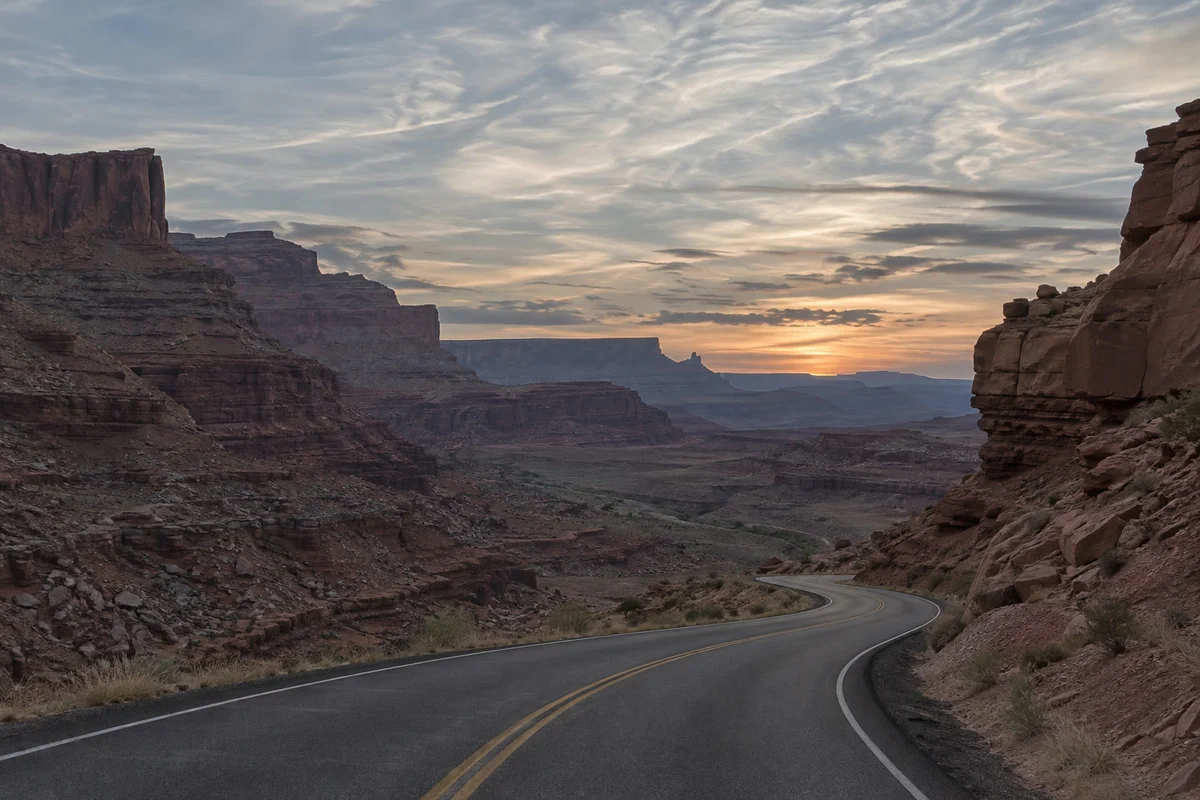
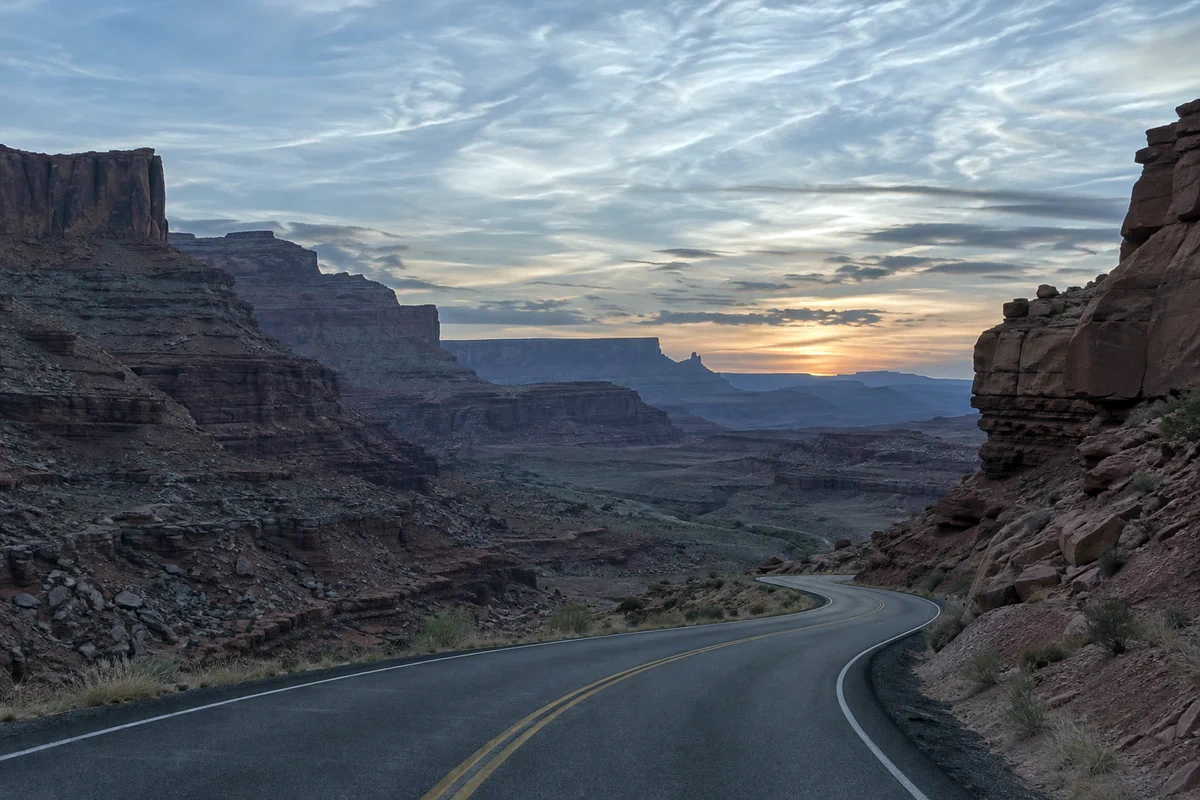
On the sample, the left hump is the dark rock and road, the right hump is the sky. Very little reaches the left edge: almost nothing in the photo is truly black. On the right, only the red of the sunset touches the edge; green and blue stop well short of it, so the clouds are not truly white either.
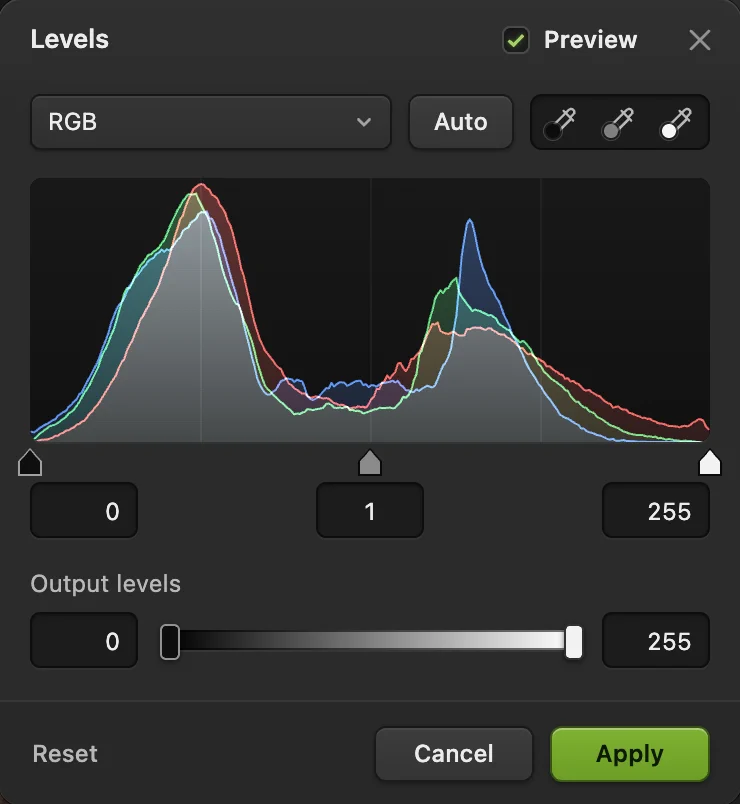
Levels as it opens on the sample. - Channel: RGB, or one color
- Auto: sets each color’s ends for you
- Eyedroppers: black, gray and white point
- Black point
- Gamma: the midtones
- White point
- Output levels
Set the black point, watching for clipping
Hold Alt or ⌥, then press on the black triangle and drag it to the right. The photo turns into a clipping preview until you let go of the mouse: everything that stays dark is safe, and every pixel that lights up, white or colored, would clip to black in at least one color. A few specks in the deepest shadows are fine. Large patches mean you have gone too far.
Stop where the histogram starts to rise. On the sample that is about 18. Let go, then fine-tune the number in the box under the triangle.
Tip No preview? Press Alt or ⌥ first and keep it down as you press on the triangle. Pressing it halfway through a drag does nothing.
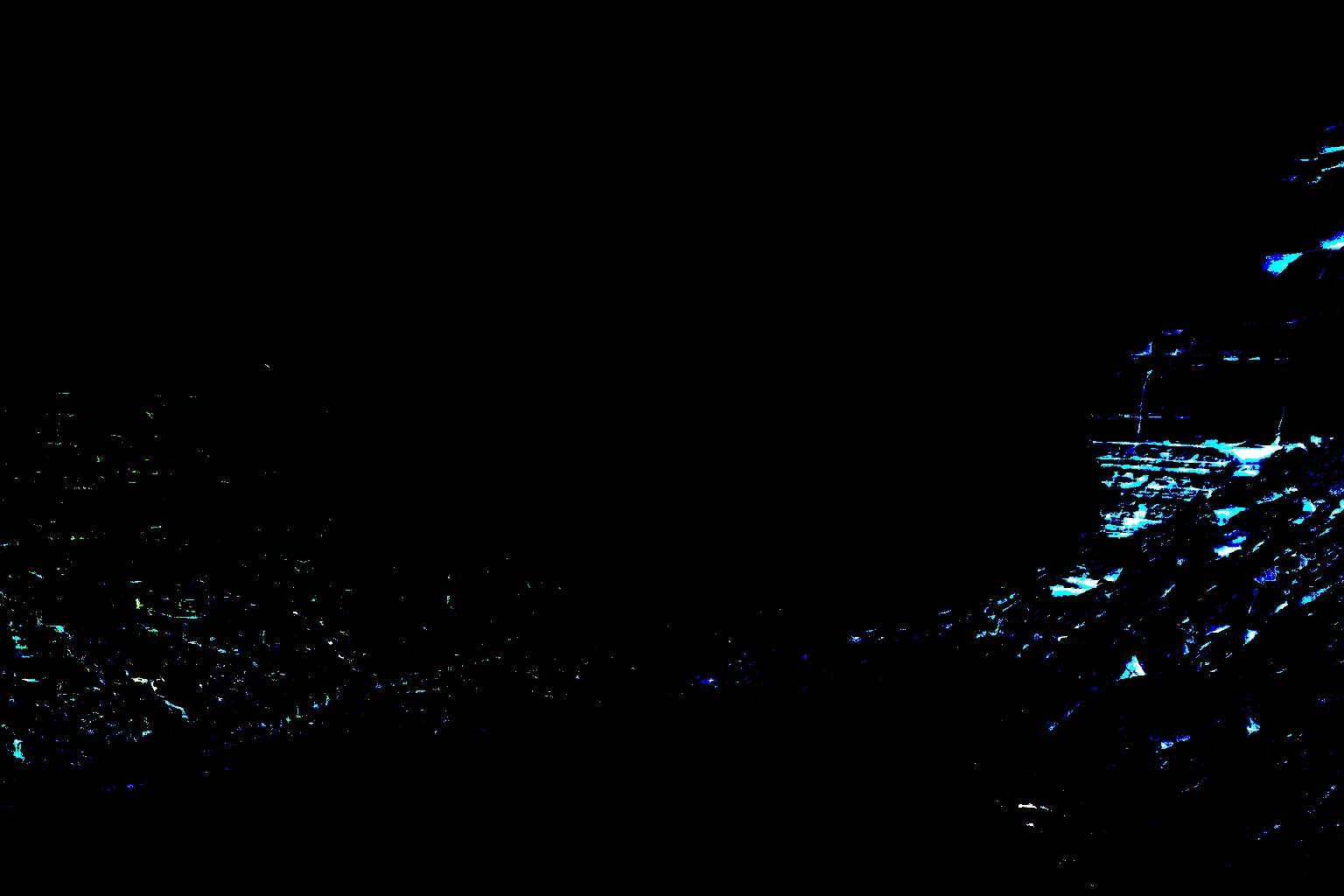
Black point clipping preview at 18: small streaks in the darkest rock on the right would clip, about 1% of pixels in blue. Set the white point the same way
Hold Alt or ⌥, press on the white triangle and drag it to the left. This time the photo turns white: everything that stays white is safe, and anything that shows as a color or black would clip to white in at least one color. On the sample, the sunset clouds show cyan, which means their red clips.
The sunset’s red already reaches 255, so any move of the white point clips a little of that glow. Green ends around 228 and blue lower, near 210, so at 228 the clouds become brighter while keeping their warmth, with almost no green or blue clipping (under 0.1% of pixels); the cyan patches stay small. Stop before large areas appear: about 228 on the sample.
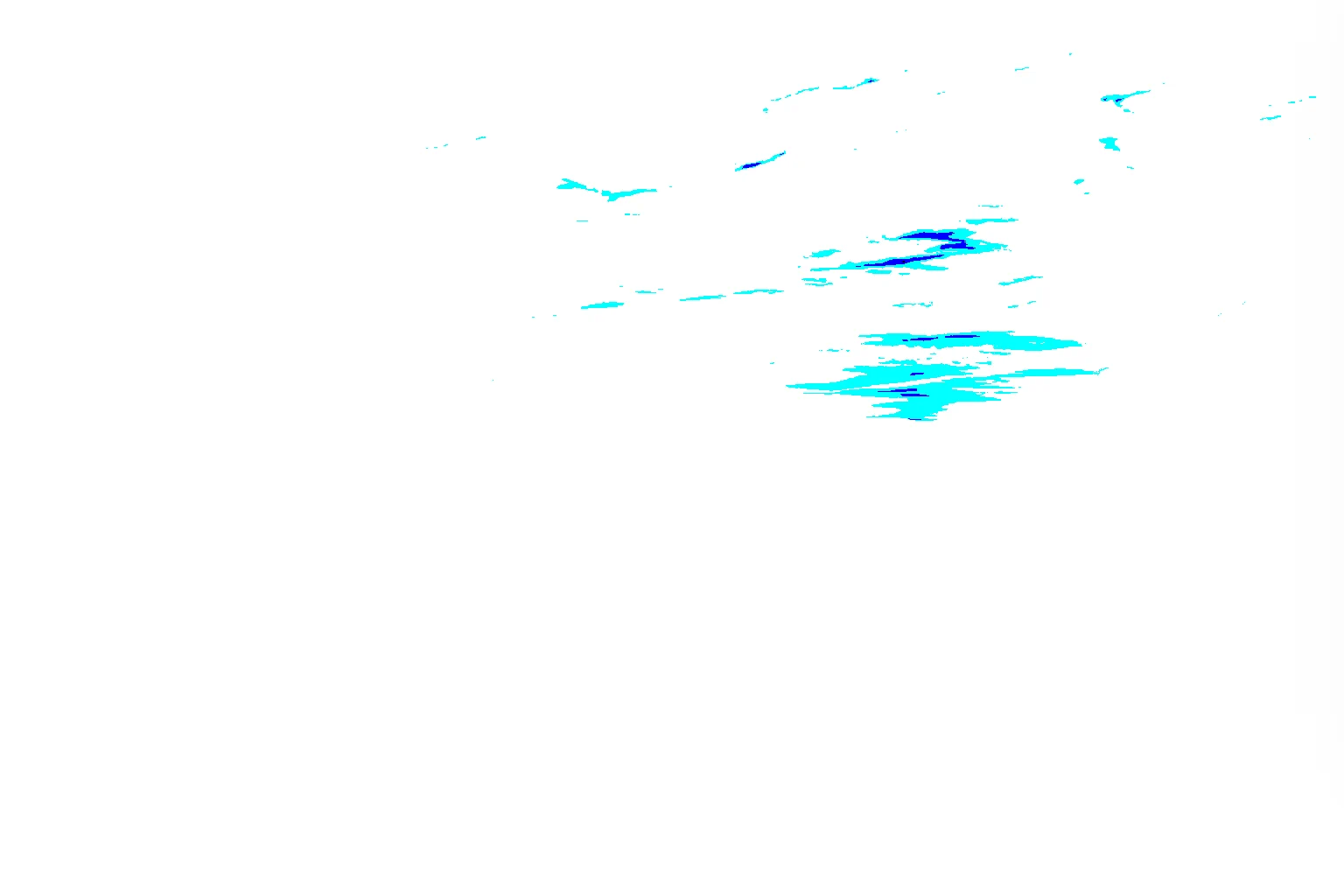
White point clipping preview at 228: small patches of the sunset clouds clip in red. Brighten or darken the midtones
Drag the gray triangle, or type in its box. Values above 1 brighten the midtones, values below 1 darken them, and pure black and white stay where you set them. That is the difference from a brightness slider, which moves everything. On the sample, 1.2 opens up the rock without washing out the sky.
The dialog now reads 18, 1.2 and 228. Turn off Preview at the top of the dialog for a moment to compare with the original.
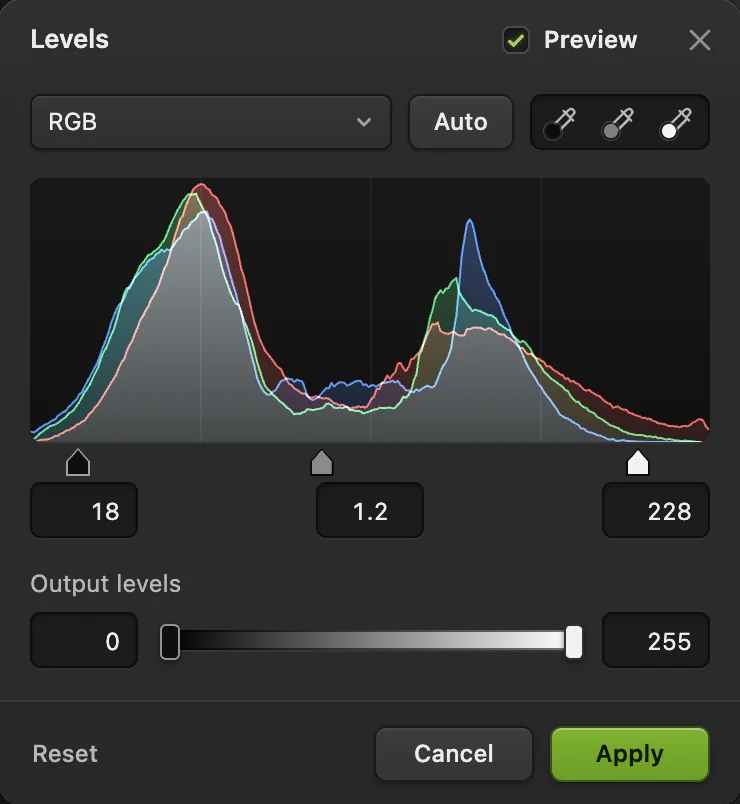
The finished settings: black point 18, gamma 1.2, white point 228. - Black point: 18
- Gamma: 1.2
- White point: 228
Click Apply
Click Apply. A Levels layer appears above the photo in the Layers panel. Lower its Opacity if the change is too strong, or paint black on its mask to leave part of the photo untouched. To change the values later, select the Levels layer and click Open Levels… in the Properties panel.
Save with for a finished copy, or (Ctrl+Shift+S or ⇧⌘S) to keep the Levels layer editable.
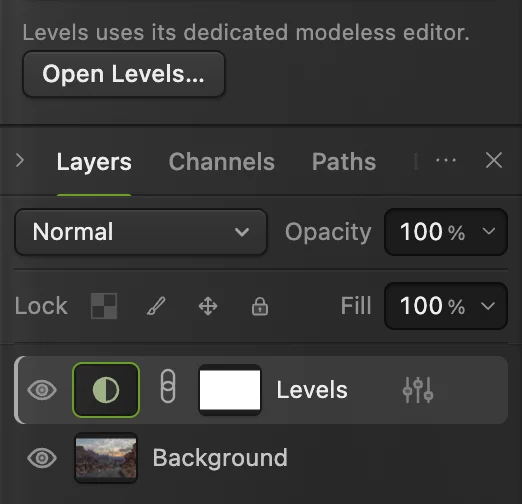
The Levels layer (ringed), and the button that reopens it. - Open Levels…: change the values later
Auto, the eyedroppers and color
- Auto sets the black and white point of the red, green and blue channels separately, ignoring the darkest and brightest 0.1% of pixels in each. Because each color is stretched on its own, Auto also removes color casts, but it can change color you wanted: on the sample, blue is stretched further than red, so the sunset turns cooler. Click Reset to undo it and set the RGB triangles by hand instead.
- Channels by hand: switch Channel to Red, Green or Blue and each gets its own triangles. Setting each channel’s ends to where its own histogram starts and ends is what Auto does in one click.
- Black point eyedropper: click the first eyedropper, then click something in the photo that should be pure black. Each channel’s black point is set from that spot, so it becomes black and neutral.
- White point eyedropper: the same for something that should be pure white, such as a white shirt or paper. Avoid light sources and reflections, which are brighter than white objects.
- Gray point eyedropper: click something that should be neutral gray (a road, concrete, a gray card). Each channel’s gamma is adjusted so that spot becomes gray, which removes a color cast without changing contrast. Use it before the black and white eyedroppers. Auto replaces its correction (it resets each color’s gamma to 1), so use one or the other.
- Output levels, the bar at the bottom, work the other way around: raising black from 0 to about 25 gives faded, matte blacks; lowering white from 255 keeps highlights below paper white, which some print services ask for.
Why stretching the histogram adds contrast
Levels maps the tone at the black point to 0 and the tone at the white point to 255, and at a gamma of 1 spreads everything in between evenly. On the sample, tones from 18 to 228 (a range of 210) are spread over the full 0 to 255, so the difference between neighboring tones grows by about 20%. Larger differences between neighboring tones are what we see as contrast.
The price: every tone below the black point becomes the same black, and every tone above the white point the same white. That detail is gone, which is why the clipping preview matters. In an 8-bit photo, stretching also leaves small gaps between the tones in use; a gentle stretch like this one is invisible, but heavy stretching on smooth skies can show bands. A 16-bit original, such as a RAW file, avoids that.
Other ways to set levels
- Directly on the photo: changes the layer’s pixels instead of adding a layer.
- Already a full range, but still flat: add an S-curve with
- One click: , and apply automatic corrections to the selected image layer.
- More control: Curves can do everything Levels does and change any tone separately.
What to do next
- Shape contrast tone by tone: how to use Curves.
- Rescue a badly underexposed photo: how to fix a dark photo.
- Use the layer mask to apply Levels to only part of the photo.
- Resize the photo for the web.
Coming from another editor
- Photoshop
- Image › Adjustments › Levels… and Layer › New Adjustment Layer › Levels…, the same menu paths as in Lil Cactus.
- GIMP
- Colors › Levels… In Lil Cactus the equivalent is Layer › New Adjustment Layer › Levels…
Levels: questions and answers
What do the three Levels sliders do?
In Lil Cactus, the black slider picks the tone that becomes pure black, the white slider the tone that becomes pure white, and the gray slider sets how bright the midtones are.
What is a good black point and white point?
Where the histogram starts and ends, then nudged back until the clipping preview shows only small specks. In Lil Cactus, hold Alt (Option on a Mac) before pressing on a triangle to see that preview. There is no single number; it depends on the photo.
Should I use Levels or Curves?
Levels is quicker for setting black, white and overall midtone brightness. Curves does all of that and can also change specific tones, such as only the shadows.
Is there a keyboard shortcut for Levels?
Yes. In Lil Cactus, Image › Adjustments › Levels… changes the selected layer’s pixels directly, and its shortcut is Ctrl+L (Command+L on a Mac); with a Levels adjustment layer selected, the shortcut reopens that layer’s settings instead. Many browsers use that shortcut to jump to the address bar, so use the menu if it does. For a new adjustment layer, use Layer › New Adjustment Layer › Levels…
Is my photo uploaded when I use Levels in Lil Cactus?
No. Levels runs in your browser on your own device, and the photo is never sent to a server. Optional statistics never include the image; see the privacy policy.
Keep going
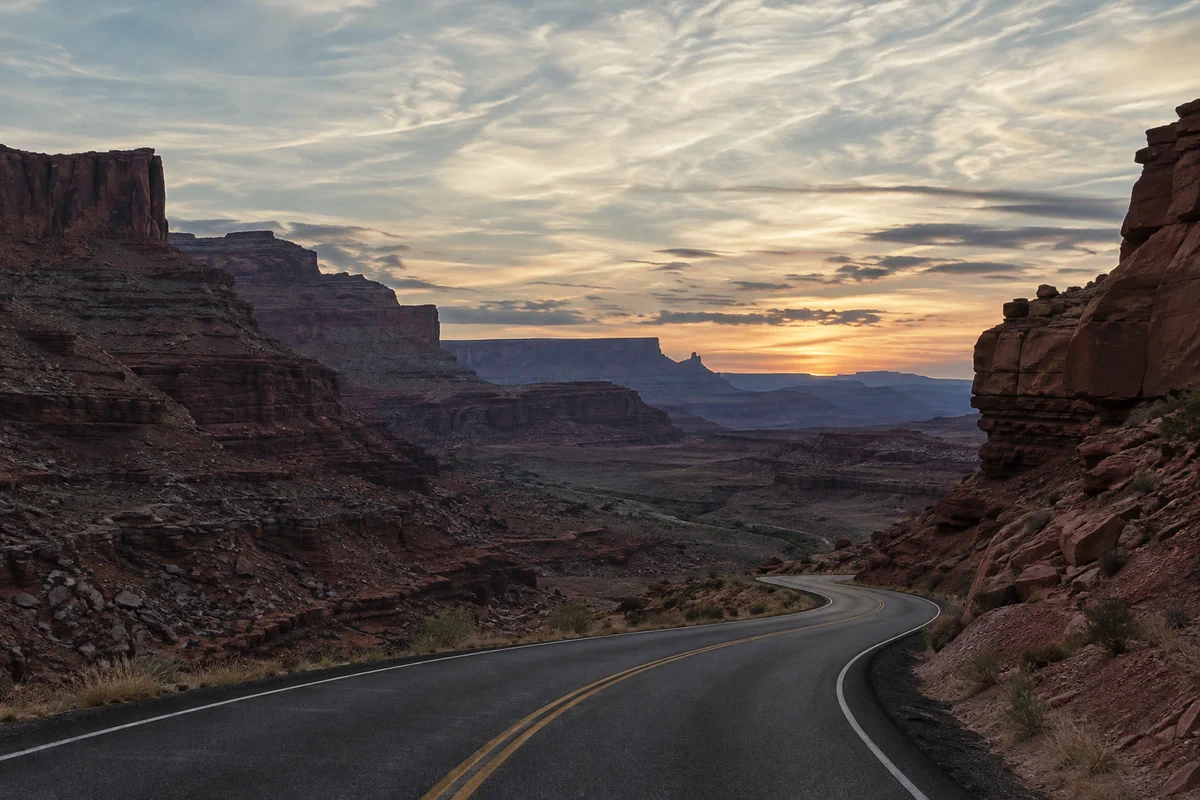 How to use Curves to fix contrast and colorRead the graph, build an S-curve and shift color by channel.Intermediate · 8 min
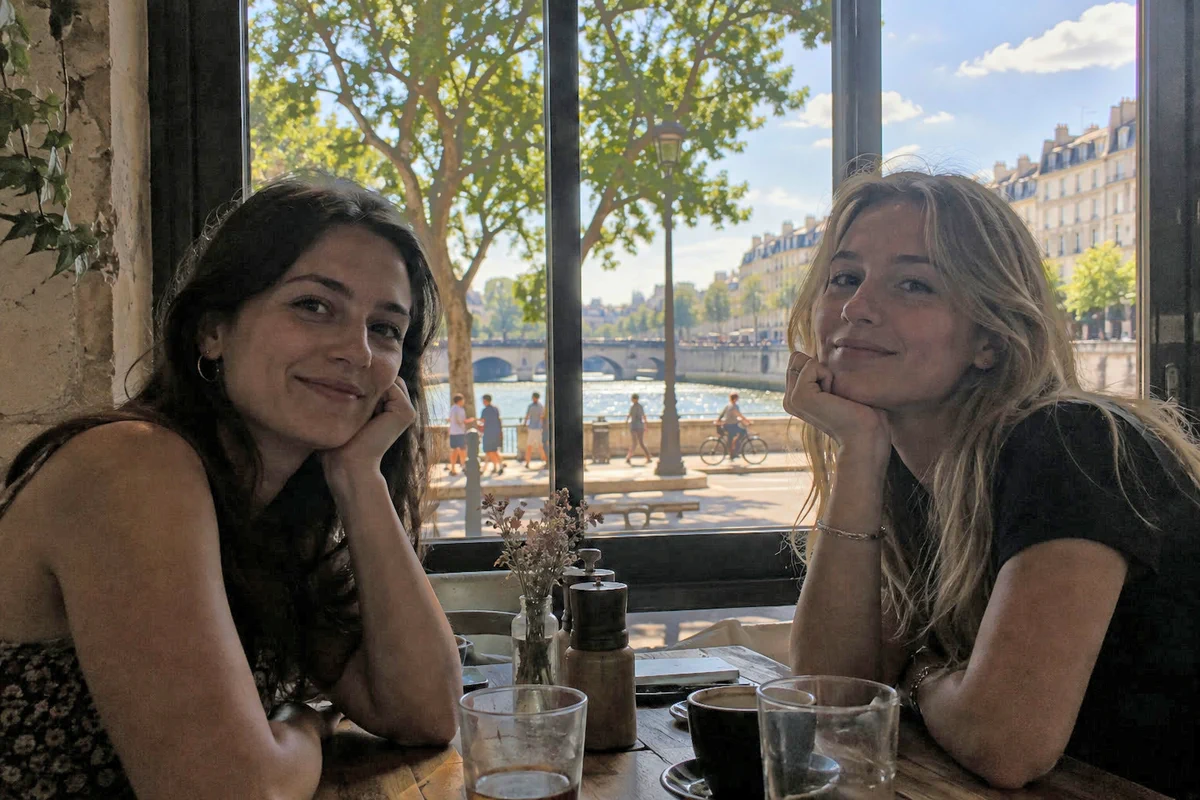 How to fix a dark or backlit photoLift shadows and faces without washing out the window.Beginner · 5 min
 How to use layer masksHide part of a layer without deleting it, and bring it back any time.Beginner · 5 min