How to fix a dark or backlit photo
Quick answer
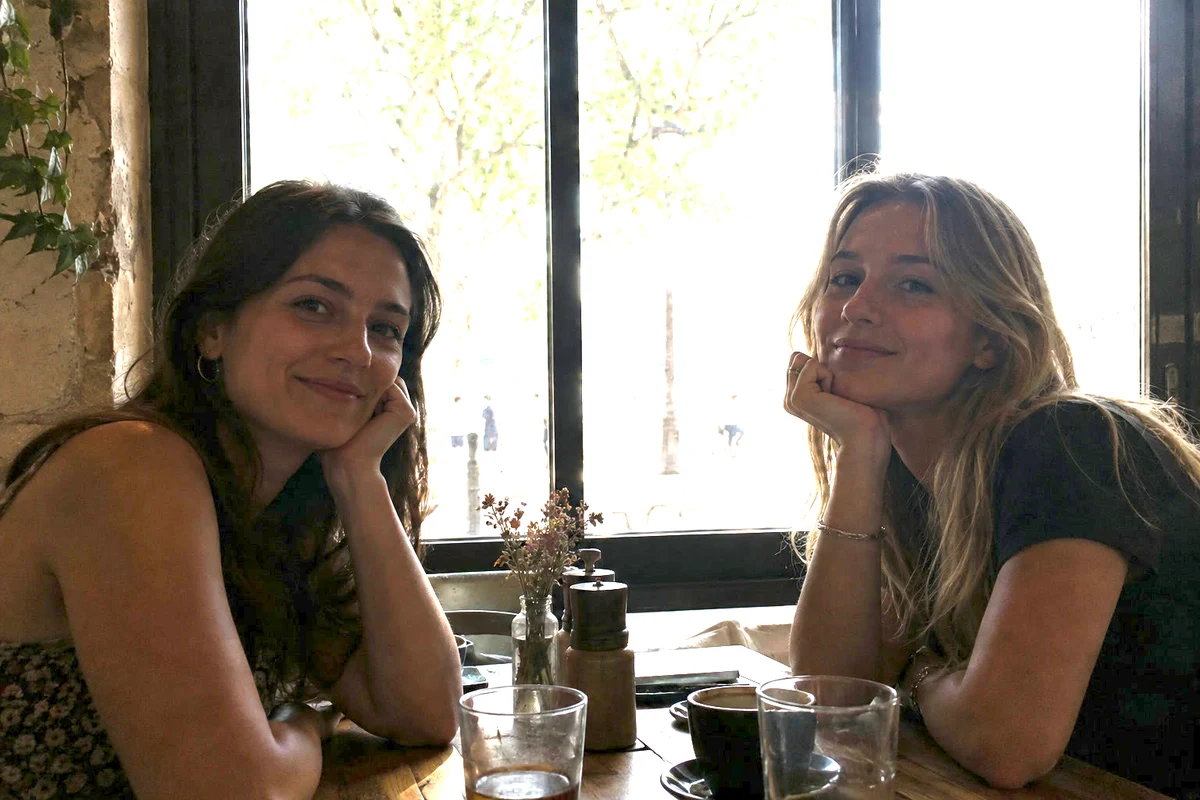
Choose , then Raise Shadow amount from 50% to about 70% to brighten the dark areas and Shadow tone from 25% to about 45% to include the darker midtones, such as faces; the bright window changes far less. Raise Color correction to about 70 so the lifted skin looks less gray, and, if the sky is too bright, Highlight amount and Highlight tone to about 20% and Highlight radius to about 30 px. Then click Apply. For a photo that is evenly dark all over, an Exposure or Curves adjustment layer is the better tool.
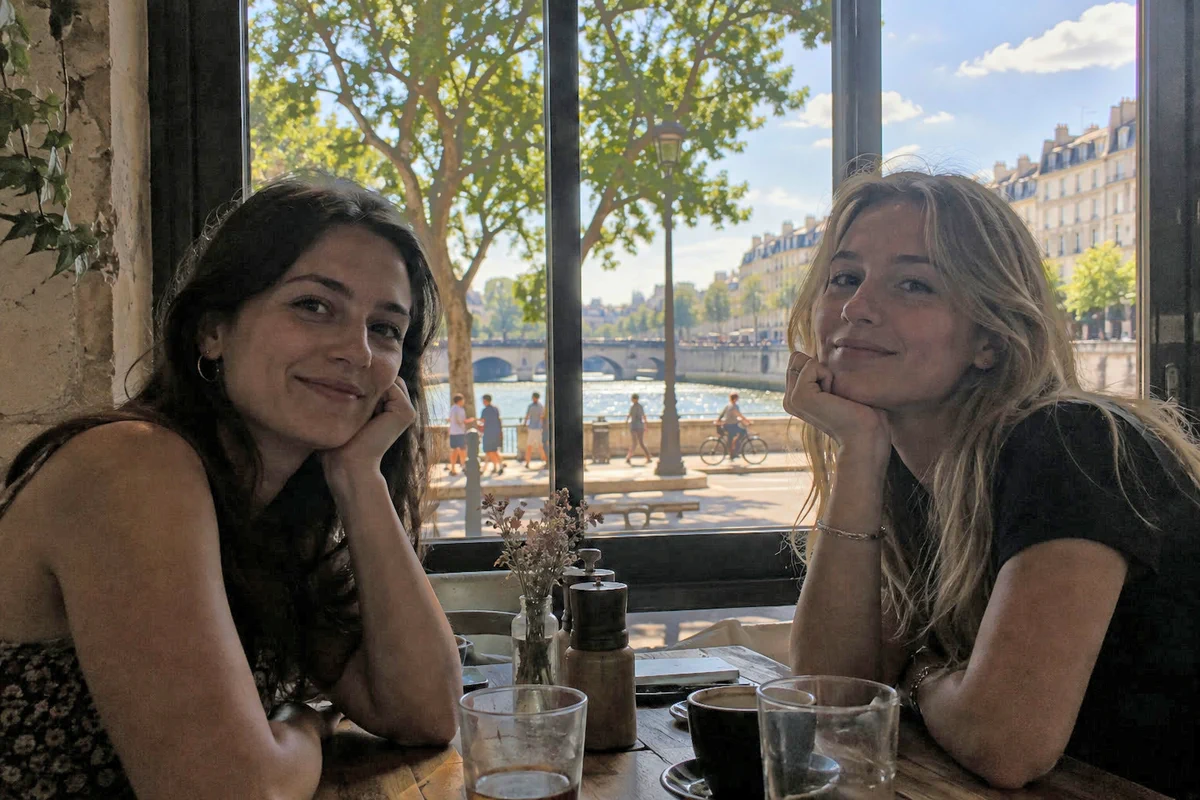
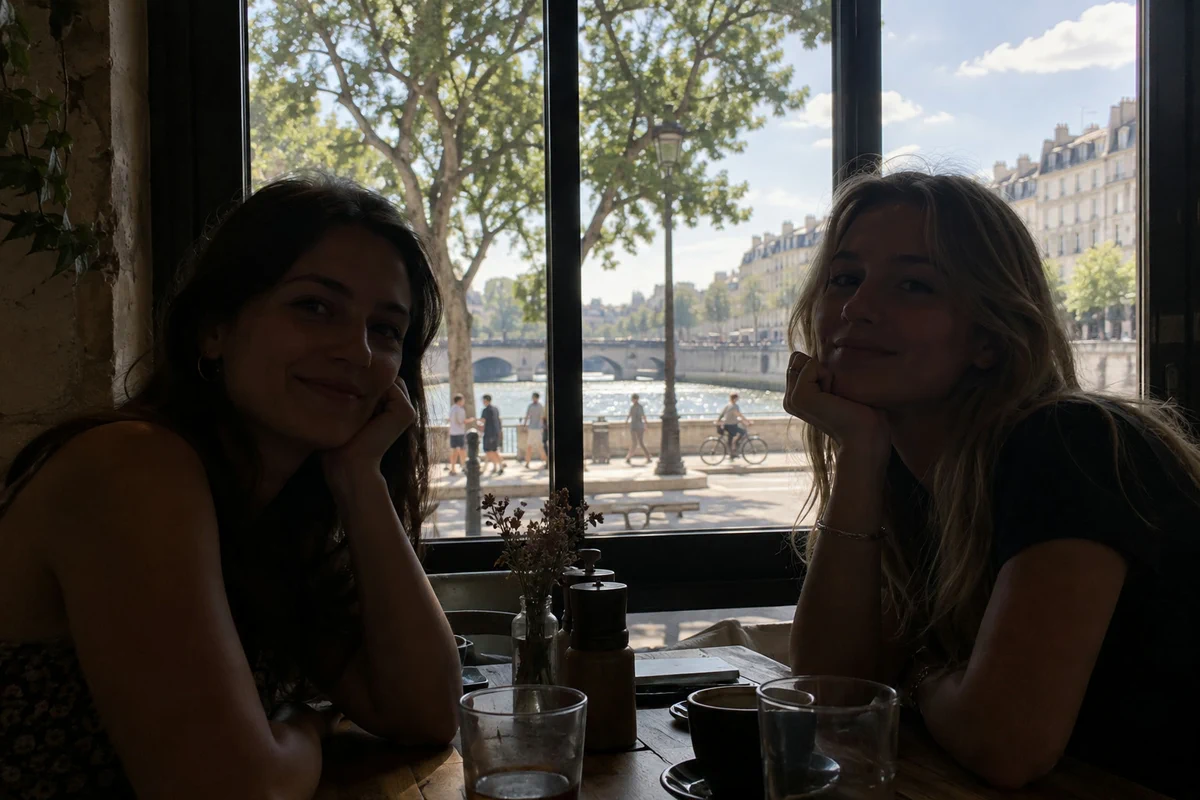
- Time
- 5 minutes
- Level
- Beginner
- You need
- A photo with dark faces or shadows, often taken against a window, the sun or a bright sky
- Works with
- JPEG, PNG, HEIC, WebP, TIFF and PSD; RAW files have their own Shadows slider
Many “too dark” photos are not dark everywhere. A bright window, sky or sunny street in the frame pulls the camera’s exposure down, and the people in front of it fall into shadow. Brightening the whole photo would rescue the faces but burn the window to white.
Shadows/Highlights solves that by lifting dark areas while the bright window changes far less.
Fix a dark photo in five steps
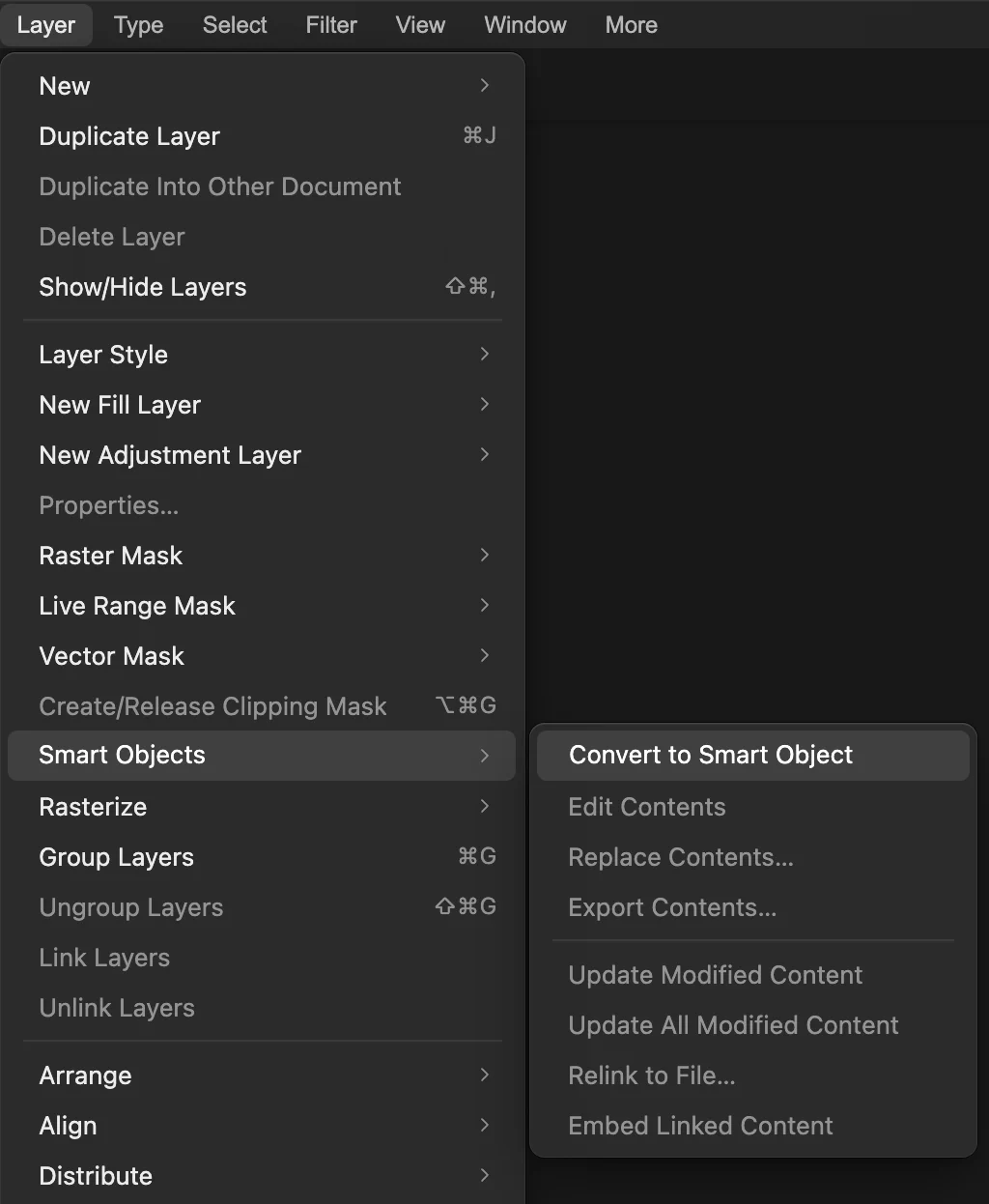
Open the photo and make it a Smart Object
Open the photo with (Ctrl+O or ⌘O); to follow along, open the sample from this page. Then choose .
A Smart Object keeps the original photo inside the layer. Filters you apply to it become Smart Filters, which you can reopen and change at any time instead of being baked into the pixels.
. Choose Image › Adjustments › Shadows/Highlights…
The dialog opens with Shadow amount already at 50%, so the photo brightens straight away. That default is often enough for a mildly dark photo. Turn off Preview at the top of the dialog to compare.
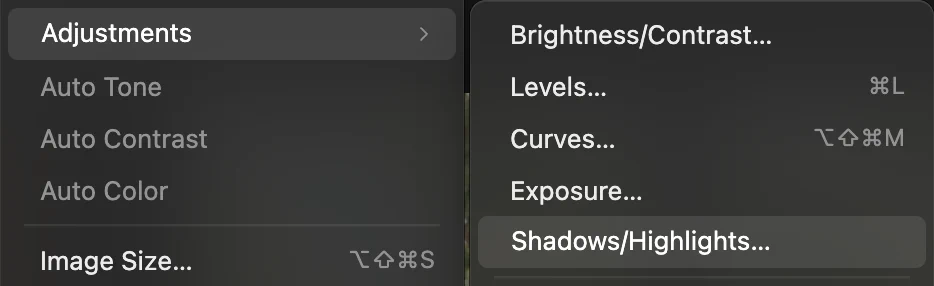
, at the end of the tone group. 
Preview, at the top right of the dialog. Set the shadows
Three sliders decide what is lifted and how:
- Shadow amount (70% on the sample): how much the shadows are brightened.
- Shadow tone (45%): how far up from black the effect reaches. Low values touch only the deepest shadows; higher values include the darker midtones, here the faces, which are dark but not black.
- Shadow radius (leave it at 12 px): how large an area is judged when deciding what is dark. Values near 0 judge each pixel on its own, so darker pixels catch up with lighter neighbors and skin and fabric texture looks flatter; from about 10 px up, detail inside a face or a shirt keeps its contrast.
Watch the faces, not the numbers: stop when skin looks like skin, before the dark clothes turn gray. If the photo looks flat, lower Shadow tone a little so fewer midtones are lifted.
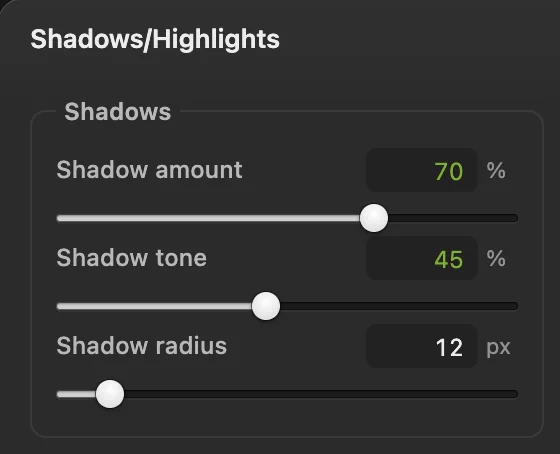
The shadow settings used on the sample. - Shadow amount: how much
- Shadow tone: how far into the midtones
- Shadow radius: the size of area judged
Hold the highlights and fix the color
- Highlight amount, tone and radius work the same way for bright areas, darkening them. Amount starts at 0, with tone at 25% and radius at 12 px, so raising the amount has an effect straight away. On the sample, 20%, 20% and 30 px darken the brightest parts of the sky a little and give the clouds more shape.
- Color correction (70): lifting a shadow brightens it but keeps its original amount of color, so brightened skin looks gray and washed out. Positive values raise the color saturation of the whole layer, negative values reduce it. On the sample, 70 brings some of the color back to the faces, though the skin stays a little grayer than the original; check that the sunny street doesn’t turn garish, since it gets the boost too.
- Midtone contrast (10): lifting shadows lowers contrast. A little here brings it back without undoing much of the shadow fix.
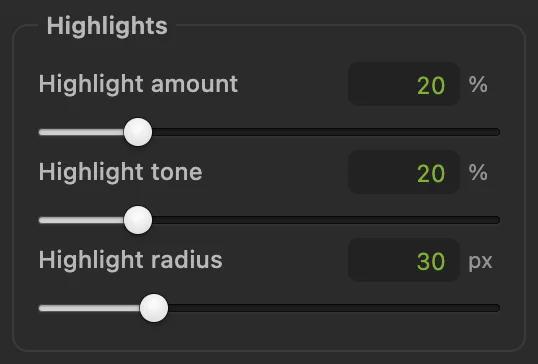
The highlight settings used on the sample, beside the Shadows group. - Highlight amount: how much the bright areas darken
- Highlight tone: how far down from white it reaches
- Highlight radius: the size of area judged
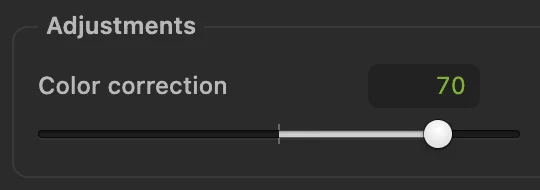
Color correction at 70, in the Adjustments group below; Midtone contrast sits to its right. - Color correction: saturation of the whole layer
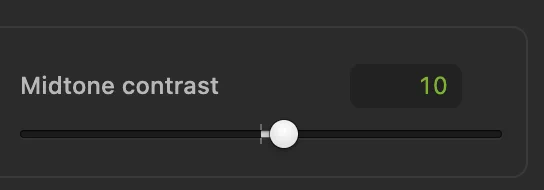
Midtone contrast at 10, to the right of Color correction. - Midtone contrast: brings back contrast
Apply, check at 100% and save
Click Apply. The button at the bottom of the Layers panel now reads Smart Filters (1)…: the filter is stored there, not in the pixels.
Zoom to 100% with Ctrl+1 or ⌘1 and look at the faces. Brightening reveals what the camera recorded in the dark: grain, and in a JPEG, blocky compression patterns. A moderate setting hides most of it. If it is distracting, lower Shadow amount a little, or reduce the noise.
To keep the Smart Filter editable, save with (Ctrl+Shift+S or ⇧⌘S); after that, saves the project. (Ctrl+S or ⌘S) on the photo you opened writes the result back into that JPEG, flattened; the first time, the Save Image dialog asks for its quality. writes a separate finished copy.
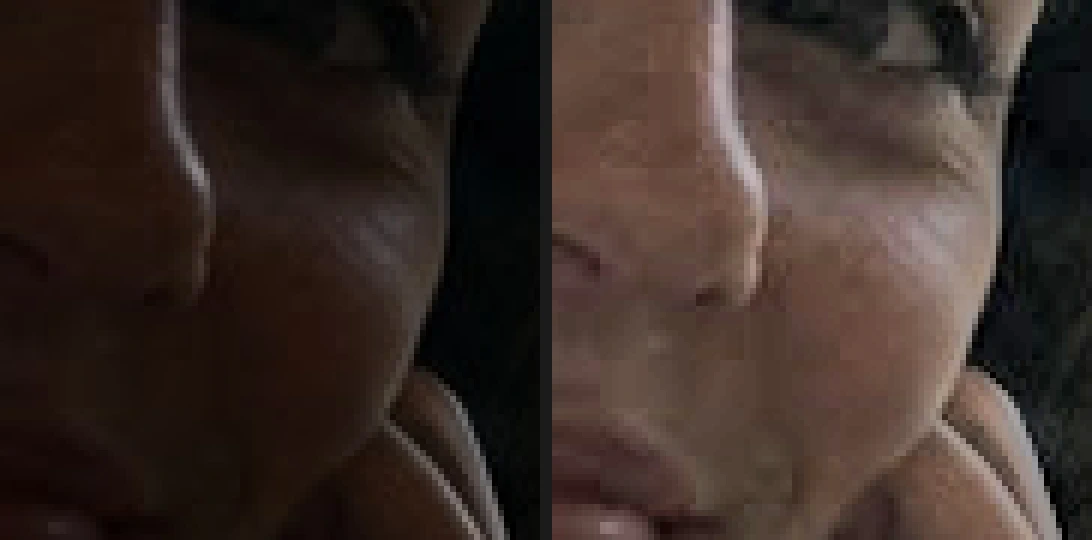
Nose and cheek, enlarged, before and after: detail comes back, along with some grain. 
The filter is kept as a Smart Filter, so it stays editable.
Which tool for which dark photo
- Backlit: dark people against a bright window, sky or sun. , as above.
- Evenly dark all over, nothing bright to protect. , or Levels with the white point moved left.
- A full range of tones, just gloomy midtones. Curves: raise one point in the middle.
- A camera RAW file. Photographic Development: Shadows and Exposure (EV) work on the 16-bit sensor data, which holds more shadow detail than a JPEG and has no compression blocks.
- Only one part is dark, such as a face in a landscape. An Exposure or Curves adjustment layer, with its mask painted black everywhere else.
The picture below shows why the first row matters. To make the skin as bright as the Shadows/Highlights settings above do, an Exposure layer needs +3.3 stops, and then 28% of the photo, the sky and the sunlit street, burns out to pure white, and once you export the photo that detail is gone.
Why Shadows/Highlights spares the window
For every pixel, the filter first works out how bright its neighborhood is, over the Shadow radius, using a smoothing that stops at strong edges such as the window frame. Only pixels whose neighborhood is dark get lifted: the darker the neighborhood, the stronger the lift, fading to nothing at the Shadow tone limit. The sunny street sits in a bright neighborhood, so it is lifted far less. It still brightens a little on the sample, because a Shadow tone of 45% reaches into its midtones and Midtone contrast acts on the whole layer.
Change the settings later
Click Smart Filters (1)… under the Layers panel, select Shadows/Highlights in the list and change the sliders, then click Apply stack. The checkbox beside the filter switches it off, and the dialog’s Stack result preview shows the difference. If you applied the filter to a normal layer instead of a Smart Object, it is part of the pixels: use (Ctrl+Z or ⌘Z) and start again.
What to do next
- Add contrast back precisely: how to use Curves.
- Set true black and white: how to use Levels.
- Shoot RAW next time and develop it: how to edit a RAW photo.
- Use a layer mask to brighten only one person.
Coming from another editor
- Photoshop
- Image › Adjustments › Shadows/Highlights…, the same menu path as in Lil Cactus. Convert to Smart Object first to keep it editable there too.
- GIMP
- Colors › Shadows-Highlights… In Lil Cactus it is
Fixing dark photos: questions and answers
Should I use Shadows/Highlights or Exposure in Lil Cactus?
In Lil Cactus, use Shadows/Highlights when the photo has bright areas to protect, such as a window or sky behind a person. Use an Exposure adjustment layer when the whole photo is evenly too dark.
Can Shadows/Highlights fix a photo that is too bright?
Partly. In Lil Cactus, set Shadow amount to 0 and raise Highlight amount and Highlight tone: bright areas that still hold some tone get darker. Areas that are already pure white have no detail left to bring back.
Why does my brightened photo look grainy?
The camera captured very little light in the dark areas, and brightening makes the grain and compression in them visible. If you have the RAW file, develop it in Lil Cactus with Filter › Photographic Development… instead, which has its own noise reduction. Otherwise, lower Shadow amount, or use Filter › Noise › Reduce Noise… after brightening.
Is my photo uploaded when I fix it in Lil Cactus?
No. Shadows/Highlights runs in your browser on your own device, and the photo is never sent to a server.
Keep going
 How to use Curves to fix contrast and colorRead the graph, build an S-curve and shift color by channel.Intermediate · 8 min
 How to use Levels to set black and white pointsBlack point, white point and midtones from the histogram.Beginner · 5 min
 How to edit a RAW photoWhite balance, highlights, shadows and color from the sensor data.Intermediate · 10 min