How to turn a photo into a pencil sketch
Quick answer
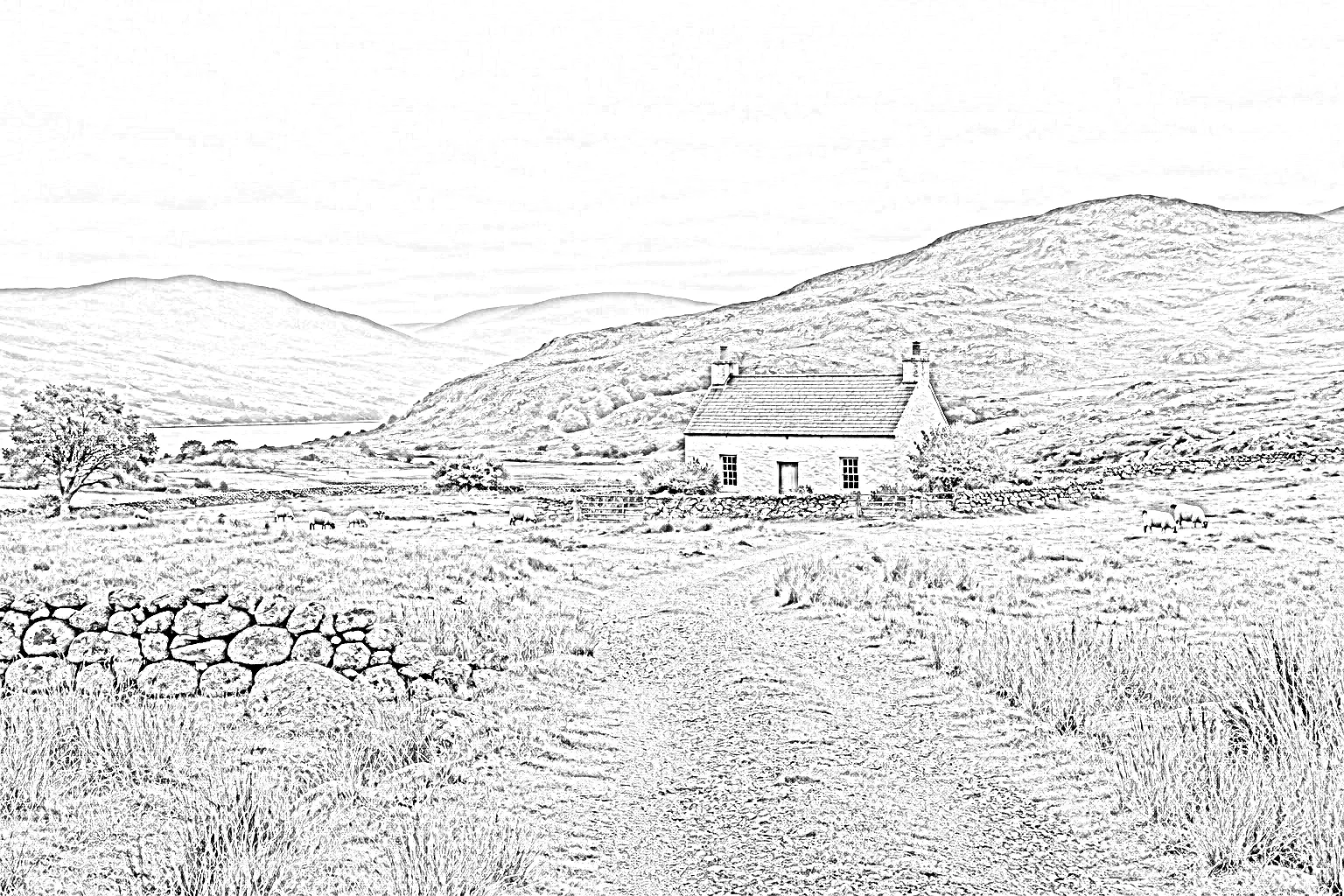
In Lil Cactus, duplicate the photo with and choose . Duplicate that gray copy, choose , and set its Blend mode to Color Dodge. Apply at Radius 9 px for the sample, then add with the left input value at 160 and click Apply to strengthen the lines. Export with and keep the layers with
- Time
- 7 minutes
- Level
- Beginner
- You need
- An opaque photo
- Works with
- JPG, PNG and WebP photos
This method combines a grayscale photo with a softened negative, a copy with light and dark reversed. Color Dodge, a lightening blend mode, turns that pair into pale paper and dark edges. A Levels adjustment makes the lines stronger.
Make a pencil sketch in seven steps
Open the photo
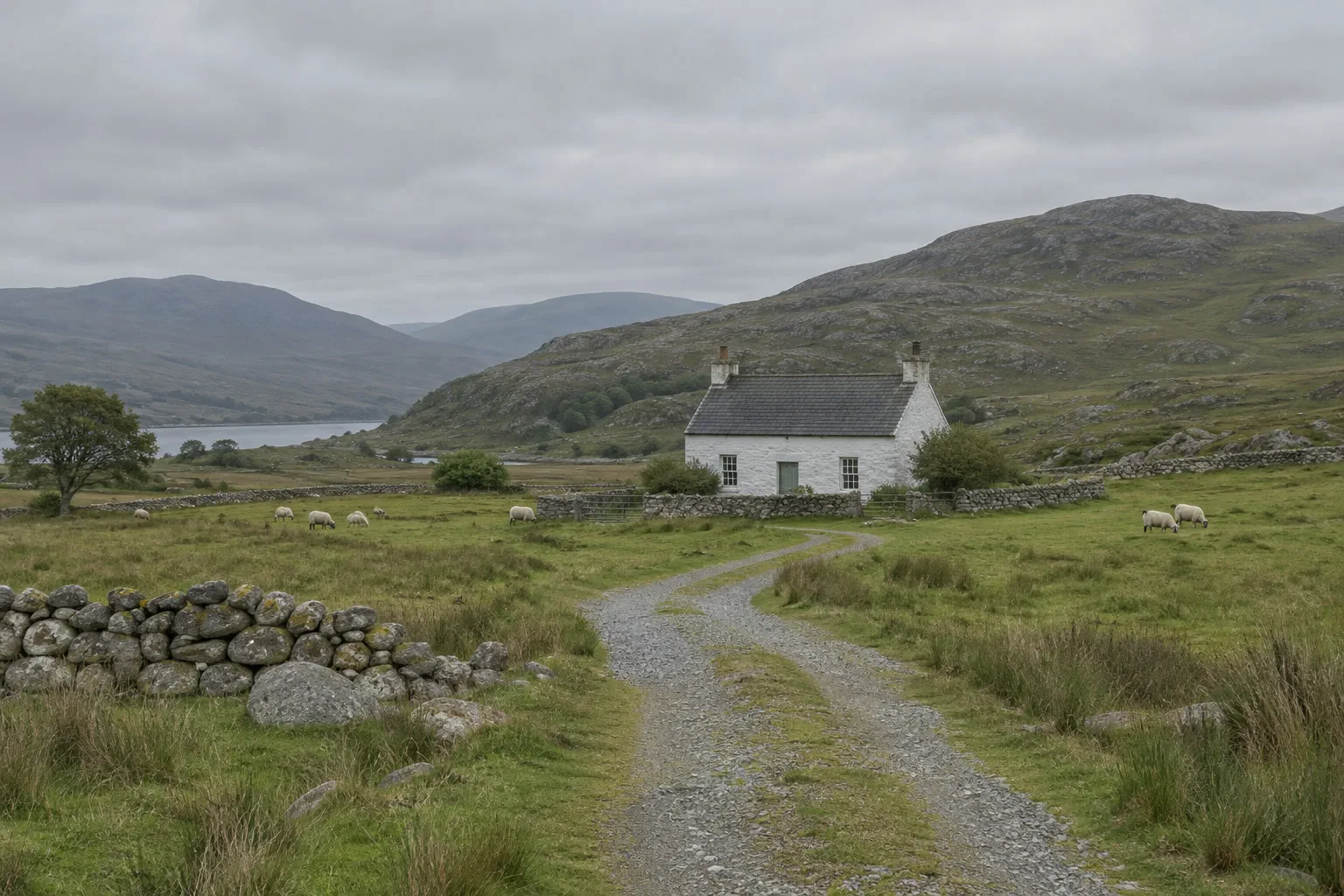
Open the sample from this page, or choose for your own photo.
Make a grayscale working copy
Choose , then . The gray copy sits above the untouched color original.
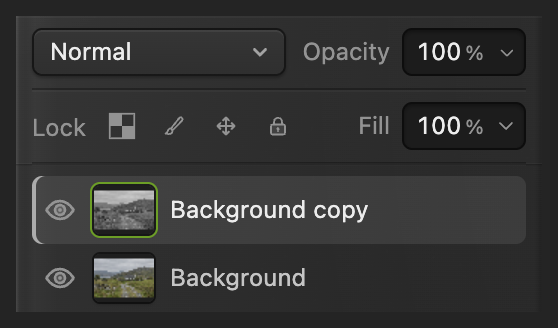
Work on the copy; keep the original at the bottom. Duplicate the gray copy and invert it
With the gray copy selected, choose again, then . Desaturate and Invert both apply at once, without a dialog.
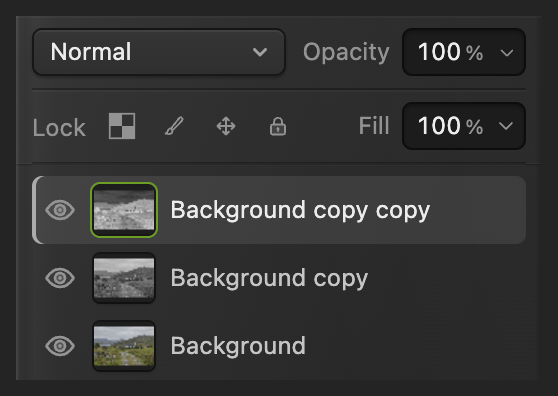
The top copy is the negative; the middle copy stays gray. Set the top copy to Color Dodge
Keep the inverted top copy selected. In Layers, set Blend mode to Color Dodge and leave Opacity at 100%.
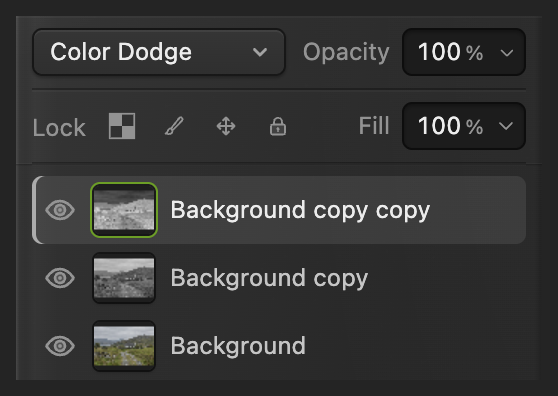
Apply Color Dodge to the inverted copy. Blur the negative to reveal lines
Choose Set Radius to 9 px for the sample, click Apply and wait for the dialog to close.
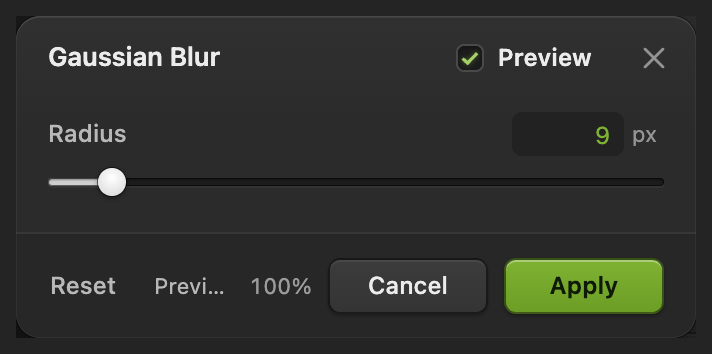
Blurring the negative reveals the sketch. Strengthen the pale lines with Levels
Choose Leave Channel on RGB. In the left number box under the histogram, the input black value, enter 160, then click Apply and wait for the dialog to close.
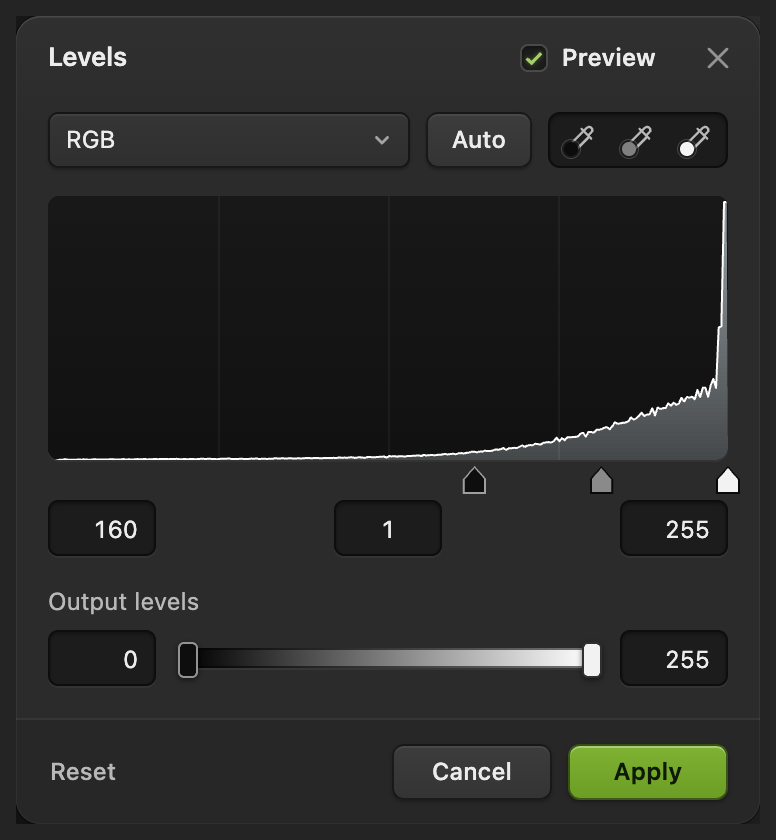
The black input makes the pale linework darker while white stays white. Export the sketch and keep the layers
Choose , enter pencil-sketch.png in File name and click Export.
Before you save a project, writes back into the JPEG you opened, flattened, and the first JPEG save opens Save Image. Use to keep the original, both working copies and the Levels adjustment; after that, updates the project. Export always makes a separate image file.

Name the image copy. 
Export the finished sketch.
Change the blur amount after applying it
Gaussian Blur is applied to the top photo copy’s pixels here. Saving the layers does not retain an editable Radius setting.
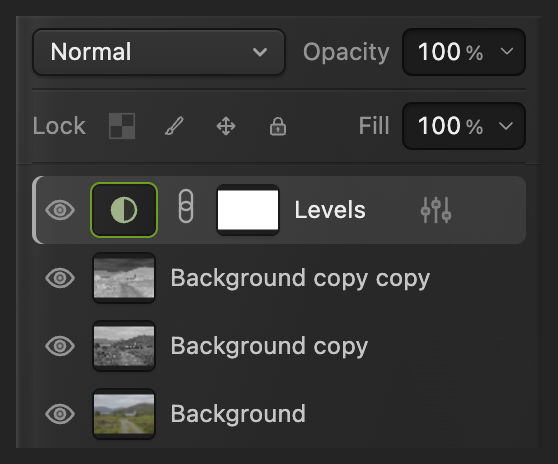
To try another amount later, select the blurred negative, Background copy copy in the sample, and choose . Select the gray Background copy beneath it and repeat steps 3–5 with a different Radius. Leave the Levels adjustment above the copies.
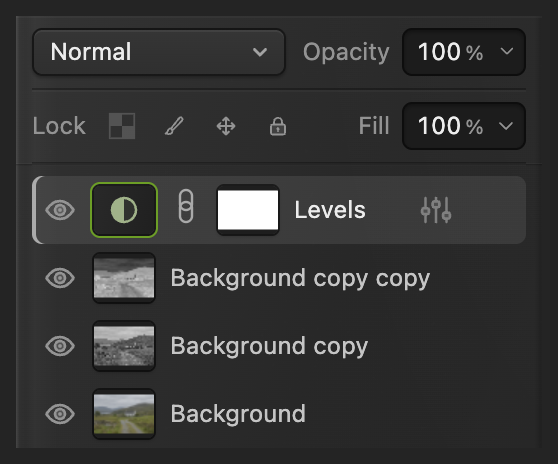
Compare with the original
Turn off the eyes beside Levels and both working copies. The bottom color photo shows again. Turn the three eyes back on to restore the sketch.
What to do next
Photo-to-sketch effects: questions and answers
Why does my photo turn white before Gaussian Blur?
That is expected in Lil Cactus at this stage. The grayscale photo and its unblurred negative cancel most shading under Color Dodge. Apply Gaussian Blur to the negative to reveal the lines.
Can I make a pencil sketch from my own photo?
Yes. In Lil Cactus, open your photo in step 1 and use the Gaussian Blur preview to choose a line weight that suits it.
Why does my pencil-sketch layer still look like a negative?
In Lil Cactus, select the inverted copy and set its Blend mode to Color Dodge, as in step 4. Keep the gray copy visible directly below it.
Does PNG make the sketch’s white background transparent?
No. This Lil Cactus workflow produces an opaque grayscale picture, including its white paper. PNG keeps those white pixels.
Can I change the pencil-sketch contrast after saving the project?
Yes. In Lil Cactus, double-click the Levels adjustment thumbnail, the half-filled circle, to reopen its settings. Change the left input value and click Apply.
Keep going
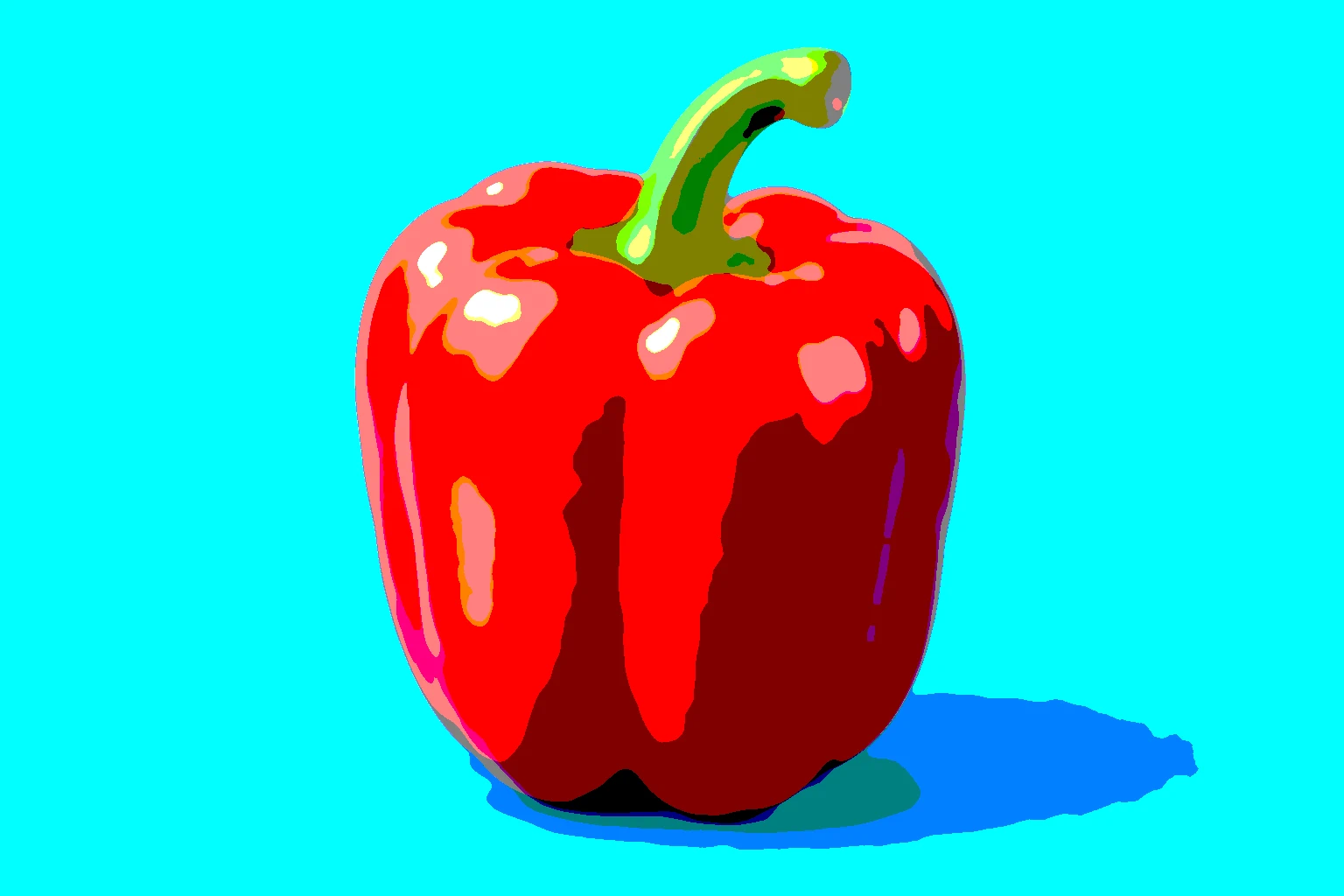 How to make pop art from a photoMake flat color bands or a stark black-and-white print.Beginner · 5 min
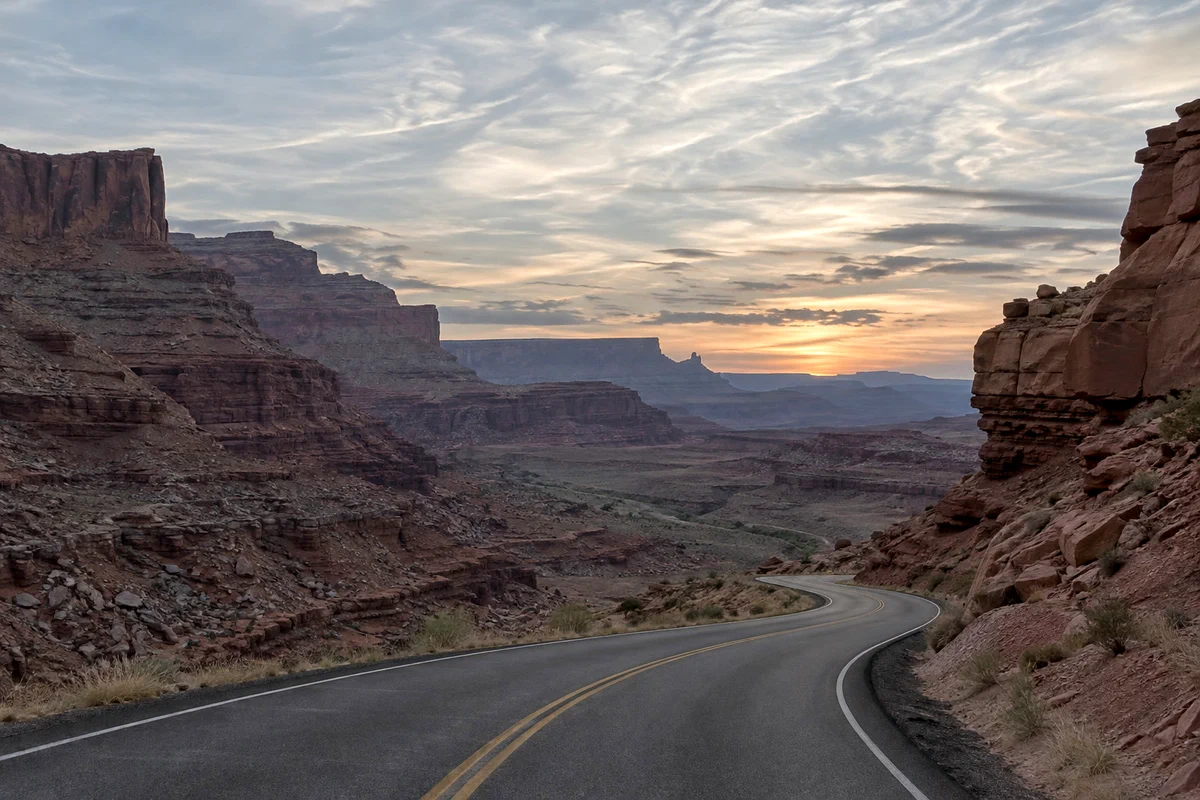 How to use Levels to set black and white pointsBlack point, white point and midtones from the histogram.Beginner · 5 min
 How to add a border to an imageAdd space for a frame, or put a stroke inside the photo.Beginner · 5 min