How to make pop art from a photo
Quick answer
In Lil Cactus, duplicate the photo with , then choose ; use Radius 8 px for the sample and click Apply. Choose : Levels opens at 4; lower it to 3 and click Apply. For black and white, hide the Posterize layer with its eye and add ; Level opens at 128, so click Apply. Export with , and save a layered copy with
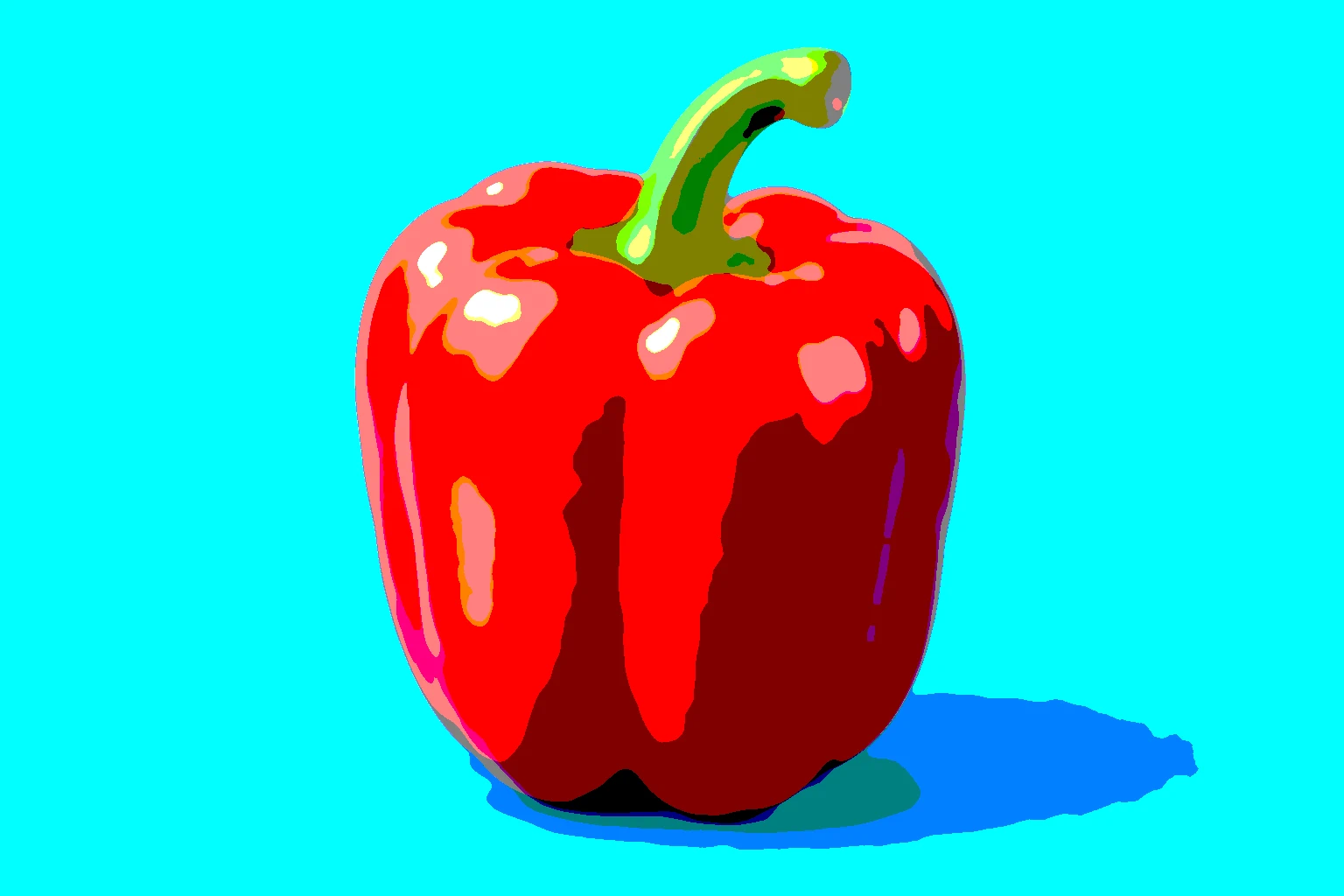
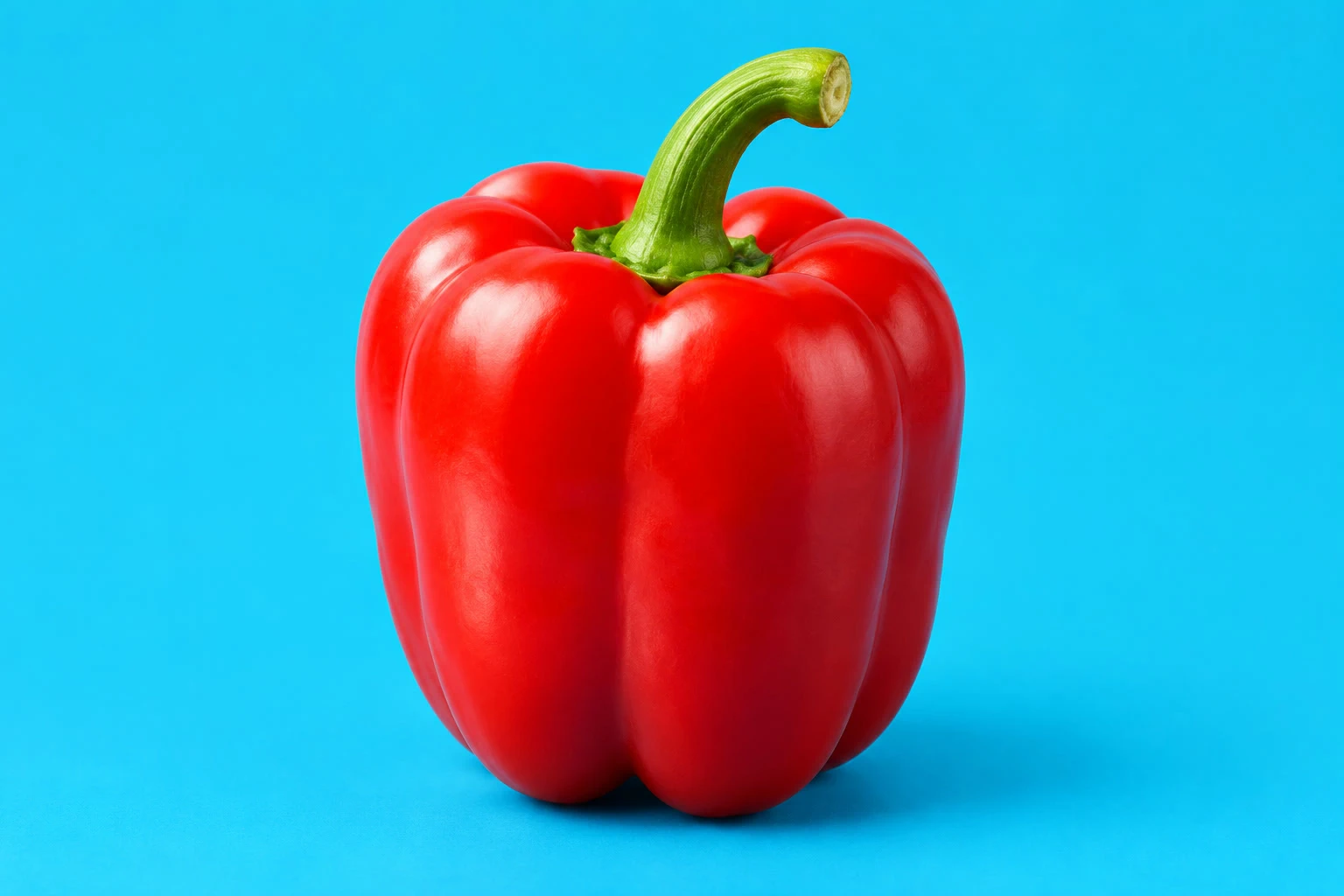
- Time
- 5 minutes
- Level
- Beginner
- You need
- One clear subject against a plain background
- Works with
- JPG, PNG and WebP photos
A posterized photo has a small set of color levels instead of smooth shading. With a clear subject and a simple background, this makes a graphic, pop-art treatment. First smooth fine texture with Median, a filter that replaces each pixel with the middle value of its neighbors, so the texture does not break into speckles. Work on a duplicate to keep the original photo; the adjustment layer above it holds Posterize so you can change its setting later.
Make a pop-art photo in five steps
Open the photo
Open the sample from this page, or choose for your own photo.
Smooth a copy of the photo
Choose . In Layers, double-click the duplicate’s name, type Smoothed photo and press Enter.
With that copy selected, choose Set Radius to 8 px for the sample, then click Apply and wait for the dialog to close. On another photo, use enough radius to remove fine texture while keeping the subject’s edges clear.
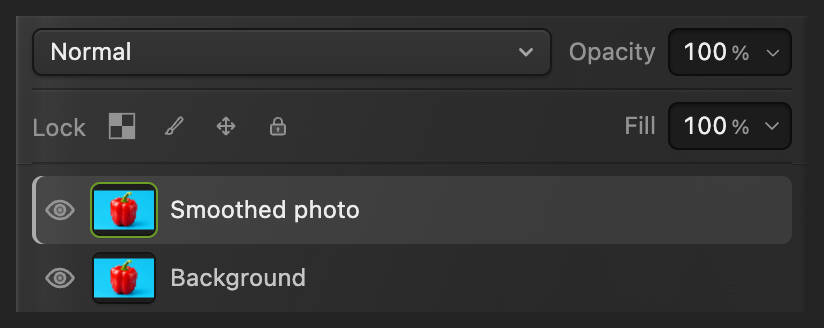
Smooth this copy, keeping Background untouched. 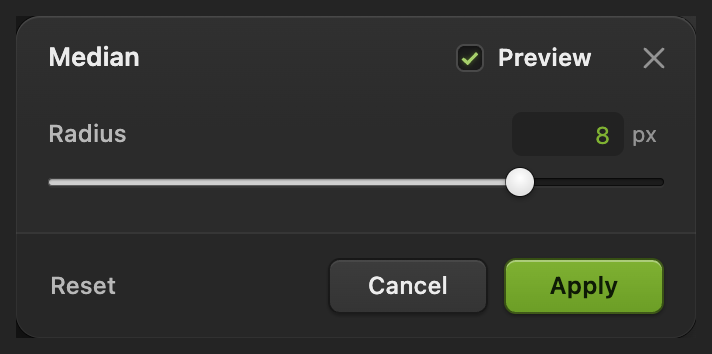
Remove small texture before reducing the colors. Add Posterize and choose the levels
Choose Levels opens at 4. Lower it to 3 for broader bands on the sample. Click Apply.
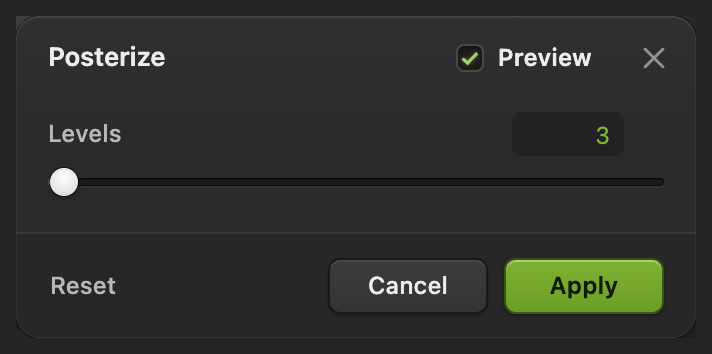
Three levels make broader color shapes. Compare and refine the effect
In Layers, click the Posterize layer’s eye to compare with the smoothed photo, then click again to restore the effect.
To revise it, double-click the adjustment thumbnail, the half-filled circle in the same row. Lower Levels for fewer, broader bands or raise it for smoother shading, then click Apply.
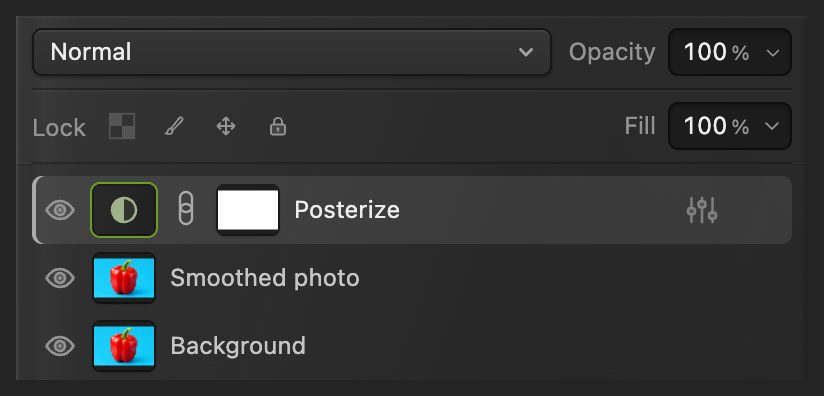
The eye compares; the half-filled circle reopens Posterize. Export and save the editable version
Choose , enter pop-art.png in File name and click Export.
Export writes a new file and leaves the original as it was. To keep the original photo, smoothed copy and adjustment layers, choose ; after that, updates the project. on the opened JPEG instead writes a flat JPEG back to it, and the first time it opens Save Image.

Name the image copy. 
Export the posterized image.
Make a black-and-white Threshold version
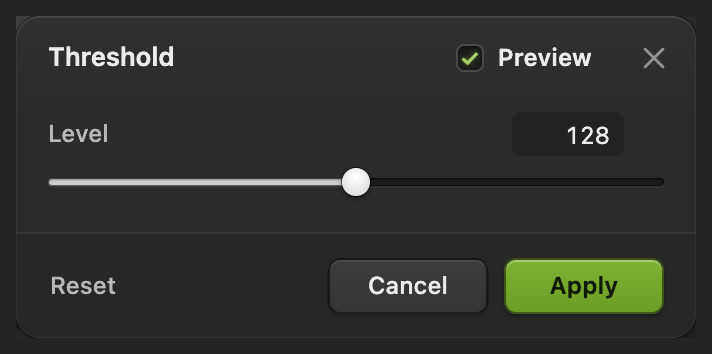
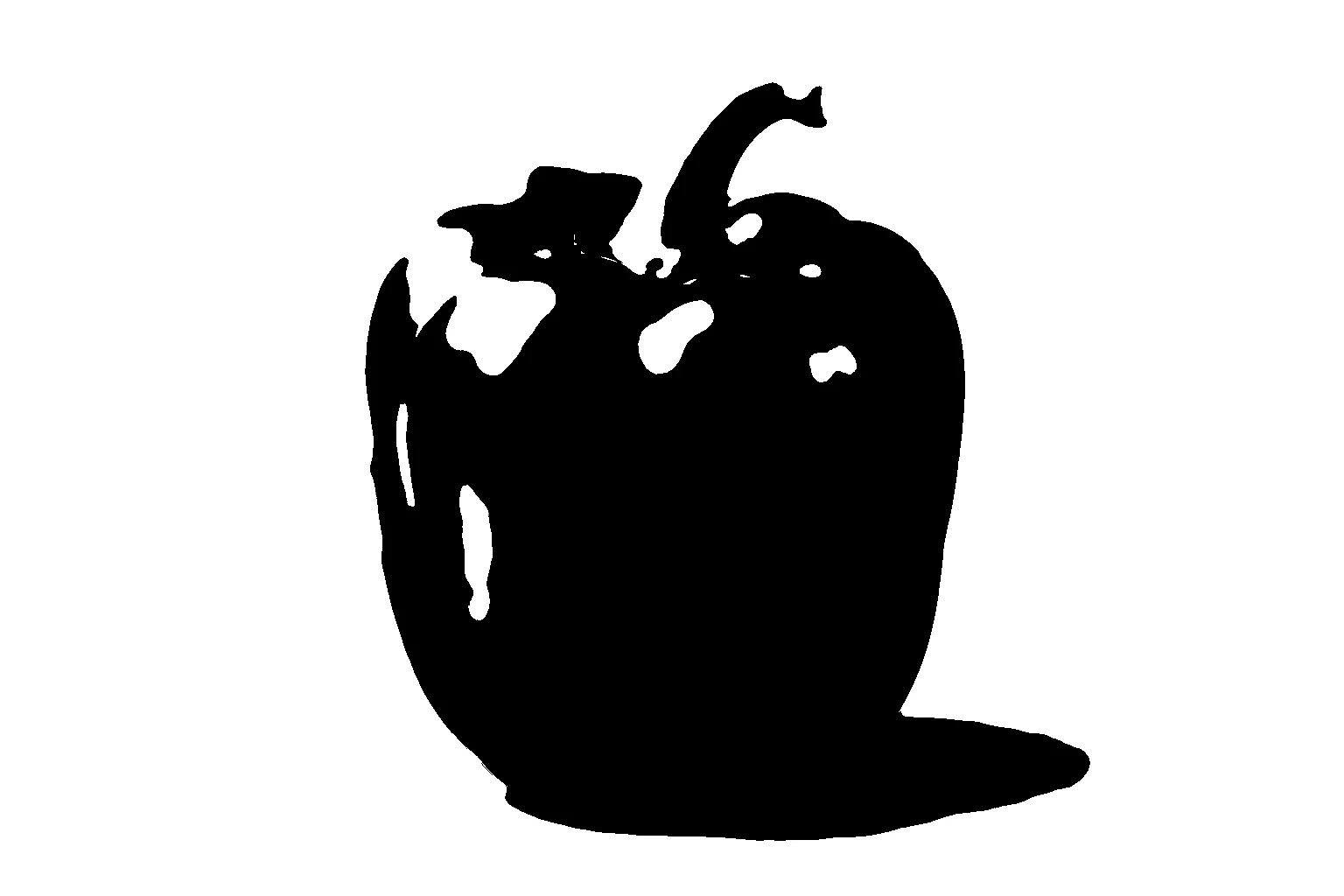
Click the Posterize layer’s eye to hide it, then choose The new layer works on the smoothed photo underneath. Level opens at 128; click Apply. Threshold turns dark areas black and light areas white, with no gray shading.
Export as in step 5, named for example threshold.png.
What to do next
Posterized photos: questions and answers
Why does Posterize at Levels 3 give more than three colors?
In Lil Cactus, Levels applies separately to the red, green and blue channels, the three components of a color pixel. Three levels per channel can combine into up to 27 colors; it does not mean three colors in the whole photo.
Does Posterize turn a photo into vector art?
No. Posterize in Lil Cactus changes pixel colors. The PNG remains a raster image, so enlarging it still enlarges its pixels.
Can I posterize only the subject of a photo?
Yes. In Lil Cactus, mask both the Posterize layer and the Smoothed photo layer to the subject, so the original photo shows around it.
Can Posterize use two exact colors of my choice?
No. Use Gradient Map for two chosen colors in Lil Cactus. Posterize reduces the existing color levels rather than assigning a palette you specify.
How do I get more black in a Threshold photo?
In Lil Cactus, reopen Threshold by double-clicking its adjustment thumbnail and raise Level. A higher value makes more pixels black; a lower value makes more pixels white.
Keep going
 How to make a duotone photoRecolor dark and light tones with a two-color gradient.Beginner · 5 min
 How to use adjustment layersColor and tone changes you can retune, hide or limit to one area.Beginner · 5 min
 How to add text to a photoA headline and a second line on a photo, still editable later.Beginner · 5 min