How to change one colour in an image
Quick answer
In Lil Cactus, choose to keep the original photo. Select the area to recolor: for the sample, choose and then to select the paper around the cup. Choose , enter #e88450 beside Color to replace, set Fuzziness to 200 and Hue to +160, then click Apply. Choose for a finished copy.
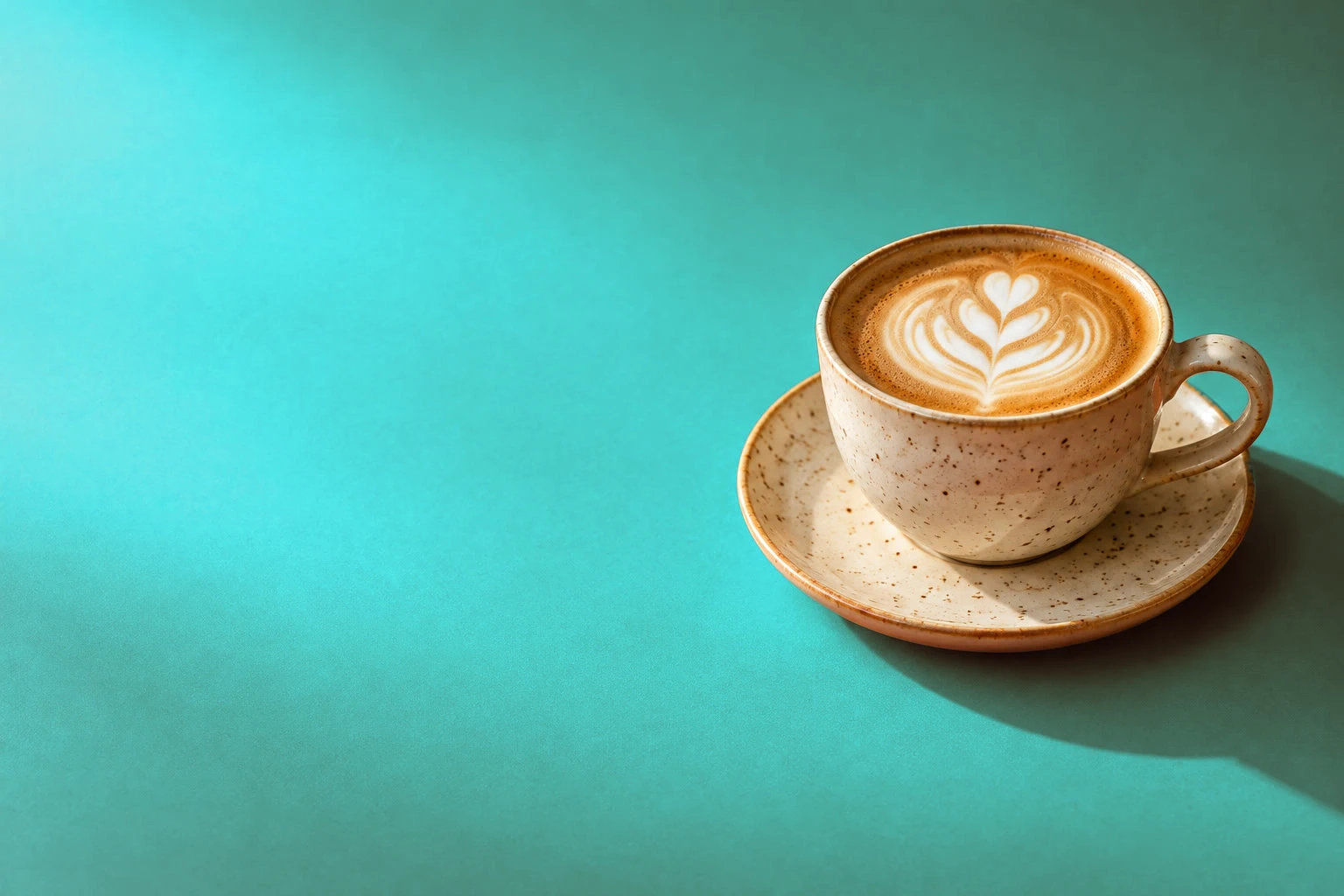
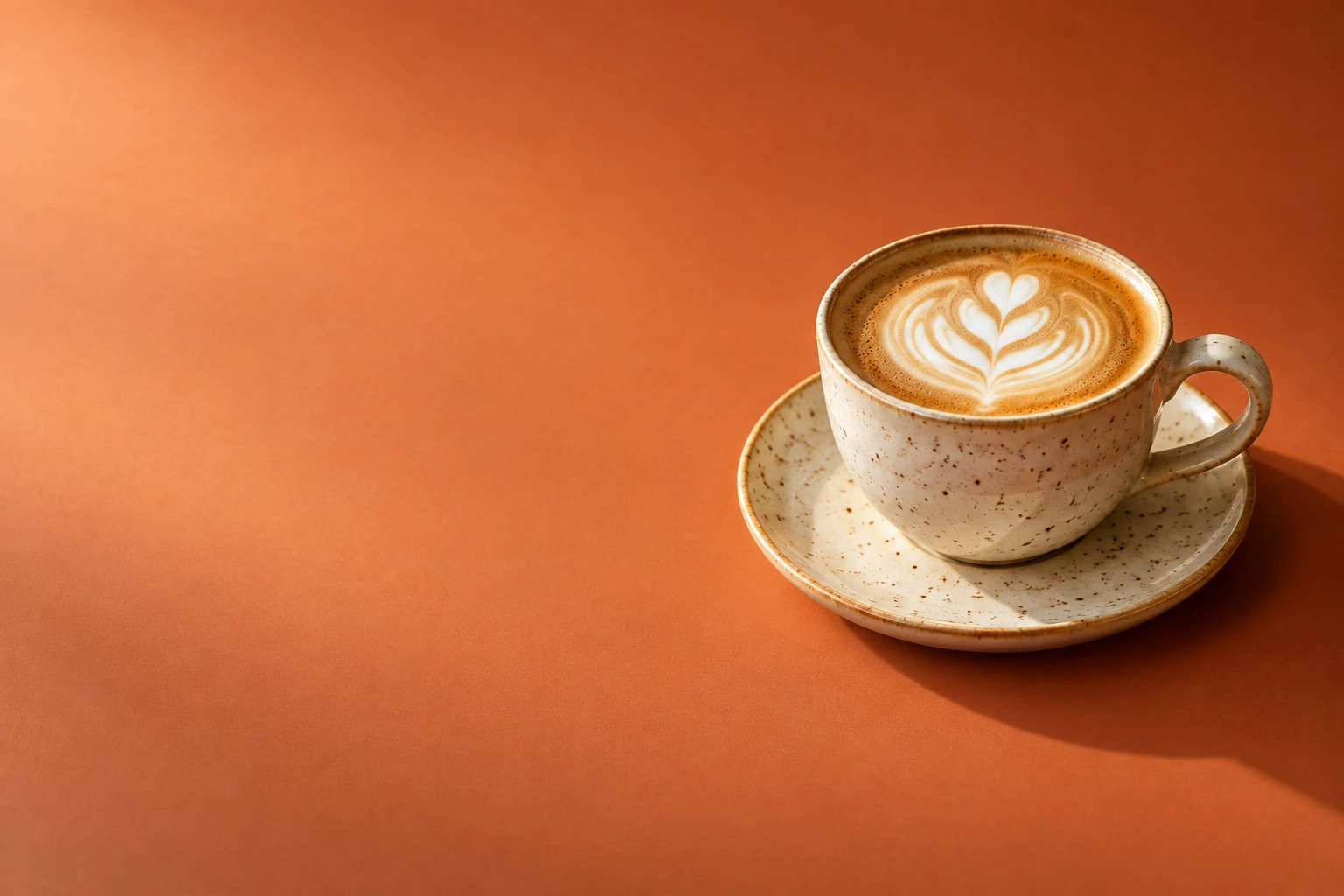
- Time
- 5 minutes
- Level
- Beginner
- You need
- A photo with a colored area you can isolate
- Works with
- RGB photos, including JPEG and PNG
Replacing a color has two parts: choose where the edit is allowed, then choose which shades to change there. A selection protects the rest of the photo. Replace Color samples an existing color and shifts similar shades while retaining visible texture and shading.
The sample changes orange paper to teal. The coffee contains warm colors too, so protect it with a selection first. Replace Color changes the layer’s pixels; use a duplicate to keep the original. The Hue/Saturation alternative below keeps its settings on a separate layer.
Replace a color in six steps
Open the photo and duplicate its layer
Choose and open a photo, or use the sample from this page. Choose . Keep Background copy selected in the Layers panel.
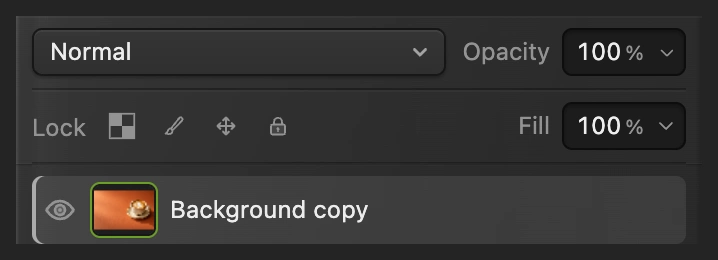
Recolor the copy so the original stays available underneath. Select the area you want to recolor
For the sample, choose and wait for the outline around the cup and saucer. Then choose . The paper around the cup is now selected, including the paper inside the handle.
For a different photo, select the object or background you want to change before opening Replace Color. Similar colors elsewhere in the picture should remain outside the selection.
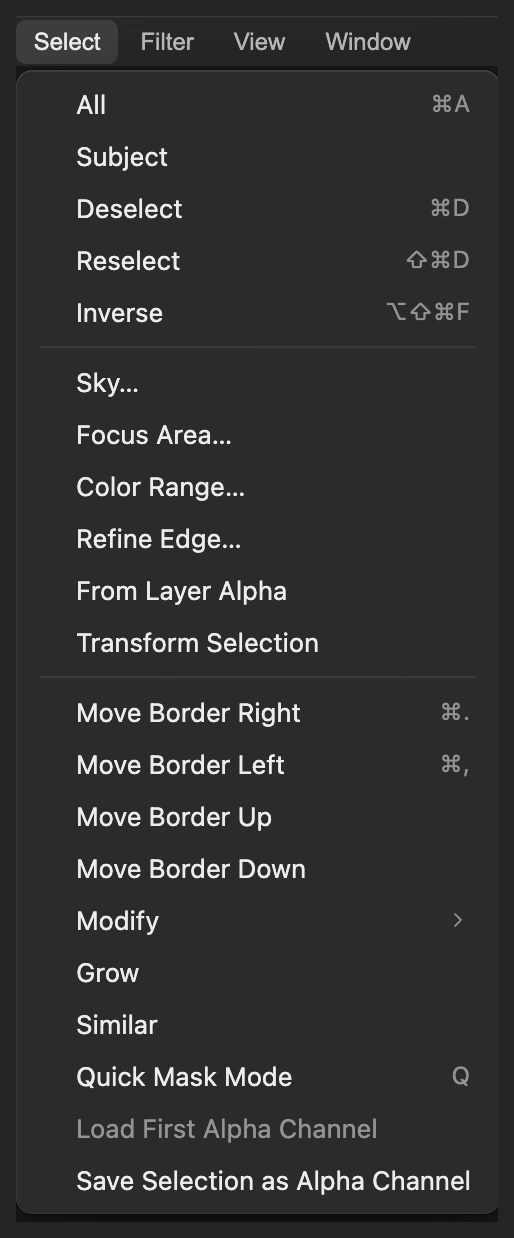
Select the cup first, then invert the selection to choose the paper. 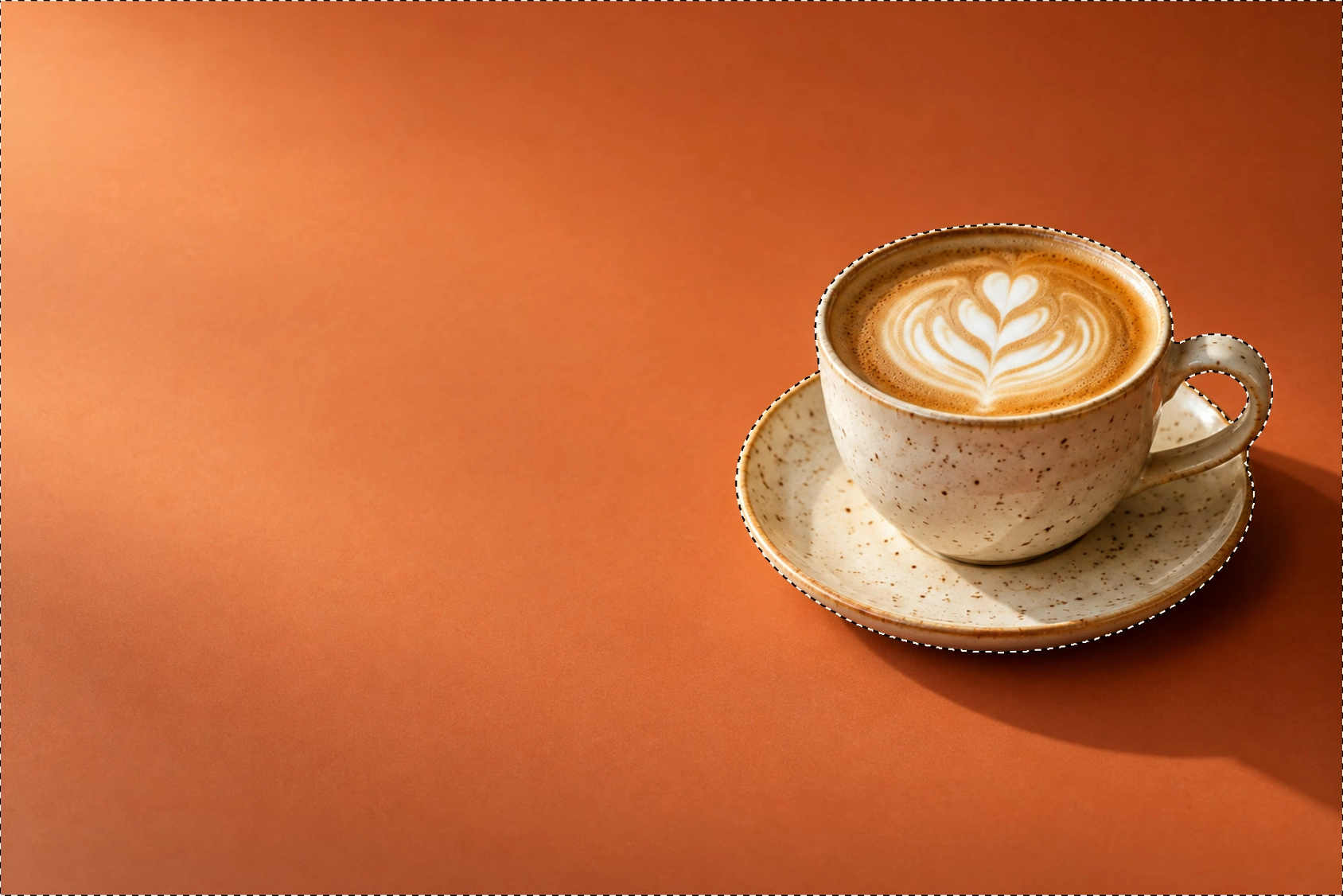
The selected paper lies outside the cup and saucer. Choose the original color
Choose For the sample, enter #e88450 in the box beside Color to replace. This is a shade of the original orange paper, not the new color.
On your own photo, click Sample from image, then click the color in the picture. You can click the exposed picture outside the dialog. Click Finish sampling when you have chosen it. Sample before changing Hue so you are picking from the original appearance.
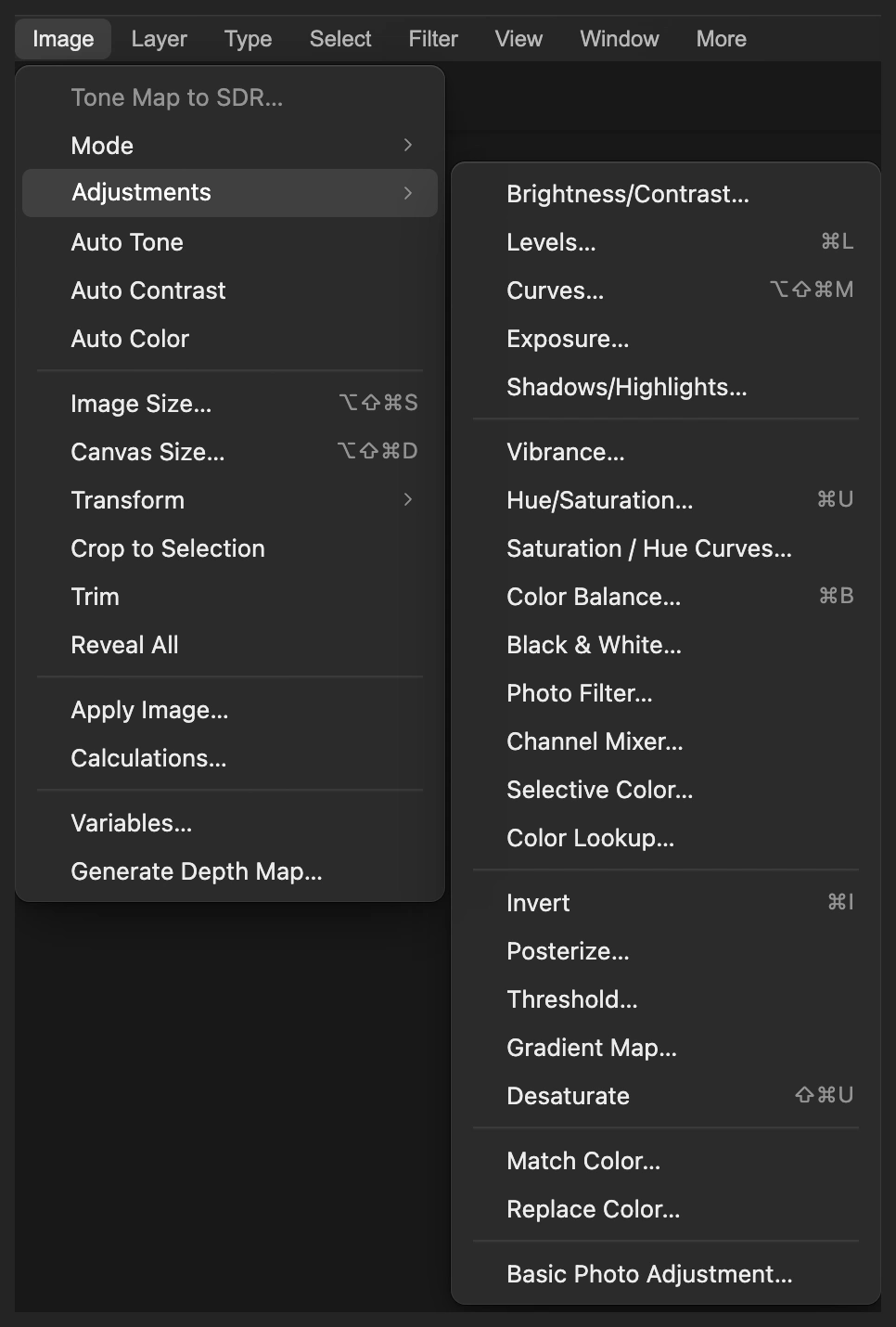
Replace Color is in Image › Adjustments. 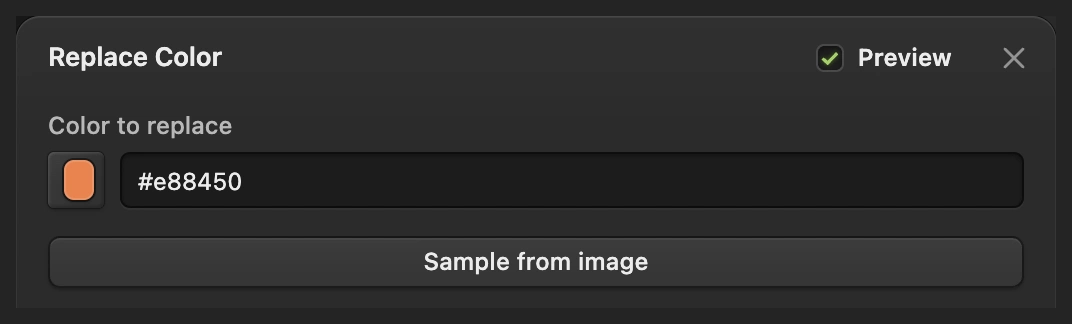
The hexadecimal value identifies the color to replace. 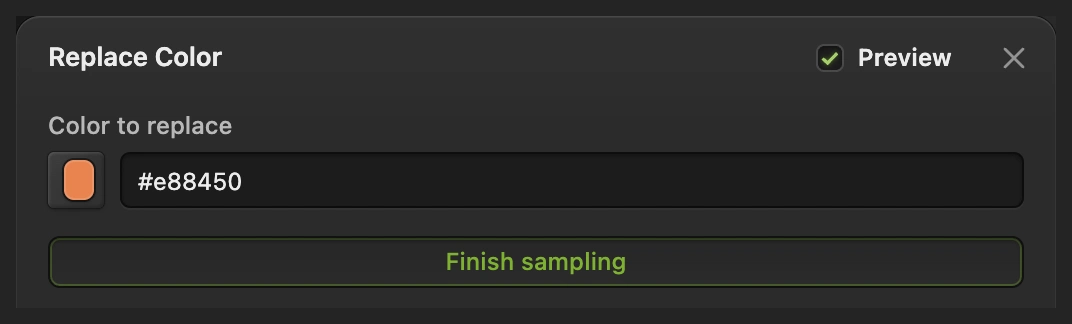
Finish sampling returns to the adjustment controls. Set Fuzziness and Hue, then apply
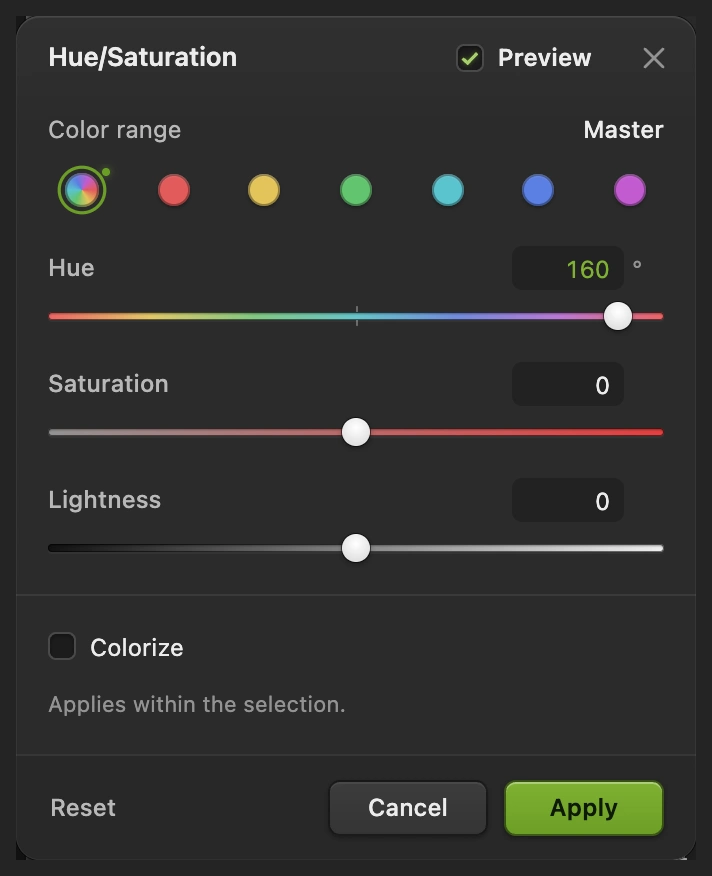
For the sample, set Fuzziness to 200 and Hue to +160°. Leave Saturation and Lightness at 0. The paper changes to teal in the preview while the selection protects the coffee.
Fuzziness decides how far the change reaches into similar shades. The sample uses the maximum, 200, to include its light and shaded paper. Start lower on a photo where neighboring colors must be excluded. Hue shifts the color around the color wheel.
Click Apply to commit the preview. Keep the selection in place until you have judged the color.
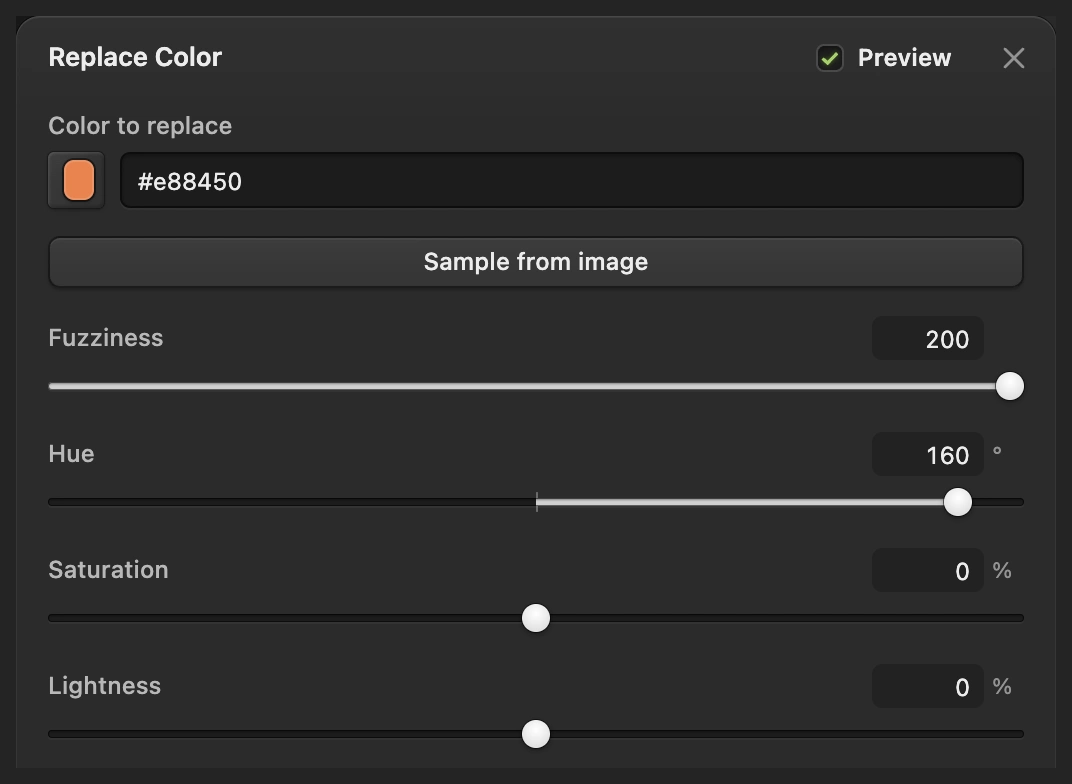
These values change the sample’s selected orange paper to teal. 
Apply commits the change to the selected pixels. Check the boundaries and compare
Before making another edit, use if you need different Replace Color settings, then open the dialog and try again. The settings do not revise an earlier applied edit. Once you are happy with the color, choose to remove the dotted outline.
Choose a few times to check the cup rim, saucer edge and inside the handle, then choose to judge the whole photo. Click the eye beside Background copy to see the original, then click it again to restore the recolored version.

Inspect the boundary between the paper and the cup. 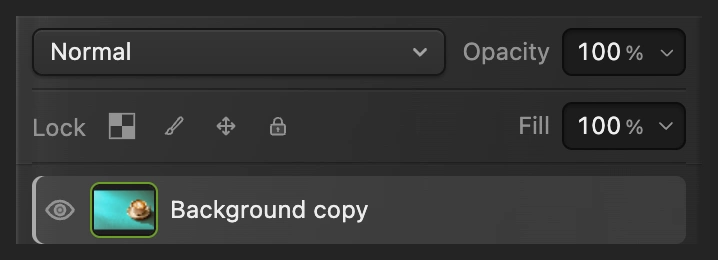
The eye switches between the recolored copy and the original below. Export a copy or keep both layers
Choose and click Export for a new finished photo. Choose to keep the recolored copy and the original as separate layers; after that, saves the project.
On the opened JPEG, saves a flat picture in its own format. Its first Save opens Save Image.
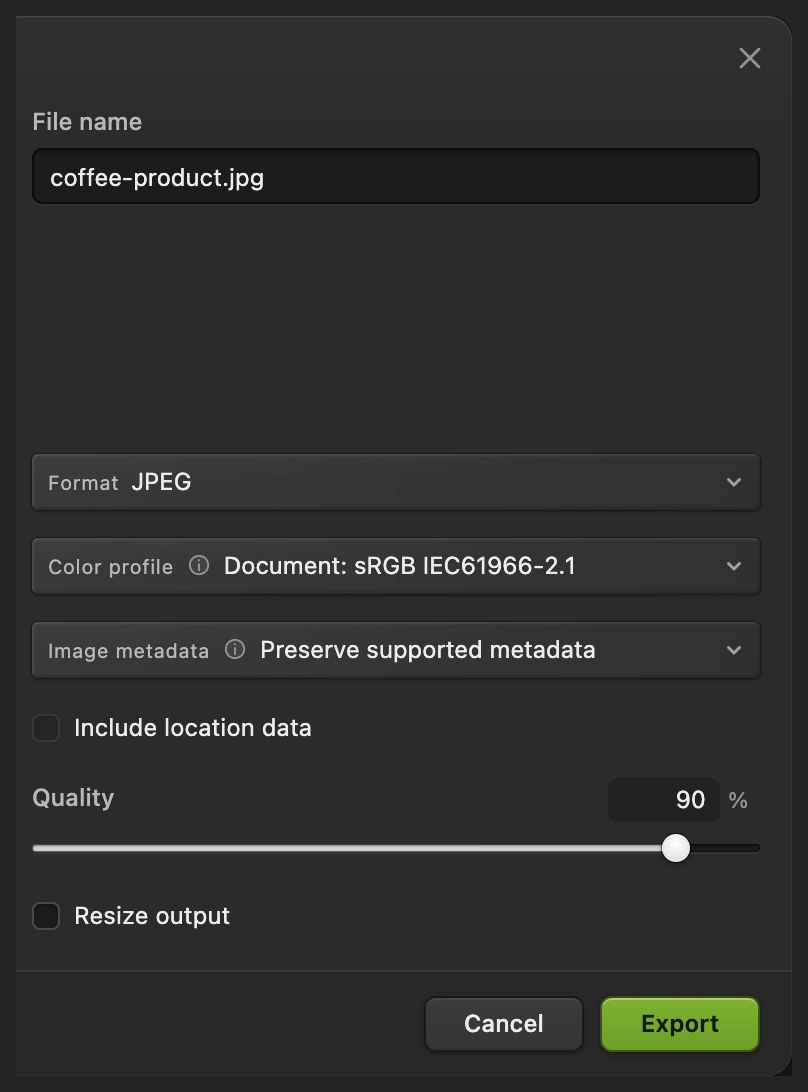
Export writes a new finished copy. 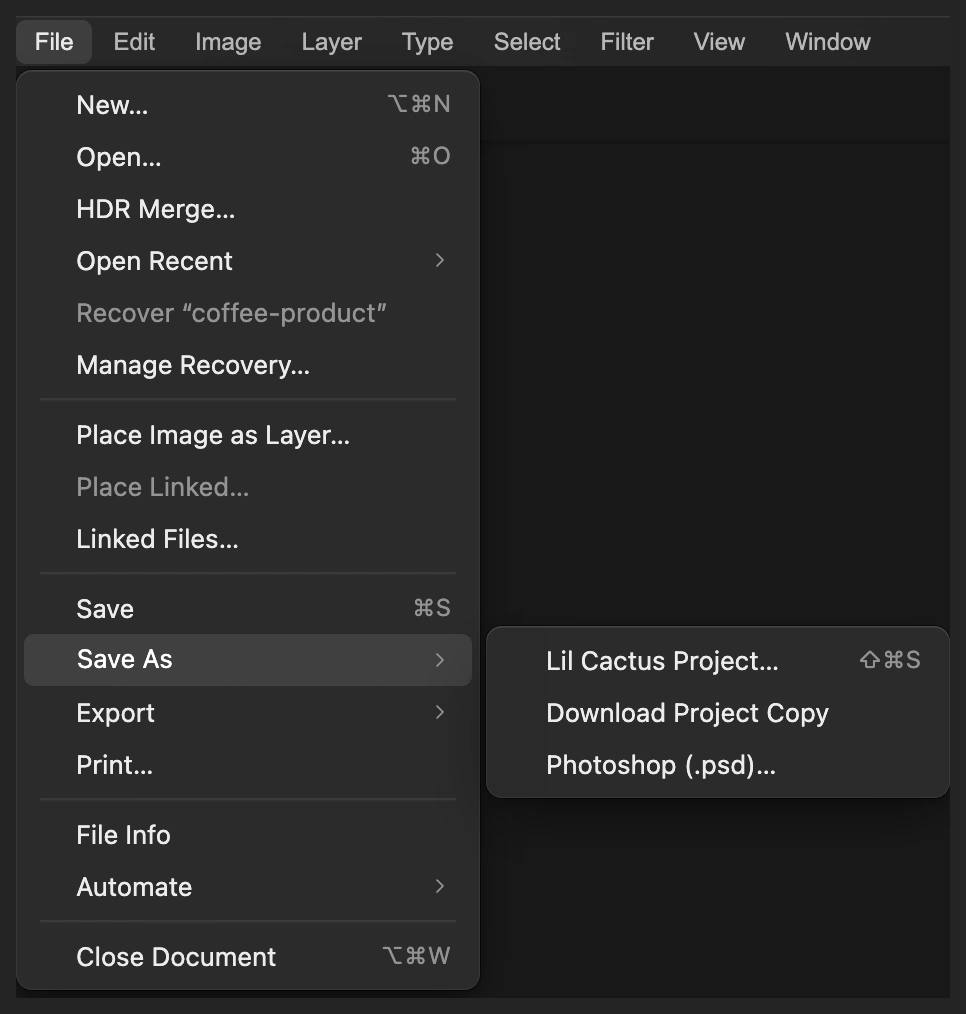
The project keeps the recolored layer and the original.
Use Hue/Saturation for settings you can revisit
For a color change you may want to revise later, start again from the original photo. Select the paper with and as above.
- Choose
- Keep Color range on Master, set Hue to +160, leave Saturation and Lightness at 0, then click Apply.
- Choose . Choose to keep the adjustment and its mask.
The selection becomes a mask, a black-and-white picture that limits the adjustment: white paper is affected, while the black cup shape is protected. Unlike Replace Color, this method shifts every selected color without first narrowing the effect to a sampled shade.
See how to change an adjustment layer later.

Fix common problems
The cup or another object changes color too
The selection includes it. Undo the color change and correct the selection before reopening Replace Color. Fuzziness alone cannot separate two areas that contain the same shade.
Some of the original color remains
Check the selection first, especially small holes such as a handle. Then check the sampled color and raise Fuzziness if similar shades are being missed. A wide range still gives weaker changes to colors farther from the sample.
A white or black area does not change with Hue
Hue shifts existing color. A neutral white, gray or black area has no hue to rotate, so changing Hue alone will not give it a strong new color.
What to do next
Color replacement: questions and answers
Can I replace one color without changing the rest of the photo?
Yes. In Lil Cactus, select the area first, then use Image › Adjustments › Replace Color… Colors outside the selection are protected even when they match the source color.
What does Fuzziness mean in Replace Color?
In Lil Cactus, Fuzziness controls how widely Replace Color includes colors similar to the sample. A larger value includes more shades with soft transitions; it does not expand the selection into a different area.
Is Color to replace the new color I want?
No. In Lil Cactus, Color to replace identifies an existing source color. Hue, Saturation and Lightness change the sampled shades; they do not specify a single exact output color.
Can I change Replace Color settings after applying them?
No. In Lil Cactus, Replace Color changes pixels: undo it and run it again, or use a Hue/Saturation adjustment layer to keep settings editable.
How do I keep texture when I replace a color?
In Lil Cactus, start with a Hue change and keep Lightness near 0, as in the sample. Check the texture, highlights and shadows before applying; strong lightness changes can wash out detail.
Is my photo uploaded when I replace a color?
No. Lil Cactus processes the color change and the sample’s Subject selection in your browser on your own device.
Keep going
 How to make a selection in a photo editorPick the right tool, add and subtract, feather and save a selection.Beginner · 6 min
 How to use adjustment layersColor and tone changes you can retune, hide or limit to one area.Beginner · 5 min
 How to use layer masksHide part of a layer without deleting it, and bring it back any time.Beginner · 5 min