How to restore an old photo
Quick answer
In Lil Cactus, open the scan and choose to keep the original underneath. For a black-and-white print with a yellow-brown scan cast, choose , then add : the sample uses RGB input levels 32, 1 and 225, with output levels left at 0 and 255. Select the photo copy and use Spot Healing Brush with Source set to Current Layer: start at 12 px for the sample’s dust marks and 8 px for its narrow scratches. Save a Lil Cactus Project for the original, repaired copy and editable Levels layer; export a JPEG for sharing.
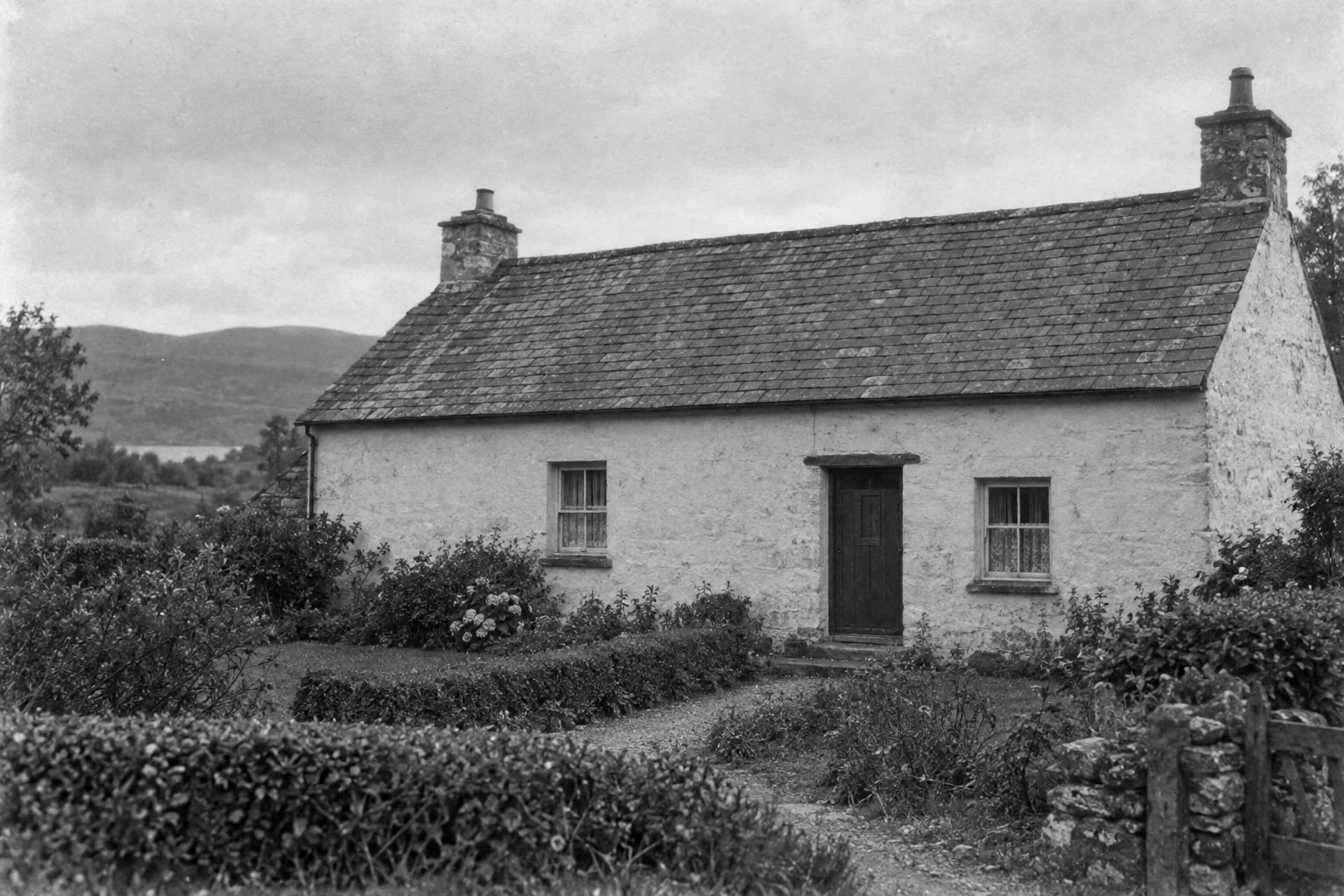
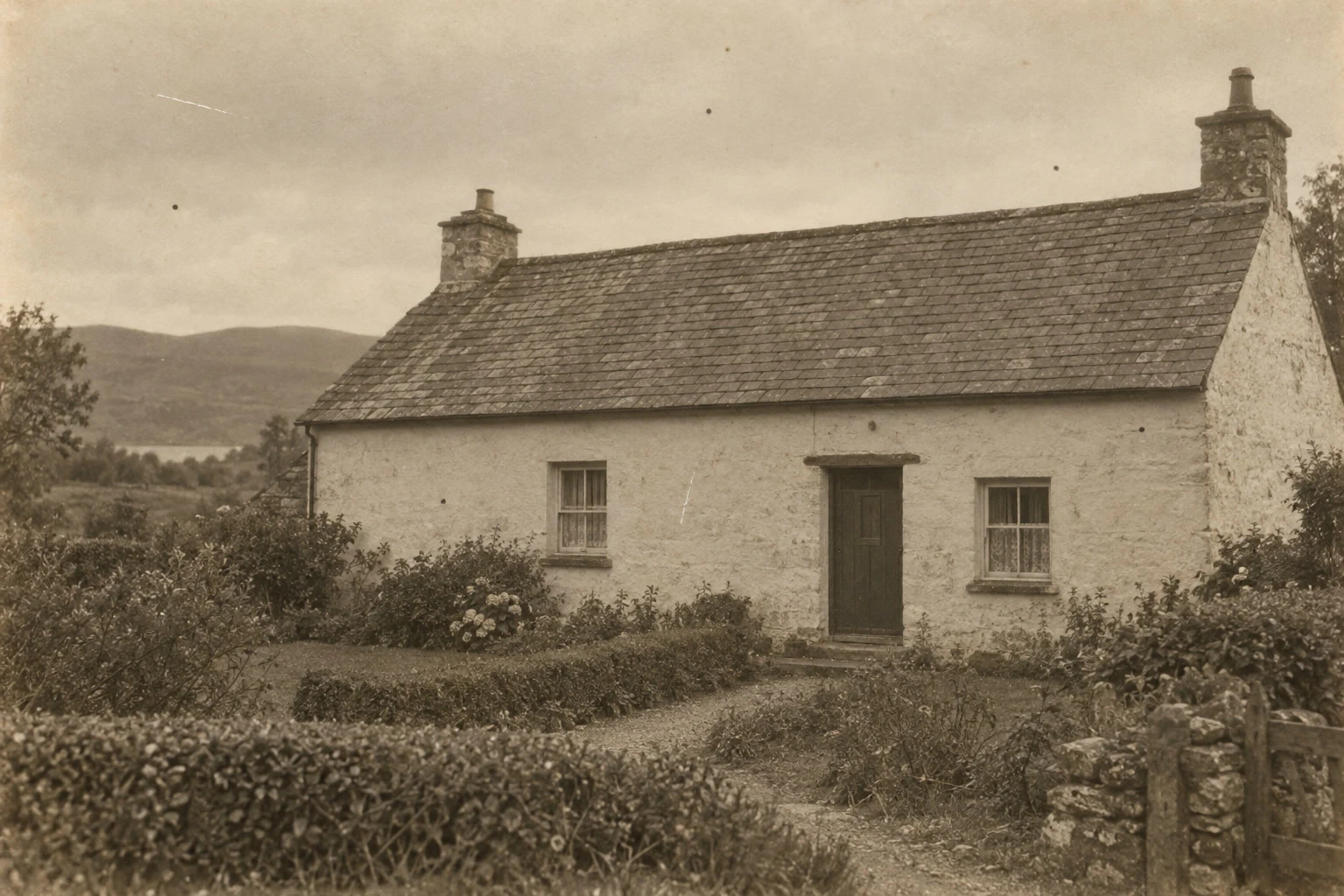
- Time
- 8 minutes
- Level
- Intermediate
- You need
- A scan of a black-and-white print with small dust marks or scratches
- Works with
- RGB scans, including JPEG and PNG
A faded print can have several separate problems: a color cast from the scan or aging paper, weak contrast, and isolated damage. Treat them separately. Here you make a black-and-white version, strengthen its tones, then repair small marks with surrounding texture.
Work on a copy. Keep a project containing the original scan, the repaired photo and the contrast adjustment so you can compare the result and change the tones later.
Restore a faded print in seven steps
Open the scan and make a working copy
Choose and open your scan, or open the sample from this page. Choose .
The Layers panel now has Background copy above Background. You will repair the copy and keep Background as the original.
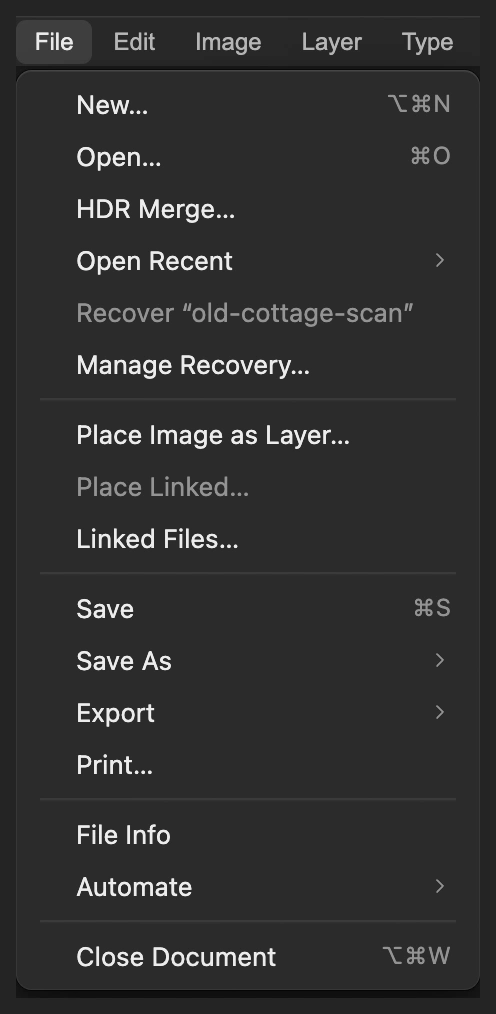
Open the scan as a photo document. 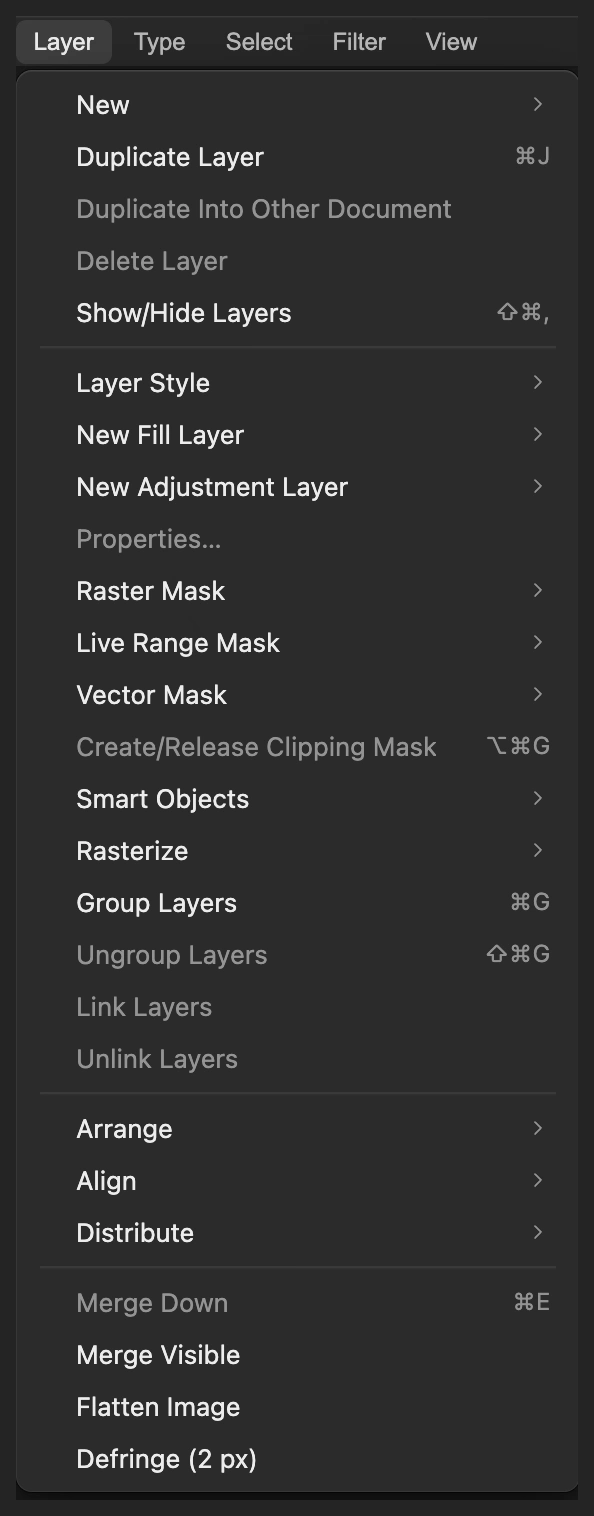
Make a copy before changing the scan. 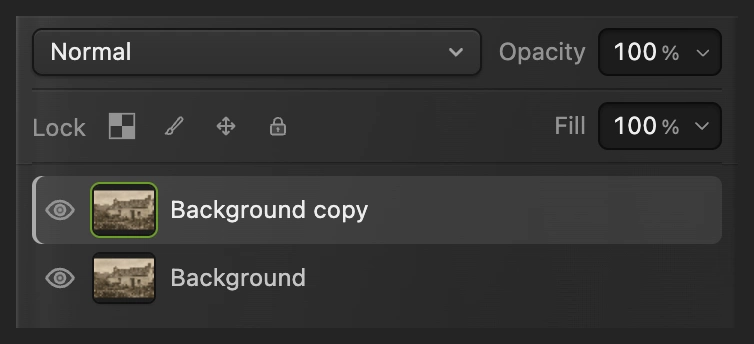
The selected copy holds the repairs. Remove the scan’s yellow-brown cast
For this black-and-white sample, choose . There is no dialog. Wait until the picture turns gray.
This removes all color from the copy, including the yellow-brown scan cast. Skip this step for a color photograph, or if you want to keep a sepia print’s warm tone.
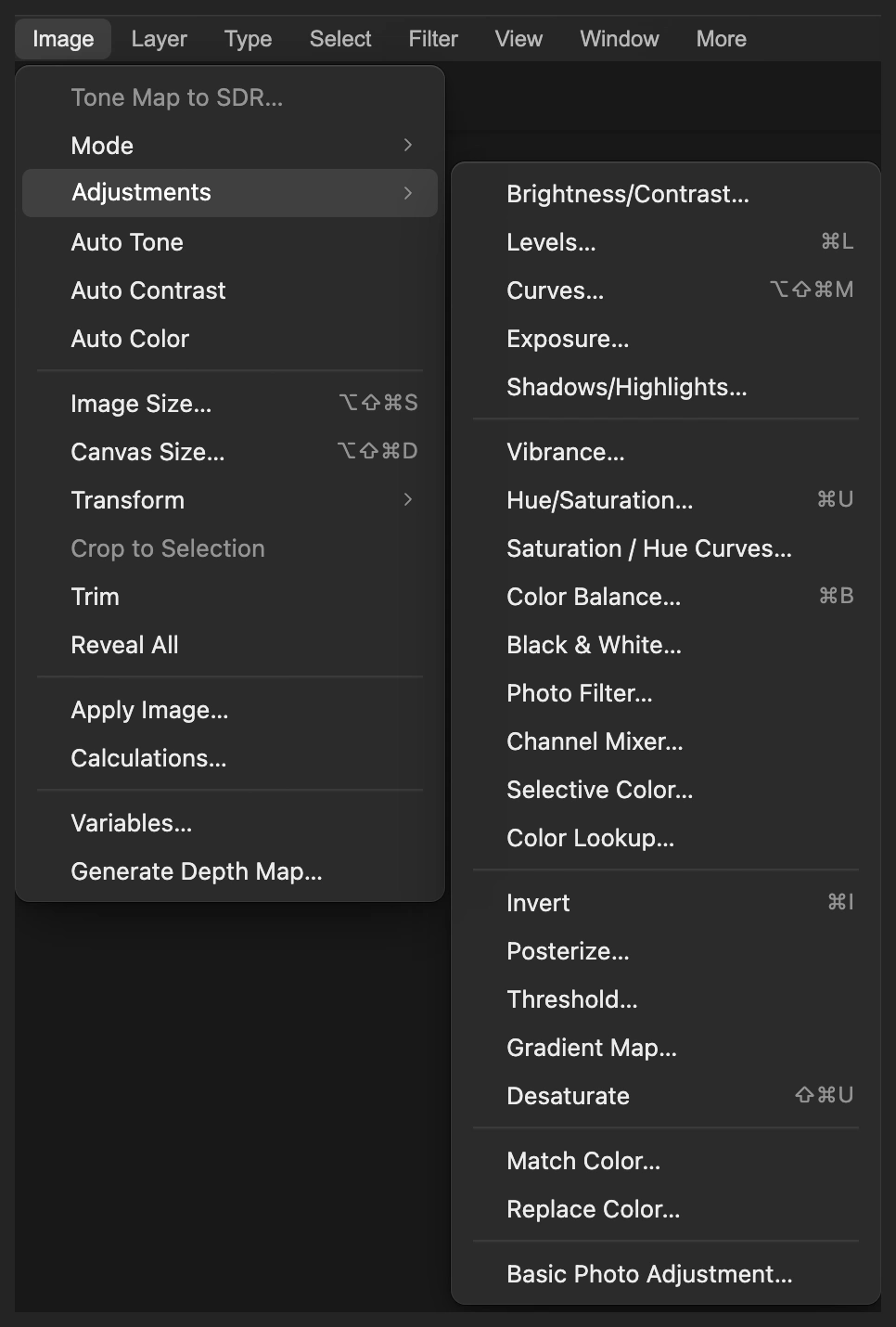
Desaturate makes the selected copy black and white. Restore contrast with Levels
Choose A Levels adjustment layer changes the tones of the photos below it without replacing their pixels.
Leave the channel on RGB. Set the three boxes beneath the histogram, from left to right, to 32, 1 and 225: black point, midtone gamma and white point. Leave Output levels at 0 and 255, then click Apply.
The dark tones become deeper and the pale tones brighter. These values suit the sample; on another scan, keep texture visible in the darkest areas and in pale paper or clothing.
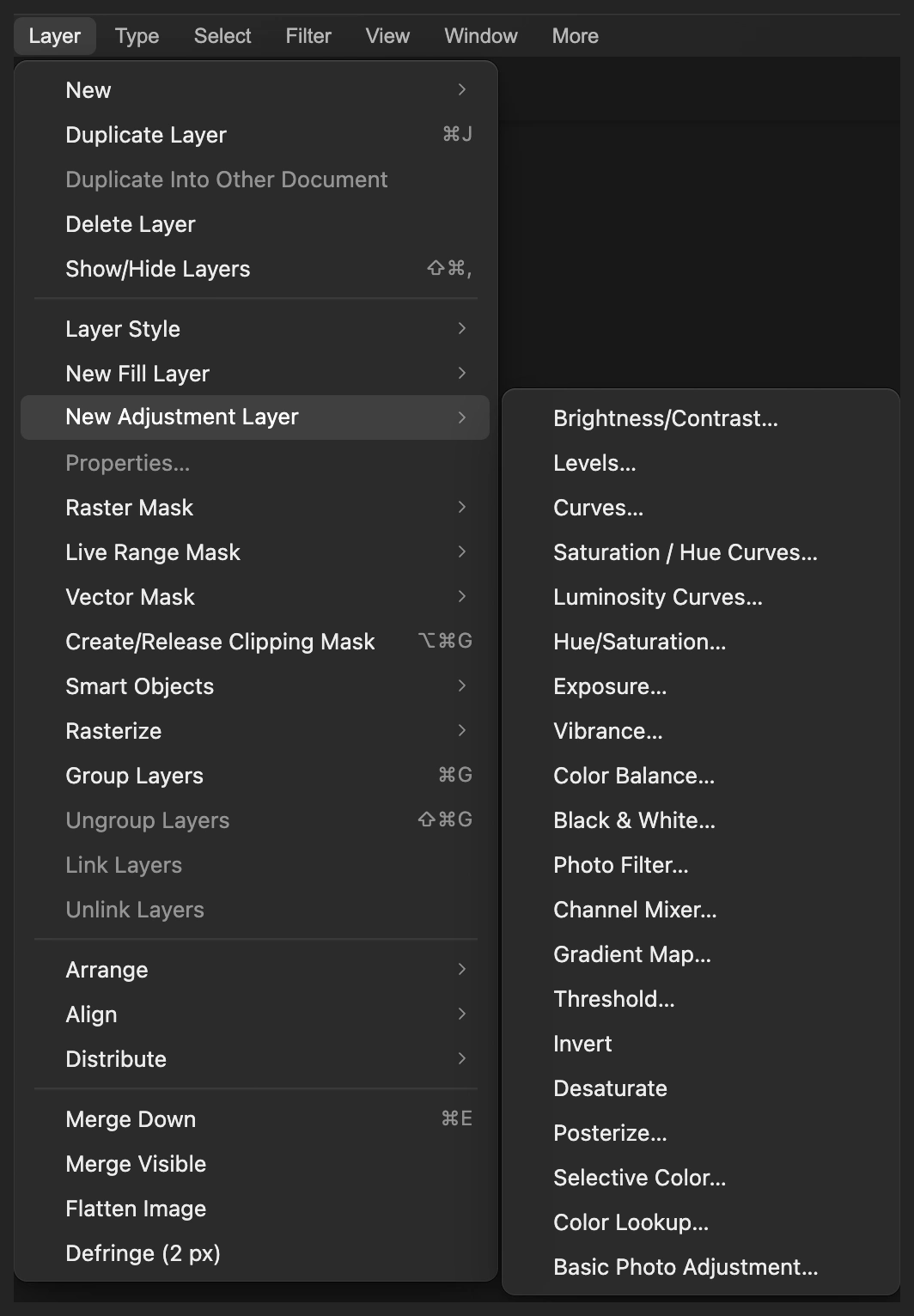
Keep the contrast correction on its own layer. 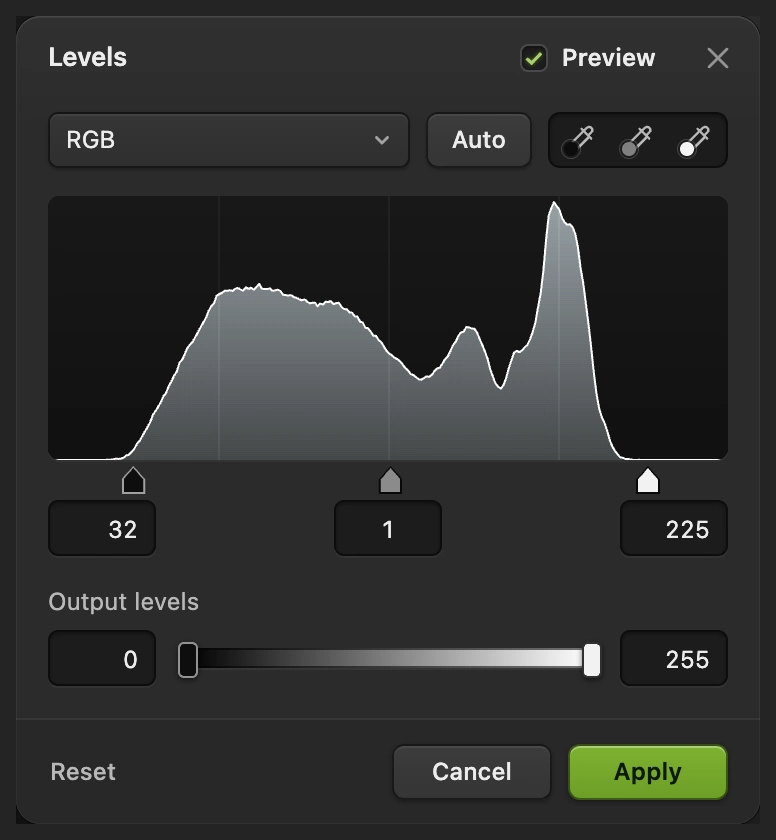
Input levels: 32, 1, 225. Output levels stay at 0 and 255. Remove the isolated dark spots
Choose until the scan is about 300%. Before choosing the repair tool, click the picture once so the space bar reaches the picture rather than the menu; then hold the space bar and drag to move around it.
Click the Background copy photo thumbnail in Layers. Right-click the stamp-shaped retouching button in the left toolbar and choose Spot Healing Brush. Check that Source is Current Layer and set Size to 12 px. Leave Hardness, Opacity and Flow at their 100% defaults.
Click each isolated dark dot in the sky, then the round dots on the cottage wall: above the door, toward the wall’s right end and left of the left window. Wait for each dot to disappear before starting the next repair. Leave the irregular plaster texture and fine grain alone.
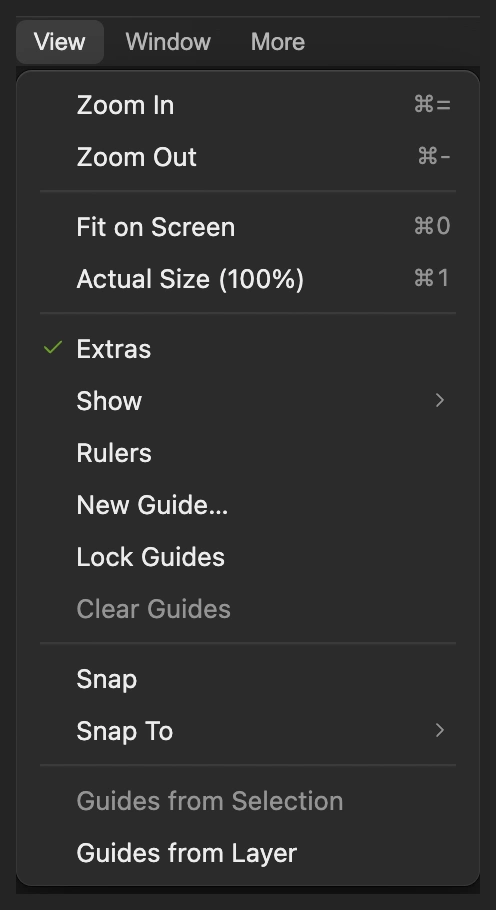
Enlarge the marks before repairing them. 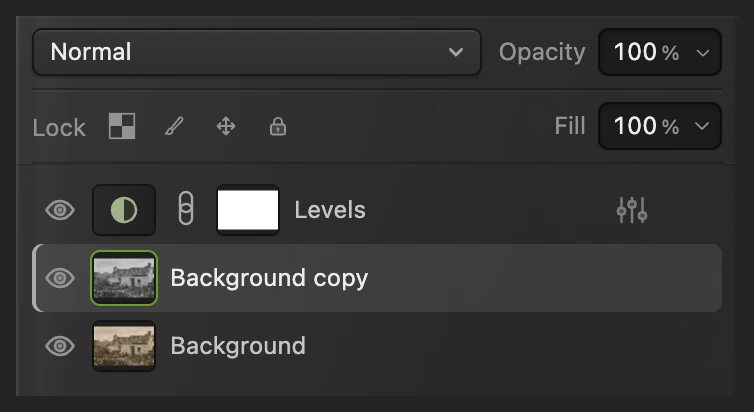
Repair the photo copy, not the Levels layer or its mask. 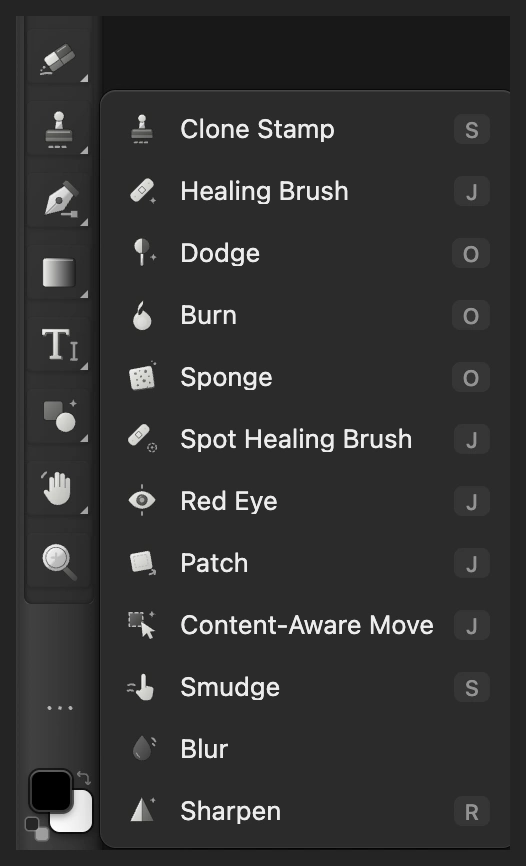
Choose Spot Healing Brush from the retouching group. 
Sample from the selected copy beneath Levels. 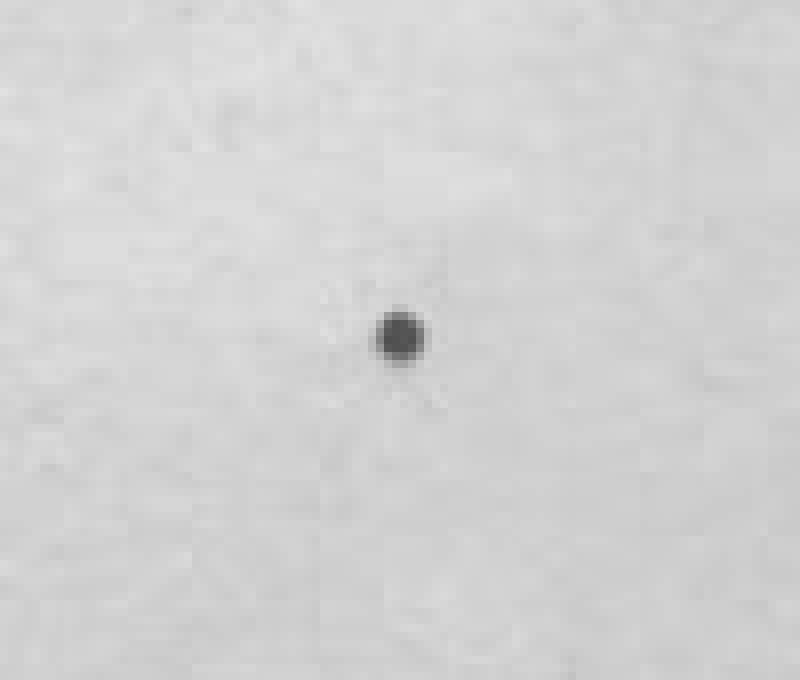
Before: an isolated dark dot in the sky above the cottage. 
After: surrounding sky texture fills the dot. Brush along the two white scratches
Reduce Size to 8 px. In the upper-left sky, drag along the thin white scratch from its left tip to its right tip. Release and wait for the repair.
On the cottage wall between the left window and the door, follow the short white scratch from its top tip downward. Cover the whole line, including both ends. Keep the brush off the window frame and other building edges.
Tip Press Ctrl+Z or ⌘Z to undo a poor repair stroke.

The brush should cover the scratch with a small margin. 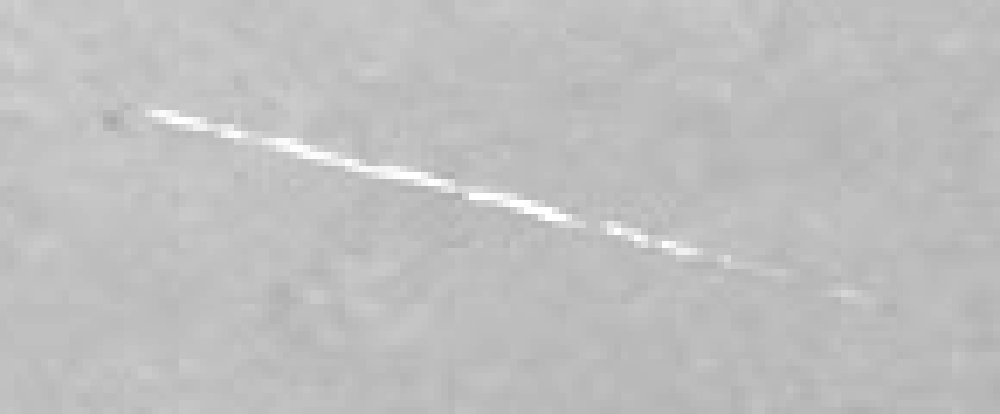
Before: follow the full white line from left to right. 
After: the sky texture continues across the repaired line. 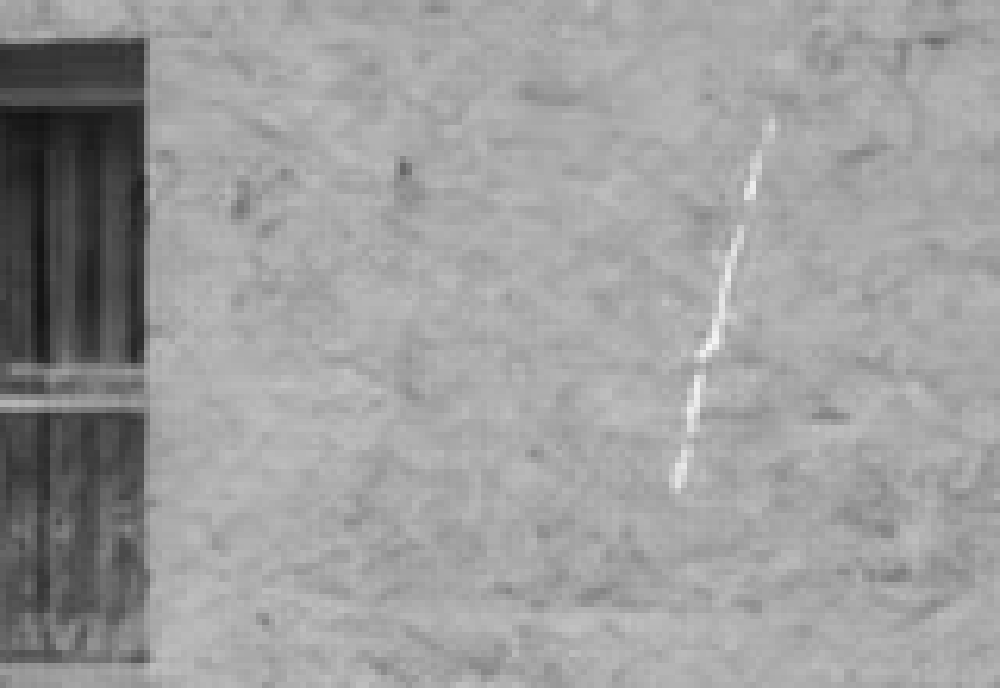
Before: this scratch runs down the wall, away from the window frame. 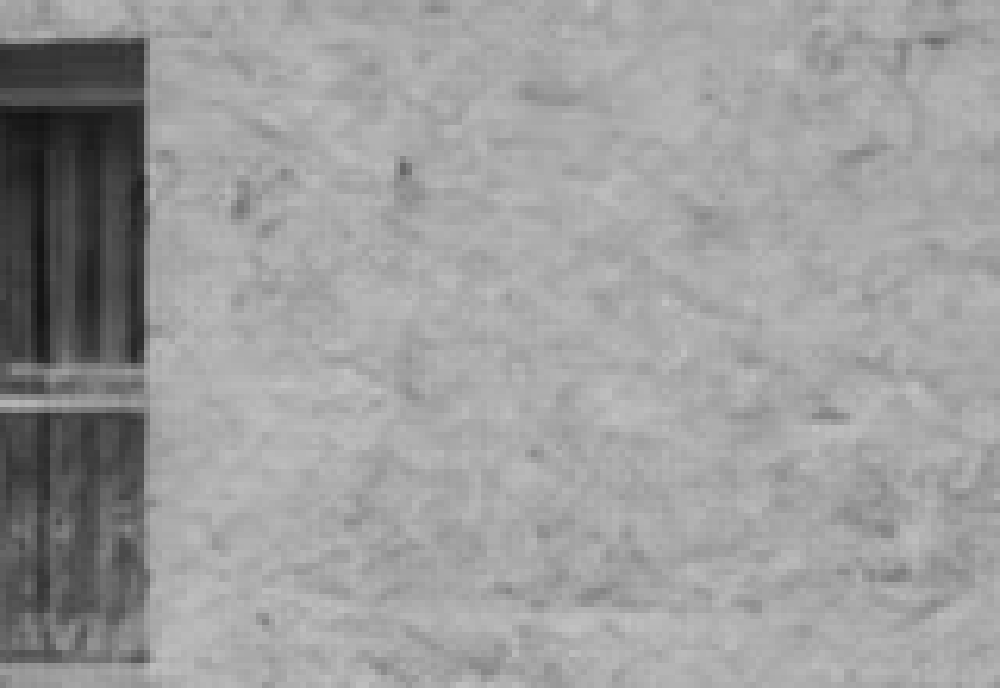
After: the narrow repair follows the wall’s texture. Compare the result and revise the tones
Click the eyes beside Levels and Background copy to hide both and see the untouched scan. Turn both back on. Inspect the whole cottage and enlarged repairs: the roof tiles, window bars and print texture should still be readable.
To change contrast, click the half-shaded circle thumbnail beside Levels and choose Adjust the input levels and click Apply. Choose lower contrast if the foliage becomes a solid dark patch.
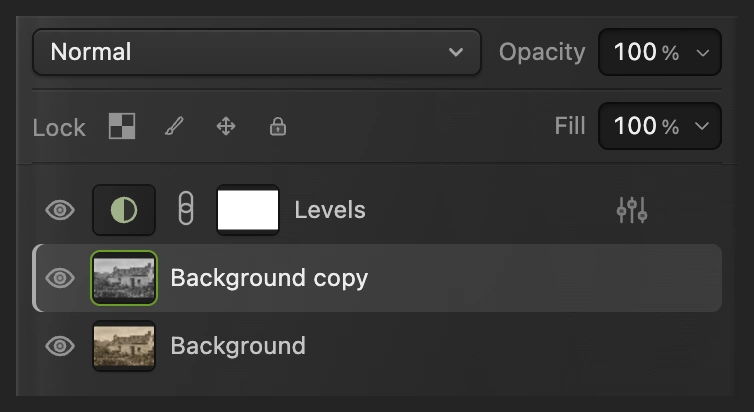
Hide both edited layers for the original. Select the Levels circle to revise the tones. 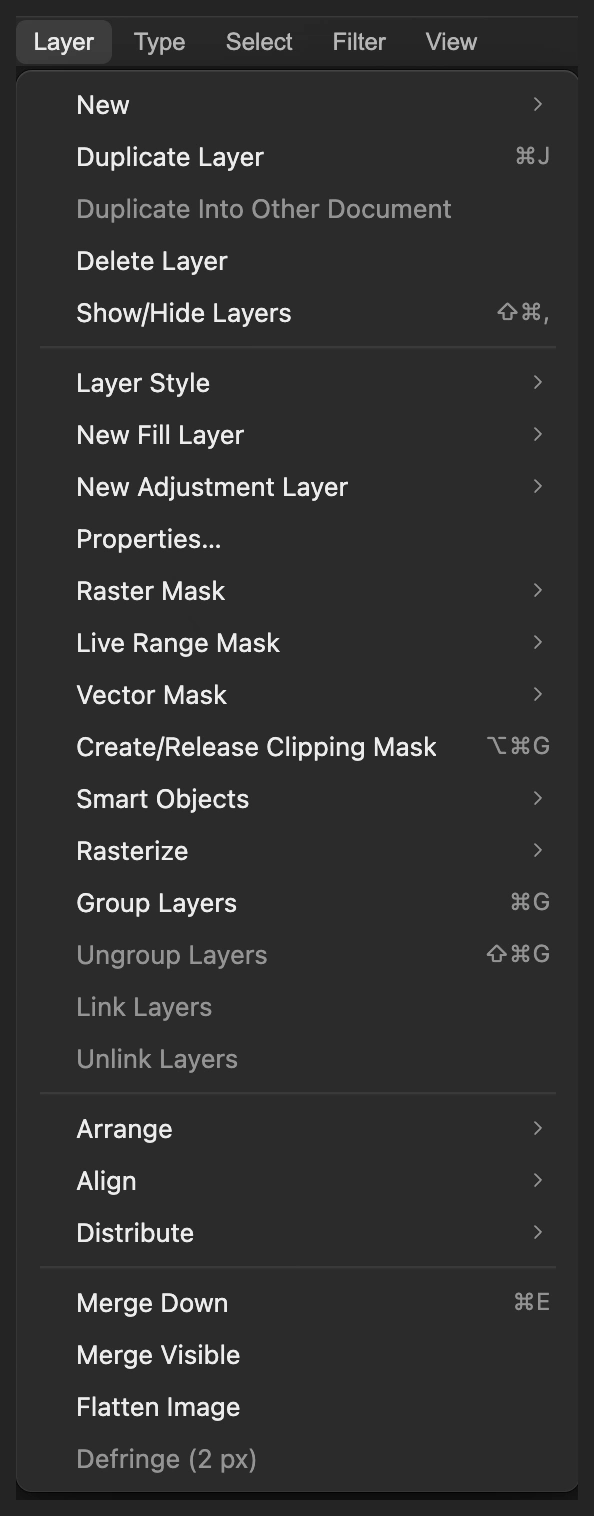
Properties reopens the editable Levels settings. Save the project and export a finished photo
Choose to keep the original, repaired copy and Levels layer. After that, saves the project. Choose and click Export for a new finished picture.
If you stay with the opened JPEG, writes a flat picture in that format; its first Save opens Save Image.
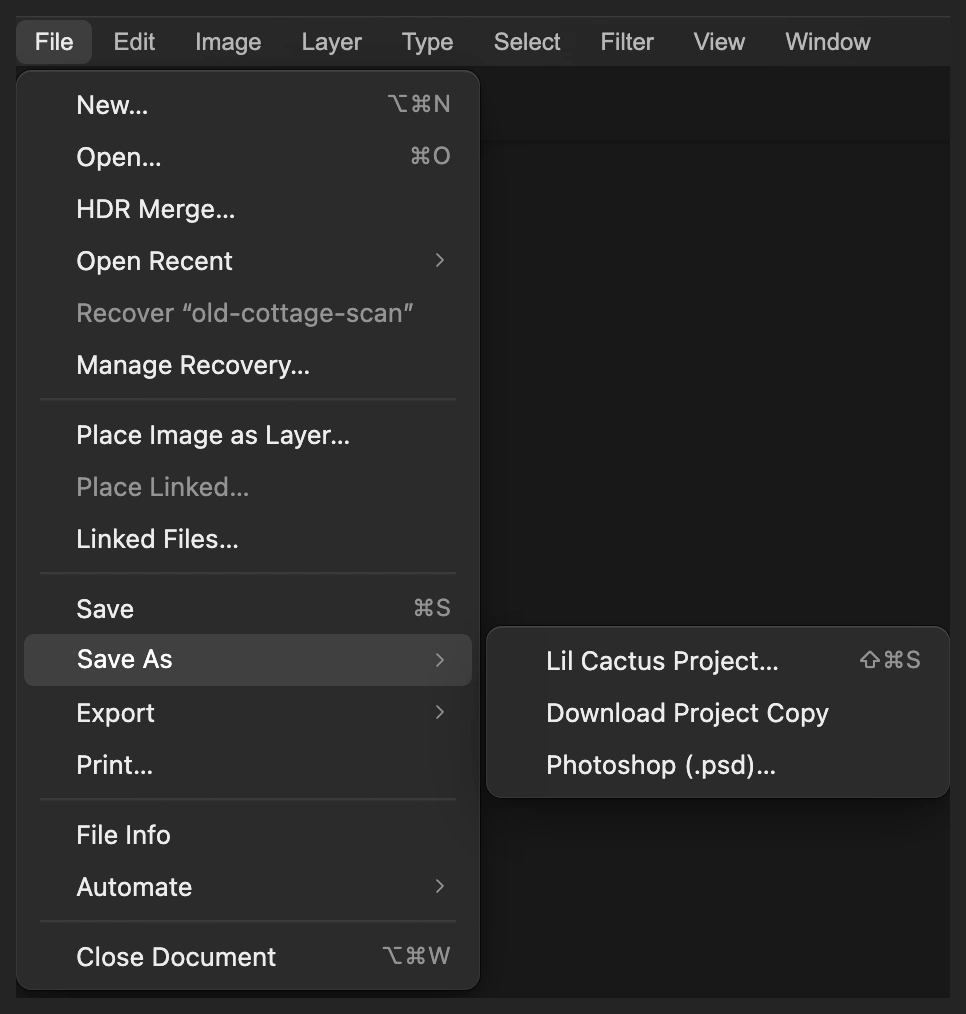
A project keeps the original available and Levels editable. 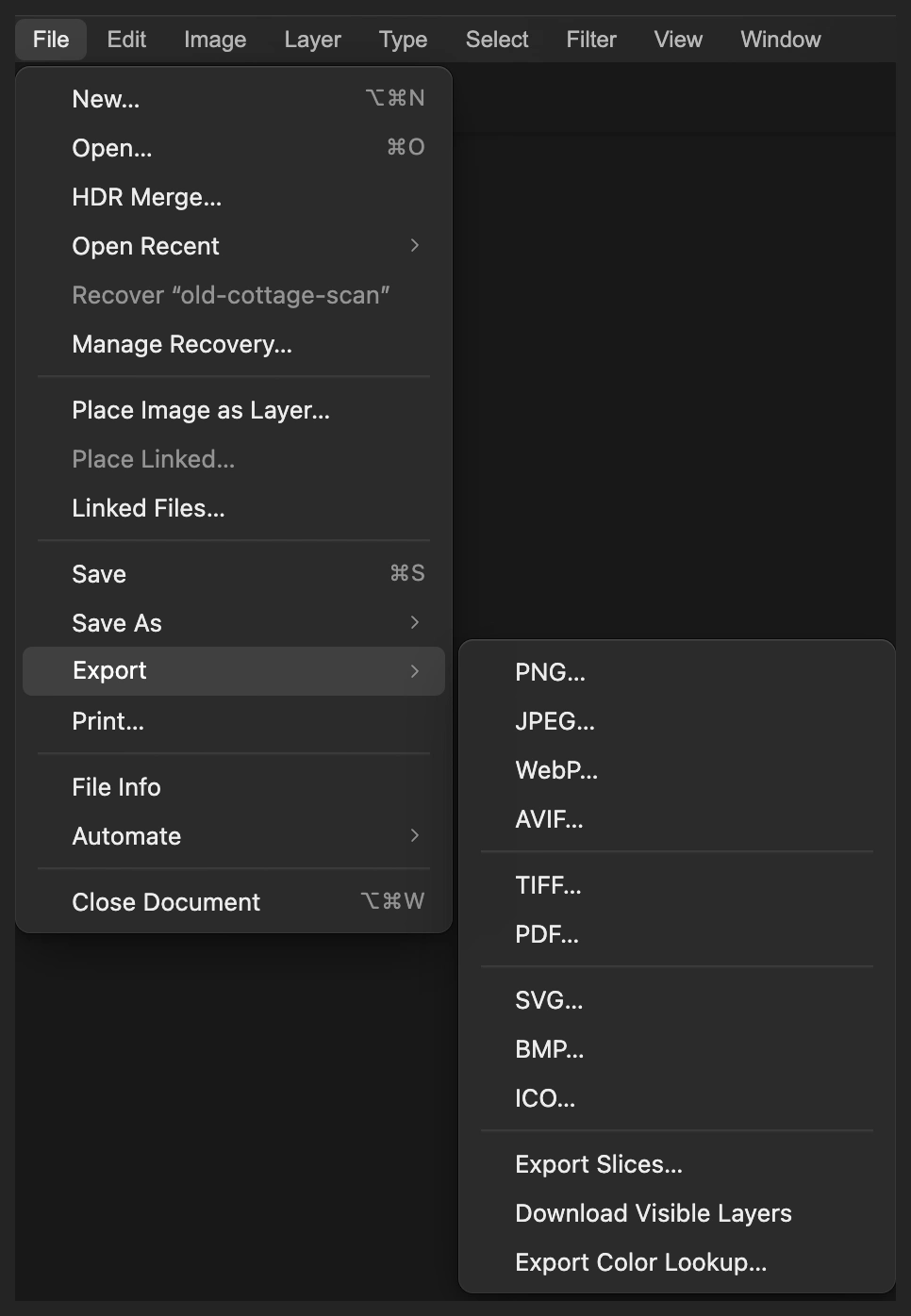
Export the finished restoration to a new JPEG. 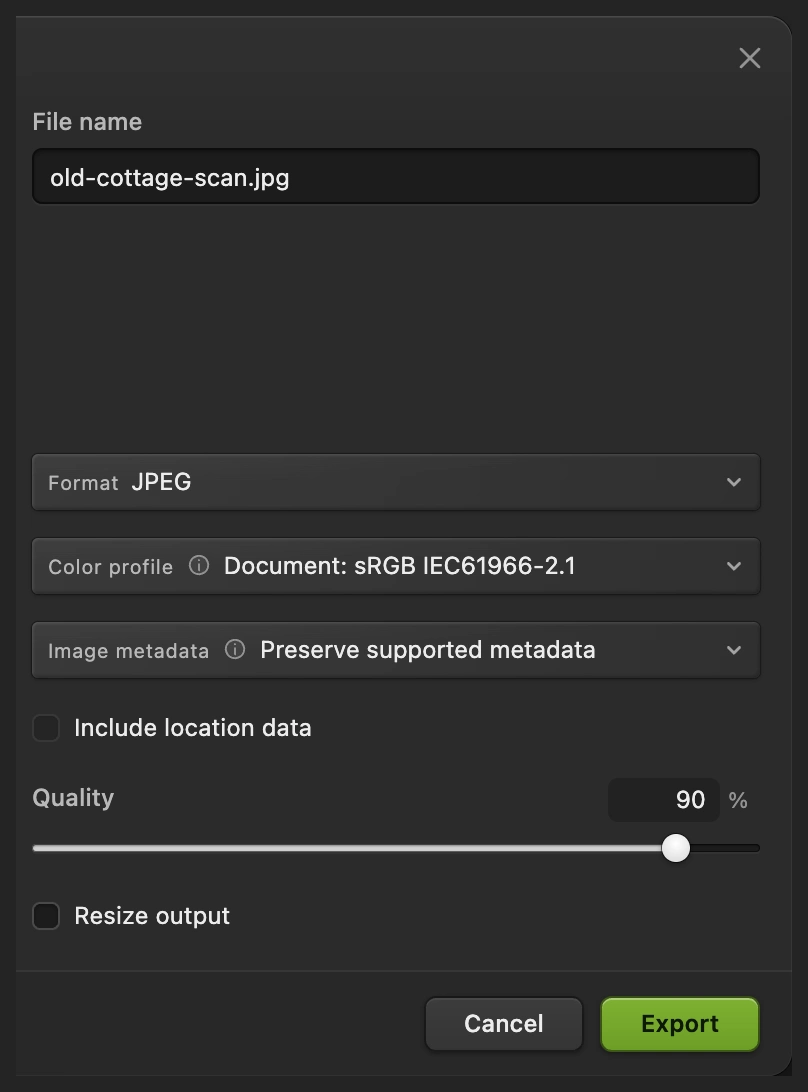
Export the combined result for sharing.
Fix common problems
Spot Healing says to select the image thumbnail
Select Background copy’s photo thumbnail. An adjustment layer or its mask is a different editing target. Use Source: Current Layer on the photo copy.
The repair copies part of a window or roof
The brushed area is too close to a strong edge. Work in smaller sections with a narrower brush so clean surrounding texture is available. A large missing area with no matching texture needs reconstruction beyond a small spot repair.
The bushes turn solid black or pale areas lose texture
Reopen Levels as in step 6. Move the black input value closer to 0, or the white input value closer to 255. The sample’s numbers are not a preset for every scan.
The repaired area looks brighter or harsher than its surroundings
Check that Source is Current Layer and that Background copy, below Levels, is selected. All Visible Layers samples the picture with Levels already applied, so the repair gets the contrast change twice.
What to do next
Old photo restoration: questions and answers
Can Lil Cactus restore an old photo in one click?
No. This Lil Cactus method treats the scan’s cast, fading and local damage separately. You choose the contrast settings and paint the individual marks that need repair.
Can I restore an old color photo with this method?
Yes. In Lil Cactus, skip Desaturate to keep the colors and repair small marks on a photo copy. A color cast needs its own color correction; the black-and-white sample’s Levels values will not suit every photograph.
Can photo restoration recover missing original details?
No. Lil Cactus’s Spot Healing Brush fills small damage using surrounding texture. It cannot know what a lost face, inscription or other missing original detail looked like.
Can I change an old-photo restoration after saving?
Yes. A Lil Cactus Project lets you retune Levels or start a new repair from the original layer. Spot Healing strokes change pixels, so individual repairs have no settings dialog to reopen.
Is my old photo uploaded during restoration?
No. Lil Cactus runs Desaturate, Levels and Spot Healing Brush on your device. The scan is not uploaded for these edits.
Keep going
 How to use Levels to set black and white pointsBlack point, white point and midtones from the histogram.Beginner · 5 min
 How to make a photo black and whiteChoose how light each color turns, so the photo doesn’t go flat.Beginner · 5 min
 How to remove an object from a photo onlineOutline the object and let the editor fill in what was behind it.Beginner · 6 min