How to reduce noise in a photo
Quick answer
Zoom to 100% with and choose Raise Reduce Color Noise first, to 100%, to remove the colored speckles; then set Strength (0–10, default 5) only as high as the grain needs, around 6 for a night photo, and add about 20% Protect Detail to keep some texture. Click Apply. Convert the layer to a Smart Object first () to keep the settings editable.
- Time
- 6 minutes
- Level
- Intermediate
- You need
- A grainy photo taken at night, indoors or at high ISO
- Works with
- JPEG, PNG, HEIC, WebP, TIFF, PSD and RAW files
Noise is the random grain a camera adds when it has too little light. Small phone sensors can make it more noticeable. It comes in two kinds, and they need different treatment:
- Color noise: blotches of red, green and blue speckles, worst in dark, flat areas. It never looks good, and removing it costs almost no detail.
- Luminance noise: gray, film-like grain. Some of it looks natural; removing all of it also removes fine texture, because the filter can’t always tell grain from detail.
So the order is usually the same: remove the color noise fully, then reduce the grain only as far as the photo needs.
Reduce noise in six steps
Open the photo and zoom to 100%
Open the photo with (Ctrl+O or ⌘O); to follow along, open the sample from this page. Press Ctrl+1 or ⌘1 () and pan to a dark, flat area, such as the night sky or a shaded wall, and to an area with fine detail, such as window frames. Noise and its removal can only be judged at 100%.
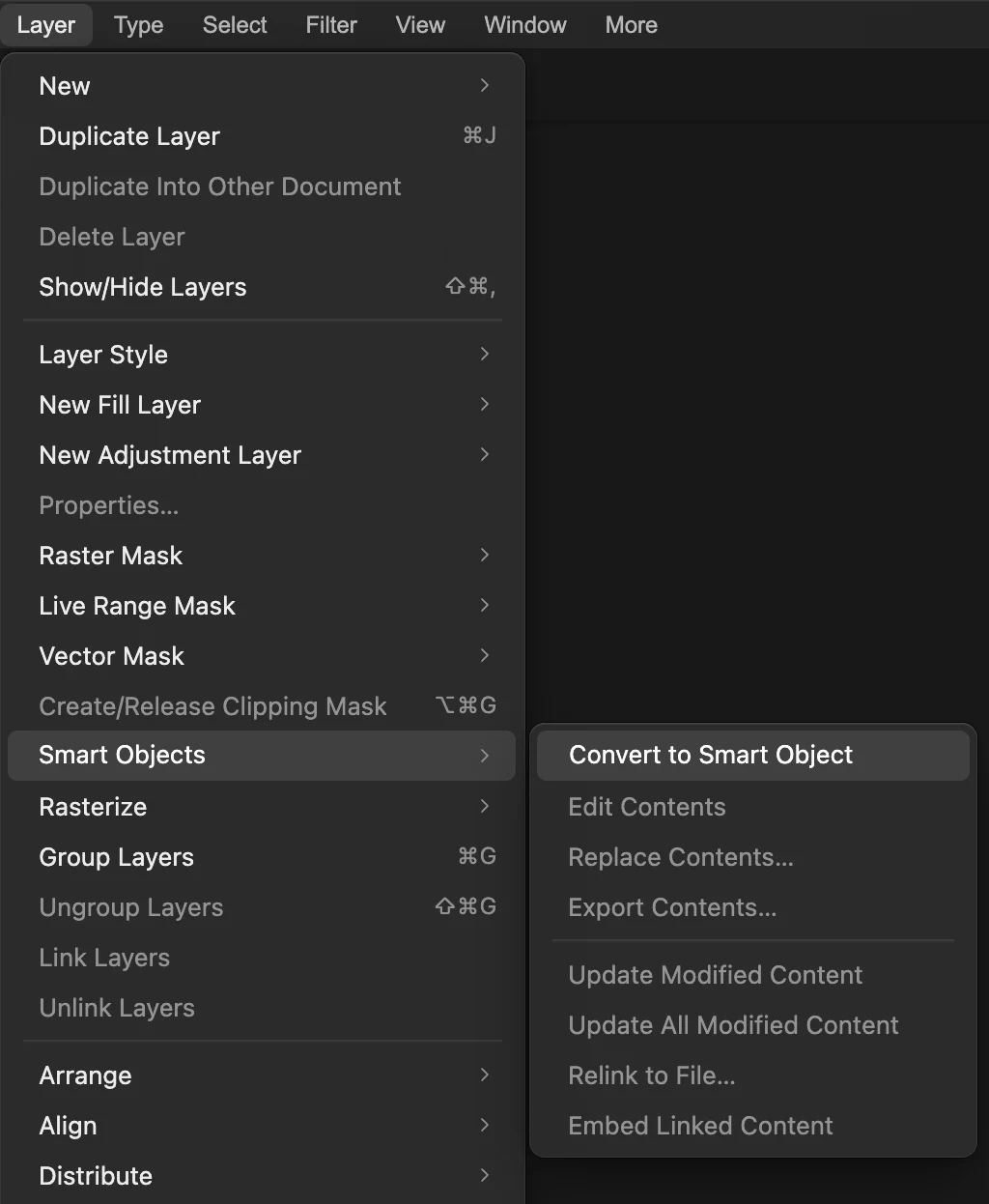
Convert the layer to a Smart Object
Choose . The filter then stays editable as a Smart Filter, so you can lower it later if the photo looks too smooth in print or on a large screen.
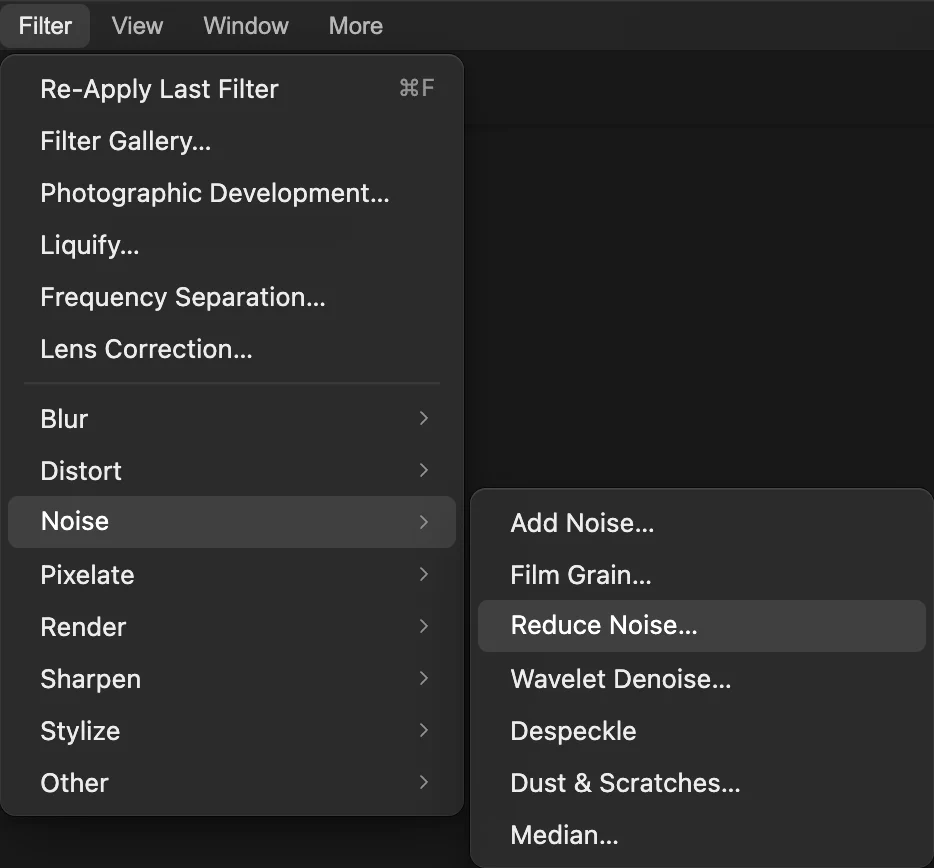
. Choose Filter › Noise › Reduce Noise…
The Noise submenu holds the cleanup filters: Reduce Noise… for everyday grain, Wavelet Denoise… for finer control, and Despeckle and Dust & Scratches… for isolated specks.
Remove the color noise first
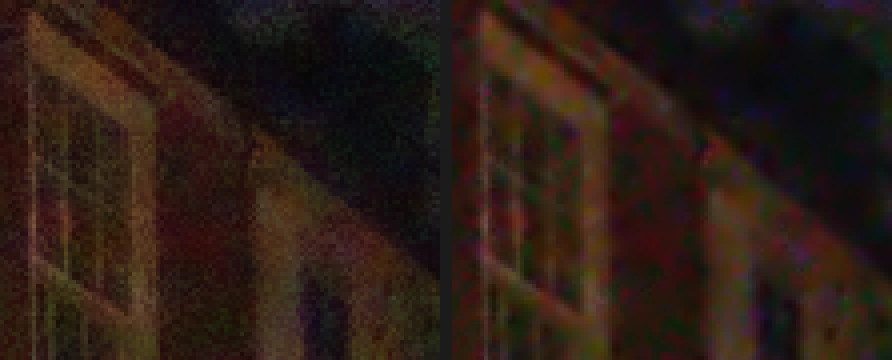
Raise Reduce Color Noise (it starts at 0%) and watch the dark wall and sky: the red, green and blue speckles melt into the surrounding color. Go all the way to 100%: on the sample it leaves about half as much fine color speckle as 80%, with the same gray detail. Colors at edges stay put, because the filter follows the brightness edges of the photo while it smooths the color.

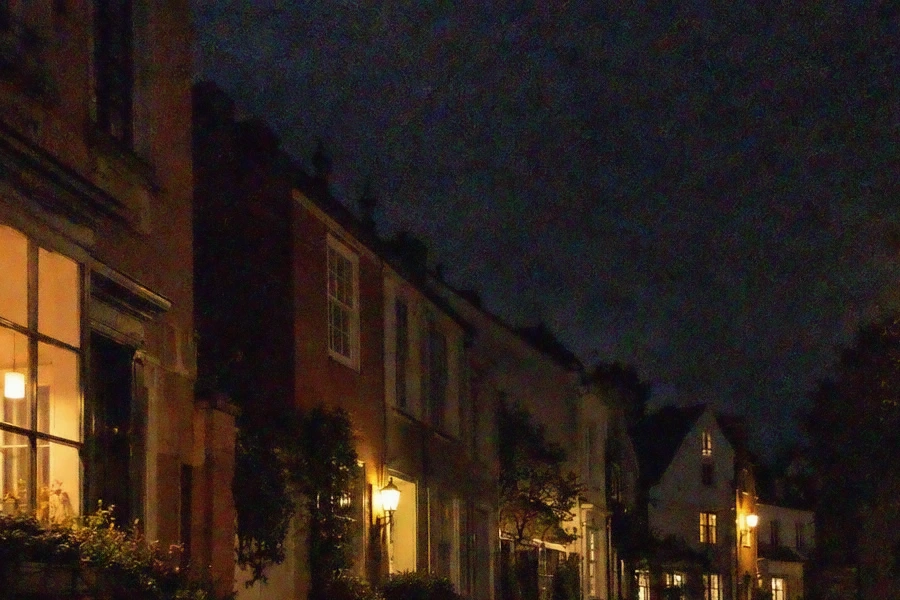
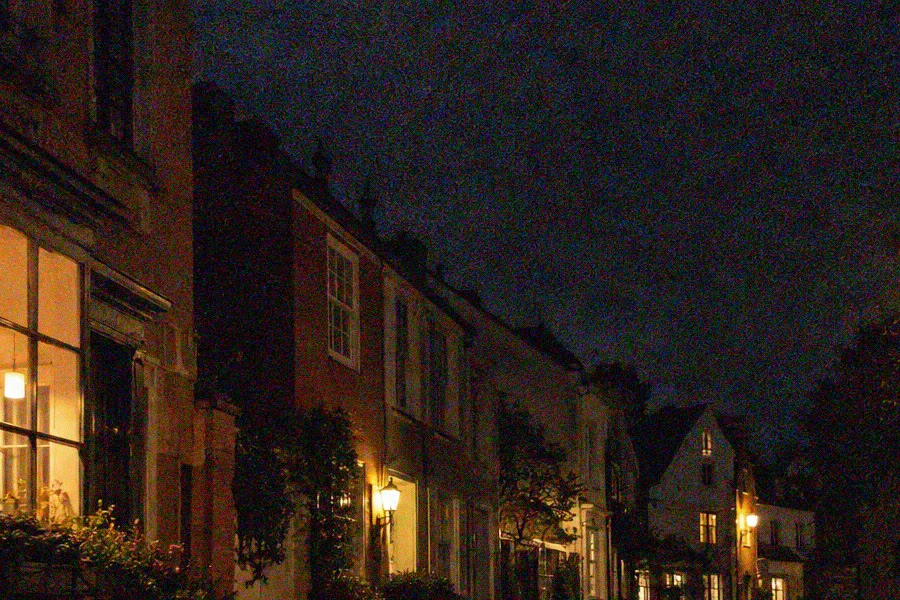
The sky, enlarged: Strength 6 and Protect Detail 20% without color reduction (left) leave colored speckles; with Reduce Color Noise at 100% (right) they are mostly gone. Reduce the grain, then protect the detail
Strength (0–10, default 5) smooths the gray grain: higher values smooth more and over a larger area. Raise it until flat areas look calm, on the sample 6, and stop before textures such as brick, foliage and stone turn into flat patches.
Protect Detail (default 0%) blends some of the original grain back, which keeps fine texture and edges from looking plastic. 10–30% is a good range; on the sample, 20%.
Turn Preview off and on to compare, then click Apply.
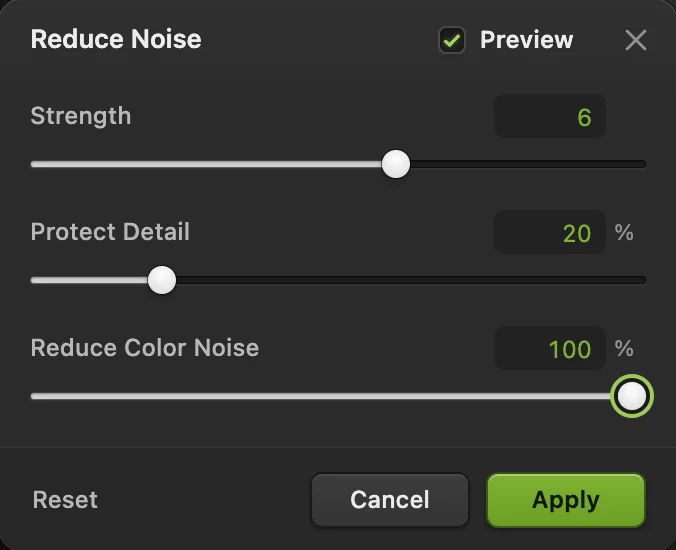
The settings used on the sample. - Strength: how much grain is smoothed
- Protect Detail: keeps some texture
- Reduce Color Noise: removes colored speckles

A wall and window frame, enlarged: before (left) and after (right). Check for smearing and export
Look at fine detail at 100%: leaves, stone, hair. If they look like a watercolor, the noise reduction is too strong. The right-hand picture below shows Strength 10 with no detail protection (Reduce Color Noise still 100%): the leaves soften and the dark background goes flat. Lower Strength or raise Protect Detail.
Then export with , or keep the filter editable with (Ctrl+Shift+S or ⇧⌘S).
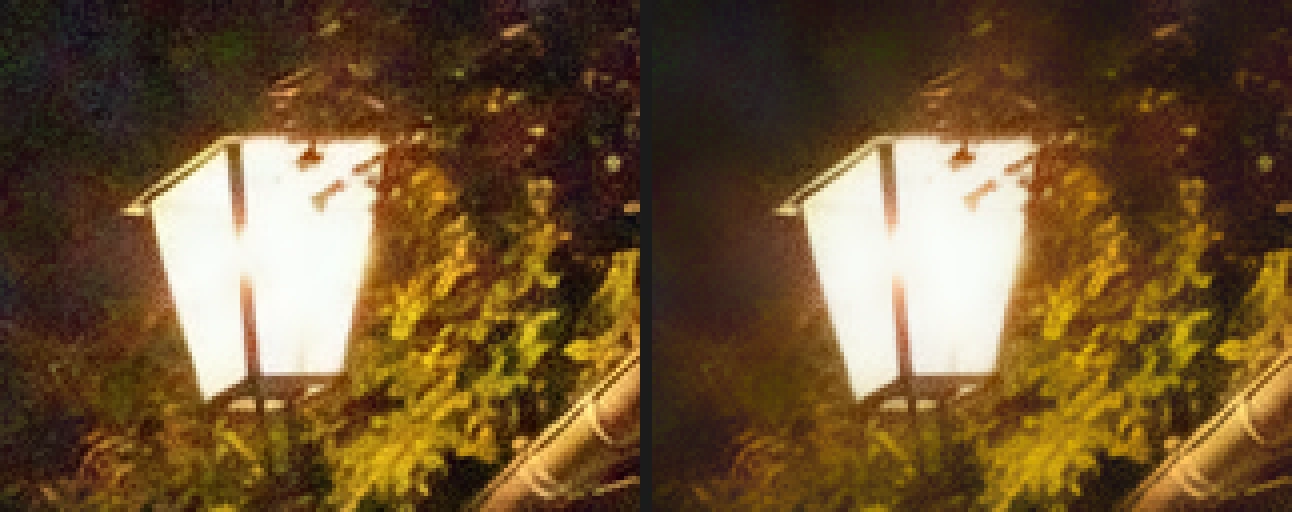
The lamp and leaves, enlarged: the page’s settings (left), and too much (right), Strength 10 with Protect Detail 0%.
Wavelet Denoise: more control
splits the photo into layers of detail, from the finest grain to broad blotches, and lets you clean them separately for brightness (luminance) and color (chroma).
- Luminance Strength and Chroma Strength (both default 0%): how much grain and how much color noise are removed.
- Luminance Levels (default 1) and Chroma Levels (default 3), from 1 to 6: how many detail scales are cleaned. Higher levels also remove coarser, blotchy noise, at the risk of flattening broader texture.
- Detail Retention (default 25%): keeps more texture, at the cost of leaving more noise.
On the sample, Luminance 60% at 3 levels and Chroma 100% at the default 3 levels smooth the gray grain far more than Reduce Noise, but they also soften fine edges such as the window bars and leave colored blotches on the wall and in the sky; even at Chroma 100% more color noise remains than with Reduce Noise. Wavelet Denoise suits photos where gray grain is the main problem and fine edges matter less. More levels take longer and gave no visible gain on the sample.
Dust, specks and hot pixels
- Despeckle (no settings) moves each pixel most of the way toward the median of its immediate neighbors, which fades single-pixel specks and softens the photo slightly.
- Dust & Scratches… replaces only pixels that differ from their neighborhood’s median by more than Threshold (default 26), within a Radius (default 2 px). Use the smallest radius that removes the specks, and raise Threshold until texture comes back. For scanned prints, see how to restore an old photo.
- Hot pixels in long exposures from a RAW file are best removed when opening it: tick Repair isolated hot pixels in the Camera RAW dialog, where the option is available for the file.
Start from RAW when you can
A camera JPEG has already been noise-reduced and compressed by the camera, so the RAW file holds more to work with. If you have the RAW file, use Color noise and Luminance noise in the Detail group of , on the 16-bit data, before anything else.
Why noise reduction can smear detail
A noise filter averages each pixel with its neighbors, so random grain cancels out. The difficulty is that fine detail, a strand of hair, the edge of a leaf, a brick’s texture, also looks like small, local variation. Good filters average along edges rather than across them, which is why window frames stay sharp. But texture that is as fine and faint as the grain itself is averaged away with it. That is the trade-off Strength and Protect Detail control: more smoothing always costs some texture.
What to do next
- Bring back crispness: how to sharpen a photo without halos.
- Brighten a dark photo: how to fix a dark photo.
- Develop the RAW file instead: how to edit a RAW photo.
- Use a layer mask to reduce noise only in the sky or the shadows.
Coming from another editor
- Photoshop
- Filter › Noise › Reduce Noise… and Dust & Scratches…, the same menu paths as in Lil Cactus.
- GIMP
- Filters › Enhance › Noise Reduction… and Filters › Enhance › Wavelet-denoise… In Lil Cactus they are under Filter › Noise.
Noise reduction: questions and answers
How do I apply the same noise reduction to another photo?
In Lil Cactus, open the other photo in the same session, before you reload the page, and choose Filter › Re-Apply Last Filter: it runs the last filter you applied with the same settings, without opening its dialog. Its shortcut, Ctrl+F (Command+F on a Mac), may open the browser’s Find bar instead.
What is the difference between color noise and luminance noise?
Color noise is red, green and blue speckles; luminance noise is gray, film-like grain. Color noise can be removed almost completely without losing detail; luminance noise only partly.
Should I reduce noise before or after sharpening?
Before. Sharpening makes grain stronger, so in Lil Cactus run Filter › Noise › Reduce Noise… first and sharpen afterward, lightly, since some crispness always goes with the grain.
Can I remove noise from only part of a photo in Lil Cactus?
Yes. In Lil Cactus, select the area first, for example the sky with Select › Sky… or the shadows with Select › Color Range…, then run Filter › Noise › Reduce Noise…: it changes only the selected area. On a Smart Object, the selection becomes the Smart Filter’s mask, so the settings stay editable.
Is my photo uploaded when I reduce noise in Lil Cactus?
No. Noise reduction runs in your browser on your own device, and the photo is never sent to a server. Optional statistics never include the image; see the privacy policy.
Keep going
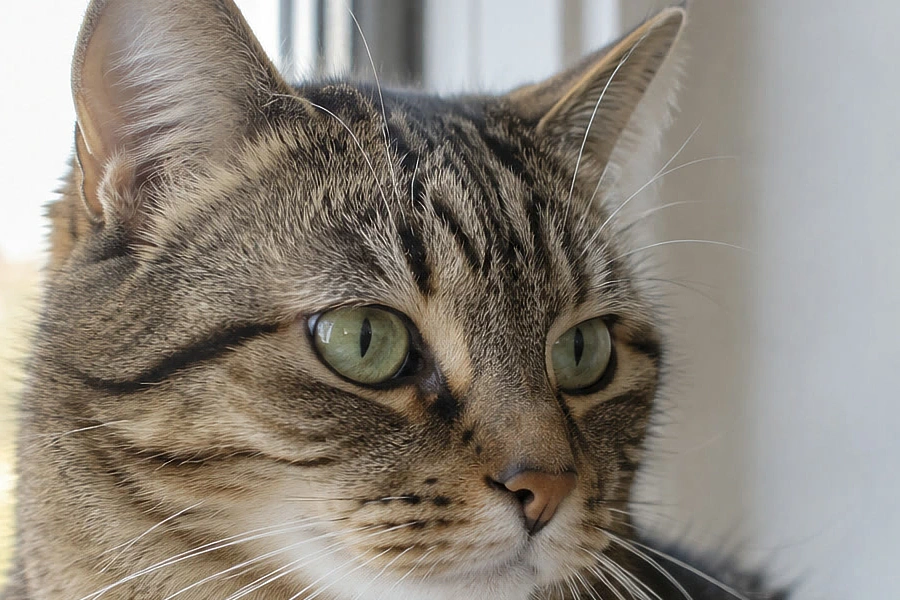 How to sharpen a photo without halosSmart Sharpen at 100%, without halos or crunchy grain.Intermediate · 6 min
 How to fix a dark or backlit photoLift shadows and faces without washing out the window.Beginner · 5 min
 How to edit a RAW photoWhite balance, highlights, shadows and color from the sensor data.Intermediate · 10 min