How to edit a RAW photo
Quick answer
Open the RAW file with and the Camera RAW dialog appears. Pick the White balance, set Highlights to Recover or Blend if the sky or a light is blown out, and click Open Image: the photo opens as a 16-bit image. Then choose , adjust exposure, highlights, shadows, color and detail, and click Apply development. The development stays editable as a Smart Filter.
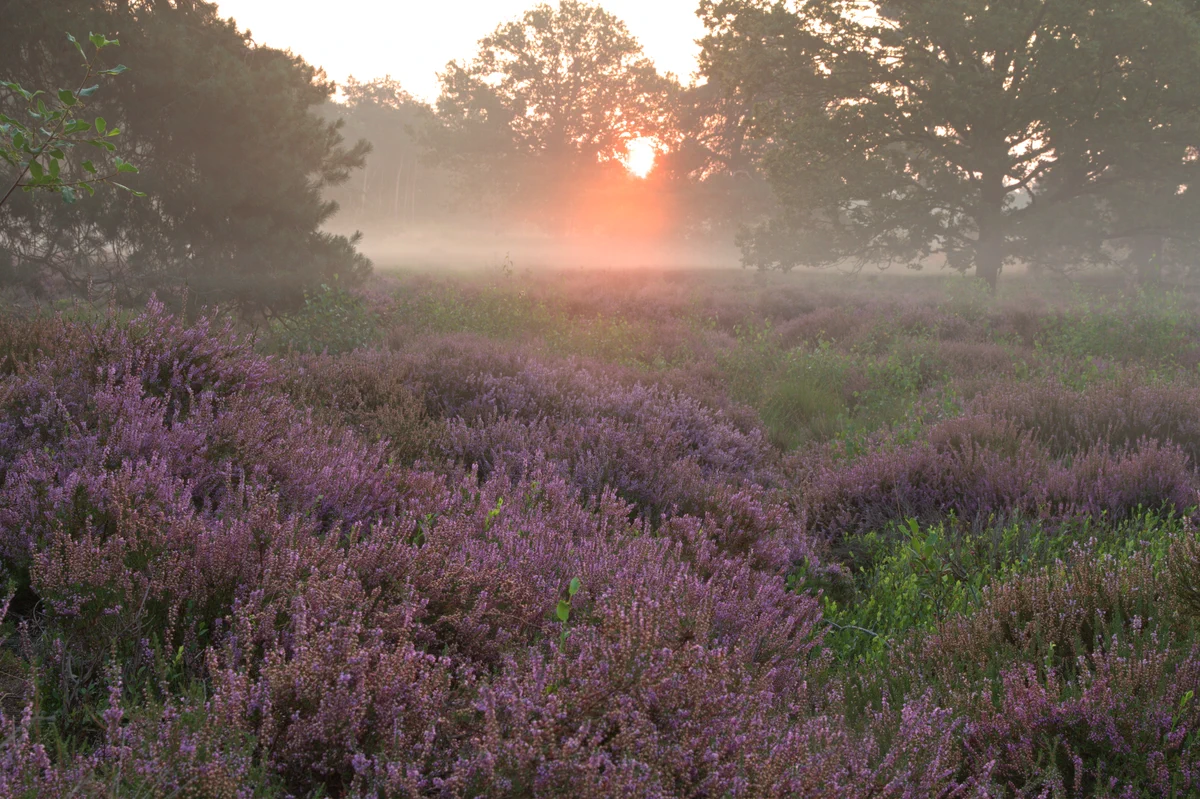
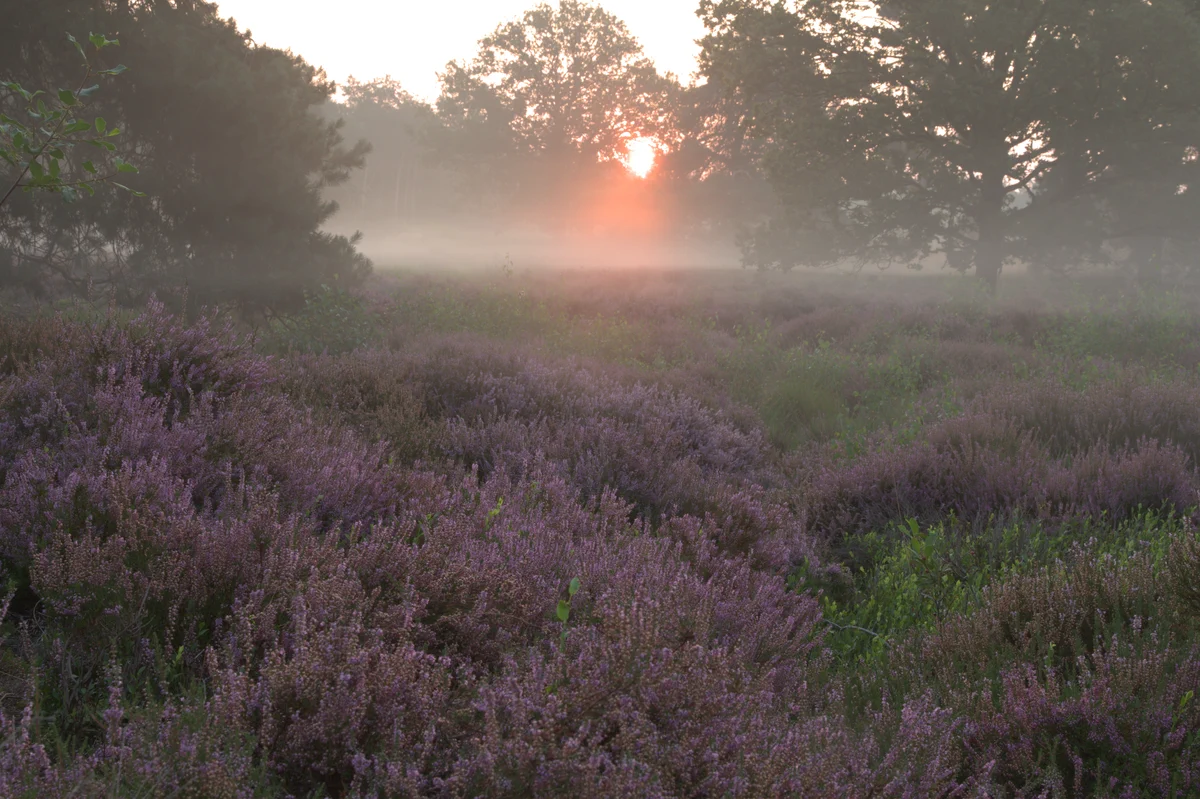
- Time
- 10 minutes
- Level
- Intermediate
- You need
- A RAW file from your camera, and a computer
- Works with
- DNG, CR2, CR3, NEF, ARW, RAF, ORF, RW2, PEF and many other camera RAW formats
A RAW file is what the camera’s sensor recorded, before the camera made any decisions. A JPEG from the same camera has already been given a white balance, brightened, sharpened and squeezed to 256 levels per color. A RAW file usually stores 12 or 14 bits per pixel, 4,096 to 16,384 levels, so detail that a JPEG would cut away in a bright sky or dark grass is often still there to recover. Developing means making those decisions yourself.
In Lil Cactus that happens in two stages. The Camera RAW dialog handles what needs the sensor data itself: white balance, blown highlights and hot pixels. Those choices are fixed once the photo opens. Then Photographic Development shapes tone, color and detail on the 16-bit image, and its sliders stay editable afterward.
Develop a RAW photo in seven steps
Open the RAW file
Go to lilcactus.app and choose (Ctrl+O or ⌘O), or drag the file onto the window. Instead of opening straight away, a RAW file opens the Camera RAW dialog: a preview on the left, and on the right the camera, size, ISO, aperture, shutter speed and focal length read from the file. To follow along, open the sample RAW from this page.
The preview is a reduced copy, so it updates quickly. Judge fine detail after the photo opens.
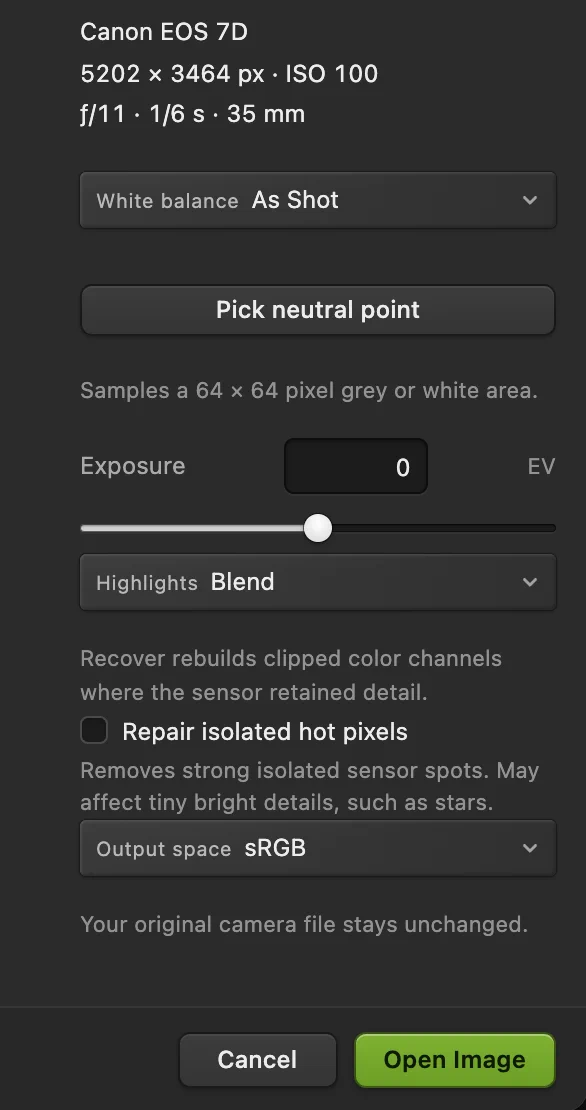
The Camera RAW controls, set up for the sample. - White balance: As Shot, Auto or Daylight
- Pick neutral point: click something gray or white
- Exposure, in stops (EV)
- Highlights: Clip, Blend or Recover
- Repair isolated hot pixels
- Output space: sRGB or Adobe RGB (1998)
- Open Image
Choose the white balance
White balance decides what counts as neutral gray, and so how warm or cool the whole picture looks. Because it is applied to the sensor data here, before anything is cut off, even a large change keeps clean color.
- As Shot: the setting the camera recorded. Start here.
- Auto: calculated so that the picture as a whole averages out to neutral gray.
- Daylight: a fixed balance for midday sun, the same for every photo.
- Pick neutral point: click the button, then click something in the preview that should be gray or white, such as a wall, a cloud or a gray card. It averages a 64 × 64 pixel patch.
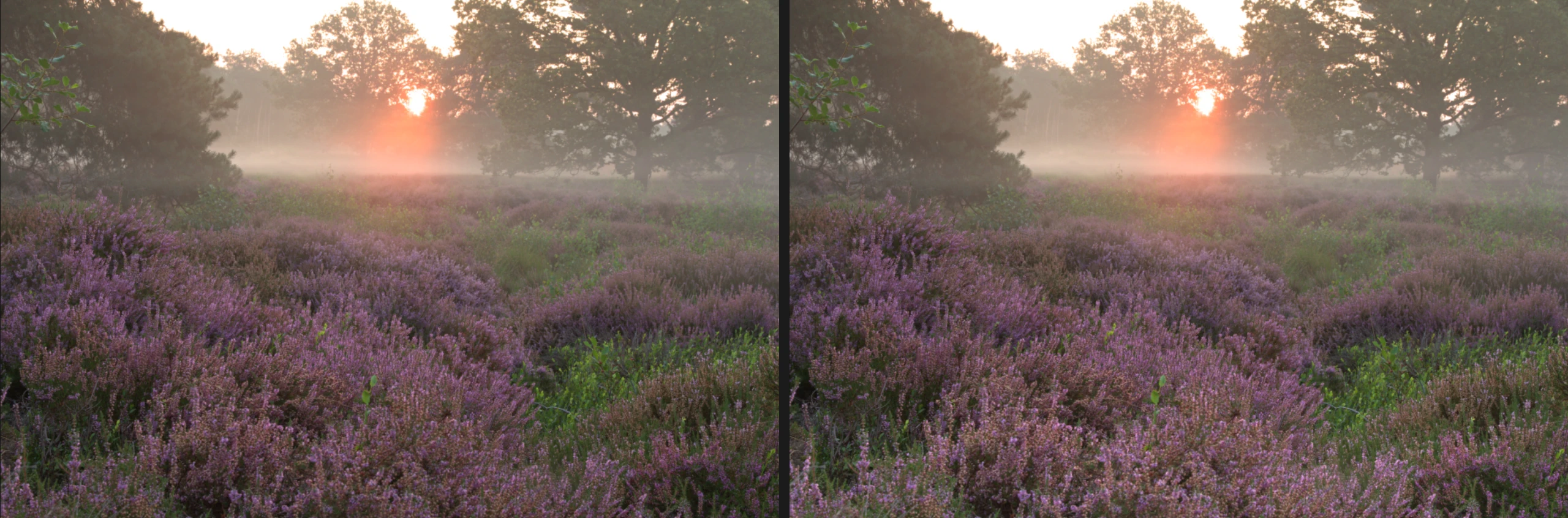
Auto is not always right. A sunrise is meant to look warm, and because Auto pulls the whole picture toward gray, on the sample it turns the warm fog cold blue-gray. Keep As Shot.
Tip Some camera formats can’t be sampled. The dialog then says so under Pick neutral point; use Auto or Daylight instead.
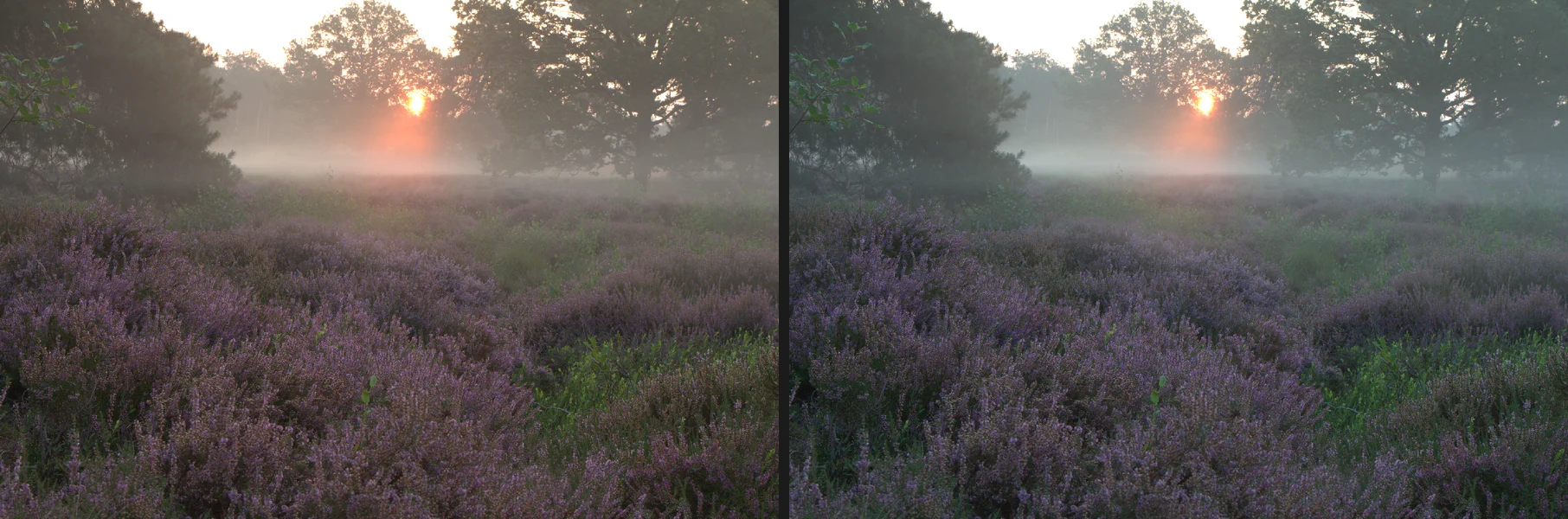
As Shot (left) keeps the sunrise warm. Auto (right) neutralizes it. Rescue blown highlights, then click Open Image
The sun, a bright sky or a lamp often pushes one or more of the sensor’s red, green and blue channels to their maximum. Highlights decides what happens there:
- Clip (the default): the full channels are cut off. Bright areas often turn an unnatural yellow or cyan, because only some channels ran out.
- Blend: blends the clipped areas toward white. Clean and neutral, but the color there is gone.
- Recover: rebuilds the missing channels from the ones the sensor still recorded. It may keep more color in large bright areas such as a sky, but can leave colored edges around a very bright light.
On the sample’s sun, Clip leaves a thick yellow rim, Blend gives a clean white disc, and Recover thins the yellow rim but adds magenta patches along the edge. For a light source like this, Blend is the cleanest, and it is what the rest of this page uses; try Recover on bright skies and clouds and compare.
Leave Exposure at 0 unless the photo is clearly too dark or too light: it works in stops, so +1 doubles the light and −1 halves it. Tick Repair isolated hot pixels only for long exposures with single bright sensor spots; it can also affect stars. Keep Output space on sRGB unless you print and manage color yourself.
Then click Open Image. Lil Cactus develops the full-resolution photo, which can take half a minute for a large file, and opens it as a 16-bit image: the status bar at the bottom of the window reads 16-bit working. The choices in this dialog are now fixed; to change them, open the RAW file again, which starts a new document.
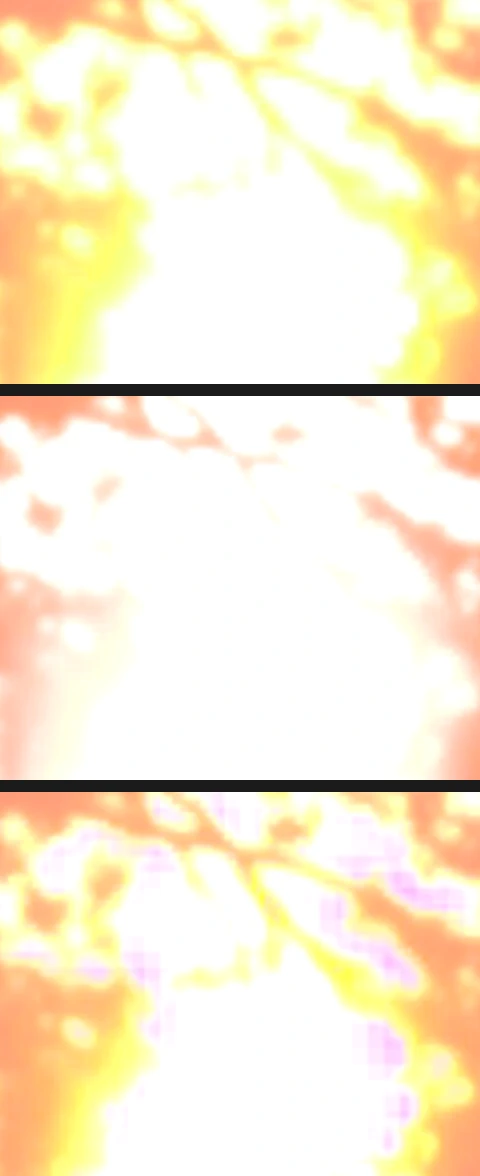
The sun, enlarged: Clip, Blend and Recover, top to bottom. Open Photographic Development and set the light
Choose A large workspace opens with the photo on the left and the controls on the right, in groups: Light, Color, Effects, Detail, Lens, Color grading, Curves and Local masks.
Work down the Light group. Each slider runs from −100 to 100 (Exposure (EV) from −5 to 5) and starts at 0. The values below are the ones used on the sample:
- Exposure +0.3: overall brightness, in stops.
- Contrast +15: spreads the tones apart, darker darks and brighter lights.
- Highlights −45: darkens bright areas, judged by their surroundings, so the glowing fog brightens less than the rest of the photo as Exposure and Whites lift it.
- Shadows +35: brightens dark areas the same way, opening up the heather under the trees.
- Whites +20 and Blacks −25: move the brightest and darkest tones. After Highlights and Shadows have pulled the tones toward the middle, these restore a full range from deep black to clean white.
Use the histogram at the top as a guide: it shows how many pixels sit at each brightness, dark on the left, bright on the right. A tall spike against an edge means pixels there have no detail left. On the sample, the spike comes from the patch of sky between the trees, which the camera already clipped, and from the sun’s glow, where the red channel reaches its maximum. A spike is fine for a light source or for sky that was already clipped in the file; it needs attention when your sliders create it on detail you want to keep, such as clouds or a white shirt. Tick Before above the photo to compare with the photo as it opened, and double-click the photo, or choose 100% detail in the Fit menu above it, to check fine detail at full size.
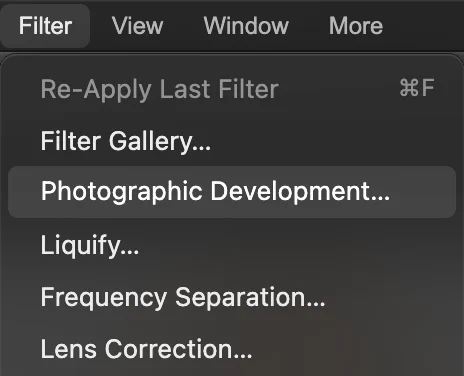
, near the top of the Filter menu. 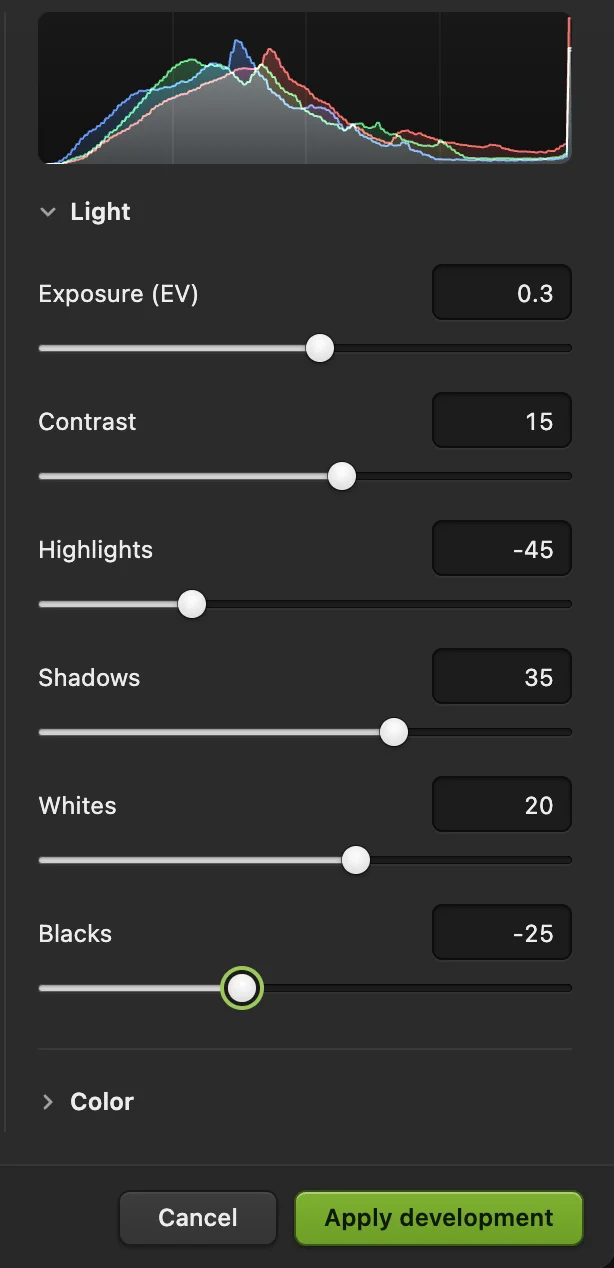
The Light settings used on the sample. - Histogram of the preview
- Highlights: darkens bright areas
- Shadows: brightens dark areas
- Whites: sets the brightest tones
- Blacks: sets the darkest tones
- Apply development
Add color and detail
Close Light and open Color and Effects.
- Vibrance +25: strengthens muted colors more than colors that are already strong, so the heather deepens without the sun turning garish. Saturation strengthens every color equally and overdoes things quickly.
- Temperature and Tint: fine-tune the white balance, warmer or cooler, greener or more magenta.
- Texture +15: crisps fine detail such as the flower heads.
- Clarity +12: adds contrast to medium-sized shapes, which gives depth. High values look harsh and gritty.
- Dehaze +12: cuts through haze and fog. A little adds depth; a lot would remove the mood this photo is about.
The groups further down hold the rest: Detail (sharpening and noise reduction for high-ISO photos), Lens (distortion, vignette and color fringes, set by hand), Color grading (tint the shadows, midtones and highlights separately) and a Curves graph.
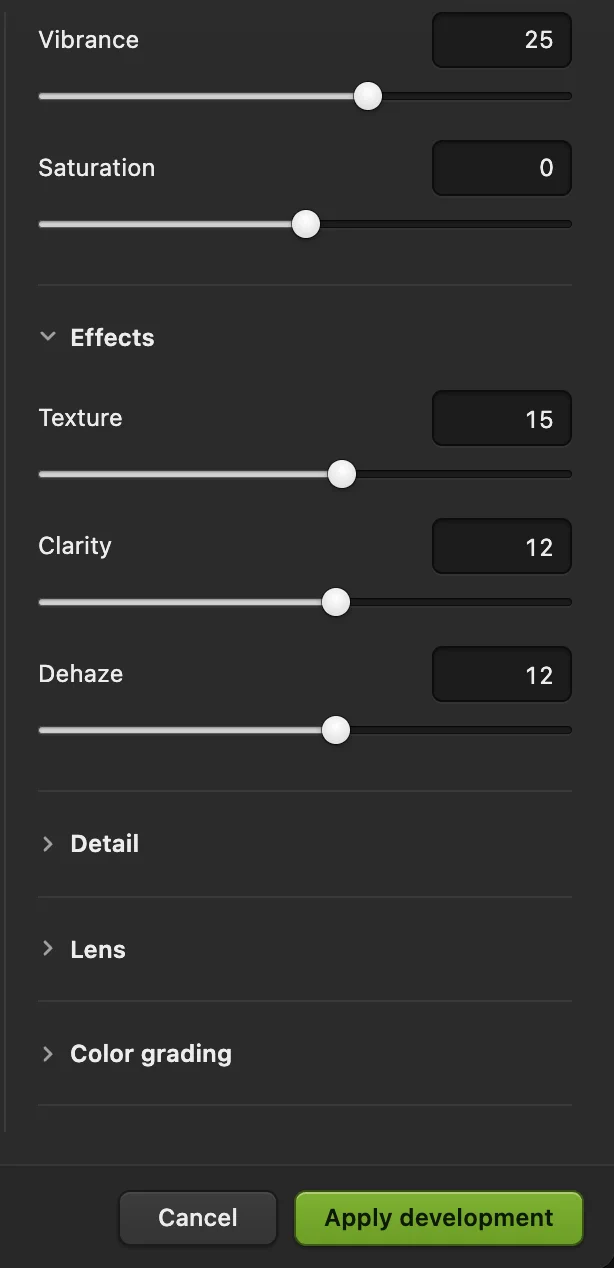
Color and Effects on the sample. - Vibrance: muted colors first
- Texture: fine detail
- Clarity: medium-sized contrast
- Dehaze: cuts through haze
Apply the development
Click Apply development. The layer becomes a Smart Object: the developed photo is shown, and the photo as it opened is kept inside it with your settings attached as a Smart Filter. The Properties panel now calls the layer a Smart object.
On a large RAW the canvas can keep showing the undeveloped photo for up to a minute, with no progress bar, before the result appears.
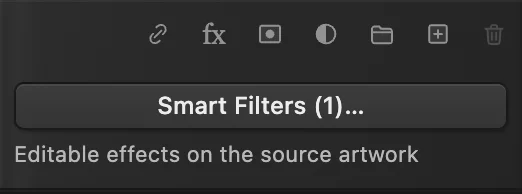
After Apply, the button at the bottom of the Layers panel reads Smart Filters (1)… Save or export
- for sharing, email and the web. JPEG holds 8 bits per channel, which is plenty for a finished photo.
- or keep all 16 bits for printing or further work in another app.
- (Ctrl+Shift+S or ⇧⌘S) keeps the development editable. does the same for a photo opened from RAW: a camera file can’t be written back, so it is saved as a project.
Change the development later
Select the layer and choose again: the workspace reopens with your settings as you left them, including any masks.
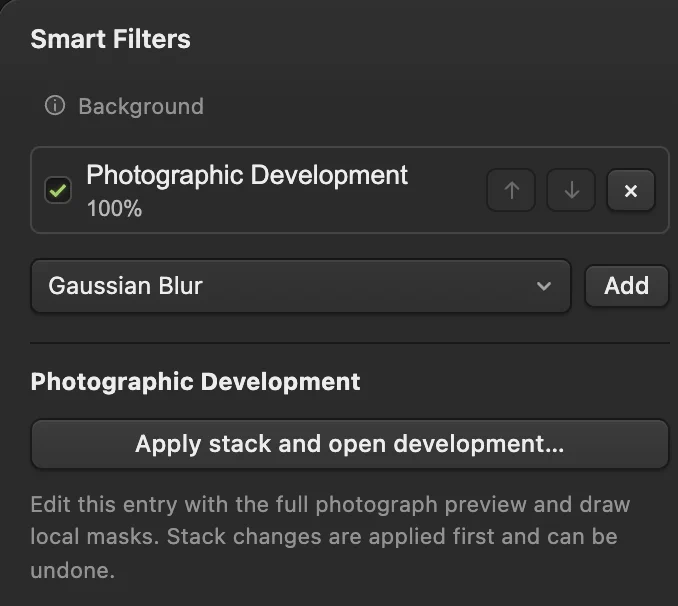
The other route is the button under the Layers panel. Click Smart Filters (1)…, select Photographic Development in the list and click Apply stack and open development… That list also lets you switch the development off with its tick box, to compare, or remove it with the ×; click Apply stack to keep either change.
Darken or brighten one part: local masks
The sliders so far change the whole photo. To change only part of it, open Local masks in the development workspace and add a mask:
- Radial: an oval, for a face, a subject or a bright spot.
- Gradient: a soft band, for a sky or a foreground.
- Brush: paint the area by dragging on the photo.
Drag on the photo to place a radial or gradient mask (or type its start and end positions), then use Local exposure (EV), Local temperature, Local contrast and Local saturation. Mask feather softens its edge, Invert flips it, and Show mask under the photo tints the masked area red. On the sample, a gradient with Start Y (%) 100 (the bottom edge) and End Y (%) 55 (positions are measured from the top) and Local exposure (EV) at +0.7 brightens the dark heather in the foreground; the fade sits in the bottom third, so the trees and the sky don’t change. Each development holds up to 16 masks, and they stay editable like everything else.
Why RAW holds more than a JPEG
Think of the sensor data as a negative and the JPEG as one print made from it. The camera chose the white balance, how bright to make the midtones and how much contrast to add, then threw away whatever didn’t fit into 256 levels. If it guessed wrong (a color cast, dark shadows, a bright sky that is close to the limit) the JPEG has little information left to bring back. The RAW file often still has it. Only what the sensor itself clipped, such as the sun and the white sky beside it, is gone in both.
Developing in 16-bit keeps that advantage. Every slider stretches some tones apart; with 65,536 levels to stretch, smooth gradients such as fog and sky are much less likely to break into bands.
Fix common problems
The sun or sky has turned yellow or cyan
Some channels clipped and Highlights was left on Clip. Open the RAW file again and choose Blend for a light source such as the sun, or try Recover for a bright sky or clouds.
The colors look washed out after opening
That is normal: a RAW file has none of the contrast and color a camera adds to its JPEGs. Add Contrast, set Whites and Blacks, then Vibrance.
The whole photo is too blue or too orange
Fix it at the start with Pick neutral point on something that should be gray, or afterward with Temperature and Tint in the Color group.
Grain and colored speckles in the dark areas
High ISO photos are noisy. Open Detail in Photographic Development, raise Color noise first, then Luminance noise only as far as needed, checking at 100% detail.
The tones look banded or posterized
Check the status bar says 16-bit. A RAW file always opens in 16-bit; if you converted it with , undo that and develop first.
What to do next
- Shape contrast and color precisely: how to use Curves.
- Sharpen for print or the web: how to sharpen a photo.
- Clean up a high-ISO photo: how to reduce noise.
- Combine several exposures of the same scene: how to merge HDR brackets.
- Make a smaller copy for the web: resize the image.
RAW formats by camera maker
| Maker | Extensions |
|---|---|
| Adobe DNG (Leica, Pentax, Ricoh and others) | .dng |
| Canon | .cr3, .cr2, .crw |
| Nikon | .nef, .nrw |
| Sony | .arw, .srf, .sr2 |
| Fujifilm | .raf |
| Olympus and OM System | .orf |
| Panasonic | .rw2 |
| Pentax | .pef |
| Samsung | .srw |
| Hasselblad, Phase One, Leaf | .3fr, .fff, .iiq, .mos |
| Kodak | .kdc, .dcr |
| Minolta | .mrw |
| Leica, Panasonic (older) | .rwl, .raw |
Coming from another editor
- Photoshop
- RAW files open in the Camera Raw dialog, and Filter › Camera Raw Filter… edits a layer later. In Lil Cactus the opening dialog is Camera RAW and the later edits are
- GIMP
- GIMP opens RAW files through darktable or RawTherapee, if one of them is installed. In Lil Cactus, on a RAW file opens the Camera RAW dialog.
- Mac Preview
- Preview opens many RAW files and offers Tools › Adjust Color… In Lil Cactus the equivalent controls are in
RAW photo editing: questions and answers
Can I edit RAW photos online without uploading them?
Yes. Lil Cactus decodes and develops the RAW file in your browser, on your own device, so the photo is never sent to a server. See the privacy policy for the optional statistics.
Which RAW formats does Lil Cactus open?
DNG, Canon CR3, CR2 and CRW, Nikon NEF, Sony ARW, Fujifilm RAF, Olympus ORF, Panasonic RW2, Pentax PEF, Samsung SRW and several medium-format and older formats.
Does editing a RAW file change the original?
No. Lil Cactus reads the camera file and never writes to it. Your edits are saved as a new JPEG, TIFF or PNG, or as a Lil Cactus project that keeps the development editable.
Should I export a RAW photo as JPEG or TIFF?
JPEG for sharing and the web: it is small and opens everywhere. 16-bit TIFF or PNG if you will print the photo or keep editing it in another app. In Lil Cactus, both are under File › Export.
Can I batch edit RAW photos in Lil Cactus?
No. Photographic Development can’t be replayed by an action, so a development can’t be repeated across files automatically. Develop one photo at a time.
Keep going
 How to use Curves to fix contrast and colorRead the graph, build an S-curve and shift color by channel.Intermediate · 8 min
 How to fix a dark or backlit photoLift shadows and faces without washing out the window.Beginner · 5 min
 How to reduce noise in a photoClean up grain and color speckles from night and high-ISO shots.Intermediate · 6 min