How to use Channels and Quick Mask in Lil Cactus
Quick answer
In Lil Cactus, open for channel views and saved selections. Make a selection, choose and use Brush at Size 40 px and Hardness 100% for this example. Press D, then X before painting the stem, and X again to trim below it. Press Q to return to the selection, then choose to keep it.
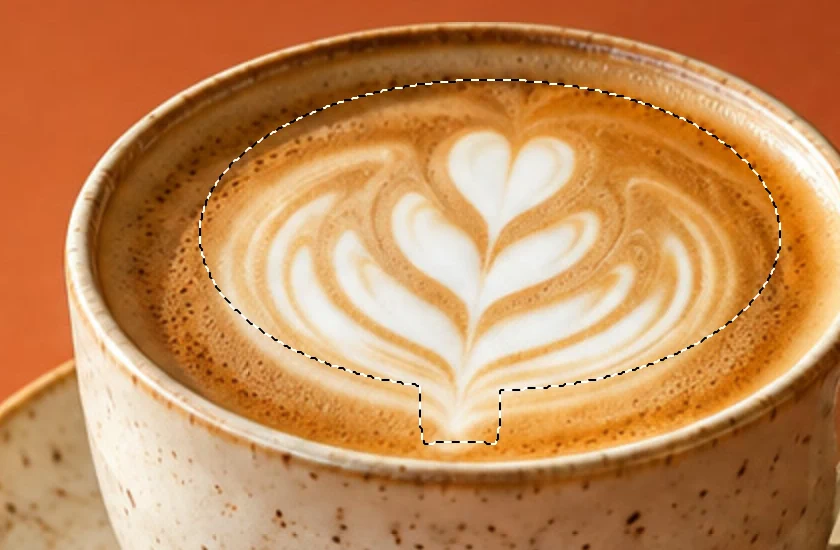

- Time
- 7 minutes
- Level
- Intermediate
- You need
- A photo open in the editor
- Works with
- 8- and 16-bit RGB images, including layered projects
An RGB image has red, green and blue color channels. An alpha channel stores a selection.
Quick Mask lets you change that coverage with a brush over the photo. In this exercise, extend an oval around the latte art to include its lower stem, then save the selection. The photo’s pixels stay unchanged, ready for a later local edit.
Paint and save a selection in seven steps
Inspect a color channel, then return to RGB
Open the practice photo. Choose . Click Blue to see that channel as grayscale, then click RGB to return to the full-color image. This changes only the preview.
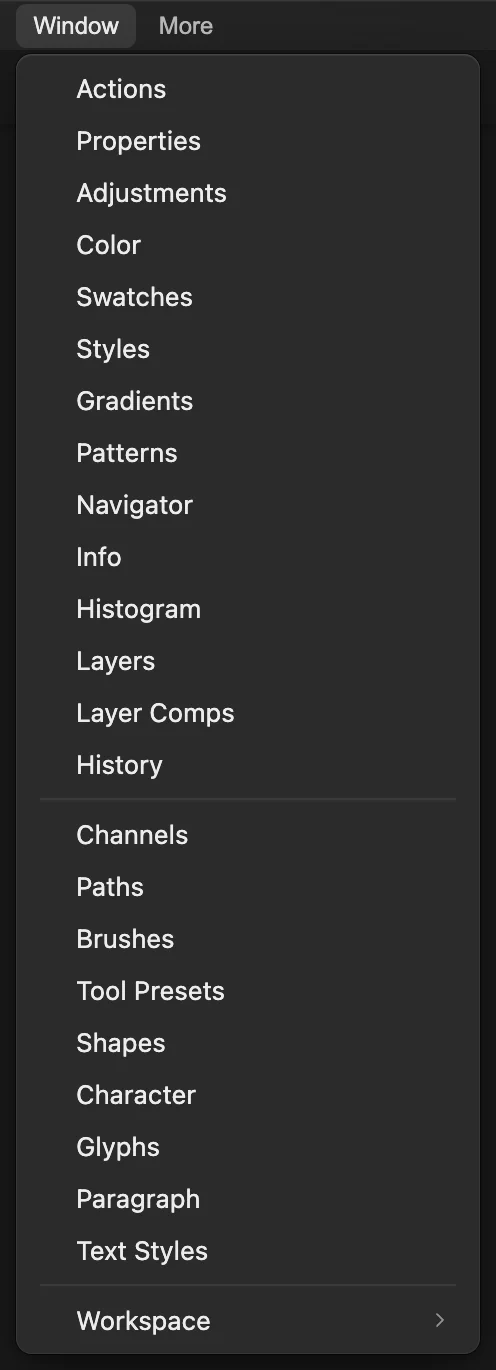
Open the Channels panel from Window. 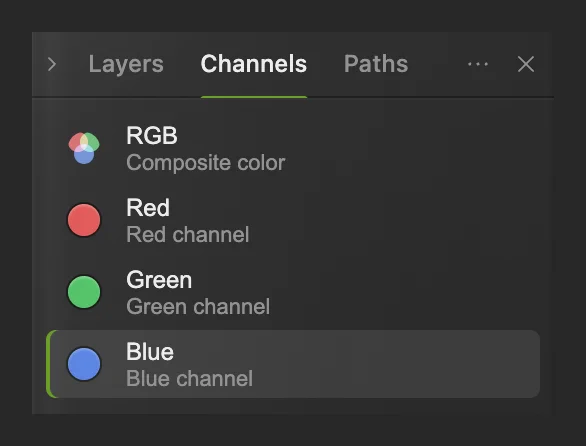
Blue is active in the color-channel list. Draw a rough oval around the latte art
Choose . Hold Space and drag left until the top of the cup is centered in the workspace. Right-click (or press and hold) the dotted-rectangle selection button in the left toolbar and choose Marquee Select. Set Shape to Ellipse.
Draw an oval around the main leaf pattern, leaving the stem’s lowest tip outside. Drag the comparison handle above to the right to see the whole Before oval, and use it as a guide.
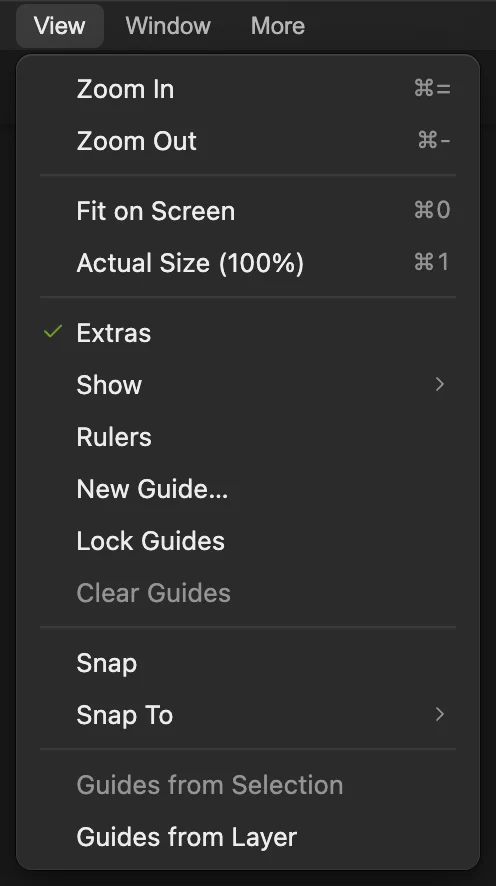
Use 100% for this small selection. 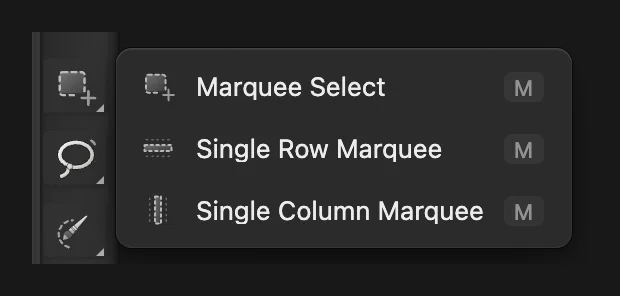
Marquee Select can draw a rectangle or an ellipse. 
Choose Ellipse in the options bar. Show the selection as Quick Mask
Choose . A red overlay covers the protected area. The oval remains in its normal colors, so you can compare its edge with the latte pattern.
Quick Mask turns the selection into a temporary paint target. 
The red across the stem tip shows where the selection needs extending. Add with white and trim with black
Right-click (or press and hold) the brush button in the left toolbar and choose Brush. Set Size to 40 px and Hardness to 100%, pressing Enter after each value.
Press D for black and white, then X to put white in the foreground. Make a short stroke down the stem to its tip. The red overlay clears where you paint. Press X again for black, then make a short stroke just below the tip, above the cup’s front rim, to trim the rounded end.
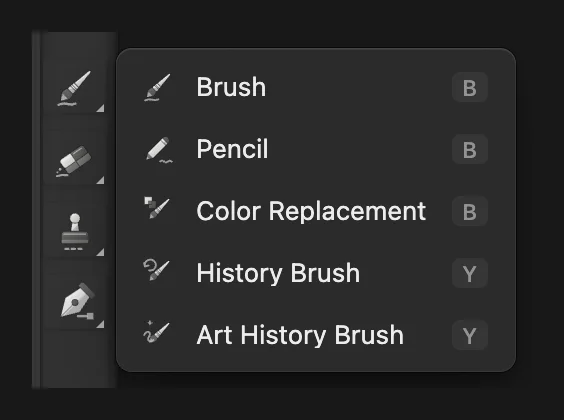
Use Brush to paint selection coverage. 
A small hard brush makes this boundary visible. 
White extends the selected area down the stem. 
Black trims the overshoot below the tip, keeping the front rim protected. Leave Quick Mask and store the selection
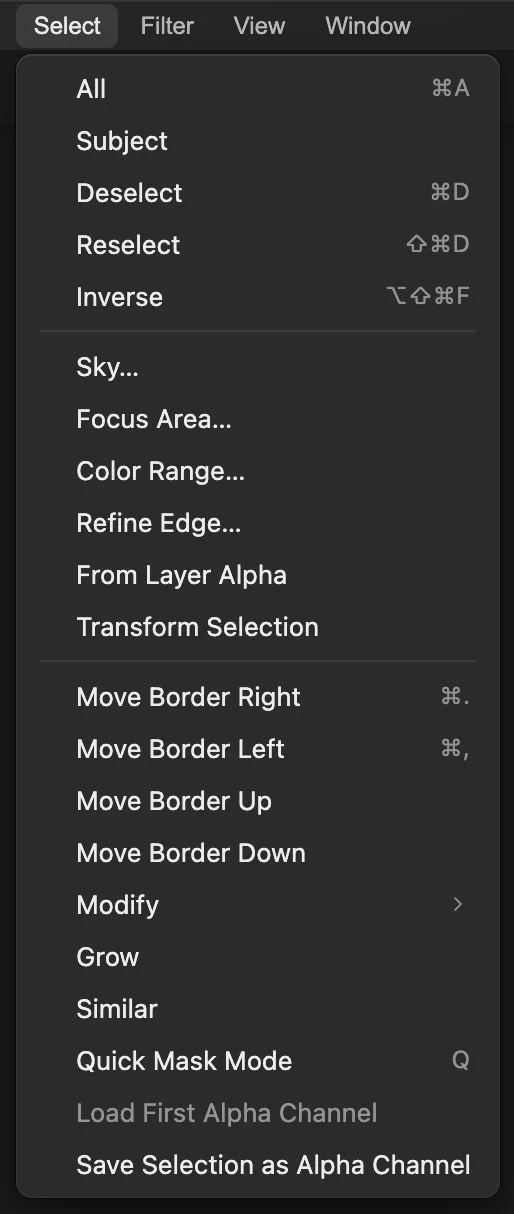
Press Q to leave Quick Mask. The dotted selection returns, including your brush correction. Choose . The new Alpha 1 row stores that selection in Channels.
Save the corrected selection as a channel. Inspect and reload the saved selection
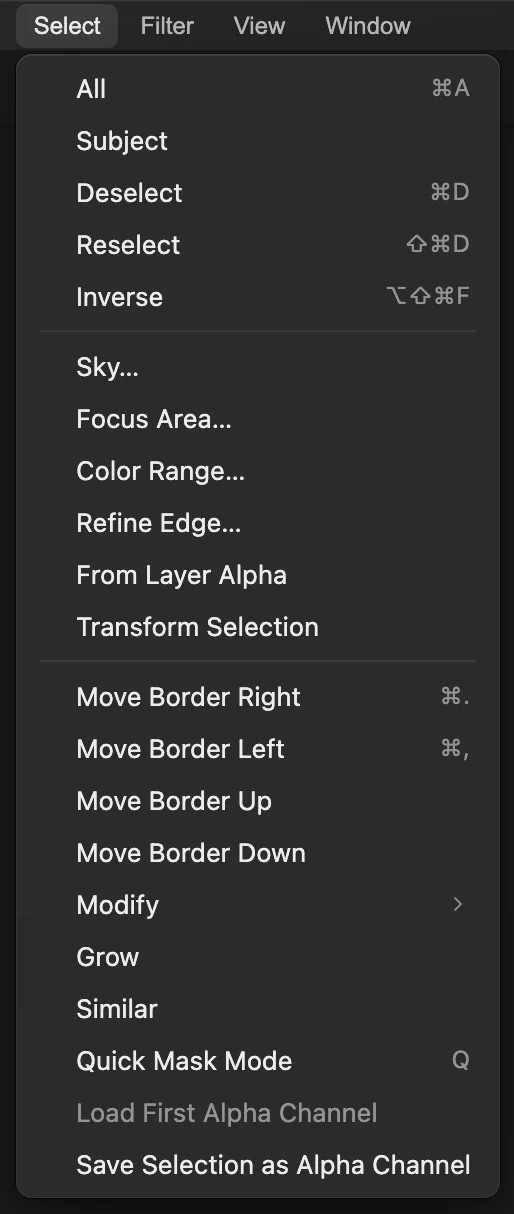
Click Alpha 1 to inspect its black-and-white coverage. Return to the color view as in step 1. Choose , then . The corrected selection returns from the saved channel.
Tip If you have several saved alpha channels, the menu loads the first one. Each channel also has its own Load as selection button in Channels.
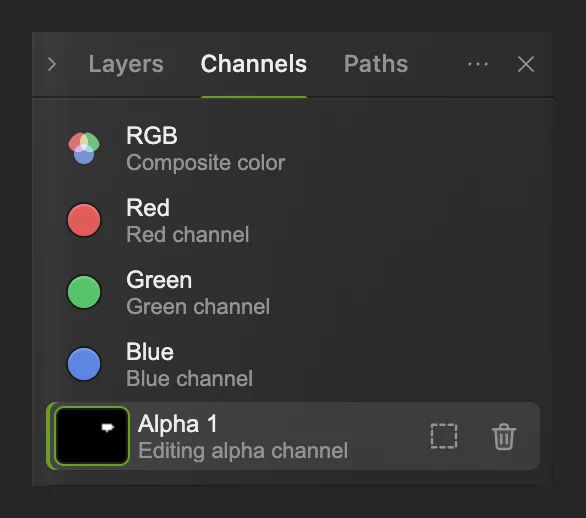
Click a channel name to view it. The dotted-rectangle button loads that channel as a selection. 
Alpha 1 viewed as grayscale: the white oval and its stem extension are the saved selection. 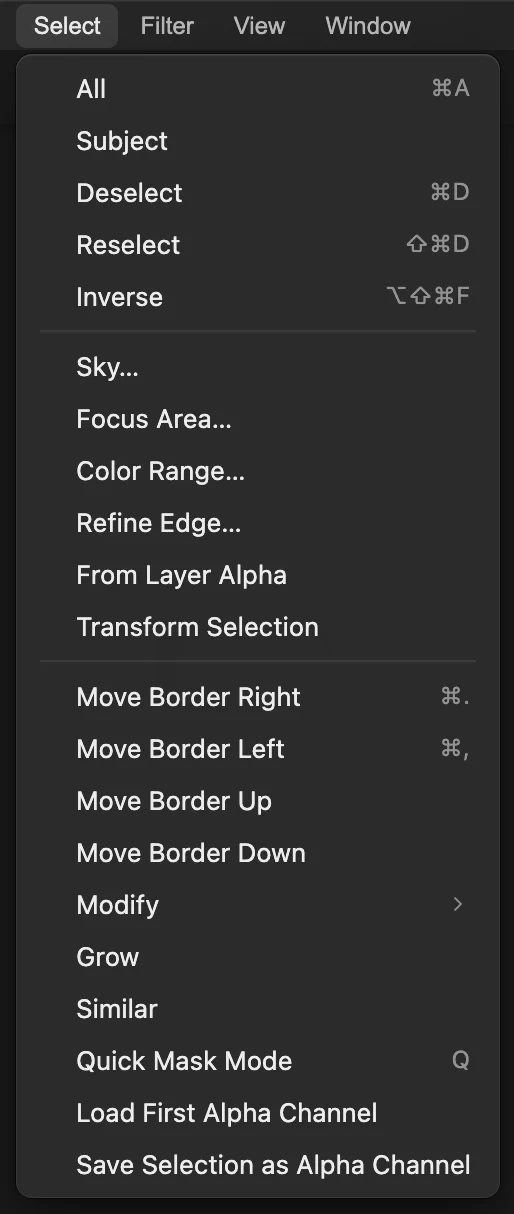
Deselect removes the current outline, leaving Alpha 1 stored. 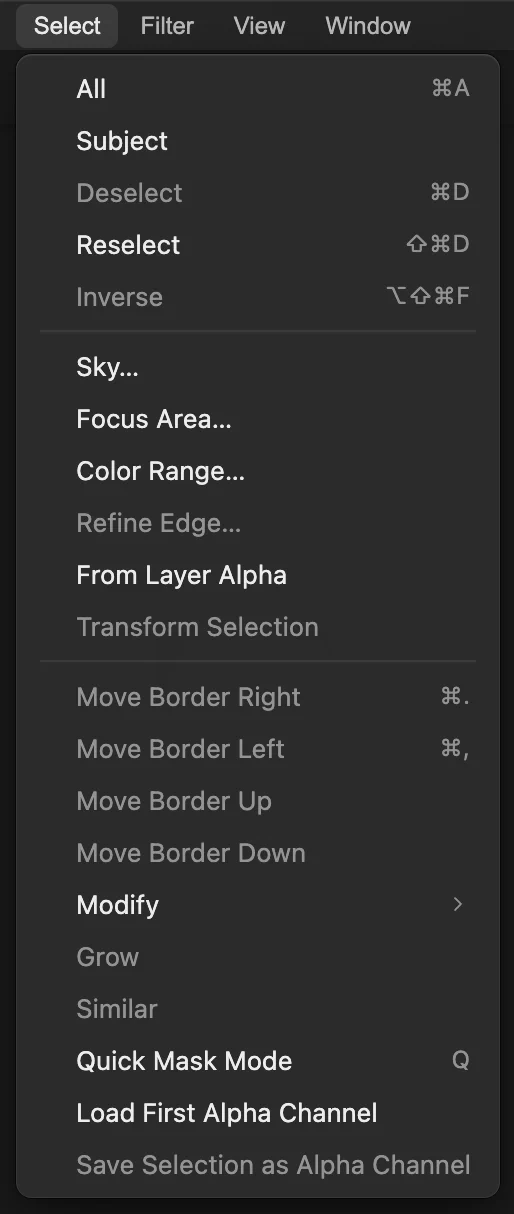
Load First Alpha Channel restores this project’s first saved selection. 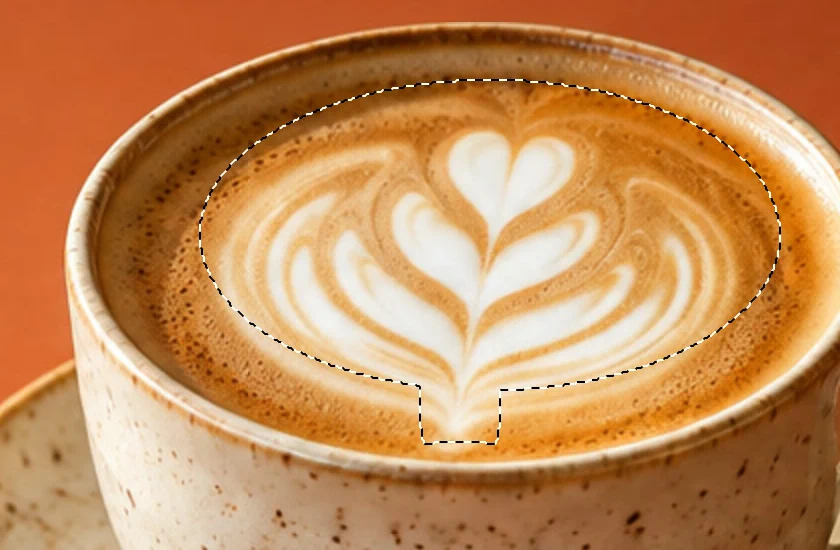
The restored outline includes the painted stem extension. Save a project for the next editing session
Choose Reopen that project when you want to use the saved channel again. A flat image export keeps the picture, without the editable alpha channel.
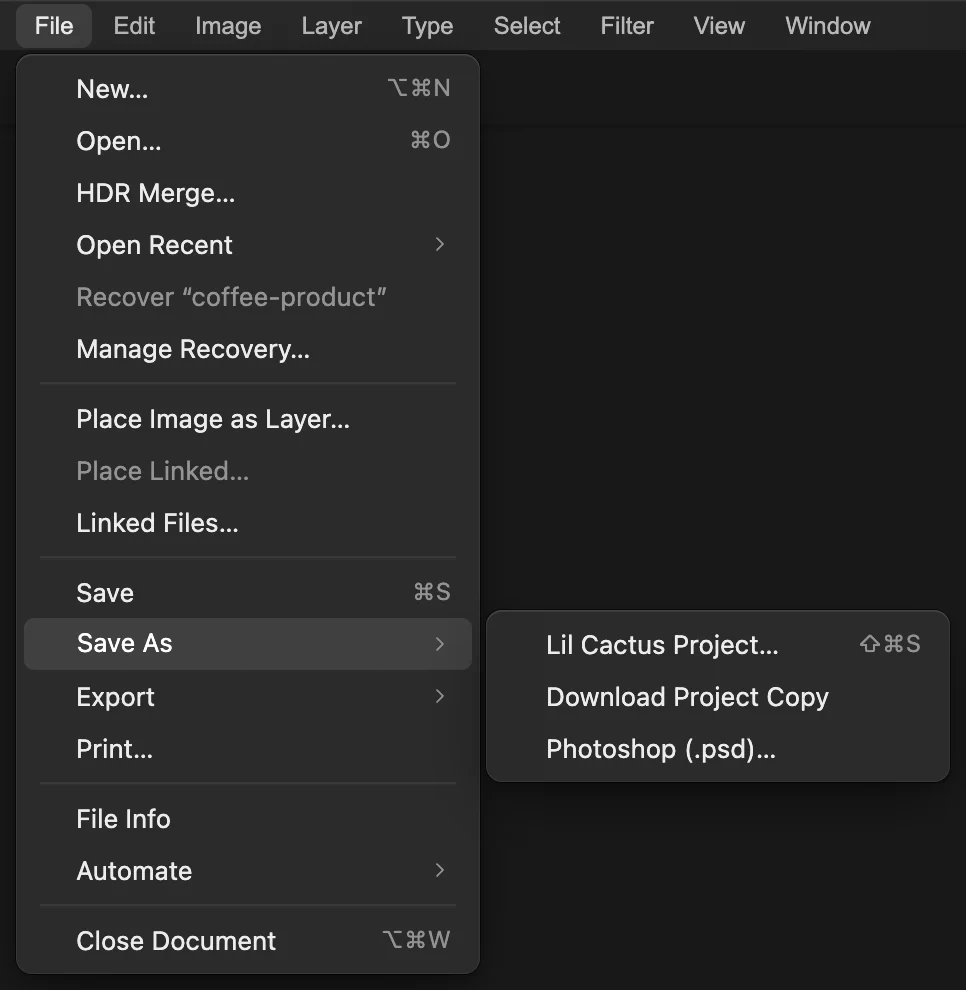
The project preserves the photo and Alpha 1 for later work.
What to do next
- Make a local edit: with the selection loaded and RGB active, add an adjustment layer. It turns the selection into its mask so you can revise the effect later. See adjustment layers and layer masks.
- Build the first outline with another tool: selections explained.
- Work on hair and fur: refine a subject selection.
- Keep more of the editing process reversible: History and Undo.
Channels and Quick Mask: questions and answers
Does Quick Mask paint red into my photo?
No. In Lil Cactus, the red Quick Mask overlay shows protected areas. Painting in that mode changes selection coverage, while the image pixels stay unchanged.
What do black, white and gray mean in an alpha channel?
In Lil Cactus, white is fully selected, black is protected and gray is partly selected. Partial coverage gives a softer transition when an edit uses the selection.
Can I rename or delete a saved alpha channel?
Yes. In Lil Cactus, double-click the channel name in Channels, type its replacement and press Enter to rename it. Use the trash button beside that channel to delete it.
Does clicking Blue make a selection from that channel?
No. In Lil Cactus, clicking Blue on an RGB photo displays that component as grayscale. It does not select the light pixels or create a saved alpha channel.
How can I change a saved alpha channel?
In Lil Cactus, click the saved channel’s name or thumbnail in Channels. Choose Select › Deselect to remove any selection that would restrict your brush, then paint white or black.
Does saving an alpha channel make my photo transparent?
No. In Lil Cactus, a saved alpha channel stores a selection separately from the photo. Add a layer mask when you want that selection to control which parts of a layer remain visible.
Keep going
 How to make a selection in a photo editorPick the right tool, add and subtract, feather and save a selection.Beginner · 6 min
 How to use layer masksHide part of a layer without deleting it, and bring it back any time.Beginner · 5 min
 How to use adjustment layersColor and tone changes you can retune, hide or limit to one area.Beginner · 5 min