How to make a duotone photo
Quick answer
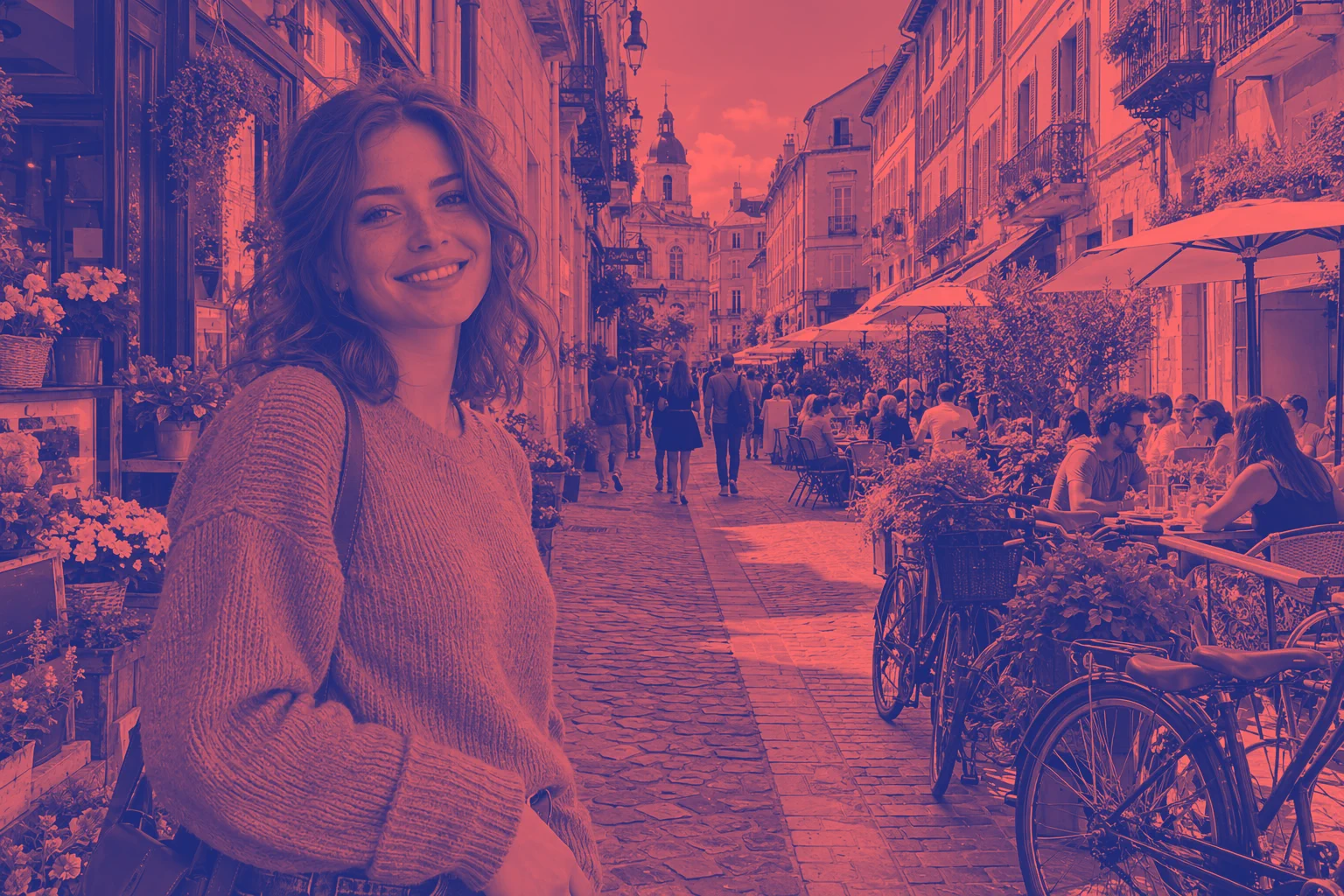
In Lil Cactus, choose and use Type Solid with Method Classic. Select the left color stop under the gradient, click its Color swatch and enter 1E2A78 for navy; set the right stop to FF6B6B for coral. Click Apply, then export with Save a layered copy with to revise the palette later.
- Time
- 5 minutes
- Level
- Beginner
- You need
- A color or black-and-white photo
- Works with
- JPG, PNG and WebP photos
A duotone gives a photo a two-color treatment. A Gradient Map assigns colors by brightness: dark parts use the gradient’s left end and bright parts use its right end. It follows the photo’s tones rather than laying a colored gradient from one side of the canvas to the other.
Make a duotone in five steps
Open the photo
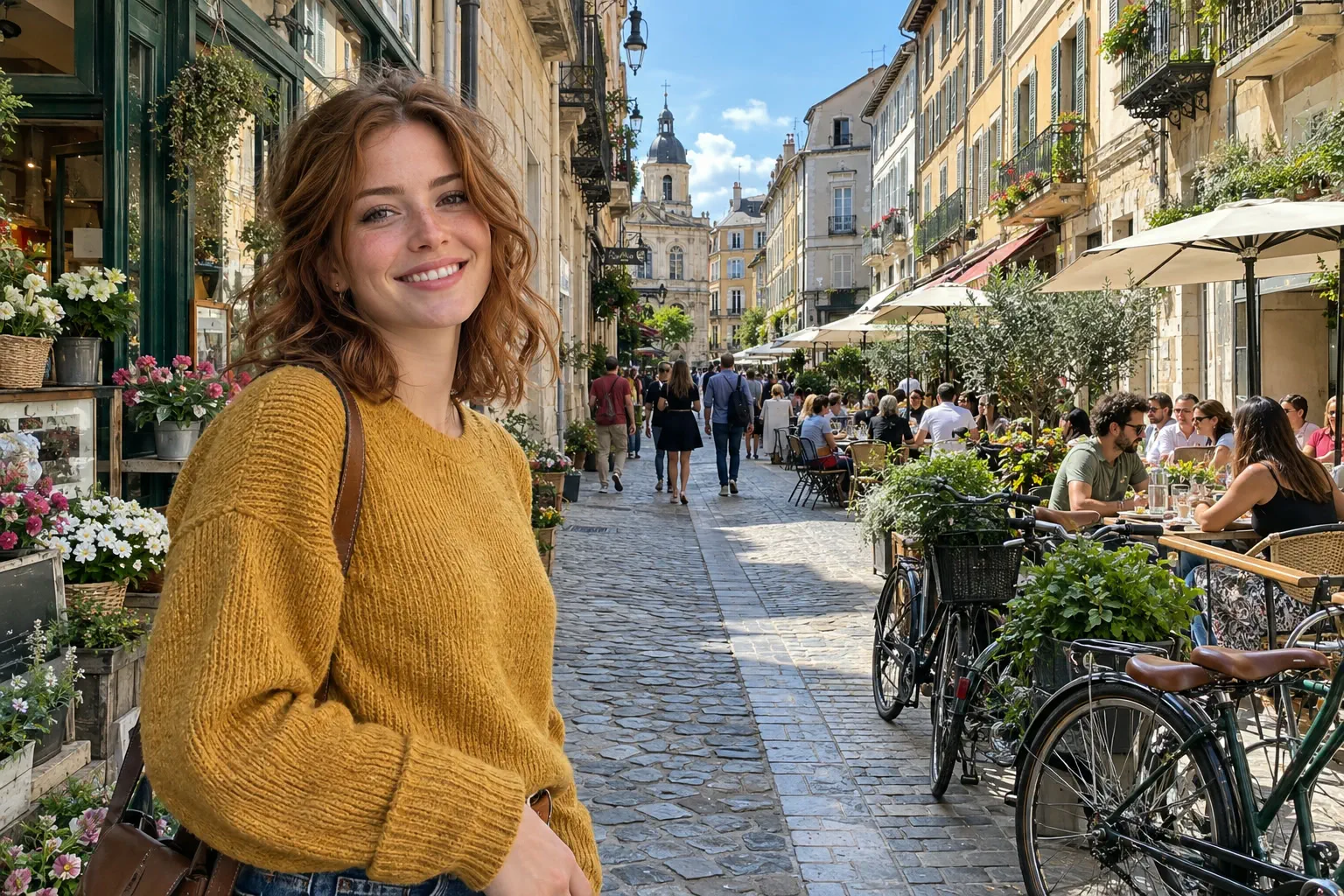
Open the sample from this page, or choose for your own photo.
Add a Gradient Map adjustment layer
Choose Check that Type is Solid and Method is Classic (the defaults). The starting black-to-white gradient gives a grayscale preview.
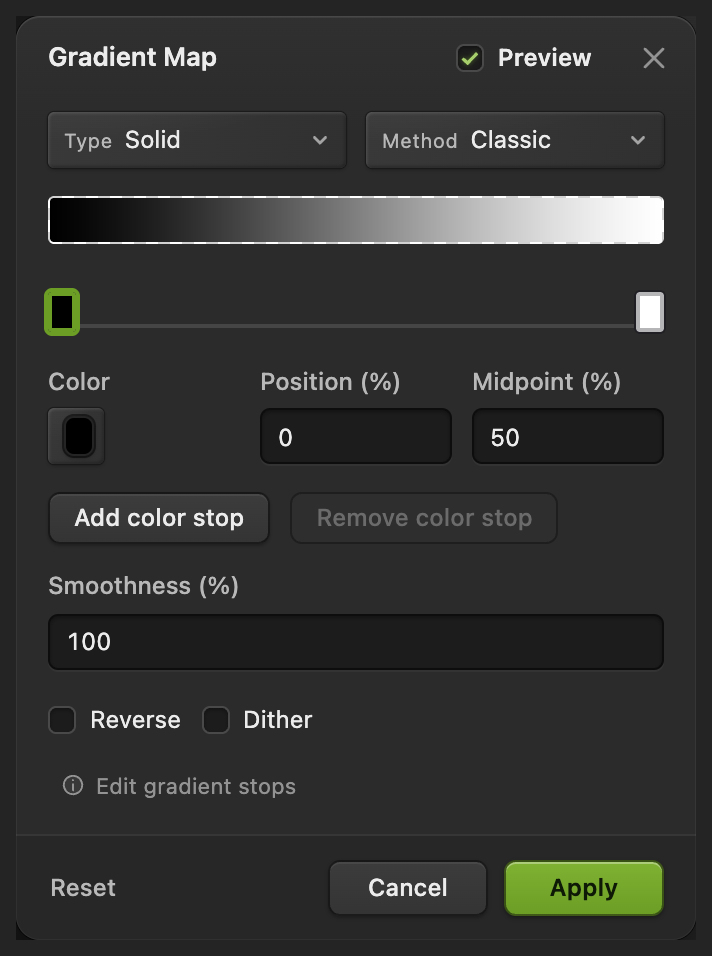
The small stops below the gradient select the color to edit. Choose the dark color
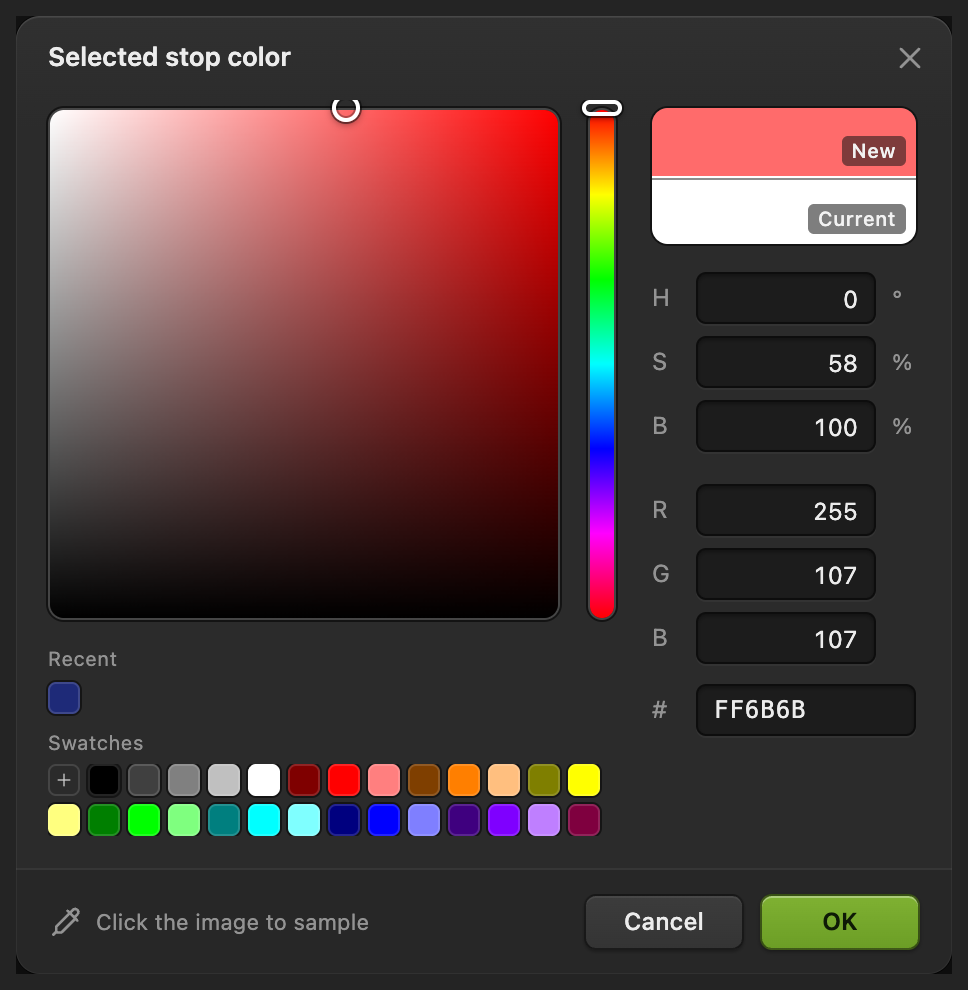
Click the left stop below the gradient bar (0%), then click the Color swatch. In Selected stop color, enter 1E2A78 in the # field and click OK. This navy replaces the darkest tones.
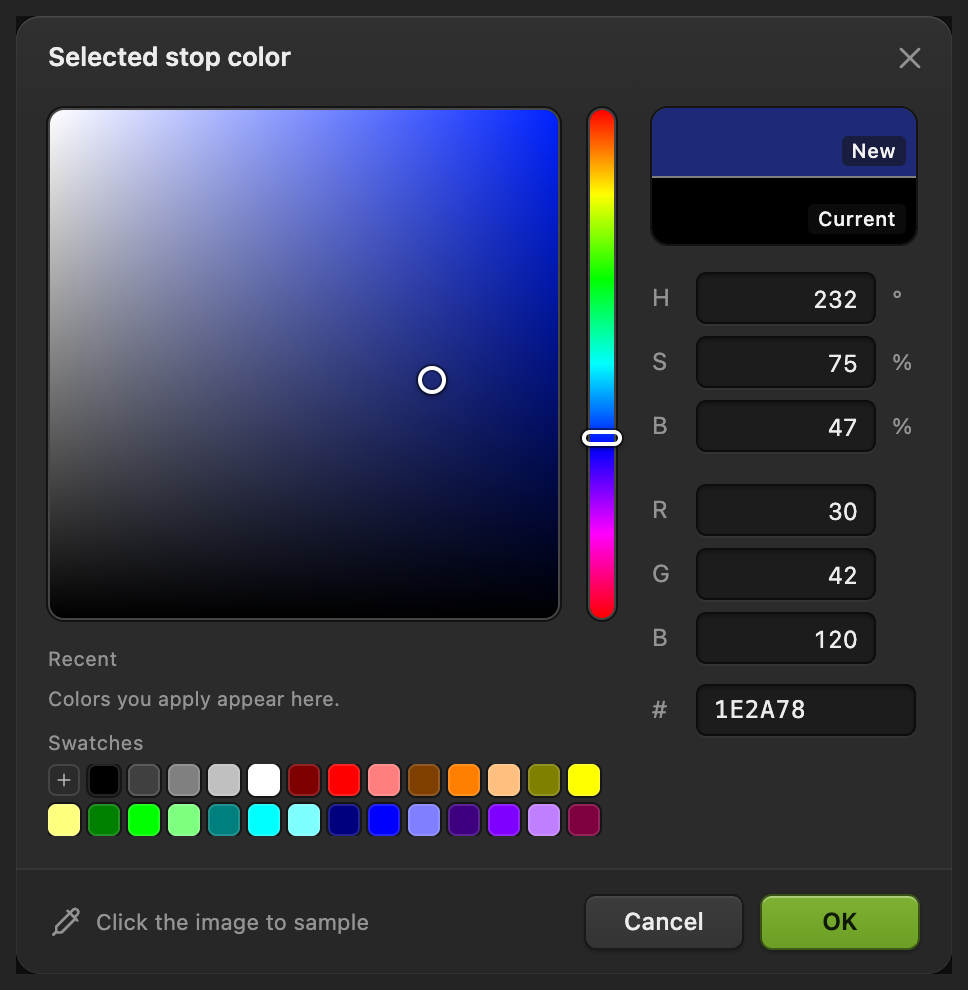
Choose the shadow end of the palette. Choose the light color and apply
Click the right stop below the gradient bar (100%) and its Color swatch. Enter FF6B6B in the # field and click OK for coral. Back in Gradient Map, click Apply and wait for the dialog to close.
Choose the highlight end of the palette. 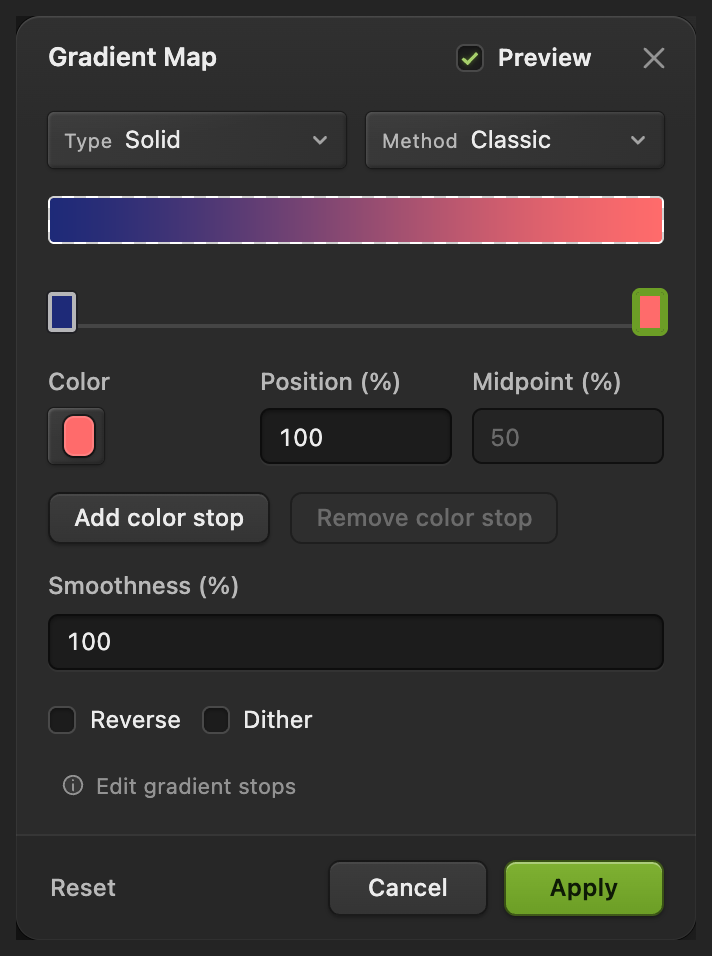
Apply the finished palette. Export, and keep the palette editable
Choose , enter duotone.png in File name and click Export.
Export writes a new file and leaves the original as it was. To keep the Gradient Map editable, choose ; after that, updates the project. on the opened JPEG instead writes a flat JPEG back to it, and the first time it opens Save Image.

Name the image copy. 
Export the recolored image.
Compare and revise the duotone
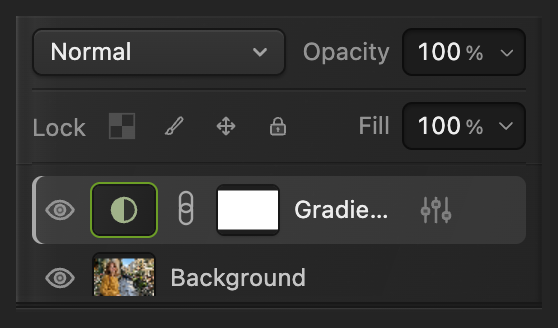
Click the eye beside the Gradient Map layer to compare with the original photo, then click it again to restore the effect. The photo layer’s pixels are unchanged.
Double-click the adjustment thumbnail, the half-filled circle in that row, to reopen Gradient Map. Edit the stops as in steps 3 and 4 and click Apply. The long layer name may appear shortened in Layers.
What to do next
Duotone photos: questions and answers
Do I need a black-and-white photo before making a duotone?
No. In Lil Cactus, Gradient Map uses the brightness of a color photo too. You do not need a separate Desaturate step.
Why does a duotone photo contain more than two flat colors?
A photographic duotone uses mixtures of its two endpoint colors to keep shading. In Lil Cactus, the Classic Gradient Map blends between the chosen stops rather than reducing every pixel to one of two solid colors.
Why can I still see the original colors through my duotone?
In Lil Cactus, a lower adjustment-layer opacity or a different blend mode can mix the original photo back in. For this example, keep the Gradient Map layer’s Blend mode on Normal and Opacity at 100%.
Can I apply a duotone to only part of a photo?
Yes. In Lil Cactus, use the adjustment layer’s mask to limit the effect to an area of the photo.
How do I swap the dark and light duotone colors?
In Lil Cactus, reopen Gradient Map, check Reverse and click Apply. Reverse changes which end of the palette maps to the dark and light tones.
Keep going
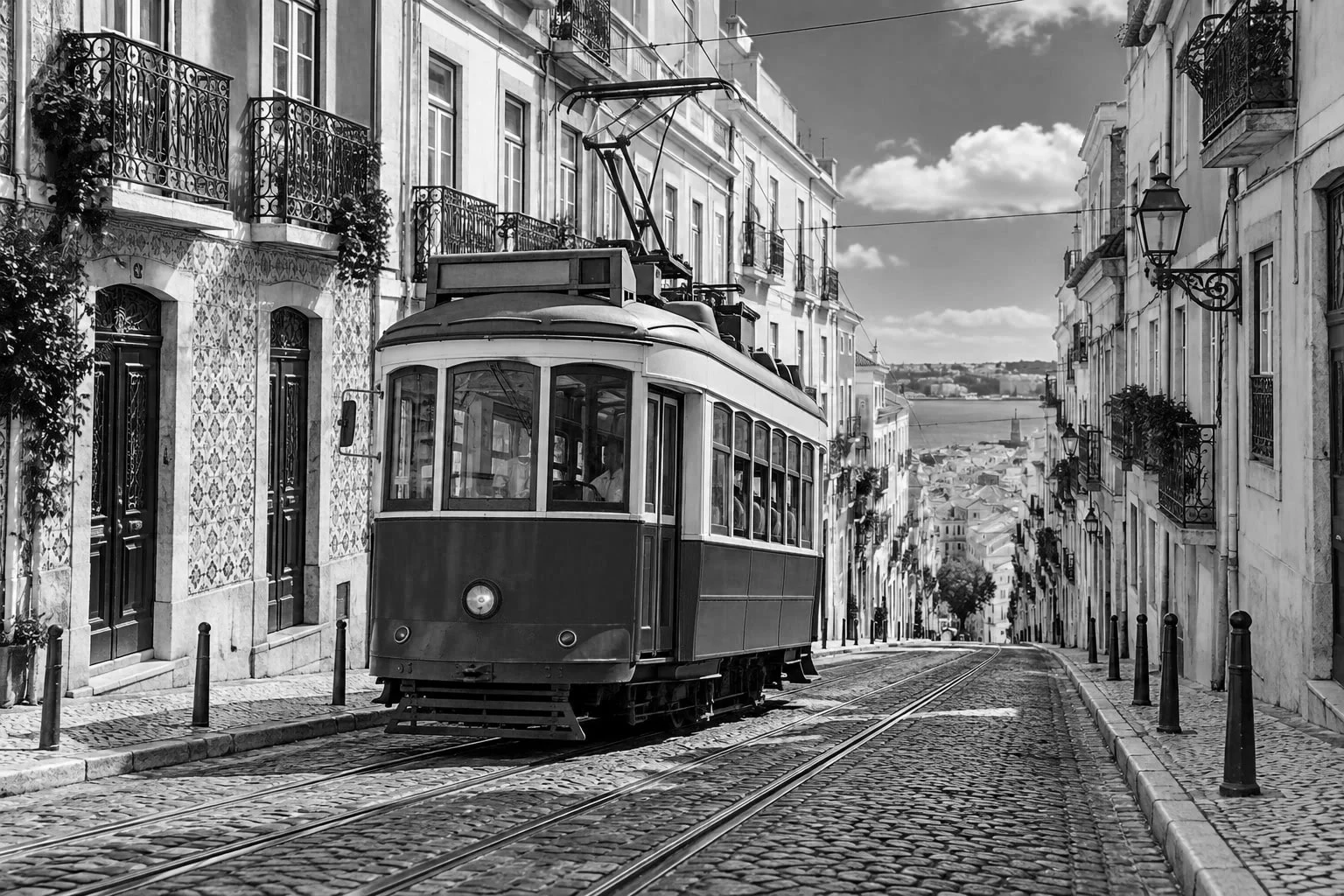 How to make a photo black and whiteChoose how light each color turns, so the photo doesn’t go flat.Beginner · 5 min
 How to use Curves to fix contrast and colorRead the graph, build an S-curve and shift color by channel.Intermediate · 8 min
 How to use adjustment layersColor and tone changes you can retune, hide or limit to one area.Beginner · 5 min