How to replace the sky in a photo
Quick answer
In Lil Cactus, open the landscape and choose ; for the sample, keep Sky confidence at 50%, set Edge recovery to 4 px, leave Soften edge on and click Apply. Choose , then to keep the landscape visible and hide its sky. Choose , use to add a sky photo, and choose . Position the sky, repair any missing foreground on the mask and save a Lil Cactus Project to keep both layers.
- Time
- 8 minutes
- Level
- Intermediate
- You need
- A landscape and a sky photo with compatible lighting
- Works with
- RGB photos, including JPEG, PNG and WebP
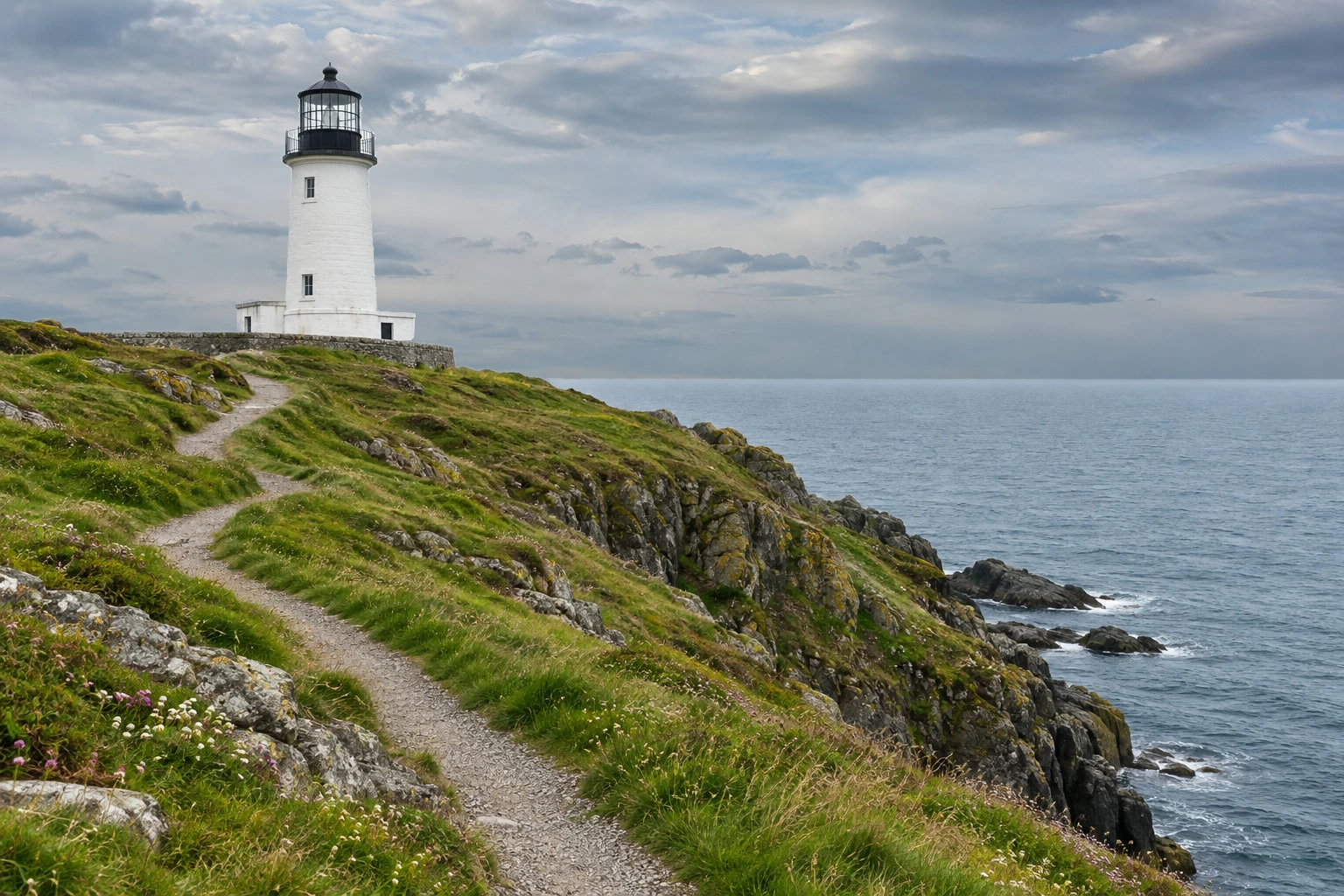
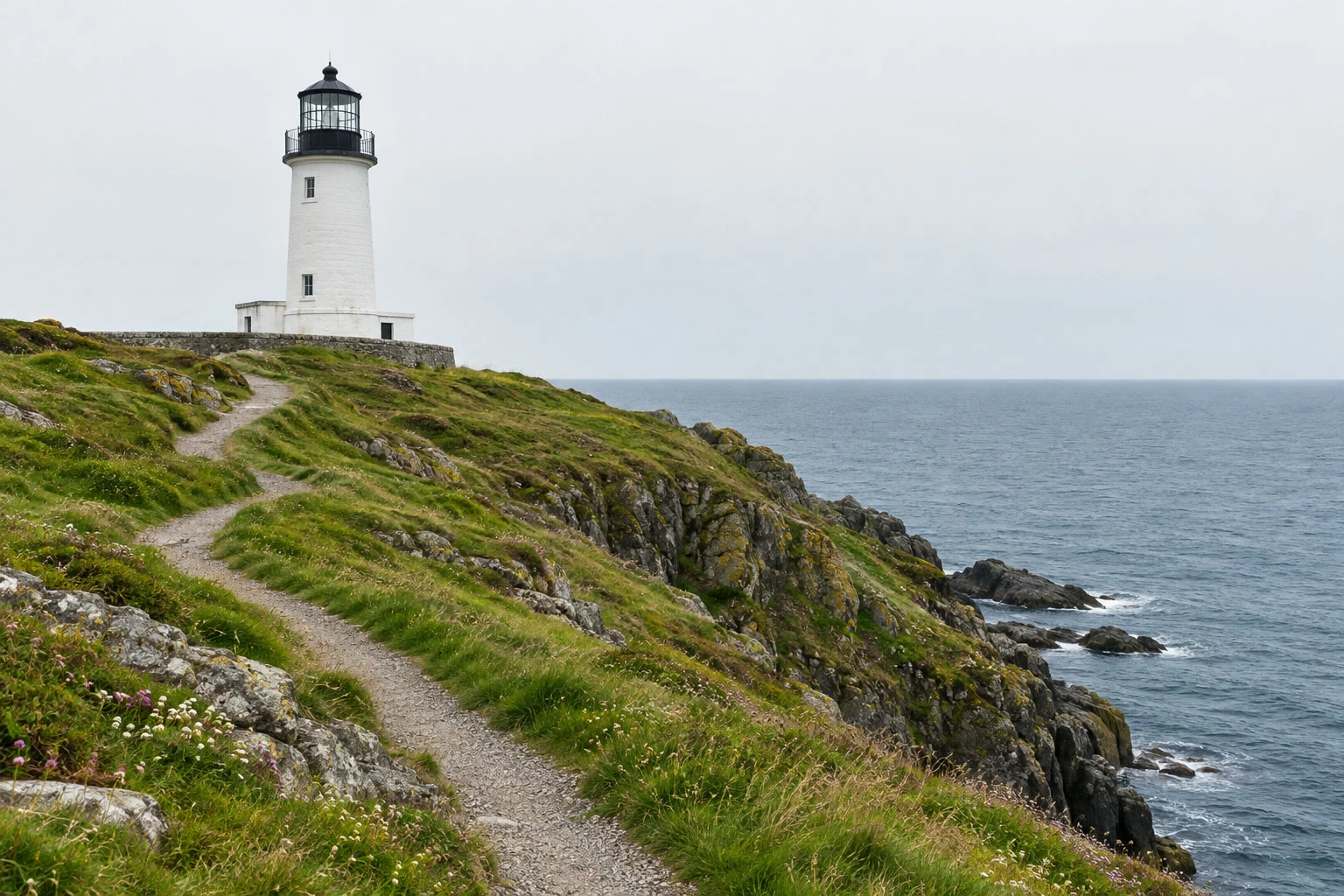
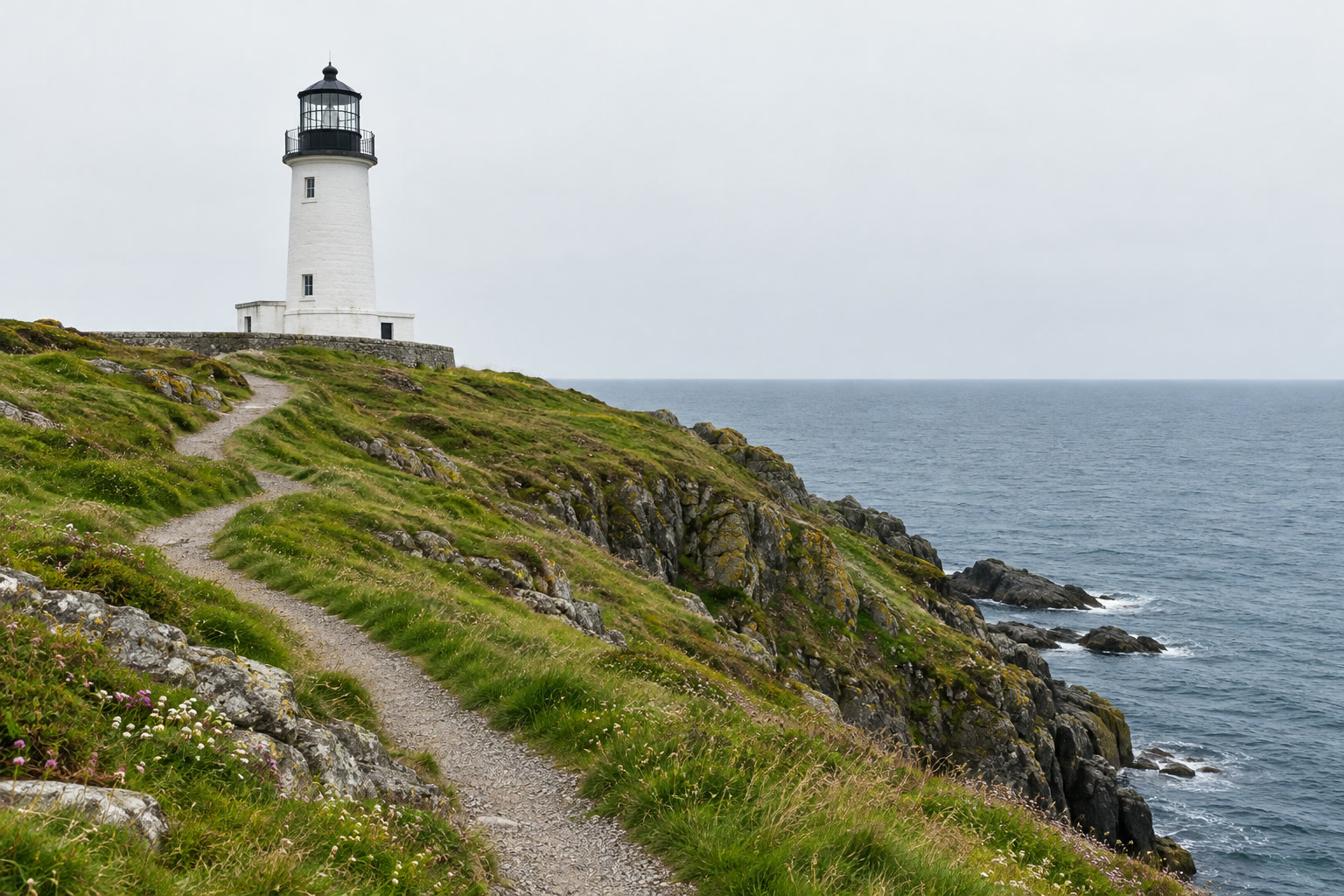
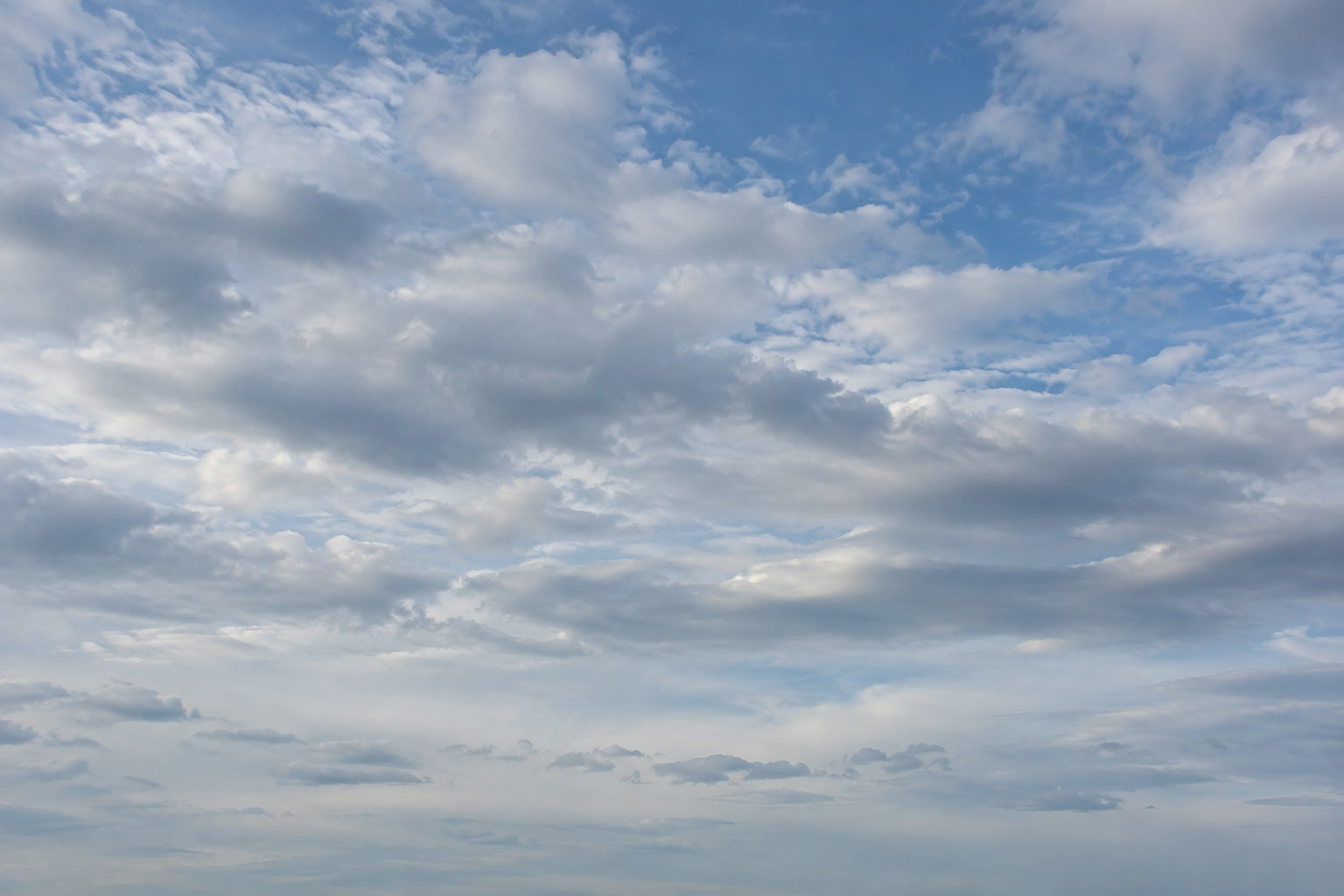
Sample files:Lighthouse photoDaylight sky
Free, no sign-up. Your photos stay on your computer.
Sky replacement combines two photos. A layer mask, a black-and-white picture attached to the landscape layer, hides its original sky: white shows the landscape, black lets the new sky underneath show through.
Choose a sky that belongs in the scene. This coastal photo has soft daylight and a gray-blue sea, so the sample replacement uses cool, softly lit clouds. A golden sunset would also need changes to the foreground’s lighting and color.
Replace a sky in seven steps
Open the landscape and select its sky
Download both sample files above, then choose and open lighthouse-dull-sky.jpg. Keep sky-soft-daylight.jpg for step 4.
Choose Wait for the preview to finish. The first use may need to download the selection model; the image processing runs on your device.
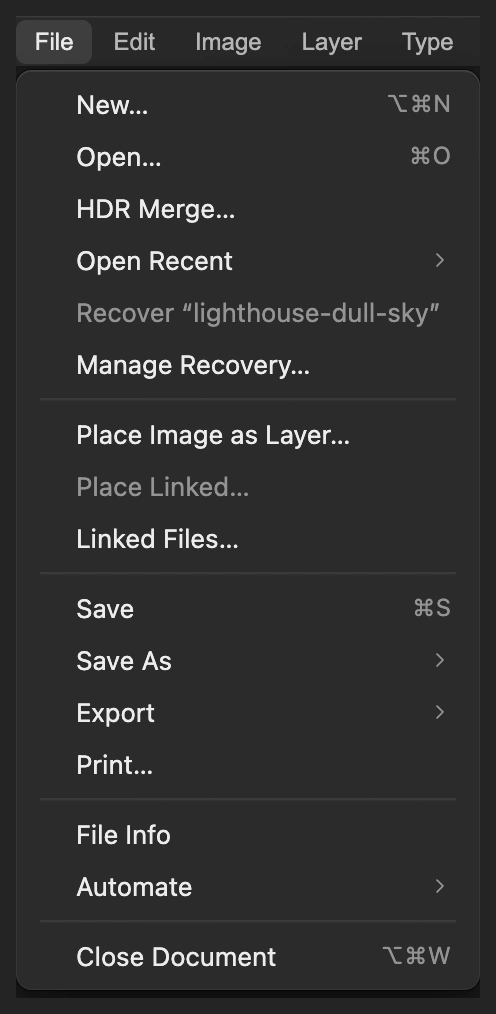
Open the landscape as a document. Place Image as Layer adds the second photo later. 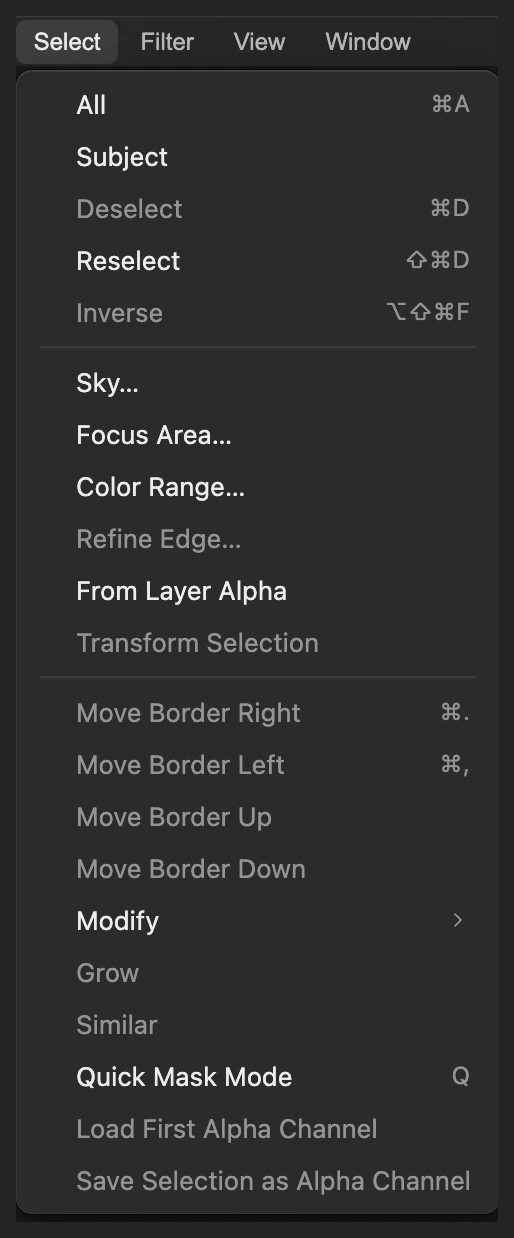
Select Sky finds the sky in the visible picture. Check the selection preview
For the sample, leave Sky confidence at 50%, set Edge recovery to 4 px and leave Soften edge checked. The smaller recovery radius suits the lighthouse’s hard outline. Click Apply.
The preview shows the selected sky over a checkerboard. It is a starting point: pale buildings can be mistaken for sky. You will restore the missing corner of the lighthouse after adding the replacement.
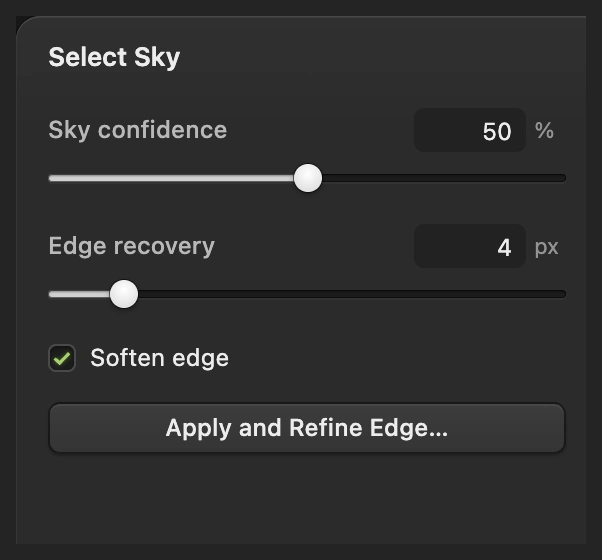
Use these values for the sample; another skyline may need a different confidence or edge radius. 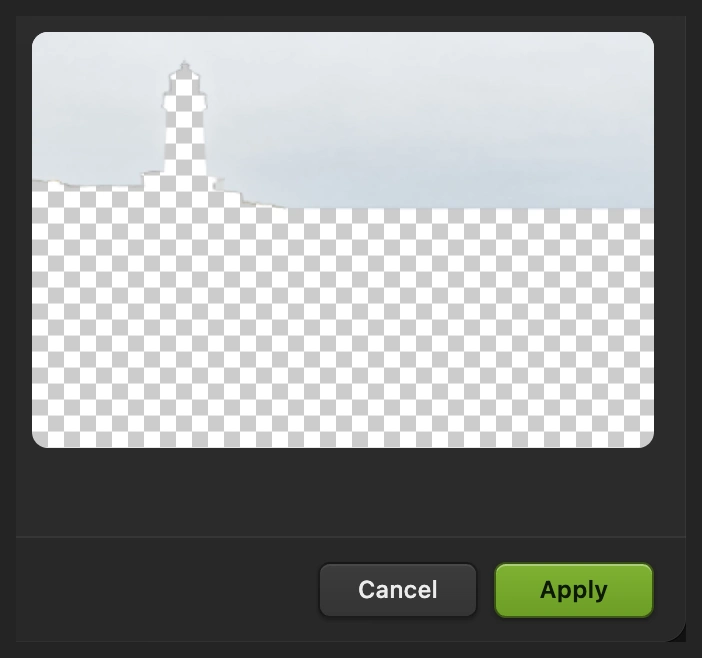
The sky is selected; the checkerboard marks the area left out. Make a mask that keeps the landscape
Choose , so the land, sea and lighthouse are selected instead of the sky. Then choose .
The original sky disappears into a checkerboard. A second thumbnail appears beside Background in the Layers panel: that is the mask. Choose before adding the other photo.
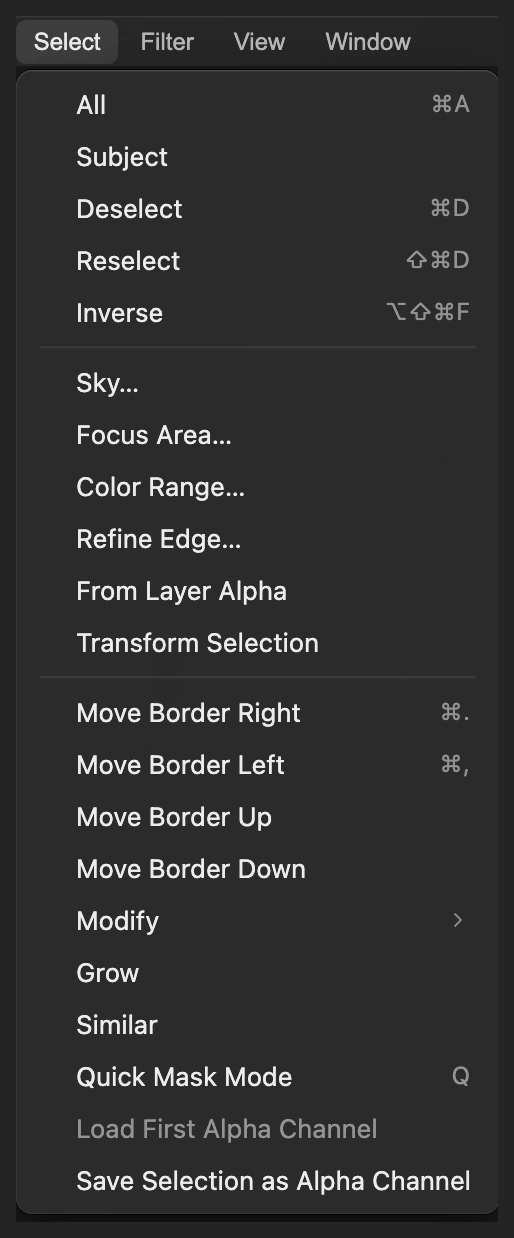
Inverse swaps sky for foreground. Deselect clears the selection after the mask is made. 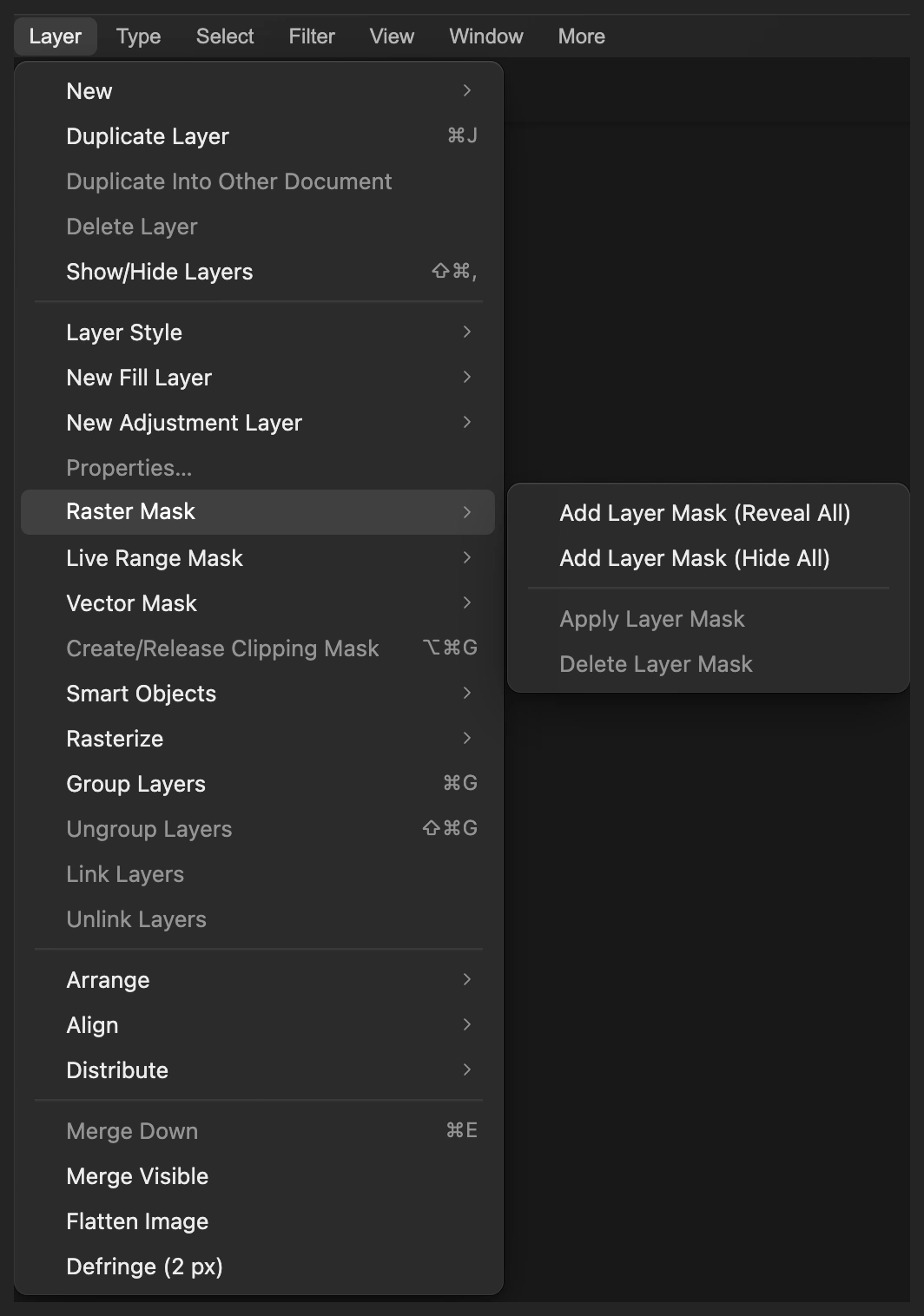
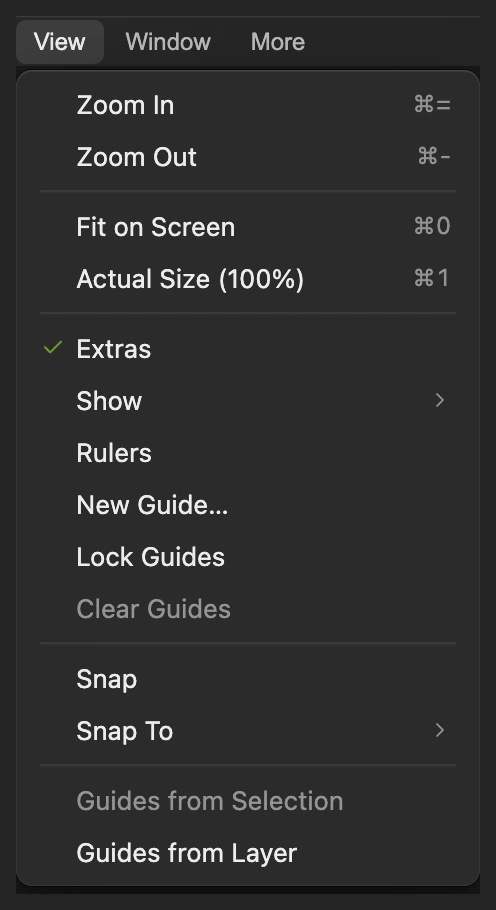
Despite its name, Reveal All uses the active selection when you have one. Place the new sky below the landscape
Choose and select sky-soft-daylight.jpg. It appears as a new layer above Background and initially covers the picture.
With sky-soft-daylight still selected, choose . The masked Background is now above the new sky. The lighthouse and cliff reappear, with clouds showing through the hidden sky area.
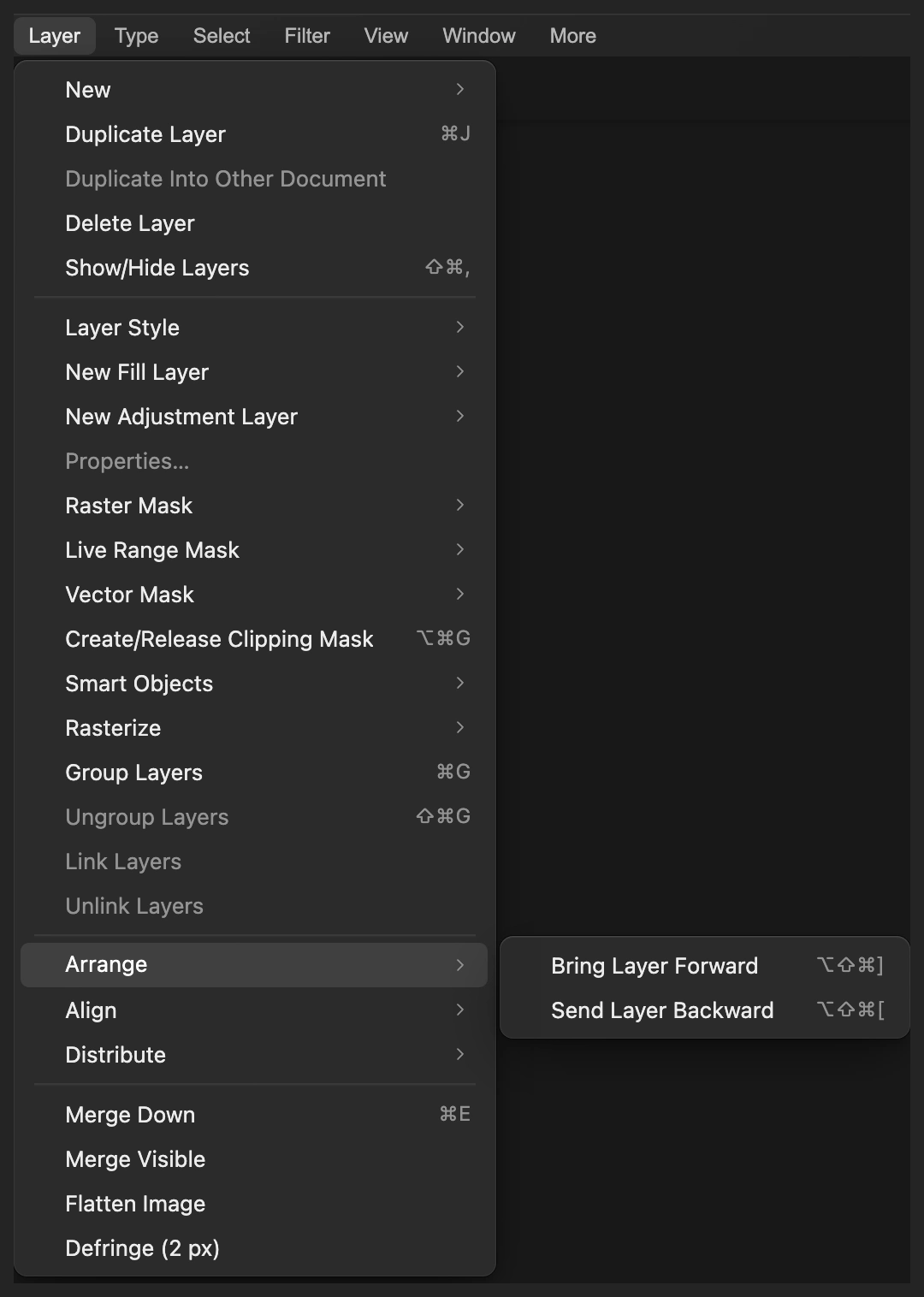
Move the sky one layer down, behind the masked landscape. 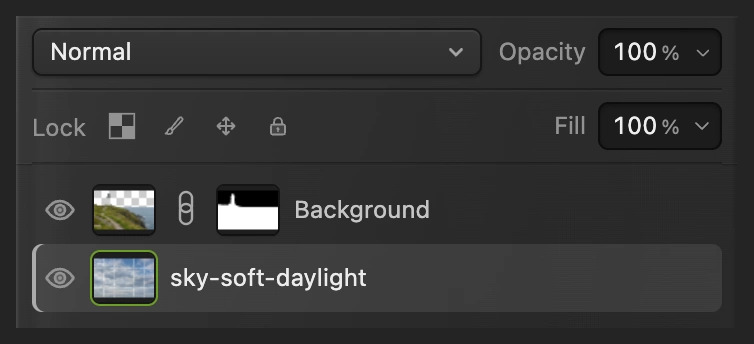
The masked Background (its mask ringed) belongs on top; the sky belongs underneath. Position the clouds at the horizon
Keep the sky layer selected and choose . In the options bar, choose the center dot of the reference grid. For the sample, set Y to −68 and leave the other values unchanged: X 768, W and H 100%, Angle 0°. Click the check mark, Commit transform.
This moves the sky upward by 580 px, placing its paler lower clouds at the sea horizon. For a different sky, drag inside the transform box until the cloud scale and horizon look plausible, keeping the entire hidden-sky area covered.
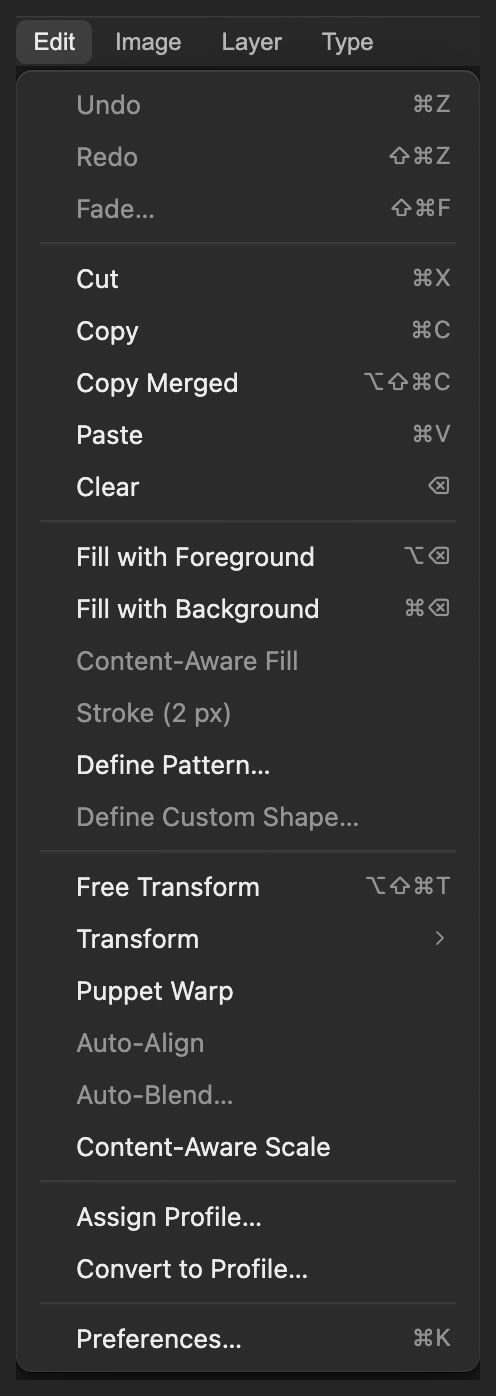
Transform only the selected sky layer. 
Y is the vertical position of the chosen reference point, here the sky’s center. 
The check mark commits the new position. Restore the pale wall on the mask
Choose until the lighthouse base is easy to see, about 300%. If you need to pan, click the picture once first, then hold the space bar and drag. Click the Background mask thumbnail, the black-and-white thumbnail beside the landscape.
Right-click the brush icon in the left toolbar and choose Brush. Press D, then X, to paint white. Set Size to 6 px and check that Hardness, Opacity and Flow are at 100%, their defaults.
Paint short strokes inside the pale wall around the black door on the right of the lighthouse. Follow the roof lip above it and stop at the wall’s outer edge. Reduce Size to 2 px for the narrow right edge and roof tip. White on the mask brings these original building pixels back. Keep the strokes off the sky.
Tip If a stroke brings back old sky, press Ctrl+Z or ⌘Z to undo it, then use a smaller brush.
Enlarge the lighthouse base before repairing the mask. 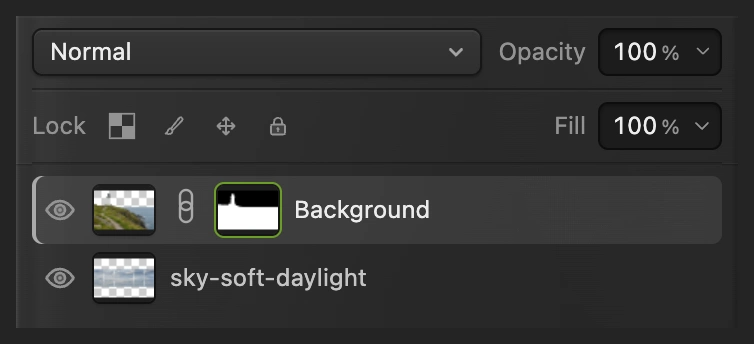
Select the mask so the brush changes visibility rather than painting white on the photo. 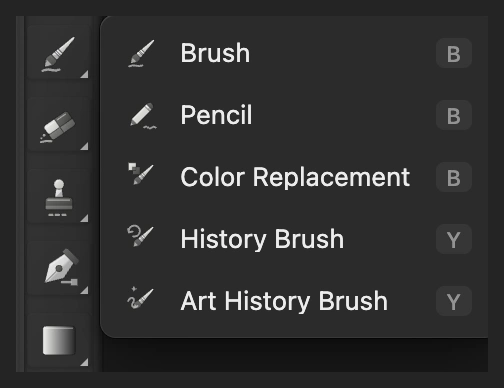
Choose Brush from the toolbar group. 
Use a small hard brush inside the straight building edges. 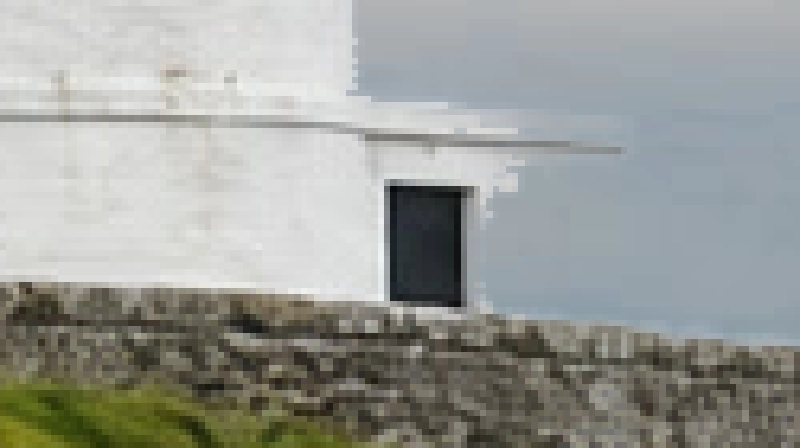
Before repair: part of the pale wall beside the black door is missing. 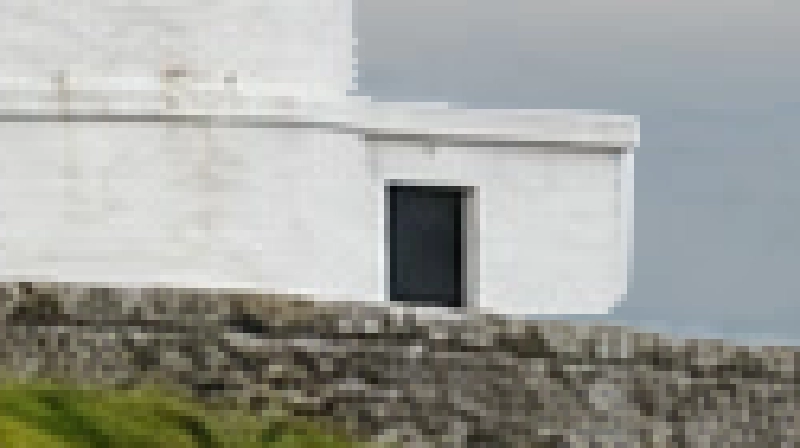
After repair: the wall and roof lip are visible again. Follow their outline, not a rectangle around the whole building. Save the layers and export a finished copy
Choose to keep the landscape, its mask and the sky as separate editable parts. After that, saves the project. Choose and click Export for a new finished photo.
If you stay with the opened JPEG, writes a flat picture in that format; its first Save opens Save Image.
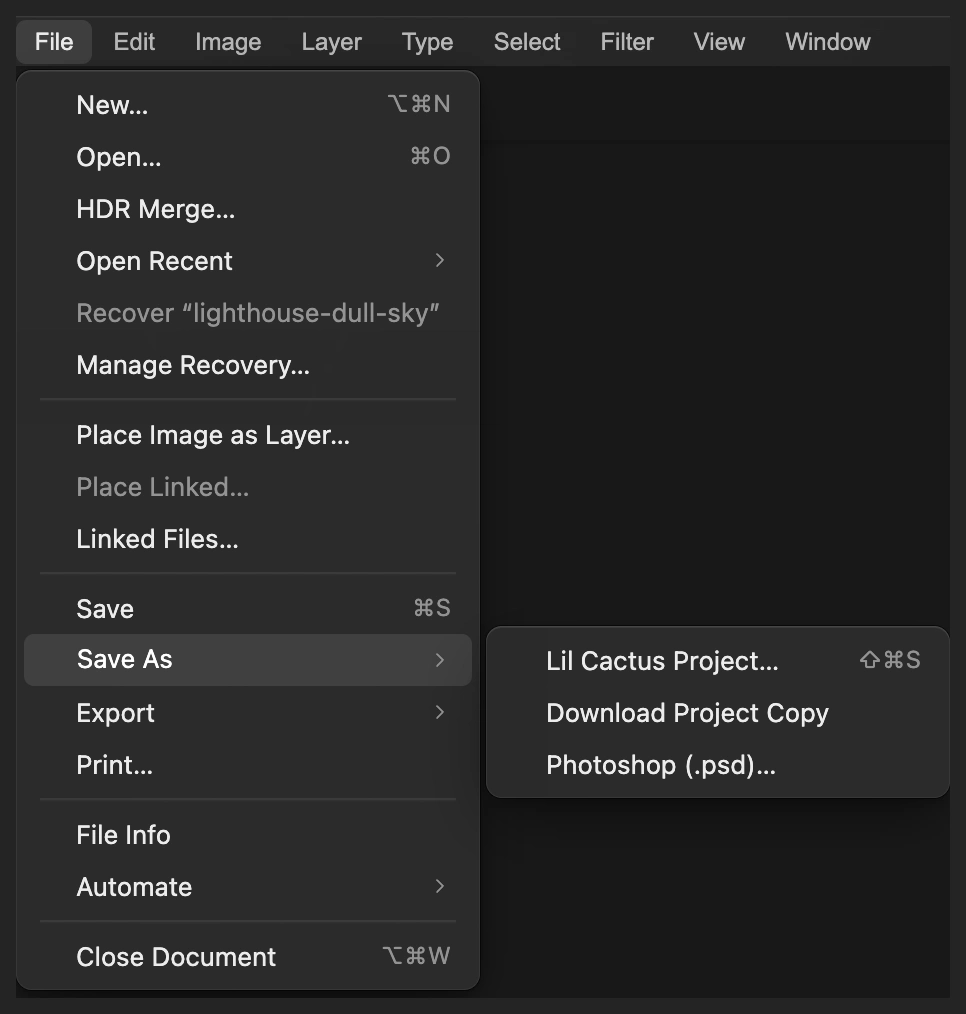
Keep a project for later mask and sky changes. 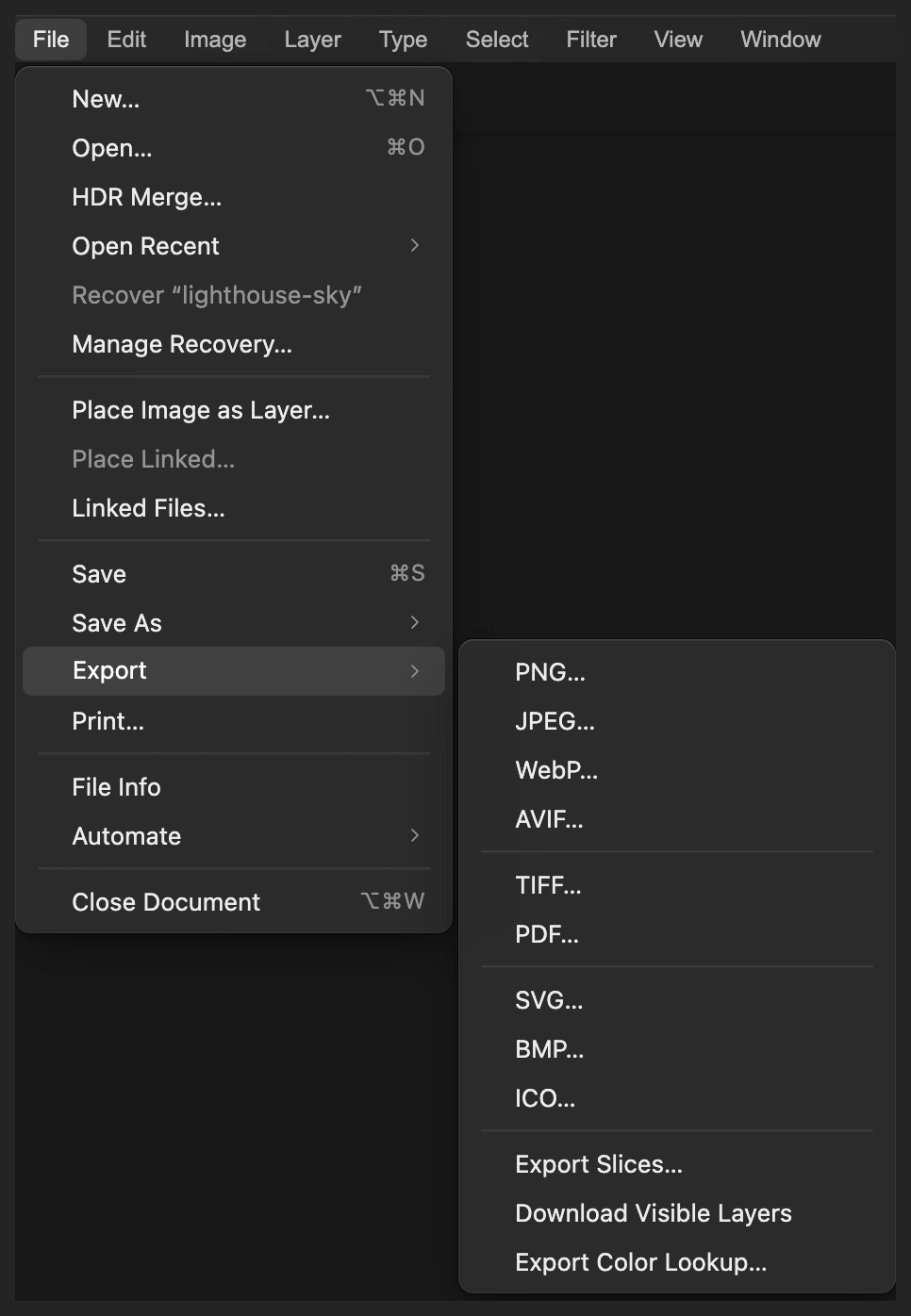
JPEG exports a finished photo to a new file. 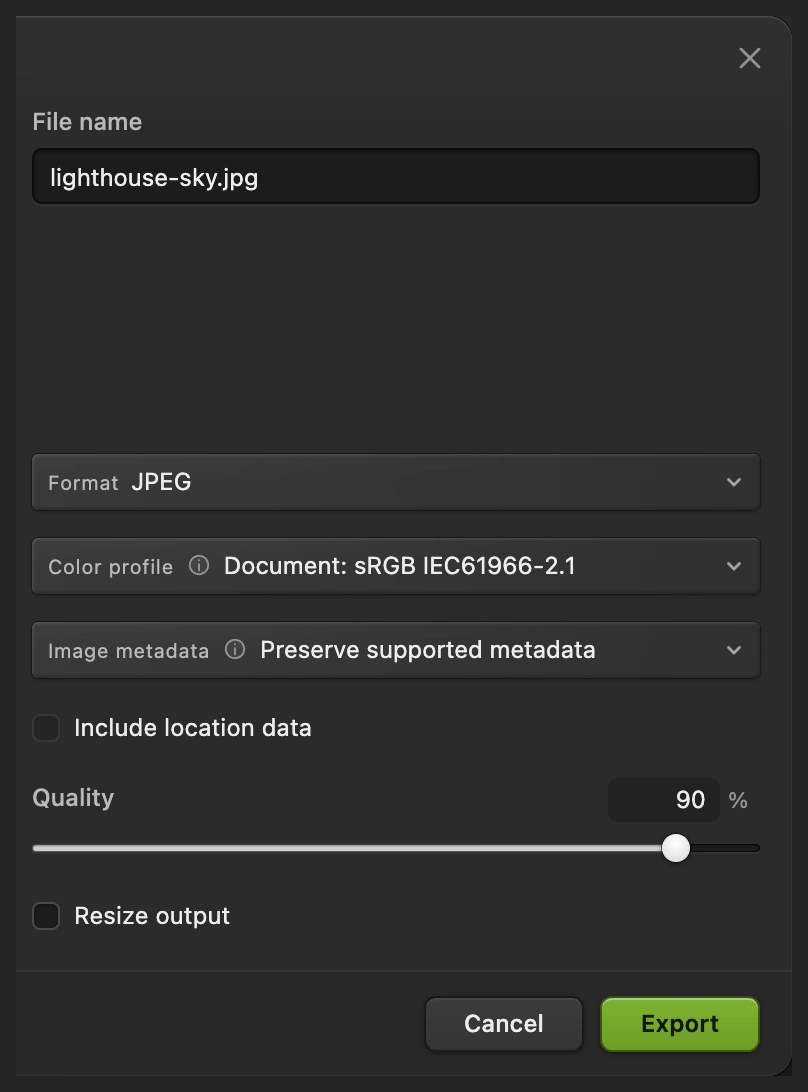
Export a combined copy for sharing.
Fit a different sky
A sky photo with no land or water is easier to position. Start with enough pixels to cover the whole opening. In Free Transform, keep width and height linked when resizing so clouds keep their proportions. Use the sky’s distant, paler region at a sea horizon rather than cutting through a large nearby cloud.
Inspect the lantern, roof and cliff edge as well as the whole picture. A mask can hide a building corner or leave a pale fringe. White on the landscape mask restores foreground; black hides remaining original sky. Use a small brush near hard edges. Trees, wires and translucent branches need more careful masking than this sample.
Fix common problems
The new sky covers the lighthouse
The sky layer is above the landscape. Select it in Layers and choose until it sits below the masked Background.
The landscape disappears instead of the sky
The mask was made from the sky selection. Select the Background mask thumbnail and choose to swap its light and dark areas. Invert applies immediately.
A checkerboard strip appears near the horizon
The sky has been moved too far up or is too small to fill the opening. Select the sky layer in Layers and use to cover the whole masked area.
The clouds look pasted in
Check cloud scale, direction of light and brightness at the horizon. A sharp sunlit sky above a shadowless foreground needs more work than changing its position. Choose a closer lighting match before trying to correct the colors.
What to do next
Coming from another editor
- Photoshop
- Edit › Sky Replacement…
Sky replacement: questions and answers
Does Select Sky replace the sky automatically?
No. Lil Cactus’s Select Sky makes an editable selection. You use it to make a mask, then place and position a separate sky photo behind the landscape.
Can I replace a completely white sky?
Yes. In Lil Cactus you can hide a white sky with a layer mask and show a different photo underneath. This adds new cloud detail; it does not recover detail from the white pixels.
Can I move the new sky without moving the landscape?
Yes. In Lil Cactus, select the sky photo layer before choosing Edit › Free Transform. The landscape stays in place on its own layer above it.
Can I change a replacement sky after saving?
Yes, if you save a Lil Cactus Project. Its layers and mask remain editable; a JPEG export contains their combined appearance.
Does sky replacement also change reflections in water?
No. This Lil Cactus method replaces only the area hidden by the landscape mask. A visible reflection of distinctive clouds needs a separate edit to agree with the new sky.
Is my photo uploaded during sky replacement?
No. Lil Cactus processes Select Sky and the layered composition on your device. The first use may download the selection model.
Keep going
 How to use layer masksHide part of a layer without deleting it, and bring it back any time.Beginner · 5 min
 How to make a selection in a photo editorPick the right tool, add and subtract, feather and save a selection.Beginner · 6 min
 How to change the background of a photoPut a cut-out on a new background and match the light and color.Beginner · 8 min